Create a Presentation with AI from Any Topic
Published on June 22, 2026
The fastest way to create presentation with AI is to treat the tool like a slide planning partner, not a magic export button. Give it the topic, the audience, the goal, the slide count, the tone, and the information that must appear. Ask for the outline first, fix the story, then generate the deck.
This workflow is useful when you have a class assignment, internal report, client proposal, workshop plan, product explanation, or pitch idea but do not want to start from a blank slide. It keeps the speed of AI while preserving the judgment that makes a presentation credible.
When you are ready to turn the workflow into slides, PopAi AI Presentation can help transform rough notes, documents, or prompts into an editable deck structure.
The Short Workflow: Topic, Outline, Deck, Edit
Use this section when you need the answer quickly and want a reliable order of operations.
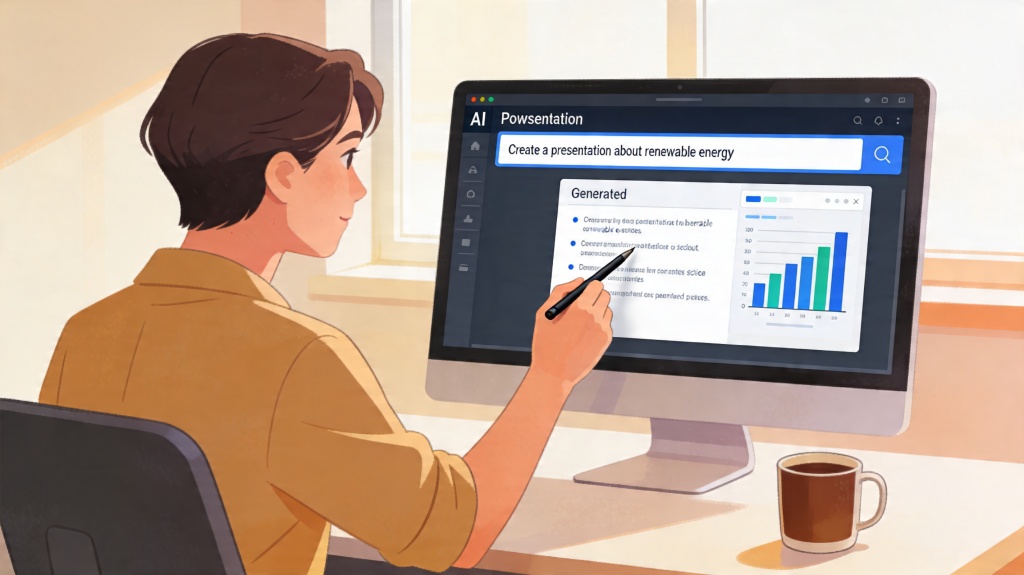
A weak prompt says, "Make a presentation about renewable energy." A stronger prompt says, "Create an 8-slide presentation for high school students explaining renewable energy basics, with one real-world example, one comparison slide, and simple speaker notes." For reusable wording patterns, use the AI presentation prompts guide before generating the full deck. The second version gives the AI enough context to build a deck that has a job.
The practical workflow has four passes. First, define the audience and outcome. Second, ask for a slide outline. Third, generate the deck from the approved outline. Fourth, edit the content, visuals, and speaker notes before you share it.
- Audience: Name who will read or hear the deck, such as executives, classmates, teachers, customers, or project stakeholders.
- Outcome: State what the audience should understand, decide, approve, or do after the presentation.
- Structure: Ask for slide titles and the purpose of each slide before asking for a finished deck.
- Evidence: Add your own numbers, examples, sources, screenshots, or project details after the draft is created. For proof-heavy success stories, use an AI case study presentation structure so the evidence does not get buried in generic slides.
The best AI-generated deck is not the one with the most slides. It is the one where every slide has a reason to exist.
Prepare the Input Before You Generate Slides
A few minutes of preparation usually saves far more time during editing.
Before opening any AI presentation maker, write a short input brief. It does not need to be polished. It only needs to tell the AI what matters. If you skip this step, the tool may produce a deck that looks complete but misses the real audience, the decision, or the level of detail.
Define the audience and situation
A presentation for a manager is different from a presentation for classmates. A sales deck is different from a training deck. Audience context changes vocabulary, slide density, pacing, and the kind of proof the deck needs.
Choose the slide count
Slide count is a constraint, not a decoration. A 5-slide update should move quickly: context, progress, blockers, next steps, decision needed. A 12-slide workshop can include examples, exercises, and recap slides. Tell the AI the limit so it can size the story correctly.
List the required points
If a teacher gave a rubric, paste the rubric. If a client asked for pricing, timeline, and risk, include those sections. If the meeting depends on Q3 metrics, add the metrics yourself. AI can organize material, but it cannot know private requirements unless you provide them.
Topic: [your topic]. Audience: [who will watch]. Goal: [what they should decide or learn]. Length: [number of slides]. Must include: [sections, examples, data, or files]. Tone: [professional, classroom, executive, persuasive, training].
Ask for an Outline Before the Full Deck
Outline-first generation gives you a chance to fix the story while changes are still cheap.
Many people ask AI to create the full presentation immediately. That can work for low-stakes drafts, but it often produces generic slides because the tool has to guess the structure and the design at the same time. Asking for an outline first separates thinking from formatting.
The outline should include slide title, slide purpose, key message, suggested visual, and speaker note direction. If you need a reusable 12-15 slide planning workflow, start with an AI presentation outline generator before creating the full deck. This makes it easy to see whether the presentation has a logical beginning, middle, and ending.
What a strong outline should show
- Opening: The first slide should quickly explain why the topic matters to this audience.
- Progression: Each slide should answer the next question the audience is likely to ask.
- Evidence: Important claims should have a place for examples, data, or source material.
- Decision or action: The final slide should make the next step clear.
How to edit the outline
Remove duplicate slides, merge sections that repeat the same idea, and add missing context before you generate visuals. If the outline feels like a blog post broken into slides, ask the AI to convert it into a presentation story with fewer points per slide.
Fixing a weak outline after the deck is designed takes longer than reviewing a plain slide plan at the start.
Generate the Deck with Clear Design Direction
Once the outline works, tell the AI what kind of deck it should create.
Design direction helps the AI choose layout density, visual style, and tone. "Professional" is a start, but it is often too broad. Try phrases like "minimal executive update," "bright classroom lesson," "clean product proposal," "visual workshop handout," or "startup pitch deck with concise titles."
In PopAi, a practical flow is to paste the topic or source notes, generate the outline, then create an editable deck that you can refine. If you are still comparing features, free limits, export needs, or privacy basics, review the AI tool for presentation core guide first. For document-heavy topics, upload the source material or summarize the key points first so the deck follows your actual information instead of generic web knowledge.
Deck types and what to request
- Business update: Ask for progress, metrics, blockers, risks, next steps, and decisions needed.
- Class presentation: Ask for simple definitions, one everyday example, a short quiz, and a recap slide.
- Client proposal: Ask for the problem, recommended solution, deliverables, timeline, proof points, and call to action. If you need scope, timeline, and pricing in one client-ready deck, use an AI proposal deck generator workflow.
- Training deck: Ask for agenda, teaching points, examples, practice activity, and takeaway checklist.
- Pitch draft: Ask for problem, audience, product, market context, traction placeholders, roadmap, and ask. If the roadmap is the main deliverable, use an AI product roadmap deck template instead of a generic pitch outline.
Do not worry if the first draft is not visually perfect. At this stage, the goal is to get a complete, editable structure. The polishing pass comes next.
Prompt Templates You Can Copy
Use these prompts as starting points, then replace the bracketed details with your real topic and audience.
General topic-to-slides prompt
Create a [NUMBER]-slide presentation about [TOPIC] for [AUDIENCE]. The goal is to help them [OUTCOME]. First create a slide-by-slide outline with title, key message, suggested visual, and speaker note direction. Use a [TONE] tone and keep each slide focused on one idea.
Business report prompt
Create a 7-slide internal presentation about [PROJECT OR REPORT]. Include context, current status, key metrics, wins, blockers, risks, next steps, and decisions needed. Use concise executive language. Leave placeholders where I should add real numbers.
Class presentation prompt
Create an 8-slide classroom presentation about [TOPIC] for [GRADE OR LEVEL]. Explain the concept in plain language, include one real-world example, one visual analogy, one short quiz slide, and a recap slide. Add speaker notes that a student can present naturally.
Sales or proposal prompt
Create a 10-slide proposal for [PRODUCT OR SERVICE] aimed at [CUSTOMER TYPE]. Cover the customer problem, why it matters now, solution overview, benefits, proof points, implementation plan, risks, timeline, and call to action. Keep the tone practical and specific.
After the AI returns the outline, ask follow-up questions. For example: "Make slide 4 more visual," "Reduce the deck to 6 slides," "Add a stronger opening for a skeptical audience," or "Rewrite the slide titles so they state conclusions instead of topics."
Edit the First Draft for Accuracy and Specificity
AI can speed up the first draft, but you still need to make the presentation true, specific, and useful.
The most important editing pass is factual. Check dates, numbers, names, prices, citations, customer claims, and technical details. If you do not have a source for a number, remove the number or describe the trend qualitatively.
The second pass is specificity. Replace generic examples with your own classroom topic, client situation, product screenshot, campaign result, project milestone, or team decision. A deck becomes more persuasive when the audience sees details they recognize.
Use this editing checklist
- Does the opening slide answer why this topic matters now?
- Can the audience understand the main message by reading only the slide titles?
- Does each slide contain one main idea instead of several competing ideas?
- Are claims supported by sources, examples, or clearly labeled assumptions?
- Are speaker notes helpful for presenting, not just a copy of slide text?
- Does the final slide ask for a decision, action, or next step?
If a sentence could appear in any presentation about the same topic, make it more specific or remove it.
Make the AI-Generated Slides Look Better
A clean visual pass can make an AI draft feel intentional instead of automatically generated.
Start with slide titles. A title like "Market Overview" is vague. A title like "Small teams need faster ways to turn research into slides" tells the audience what the slide means. Strong titles make the deck easier to skim and easier to present.
Then reduce text. AI often writes too much because it is trying to be helpful. Move details into speaker notes, split dense slides, and turn long paragraphs into short bullets. A slide should guide attention, not compete with the presenter.
Visual edits that usually help
- Replace generic images: Use product screenshots, simple diagrams, project visuals, or real examples when available.
- Control image-led decks: If visuals are the main requirement, use the AI PPT maker with images workflow to prepare source assets, prompts, and image editing checks.
- Use motion with purpose: For decks that need reveals or transitions, review the AI PowerPoint animations checklist before exporting.
- Keep non-designer settings simple: If you do not want to tune every layout manually, follow the AI slide maker non designers minimal settings guide.
- Use consistent hierarchy: Keep title size, body text, captions, and labels consistent across the deck. For typography choices, use the best fonts for presentations guide.
- Keep colors consistent: Before regenerating the deck, define a presentation color palette so backgrounds, accents, and charts follow the same system.
- Limit fonts and colors: A simple system is easier to read than a different style on every slide.
- Choose visuals by purpose: Use timelines for sequences, diagrams for systems, and charts only when numbers matter.
- Check mobile or projector readability: Small text that looks fine on a laptop may fail in a meeting room.
For a quick business deck, the best use of AI is often structure first, template second, human proof third. That order keeps the work fast without letting the final presentation feel generic.
What to Know About Free AI Presentation Tools
Free tools are useful for testing the workflow, but the limits matter when the deck is important.
A free AI presentation generator can be enough for a class draft, quick meeting outline, or early idea exploration. The common limits are generation credits, export formats, slide count, template access, branding, and advanced editing. Check those limits before you rely on the tool for a deadline.
Use free access to test three things: whether the outline quality is good, whether the editor is easy to use, and whether the output can be exported or shared in the format you need. If those three pieces work, the tool is likely useful for your workflow.
How to work around free-plan limits
- Create a shorter outline first, then expand important sections manually.
- Generate one section at a time when slide count is limited.
- Use placeholders for sensitive data and add private numbers after export.
- Keep a copy of the outline so you can rebuild the deck if export options are restricted.
For high-stakes work, do not judge the result only by speed. Judge whether the deck helps the audience make a better decision.
Common Mistakes to Avoid
Most weak AI presentations fail because the prompt is vague or the first draft is accepted too quickly.
Asking for slides without audience context
If the AI does not know who the deck is for, it will usually write for a generic reader. Add audience, level of knowledge, and presentation situation every time.
Skipping the outline review
A polished deck with a weak story still fails. Review the structure before you ask for finished slides, especially for business, academic, or client-facing work.
Leaving generic examples in place
Generic examples make the deck feel disposable. Replace them with your course topic, team project, market, customer profile, or product detail.
Overloading slides with text
AI may write full explanations on slides. Convert those explanations into speaker notes and keep the slide itself focused on the key message.
Trusting unsupported claims
Do not present numbers, sources, or rankings unless you can verify them. It is better to use careful qualitative wording than to include a false statistic.
FAQ
How do I create a presentation with AI from only a topic?
Turn the topic into a short input brief. Add audience, goal, slide count, tone, and must-have points. Ask for an outline first, edit the flow, then generate the full deck and review it before sharing.
Should I ask AI for an outline or a full deck first?
Ask for an outline first when quality matters. It lets you fix the story before visual design begins. A full deck first is fine for brainstorming, but it often requires more cleanup.
Can I use AI presentation tools for school or work reports?
Yes. They are useful for class reports, project updates, training lessons, proposals, and early pitch drafts. Always add your own evidence, check facts, and follow any assignment or company requirements.
What should I edit after AI creates the deck?
Edit factual accuracy, examples, slide titles, amount of text, visuals, speaker notes, and the final call to action. Treat the AI output as a structured first draft.
Create your presentation with one click now
Start with a topic, notes, or a document, then turn it into an editable presentation draft you can refine for class, work, or client communication.
Try PopAi AI Presentation