AI Generated PowerPoint Checklist: Review Before You Present
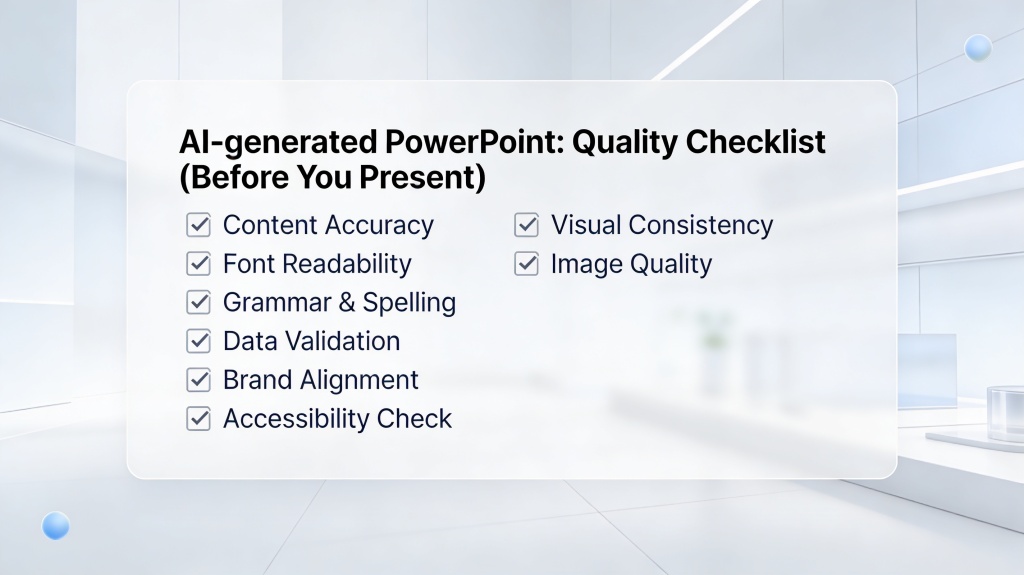
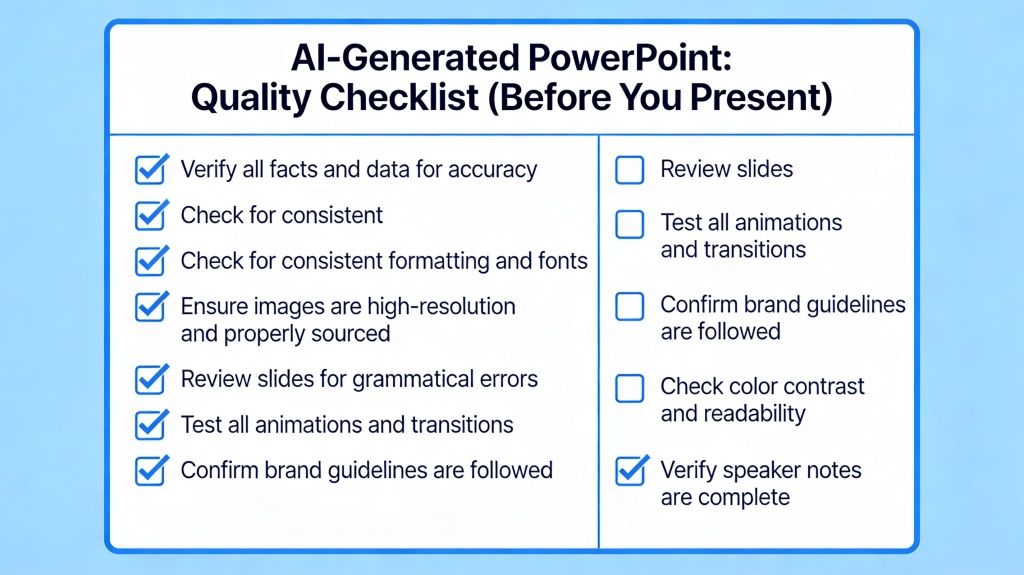
An AI generated PowerPoint should be treated as a fast first draft, not a finished presentation. Before you present it to investors, executives, clients, students, or your team, you need to check the storyline, facts, visual consistency, speaker notes, image quality, and export format.
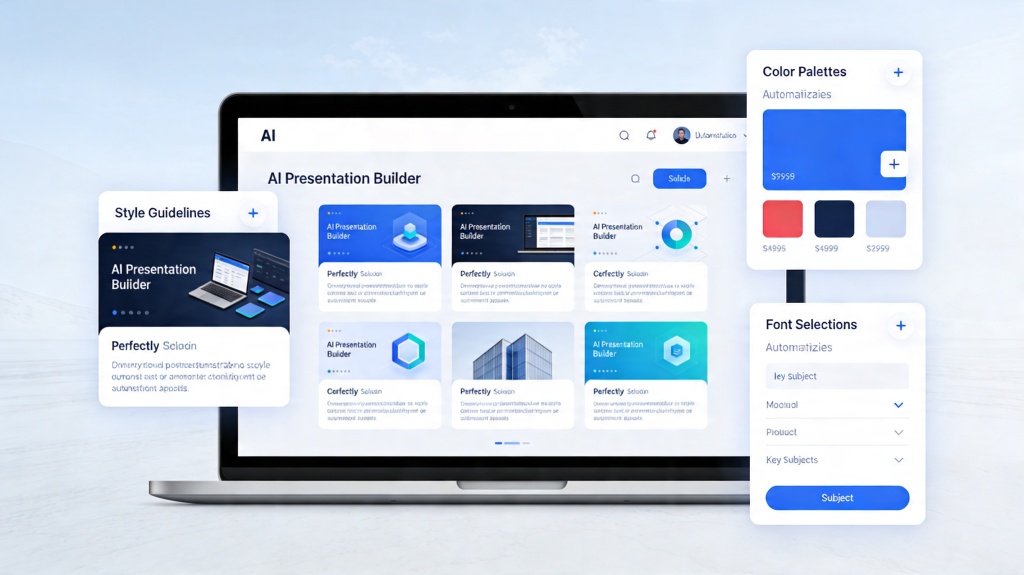
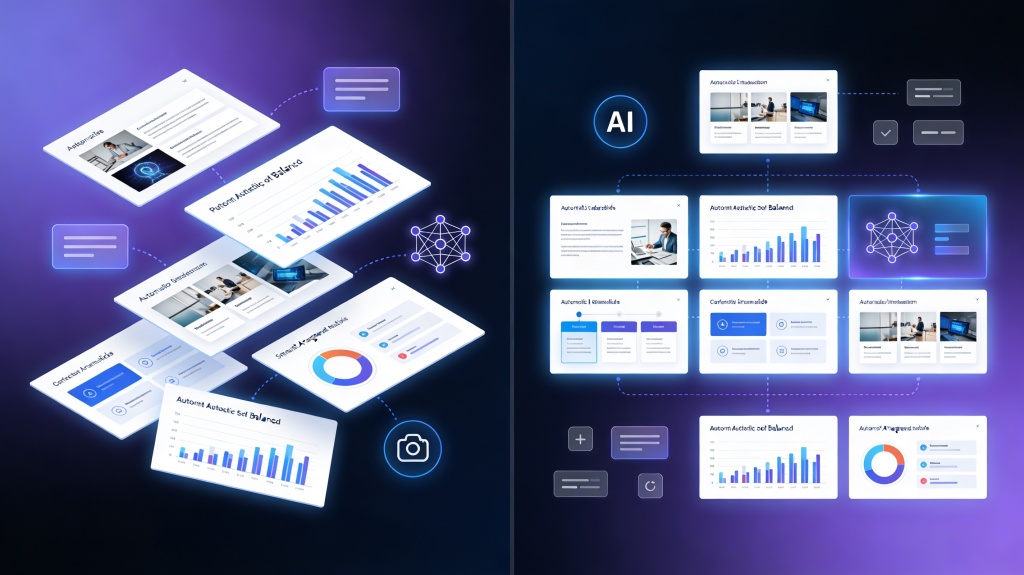
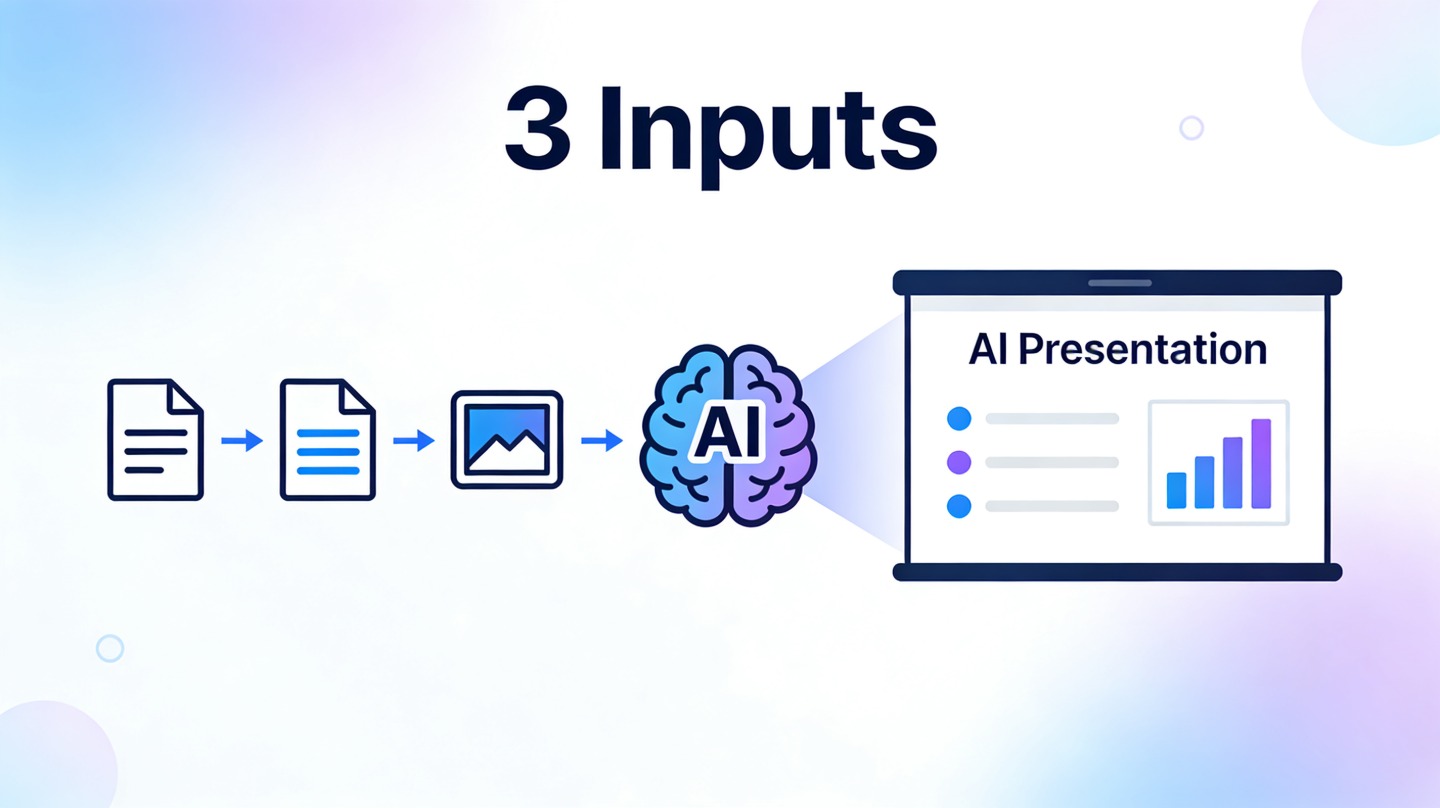
This page is the main AI generated PowerPoint quality checklist for AI-created PowerPoint-style decks. Use it after creating slides in PopAi AI Presentation, after converting a URL or transcript into slides, or after generating a pitch, training, class, or team update deck.
Value proposition: turn a raw AI draft into a credible, presentation-ready deck with a repeatable QA process.
Best for: founders, marketers, students, trainers, consultants, managers, and teams using AI to speed up slide creation.
Tool entry: Generate the first deck in PopAi AI Presentation, then use the checklist below before exporting, sharing, or presenting.
AI Generated PowerPoint Quality Checklist: What to Review First
This page should be the primary page for the AI generated PowerPoint quality topic. Other pages can cover prompts, auto layout, visual hierarchy, templates, and use cases, but this checklist owns the final review workflow before delivery.
| Review area | What can go wrong | What to check |
|---|---|---|
| Storyline | Slides look polished but do not build toward a clear point. | Read slide titles only and confirm they tell a coherent story. |
| Accuracy | AI invents statistics, sources, quotes, or product details. | Trace every claim to a reliable source or internal document. |
| Design | Fonts, colors, margins, and image styles vary across slides. | Standardize hierarchy, spacing, brand colors, and image treatment. |
| Delivery | Speaker notes, links, animations, or export settings fail live. | Test notes, links, QR codes, media, and PDF/PPT export before presenting. |
Step-by-Step QA Workflow Before You Present
Use this sequence so you do not waste time polishing visuals before fixing the argument.
| Step | Action | Pass criteria |
|---|---|---|
| 1. Story scan | Read slide titles in order without reading body text. | The titles explain the problem, evidence, recommendation, and next step. |
| 2. Source check | Verify numbers, quotes, claims, dates, and names. | No unsupported claims remain in the deck. |
| 3. Design cleanup | Review text density, visual hierarchy, colors, fonts, and spacing. | Each slide is readable in under 10 seconds. |
| 4. Audience fit | Check tone, examples, objections, and level of detail. | The deck speaks to the actual room, not a generic audience. |
| 5. Export rehearsal | Test links, animations, notes, PDF export, PowerPoint export, and screen sharing. | The deck opens correctly on the device or platform you will use. |
Copyable Quality Checklist Template
Use this checklist as a reusable review prompt or a manual QA template before exporting the deck.
Review prompt template
Review this AI-generated slide deck before presentation.
Audience: [AUDIENCE]
Presentation goal: [GOAL]
Context: [MEETING / CLASS / PITCH / TRAINING / CLIENT REVIEW]

Check:
1. Storyline: Do slide titles tell a clear narrative?
2. Accuracy: Are all numbers, quotes, dates, names, and claims source-backed?
3. Relevance: Does each slide support the audience decision or takeaway?
4. Design: Are fonts, colors, spacing, hierarchy, and visuals consistent?
5. Delivery: Are speaker notes, links, QR codes, animations, and export settings ready?

Return a table with: slide number, issue, severity, fix, and whether human verification is required.
Use Cases: Best, Free, and High-stakes AI Deck Reviews
The checklist changes depending on how risky the presentation is. A free draft for a team brainstorm needs less review than a board deck or investor pitch.
| Use case | Minimum review | Extra checks for high-stakes delivery |
|---|---|---|
| Class presentation | Rubric match, source citations, slide readability, speaking time. | Teacher instructions, academic integrity, and source formatting. |
| Investor or executive deck | Narrative, metrics, financial claims, recommendation, ask slide. | Legal review, source documents, appendix, and board-ready formatting. |
| Training deck | Learning objectives, steps, examples, speaker notes, quiz or recap. | Policy accuracy, localization, accessibility, and facilitator guidance. |
| Client proposal | Client pain points, solution fit, timeline, pricing, next step. | Brand consistency, contract language, sensitive data, and stakeholder objections. |
Before and After Examples
Example 1: Investor update deck
Before review: AI creates a polished 12-slide update but repeats "strong growth" on four slides and includes an unsupported market-size claim. Checklist fix: replace vague claims with actual ARR, retention, pipeline, and runway metrics; move the market claim to appendix or remove it.
Example 2: Team training deck
Before review: AI turns a policy document into 25 dense slides. Checklist fix: split the deck into modules, add scenario slides, move policy details into speaker notes, and add a final quiz slide.
Design and Branding Checklist
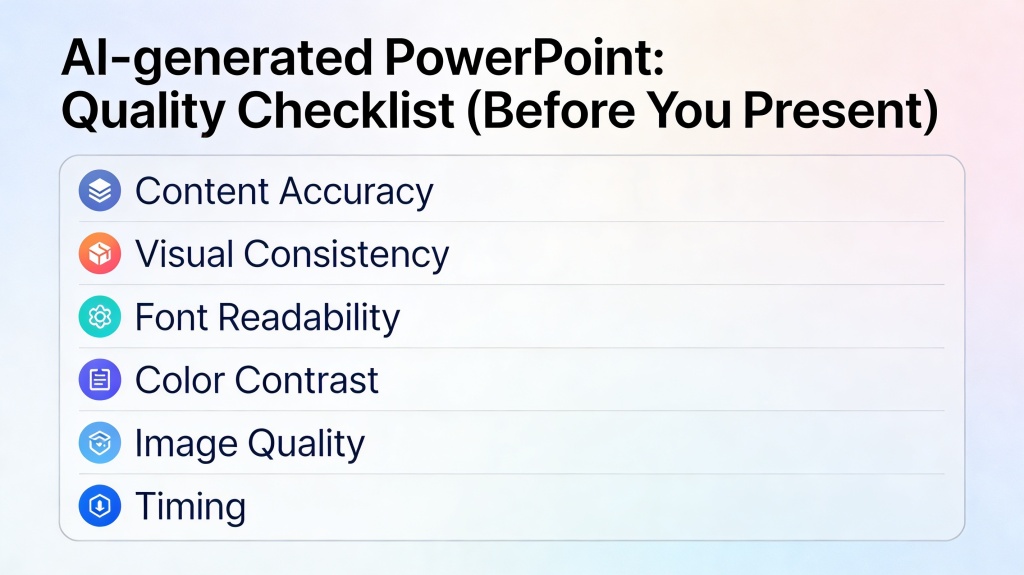
Slide design QA
- Use one consistent title style and one consistent body text style.
- Limit each slide to one main idea and 2-4 short support points.
- Check that charts, diagrams, and screenshots are readable at presentation size.
- Replace generic AI images if they do not add evidence or clarity.
- Use brand colors intentionally and avoid random template colors.
- Make sure icons, images, and section dividers use the same visual style.
- Check accessibility: contrast, font size, alt text for shared decks, and readable labels.
How This Page Connects to the Core AI Presentation Tool
This checklist helps you review the final deck. If you are still choosing between template-first and prompt-first creation, start with the AI presentation maker comparison guide before drafting. If the deck passes the basics but still feels generic, use the make AI slides look less generic and more human checklist for the final design polish. To create, edit, redesign, and export the deck itself, use the core AI Presentation page, then return here before presenting.
Real AI PowerPoint Problems to Catch Before You Present
A useful AI generated PowerPoint checklist should do more than ask whether the slides look nice. The highest-risk errors usually appear in claims, layout, charts, and export quality. Review the deck as if it came from a fast junior assistant: the structure may be helpful, but every important detail still needs verification.
Example 1: a hallucinated business claim
AI draft: "Remote onboarding reduces training costs by 42% in most companies." If that number is not in your source document, remove it or rewrite it as a sourced insight. A safer slide title would be: "Remote onboarding can reduce repeated live training when the process is standardized."
Example 2: chart labels that do not match the data
AI tools sometimes summarize a spreadsheet correctly but label the chart axes incorrectly. Check the chart title, axis units, legend, and any callout number against the original spreadsheet before export.
Example 3: export failure after a good-looking preview
Open the exported PPTX or PDF on another device before the meeting. Look for missing fonts, cropped icons, broken animations, transparent images turning black, and speaker notes that did not export.
FAQ: AI Generated PowerPoint Checklist
These answers cover common quality, free tool, editing, and presentation-readiness questions.
What belongs in an AI generated PowerPoint quality checklist?
An AI generated PowerPoint quality checklist should cover storyline, source accuracy, chart data, visual hierarchy, accessibility, speaker notes, image rights, and PPTX/PDF export before the deck is presented.
Can I use a free AI-generated deck for a serious presentation?
Yes for a draft, but review export quality, watermarks, brand controls, source accuracy, image rights, speaker notes, and formatting before using it in a serious meeting.
How do I fix hallucinations in AI-generated slides?
Verify every number, quote, date, and citation against the original source. Remove claims that cannot be traced to your notes, documents, or reliable references.
How long should I spend reviewing an AI-generated PowerPoint before presenting?
For a low-stakes deck, spend at least 15 to 20 minutes. For investor, executive, client, legal, or public presentations, plan a deeper review with subject-matter and brand checks.
Create the draft, then present with confidence
Use PopAi to generate your deck quickly, then apply this checklist to verify story, facts, design, and delivery readiness.
Start with PopAi AI Presentation