How to Make AI Slides Look Less Generic and More Human
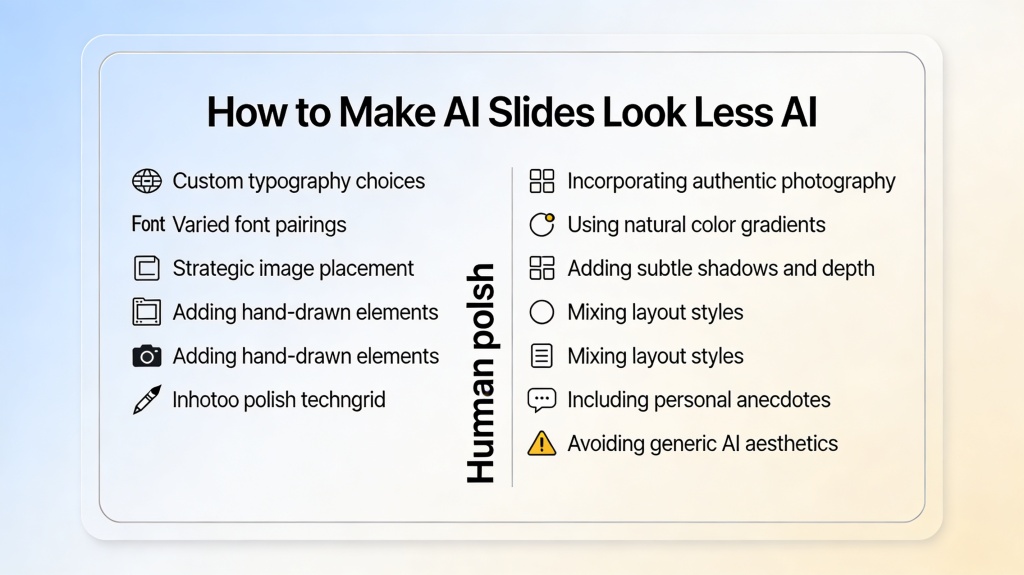
If you want to make AI slides look less generic and more human, the fix is not to hide AI use. The fix is to remove the signals of a rushed generic draft: repetitive bullets, safe stock imagery, default fonts, identical layouts, vague headlines, and slides that sound like summaries instead of a real presentation.
This guide gives you a practical design polish workflow: principles, common mistakes, before-and-after rewrites, a reusable checklist, where AI can still help, and how this work connects back to the core AI Presentation creation flow.
Best for: founders, marketers, consultants, students, trainers, and managers who have an AI-generated slide draft but need it to feel custom, credible, and audience-aware.
Tool entry: Generate the first draft in PopAi AI Presentation, then use this human polish list before exporting or presenting.
Make AI Slides Look Less Generic: 5 Human Polish Principles
Human polish is not decoration. It is the set of design and wording choices that make a deck feel like it was made for one audience, one moment, and one decision.
| Principle | AI-looking version | Human-polished version |
|---|---|---|
| Specificity | Generic headlines such as "Market Opportunity" or "Key Benefits." | Claim-style headlines such as "Mid-market teams are losing 12 hours a week to manual reporting." |
| Visual variety | Same image-left, bullets-right pattern on every slide. | Mix of full-bleed visuals, comparison slides, quote slides, diagrams, and decision slides. |
| Editorial restraint | Five bullets on every slide because the AI summarized everything. | One main idea per slide, with nuance moved into speaker notes. |
| Brand judgment | Default colors, generic icons, and mismatched image styles. | Consistent type, color, image treatment, and spacing rules. |
Common AI Slide Mistakes
Most AI-looking decks share a few repeatable problems. Fix these first before changing animations or decorative details.
- Template rhythm: every slide has the same structure, so the deck feels automated.
- Vague words: terms like innovative, seamless, powerful, and transformative appear without proof.
- Literal visuals: lightbulb for idea, handshake for partnership, rocket for growth.
- Overcomplete bullets: AI tries to include every detail instead of choosing the strongest point.
- Brand drift: colors, icons, and typography are close but not exact enough for a serious deck.
Before and After Fixes
Use these examples to turn generic AI output into slide copy and design choices that feel more deliberate.
| Slide element | Before: AI-looking | After: human-polished |
|---|---|---|
| Headline | Our Solution | We reduce onboarding time from 14 days to 4 days. |
| Bullet list | Fast, scalable, easy to use, secure, efficient. | Replace with one proof point: "92% of pilot users completed setup without support." |
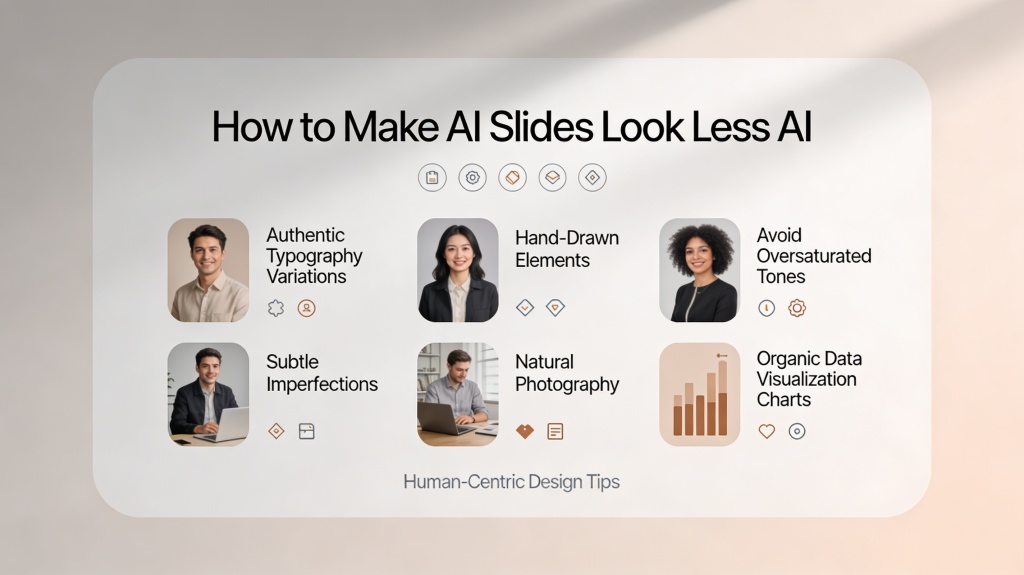
| Image | Generic 3D render of people around a dashboard. | Product screenshot, customer workflow, annotated diagram, or relevant editorial photo. |
| CTA slide | Thank You | Approve a 30-day pilot with the support team by Friday. |
Reusable Human Polish Checklist
Run this before exporting
- Rewrite every slide title as a claim, not a category label.
- Remove 20-30% of slide text and move nuance into speaker notes.
- Replace generic icons with one consistent icon or illustration style.
- Use real examples, screenshots, quotes, or numbers where possible.
- Vary slide rhythm: not every slide should have the same text/image split.
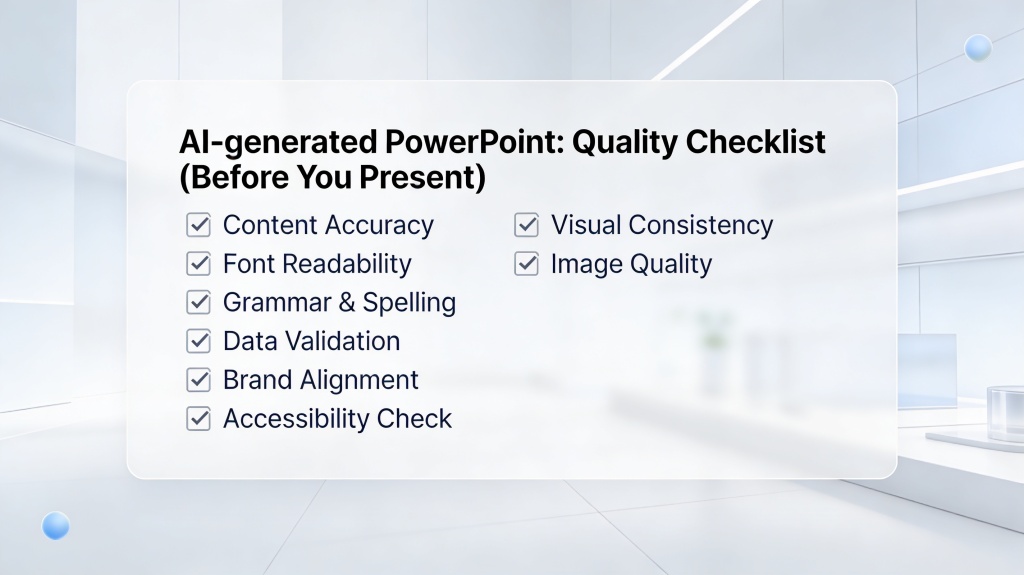
- Check font sizes, margins, alignment, and color consistency.
- Remove AI-looking visuals with distorted text, glossy faces, or vague metaphors.
- Read the deck aloud once to catch robotic phrasing.
Where AI Can Still Help
Human polish does not mean doing everything manually. Use AI for fast alternatives, then choose with human judgment.
Prompt for human polish
Review this slide deck and identify anything that feels generic, over-automated, or too AI-like.
For each slide, suggest:
1. A more specific headline
2. Text to cut or move into speaker notes
3. A more authentic visual direction
4. A layout variation to break repetition
5. One human detail, example, quote, or proof point to add
Keep the tone [AUDIENCE/TONE] and preserve the main message.
Real Scenarios
Example 1: Founder pitch deck
Problem: AI creates clean slides, but every title sounds like a pitch deck template. Polish: rewrite titles around traction, customer pain, and the fundraising ask; replace generic growth icons with product screenshots and customer proof.
Example 2: Training deck
Problem: AI summarizes policy content into dense bullets. Polish: split dense slides into scenarios, add facilitator notes, use one example per module, and add a short quiz slide.
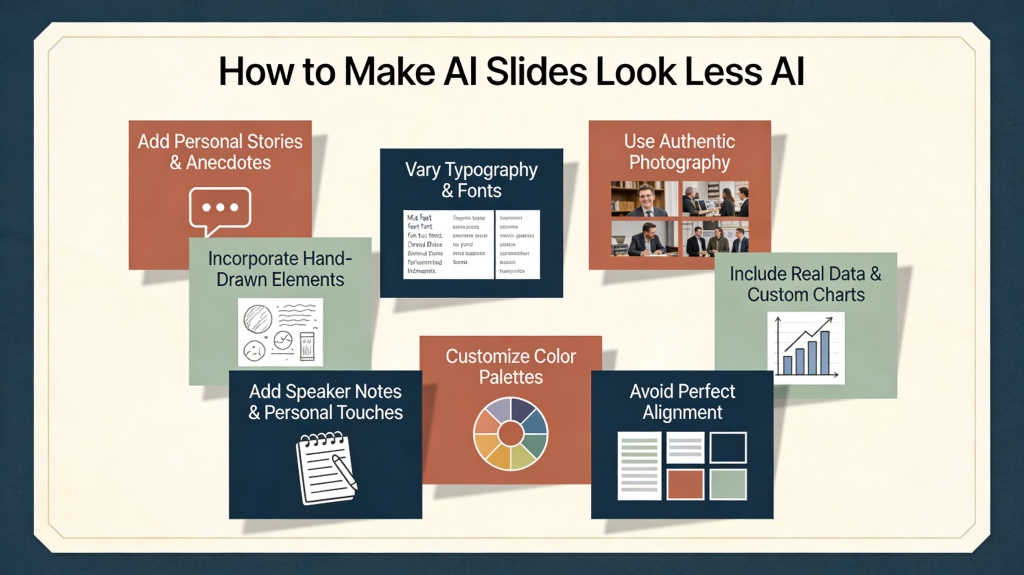
Before and After: Generic AI Slide vs Human-Polished Slide
The fastest way to make AI slides look less generic is to replace vague symmetry with intentional emphasis. Keep the AI draft as a starting point, then decide what the audience should notice first, second, and last.
| Generic AI slide | Human-polished fix | Why it works |
|---|---|---|
| Title: "Our Strategy" with four equal text boxes. | Title: "Focus on retention before expanding acquisition" with one primary chart and two supporting points. | The slide now makes a decision, not a label. |
| Stock illustration plus dense bullets. | Remove the stock image, enlarge the key number, and move detail to speaker notes. | The audience sees the message before reading details. |
| All slides use the same layout. | Use a timeline for process, cards for options, and a dashboard for metrics. | Layout changes match the information type. |
How This Page Connects to the Core AI Presentation Tool
This page focuses on the human polish pass after AI has generated a draft. To create, edit, and export the deck itself, use the core AI Presentation page, then return here to make the slides feel less generic and more human.
FAQ: Make AI Slides Look Less Generic and More Human
These answers cover why slides look generic, what to polish first, and which parts AI can still assist with.
How do I make AI slides look less generic and more human and more polished?
Start by rewriting generic headlines, reducing repeated bullet patterns, replacing stock visuals, varying layouts, applying brand typography, and checking the final deck with a human polish checklist.
Why do AI slides often look generic?
AI tools often choose safe templates, common icons, centered layouts, repeated section patterns, and broad language. These choices are useful for speed but need human editing for personality and audience fit.
What parts of slide polish should AI help with?
AI can suggest alternate headlines, shorter bullets, visual directions, layout variations, and consistency checks, while humans should decide story emphasis, brand nuance, examples, and final taste.
How long should human polish take for an AI slide deck?
For a 10-slide low-stakes deck, 20 to 30 minutes can make a large difference. High-stakes sales, investor, or executive decks need a deeper review of story, proof, visuals, and delivery.
Create fast, then polish like a human
Use PopAi to generate your first slide draft, then apply this checklist to make the final deck feel specific, credible, and audience-ready.
Start with PopAi AI Presentation