
Creating a Team Introduction PPT that clearly showcases team strength and leaves a lasting impression on the audience can be efficiently achieved with popai’s features, eliminating the need for extensive time and effort.

The Importance of Team Introduction PPTs for Enterprises/Teams
A Team Introduction PPT serves as a core window for teams to present themselves externally. Whether for business cooperation, project reporting, or academic exchanges, it enables the audience to quickly understand the team’s structure, members’ strengths, and core capabilities, laying a solid foundation for subsequent communication.
In business cooperation, it intuitively demonstrates the team’s professionalism and collaboration capabilities, helping partners evaluate the value of potential cooperation. During project reporting, it allows clients or leaders to clearly grasp each member’s role and contributions. In academic exchanges, it helps peers quickly familiarize themselves with the team’s research directions and members’ backgrounds, facilitating further academic communication and collaboration.
Traditionally, creating a Team Introduction PPT requires manual material collection and layout design, which is time–consuming and rarely guarantees optimal results. popai, however, supports PPT creation from multiple dimensions, allowing teams to focus more on core work instead of investing excessive time in PPT production.
Core Elements of a High–Quality Team Introduction PPT
A high–quality Team Introduction PPT must first include basic member information (name and position) to help the audience quickly form an initial understanding. Second, photos or illustrations of team members are essential: photos enhance recognition and narrow the distance with the audience, while illustrations can add a lively atmosphere to creative–style introductions.
Third, members’ background information—such as professional knowledge, work experience, and unique skills—lets the audience understand the team’s capabilities and why the team is competent for relevant tasks. In specific scenarios (e.g., business cooperation), including contact information (email addresses, LinkedIn accounts) facilitates follow–up communication. Occasionally adding short personal statements or work philosophies from members can make the team image more vivid and avoid a rigid introduction.
popai’s “audience–centric design” feature allows these elements to be adjusted based on the audience. For example, when facing partners, it emphasizes members’ project experience and contact information; when addressing academic peers, it highlights members’ academic backgrounds and research achievements. This makes the Team Introduction PPT more tailored to needs and improves presentation effectiveness.
Which popai Features Support Efficient Team Introduction PPT Creation?
1. Instant PPT Generation: Quickly Build a Framework
popai’s “Instant PPT Generation” feature provides a variety of themes for Team Introduction PPTs, covering styles from formal business to lively and creative. It supports custom slide numbering, making it easy to sort slides by members’ roles or business segments. Additionally, it customizes layouts for different audiences—for instance, focusing on project results when targeting clients and emphasizing team culture when introducing the team to new employees. No need to start from scratch; you can quickly build a PPT framework with a clear structure and suitable style.

2. AI–Enhanced Content: Improve Visual and Information Quality
High–quality visual elements and content are crucial for creating a Team Introduction PPT. popai’s “AI–Enhanced Content” feature uses artificial intelligence to search for relevant images, such as team working scene photos and business–related pictures, eliminating the hassle of manual image hunting. It also generates engaging content—for example, refining highlight descriptions for members’ skills (e.g., “Led 3 core optimization projects and improved efficiency by 30%”). This ensures the PPT is information–rich while capturing the audience’s attention through visual elements.
3. Seamless Editing: Flexibly Adjust Structure and Content
During PPT creation, it is often necessary to adjust content (adding/removing member introductions, modifying background information) or structure (reordering slides). popai’s “Seamless Editing” feature simplifies these operations. For example, when adding a new member introduction page, the system automatically adjusts the layout after insertion to ensure a consistent style and smooth transition. When modifying member information, related content is synchronized and adapted, maintaining the PPT’s coherence and clarity at all times and avoiding formatting chaos common in traditional editing.
4. Flexible Upload Options: Quickly Import Materials
Before creating a PPT, teams usually need to organize materials such as members’ resumes and project documents. popai’s “Flexible Upload Options” support importing documents from files, Google Drive, or URLs, and automatically extract key information (names, positions, work experience, etc.). There’s no need for manual copy–pasting, enabling a seamless start and significantly reducing the time spent on data entry.
5. Intelligent Reading Comprehension: Simplify Complex Information
When introducing the team’s project experience or members’ capabilities, complex information (e.g., technical processes, professional qualifications) may be involved. popai’s “Intelligent Reading Comprehension” feature uses AI to explain and translate this complex information, and can even automatically generate flowcharts—for example, converting a project’s technical process into a clear diagram. If there are foreign members or international audiences, it also supports multilingual translation, making complex information easier to understand and improving information delivery efficiency.
6. Automatic Conversion to Presentation: Easily Convert Documents
If the team already has a detailed team introduction document (e.g., in Word format), popai’s “Automatic Conversion to Presentation” feature can quickly convert it into a Team Introduction PPT. AI analyzes the document structure, extracts key content, and generates slides with a logical structure and layout. The team only needs to make simple adjustments to obtain a complete PPT, enhancing their ability to present and communicate effectively.
Key Considerations When Choosing a Team Introduction PPT Template
Choosing a template is a critical step in creating a high–quality Team Introduction PPT. First, the template style must match the team’s positioning and scenario: for formal industries, choose a simple and professional template; for creative industries, opt for a template with rich colors. popai’s “Instant PPT Generation” feature offers a variety of style templates that can be used directly.
Second, the template structure should be clear, capable of accommodating content such as member introductions, team strengths, and project results, with smooth transitions between pages. popai’s templates are designed with these needs in mind, eliminating the need for major adjustments.
Additionally, the template should be customizable (allowing modifications to colors, fonts, and icons). popai’s templates support customization, enabling teams to adjust them according to brand colors and presentation needs to create a unique PPT.
How to Optimize Team Introduction PPT Presentation with popai?
1. Enhance Interaction with AI–Generated Content
Adding interactive elements to a Team Introduction PPT can boost audience engagement. popai’s “AI–Enhanced Content” feature generates interactive content, such as small questions related to project results or interesting Q&As about members. This stimulates audience thinking, makes the introduction more vivid, and narrows the distance with the audience.
2. Adjust Presentation Rhythm with Seamless Editing
Presentation rhythm affects the audience’s experience. Using popai’s “Seamless Editing” feature, you can adjust the amount of content and slide order based on the estimated presentation time: if time is limited, cut non–essential content; if time allows, add more case studies. During the presentation, if you notice the audience is more interested in a certain part, you can quickly reorder the content to prioritize that section, optimizing the presentation rhythm.
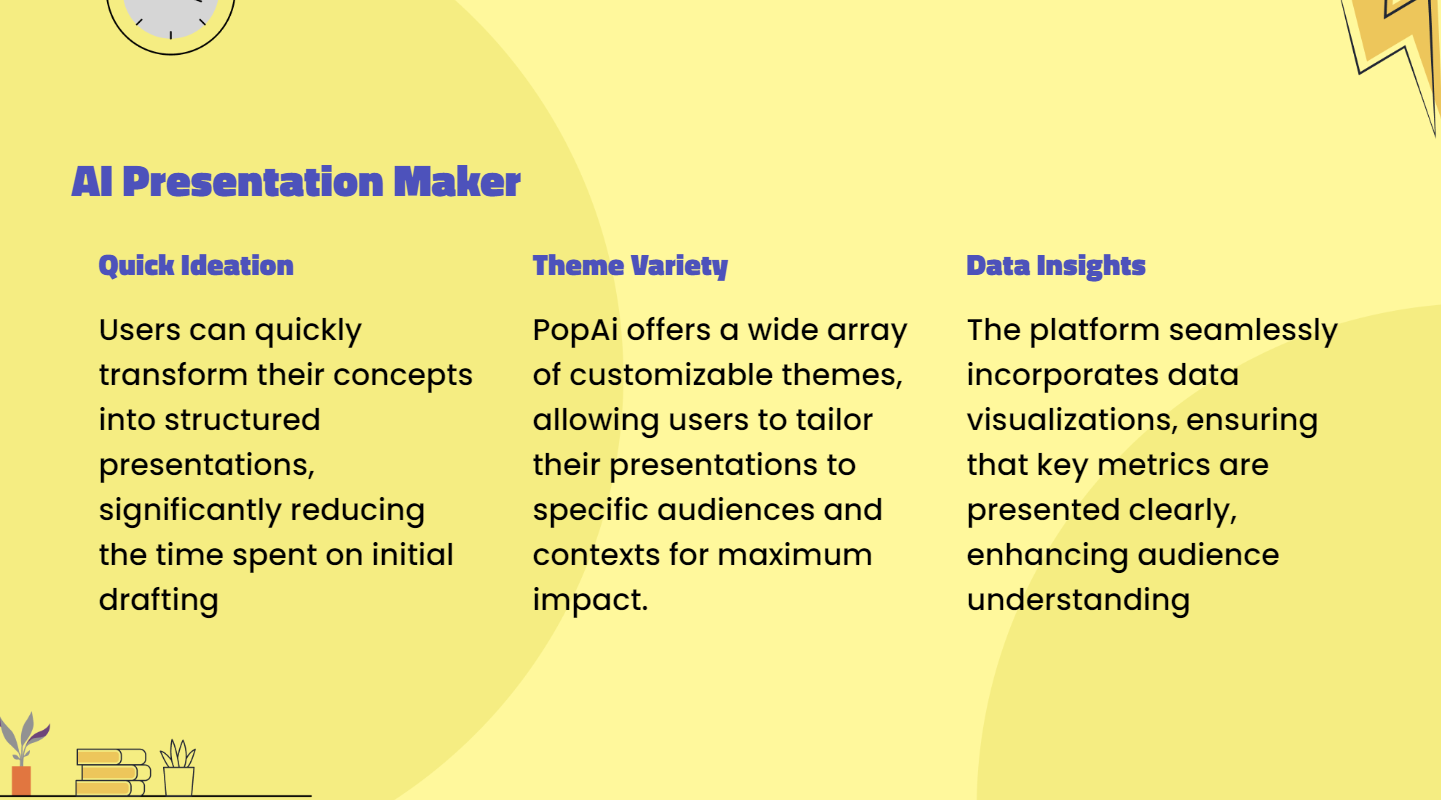
3. Adapt to Scenarios with Audience–Centric Design
Audiences have different needs in different scenarios. popai’s “audience–centric design” feature adjusts the Team Introduction PPT accordingly. For example, at industry exhibitions—where audiences are large and stay for a short time—the PPT uses concise text and eye–catching images to quickly convey core team strengths. In small–scale negotiation meetings, it adds more project details and team collaboration cases to meet the need for in–depth understanding, ensuring the PPT adapts to different scenarios.
Common Mistakes in Team Introduction PPT Creation
1. Information Overload: Too Much Text, Hard to Grasp Key Points
Some teams pile excessive text into the Team Introduction PPT, such as detailed resumes or lengthy project descriptions. This makes it difficult for the audience to grasp key points and easily causes visual fatigue.
To avoid this, use popai’s “AI–Enhanced Content” feature to simplify text and extract core information—for example, summarizing a lengthy work experience into “5 years as a product manager, led the launch of 3 core products from scratch.” At the same time, use the “audience–centric design” to reasonably allocate text proportions and reduce unnecessary content, making the PPT concise and clear.
2. Visual Clutter: Too Many Colors/Images, Inconsistent Style
Some teams pursue a “good–looking” PPT by using multiple colors and images of different styles, resulting in a chaotic overall style and excessive visual stimulation that distracts the audience from the content.
popai’s “Instant PPT Generation” templates have a unified style tone, avoiding color clutter. The images searched by the “AI–Enhanced Content” feature match the PPT theme and style, preventing disjointed visuals and ensuring the Team Introduction PPT has a consistent visual style—both aesthetically pleasing and effective in conveying content.
3. Structural Chaos: Unreasonable Order, Unclear Logic
Some PPTs have chaotic content order—for example, introducing skills before names/positions, or inserting a large number of project details before the overall team introduction. This makes it difficult for the audience to form a complete understanding of the team.
Using popai’s “Seamless Editing” feature, you can adjust the order according to the logic of “team overview——basic member information——member strengths——project results——cooperation directions.” The “Intelligent Reading Comprehension” feature also analyzes the logical relationship between content and provides prompts for disjointed parts, ensuring the PPT has a clear structure and smooth logic.