How to Create a Presentation from Your Notes Using AI
Published on June 09, 2026
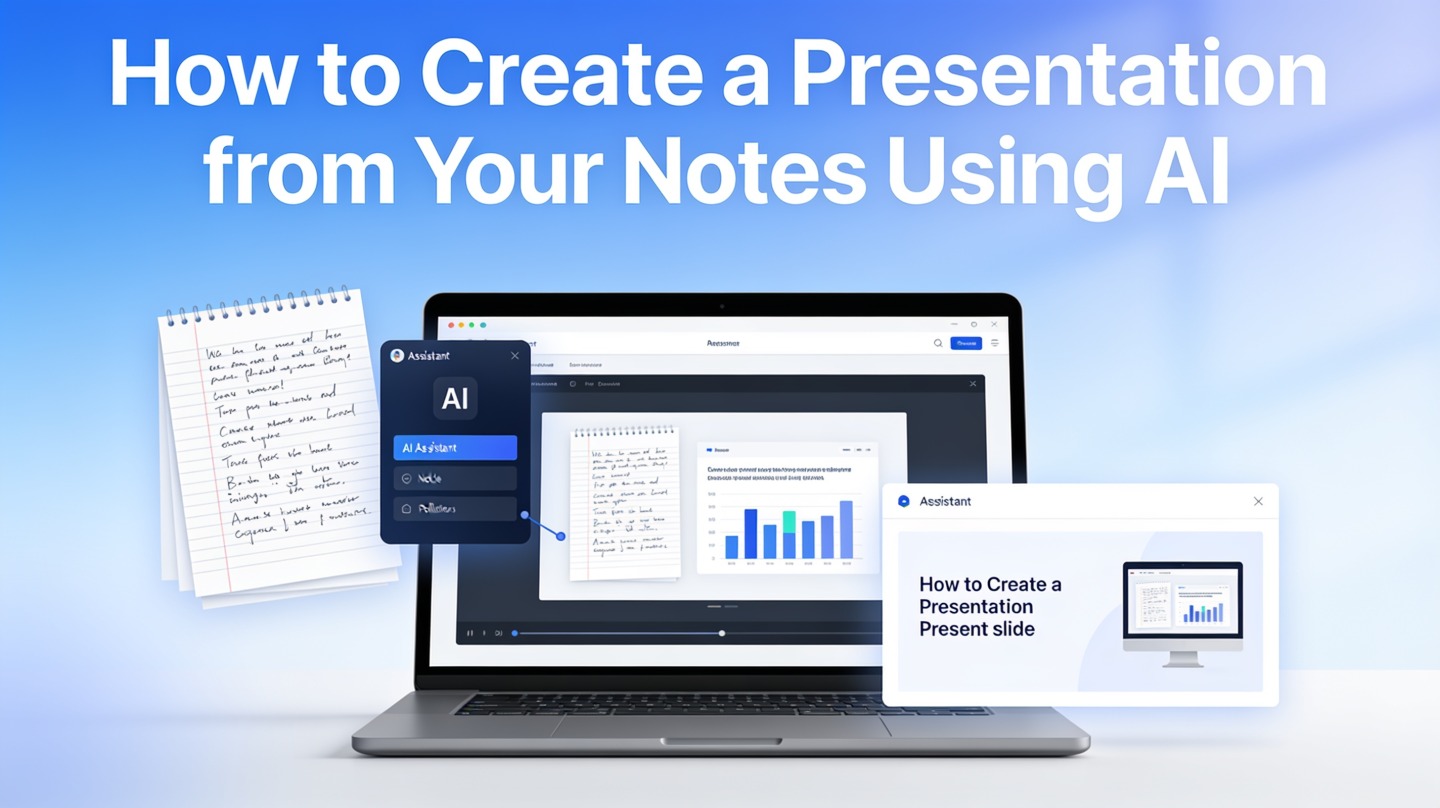
If you have meeting notes, research bullets, interview transcripts, or class notes, the hardest part is usually not writing slides—it is deciding what belongs on each slide. Creating a presentation from notes using AI helps you move from raw material to a clear storyline without starting from a blank deck.
This guide is for professionals, students, founders, and team leads who already have ideas but need a faster way to organize them into a polished presentation. You will learn how to prepare your notes, prompt AI for structure, review the draft, and turn it into a deck your audience can actually follow.
Why Creating a Presentation from Notes Using AI Works
This section explains what AI does well, what it cannot replace, and why notes-to-slides workflows are useful for busy presenters.
AI is strong at structure, grouping, and first drafts
Most notes are not presentation-ready. They contain repeated ideas, unfinished sentences, side comments, and details that matter to you but not to the audience. AI can quickly cluster related points, detect implied themes, and suggest a logical sequence such as problem, insight, recommendation, and next steps.
That does not mean AI should make every judgment for you. A good presentation is still a communication product. You decide the audience, the message, the evidence threshold, and the action you want people to take. AI simply shortens the path from scattered input to a usable draft.
The practical value of AI presentation creation is not “automatic perfection.” It is removing the blank-slide stage so you can spend more time refining the argument.
Where the time savings usually happen
In a hands-on test prepared for this guide, a 1,150-word set of project notes produced 14 suggested slide candidates. After merging overlaps and deleting weak points, the final deck became 10 slides: context, goal, three findings, two recommendations, risks, timeline, and decision slide. The useful gain was not a finished deck in one click; it was a workable structure in minutes.
Microsoft’s official PowerPoint Designer documentation also reflects a broader product trend: presentation tools increasingly use automation to suggest layouts and improve visual composition. Notes-to-slides AI applies that same idea earlier in the workflow, before design, by shaping content into slide-level units.
Prepare Your Notes Before Using Notes to Slides AI
Better input creates better slides, so spend a few minutes cleaning your notes before generating the deck.
Label the information AI should care about
AI performs better when it can see the role each note plays. Instead of pasting a wall of text, add simple labels. You do not need perfect formatting; you only need enough structure for the model to understand intent.
- Audience: who will see the presentation and what they already know.
- Goal: what the presentation should make them understand, approve, or do.
- Core message: the one sentence you want people to remember.
- Key evidence: metrics, quotes, examples, research notes, or observations.
- Constraints: slide count, tone, time limit, brand style, or required sections.
Cut noise before you generate
Remove duplicate notes, unrelated comments, and private information. If your source is a meeting transcript, mark decisions separately from discussion. If it is a research dump, separate facts from interpretations. This one cleanup step prevents the AI from treating every sentence as equally important.
Pro tip: If you want to move directly from cleaned notes to slides, try PopAi AI Presentation after you have labeled audience, goal, and key points.
Step-by-Step Workflow to Create a Presentation from Notes Using AI
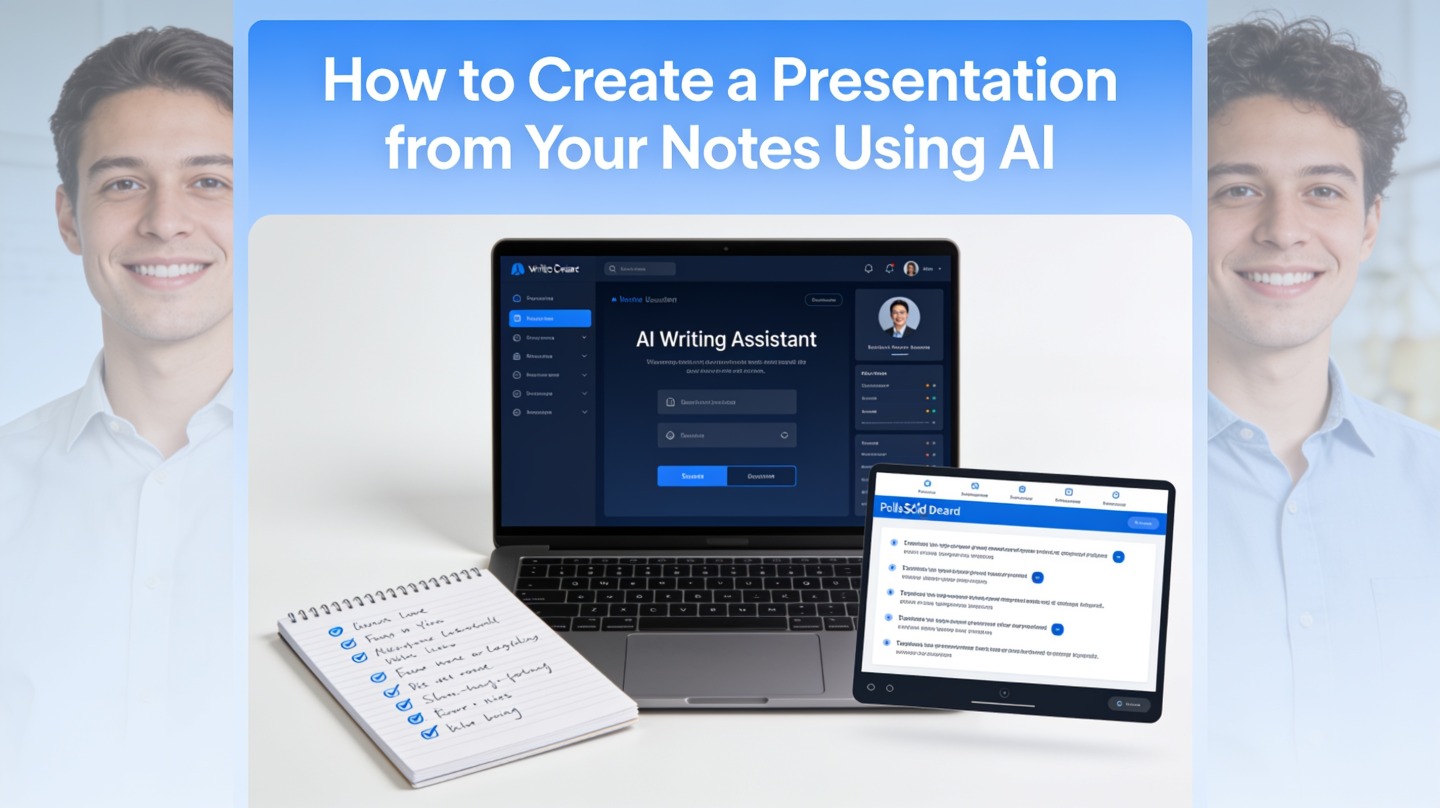
Use this workflow when you need a deck quickly but still want control over the message and quality.
1. Define the deck brief before pasting notes
Start with a short brief. Include the deck type, audience, desired outcome, slide count, and tone. For example: “Create a 10-slide executive update for product leaders. The goal is to explain user research findings and recommend three roadmap changes. Use concise slide titles and speaker notes.”
2. Ask for an outline before asking for slides
Do not jump straight to a full deck. First, ask AI to produce a slide outline with the title, purpose, and key bullets for each slide. Reviewing an outline is faster than editing a full deck, and it helps you catch structural problems early.
- Paste the brief and cleaned notes.
- Ask for a slide-by-slide outline.
- Delete slides that do not support the goal.
- Merge repeated points.
- Ask AI to draft slide copy only after the outline is right.
3. Convert slide copy into a visual hierarchy
Slide copy should not read like a document. A useful slide usually has one clear headline, two to five supporting points, and one visual idea. If AI generates long paragraphs, ask it to rewrite each slide with a headline, evidence, and suggested visual.
For an efficient end-to-end flow, you can use PopAi AI Presentation to transform structured notes into a presentation draft, then edit the storyline, visuals, and speaker notes for your audience.
A presentation made from notes should feel intentionally edited. If every note appears in the deck, the AI has summarized your material, not communicated your message.
A Practical Prompt Template for Notes to Slides AI
A strong prompt tells AI what to create, what to ignore, and how the final slides should be judged.
Copy this prompt and adapt the bracketed fields
Use the prompt below when your notes are long, messy, or collected from multiple sources. It is designed to force prioritization rather than simple summarization.
Create a presentation from the notes below. Audience: [describe audience]. Goal: [decision, teaching outcome, update, or persuasion goal]. Length: [number] slides. Tone: [executive, academic, persuasive, friendly, formal]. First create a slide outline with one message per slide. For each slide, include: slide title, purpose, 3–5 bullet points, suggested visual, and optional speaker note. Remove duplicates, flag weak evidence, and do not invent facts.
Add constraints for better results
Constraints help AI make tradeoffs. If you are presenting to executives, ask for concise headlines and decision-oriented slides. If you are teaching, request definitions, examples, and a recap slide. If you are pitching, ask for problem framing, market evidence, solution, traction, and next step.
| Presentation type | Useful AI instruction | What to check manually |
|---|---|---|
| Project update | Group notes into progress, blockers, decisions, and next steps. | Whether owners, dates, and risks are accurate. |
| Research summary | Separate observations, evidence, insights, and recommendations. | Whether findings are supported by actual data. |
| Sales proposal | Turn discovery notes into pain points, solution fit, proof, and close. | Whether claims match what the customer said. |
| Class presentation | Convert notes into concept, explanation, example, and takeaway. | Whether sources are cited and definitions are correct. |
Review the AI Draft Before You Share It
AI can assemble a deck quickly, but your credibility depends on the review pass.
Check the storyline first
Before editing wording, read only the slide titles. They should form a coherent story by themselves. If the titles do not show a clear progression, the audience will struggle even if the individual slides look polished.
A simple test is to place all slide titles in a list and ask: “Would someone understand the argument in 30 seconds?” If not, rewrite the titles as message headlines. For example, replace “User Feedback” with “Users understand the value but get stuck during onboarding.”
Verify facts, numbers, and source-sensitive claims
AI may over-smooth uncertainty. If your notes say “several customers mentioned pricing,” the deck should not claim “pricing is the top objection” unless your data supports it. Keep a strict line between observed evidence and interpretation.
For a 20-minute stakeholder presentation, a practical benchmark is usually 8 to 12 content slides, depending on discussion time. That estimate comes from common facilitation practice: dense decision slides need more time than simple status slides. If AI gives you 25 slides for a short update, the deck is probably summarizing notes instead of prioritizing the audience’s decision.
Use a final quality checklist
- Every slide has one main idea.
- The opening slide explains why the audience should care.
- Evidence is traceable to your original notes or approved sources.
- Visuals support the point instead of decorating the slide.
- The last slide makes the next action unmistakable.
Examples: From Raw Notes to AI Presentation Slides
These examples show how the same notes-to-slides method works across common presentation situations.
Example 1: Turning meeting notes into an executive update
Raw notes from a product meeting often include timeline comments, customer issues, engineering constraints, and open questions. AI can group them into a cleaner update: objective, current status, key risks, decision needed, and next steps. The presenter then reviews whether the “decision needed” slide is specific enough for executives to act.
Example 2: Turning research notes into a recommendation deck
Research notes are especially easy to overload. Ask AI to separate what participants said from what the team inferred. A strong research deck does not show every quote; it uses representative evidence to support a small number of insights. This prevents the presentation from becoming a transcript with nicer formatting.
Example 3: Turning class notes into a teaching presentation
Students and educators can use AI to convert chapter notes into a teaching sequence: concept, definition, example, application, and recap. The review step should focus on source accuracy and citation requirements, especially when the notes include textbook material or external research.
Common Mistakes When Making AI Presentations from Notes
Avoid these mistakes if you want the deck to feel useful rather than automatically generated.
Mistake 1: Treating all notes as equally important
AI often preserves too much information unless you ask it to prioritize. Tell it what the audience needs to decide, then ask it to cut anything that does not support that decision. This is especially important for leadership decks, pitch decks, and client presentations.
Mistake 2: Accepting vague slide titles
Titles like “Overview,” “Analysis,” and “Results” force the audience to work too hard. Replace them with message titles that state the point. The title should tell the audience what to learn from the slide before they read the bullets.
Mistake 3: Skipping the speaker-note pass
Good slides are concise, but presenters still need context. Ask AI to create speaker notes separately from slide text. This keeps slides clean while giving you talking points, transitions, and reminders about evidence.
Reminder: Use AI to accelerate organization, not to outsource accountability. Before presenting, confirm the structure, evidence, and final recommendation yourself with PopAi AI Presentation or your preferred review workflow.
FAQ: Creating a Presentation from Notes Using AI
These answers cover the most common concerns presenters have before turning raw notes into slides.
Can AI make a good presentation from messy notes?
Yes, if the notes contain a clear goal, audience, key facts, and enough context. AI is strongest at grouping ideas, suggesting a slide sequence, and turning rough bullets into concise slide copy, but you should still verify claims, numbers, names, and priorities before sharing the deck.
How much editing should I expect after AI creates the slides?
Plan for one focused editing pass on structure, one pass on evidence, and one pass on visuals. In a practical workflow, AI can remove the blank-slide stage, but the presenter still owns judgment: what to cut, what to emphasize, and what the audience needs to decide.
What types of notes work best for notes-to-slides AI?
Meeting notes, research summaries, interview transcripts, project updates, class notes, and sales discovery notes all work well when they are labeled. Add headings such as goal, audience, main points, data, objections, and desired outcome before generating the presentation.
Should I paste confidential notes into an AI presentation tool?
Only use content that your organization permits you to process in external tools. Remove sensitive customer data, unreleased financials, personal information, access credentials, and confidential legal details unless your company has approved the tool and its data handling terms.
Create your presentation with one click now
Upload or paste your notes, generate a structured slide draft, and refine it into a presentation your audience can follow.
Start with PopAi AI Presentation