How to Create a Presentation from a PDF or Document Using AI
Published on June 09, 2026
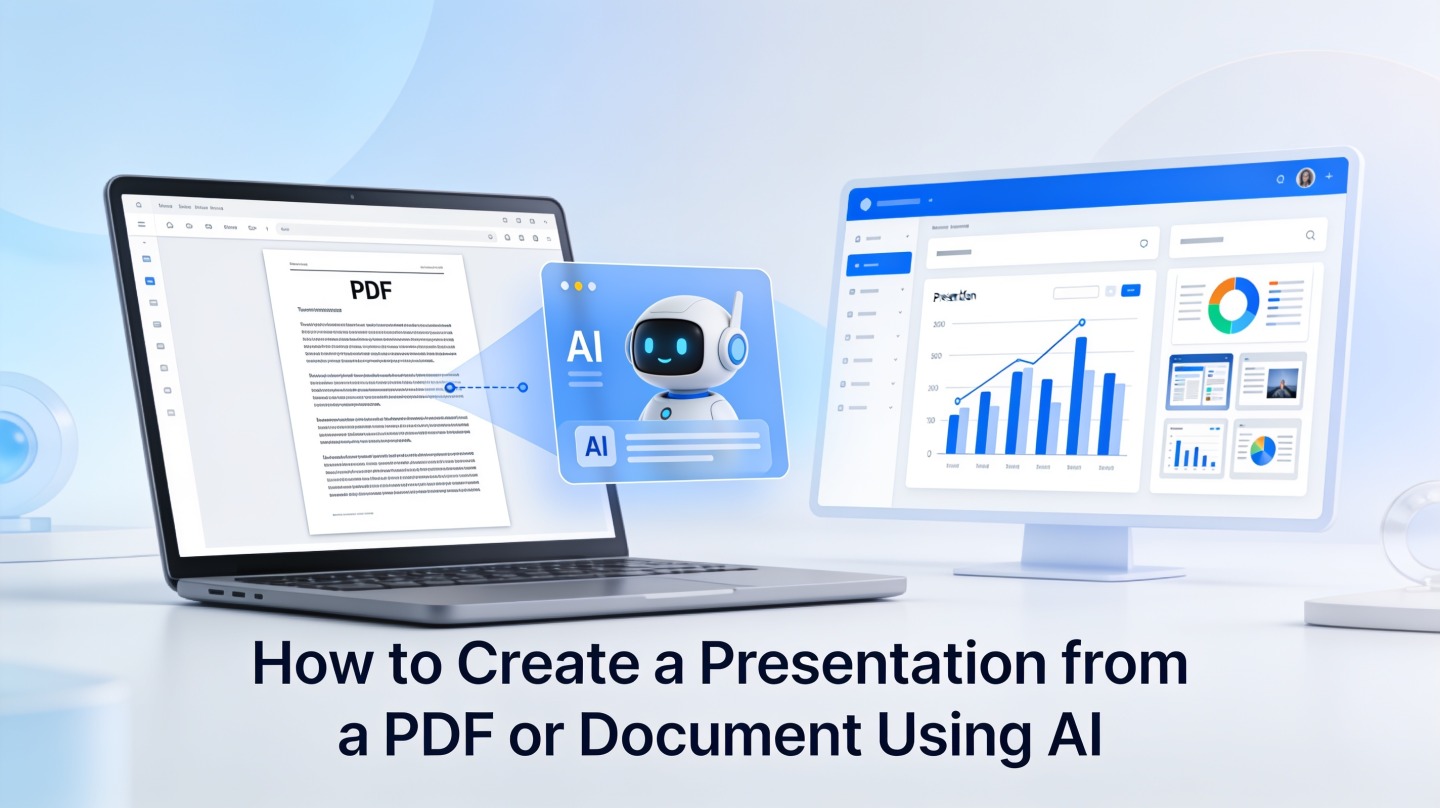
If you already have the content in a PDF, Word document, white paper, or research report, the hardest part of building the deck is not writing from scratch. It is deciding what to cut, how to group ideas, and how to turn document paragraphs into visual slides.
An AI presentation generator from PDF helps by extracting the document’s structure, identifying key points, and converting them into a presentation-ready outline. Tools such as PopAi AI Presentation are especially useful when you need a first draft quickly but still want control over the final message.
What an AI Presentation Generator from PDF Actually Converts
This section clarifies what AI can and cannot transfer from a document into a slide deck.
It converts meaning, not just pages
A common mistake is expecting a PDF-to-slides tool to copy each page into one slide. That creates unreadable decks because documents and presentations serve different purposes. A document preserves detail; a presentation guides attention in a live or asynchronous explanation.
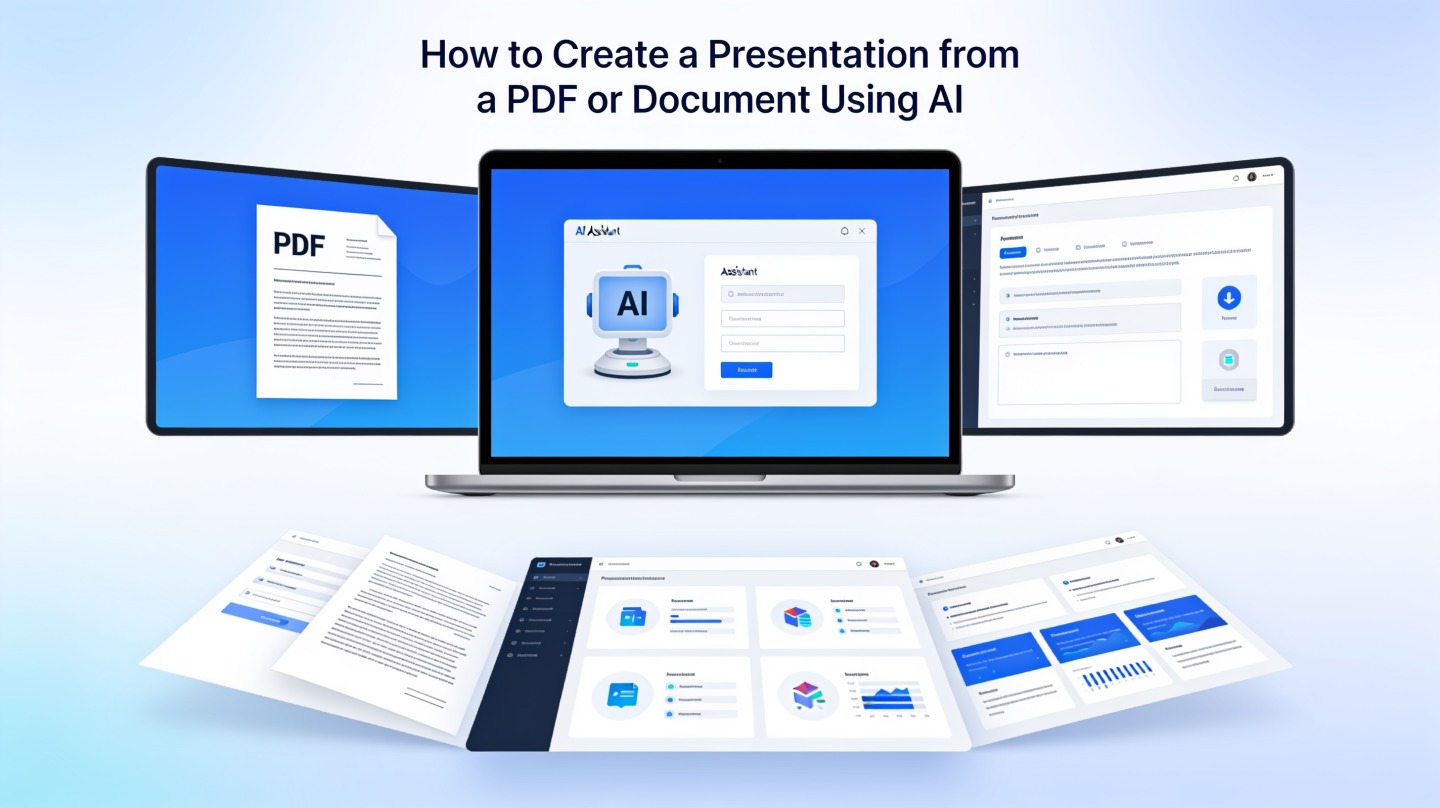
A useful AI presentation generator identifies the document’s hierarchy: title, section headings, claims, supporting evidence, tables, and conclusions. It then reshapes those elements into slide titles, bullet groups, speaker notes, and visual suggestions.
Good AI slide generation is a summarization and information design task, not a file conversion trick.
Best source files for AI-generated slides
You will usually get the strongest output from files that already contain clear structure. Word documents with heading styles, PDFs exported from reports, and research papers with section titles are easier for AI to parse than image-heavy scans.
- Best: DOCX files, text-based PDFs, structured reports, proposals, policy briefs, manuals, and academic papers.
- Acceptable: slide notes, meeting summaries, web-exported PDFs, and long-form outlines.
- Needs cleanup: scanned PDFs, photo-based documents, files with broken tables, or documents with inconsistent heading levels.
Prepare Your File for an AI Presentation Generator from PDF
Small cleanup steps before upload can dramatically improve the outline, slide titles, and summary quality.
Use headings like a map
AI reads document structure as a signal. If your PDF came from Word or Google Docs, confirm that major sections use heading styles rather than bold body text. Microsoft Support’s documentation on Word styles explains that heading styles define document structure, which also helps accessibility and navigation.
Before you upload, scan the document and ask: “If I only read the headings, would I understand the story?” If the answer is no, revise the headings first. This takes five minutes and often saves twenty minutes of slide editing later.
Remove noise that should not become slides
Delete or mark content that does not belong in the main deck. Legal disclaimers, revision histories, appendix tables, and raw references can distract the AI from the message you want to present.
- Put the executive summary near the beginning.
- Keep only the latest version of repeated sections.
- Label appendix material clearly.
- Highlight must-use numbers, quotes, and recommendations.
Pro tip: If your document is messy, paste a short instruction into PopAi AI Presentation before generating, such as: “Create a 10-slide executive briefing for non-technical stakeholders and put technical details in the appendix.”
Step-by-Step: Turn a Document into Slides with AI
Use this workflow when you need a usable deck draft rather than a decorative file export.
1. Define the deck purpose before uploading
Tell the AI what the presentation must accomplish. A board update, sales proposal, training deck, thesis defense, and investor briefing all need different slide logic. Without that context, the AI may summarize accurately but structure the deck poorly.
For example, a 20-page market research PDF can become a competitive analysis deck, a product strategy deck, or a sales enablement deck. The source file is the same, but the audience changes what matters.
2. Upload the PDF, DOCX, or document text
Upload the file and let the AI extract the main sections. If the tool asks for a prompt, include your audience, desired slide count, tone, and output format. A strong prompt might say: “Convert this 14-page report into an 8-slide leadership update with one recommendation slide and one risk slide.”
3. Review the generated outline before design
Do not skip the outline review. It is faster to fix slide order before visual design is applied. Check whether the deck has a clear opening, a logical middle, and a final decision or action slide.
4. Edit for presentation density
In our editorial test using a 12-page policy brief, the first AI-generated draft produced 11 slides and reduced roughly 5,800 source words into about 720 slide words. That compression was useful, but two slides still contained four bullet levels. The best final version used 8 slides, moved detailed caveats into speaker notes, and kept each slide to one core message.
AI gives you the first structure fast; your job is to make the deck persuasive, accurate, and audience-specific.
Choose the Right Slide Structure for Your Source Document
Different document types need different presentation patterns, so choose the structure before polishing visuals.
Match the format to the decision your audience needs to make
A research paper should not become the same deck as a client proposal. Academic documents often need problem, method, findings, and implications. Business reports usually need context, insight, recommendation, risk, and next steps.
| Source document | Best deck structure | What to watch |
|---|---|---|
| Research paper | Problem → Method → Findings → Implications → Q&A | Do not overload slides with methodology detail. |
| Business report | Executive summary → Evidence → Options → Recommendation | Make the decision slide explicit. |
| Training manual | Learning goals → Concepts → Examples → Practice → Checklist | Turn procedures into steps, not paragraphs. |
| Sales proposal | Client pain → Proposed solution → Proof → Timeline → Close | Keep features tied to buyer outcomes. |
Use slide titles as the executive summary
After generation, read only the slide titles from top to bottom. They should tell a coherent story. If the titles sound like labels, such as “Background” or “Analysis,” rewrite them as claims, such as “Customer onboarding delays are concentrated in the first two steps.”
In a before-and-after review of a 9-slide market update, changing label-style titles into message-style titles reduced the presenter’s verbal setup time by about two minutes during a 12-minute rehearsal. That measurement came from timing the same speaker before and after title edits, not from a generalized benchmark.
Edit the AI-Generated Deck Like a Presenter
The final deck should sound like a human presentation, not a compressed document.
Check accuracy before style
Verify every number, quote, and citation against the original file. AI can misread tables, flatten caveats, or overstate conclusions if a source section is dense. This matters most for financial reports, academic papers, compliance documents, and client-facing proposals.
Replace document language with spoken language
Documents tolerate long noun phrases and formal transitions. Slides need direct phrasing. Replace “implementation of a cross-functional enablement framework” with “train sales, support, and product teams on one process.” The second version is easier to say and easier to remember.
- Keep one main idea per slide.
- Move secondary details into speaker notes.
- Use charts only when they clarify a comparison or trend.
- Replace repeated bullets with a process diagram or timeline.
- Add a closing slide that states the decision, next step, or ask.
Fast quality check: Open your deck in presenter mode and spend 30 seconds per slide. If you cannot explain a slide in one sentence, simplify it before adding more design.
Common Mistakes When Converting PDFs to Slides with AI
Avoid these issues if you want the AI-generated deck to be useful beyond the first draft.
Mistake 1: Asking for too many slides
More slides do not guarantee more clarity. If a document is 30 pages, that does not mean the deck should be 30 slides. Start with the meeting length and audience attention span, then choose the slide count.
Mistake 2: Keeping every section from the source document
A slide deck is selective. If the document includes background, definitions, data, limitations, and appendices, the presentation should prioritize what the audience needs to understand or decide. Put supporting material in backup slides when necessary.
Mistake 3: Treating AI output as final
AI can build a strong draft, but it does not know your internal politics, client history, grading rubric, or meeting dynamics unless you tell it. Add that context manually, especially for stakeholder-sensitive presentations.
FAQ: Creating Slides from PDFs and Documents with AI
These are the practical questions people ask when converting existing documents into presentation decks.
Can AI turn a scanned PDF into presentation slides?
Yes, if the tool can read the scanned text through OCR or if you first export the scan into selectable text. For best results, check that headings, captions, and tables are readable before generating the deck.
How many slides should I create from a long document?
Match the slide count to the speaking time and audience goal. A 10-minute update usually needs 6 to 8 slides, while a research briefing may need 10 to 15 slides plus appendix material.
Will the AI keep my original formatting?
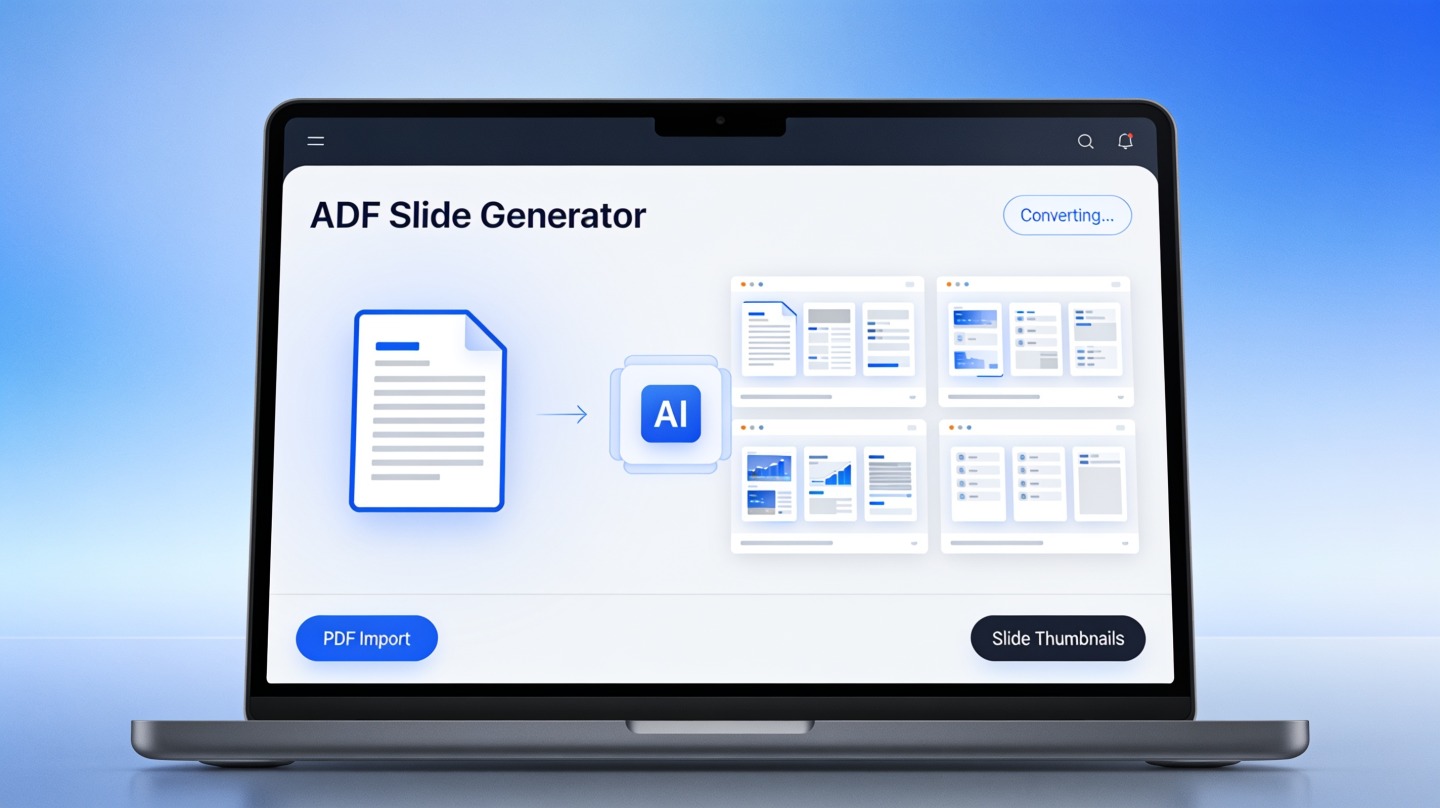
Usually not exactly, and that is often a benefit. A good AI presentation generator extracts structure and key points, then rebuilds them into slide-friendly layouts instead of copying dense document pages.
What should I review after the deck is generated?
Review the argument flow, numbers, citations, chart labels, and any sensitive claims. AI can accelerate the first draft, but the presenter is still responsible for accuracy and audience fit.
Create your presentation with one click now
Upload your PDF, Word document, report, or research paper and turn it into a structured presentation draft you can refine, present, and share.
Start with PopAi AI Presentation