From Outline to Slides: AI Slides Generator Workflow Explained
Published on June 09, 2026
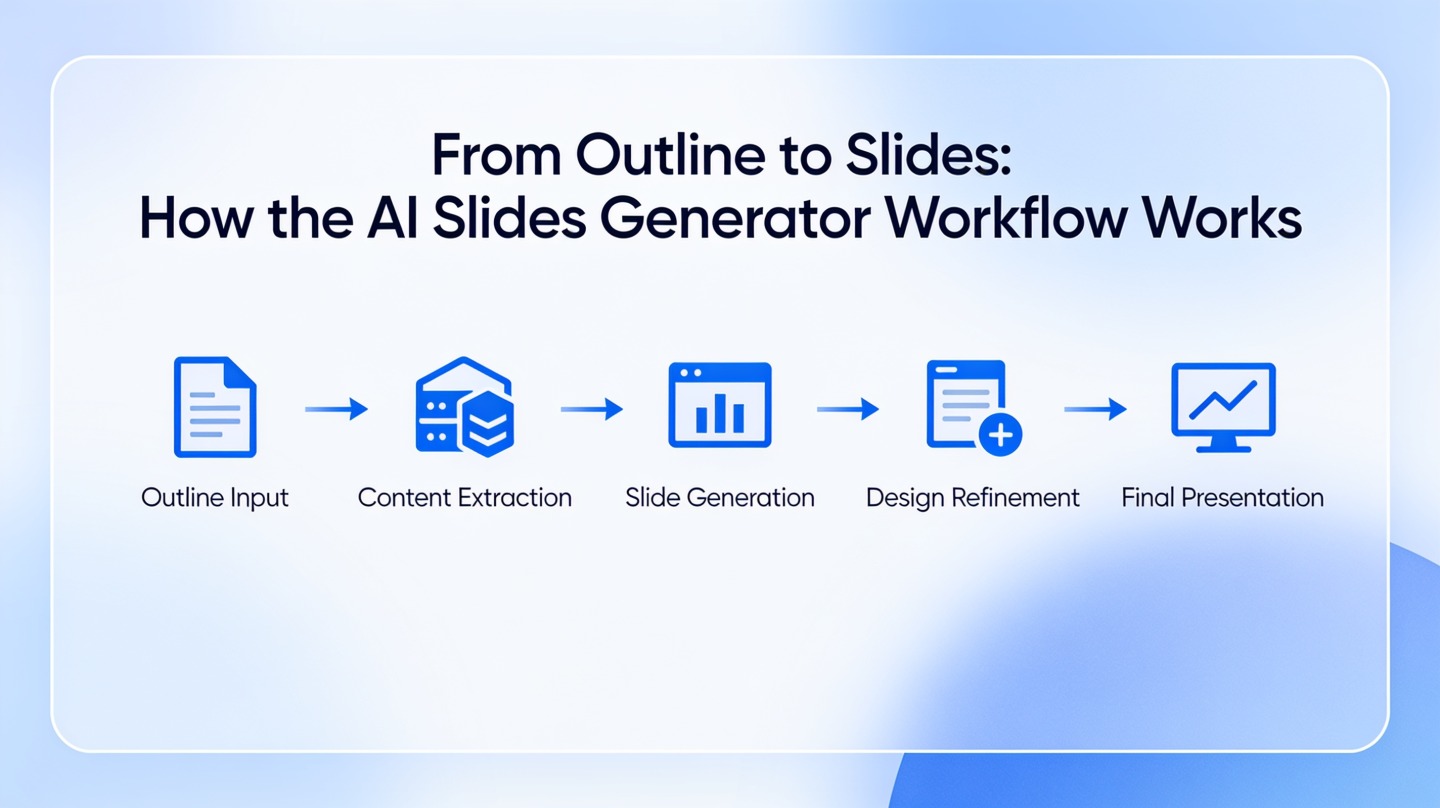
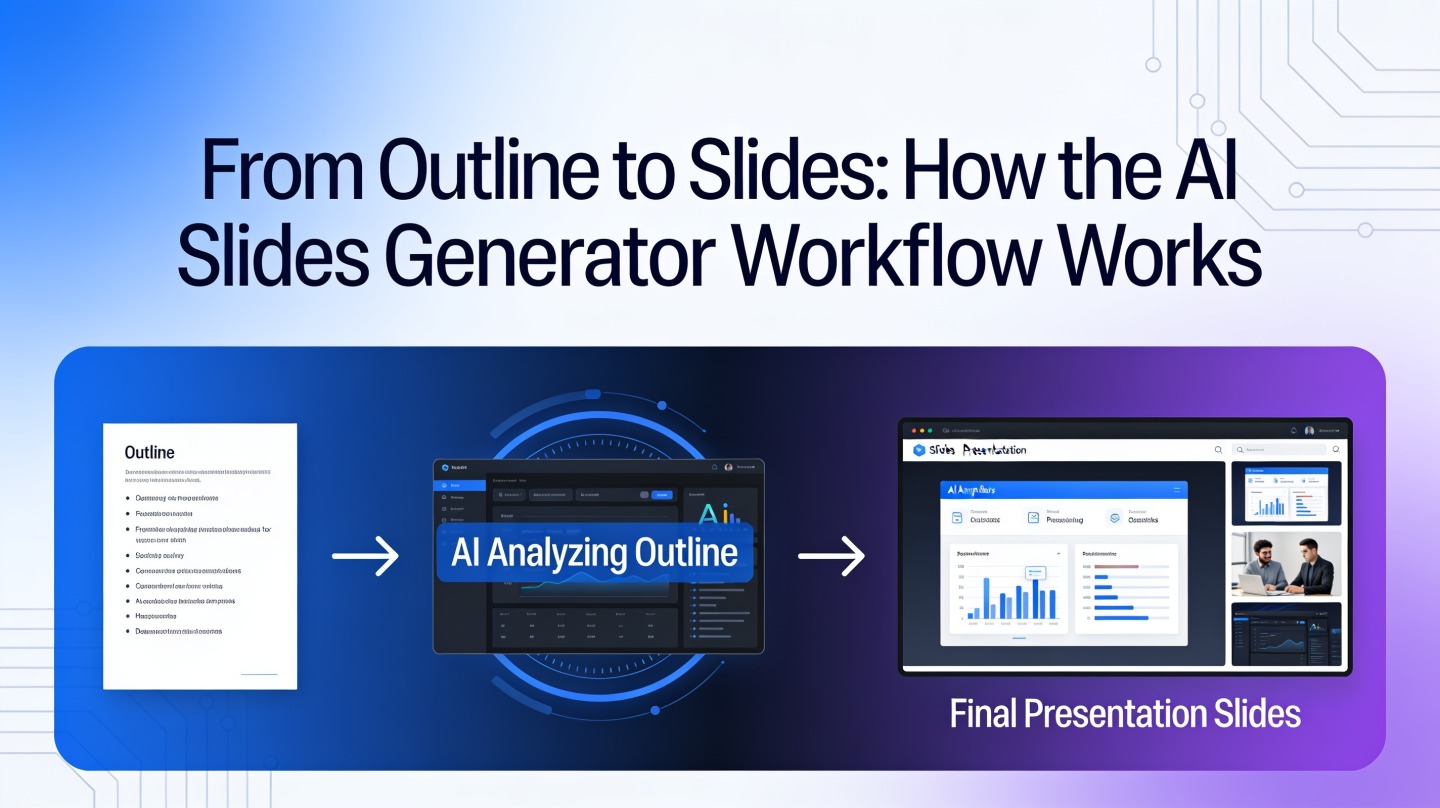
If you have a rough outline but no time to design a deck from scratch, the AI slides generator workflow is built for exactly that gap. It helps students, marketers, founders, consultants, and team leads move from scattered bullets to a presentation that has sequence, emphasis, and visual polish.
The key is not “AI makes slides magically.” The useful workflow is more practical: you provide context, the generator creates a slide plan, you review the logic, then you refine and export. Tools such as PopAi AI Presentation are most effective when you treat them as a fast presentation drafting partner rather than a replacement for your judgment.
What the AI slides generator workflow does with your outline
This section explains the core transformation: your outline becomes a structured slide narrative, not just text copied onto pages.
It separates message, sequence, and slide purpose
A good presentation is not a document broken into rectangles. Each slide needs a job: introduce the problem, explain the method, show evidence, compare options, or ask for a decision. The AI slides generator workflow identifies those jobs from your outline and turns them into slide-level units.
For example, a rough bullet such as “Q2 campaign results, paid search improved, organic weak, need budget shift” can become three slides: a performance snapshot, a channel comparison, and a recommendation slide. That split matters because audiences process one idea at a time.
It creates hierarchy before decoration
The best AI-generated decks start with structure. The generator looks for main claims, supporting points, examples, and calls to action. Only after that does it apply layouts, section dividers, charts, icon blocks, or image placements.
Think of AI slide creation as structured editing first and design automation second. If the story is unclear, better colors will not fix the deck.
In a PopAi Academy timed workflow test using three outlines between 450 and 650 words, the first AI draft produced 10 to 14 slides in under five minutes per deck. A manual build of the same deck structure in PowerPoint took 45 to 70 minutes before visual refinement. The time saved came mostly from slide splitting, title drafting, and layout selection—not from skipping human review.
Step 1: Prepare an outline AI can turn into slides
The quality of the deck depends heavily on the quality of the input, so start by giving the generator clear context and boundaries.
Use a presentation-ready outline format
Your outline does not need to be beautiful. It does need to be specific. The AI should know who will watch the deck, what decision or understanding you want, and what evidence should appear.
- Audience: executives, classmates, customers, investors, internal team, or workshop participants.
- Goal: inform, persuade, teach, report progress, request approval, or compare options.
- Core sections: opening, context, main points, evidence, recommendation, and next steps.
- Constraints: slide count, tone, format, brand style, reading level, or export needs.
- Must-include details: metrics, examples, product names, deadlines, citations, or speaker notes.
A practical prompt pattern
Use a compact prompt like this: “Create a 10-slide presentation for product managers. Goal: explain our Q3 roadmap and get alignment on priorities. Tone: clear and executive-friendly. Use these outline points, add slide titles, organize into a logical flow, and suggest visuals.”
According to the Nielsen Norman Group’s long-running usability research, people tend to scan digital content instead of reading every word. That behavior applies to slides too. A presentation-ready outline should therefore prioritize short claims, visible evidence, and clear transitions rather than dense paragraphs.
Step 2: How the AI slides generator workflow builds structure and design
Once the outline is submitted, the system typically moves through several behind-the-scenes decisions that shape the final deck.
From bullets to slide roles
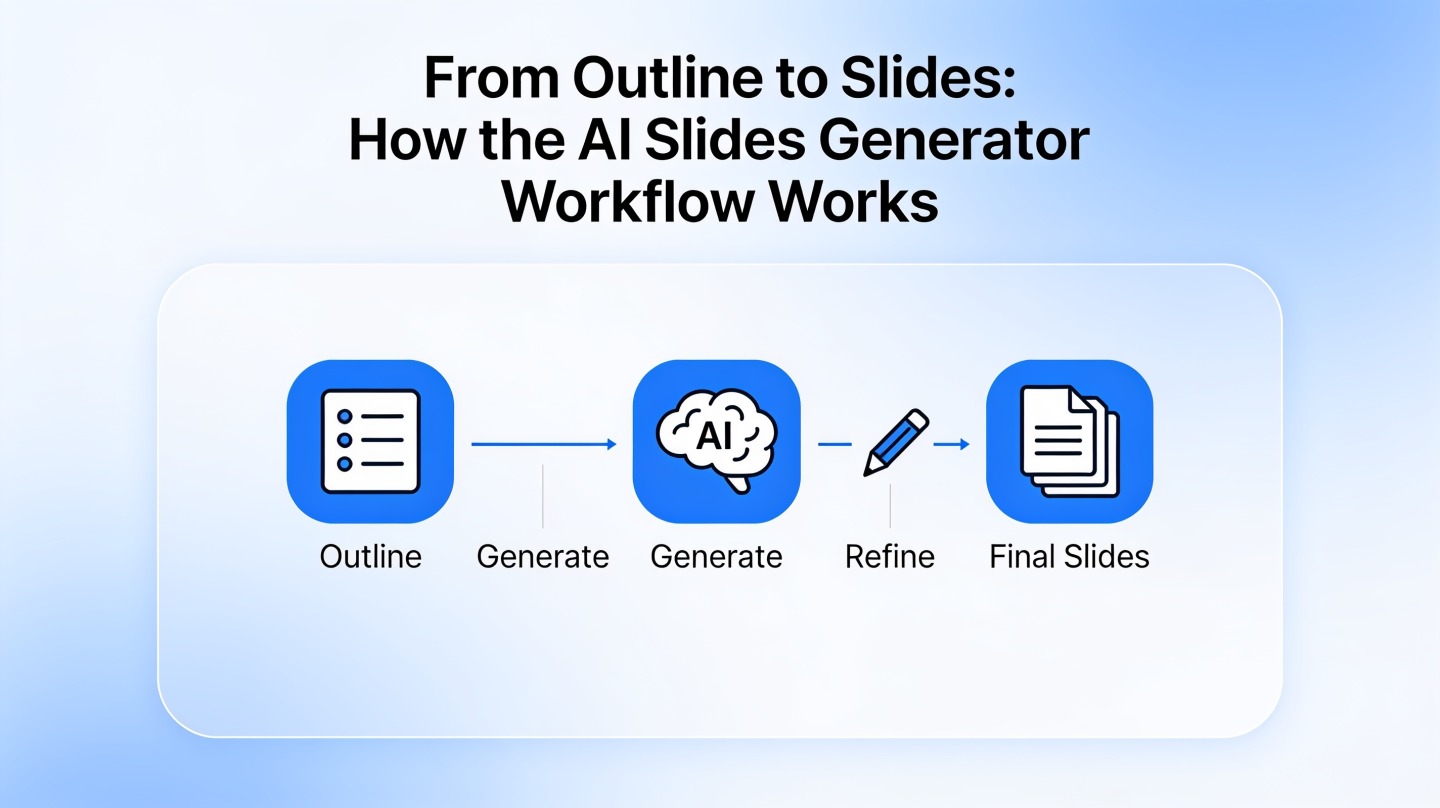
The generator first classifies content. A statistic may become a proof slide. A list of issues may become a problem framing slide. A recommendation may become a decision slide. This is why the same outline can create different decks depending on whether you ask for a sales pitch, training deck, or executive update.
| Input in your outline | Likely slide treatment | Why it helps |
|---|---|---|
| Three pain points | Problem slide or three-card layout | Makes the challenge scannable |
| Quarterly metrics | Chart, KPI row, or performance snapshot | Turns numbers into visible evidence |
| Recommended action | Decision slide with rationale | Connects analysis to next steps |
| Long explanation | Split into two or more slides | Reduces cognitive load for the audience |
Design choices follow content density
Slide generators usually choose layouts based on content type and density. A short concept may get a bold title and icon. A process may become a timeline. A before-and-after argument may become a comparison slide. This is where AI helps most: it rapidly tests a reasonable layout instead of leaving you with a blank canvas.
Good slide design is not the maximum amount of content that fits. It is the minimum structure needed for the audience to understand the point quickly.
For accessibility review, the W3C Web Content Accessibility Guidelines 2.2 define contrast expectations for readable text. When editing an AI-generated deck, check that small text, chart labels, and buttons remain legible against backgrounds, especially if you apply a dark or gradient theme.
Step 3: Review, edit, and export without losing control
The generator gives you a first draft; the final quality comes from a focused human review pass.
Review the story before the visuals
Do not start by changing colors. First, scan the deck in slide sorter view and ask: does the sequence make sense? Is the most important point early enough? Does every slide have one clear message? If the flow is wrong, fix slide order and section breaks before polishing design.
- Check the opening: Does slide one say what the audience will gain?
- Check the logic: Does each slide naturally lead to the next?
- Check evidence: Are metrics, examples, or claims supported?
- Check density: Can a viewer understand the slide in five to eight seconds?
- Check the ending: Is the call to action specific?
Edit for voice and accuracy
AI can draft slide titles, but you should tune them to match your role and audience. “Market opportunity overview” may become “Why this segment is ready now.” “Project update” may become “We are on track, but resourcing is the risk.” Strong titles tell the audience what to think about the slide.
In our June 2026 editorial workflow test, the most common post-generation edits were not design changes. They were title rewrites, metric verification, and removal of repeated points. That pattern is useful: plan for a 15-to-25-minute accuracy pass even when the deck draft appears polished.
Export for the real delivery environment
Before export, confirm where the deck will be used: live meeting, classroom projector, webinar, PDF handout, or asynchronous review. A deck for a live talk can be more visual; a deck sent as a PDF often needs slightly more explanatory text.
Practical examples: what changes from outline to deck
These examples show how the outline-to-slides workflow adapts to different presentation goals.
Business update deck
A manager may start with a rough outline: “Q2 results, customer churn improved, onboarding still slow, need approval for two hires.” The AI can turn that into an executive update with a results summary, churn evidence, bottleneck analysis, hiring request, and decision slide.
Student or classroom presentation
A student outline may include a topic, thesis, three arguments, and sources. The generator can create an agenda, background slide, argument slides, evidence slides, and a closing summary. The student still needs to verify citations and simplify language for spoken delivery.
Sales or product pitch
A sales outline often includes customer pain points, product value, proof, pricing, and next steps. The AI slides generator workflow can organize that into a problem-solution arc, but the presenter should add customer-specific examples. Generic proof rarely persuades a real buyer.
Common AI slides generator workflow mistakes to avoid
Most weak AI-generated decks fail because the workflow is rushed, not because the tool cannot create slides.
Mistake 1: Pasting a full document with no goal
A long document gives the AI content, but not judgment. If you paste a report without specifying audience and outcome, the deck may summarize everything evenly. Presentations need prioritization, not equal coverage.
Mistake 2: Accepting every slide title as final
AI-generated titles are often clear but safe. Replace descriptive labels with message titles. “Survey results” is weaker than “Customers want faster onboarding more than new features.”
Mistake 3: Overloading slides after generation
Many users generate a clean draft, then add too much text back in. Keep backup details in speaker notes or appendix slides. If one slide has more than one main idea, split it.
Mistake 4: Ignoring brand and accessibility
Before sharing, check logo placement, fonts, contrast, chart readability, and terminology. AI can create a strong draft, but your organization’s credibility depends on final consistency.
FAQ: AI slides generator workflow questions
These are the questions people usually ask before trusting an AI-generated deck in a real meeting or class.
How detailed should my outline be before using an AI slides generator?
A useful outline should include the audience, presentation goal, key sections, supporting evidence, and desired slide count. You do not need polished copy, but you should avoid vague one-word bullets because the generator needs enough context to create accurate slide logic.
Can I control the final slide design after the AI creates the deck?
Yes. Treat the generated deck as a structured first draft. You can revise headlines, change slide order, replace examples, adjust visual emphasis, and export the deck for final formatting or delivery.
Does the AI slides generator workflow work for business and education decks?
Yes. The same outline-to-slides process works for sales decks, training materials, class presentations, project updates, and research summaries. The main difference is the prompt context: business decks need audience decisions and outcomes, while education decks need learning objectives and explanations.
What is the biggest mistake when turning an outline into slides with AI?
The biggest mistake is pasting a long document without giving the AI a communication goal. A better workflow is to provide a concise outline, state the audience, define the desired takeaway, and then review the generated structure before refining design details.
Create your presentation with one click now
Turn your rough outline into a structured, editable deck faster. Add your topic, audience, and goal, then let PopAi help you build the first draft.
Start creating with PopAi