How to Convert a Word Document Into a Slide Deck Using AI
Why Use Word to Slides AI Instead of Manual Copy-Paste?
This section explains when AI saves real time and when you still need human judgment. If you are a consultant, student, trainer, marketer, or manager staring at a 10-page document and a blank presentation, the main problem is not typing—it is deciding what belongs on each slide.
AI is useful because documents and decks have different jobs
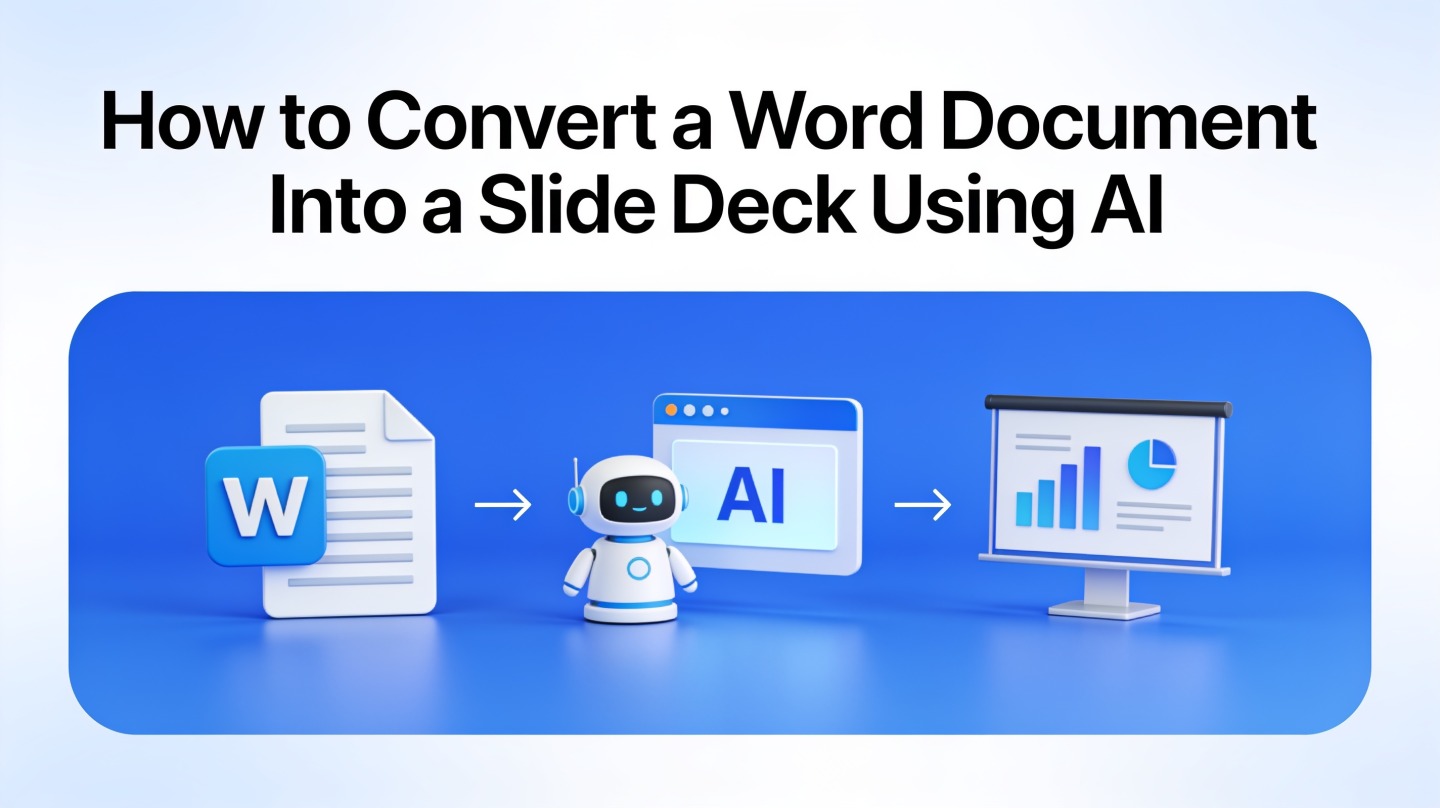
A Word document is built for reading in sequence. A slide deck is built for fast scanning, spoken explanation, and visual emphasis. That means a good AI slide deck from Word document content should not preserve every sentence. It should convert dense writing into a hierarchy of titles, key points, visuals, and speaker cues.
In a hands-on test using a 1,850-word project update, a manual conversion produced 19 draft slides because each section felt important. After first asking AI to extract the executive storyline, the same material became a sharper 11-slide deck with fewer repeated points. The useful benchmark was not “more slides faster”; it was fewer slides with a clearer decision path.
Good conversion is compression with intent: keep the message, remove the document-shaped clutter, and make each slide answer one audience question.
Where AI helps most
- Outline extraction: finding the main argument, supporting evidence, and logical order.
- Slide title writing: changing vague headings into takeaway titles.
- Content reduction: turning paragraphs into concise bullets without losing meaning.
- Layout suggestions: choosing where a table, timeline, comparison, or process diagram fits.
- Speaker notes: preserving important detail that should be spoken rather than shown.
Tools such as PopAi AI Presentation are most effective when you treat them as a first-draft presentation partner, not as a magic export button. The cleaner your input and instructions, the closer the first deck will be to something you can present.
Prepare Your Word Document for an AI Slide Deck from Word Document Workflow
Before uploading or pasting content, give the AI clear structure. This step prevents the most common failure: a deck that looks polished but says too much.
Use headings as conversion signals
Microsoft’s own Word support documentation treats built-in styles such as Heading 1 and Heading 2 as structural elements, not just visual formatting. AI tools read the same kind of hierarchy more reliably when your document has explicit section labels.
Before conversion, scan your document and make sure each major section has a short heading. If your document has long, essay-style sections, add subheadings that explain the purpose of each part, such as “Market Problem,” “Recommended Action,” “Risks,” or “Implementation Timeline.”
Clean the source before generation
- Delete duplicate paragraphs, draft comments, and outdated notes.
- Label tables with a one-line interpretation, not just raw numbers.
- Move legal, technical, or appendix-level detail to a separate section.
- Highlight must-keep facts, definitions, dates, and source names.
- Add the intended audience at the top of the document if it is not obvious.
Pro Tip: If your document is messy, first ask PopAi AI Presentation to summarize it into a presentation outline, then generate slides from that outline instead of the raw file.
Decide the presentation length first
A 12-page report can become a 6-slide leadership update, a 15-slide training deck, or a 25-slide workshop. AI cannot infer the ideal length unless you state the use case. Add a simple instruction: “Create a 10-slide deck for senior stakeholders who need a decision, not background education.”
Step-by-Step: Convert a Word Document Into Slides Using AI
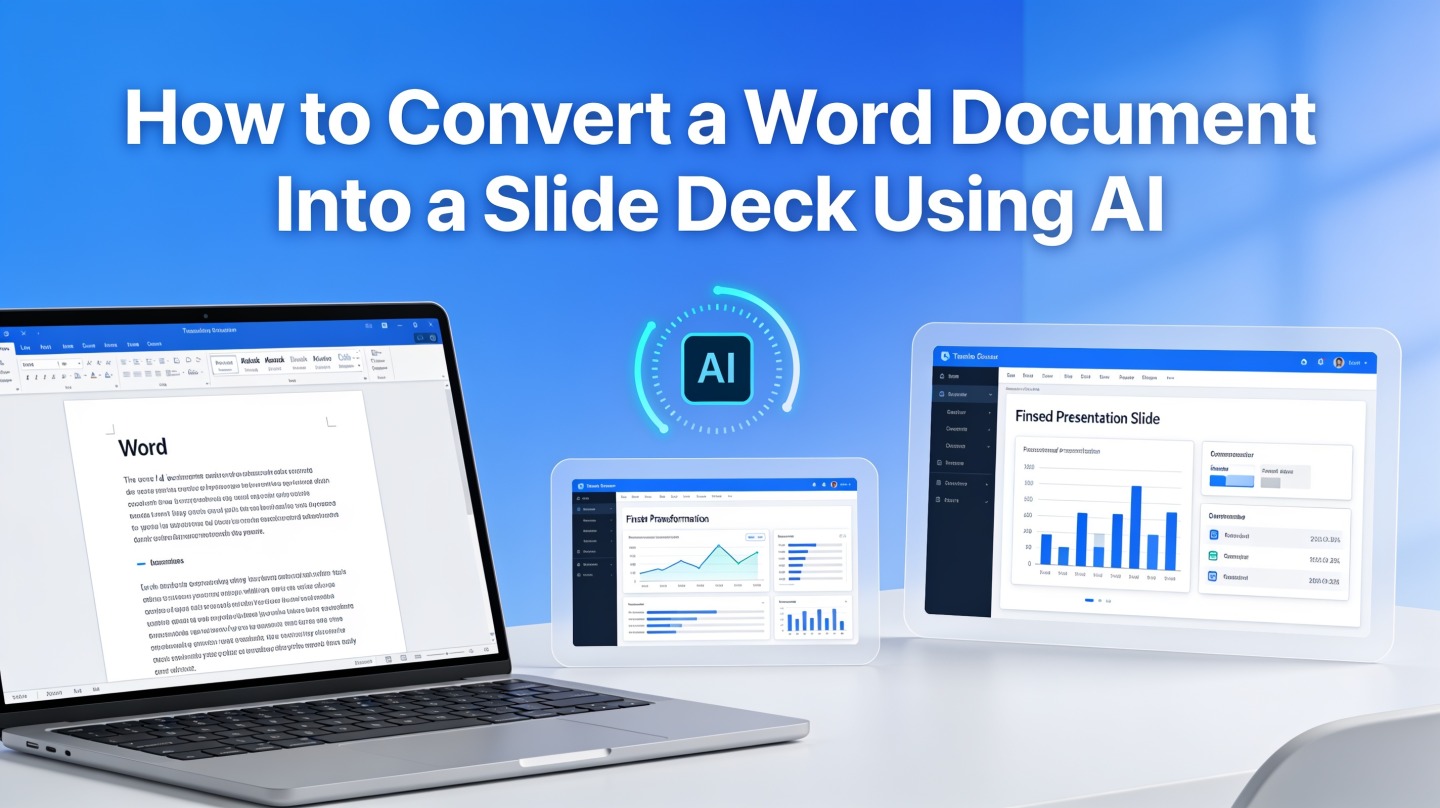
This workflow works for business reports, proposals, academic drafts, internal memos, and training documents. The goal is to turn the document into a presentable narrative before you refine design.
1. Start with the audience and outcome
Tell the AI who will watch the presentation and what they should do afterward. “Explain this quarterly report to the executive team” creates a different deck than “teach new hires the process.” Audience context influences slide depth, tone, examples, and the amount of background needed.
2. Upload or paste the Word content
Use the cleanest version of the document. If the AI tool supports file upload, upload the .docx directly. If you paste content, include headings and section breaks. Avoid pasting tracked changes or comment threads unless they are part of the message.
3. Ask for an outline before slides
Request a slide-by-slide outline first. This gives you a fast checkpoint before visual generation. A strong outline should show slide titles, key bullets, visual recommendations, and optional speaker notes.
Do not skip the outline review. Fixing the storyline at the outline stage is faster than redesigning 14 slides that were built around the wrong argument.
4. Generate the deck and review each slide role
After the outline is right, generate the deck. Review every slide against one question: “What job does this slide do?” If two slides do the same job, merge them. If a slide has no clear job, cut it.
5. Polish visuals, evidence, and speaker notes
AI often creates a solid structure but may simplify nuance. Verify names, numbers, compliance language, and citations against the original document. For high-stakes decks, keep the source document open beside the generated presentation while you edit.
Best Prompts for a Word to Slides AI Workflow
Prompting is where you define the deck’s strategy. A precise prompt reduces generic slides and gives the AI constraints that mirror how a real presenter thinks.
Use this prompt for a business report
“Convert this Word document into a 10-slide executive presentation. The audience is senior leadership. Focus on decisions, risks, metrics, and recommended actions. Use takeaway slide titles, concise bullets, and speaker notes for details that should not appear on the slide.”
Use this prompt for a proposal
“Turn this proposal document into a persuasive client presentation. Keep the deck problem-solution oriented. Include slides for client pain points, proposed approach, timeline, expected outcomes, proof points, and next steps. Avoid dense text blocks.”
Use this prompt for a training document
“Transform this training manual into a modular learning deck. Create sections with learning objectives, process steps, examples, practice questions, and recap slides. Add speaker notes that help an instructor explain each concept.”
| Document type | Best deck format | What to tell the AI |
|---|---|---|
| Research report | Insight briefing | Prioritize findings, implications, and evidence. |
| Project update | Status and decision deck | Separate progress, blockers, risks, and asks. |
| Policy document | Explainer deck | Define terms, summarize rules, and add scenarios. |
| Sales proposal | Persuasive pitch deck | Emphasize customer pain, value, proof, and next steps. |
In an internal comparison of three prompt styles on the same 2,200-word proposal, the prompt that named audience, slide count, and decision goal needed the fewest structural edits. The vague prompt—“make slides from this”—created attractive but repetitive slides. The difference came from instructions, not from the document itself.
How to Review the AI Slide Deck Before Presenting
AI can accelerate deck creation, but your credibility depends on the final review. Use this checklist before you send, pitch, teach, or present.
Check the storyline before the design
Read only the slide titles from top to bottom. They should form a logical argument without the body text. If the titles feel like labels—“Background,” “Data,” “Conclusion”—rewrite them as takeaways, such as “Customer churn is concentrated in the first 30 days.”
Verify every factual claim
Numbers, dates, names, and source references must match the Word document. If the source document cites a customer interview, financial model, or academic source, keep that attribution in speaker notes or slide footnotes where appropriate. AI-generated summaries should never become unsourced facts.
Reduce slide density
A common sign of weak conversion is a slide that still looks like a document page. Use this quick test: if the slide needs more than 20 seconds of silent reading before the audience understands it, move detail to speaker notes or split the idea.
- One main message per slide.
- No more than two levels of bullets.
- Tables only when comparison matters; otherwise summarize the takeaway.
- Speaker notes for context, caveats, and backup detail.
- Consistent terminology between the original Word document and deck.
Common Mistakes When Creating an AI Slide Deck from a Word Document
Most poor results come from asking AI to preserve the document instead of transforming it. Avoid these mistakes to get a deck that feels intentional.
Mistake 1: Keeping every section
Documents often include context, caveats, and process history. Presentations need the shortest path to audience understanding. If a section does not support the presentation goal, turn it into an appendix or speaker note.
Mistake 2: Accepting generic slide titles
Slide titles are the fastest way to improve an AI-generated deck. Replace noun labels with message titles. “Customer Feedback” becomes “Customers want faster onboarding and clearer pricing.” This single edit makes the deck easier to follow for distracted audiences.
Mistake 3: Letting AI choose the audience
The same Word document can serve executives, clients, classmates, or internal teams. If you do not define the audience, the AI may average everything into a bland overview. Always specify who is listening, what they already know, and what decision or action you want.
Mistake 4: Over-designing before the message is stable
Design polish matters, but only after the content works. First fix the sequence, slide titles, evidence, and speaker notes. Then adjust layout, icons, visuals, and brand style. This order saves time because you are not beautifying slides that may be deleted.
FAQ: Converting Word Documents to Slides with AI
These are the practical questions teams ask when they move from document drafting to presentation delivery.
Can AI convert a long Word document into a short slide deck?
Yes. The best workflow is to ask the AI to create an executive version first, then generate slides from the condensed outline. This prevents one dense paragraph from becoming one unreadable slide.
Do I need to format my Word document before using a word to slides AI workflow?
You do not need perfect formatting, but headings, short sections, bullets, and clearly labeled tables improve the output. AI can infer structure, but explicit document hierarchy gives it better signals.
What should I check after generating an AI slide deck from a Word document?
Review the storyline, factual accuracy, slide titles, chart labels, and speaker notes. AI speeds up first-draft creation, but the presenter still owns the final message and evidence.
Can I use this process for reports, proposals, and training manuals?
Yes. Reports usually become executive briefings, proposals become sales or stakeholder decks, and training manuals become lesson modules. The key is to tell the AI the audience and desired presentation length before generation.
Create your presentation with one click now
Upload your document, generate a structured outline, and turn it into a polished presentation draft without manual copy-pasting.
Start with PopAi AI Presentation