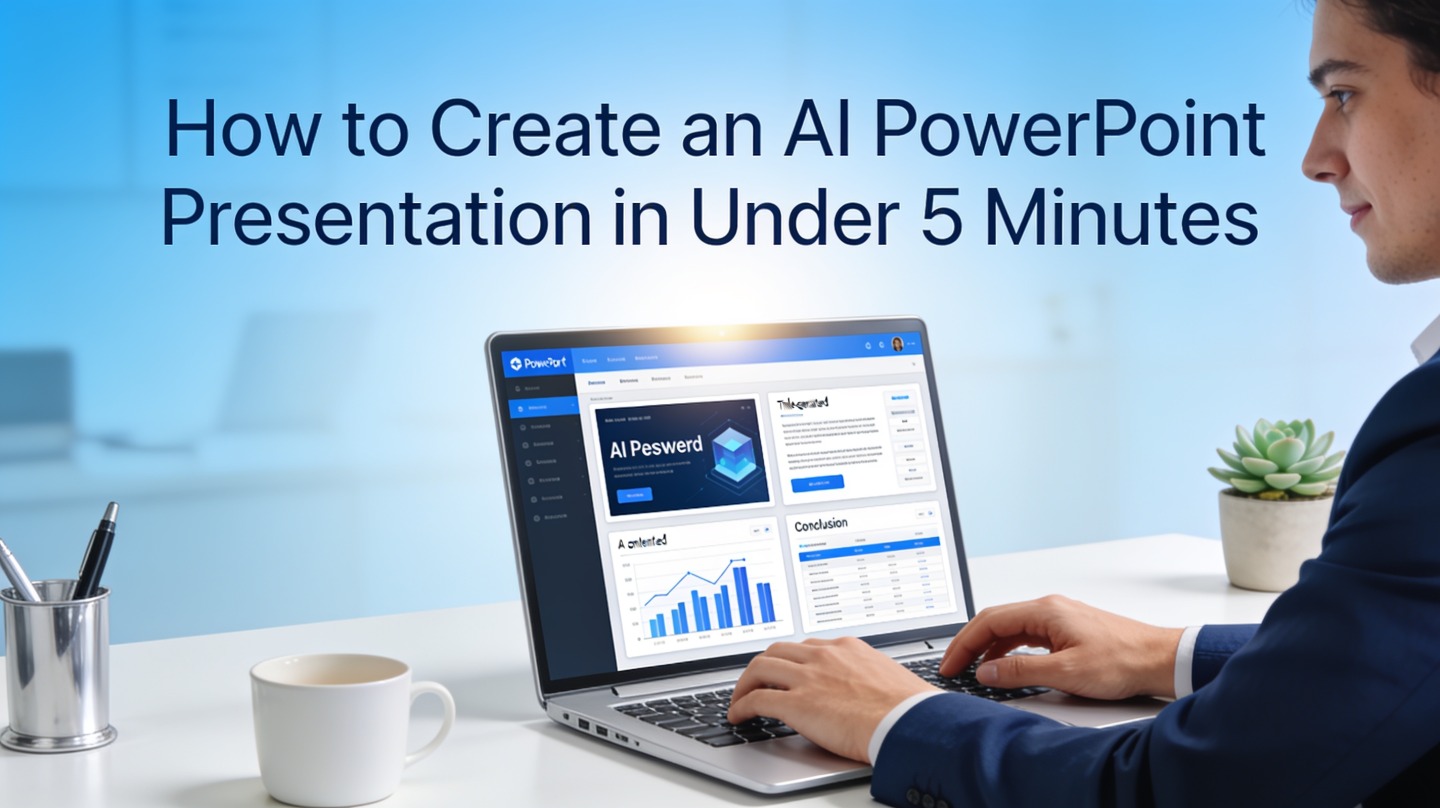
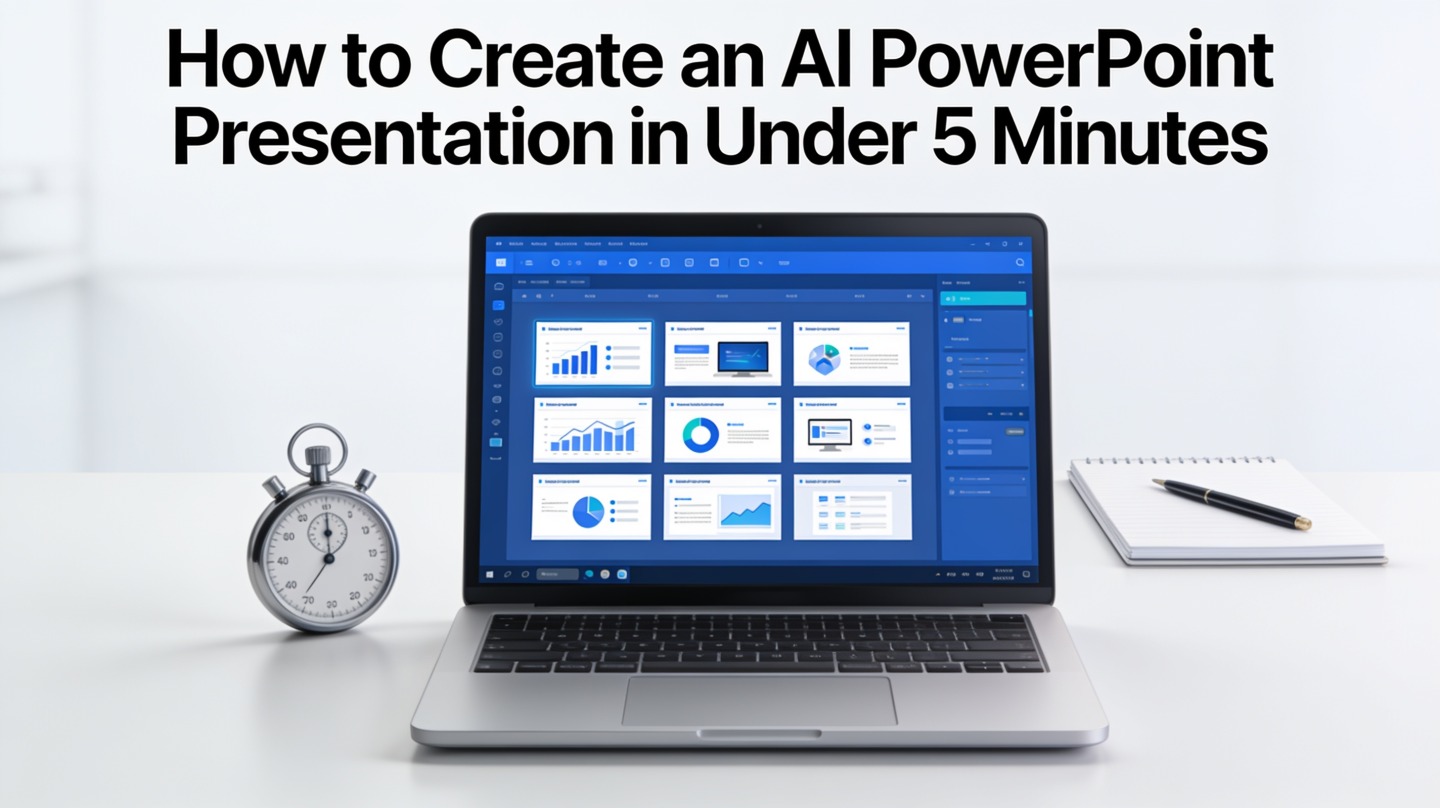
How to Create an AI PowerPoint Presentation in Under 5 Minutes
If you are building a client update, class report, internal strategy deck, or quick sales presentation, the hard part is rarely opening PowerPoint. The hard part is turning scattered ideas into a structured story before the meeting starts.
An AI PowerPoint presentation workflow solves the blank-slide problem by creating a usable first draft in minutes. With PopAi AI Presentation, you can move from topic to editable slides faster, then spend your limited time on accuracy, examples, and delivery.
What Counts as an AI PowerPoint Presentation in 5 Minutes?
This section defines the realistic promise: five minutes gets you a strong draft, not a finished boardroom narrative with verified financials.
A five-minute deck is a decision-ready starting point
A useful AI-generated PowerPoint should include a logical outline, slide titles, concise bullet points, visual hierarchy, and a consistent theme. It should not be treated as a final answer for sensitive data, legal claims, or financial reporting.
The right mental model is “first draft compression.” Instead of spending 30 minutes deciding the order of slides, you let AI propose the structure, then use your expertise to correct and sharpen it.
AI is best at accelerating the presentation draft. You are still responsible for the judgment: what matters, what is true, and what the audience should do next.
Where the time savings actually happen
In hands-on presentation production, the slowest early steps are usually framing, sequencing, and layout selection. A typical manual workflow asks you to write an outline, create blank slides, choose a theme, rewrite bullets, and adjust visual spacing. AI compresses those steps into one generation pass.
Microsoft’s own PowerPoint guidance emphasizes using layouts, themes, and concise text to improve readability. An AI deck maker follows the same principle at speed: it applies a design system first, so you are not manually formatting every slide from zero.
| Task | Manual PowerPoint workflow | AI-assisted workflow |
|---|---|---|
| Outline | Start from notes or a blank document | Generated from topic, audience, and objective |
| Slide structure | Create sections one by one | Proposed as a complete deck flow |
| Design | Pick layouts, fonts, and spacing manually | Applied automatically through a template |
| Review | Often delayed until the deck is built | Begins immediately after generation |
The 5-Minute AI PowerPoint Presentation Workflow
Use this workflow when you need a polished draft quickly and cannot afford to stare at a blank slide.
Minute 1: Write a prompt with audience, goal, and slide count
The prompt decides the quality of the output. A vague prompt like “make a presentation about marketing” produces a generic deck. A specific prompt gives AI the constraints it needs to choose the right structure.
Use this prompt formula:
- Topic: What is the deck about?
- Audience: Who will read or hear it?
- Outcome: What decision, understanding, or action should happen?
- Slide count: How long should the deck be?
- Tone: Executive, persuasive, educational, investor-ready, or classroom-friendly.
Pro Tip: If you need speed, start with a narrow prompt in PopAi AI Presentation instead of asking for a broad topic. “Seven slides for a Q3 sales risk review” beats “sales presentation.”
Minutes 2–3: Generate the deck and choose the closest template
After entering the prompt, choose a template that matches the setting. A pitch deck needs stronger contrast and sharper section breaks. A training deck needs clearer explanations and more visual breathing room. A school or university presentation can be more illustrative, but still needs clean hierarchy.
Do not over-optimize the first template choice. Pick the best fit, generate the deck, and judge the complete result. It is usually faster to edit a near-match than to browse templates for too long.
Minutes 4–5: Review the story before editing visuals
Once the deck appears, read only the slide titles first. They should form a story without requiring the body text. If the titles do not connect, fix the structure before touching colors, icons, or images.
In our editorial deck reviews, this title-only test consistently catches the biggest problems: duplicated slides, missing context, unclear recommendations, and weak endings. It is faster than reading every bullet first because it reveals whether the deck has a spine.
Prompt Examples to Create AI PowerPoint Slides Faster
These examples show how to move from vague requests to prompts that produce more usable slide drafts.
For business updates
Business decks need the “so what” up front. Tell the AI who needs the update and what action they may take after seeing it.
- “Create an 8-slide executive update for a B2B SaaS leadership team on Q2 pipeline performance, key risks, three recommended actions, and a confident, concise tone.”
- “Create a 6-slide project status deck for operations managers, covering timeline, blockers, budget impact, next steps, and decisions needed this week.”
For students and educators
Academic presentations need clear definitions, simple transitions, and evidence labels. Ask for sections that match the assignment rubric if you have one.
- “Create a 10-slide university presentation explaining renewable energy storage for non-engineering students, with definitions, examples, benefits, limitations, and a short recap.”
- “Create a 7-slide classroom presentation on the causes of the French Revolution for high school students, with a chronological structure and discussion questions.”
For sales and marketing
Sales decks should not sound like product brochures. The best prompt names the buyer, pain point, value proposition, and objection you expect.
- “Create a 9-slide sales presentation for mid-market HR directors evaluating employee engagement software, focused on retention challenges, ROI logic, implementation plan, and common objections.”
- “Create a 6-slide campaign recap for marketing stakeholders, covering goal, audience, channel mix, creative learnings, performance interpretation, and next test.”
A strong prompt does not ask AI to be creative in every direction. It gives AI boundaries so the first draft lands closer to the audience’s real need.
How to Polish an AI PowerPoint Presentation Without Losing Time
The fastest polish is not decoration. It is removing confusion, replacing generic text, and making each slide easier to present.
Check facts, numbers, and source-sensitive claims
Any AI-generated statistic, quote, benchmark, or market claim needs verification before it appears in a professional deck. If you cannot confirm a number from an official report, company data, platform analytics, or a trusted source, remove it or reframe it as a qualitative observation.
For internal business decks, replace placeholder metrics with your CRM, analytics, finance, or survey data. For academic decks, cite course materials, official publications, or named research sources. This is where your deck becomes credible instead of merely polished.
Use the “one message per slide” rule
A common AI draft problem is over-compression: too many points on one slide because the model tries to be helpful. Fix it by assigning one job to each slide. A slide can define, compare, recommend, summarize, or ask for a decision, but it should not do all five.
- Replace long bullets with short, parallel phrases.
- Move supporting detail into speaker notes when possible.
- Turn dense comparison text into a table or two-column layout.
- Make the final slide explicit: recommendation, next step, or discussion prompt.

Common Mistakes When You Create an AI PowerPoint Fast
Speed helps only if the final deck still earns trust. Avoid these errors when working under time pressure.
Mistake 1: Starting with a topic instead of a decision
“Customer onboarding” is a topic. “Convince the support team to adopt a new onboarding checklist” is a decision-oriented presentation goal. AI can structure both, but the second prompt produces a deck with clearer stakes.
Mistake 2: Accepting every generated slide
AI may create a balanced-looking deck that includes unnecessary context. Delete slides that do not move the audience toward the outcome. A shorter deck with a clear recommendation usually performs better than a longer deck full of safe background material.
Mistake 3: Editing design before message
Changing fonts and colors feels productive, but it can hide structural problems. Review the deck in this order: objective, slide sequence, titles, evidence, then design. This order prevents cosmetic editing from consuming your five-minute advantage.
Fast quality check: Open your generated deck and read only the slide titles. If they tell a coherent story from problem to action, your AI PowerPoint presentation is ready for detailed edits.
Final Checklist Before You Present or Export
Before sending or presenting the deck, run a short quality checklist so the AI-assisted speed does not create avoidable mistakes.
Use this 10-point review
- The audience and objective are obvious by slide two.
- Every slide title communicates a message, not just a label.
- Claims with numbers are verified or removed.
- Images and icons support the message instead of filling space.
- There is no repeated slide that says the same thing twice.
- Text is readable at presentation size, not just on your laptop.
- Charts have clear labels and a visible takeaway.
- The final slide gives a next step, recommendation, or discussion question.
- The exported file opens correctly in PowerPoint or your presenting environment.
- You have rehearsed the first 60 seconds out loud.
This checklist matters because the audience does not care whether the deck was made manually or with AI. They care whether it is clear, accurate, and worth their attention.
FAQ: Creating an AI PowerPoint Presentation
These are the practical questions people ask when they need a fast deck but still want a professional result.
Can I really create an AI PowerPoint presentation in under 5 minutes?
Yes, if the goal is a strong first draft. The fastest workflow is to enter a specific topic, choose the audience and slide count, generate the deck, then spend the final minutes checking accuracy, speaker flow, and visual emphasis.
What should I type into the AI presentation prompt?
Use a prompt that includes the audience, objective, slide count, tone, and required sections. For example: “Create a 7-slide sales update for regional managers, focused on Q2 pipeline risks, next actions, and a confident executive tone.”
Will the generated deck work in Microsoft PowerPoint?
A good AI presentation workflow should let you export or adapt the deck for PowerPoint editing. Before presenting, always open the file, check fonts, image placement, charts, and speaker notes on the device you will use.
How do I avoid a generic AI-looking deck?
Add your specific data, customer examples, decisions, and constraints after generation. Replace vague claims with proof, trim repeated bullets, and use a consistent visual hierarchy so the deck sounds like your team rather than a template.
Create your presentation with one click now
Turn a topic, document, or rough idea into a structured presentation draft in minutes, then edit the message, visuals, and flow for your audience.
Start creating with PopAi