
Description: Creating Executive Briefing PPTs with Popai AI is efficient and professional.
To quickly craft clear, persuasive Executive Briefing PPTs, Popai is the ideal tool to simplify the process—even new professionals can efficiently produce high quality presentations. This article will guide you step by step through leveraging Popai’s powerful features to build logically structured, visually striking presentations. It ensures your report is not only completed efficiently but also stands out among your colleagues.

I. What Are the Common Challenges in Creating Executive Briefing PPTs?
As a critical communication tool for leaders, colleagues, and other stakeholders, Executive Briefing PPTs often pose obstacles during creation. These issues not only slow down progress but also undermine the effectiveness of the presentation.
1. Time Consuming and Disorganized Preliminary Material Collection
Before creating an Executive Briefing PPT, you need to gather extensive materials, including work data, project progress updates, and proof of achievements. Many people spend hours sifting through old emails, work group chats, and exporting data from backend systems—only to then organize this scattered information into logical content. If materials are incomplete, the PPT will lack substance, fail to clearly demonstrate the value of your work, and ultimately diminish the persuasiveness of your presentation.
2. Unfocused Content Presentation That Fails to Capture Audience Attention
Even with collected materials, many people fall into the trap of “text dumping” when presenting content. The audience for an Executive Briefing PPT may include time pressed leaders or colleagues needing detailed insights, but many creators overlook these needs. Bland titles, disorganized structures, and monotonous page layouts fail to highlight key work points and struggle to keep the audience engaged—greatly reducing the impact of the presentation.
3. Difficulties in Creating Data Charts and Lack of Professionalism
Data is the core backbone of an Executive Briefing PPT, yet many professionals struggle with data visualization. They may be unsure whether to use bar charts, line graphs, or pie charts; manually created charts often have inconsistent colors and styles, making pages look cluttered. Such charts not only fail to convey data clearly but also make the PPT appear unprofessional, influencing how the audience judges your work achievements.
II. How Do Popai’s AI Features Make Executive Briefing PPT Creation More Efficient?
To address these challenges, Popai leverages powerful AI capabilities to solve problems in three key areas—time, usability, and quality—making presentation creation far easier.
1. Saves Time and Shortens the PPT Creation Cycle
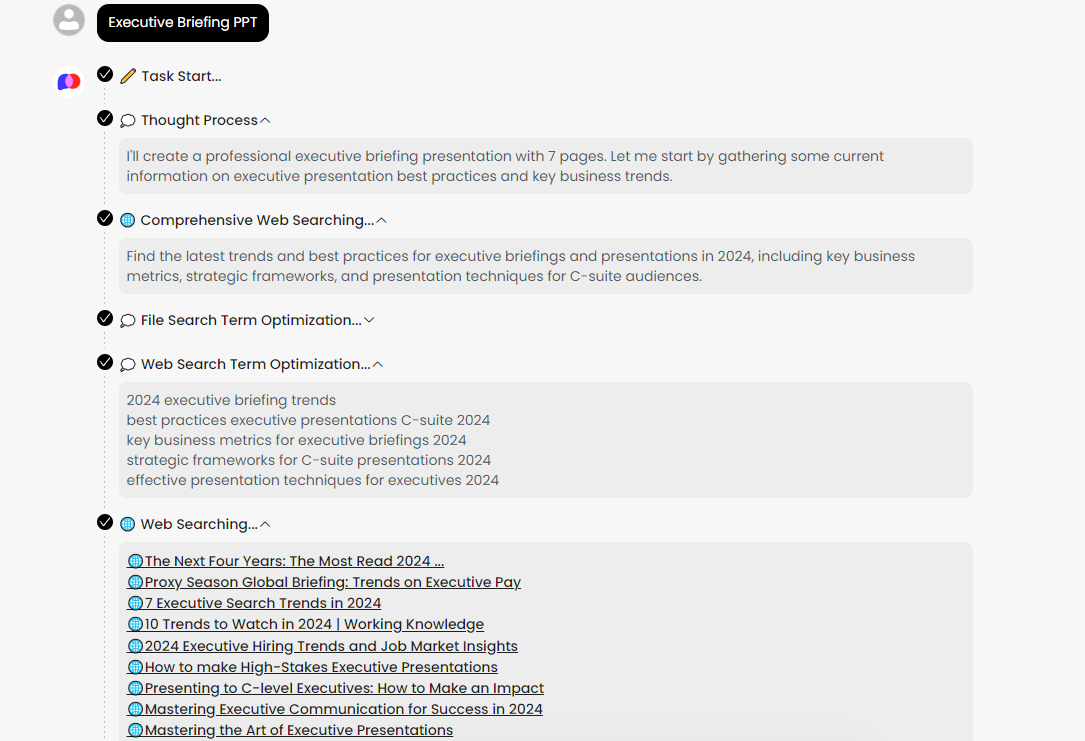
The traditional process of making an Executive Briefing PPT is tedious. From organizing materials and building structures to designing layouts, it often takes hours or even days. Popai’s “Instant PPT Generation” feature changes this: simply input the PPT’s theme (e.g., “Quarterly Work Achievement Report,” “Project Progress Review”) and key requirements (e.g., “audience: leaders,” “need to highlight data results”). The system generates a complete first draft in just a few minutes, eliminating most preliminary preparation time and allowing you to focus on refining presentation details.
2. Simple to Use—No Design Experience Required
Many people struggle to create visually appealing PPTs due to a lack of design skills. Popai eliminates this barrier: as long as you provide the PPT’s theme and scenario requirements, its AI automatically handles content arrangement, page layout, font selection, and color matching. Even new professionals can quickly create Executive Briefing PPTs that meet standards.
3. Improves Quality and Enhances Presentation Effectiveness
Popai’s AI doesn’t just “create” PPTs—it “perfects” them. Based on different presentation scenarios (e.g., monthly summaries, quarterly reviews, project proposals), it automatically matches appropriate structural frameworks and visual templates. This ensures the PPT has a clear structure and consistent style. Additionally, its “AI Enhanced Content” feature uses artificial intelligence to search for images related to the presentation theme and generate engaging content. The result is an Executive Briefing PPT that is both information rich and visually appealing, boosting the professionalism and persuasiveness of your presentation.
III. What Are the Steps to Generate an Executive Briefing PPT with Popai in One Click?
With Popai, you can create high quality Executive Briefing PPTs in just a few simple steps. Here’s the detailed process:
1. Upload Documents to Automatically Generate a PPT Outline
Open Popai and upload your pre written Executive Briefing document (e.g., a Word document of work summaries or project reports). After clicking confirm, Popai’s AI analyzes the document content and generates a clear, well structured PPT outline in minutes. You don’t need to build the framework manually—greatly improving creation efficiency.
2. Review and Adjust to Ensure Logical Completeness of the Outline
After generating the outline, don’t rush to the next step. Focus on checking the structure and logic of the Executive Briefing PPT outline. For example, confirm if the chapter order aligns with presentation logic (e.g., “Work Achievements → Existing Issues → Improvement Plans”) and if key points (e.g., core data, important project progress) are not missing. If you find issues, you can edit the outline directly; if you’re unsatisfied with the generated outline, provide your requirements, and Popai will regenerate it until you’re happy.
3. Select a Template for Instant Visual Upgrades
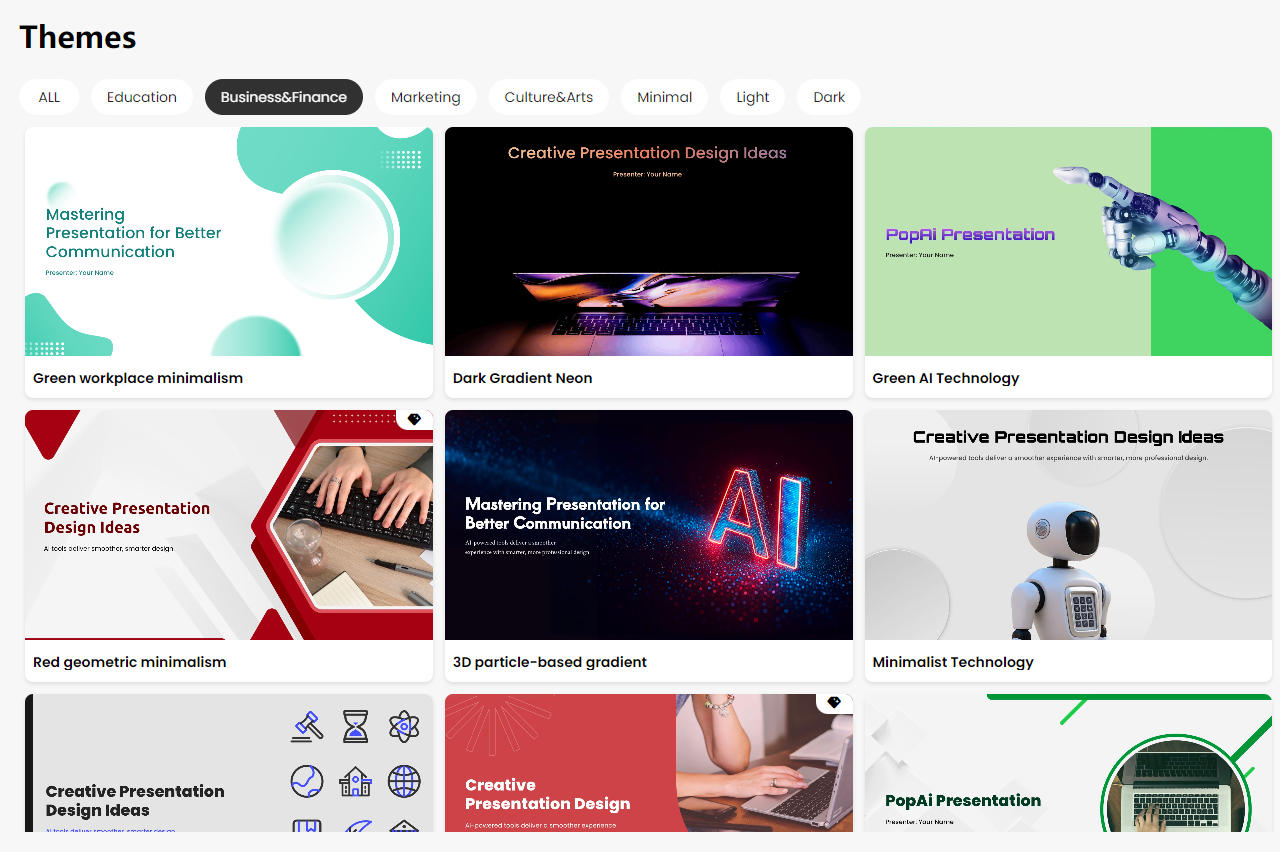
Once the outline is confirmed, move to the template selection stage. Popai’s right side template library offers a variety of styles. You can filter templates based on the PPT’s theme—for example, formal templates for quarterly reports or lively ones for project sharing—and click to preview styles. After selecting a theme matching template, Popai’s AI automatically maps the outline content to the template, instantly upgrading the visual appeal of your Executive Briefing PPT.
4. Refine Details to Make Content More Concise and Precise
After the initial PPT generation, refine the details. First, check the slide order: use Popai’s PPT outline panel to drag and drop slides if the order doesn’t match your presentation logic. This ensures your Executive Briefing PPT conveys information more accurately and concisely.
IV. How to Make Your Executive Briefing PPT Stand Out with Popai?
After creating a basic Executive Briefing PPT with Popai, you can use its unique features and simple tips to further enhance the PPT’s visual appeal and professionalism—helping your presentation stand out.
1. Save Templates to Build a Personal Template Library
In daily use, consciously save high quality templates of different styles while browsing Popai’s template library. For example, save business style templates for formal reports and fresh style templates for project sharing to build your own personal template library. When you need to create an Executive Briefing PPT, simply select a theme matching template from your library and quickly replace the content. This not only saves a lot of design time but also ensures the PPT has a consistent overall style, improving its visual appeal.
2. One Click Enhancement to Boost Overall Aesthetics
If you feel the PPT’s layout or color scheme needs improvement, use Popai’s one click enhancement feature. The system automatically optimizes page layouts (e.g., adjusting the ratio of text to images), adjusts color combinations (ensuring harmonious and consistent colors), and unifies font styles (avoiding messy fonts). This quickly enhances the overall aesthetics of the Executive Briefing PPT. The upgraded PPT has a better visual effect and leaves a deeper impression on the audience.
3. Seamless Editing to Maintain Content Coherence
Popai’s “Seamless Editing” feature is highly useful when modifying your Executive Briefing PPT. If you need to adjust the overall structure (e.g., adding a “Customer Feedback” chapter or deleting duplicate content) or edit specific details (e.g., updating data or supplementing project specifics), simply make changes directly in the editing interface. The system automatically maintains content coherence and clarity, avoiding layout chaos or logical breaks caused by edits—making it easy to polish a high quality Executive Briefing PPT.
4. Audience Centric Design for Customized Content
Different audiences for Executive Briefing PPTs have different needs. Leaders may focus more on work achievements and strategic plans, while colleagues may care more about implementation details and collaboration points. Popai’s “Audience Centric Design” feature automatically adjusts content focus and presentation methods based on the audience type you set. For example, presentations for leaders emphasize core achievements and data, while those for colleagues detail implementation steps and collaboration requirements. This customization makes the Executive Briefing PPT more aligned with audience needs, boosting the impact and engagement of your presentation.
5. Document to PPT Conversion to Improve Communication Efficiency
If you only have a Word document of your Executive Briefing, there’s no need for manual copy pasting. Popai’s “Auto Convert to Presentation” feature solves this problem effortlessly: after uploading the Word document, the system automatically converts its content into a well structured, visually appealing Executive Briefing PPT—eliminating the hassle of manual data entry. The converted PPT can be edited directly, allowing you to complete presentation preparations faster and improve the effectiveness of your demonstrations and communication.