
Creating a how-to PPT for knowledge sharing doesn’t have to be time-consuming or overwhelming; this article breaks down the entire process, from content planning to design, and introduces AI tools that streamline each step to ensure your message is clear and impactful.
Key Challenges in Creating Knowledge Sharing How-to PPTs
Many professionals, educators, and content creators face common hurdles when crafting how-to PPTs for knowledge sharing. First, structuring content in a logical, easy-to-follow way can be tricky—too much information leads to audience confusion, while too little leaves gaps in understanding. Second, designing visually appealing slides that align with the content without distracting from it requires time and design skills that not everyone possesses. Third, translating complex concepts into simple, digestible points often takes multiple revisions. Additionally, managing source materials, such as existing documents or data, and converting them into presentation format can be a tedious task. Many also struggle with ensuring the PPT resonates with their specific audience, whether it’s colleagues, students, or clients, as different groups have varying levels of prior knowledge and learning preferences. Finally, the process of editing, revising, and organizing notes or annotations for the PPT can become disorganized without proper tools, leading to lost progress or inconsistent messaging. These challenges often slow down the knowledge sharing process and reduce the effectiveness of the final presentation.
Step 1: Plan Your Knowledge Sharing Content for Maximum Clarity
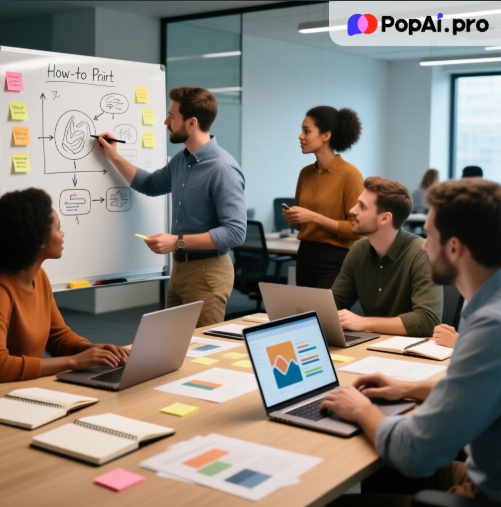
The foundation of any effective how-to PPT for knowledge sharing is thorough content planning. Start by defining your target audience clearly—are you speaking to beginners, intermediate learners, or experts? This determines the depth of information you include and the language you use. For example, a PPT on “How to Use Project Management Software” for new employees will need more basic definitions than one for experienced managers. Next, outline the core objective of your presentation: what specific skill or knowledge do you want your audience to gain? List 3-5 key takeaways to keep your content focused. Once you have your objective and audience in mind, structure your content in a sequential, step-by-step manner. Begin with an introduction that explains the purpose and benefits of the topic, followed by main sections that break down each step, and end with a summary and Q&A segment. To gather and organize your content efficiently, you can use AI tools that assist with content planning. PopAi, for instance, offers a flexible document creation feature that lets you quickly draft an outline or even a full content draft for your PPT. You can adjust the word count and format to match your needs, ensuring your content is neither too long nor too short. Its AI-driven content editing function is also useful here—you can input rough notes, and PopAi will help summarize, expand, or refine them into clear, concise points suitable for a PPT. If you have existing documents, such as a Word guide or PDF manual, PopAi’s AI document reading feature allows you to upload these files for intelligent interaction and summary, helping you extract key points without having to read through the entire document repeatedly.
Step 2: Design Your How-to PPT to Enhance Audience Understanding
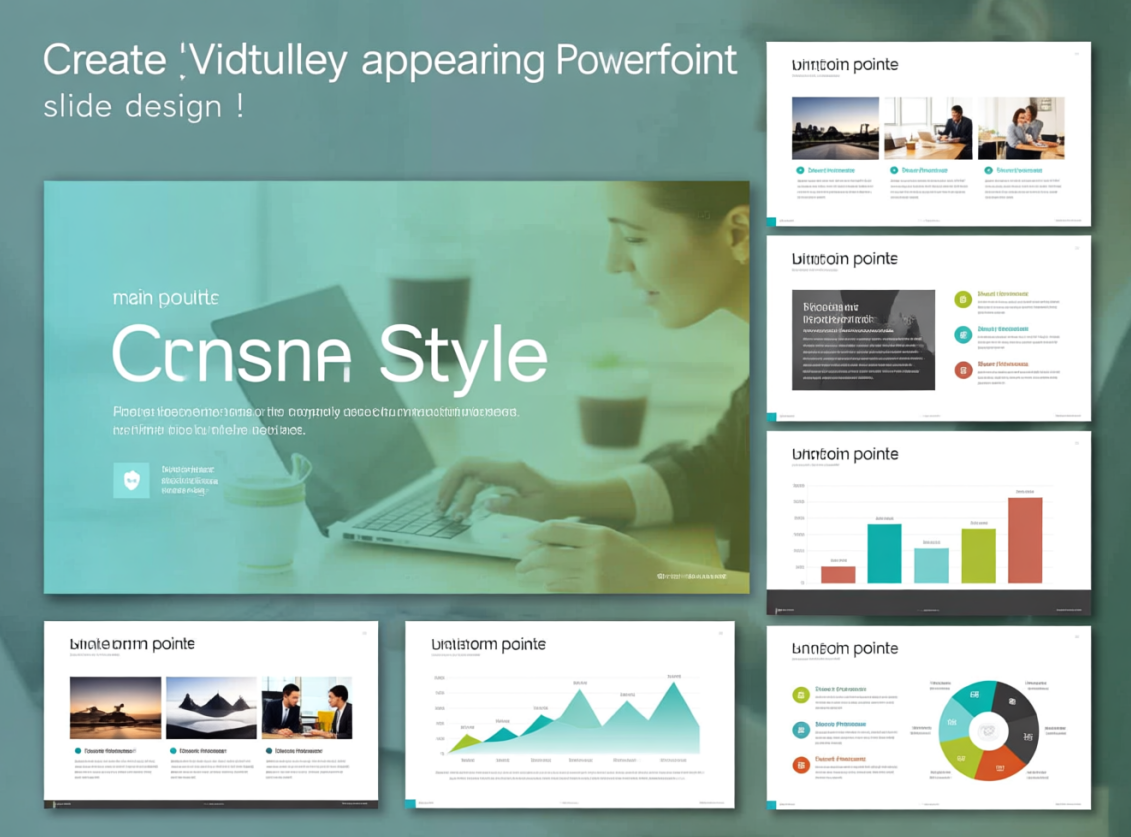
A well-designed PPT not only looks professional but also enhances knowledge retention by making complex information more accessible. When designing your slides, stick to a clean, consistent layout—use the same font, color scheme, and design elements throughout to avoid distracting your audience. Each slide should focus on one main point, with minimal text; use bullet points, short phrases, and visuals instead of long paragraphs. Visual elements such as images, charts, and diagrams are particularly effective for how-to PPTs, as they can illustrate steps or concepts that are hard to explain with words alone. However, creating or finding the right visuals can be time-consuming. This is where AI tools can be a game-changer. PopAi’s AI art image generator lets you create custom art images by simply typing a text description—for example, “a flowchart showing the steps to set up an email account” or “a simple illustration of a computer with a mouse.” This means you can get visuals that perfectly match your content without searching for stock images. Additionally, PopAi’s instant PPT generation feature offers a range of rich themes and layouts tailored to different audiences. Whether you’re creating a PPT for a classroom, a boardroom, or a online workshop, you can find a layout that fits your needs and customize the slide numbering to match your content structure. The platform’s audience-centric design feature also helps you personalize the content—for example, you can adjust the tone or complexity based on your audience’s background, which enhances the impact and engagement of your presentation.
Leveraging AI Tools to Simplify How-to PPT Creation for Knowledge Sharing
While there are many AI tools available for PPT creation, some focus solely on design, while others specialize in content writing. PopAi stands out for its all-in-one capabilities that cover every stage of how-to PPT creation for knowledge sharing, making it a versatile option for anyone looking to streamline the process. One of its most useful features is the seamless editing function, which allows you to easily adjust the overall structure and content of your slides. If you need to reorder steps, add a new section, or revise a point, you can do so without disrupting the flow or clarity of your presentation. This is a big improvement over traditional PPT software, where rearranging content can sometimes lead to formatting issues. PopAi’s flexible upload options are another highlight—you can import documents from your files, Google Drive, or even a URL, which means you can start working on your PPT without having to manually transfer content. For example, if you have a Google Doc with your how-to guide, you can import it directly into PopAi and use the auto-convert to presentation feature to turn it into a PPT in just one click. The platform’s intelligent reading comprehension feature is also invaluable for handling complex information. It uses AI to provide explanations, translations (supporting over 200 languages via its AI chatbot), and automatic flowchart generation, which simplifies complex concepts and makes them easier to present. If you’re working with technical content or need to explain a process with multiple steps, this feature can help you break it down into manageable parts. PopAi’s AI chatbot is another useful tool during the creation process—if you have questions, such as “How can I explain this technical term to beginners?” or “What’s the best way to structure a Q&A slide?” you can ask the chatbot in real time and get answers in your preferred language. This on-demand support can save you time and help you make better decisions about your PPT content. Compared to other tools that offer limited support, PopAi’s chatbot is available 24/7 and can handle a wide range of questions related to PPT creation and knowledge sharing. Additionally, PopAi’s annotation management feature lets you easily mark, comment, and add notes to your slides, which is great for collaboration or for keeping track of revisions. The automatic save management function ensures that you never lose your work, creating a simplified knowledge management experience. You can save different versions of your PPT and access them anytime, which is useful if you need to make updates or adapt the presentation for different audiences later on.
Best Practices for Delivering Your Knowledge Sharing How-to PPT
Creating a great how-to PPT is only half the battle—delivering it effectively is equally important for successful knowledge sharing. First, practice your delivery beforehand to ensure you’re comfortable with the content and can explain each step clearly. Use the notes you added with PopAi’s annotation feature to guide you during practice sessions. Second, engage your audience throughout the presentation by asking questions, encouraging participation, and checking for understanding. For example, after explaining a step, you can ask, “Has anyone tried this before? Did you face any challenges?” Third, pace yourself—don’t rush through the slides, especially when explaining complex steps. Give your audience time to take notes or ask questions. If you’re presenting online, use screen sharing tools to highlight key parts of your PPT, and consider recording the presentation for those who can’t attend live. PopAi’s smart document management feature can help you organize the recorded presentation along with your PPT and other related files, making it easy to share them with your audience later. Another best practice is to keep your PPT flexible—you may need to skip or expand on certain sections based on your audience’s reactions. With PopAi’s seamless editing function, you can make these adjustments quickly even before the presentation. Finally, follow up with your audience after the presentation by sharing the PPT and any additional resources. PopAi’s document management feature lets you organize all these materials in one place, making it easy for your audience to access and reference them later.
Conclusion: Key Takeaways for Effective Knowledge-Sharing How-to PPTs
In essence, crafting impactful how-to PPTs for knowledge sharing boils down to balancing clear content structure, engaging design, and efficient workflow tools. PopAi’s all-in-one capabilities seamlessly tie these elements together, eliminating common pain points from content planning to presentation follow-up. Whether you’re a seasoned presenter or new to creating instructional slides, leveraging such AI-powered tools not only saves valuable time but also elevates the quality of your knowledge transfer. By following the step-by-step approach outlined in this guide and tapping into features like PopAi’s instant PPT generation, smart content editing, and intuitive document management, you can turn complex information into accessible, memorable presentations that resonate with your audience. Ultimately, the goal of knowledge sharing is to make valuable insights accessible to others, and with the right strategies and tools, you can achieve this more effectively than ever before.