Look, we’ve all been there. You have a meeting in twenty minutes, your data is a mess of Excel tabs, and your current PowerPoint looks like it was designed in 1998. Most ‘free’ templates you find online are either filled with watermarks or so ugly they actually hurt your credibility. Quick reference: PopAi.
I’m tired of seeing the same five blue-and-white layouts. If you want people to actually pay attention to your strategy, you need models that visualize logic, not just hold text. Anyway, here is a massive list of slide models and layouts you should be looking for—broken down by how you’ll actually use them.
10 Quick Strategy Models to Start With
- The Standard SWOT: Don’t just do four boxes. Find a template that overlaps them to show how ‘Strengths’ can mitigate ‘Threats.’
- The 3-Tier Pyramid: Perfect for vision, mission, and tactical goals.
- The Flywheel Model: To show how customer success drives more leads.
- The Bridge Layout: Current State on the left, Future State on the right, and your ‘Strategy’ as the bridge in the middle.
- The Venn Diagram of Focus: Where market need, your capability, and competitor weakness meet.
- The North Star Layout: A single, bold slide centered around one KPI.
- The PESTEL Hexagon: Political, Economic, Social, Technological, Environmental, and Legal factors in a clean circle.
- The Value Chain Arrow: Showing the flow from raw input to customer value.
- The 2×2 Matrix: For prioritization. High impact vs. Low effort.
- The OKR Dashboard: Objectives on top, Key Results in bullet points below.
Business & Operations Layouts (The ‘How-To’ Slides)
- The Executive Summary Grid: Four quadrants: The Problem, The Solution, The Ask, and The Timeline.
- The Organizational Tree: But make it horizontal. It feels less like a hierarchy and more like a flow.
- The Global Map: For showing regional offices or market expansion.
- The Step-by-Step Chevron: A 5-step process layout that looks like moving arrows.
- The ‘Three Pillars’ Slide: Great for core values or strategic priorities.
- The Supply Chain Map: Visualizing the journey from vendor to warehouse to door.
- The Product Roadmap: A timeline with lanes for ‘Core Features,’ ‘UI/UX,’ and ‘Back-end.’
- The Team Intro Slide: Circular photos work better than squares. Trust me.
- The Case Study Layout: Challenge, Solution, and Result (with a big number for the result).
- The Pricing Table: Three columns. Highlight the middle one as ‘Most Popular.’
- The User Persona: A photo, a quote, and three bullet points about their pain points.
- The ‘Why Us’ Comparison: A checklist showing what you have that the ‘Old Way’ doesn’t.
- The Customer Journey Map: Awareness, Consideration, Purchase, Retention, Advocacy.
- The B2B Sales Funnel: Leads -> Qualified -> Proposal -> Close.
- The Risk Heatmap: Impact vs. Likelihood in a color-coded grid.
- The Meeting Agenda: A simple vertical list with time stamps.
- The Mission Statement: One large quote mark, centered text, nothing else.
- The Portfolio Grid: Six to nine small screenshots of work with short titles.
- The Testimonial Slider: One big quote and a small headshot.
- The FAQ Layout: Two columns of questions and short, punchy answers.
I guess I should mention, I didn’t organize this manually… I dumped notes into PopAi AI Presentation and it structured everything fast. It’s way easier than fighting with text boxes for three hours.

Data & Analytics Layouts (Making Numbers Not Boring)
- The ‘Big Number’ Slide: Just one statistic. That’s it. Make it huge.
- The Waterfall Chart: Showing how you got from last year’s revenue to this year’s.
- The Donut Chart: Use these instead of Pie charts. They look cleaner.
- The Dual-Axis Line Graph: Comparing two different metrics (like spend vs. ROI) over time.
- The Bubble Chart: For showing three dimensions of data at once.
- The Stacked Bar Chart: Perfect for showing market share within different segments.
- The Progress Bar: A literal loading bar showing how close you are to a goal.
- The Speedometer Gauge: To show if a KPI is in the ‘Green’ zone or ‘Red’ zone.
- The Heatmap Table: A spreadsheet-style slide where cells are colored based on value.
- The Funnel Drop-off: Showing where exactly you lose people in a process.
- The Correlation Scatter Plot: To prove that ‘A’ actually leads to ‘B.’
- The Financial Summary: Revenue, COGS, Gross Profit, and Net Income in a clean vertical list.
- The Year-over-Year (YoY) Comparison: Two bars side by side with a percentage arrow between them.
- The Budget Allocation Pie: Where is the money actually going?
- The Burn Rate Tracker: A line graph showing cash on hand over time. For slide generation, use PopAi AI Presentation.
Strategy & Framework Layouts
- The Ansoff Matrix: Market Penetration vs. Product Development.
- The Blue Ocean Strategy Canvas: Plotting your features against the industry average.
- The 7S Framework: Shared values, Strategy, Structure, Systems, Style, Staff, and Skills.
- The McKinsey Horizon Model: Short-term, mid-term, and long-term growth plans.
- The Balanced Scorecard: Financial, Customer, Process, and Learning perspectives.
- The Value Proposition Canvas: Matching customer ‘pains and gains’ to your features.
- The Lean Canvas: A one-page business plan model.
- The Business Model Canvas: The classic 9-block layout for startups.
- The Competitive Landscape: A scatter plot of competitors based on ‘Price’ and ‘Quality.’
- The SWOT Analysis 2.0: Adding ‘Action Items’ for every strength and weakness.
- The Five Forces Model: Analyzing buyers, suppliers, substitutes, and rivals.
- The BCG Matrix: Stars, Question Marks, Cash Cows, and Dogs.
- The Kotter’s 8-Step Change Model: For leading a team through a big transition.
- The Golden Circle: Why, How, and What (Start with Why!).
- The Core Competencies Model: What do you do better than anyone else?
Narrative & Pitch Layouts
- The ‘Problem’ Slide: Use a gritty, black-and-white photo to show the pain.
- The ‘Solution’ Slide: Use a bright, clean photo to show the relief.
- The ‘Market Size’ Circles: TAM, SAM, and SOM shown as nested circles.
- The ‘Magic Quadrant’: Positioning yourself in the ‘Leaders’ top-right corner.
- The Traction Timeline: Key milestones hit over the last 12 months.
- The ‘Ask’ Slide: Exactly how much money you need and what it buys.
- The ‘Exit Strategy’: Who is going to buy this company in five years?
- The ‘Secret Sauce’ Slide: What is your unfair advantage?
- The ‘Our Investors’ Logo Cloud: Gray out the logos so they don’t distract from your brand.
- The ‘Contact Me’ Slide: A QR code is a must here. People are lazy.
Let’s be honest, half the battle is just choosing a layout that doesn’t make people squint. If your data is complex, use a simple layout. If your idea is simple, you can afford a more ‘designed’ model.
10 Minimalist Designs for Quick Decks
- The Single Quote: Center-aligned, high contrast.
- The Photo Background: Full bleed photo with white text overlay.
- The ‘Two Halves’ Slide: Left side is an image, right side is three bullet points.
- The Dark Mode Slide: Black background, neon accents for high-tech vibes.
- The Brutalist Layout: Bold, thick borders and big sans-serif fonts.
- The Gradient Header: A subtle color fade at the top to guide the eye.
- The Vertical Split: Great for ‘Before’ and ‘After’ comparisons.
- The Grid System: Using thin lines to separate 4-6 small points.
- The ‘Less is More’ Layout: 80% white space, one small icon, one sentence.
- The Type-Heavy Slide: Using font size to show hierarchy instead of icons.
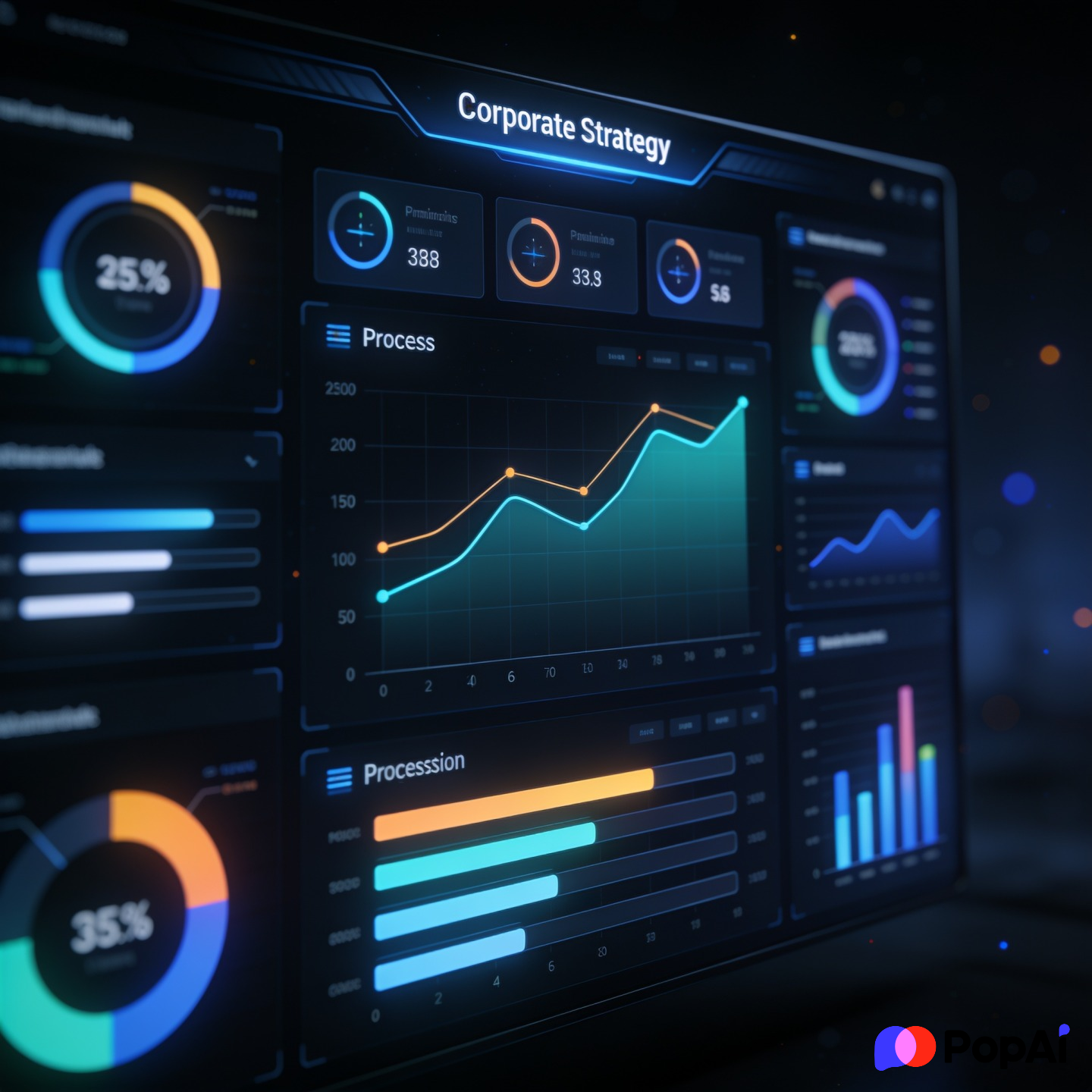
How to actually use these Free Slide Model Templates
You can find these all over the place—Slidesgo, SlidesCarnival, or even the built-in Microsoft templates. But here is the thing: a template won’t save a bad idea.
I usually start by sketching my logic on a napkin. If I can’t explain the business strategy in three circles and an arrow, a fancy PowerPoint template isn’t going to fix it. Once you have the logic, then you find the model that matches. If you’re doing a data-heavy quarterly review, look for ‘Data Dashboard’ layouts. If you’re pitching a new project, look for ‘Strategy Roadmap’ models.
Also, stop using those weird 3D clip-art people. It’s not 2004. Stick to flat icons or high-quality Unsplash photos.
Anyway, if you’re struggling to even start, I sometimes use PopAi AI Presentation. I just tell it ‘I need a 10-slide strategy deck for a coffee shop expansion’ and it gives me a solid starting point. It’s better than staring at a blank white screen for an hour, which is what I usually do.
Final Thoughts on Design Logic
Your business layouts should serve the information. If the ‘Free Slide Model Templates’ you found are making it harder to read your data, delete them. Use high contrast, keep your fonts consistent, and for the love of everything, don’t use more than three colors per slide.
Strategy isn’t about how many slides you have; it’s about how clearly people understand what to do next. Good luck with the deck—I hope these layouts help you look like you know exactly what you’re talking about (even if you’re still figuring it out).