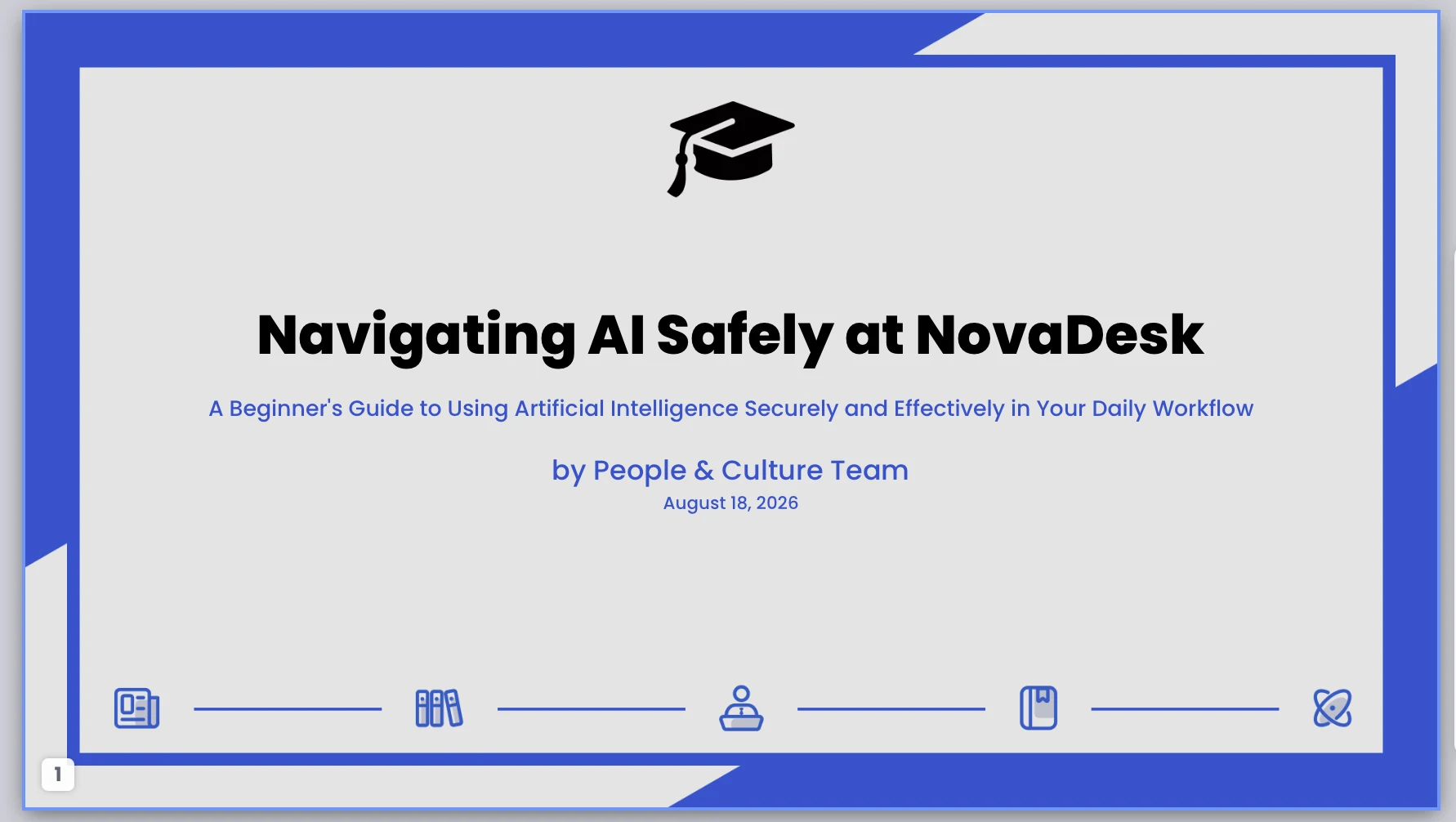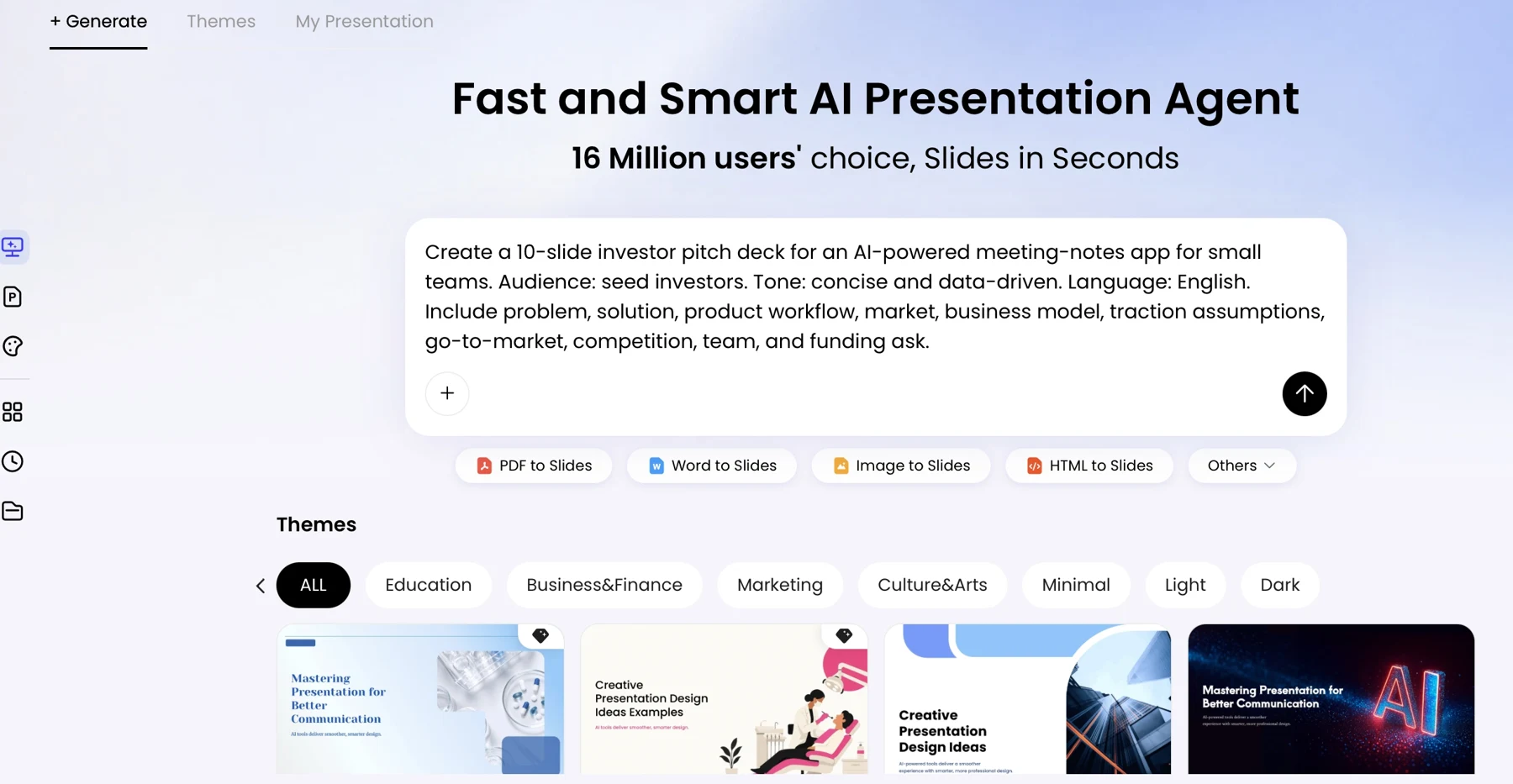
This guide shows how to turn approved company documents into a reviewable onboarding deck for a remote new hire, from content map to sign-off.
The example is a company-wide, 20-minute live welcome session for a new remote employee, with a short role-specific module added by the hiring team. The same workflow can support a self-paced course, but that version needs more context, navigation, and knowledge checks because a presenter is not there to answer questions. This process does not replace role training or the employee handbook: it creates a clear first-week orientation and points people to authoritative details.
How to Make an Onboarding Presentation with AI: Plan the Content
Start with the decisions a new employee needs to make, not with a target slide count.
Before opening a slide tool, collect the materials that answer practical questions: What does the organization do? Who should a new hire contact? What must they complete during the first week? Where are the approved policies, systems, and learning resources? Then map each question to a slide, a source, and an owner so the deck has a purpose beyond summarizing documents.
Gather approved inputs and assign owners
- Company mission, values, product or service overview, and team structure.
- Role expectations, manager details, initial goals, and a 30/60/90-day direction where relevant.
- Current, approved guidance for tools, access, security, benefits, and required training.
- A first-week schedule, support contacts, and links to authoritative resources.
For the remote-hire example, a compact content map might look like this:
- “What does the company do?” — two-slide company and product overview; use the current company overview; owner: Communications.
- “What do I need to do this week?” — first-week timeline; use the approved onboarding checklist; owner: People Operations.
- “How do I get help or access?” — support contacts and access steps; use the IT setup guide; owner: IT.
- “What does my team expect from me?” — role goals and manager check-ins; use the team’s onboarding plan; owner: hiring manager.
Keep stable company-wide information in the core deck and put details that vary by team, location, or seniority in a labeled module. Slides should carry the essential explanation and next action; move full policy wording, exceptions, and step-by-step procedures to the handbook or linked source. If a detail is not needed to orient someone or take an immediate action, leave it out of the live deck.
Use slides to explain the essentials and orient people. Use the handbook or policy system for complete, current rules and detailed procedures.
There is no universal ideal length. As a rule of thumb, 10–12 focused slides can fit a 15–20-minute live introduction if the presenter adds context; allow more time for questions. A self-paced version may need shorter sections, speaker notes or narration, and a knowledge check. Contractors may need a narrower access-and-compliance deck, while role-specific training belongs in a separate module.
Write an AI Prompt for Onboarding Slides
A good prompt defines the audience, evidence, boundaries, and output—not just the topic.
Choose source documents your organization is permitted to process. Before uploading anything, check the tool’s terms and your internal AI or data-handling policy: confirm whether inputs may be retained or used to improve the service, who can access the workspace, whether deletion is available, and whether the material contains personal, confidential, or regulated information. If the rules are unclear, use sanitized text or ask your security or privacy contact before proceeding.
For a broader view of available tools, compare the latest AI presentation makers against your organization’s privacy, collaboration, and export requirements.
Copy, customize, and reuse this prompt
- Audience: New remote customer-support employees joining the company this month.
- Goal: By the end, employees can identify their manager and support contacts, locate the approved IT setup guide, and describe their first-week check-ins.
- Sources: Use only the attached, approved company overview, first-week checklist, IT setup guide, and support-team onboarding plan. Treat the HR handbook as the authority for policy details.
- Boundaries: Do not invent policies, dates, contacts, access rules, or response times. Mark missing details “[OWNER TO CONFIRM]” and list conflicting source information separately.
- Output: Propose an outline for a 20-minute live session of about 10–12 slides. Include a first-week timeline, one main idea per slide, concise on-slide text, and separate presenter notes. Link to detailed procedures rather than paraphrasing them.
- Accessibility: Use readable text, strong contrast, descriptive link labels, and layouts that do not rely on color alone.
A reasonable first outline might be: welcome and session goal; what the company does; who supports you; how the support team works; first-week timeline; setup resources; required training; manager check-ins; where to find policies; and next steps. Treat that outline as a proposal, not proof that the source pack is complete. If two documents disagree, keep both statements out of the final deck, record the conflict and document dates, and ask the relevant owner to resolve it.
Keep stable company content in the core deck and label any role, location, or audience-specific material. Ask for open questions before generation when a source pack has gaps; do not let the AI fill those gaps with plausible-sounding assumptions.
Generate and Refine the Onboarding Presentation
Review the outline first, then generate and edit slides against a specific checklist.
- Choose the workflow. Start with a prompt or add approved source files if your chosen tool supports them. Use the minimum material needed; do not upload a full personnel file or an unfiltered policy archive.
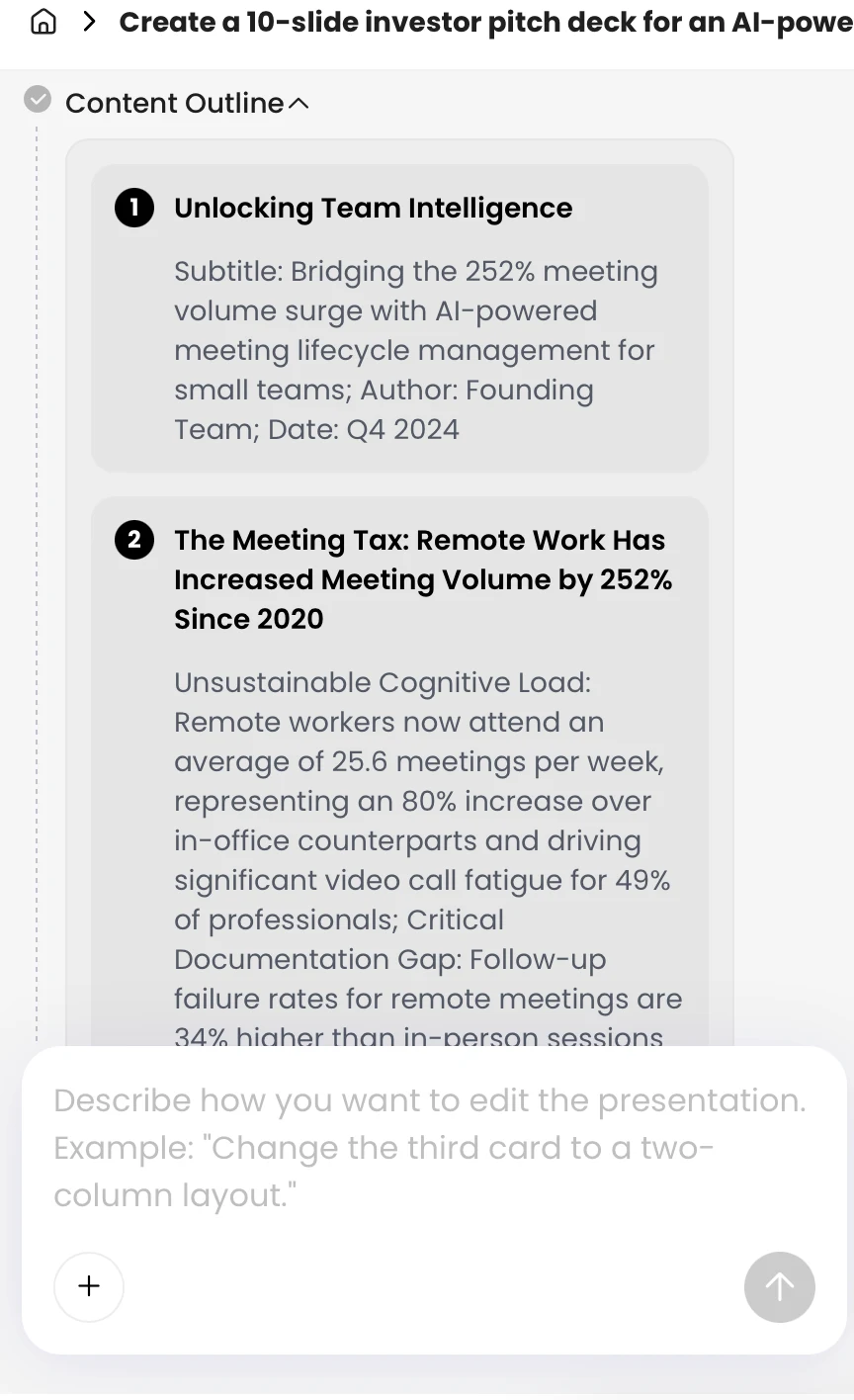
- Inspect the content plan. Check that every new-hire question has a place, the sequence moves from context to action and support, and each policy claim has a source. Remove duplicate topics and move detailed procedures to linked resources.
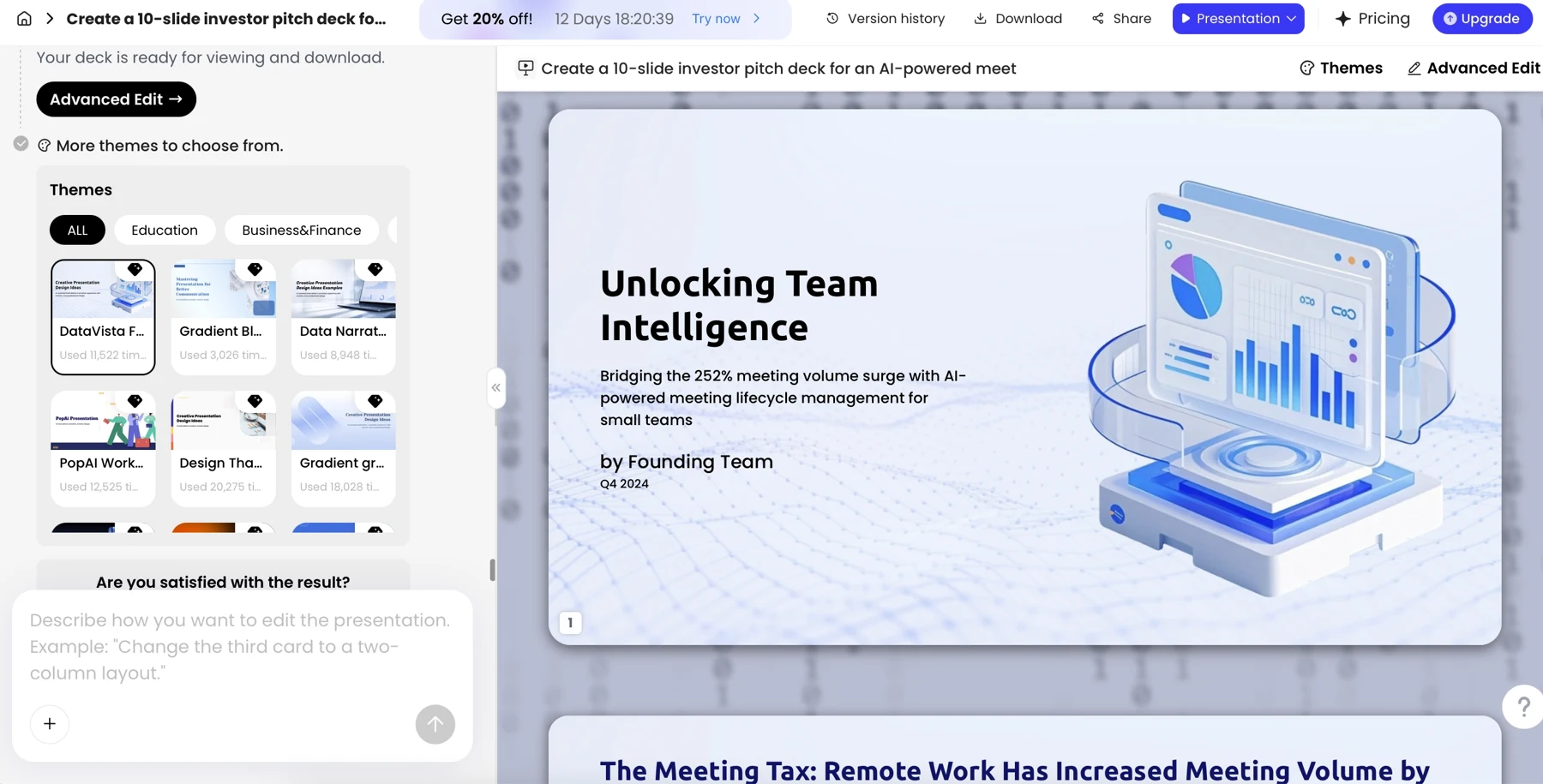
- Generate the slides. Select a simple layout that fits the content—for example, a timeline for first-week tasks and a contact card for support channels. Check that headings state the takeaway and that one slide does not carry several unrelated instructions.
- Edit for clarity and access. Replace paragraphs with short labels or steps, enlarge small text, use descriptive link names, add alt text where the platform supports it, and check that meaning remains clear in grayscale or without color. Review charts and icons for accuracy, not decoration.
- Export and test. Open the actual PPTX or PDF on the screen and platform employees will use. Check font rendering, links, contrast, slide order, and whether the deck remains understandable without presenter commentary if it will be self-paced.
Illustrative revision: An AI draft might say, “IT will provide all new hires with access within 24 hours.” That sounds useful, but if the setup guide only says to submit a request, the time promise is unsupported. Replace it with “Submit an access request using the IT setup guide” and link to the guide; ask IT to approve any response-time commitment before adding it. This removes an invented service promise while preserving the employee’s next action.
For the same slide, turn a dense paragraph into a three-step sequence: 1. Open the approved setup guide. 2. Submit the listed access requests. 3. Contact the named support channel if a required tool is unavailable. Keep the exact system names and any prerequisites from the source rather than improvising them.
If you are comparing tools, run the same sanitized source pack and prompt through each candidate. Score each on a simple 1–5 test sheet for source traceability, outline control, ease of editing, export quality, collaboration, accessibility checks, and privacy fit. A tool that makes attractive slides but obscures unsupported claims or cannot meet your data rules is not a good fit. You can draft and refine a deck with PopAi AI Presentation, but verify current capabilities and your organization’s data requirements before using any product.
Review AI Onboarding Slides for Accuracy and Risk
AI can organize and rewrite material, but it cannot approve policy or guarantee that a generated statement is current.
Use a page-by-page review with the source document open. Benefits, leave rules, security requirements, compliance statements, dates, names, and contact details deserve particular attention. If a source conflicts with another source—or appears out of date—pause publication and ask the policy owner rather than asking AI to resolve the discrepancy.
Run this verification checklist
- Trace every specific policy or benefit claim to an approved, current source.
- Confirm names, links, schedules, software instructions, and reporting lines with their owners.
- Check that generated summaries preserve exceptions, eligibility conditions, and required actions.
- Remove confidential or personally identifiable information that is not necessary for the task.
- Have HR review compliance-sensitive content and a hiring manager review role-specific expectations.
- Record the version date, content owner, source links, reviewer names, approval status, and next review trigger.
If a sentence could affect an employee’s rights, safety, pay, access, or compliance obligations, verify it against the approved source and get the appropriate human sign-off.
Use a short approval record alongside the deck: list the slide or claim, its source, the reviewer, the decision, and any unresolved question. Mark unresolved items “not approved for publication” and keep them out of the shared version. After approval, store the deck in a controlled location, label it with a version date, and restrict editing to named owners. When an edit is needed, update the source and deck together, then repeat the relevant review.
Before uploading company material, review the tool’s current data-processing terms and internal policy—not just a general security statement. Check retention and deletion settings, training-use terms, workspace sharing permissions, administrator access, and whether the service meets your company’s requirements for the material’s sensitivity. If you cannot confirm those points, do not upload the source file.
For data-driven slides, verify the numbers and their definitions—not just the appearance of the chart. Check values, labels, units, time period, and source owner. Keep unsupported claims out of the deck, even when they sound plausible.
Customize, Publish, and Measure Onboarding Slides
Separate what every employee needs from what depends on their role or location, then use feedback to improve the next version.
Customize and publish the deck
Create a shared company introduction, then add a concise team or location module where the new hire needs different contacts, tools, or procedures. Keep local benefits, legal requirements, and emergency details in their approved modules rather than implying they apply company-wide. For distributed teams, include links that work on mobile, explain asynchronous steps, and provide captions or written alternatives for recorded narration. For multilingual groups, have a qualified reviewer validate translated policy language instead of relying on an unchecked machine translation.
Before sharing, test the delivered file as a new employee would: open every link, check that text is readable at normal zoom, confirm that color is not the only way information is conveyed, and make sure the deck can be navigated in the intended order. Provide a named contact for questions and link to the current handbook or policy source rather than attaching a potentially stale copy.
Measure and maintain the onboarding experience
Separate the time saved while creating slides from the quality of the onboarding experience. A faster draft is a production efficiency; it does not show that new employees understand their work or can find help. For a pilot cohort, record a baseline and assign an owner to review a small number of useful signals:
- Completion: Use attendance or learning-platform completion records to spot whether people are missing the session or linked modules.
- Understanding: Ask a short knowledge check about practical actions, such as where to find the IT setup guide. Review missed questions and clarify the relevant slide or resource.
- Confidence and usefulness: Ask new hires, “What was still unclear after this session, and where would you look for the answer?” Group repeated responses by topic.
- First-week friction: Ask managers which tasks were delayed by unclear instructions, missing contacts, or access problems; distinguish deck issues from unrelated operational delays.
Illustrative pilot example: Suppose a team asks 12 new hires the same “where do I request access?” question after orientation. That is a signal to check whether the slide names the request channel and links to the current guide—not proof that the deck alone caused the confusion. The People Operations owner can revise the slide, confirm the link with IT, and check the same question with the next cohort.
Review the deck when a policy, system, contact, or onboarding process changes, and whenever repeated questions reveal a gap. A named content owner should check linked sources and update the version record; HR or the policy owner should approve changes that affect their area. Keep one controlled core deck and approved role-specific modules rather than creating an untracked presentation for each new hire. After export, open and check the final file before sharing it.