Build a short workplace AI-safety lesson with measurable outcomes, a practice scenario, and a review checklist—not just a stack of generated slides.
This step-by-step workflow takes a topic or approved source document through planning, drafting, revision, and quality checks. AI can help organize material, draft copy, and suggest layouts; a trainer still needs to set the learning goal, confirm workplace procedures, and judge whether learners can apply them. The example throughout is a 30-minute introduction to safe AI use. Treat the sample content as illustrative, not as a tested course or a substitute for your organization’s policy.
Measure the training outcome with the same rubric
Keep the original lesson objective: given a sample prompt, identify sensitive information and explain a safer next step. Measure that behavior before and after instruction using parallel cases, not a confidence rating or a generic satisfaction score.
| Stage | Fictional task | Scoring rule |
|---|---|---|
| Before training | A draft prompt contains a customer name and account number. Mark what should not enter an unapproved tool and name the next step. | Use the three criteria below; record the baseline without coaching. |
| After training | A different draft contains an employee name and an internal incident identifier. Apply the same classification and approval rule. | Use the same criteria and point values; do not make the post-test easier. |
| Example local pass rule | All sensitive details identified; approved route or escalation named; no unsafe submission proposed. | 3 of 3 criteria met. This is an illustrative course rule, not a legal or industry standard. |
Record a missed criterion and a remediation task rather than treating a final score as proof of workplace compliance. Workshop slides should organize participation and group output; onboarding slides should organize the new employee's company-specific journey. This training example assesses a defined skill.
1. Define the audience and training outcomes
Start by deciding what learners should be able to do after the session.
A presentation is a learning tool, not a condensed document. Before generating slides, specify who will attend, what they already know, and what they need to do differently afterward. “Understand cybersecurity” is too broad to guide a useful deck. “Identify a suspicious message and report it through the approved process” gives the lesson a concrete destination.
Write two or three observable outcomes, then connect each to instruction and evidence of learning. For example, “know what information is sensitive” sounds measurable but does not say what a learner must demonstrate. Revise it to: “Given a sample prompt, identify information that must not be entered into an unapproved AI tool and explain the safer next step.” Beginners may need definitions and a worked example; experienced staff may need edge cases tied to their role. For self-paced training, include clear instructions and feedback; for a live session, reserve time for discussion and facilitated practice.
Illustrative outcome map: Outcome: identify sensitive details in a prompt. Instruction: show a sample containing a customer name and account number, then model how to remove or replace them. Practice: learners mark the details they would not submit. Evidence: they identify both details and choose the approved tool or escalation route. This checks recognition and judgment; it does not prove that learners will follow the process later on the job.
- Audience: role, experience level, and likely questions.
- Context: delivery method, time available, and tools learners use.
- Outcomes: actions learners can demonstrate, not just topics they can recall.
- Assessment: a short scenario, practice task, quiz, or teach-back that matches the outcome.
Design backward: name the learner action first, choose a practice activity second, and use slides to prepare learners for that action.
2. Prepare source material and build a useful prompt
Give the AI enough context to make a relevant draft, and check data rules before uploading anything.
You can begin with a topic prompt, an existing outline, a policy document, meeting notes, or an older deck. Before uploading a file, confirm that the tool is approved for that material and review your organization’s rules and the tool’s current data-handling terms. If approval is unclear, do not upload the document: ask the responsible security or compliance team, or work from a sanitized extract. Remove names, customer identifiers, credentials, and confidential incident details that are not needed for the lesson.
Choose the source boundary deliberately. For policy or compliance training, ask the AI to use only the approved source and flag gaps rather than fill them in. For a general introductory lesson, you can permit broader drafting, but require claims, statistics, and citations to be labeled for verification. In either case, verify the final wording against authoritative material; a confident-sounding answer is not evidence.
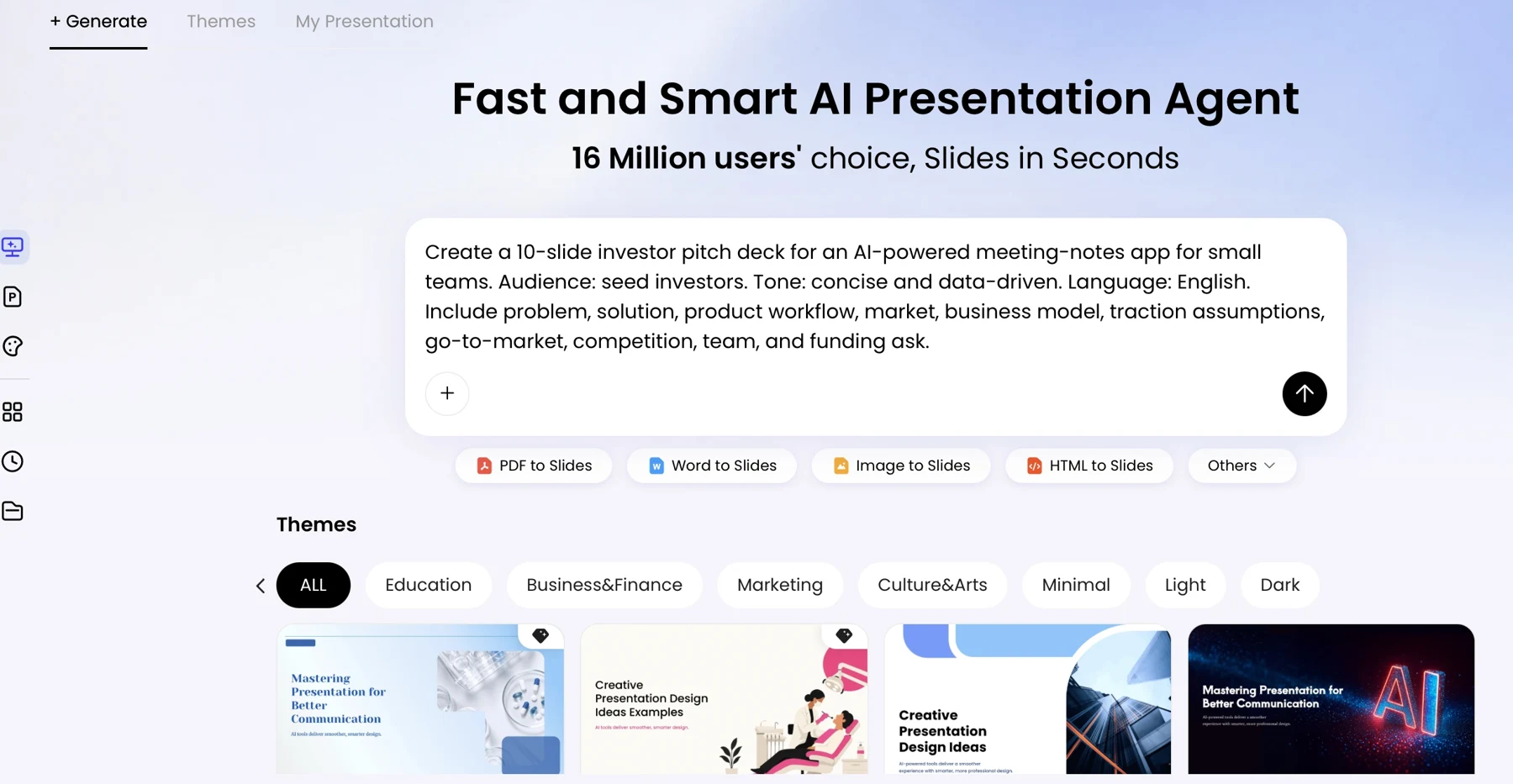
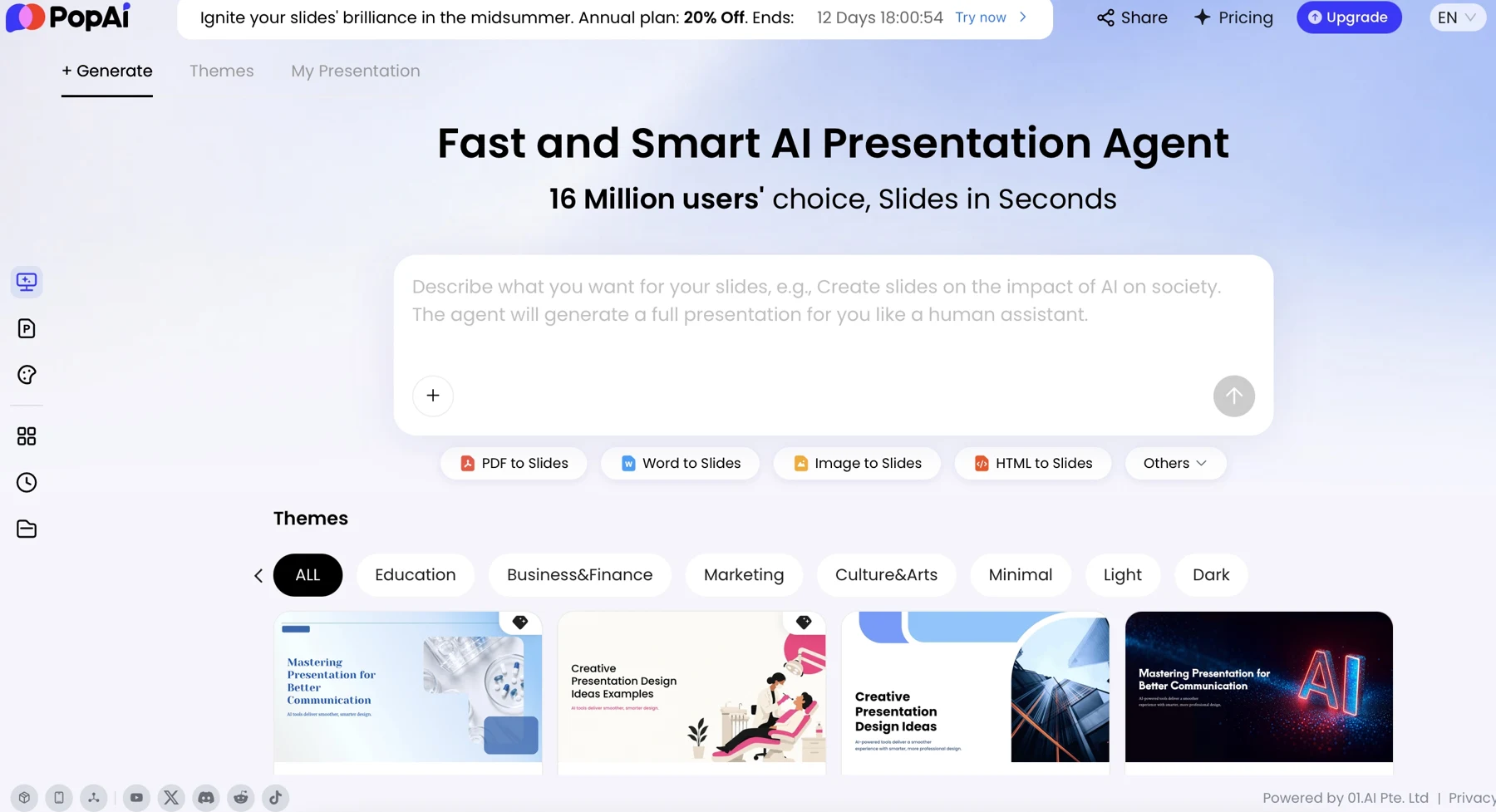
When comparing AI presentation makers, check whether the tool can work from your approved inputs, let you review the content plan, support useful revisions, and export in the format your team needs. Available formats and features can change, so confirm them in the product before relying on a particular workflow. The PopAi AI Presentation page is one place to review its current presentation workflow; judge the result against your learning and security requirements, not the visual theme alone.
Use a prompt with constraints and a clear source boundary
Prompt: “Act as an instructional designer. Create a 30-minute training presentation on safe AI use for office employees who have used chatbots but have not received formal training. Learners should be able to (1) identify sensitive information in a sample prompt, (2) follow our approved safe-use steps, and (3) know when to stop and ask for review. Include an opening scenario, a short explanation, a worked example, a guided practice activity, three knowledge-check questions with answer explanations, and a final recap. Propose about 8 slides, with one main idea per slide, and allow 5 minutes for practice. Use only the approved material below. Do not invent policy, statistics, or citations; flag anything the source does not answer. Source: [paste approved, sanitized material].”
For a long source, first ask for outcome-relevant rules, essential steps, and unresolved questions. Review that summary before requesting slides. If the AI ignores a constraint, point to the specific item—for example, “Remove the unsupported statistic and mark the policy question as unresolved”—then check that the revised draft actually complies.
3. Make a training presentation with AI by reviewing the outline first
Approve the instructional sequence before spending time polishing slides.
Ask for an outline, then review it against the outcome and the session format. A sequence such as “why it matters, what to know, how to act, practice, check” works well for introductory behavior training. It is not universal: procedural training may work better as a demonstration followed by a step-by-step rehearsal, while a policy update may need a before-and-after comparison and a decision path.
Illustrative outline review: For the 30-minute AI-safety lesson, suppose the first draft gives three slides to AI history and only one to safe handling. Cut the history to a brief context slide, add a worked example of removing sensitive details, and reserve five minutes for learners to practice. The change gives more time to the stated behavior rather than treating background information as the main objective.
- Check that learners get any prerequisite information before they need it.
- Combine repeated points and remove sections that do not support an outcome.
- Flag assumptions, policy gaps, and claims that need an accountable reviewer.
- Budget time for examples, practice, questions, and transitions—not just slide narration.
For an introductory 30-minute session, an 8-slide plan can be a workable starting point, but timing depends on discussion and activity length. If the outline contains more than the session can support, move reference detail to a handout rather than rushing through it.
A fast outline is not automatically a good lesson. Check that every major section earns its place by helping learners reach an outcome.
Some presentation tools provide an outline or content plan before slide generation. Use that review point if available; otherwise, ask for a slide-by-slide plan in the prompt and assess it before generating the deck. In either case, treat the outline as a draft, not proof that the learning design is complete.
4. Generate slides, then edit for clarity and practice
Generate a first draft, then revise the words, examples, and visual choices that affect learning.
Give the tool practical constraints: one takeaway per slide, concise body text, readable type, and examples relevant to the audience. A slide can carry more than one item when those items form a meaningful comparison or sequence; the goal is not an arbitrary word limit, but a layout learners can scan while listening. Put explanations and facilitation cues in speaker notes when they would crowd the slide, and use visuals only when they clarify an idea or action.
Turn a vague draft into an actionable instruction
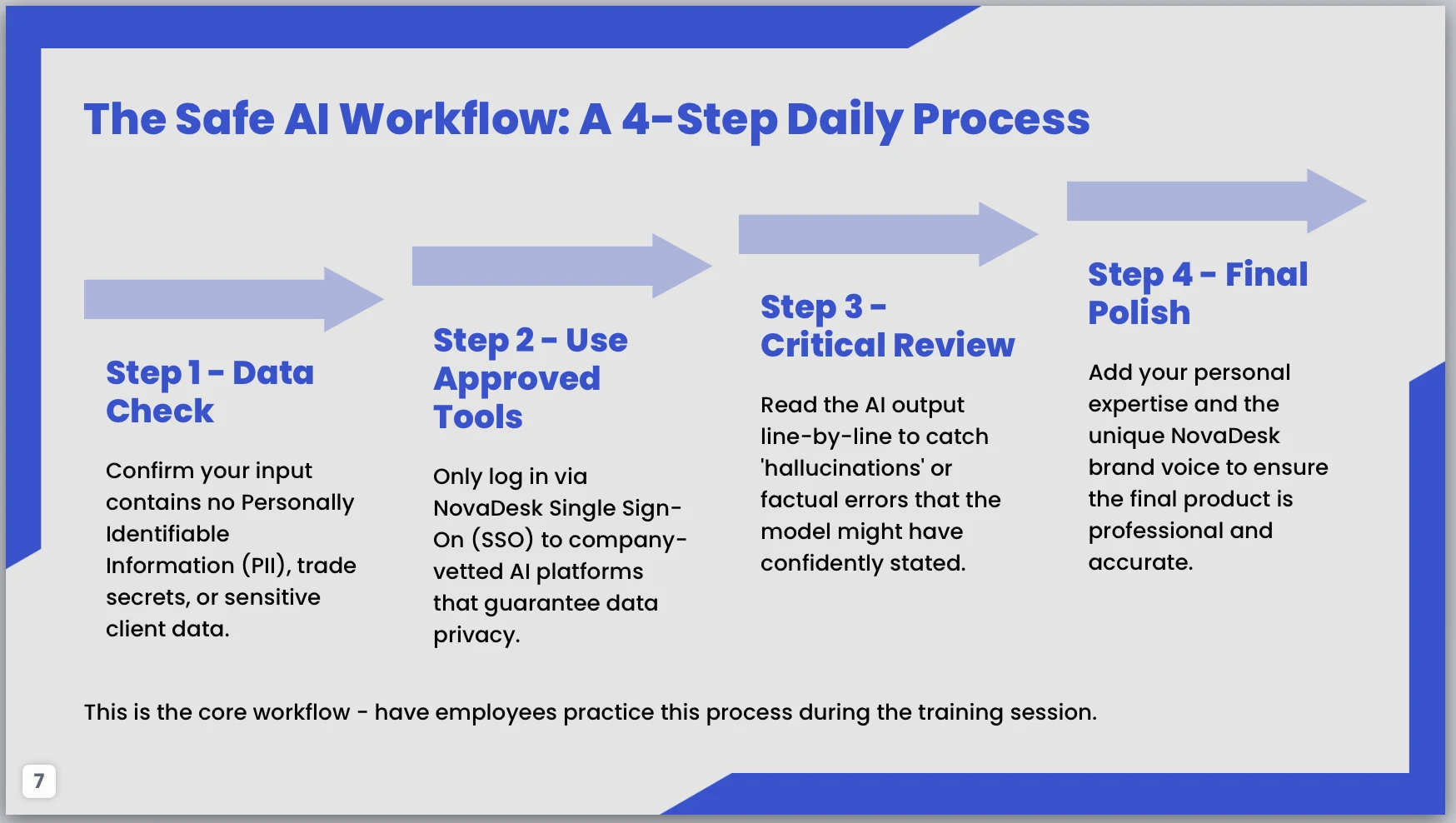
Illustrative draft and revision: A first-draft slide might say, “Check the information before using AI.” That instruction leaves employees unsure what to check. Replace it with a locally verified sequence such as: “Remove names and account details; use only the approved tool; stop if the task involves restricted data; ask [named team or role] when unsure.” Confirm every step with the policy owner before presenting it. The revised version is better because it names actions and an escalation point—not because it uses more words.
A useful revision request is specific: “Rewrite this slide as four short actions for office employees. Keep the approved tool and escalation language unchanged. Do not add policy. Put the reason for each step in speaker notes.” Compare the revised copy with the source, checking for altered meanings, missing exceptions, and invented instructions before accepting it.
Revise with learning in mind
- Keep technical terms only when the audience needs them, and define them on first use.
- Use realistic examples; label fictional scenarios clearly and avoid implying they are real incidents.
- Place practice after the instruction learners need to complete it, and give them time to respond.
- Use charts only when real, checked data helps explain the lesson; verify the source values and labels.
- Retain the trainer’s voice by replacing generic phrasing with the terminology and examples learners use at work.
Tools differ in how they support text edits, layout changes, charts, and exports. Check the current editor rather than assuming a feature is available, and inspect each accepted revision in context. A shorter version for managers, for example, should preserve the same policy limits even if it removes background detail.
5. Add assessment, recap, and a way to apply the lesson
Match each check to an outcome, then make time for learners to act on what they have learned.
Check learning and reinforce the key actions
A multiple-choice question can check recognition; a scenario can test judgment; a demonstration can show whether someone can perform a process. Use the method that matches the risk and the outcome. A short quiz may be enough for a low-risk concept check, but a safety-critical or role-specific procedure may require observed practice and later follow-up.
Worked assessment example: Show this fictional prompt: “Summarize the account notes for Jordan Lee, customer 48192, and recommend a response.” Ask learners to identify what should not be entered into an unapproved tool and choose the next step. Expected response: the customer name and account number are identifying details; do not submit the prompt to an unapproved tool, remove or replace identifying details if policy allows, and use the approved workflow or ask the designated reviewer. Feedback should explain why the details matter and point to the actual internal guidance. This checks a decision in a scenario; it does not establish whether learners will behave the same way weeks later.
For a live session, let learners answer before revealing the explanation; for self-paced training, provide feedback immediately after each response. If several learners miss the same step, revisit that instruction and revise the example or practice—not just the quiz wording. To assess later behavior change, use an appropriate follow-up such as supervisor observation or a process audit, with measures chosen by the responsible team.
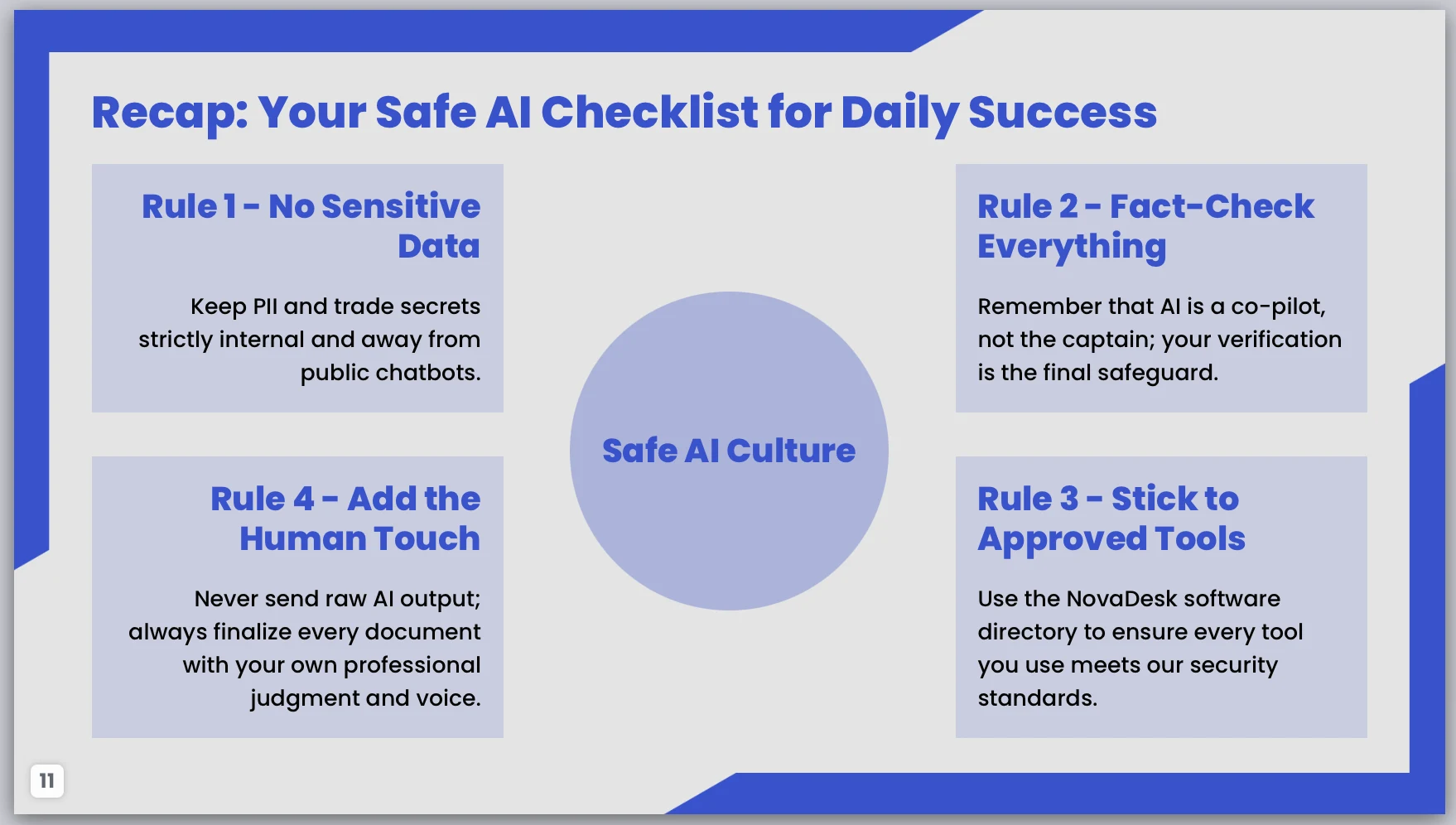
End with a concise recap and a transfer step: what learners should try next, where to find official guidance, or whom to contact when unsure. A recap should reinforce the lesson, not introduce a new policy or procedure.
Rehearse and check the delivered file
Rehearse with the actual time limit. If a 20-minute session leaves no time for practice or questions, cut material or move reference detail to a handout. Export to the format your audience needs, then open that exported file and check slide order, fonts, charts, links, notes, and any activities. Export options and file behavior vary by tool and version, so verify them in your own workflow before sharing.
6. Quality-check the deck, facts, accessibility, and privacy
Before learners rely on the deck, have the right people verify its content and delivery.
Content and learning checks
Compare every policy statement, instruction, number, and chart with an approved source. The reviewer should be the person accountable for the subject—such as the policy owner, safety lead, or designated subject-matter expert—not simply someone who can proofread. For charts, check the source data, labels, units, and whether the visual supports the same conclusion as the underlying figures.
- Outcome coverage: Each goal has instruction and a matching practice or assessment.
- Accuracy: Claims, procedures, figures, and examples are verified by the accountable subject-matter owner.
- Focus: Each slide has a clear takeaway and supports the session outcomes.
- Accessibility: Check text size at presentation scale, contrast, reading order, meaningful link text, and whether color is the only way information is conveyed.
- Delivery: Test links, activities, timing, and the exported file in the intended setting.
- Rights: Confirm that images and other visual assets are licensed or otherwise cleared for use.
Privacy and data-handling checks
Use this decision process before adding source material to an AI tool:
- Confirm the tool and use case are approved under your organization’s rules.
- Check the tool’s current terms for how uploaded content is stored and used; ask the responsible team if the terms or approval are unclear.
- Sanitize the source, removing sensitive details that are not needed. Redaction does not replace approval.
- After generation, compare the deck with the authoritative source and remove any sensitive details that appear in the output.
The useful measure is not how quickly the first slides appear, but whether the finished training gives learners a safe, clear action they can apply.