For teams that need a usable first draft—not an unattended final deck—an AI presentation maker with templates can turn a brief or source file into a structured set of slides. This guide shows how to choose the right starting point, check the outline before design work begins, and catch the factual and formatting problems that a polished theme can hide.
Three terms are worth separating: an AI-generated theme sets the deck’s visual style; a reusable slide template supplies layouts and recurring design rules; and a deck generated from an uploaded template attempts to apply an existing PowerPoint design to new content. These solve different problems. A theme can make a deck look consistent, but it cannot decide what your audience needs to know or guarantee that an uploaded design will transfer perfectly.
Three templates you can inspect and edit
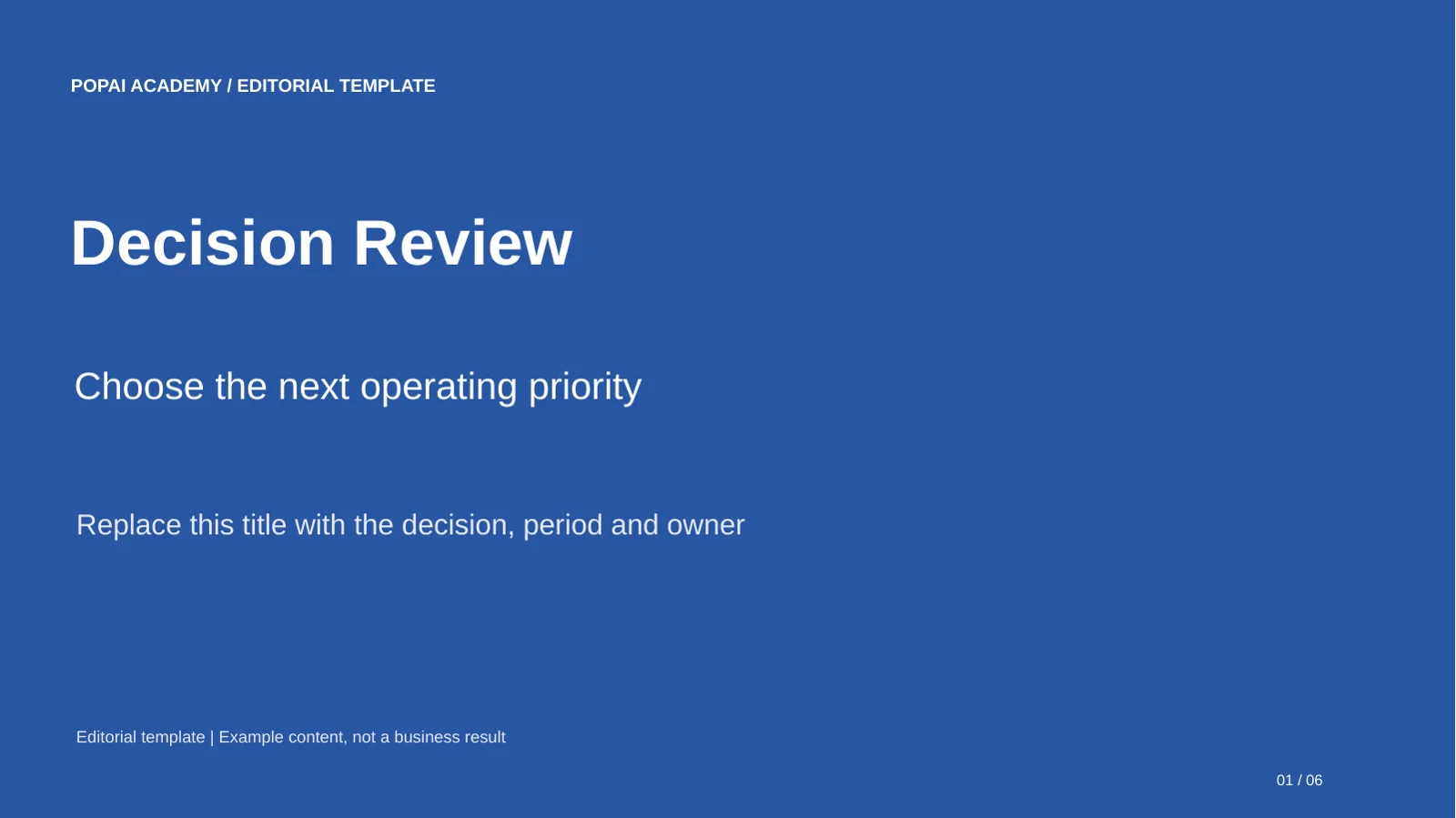
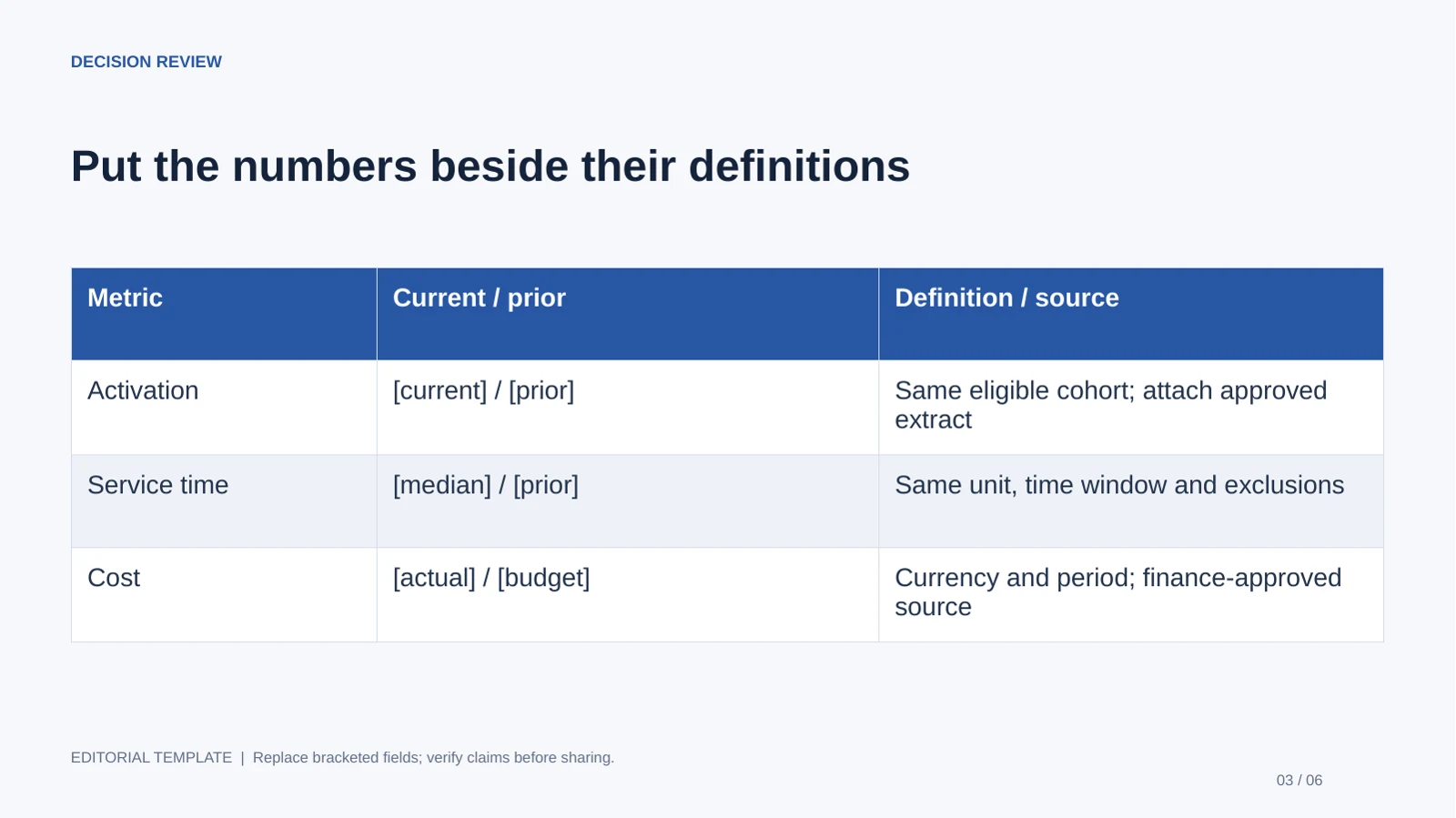
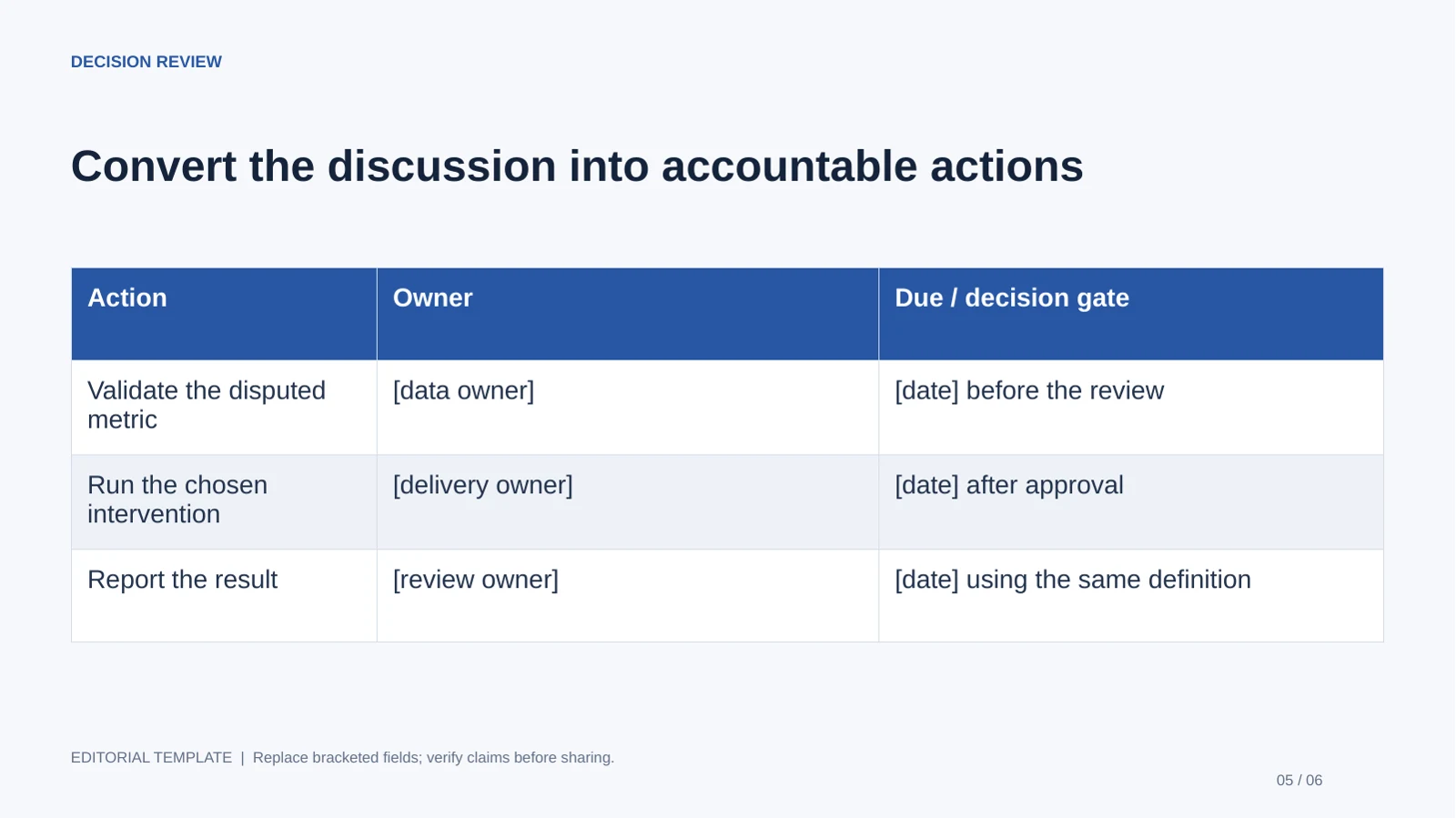
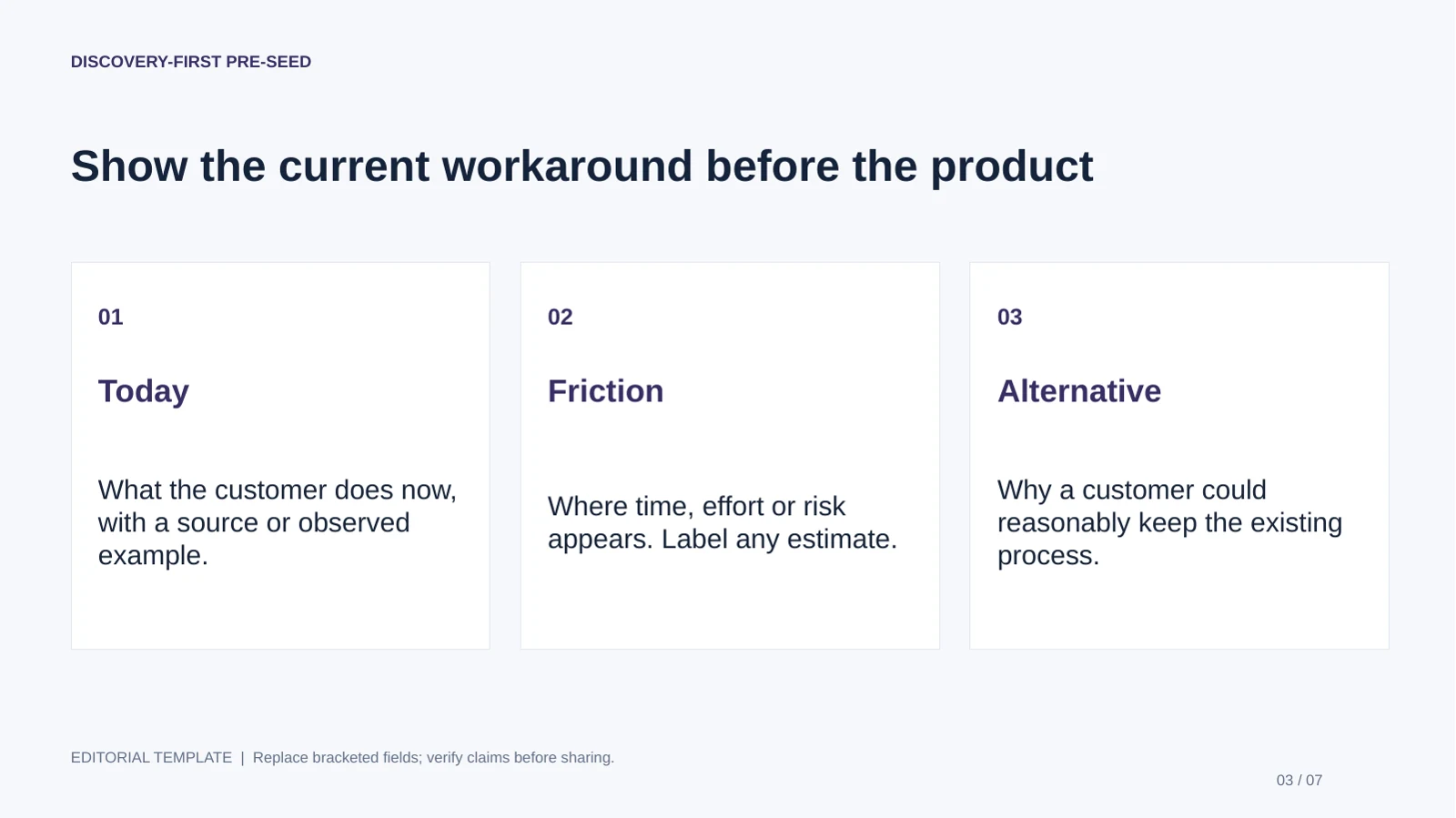
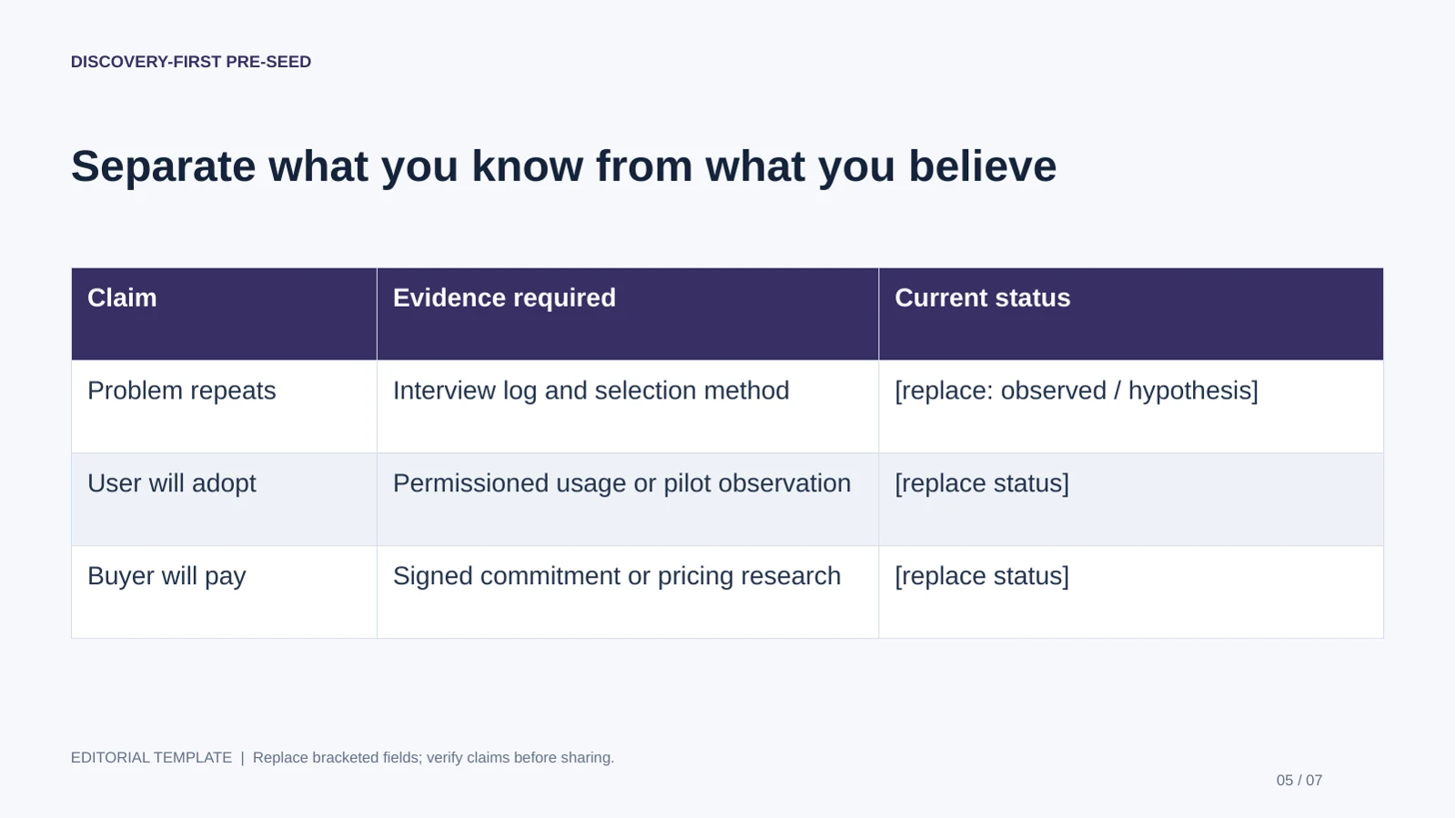
Start with Decision Review for a business decision, Practice and Debrief for a skill lesson, or Discovery-First Pre-Seed for an early investor meeting. These are specific files with interior-page previews, not just categories in a theme picker.
These are downloadable editorial starter templates created for this article. Their PPTX files contain editable text, shapes and tables; bracketed fields require your evidence. They are not screenshots of PopAi generation, verified client results or a guarantee of import behavior in another application.
Decision Review
Best for: Team leads and operations managers. Use: Recurring business review. Length: 6 slides.
Bring before editing: Approved metrics, named action owners and a decision request.
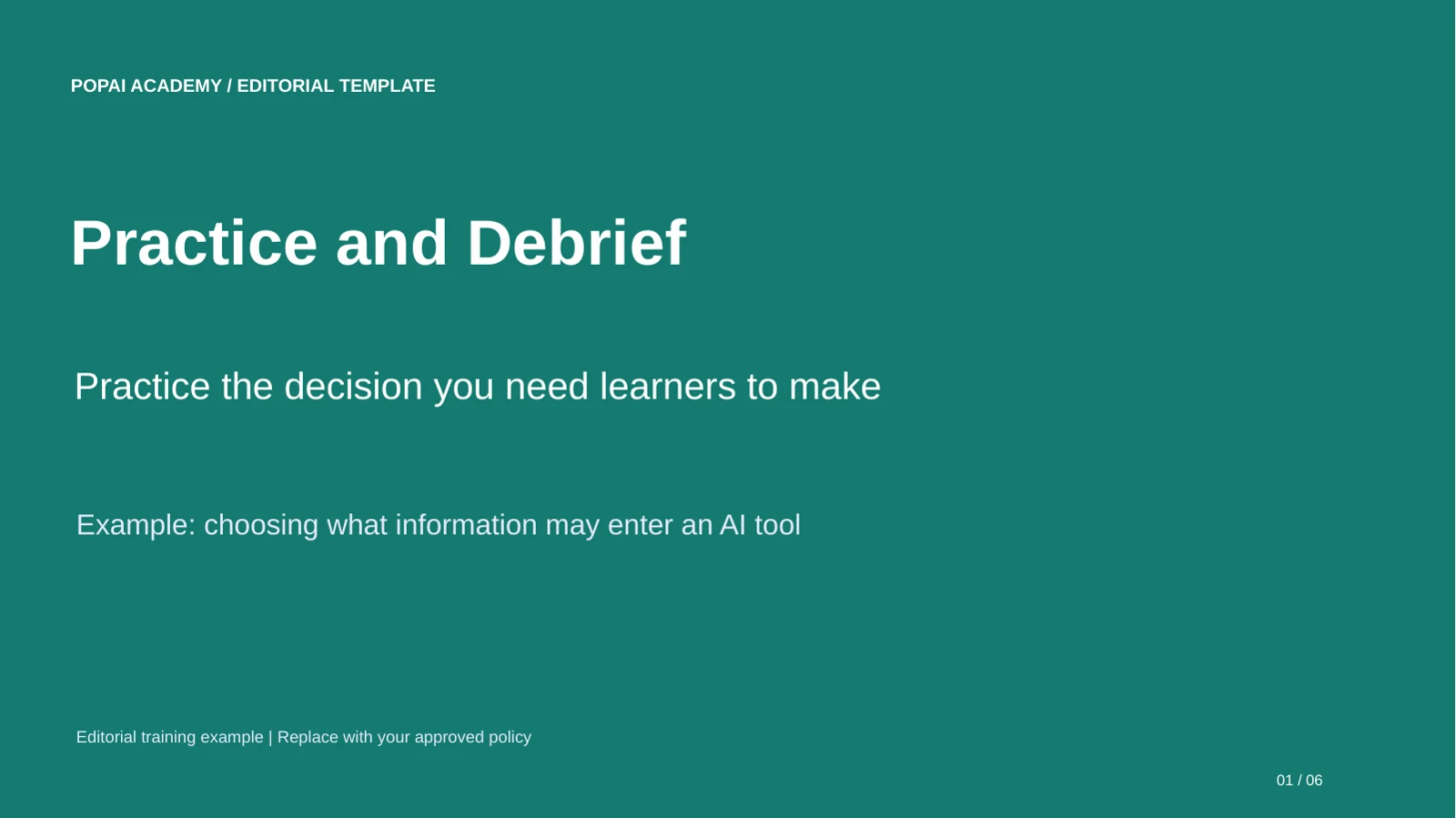
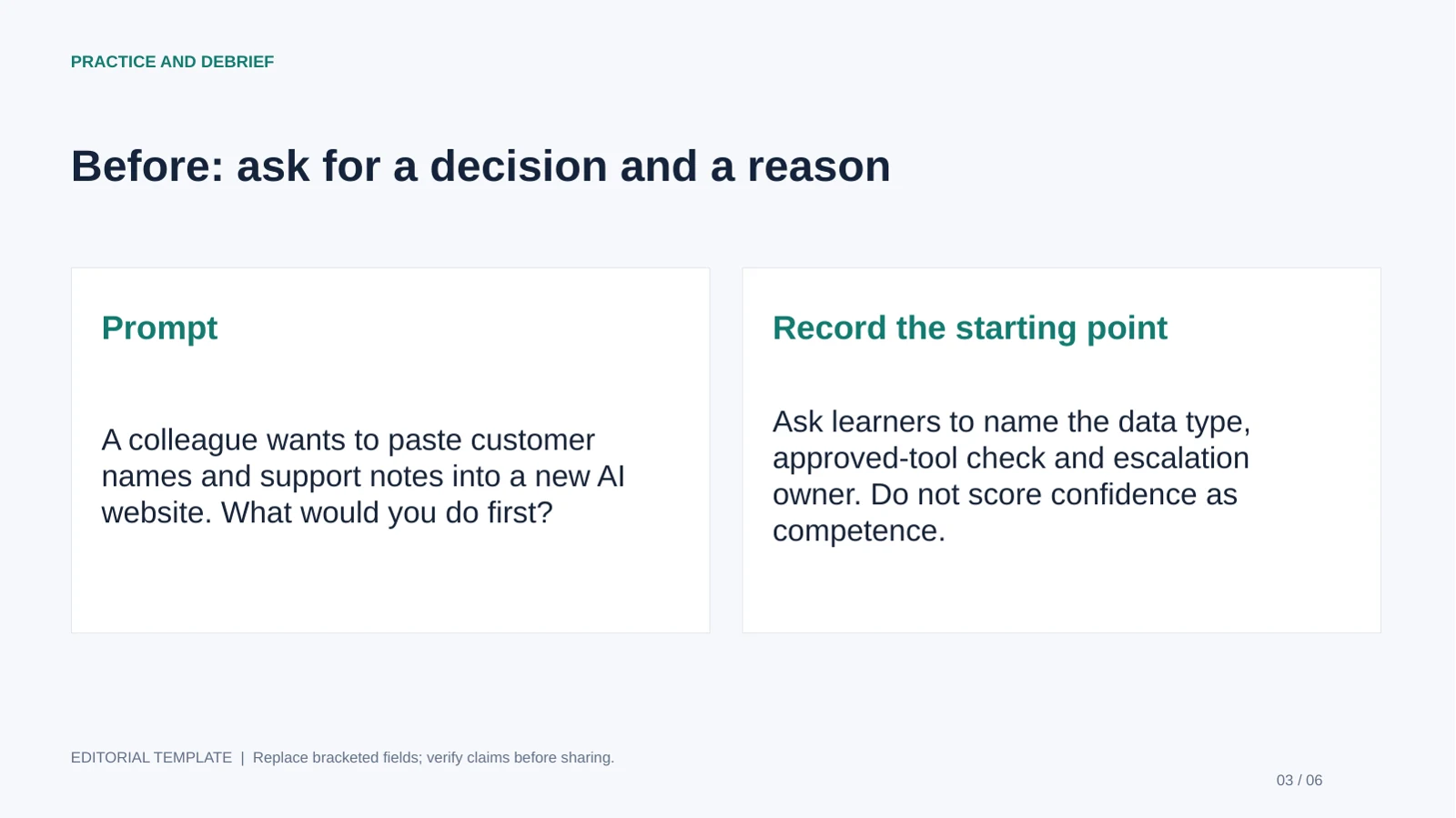
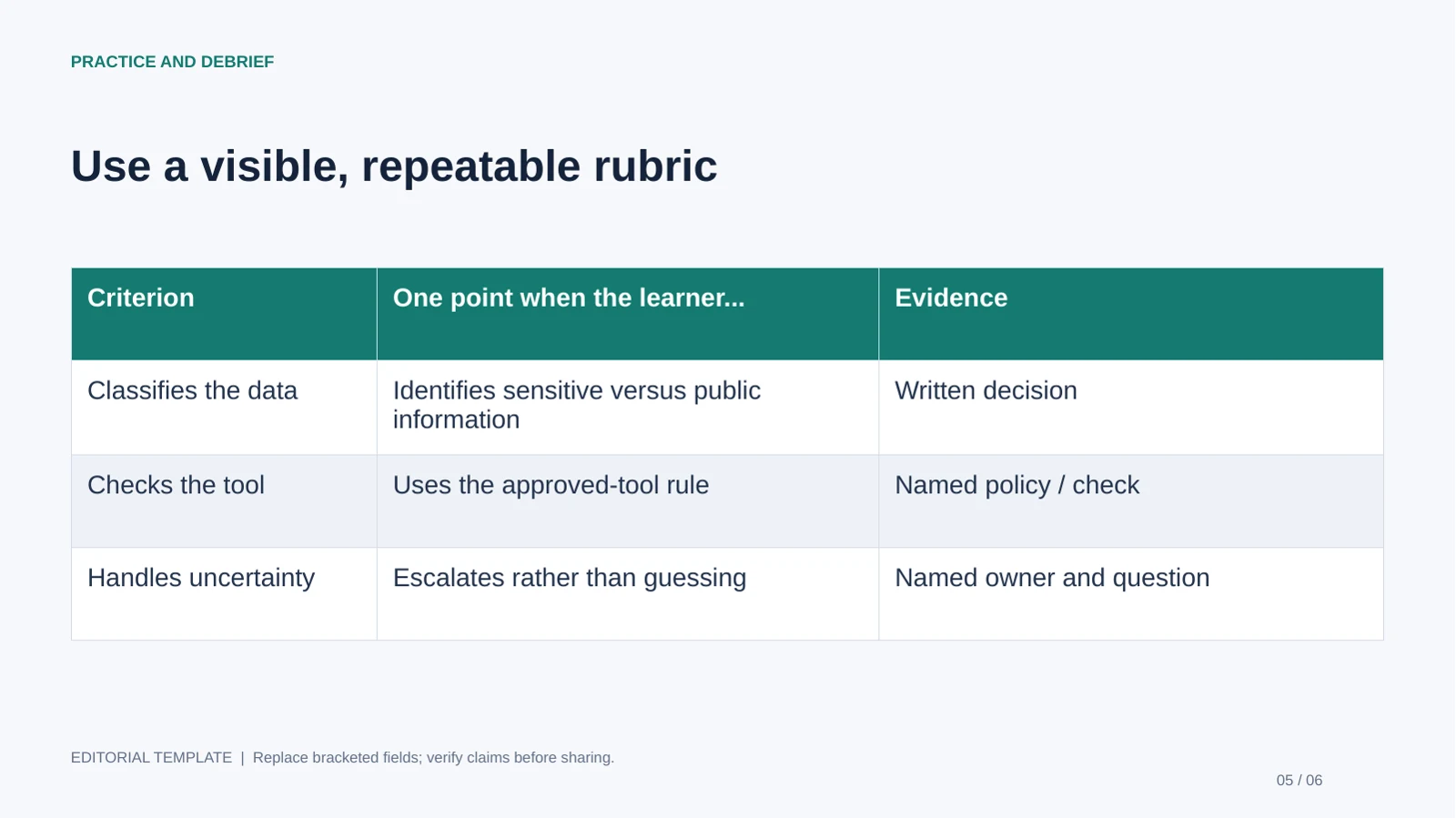
Practice and Debrief
Best for: Trainers and educators. Use: A skill-focused teaching session. Length: 6 slides.
Bring before editing: Approved learning objective, practice case, scoring rubric and answer key.
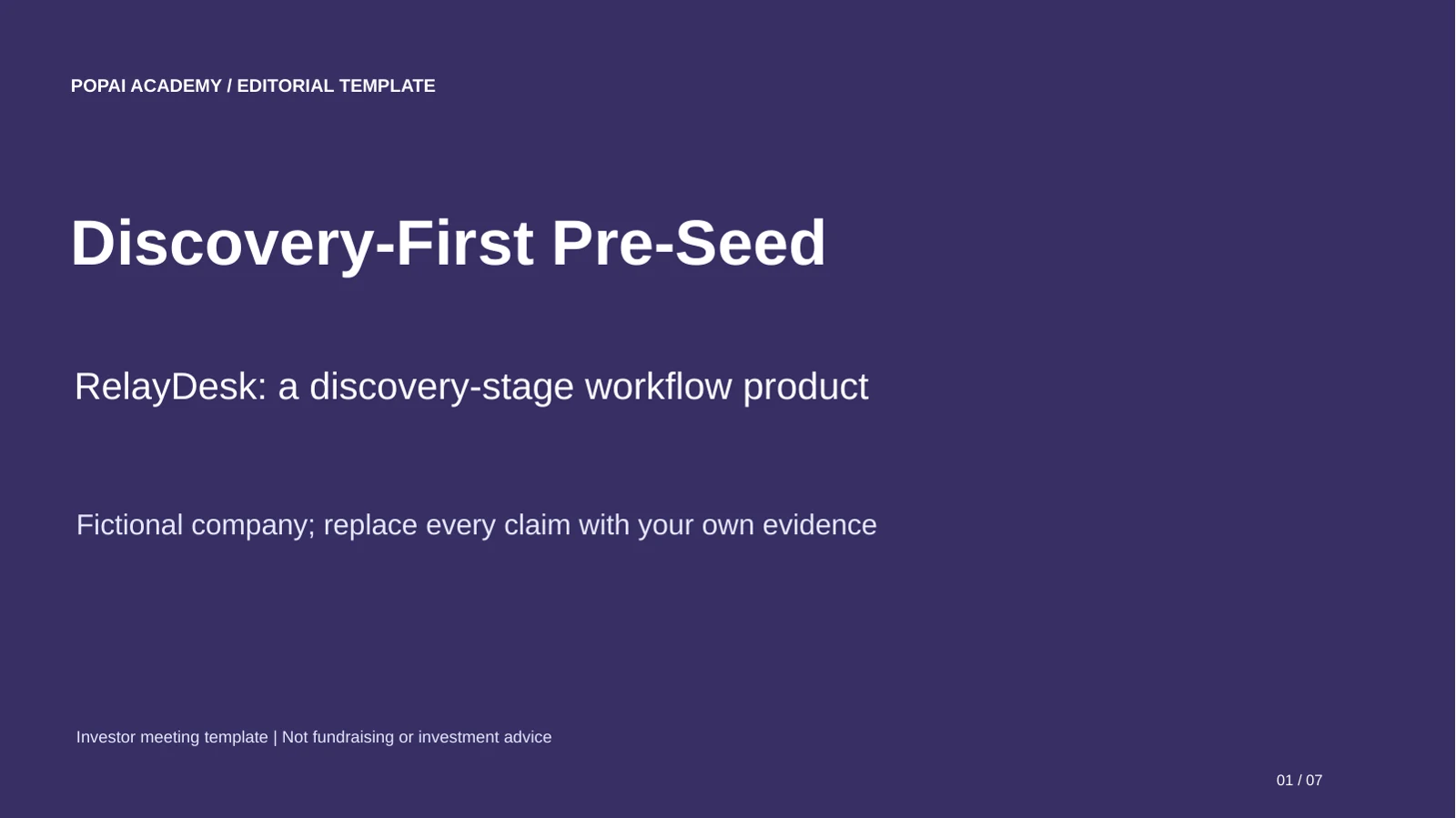
Discovery-First Pre-Seed
Best for: Founders meeting potential early investors. Use: Pre-seed. Length: 7 slides.
Bring before editing: Interview records, permissioned prototype evidence and clearly labeled hypotheses.
Theme, editable PPTX and template upload are different
| Item | What it changes | How to use it responsibly |
|---|---|---|
| Theme | The visual style inside the authoring tool | Check content hierarchy and contrast after applying it |
| Downloadable PPTX here | A native PowerPoint starter with text, shapes and tables | Open the file, duplicate it and replace bracketed evidence fields |
| PPTX-template upload | A separate import/template workflow when offered by the product and account | Do not assume it preserves every master, animation, note or object |
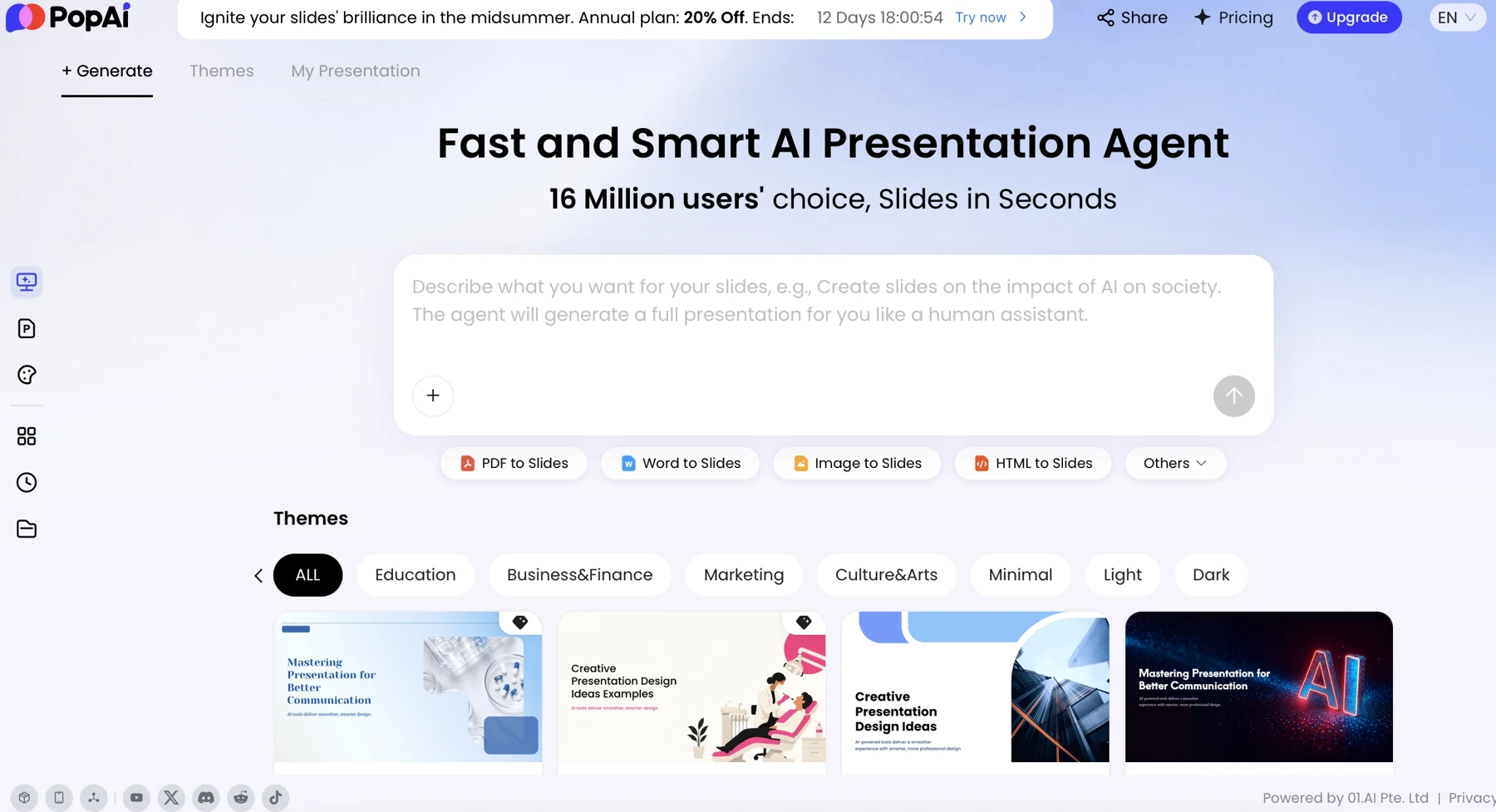
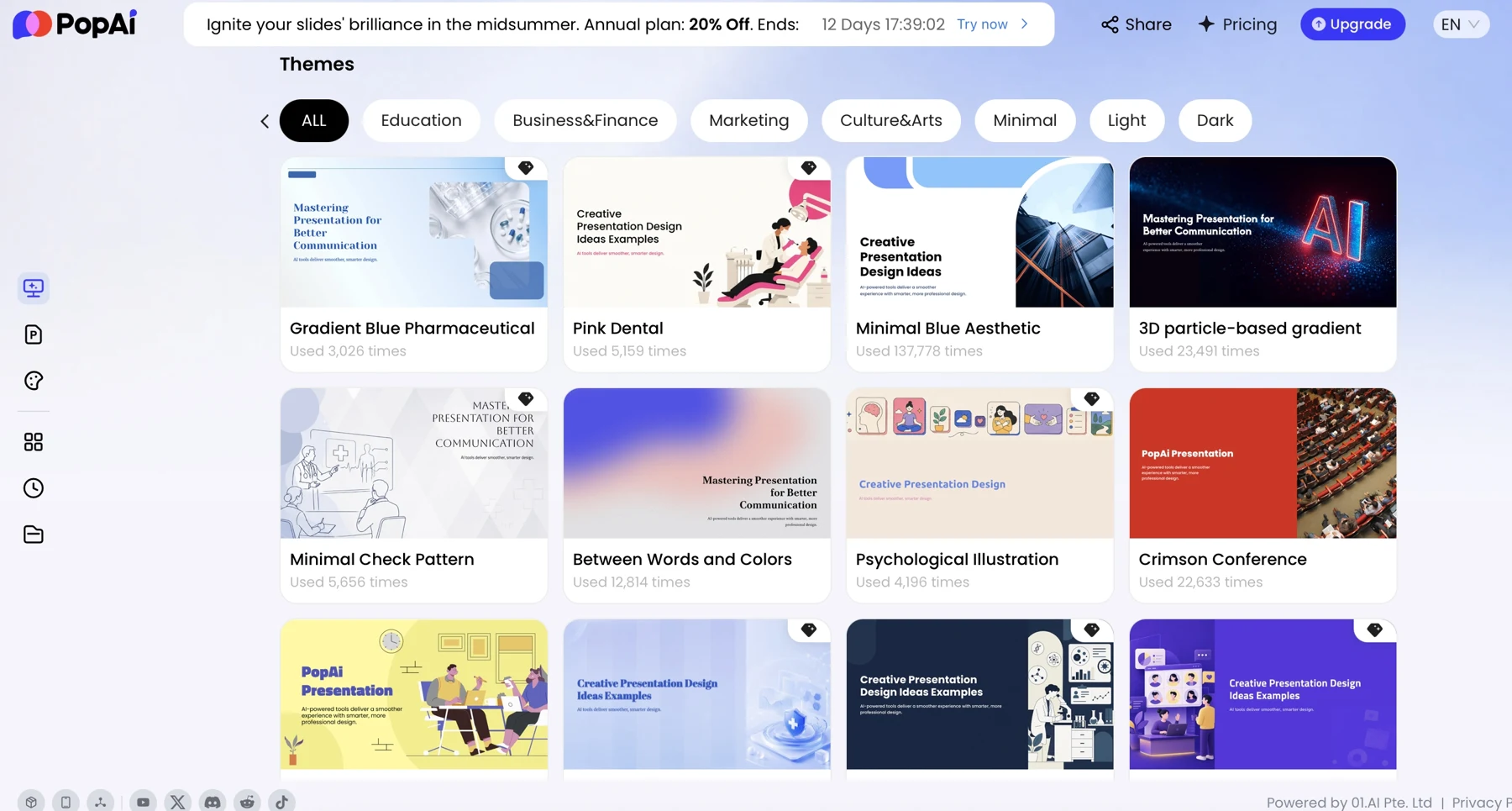
The reference knowledge base describes a PPTX-template route, while the gallery screenshots below show visual theme choices. A theme gallery alone does not prove upload or complete preservation. The supplied files can be edited in PowerPoint; importing them into PopAi or Google Slides has not been account-tested.
Edit the downloaded examples
- Download the file and save a working copy.
- Replace the title, bracketed source fields and decision language with approved material.
- Edit the native text and table cells; delete pages that do not serve the task.
- For AI-assisted drafting, provide the source outline plus approved evidence; do not ask the model to invent missing figures.
- Inspect the actual exported or imported file before sharing.
Why templates help—and where they can get in the way
A template gives recurring choices—type hierarchy, color, spacing, and slide layouts—a starting point. That saves time when a deck combines an argument, a process, data, and a recommendation, but it works best when the layout supports the job of each slide.
Consider one set of quarterly results prepared for two audiences. A leadership version might use six slides: the decision needed, three KPI trends, the main causes of variance, the forecast risk, and recommended actions. A team review of the same results may need a deeper sequence, including metric definitions, owner-level detail, and a discussion slide. Reusing one template can maintain brand consistency, but the two decks should not necessarily have the same structure or information density.
A common failure is forcing every point into a template’s default layout. A three-column card slide may work for three initiatives, but it is a poor fit for a month-by-month trend or a detailed risk table. Switch layouts—or split the slide—rather than shrinking text to make the content fit.
A template should make the right information easier to scan. If the content has to be distorted to fit the layout, change the layout before you change the content.
When comparing AI presentation makers, assess more than the template count. Check whether you can revise text, change layouts, edit chart data, and export to a format your team can continue working with.
How to test whether a template fits your deck
Choose for the audience and the content—not just for a thumbnail that looks polished.
A restrained business style may suit an executive update, while an instructional deck often benefits from clear section markers and space for examples or exercises. A pitch deck needs layouts that can accommodate a market case, business model, traction, milestones, and a specific request. A template dominated by decorative imagery may be a poor choice for a data-heavy review; a text-heavy corporate theme can feel lifeless in a visual lesson.
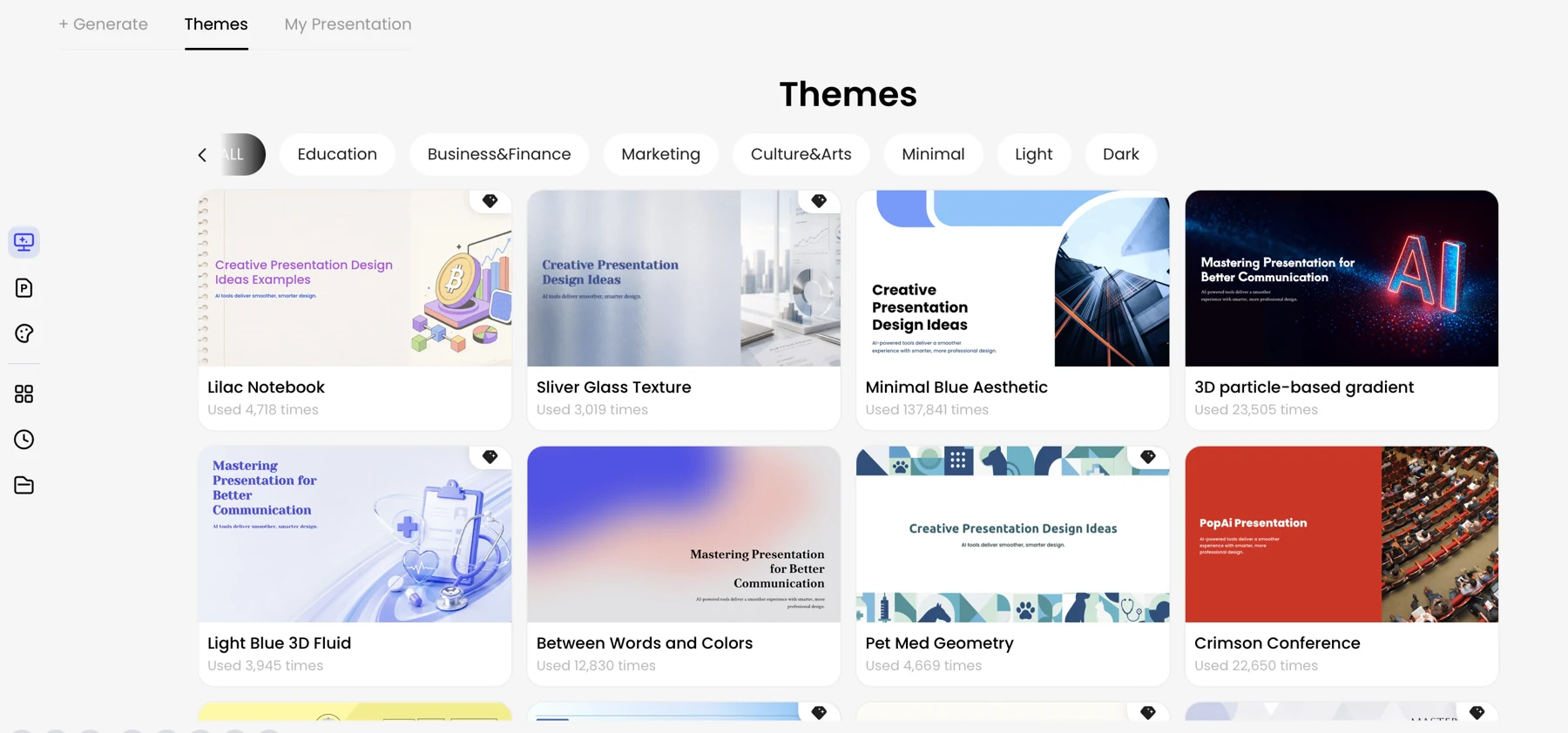
Check the layouts at presentation size
- Audience and setting: Decide whether the deck will be projected, viewed on laptops, or circulated for reading. A layout that works on a large screen may be cramped in a shared PDF.
- Content coverage: Look for suitable layouts for the actual material: a comparison, a process, a chart, a quote, or a recommendation. Do not assume one layout can serve all of them.
- Legibility: Preview a title slide, a dense content slide, and a chart slide at presentation size. Check title prominence, body-text size, and contrast—not just the template thumbnail.
- Brand and accessibility: Compare colors and type with existing materials. Ensure text remains readable against backgrounds and that meaning does not depend on color alone.
- Editing and handoff: Confirm that the resulting deck can be changed and shared in the format your collaborators use.
The PopAi interface shown here includes official and personal template options, including a PPTX upload option. Uploading an existing design can be a useful starting point, but do not assume every font, spacing rule, or custom layout will carry through unchanged. Test one representative slide, especially a chart or dense content slide, and check the current product workflow before relying on it for a branded deliverable.
How to create and refine a deck with an AI presentation maker
Work in three passes: define the brief, approve the structure, then refine the slides.
1. Plan the brief and source material
- Name the outcome: State what the audience should understand, decide, or do.
- Describe the audience: Include their role and familiarity with the topic. A board deck and an onboarding deck may cover the same subject at very different levels.
- Set useful constraints: Specify tone, language, must-have sections, and a slide-count range if you have a genuine time or meeting limit. If the structure is still unclear, ask for an outline first instead of forcing an arbitrary slide count.
- Identify authoritative facts: Provide clean source material and say which figures, definitions, or wording must remain unchanged. Ask the tool to flag missing information rather than fill gaps with assumptions.
2. Approve the outline before designing slides
For a quarterly review, a useful prompt could be: “Prepare an executive review for the leadership team. Recommend a six-to-eight-slide structure covering revenue, retention, the two largest variances, forecast risks, and decisions needed. Use only the supplied figures; mark any missing explanation as a question.” If the source says revenue was $4.8 million against a $5 million plan, check that the outline preserves both numbers and does not invent a cause for the shortfall.
Before generation, check that the outline answers the audience’s main question, gives evidence before recommendations, and leaves room for limitations or unresolved questions. Ask for citations or source references where relevant, but verify them against the original material; generated references are not proof that a claim is accurate.
3. Generate, then revise one issue at a time
“Create a 10-slide training deck for new customer-support representatives. Use a practical, encouraging tone. Include learning objectives, a five-step escalation process, two short scenarios, a knowledge check, and a recap. Use only the policy details in the supplied document; flag anything the document does not answer.”
For example, if the first draft gives each escalation step a dense paragraph, do not ask vaguely to “make it better.” Ask for one change: “Turn the five escalation steps into a numbered process, keep each step to one short instruction, and preserve the policy exceptions.” Then check that the exceptions remain. This focused revision makes it easier to spot what changed and reduces the risk of losing a qualification during rewriting.
The product’s AI Presentation entry, Creative Slides flow, and AI PowerPoint workflow are different starting routes described in the interface: the first is oriented toward prompts or files, the second toward visual storytelling, and the third toward template-based PowerPoint work. Names and capabilities can change, so check the current workflow before building a process around a specific option. To explore a prompt-first or file-based workflow, try PopAi AI Presentation.
Turn existing files into a more useful first draft
Generating from a source file can save retyping, but it does not remove the need to compare the deck with the original.
The interface described for PopAi lists several input routes, including local-file upload and Google Drive, and file types such as PDF, DOCX, TXT, Markdown, XML, HTML, PPTX, and common image formats; audio, video, and YouTube URLs are also presented as options. Availability and limits may change. Before relying on a particular format, check the current product guidance and test a non-sensitive sample with similar formatting.
In one illustrative HTML-to-slides conversion, a structured report with a title, executive summary, key metrics, and a risk register produced a six-slide outline. The result included a risk table with fields for risk, severity, owner, and mitigation. That structure is a useful starting point, not evidence that every detail transferred correctly: compare each metric with the source, confirm the table’s wording and ownership, and check whether the executive summary omitted a caveat. Complex or scanned documents can require substantially more manual repair.
- Tables: Compare row and column totals, units, and footnotes with the source; extraction can change relationships between cells.
- Charts and diagrams: Verify labels, scales, legends, and explanatory text. A chart may be summarized without preserving its underlying data or caveat.
- Scans and images: Check names, numbers, and small print against a readable original; OCR errors can look plausible.
- Long reports: Compare the generated outline with headings and conclusions in the source so important sections are not silently skipped.
Privacy check: Before uploading internal reports, customer data, or confidential plans, check your organization’s rules and the product’s current privacy and data-handling terms. Confirm how uploaded material is stored and used; redact or replace sensitive details if they are not needed to make the deck.
Review the content, visuals, and exported file
Treat the generated deck as a draft: verify claims first, then inspect its readability and behavior in the software you will use.
Content review: verify claims and preserve qualifications
A revision request such as “shorten this for executives while retaining the three key points” can be useful, but compare the revised text with the original. A shorter sentence may accidentally remove a limitation, time period, or definition that changes the meaning.
- Check names, dates, calculations, chart labels, and claims against trusted sources.
- Make sure each slide advances the argument and the conclusion answers the question raised at the start.
- Separate supplied evidence from recommendations or interpretation; do not let an AI-generated explanation appear to be a verified fact.
Visual review: test readability and accessibility
- View slides at the size and distance your audience will use; fix small text before adding more detail.
- Check contrast, consistent typography, and whether color is the only way to distinguish categories or status.
- Confirm that charts have readable labels and a clear takeaway. If viewers need the exact values, include them rather than relying on color or visual estimation.
- Use speaker notes for useful spoken context instead of squeezing full paragraphs onto the slide.
Export review: check the file in its destination application
The product interface presents editing controls for themes, layouts, text, icons, and charts; chart data can be edited through a table in supported workflows. It also lists chart options such as bar, line, pie, and scatter. Check the current product interface for the options available to your deck rather than assuming every chart or editing control applies to every workflow.
After exporting to PPTX or PDF, open the actual file—not just the online preview. In PowerPoint or the application your team uses, look for font substitution, text wrapping, shifted objects, missing images, altered chart labels, and changes to editable elements. If a chart or layout is essential, compare it slide by slide with the source version. The export should be treated as a handoff to validate, not a guarantee of identical rendering in every application.
For sourced material, retain citations in a visible source note or reference slide and check that they survive the export. Confirm image permissions for the intended use, and do not present generated facts or visuals as independently verified research.
Troubleshoot common AI-template problems
Use the visible problem to decide whether to change the prompt, the source, the layout, or the slide itself.
- Every slide looks alike: The prompt may not describe different content types. Specify where you need a process, comparison, chart, or recommendation—or change layouts manually.
- Slides are crowded: The brief may be asking for too much in too few slides. Increase the slide-count range, prioritize the key message, and move supporting detail to notes or an appendix.
- A chart tells the wrong story: Check the source data and units before editing the design. If the source values were misread, regenerate from a clean table or rebuild the chart manually.
- Important details are missing: Compare the outline with the source headings and tables. Add the omitted facts explicitly or use a cleaner source file rather than simply asking for a more detailed deck.
- The uploaded template looks inconsistent: Test a representative slide for font, spacing, and layout changes. If the design does not carry through reliably, use the template as a visual reference and correct key slides manually.
- The export differs from the preview: Open it in the destination application and repair wrapping, fonts, or shifted objects there; recheck the saved file before sharing.
A useful measure of success is not how many slides the tool produces, but whether the finished deck lets its intended audience understand the evidence and take the next step. Use automation for repetitive setup; reserve human review for accuracy, emphasis, and decisions that depend on context.