How to Design Team Introduction Slides with AI: Examples & Privacy Checks
Published on
If you need to design team introduction slides with AI, the real problem is rarely “making a slide.” It is turning uneven source material—three LinkedIn-length bios, two missing headshots, one outdated title, and a vague leadership paragraph—into a slide the audience can understand in five seconds.
A useful team slide is not a staff directory. It tells the room who is accountable, what each person will do, and why this group is credible for the decision at hand. Tools such as PopAi AI Presentation can help compress bios, standardize tone, suggest slide structures, and turn existing notes into editable presentation pages, but the design judgment still comes from you.
For example, a weak sales proposal slide might show six headshots with titles only: “VP Delivery,” “Solution Architect,” “Project Manager.” A stronger AI-assisted version groups the same six people into “Strategy,” “Implementation,” and “Support,” adds one responsibility line per person, and highlights the escalation owner. Same people, very different trust signal.
Team Slide Examples and Privacy Checks
Team slides build trust only when names, roles, photos, and credentials are accurate and approved.
Use AI to shorten bios and organize layout options, but do not let it invent authority. Every role, client name, credential, award, headshot, and employment detail should be confirmed before the deck is shared.
| Team slide | What to include | What AI should help with | What humans must verify |
|---|---|---|---|
| Founder team | Name, role, relevant background, ownership of the story. | Turn long bios into concise investor-ready profiles. | Titles, past companies, achievements, and permissions. |
| Sales or customer team | Roles, regions, responsibilities, customer coverage. | Create a clean grid or territory map concept. | Customer names, territories, and internal reporting details. |
| Project team | Owner, workstream, responsibility, escalation contact. | Group people by workstream and clarify accountability. | Current assignments, contact details, and privacy rules. |
Privacy boundary
Do not paste sensitive employee information, private contact details, or unapproved headshots into AI tools unless your organization allows it and the tool settings are appropriate.
Why team introduction slides matter
A team slide should reduce audience risk, not simply introduce names.
Different decks require different proof. Before asking AI for copy or layout, decide what the audience needs to believe:
- Investor pitch: founder-market fit, prior exits, category experience, technical defensibility, hiring gaps already covered.
- Sales proposal: delivery roles, implementation experience, escalation ownership, subject-matter expertise, post-sale support.
- Consulting deck: workstream ownership, relevant case experience, client-facing leads, specialist depth.
- Onboarding deck: who to contact, what each person owns, response expectations, support coverage.
- Training presentation: instructor qualifications, facilitation roles, office hours, learner support.
- Project kickoff: governance, decision rights, technical leads, timeline accountability.
When you design team slides with AI, the advantage is not only speed. AI is useful for spotting repeated strengths, shortening résumé language, and proposing an information hierarchy. For a procurement committee, “Managed three hospital system rollouts” is stronger than “Experienced healthcare consultant.” For investors, “Built fraud models at two fintech scaleups” is stronger than “Data science leader.”
Think of the team slide as evidence, not decoration. Every photo, title, credential, and responsibility should reduce perceived risk for the audience.
Before selecting a layout, define the primary trust signal: strategic leadership, delivery capacity, technical depth, geographic coverage, cultural fit, or customer support. That choice determines whether your slide should be a grid, role-card system, org chart, capability matrix, map, or leadership spotlight.
Design note: In proposal and kickoff decks, the most common failure I see is equal visual treatment for unequal responsibilities. If the client will mostly interact with the project manager and solution architect, those two people need clearer responsibility lines than executives who appear only for governance.
Gather and clean member inputs before AI sees them
Good AI output starts with balanced, approved, and privacy-safe team information.
If you are still choosing the tool stack, compare AI presentation makers for editable export, template control, file-to-slides support, and data handling before uploading employee information.
Do not paste full resumes and hope the model will “find the best parts.” Create a short intake format so every person receives comparable treatment. This also makes it easier for managers, legal, or HR to approve the final slide.
Use a consistent team intake template
Collect the same fields for each person, then judge each field for relevance and proof quality:
- Name and preferred name: confirm spelling, accents, pronouns if used in your organization, and honorifics.
- Current role: use the title approved for this audience; avoid internal-only labels the audience will not understand.
- Project responsibility: write what the person will do for this audience, not just what department they belong to.
- Credibility signal: choose one proof point that is specific, relevant, verified, and not inflated.
- Human detail: include a working style, mission, or support promise only if it helps the audience relate to the person.
- Photo status: mark approved, needs replacement, no photo, or use initials/icon fallback.
Filled-in example: “Maya Chen | Implementation Lead | Owns rollout plan, training schedule, and go-live readiness | Led three EHR migrations across multi-site healthcare teams | Known for calm weekly status reviews | Approved headshot, blue background.” This gives AI enough structure to produce useful slide copy without guessing.
Quality matters more than quantity. “10+ years of experience” is acceptable only when the audience values tenure. “Led three ERP migrations in regulated manufacturing” is stronger because it combines scope, relevance, and proof. For junior team members, use responsibility-based credibility: “Manages issue triage and release notes” or “Coordinates user testing across three departments.”
Privacy workflow: Before uploading source material, remove personal phone numbers, home locations, compensation details, employee IDs, internal performance notes, confidential client names, and non-public project codes. Replace sensitive clients with placeholders such as “[Fortune 100 retailer]” or “[regional hospital network]” until the final approved version.
Also confirm photo rights and consent. Do not use scraped LinkedIn photos, old conference images, or AI-generated headshots without approval. If your organization has vendor review or data retention rules, check whether the AI tool trains on uploaded data, how files are stored, and who can access shared decks.
Prompt AI to turn bios into concise, trustworthy narratives
The best prompt asks AI to compress, standardize, and flag uncertainty—not to embellish.
Prompt template for a team introduction slide
Use a prompt like this as a starting point:
Create a team introduction slide for a [sales proposal / investor pitch / onboarding deck / project kickoff]. Use the member notes below. For each person, write a 12–18 word role description and a 6–10 word credibility phrase. Do not invent education, awards, client names, certifications, employers, or years of experience. Flag any claim that is not explicitly supported by the notes. Keep the wording concrete, parallel, and audience-specific.
Add the audience and decision context when the stakes are high: “The audience is a healthcare procurement committee evaluating implementation risk,” or “The audience is Series A investors assessing whether the founding team can win this market.” That context helps AI choose proof points instead of producing generic praise.
Example: raw bio to slide-ready copy
Raw bio: “Maya has worked in healthcare technology and implementation for more than a decade. She has supported product rollouts, training, change management, and customer success programs for hospitals, clinics, and payer organizations. In her last role, she managed cross-functional teams, coordinated migration timelines, and worked closely with executive stakeholders. She is known for building strong customer relationships and keeping complex projects on track.”
Standardized input: “Maya Chen | Implementation Lead | Owns rollout plan, training schedule, go-live readiness | 10+ years healthcare technology implementation | Managed cross-functional migration timelines for hospitals and clinics | Strong customer communication.”
Likely AI output: “Guides implementation planning, training, and go-live readiness for healthcare technology clients. 10+ years in healthcare implementation.”
Human-edited final: “Leads rollout planning, training, and go-live readiness for your first 90 days. Healthcare implementation lead across hospital and clinic migrations.”
Why the edit is better: it removes vague claims like “strong customer relationships,” adds audience relevance with “your first 90 days,” and keeps only proof supported by the source notes.
What AI should generate
- Slide title: should state the team’s role in the audience’s success, such as “The team delivering your rollout.”
- Short bios: should use parallel grammar and avoid résumé stuffing.
- Credibility phrases: should be verifiable and relevant, not generic adjectives like “seasoned,” “world-class,” or “proven.”
- Speaker notes: should help the presenter introduce people naturally instead of reading the slide.
- Layout recommendation: should match team size, hierarchy, and the audience’s main concern.
- Fact-check list: should identify unsupported claims, missing titles, inconsistent dates, and risky client references.
When an AI tool produces an outline or content plan before the final slides, pause there. Check whether the team grouping is right, whether senior leaders are overemphasized, whether delivery owners are visible, and whether any person has been assigned responsibilities not found in the source notes. Fixing structure before slide generation saves far more time than polishing a wrong layout.
Compression example: A 160-word executive bio often becomes a stronger slide element when reduced to one responsibility line and one proof line. Remove career chronology, generic traits, repeated company descriptions, and unsupported adjectives. Keep the audience-facing job: “Owns executive alignment and risk escalation” plus the proof: “Former CIO; led two enterprise cloud migrations.”
Useful follow-up prompts include:
- “Flag every claim that is not directly supported by the notes.”
- “Rewrite all bios with the same structure: action verb + responsibility + audience benefit.”
- “Create a sales proposal version and an onboarding version of the same team slide copy.”
- “Shorten each bio to fit two lines at 16-point body text.”
- “Remove adjectives such as expert, seasoned, leading, proven, and trusted unless the notes provide evidence.”
Choose layouts for team slides with AI: grids, cards, maps, and matrices
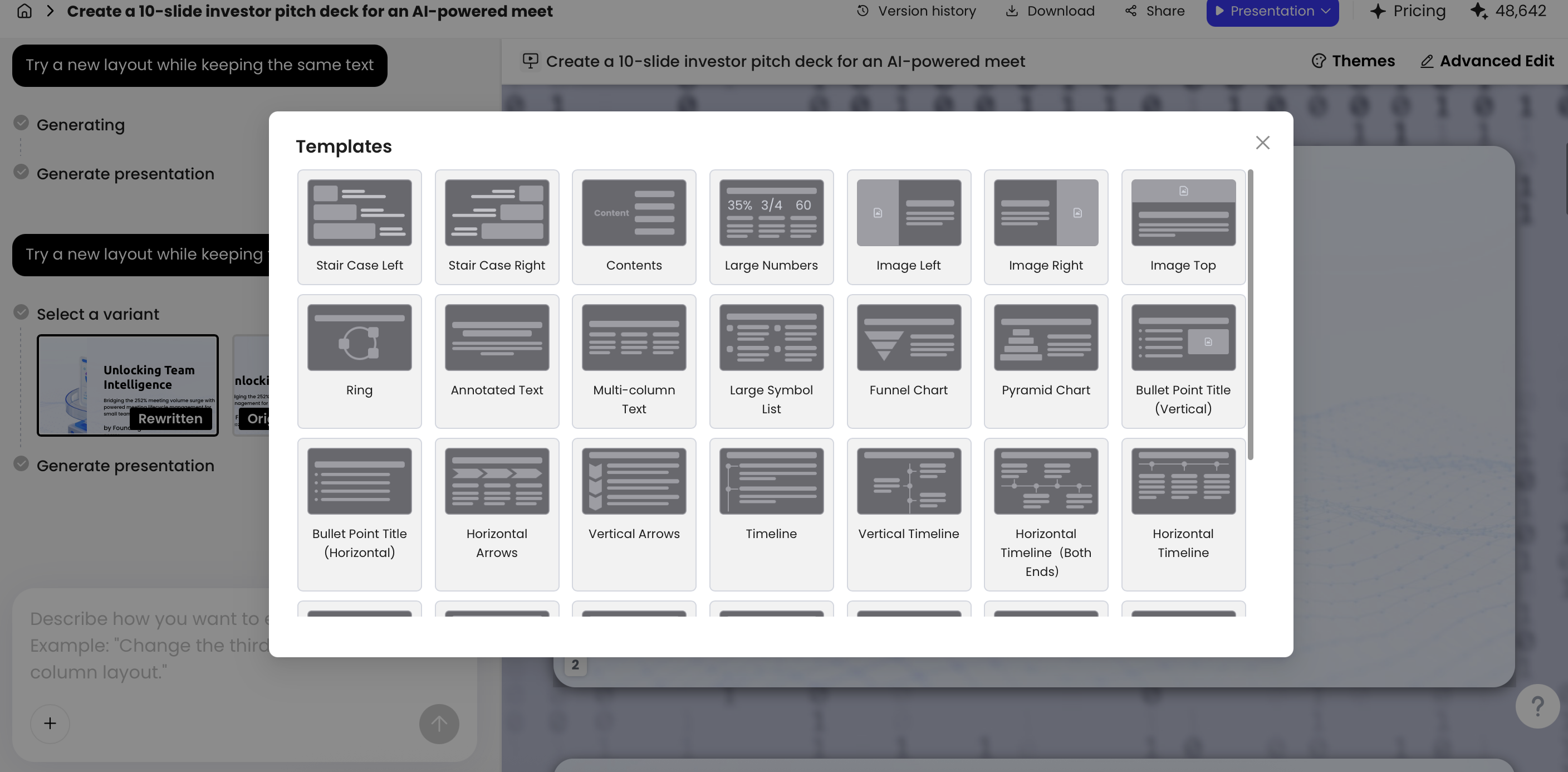
Choose the layout that answers the audience’s trust question fastest.
Layout decision rules by team size and purpose
- 1–3 people: use a leadership spotlight with larger photos, short founder or executive proof, and one shared mission statement.
- 4–6 people: use role cards; include photo, name, role, responsibility, and one proof point.
- 7–9 people: use a compact headshot grid or grouped cards; reduce bios to one responsibility phrase.
- 10–15 people: split into workstreams, show an org chart, or move detailed bios to an appendix.
- 15+ people: avoid a single crowded “everyone” slide; show leadership plus workstream leads, then provide a separate team roster if needed.
- Leave-behind deck: allow slightly more detail because readers can zoom or revisit the page.
- Live presentation: keep text larger and let speaker notes carry the details.
Best team slide layout patterns
- Headshot grid: best for 4–9 people when parity matters. Avoid it when the audience must understand ownership; grids often hide who does what.
- Role cards: best for sales proposals and project teams. Prompt: “Group these six people into Strategy, Implementation, and Support columns with one responsibility line each.”
- Leadership spotlight: best when one or two leaders carry major credibility. Pair it with a smaller delivery-team row so the slide does not feel executive-only.
- Org chart: best for governance, escalation, and handoff decks. Use sparingly in sales decks because it can feel bureaucratic if roles are not tied to outcomes.
- Capability matrix: best for consulting, technical, or training teams. Use rows for people and columns for skills, workstreams, or certifications.
- Timeline team story: best for founder teams or culture decks where shared history matters. Keep it short; the slide should not become a company biography.
- Map or regional distribution: best when local coverage, time zones, or language support reduce risk. Use initials or role pins if photos make the map cluttered.
A practical before/after fix: if your first AI draft is a six-person grid with identical cards, ask for a role-based redesign. “Make the project manager and solution architect visually primary, group the remaining four people under Delivery Support, and reduce all bios to one line.” This creates hierarchy without excluding anyone.
After generation, use editing tools to change the structure, not just the colors. You might ask: “Convert this six-person grid into three role-based columns,” “Replace missing photos with initials in the same circle style,” or “Shorten each bio to one line and emphasize customer impact.” Icons can help label workstreams or regions, but avoid decorative symbols that compete with names and responsibilities.
Metrics belong on a team slide only when they support trust. A small metric card such as “12 enterprise rollouts completed” or “Support across 4 regions” can be useful. Avoid stacking several statistics next to bios; if the numbers require explanation, move them to a proof or case-study slide.
Keep AI team slides on brand, accessible, and human
Polish is not enough; the slide must be readable, consistent, inclusive, and believable.
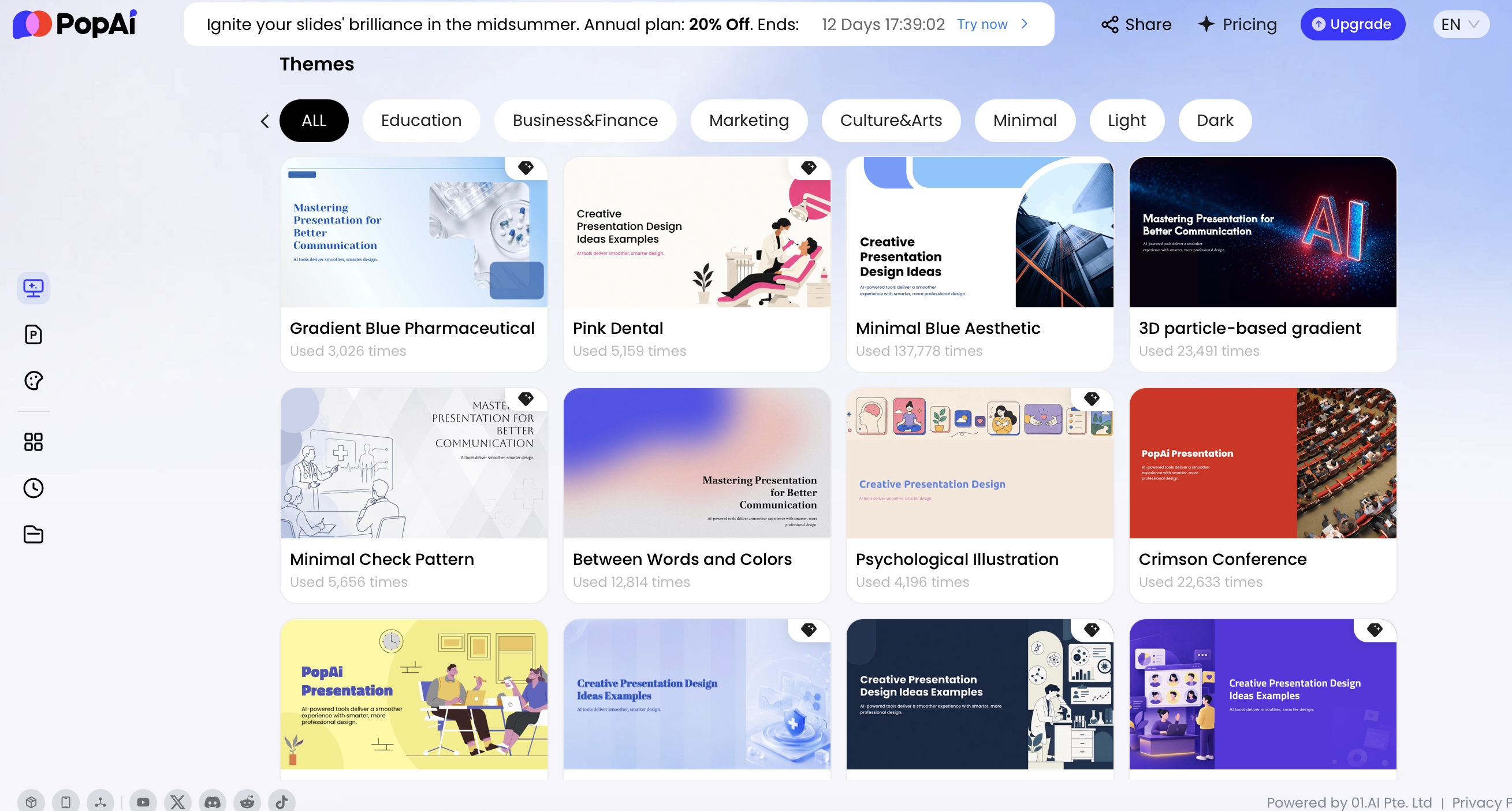
Start from the same visual system as the rest of the deck: approved fonts, brand colors, spacing, and title styles. If you upload or apply a PPTX template, check that team cards inherit the correct typography and that the slide still works in both 16:9 presentation mode and PDF export.
Visual rules for better team introduction slides
- Crop photos consistently: use the same aspect ratio, head size, shoulder crop, and background treatment; avoid mixing studio headshots with casual selfies.
- Use realistic text limits: for 4 people, allow name, role, responsibility, and proof; for 8 people, usually keep name, role, and one responsibility phrase; for 12+ people, split the slide.
- Create typography hierarchy: make names the most scannable element, roles secondary, and proof points smaller but still readable.
- Respect projected readability: aim for at least 18–20 pt for key text in live presentations; avoid body text below 14–16 pt unless the slide is a leave-behind.
- Check contrast: use high-contrast text and backgrounds; as a practical benchmark, follow WCAG-style contrast targets of about 4.5:1 for normal text where possible.
- Do not rely only on color: if departments or regions are color-coded, add labels or icons so color-blind viewers can still understand the grouping.
- Avoid text over busy photos: place text beside or below images, or use a solid overlay with enough contrast.
- Represent the team respectfully: use approved names, inclusive language, and professional descriptions; do not force “fun facts” into formal decks.
- Plan for missing photos: use initials, icons, or silhouette placeholders in the same style rather than leaving blank boxes.
Human detail matters when it makes the person easier to trust. In a sales proposal, “Leads the migration workstream for your first 90 days” is stronger than “10+ years in technology” because it connects expertise to the buyer’s risk. In an investor pitch, “Built fraud models at two fintech scaleups” is stronger than “Data expert.” In onboarding, “Your first contact for access, training, and issue triage” is more useful than “Customer success manager.”
Practical move: Ask AI for three headline options: formal, warm, and outcome-focused. Then choose the version that matches the room. A board update may need “Leadership accountable for delivery,” while an onboarding deck may need “Meet the people here to help you succeed.”
Be cautious with AI-generated avatars or headshots. They can solve consistency problems, but they also raise consent and authenticity issues. For investor, sales, legal, healthcare, education, or public-sector decks, real approved photos usually build more trust than synthetic portraits. If avatars are used, disclose the policy internally and make sure individuals approve the representation.
Review facts, privacy, and PowerPoint export before presenting
The final review is where AI-assisted team slides become credible—or become risky.
Run a team slide quality checklist
- Five-second test: can someone identify each person’s responsibility without hearing the presenter?
- Fact verification: confirm names, titles, reporting lines, certifications, awards, client references, dates, and years of experience.
- Claim support: remove or rewrite any claim not supported by the source notes.
- Permission check: confirm photos, bios, and client/project references are approved for this audience.
- Consistency pass: review capitalization, title formats, punctuation, crop sizes, and bio length.
- Hierarchy review: make sure visual emphasis reflects actual audience need, not internal politics or AI randomness.
- Readability test: view the slide in presentation mode from the back of a room or at 50% zoom.
- Bias check: watch for uneven language, such as executives receiving strategic verbs while junior staff receive administrative labels only.
- Speaker notes: prepare introductions by relevance; do not read every bio word for word.
- Export inspection: open the PPTX and PDF on the actual presentation device and confirm fonts, image placement, notes, and links.
Use clear review ownership. A designer should check layout and readability. Team members should verify their own names, titles, photos, and bios. A manager should confirm responsibilities and seniority. Legal, HR, or compliance should review sensitive client names, regulated credentials, confidentiality language, and public-facing claims.
Export checks are not optional. Confirm that fonts have not substituted, photos are not stretched, speaker notes are preserved, slide master styles still work, animations or transitions behave as expected, file size is acceptable, and the PDF matches the PPTX. If the deck will be presented from someone else’s laptop, test it there before the meeting.
The best AI-assisted team slide is not the one that looks the most automated. It is the one that makes the team feel credible, specific, and ready for the audience’s problem.
A practical workflow to design team slides with AI
Use the workflow length that matches the stakes of the presentation.
30-minute workflow for an internal meeting
- Presenter: define the slide’s job: ownership, support, governance, or expertise.
- Presenter or designer: paste approved names, roles, and responsibilities into AI.
- AI prompt: request one-line responsibility statements and a compact layout.
- Designer: apply the deck template, align photos, and check readability.
- Team lead: verify titles and responsibilities before sending.
2-hour workflow for a sales proposal or client kickoff
- Team lead: choose the trust signal: delivery capacity, technical depth, escalation, or local support.
- Coordinator: collect standardized intake fields and approved photos.
- Designer: ask AI for two versions: role-card layout and org-chart layout.
- Presenter: choose the layout that answers the client’s biggest concern fastest.
- Manager: approve proof points, client references, and responsibility lines.
- Designer: export to PPTX/PDF and test on the delivery device.
High-stakes workflow for investors, procurement, or regulated audiences
- Define risk: list the three doubts the audience may have about the team.
- Collect evidence: gather only verified credentials, relevant achievements, and approved photos.
- Generate alternatives: ask AI for a leadership spotlight, capability matrix, and role-card version.
- Run hallucination control: prompt AI to flag unsupported claims and remove inferred credentials.
- Get approvals: route through team members, manager, and legal/compliance if needed.
- Rehearse: practice a 30–60 second spoken introduction that explains why this team lowers risk.
Stop iterating when the slide passes three tests: the audience can see who owns what, every proof point is verified, and the presenter can introduce the team without reading the slide. AI should buy you time for those decisions, not replace them.
FAQ
Can AI create team introduction slides from resumes or LinkedIn-style bios?
Yes. AI can summarize resumes, internal bios, or profile notes into shorter role descriptions, but you should review every title, date, credential, and client reference before presenting.
What should every team introduction slide include?
Include each person’s name, role, photo or avatar, one responsibility statement, and one credibility signal. For high-stakes decks, add how the team supports the audience’s goal.
How do I stop AI from inventing achievements?
Give the AI only verified source material, ask it not to add facts, and run a fact-check pass with the team. Mark uncertain items as placeholders instead of publishing them.
Can I export AI-generated team slides to PowerPoint?
Many AI presentation tools support PowerPoint export. PopAi supports PPTX and PDF export, and exported PPTX files can be opened in Microsoft PowerPoint with editable text objects.
Create your presentation with one click now
Turn team bios, project notes, and existing documents into clear, polished presentation slides faster.
Start with PopAi