How to Design a Closing Slide with AI: Thank You, CTA & Examples
The closing slide should be designed as the audience’s final memory and next-action trigger. For business presenters, sales teams, trainers, educators, founders, and pitch-deck creators, that usually means replacing a passive “Thank you” slide with a slide that answers: what should the audience remember, and what should they do next?
A weak close says: “Thank you. Questions?” A stronger AI-assisted close says: “Approve the 2-week pilot by Friday so reporting can start moving from manual to automated next month.” The second version is not just more polished; it gives the room a decision, a timeline, and a reason to act.
In reviewing AI-generated decks, the most common failure I see on final slides is not bad design taste. It is strategic ambiguity: the AI creates a handsome slide, but the audience still cannot tell whether they should ask questions, book a meeting, approve a budget, download a resource, or simply applaud.
- You will learn how to choose the right closing-slide type for your presentation goal.
- You will get prompt templates, refinement prompts, and copy examples by use case.
- You will check hierarchy, readability, QR codes, claims, speaker notes, and AI risks before presenting.
Closing Slide Examples: Thank You, CTA, and Next Steps
A closing slide should make the final action obvious. “Thank you” alone is usually not enough.
Use AI to generate options for the final slide, then choose the one that matches the presentation goal. A sales deck, class presentation, board update, and workshop should not all end the same way.
| Deck goal | Weak close | Stronger closing slide | Human review |
|---|---|---|---|
| Sales or demo | Thank you. | Next step, meeting link, decision owner, and one-sentence value reminder. | Confirm CTA, contact details, and approved offer language. |
| Class or training | Questions? | Key takeaway, reflection prompt, next assignment, and resource link. | Check that instructions match the syllabus or training plan. |
| Board or leadership update | End. | Decision needed, recommendation, owner, and deadline. | Verify that the ask is approved and specific. |
Ask AI: “Create three closing slide options for this deck: one thank-you close, one CTA close, and one decision-needed close. Include final title, one-line takeaway, contact or next step, and speaker note.”
Why a Closing Slide with AI Matters More Than a Thank You
The closing slide is not just the end of your deck; it is the frame your audience carries away. In pitch decks, it states the ask. In sales presentations, it converts interest into a scheduled next step. In training sessions, it tells learners what to practice first. In board decks, it clarifies the decision required.
The audience should know three things when your final slide appears: the presentation is ending, the main message is worth remembering, and the next action is obvious.
AI is useful here because it can quickly produce alternative endings: a decision close, a summary close, a question close, a next-actions close, a contact close, or a minimalist ceremonial close. Tools such as PopAi AI Presentation can start from a topic, source material, or an existing deck, then help turn the overall message into a focused final slide. The advantage is not speed alone; it is the ability to compare several endings before committing to one.
Evidence note: The closing-slide problem is partly a memory problem. Cognitive psychology describes the serial-position effect, where people often recall early and late information better than middle information. Presentation timing varies by format, but in many 8–12 minute business talks the final slide receives roughly 30–60 seconds. Treat that as a design constraint: one takeaway, one action, no clutter.
Before comparing AI presentation makers, decide what the ending must accomplish. A design tool can improve polish, but only a clear closing strategy can make the last slide meaningful.
“Thank you” is not always wrong. It can be appropriate in formal academic talks, keynote speeches, cultural settings where gratitude is expected, or relationship-focused presentations where the goal is goodwill rather than immediate action. The mistake is using “Thank you” as the only message when the audience still needs a decision, deadline, resource, or next step.
The Closing Slide Formula: Takeaway, Emotion, CTA, Contact
A memorable ending usually answers four audience questions: What should I remember? How should I feel? What should I do? How do I follow up?
You do not always need all four elements. A board decision slide may skip emotion and emphasize risk, owner, and deadline. A conference keynote may use a strong takeaway plus a simple thank-you line. A sales close often needs the full set: outcome, confidence, next meeting, and follow-up path.
For example, instead of writing “Thank you” in 60-point type, a sales deck might end with: “Cut onboarding handoffs from seven to three.” The CTA below it could be: “Next step: 20-minute workflow review on Thursday.” Contact details can sit in the footer. If you use a number such as “30% reduction” or “five days to one,” make sure that claim was supported earlier in the deck; otherwise, frame it as a target, not a promise.
Pick the closing type that matches the audience decision
- Pitch deck: Use a decision close. Example headline: “We are raising $1.5M to own the compliance workflow for mid-market fintech.” CTA: “Let’s discuss lead-investor fit this week.” Avoid ending with only a logo and email.
- Sales proposal: Use a CTA/contact close. Example headline: “Your team can remove two manual reporting steps before Q3 planning.” CTA: “Approve the workflow audit by Friday.” Avoid a vague “Let us know if you have questions.”
- Workshop or training: Use a practice close. Example headline: “Use the 3-question feedback script in your next 1:1.” CTA: “Choose one conversation to practice this week.” Avoid cramming the entire course recap onto the final slide.
- Board report: Use a decision close. Example headline: “Decision needed: fund the migration now or accept Q4 capacity risk.” CTA: “Approve Option B and assign finance owner.” Avoid inspirational language that hides the tradeoff.
- Academic defense: Use a contribution close. Example headline: “This study shows how peer feedback changes revision behavior in first-year writing.” CTA: “Questions and discussion.” Avoid sales-style urgency.
- Webinar or conference talk: Use a resource close. Example headline: “Start with the checklist before you redesign the whole workflow.” CTA: “Scan for templates and slides.” Avoid unlabeled QR codes with no backup URL.
- Nonprofit fundraising: Use an impact close. Example headline: “$50 funds one week of after-school meals for a student.” CTA: “Donate or sponsor a classroom by May 15.” Avoid abstract mission statements without a giving path.
If the audience remembers your email but not your message, the closing slide has failed.
Tip: If your closing slide has more than one primary message, ask AI to rewrite it as “one memorable sentence plus one action.” Then review the result manually and remove anything that competes with the final decision.
How to Prompt AI for a Better Closing Slide
The quality of an AI-generated closing slide depends heavily on the prompt. A weak prompt says, “Make a thank-you slide.” A strong prompt gives the AI the audience, decision, proof points, tone, slide limits, and what to avoid.
Use a prompt-to-revision workflow
- Summarize the deck: Ask AI to identify the core message, strongest proof point, and audience concern.
- Name the desired action: Decide whether the audience must approve, buy, book, practice, donate, discuss, or remember.
- Generate options: Request 3–5 different closing concepts, not one finished slide.
- Choose by context: Match the ending to the room: executive, buyer, investor, learner, committee, or public audience.
- Simplify the copy: Reduce the headline to 8–14 words and the CTA to one action.
- Specify layout constraints: Tell AI where the headline, CTA, QR code, logo, and footer should sit.
- Verify manually: Check numbers, names, URLs, QR codes, brand rules, and export formatting.
Use this reusable prompt template:
Create 3 closing-slide concepts for a [presentation type] about [topic]. Audience: [audience]. Desired action: [approve/book/download/practice/invest/discuss]. Use a [tone] tone. Slide format: 16:9. Maximum text: headline under 14 words, CTA under 10 words, footer under 20 words. Include one concise takeaway, one clear CTA, and optional contact/QR treatment. Use brand colors [colors] and place the logo [location]. Avoid generic “Thank you,” fake statistics, stock phrases, decorative clutter, and unsupported claims. Return: headline, CTA, support detail, layout direction, and speaker-note line for each option.
Scenario prompts you can copy and adapt
- Sales CTA: “Create 3 final-slide options for a B2B sales proposal. Audience: operations leaders. Goal: book a workflow audit. Main proof point: the current reporting process has 4 manual handoffs. Tone: confident and practical. Use a 16:9 layout with a large outcome headline, one CTA button, one labeled QR code, and one email. Avoid exaggerated ROI claims.”
- Investor ask: “Design 3 pitch-deck closing slides for seed investors. Goal: communicate a $1.5M raise and invite follow-up. Include the ask, use of funds in 3 short phrases, and one bold market thesis. Keep the design sparse, with the funding ask more prominent than contact details.”
- Training recap: “Create 3 workshop closing slides for new managers. Goal: help participants apply feedback techniques this week. Include three practice actions, one reflection question, and a warm but not cheesy tone. Maximum 35 words on the slide.”
- Academic close: “Design 3 thesis defense final slides. Audience: faculty committee. Goal: summarize contribution and invite discussion. Tone: formal, concise, evidence-based. Include contribution, limitation, and discussion prompt. Avoid motivational language.”
- Internal decision deck: “Create 3 closing slides for an internal strategy review. Audience: CFO, COO, product leaders. Goal: approve Option B by the end of the meeting. Include decision required, owner, deadline, and the risk of no decision. Use a structured layout, not a thank-you slide.”
- Customer business review: “Create 3 final slides for a quarterly business review. Audience: existing enterprise customer. Goal: confirm renewal next steps. Include achieved outcomes, one unresolved risk, and next meeting date. Tone: partnership-oriented, not salesy.”
Refinement prompts for less generic results
- “Make the headline less generic and more specific to the audience’s current pain.”
- “Reduce the slide to 25 total words without losing the CTA.”
- “Create three CTA options: soft, medium urgency, and decision-ready.”
- “Suggest a layout with headline, CTA, labeled QR code, and footer. Use a 12-column grid.”
- “Remove all claims that are not explicitly supported by the source deck.”
- “Rewrite the close for executives who care about risk, cost, and time-to-value.”
- “Avoid stock phrases, overused icons, fake quotes, invented logos, decorative confetti, and AI-looking gradients.”
In a tool workflow, generate from a prompt or upload the source deck, then ask the AI to summarize the main message before it designs the ending. If the first result is too broad, use a revision such as: “Make the closing slide shorter for executives, keep only one decision, and move the contact details to the footer.” This workflow works in AI slide tools, PowerPoint Copilot-style workflows, Google Slides add-ons, Canva-style editors, and prompt-based presentation generators.
Build Visual Hierarchy for an AI Closing Slide
Great closing slides are visually simple, but not empty. The audience should see the takeaway first, the CTA second, and contact details last.
Use a three-level hierarchy
- Takeaway: Place the main sentence near the visual center or upper third. For conference screens, use roughly 44–60 pt type; for webinars, 36–48 pt is often enough.
- CTA: Use 18–28 pt type in a button-like shape, highlighted card, or short line. Keep it to one action: “Approve pilot,” “Book audit,” “Download guide,” or “Schedule review.”
- Support details: Put email, QR code, short URL, disclaimer, or social handle in a footer or side rail. Do not let contact details become the headline.
Design heuristic: The common failure mode in AI closing slides is equal-weight design. When the headline, QR code, logo, contact information, and decorative image compete for attention, the audience cannot tell what matters. Use a 60/30/10 attention rule: 60% of visual emphasis for the takeaway, 30% for the action, and 10% for support details.
Layout patterns that work well for final slides
- Centered statement: Best for keynotes, academic talks, and thought-leadership endings. Use one strong sentence and a small footer.
- Split image/text: Best when a product, customer, learner, or community image strengthens the emotional close. Keep the image quiet enough that the headline still wins.
- CTA card: Best for sales and webinars. Use a headline at top, CTA card in the middle, and QR/contact details below.
- Decision table: Best for board and executive decks. Show decision, owner, deadline, and consequence of delay.
- Quote plus action: Best only when the quote is verified and directly supports the point. Do not use AI-invented quotes.
- Next-steps column: Best for training, onboarding, and project kickoffs. Limit to three steps with verbs.
Back-of-room readability checks
- 5-second test: Show the slide to someone for five seconds. Can they repeat the main message?
- Squint test: Blur your eyes or zoom out to 25%. Does one focal point still dominate?
- Phone-photo test: Take a picture from across the room. Is the headline readable and is the QR label visible?
- Contrast check: Use high contrast for the headline. As a practical target, follow WCAG-style contrast thinking: dark text on light background or light text on dark background, not mid-gray on pastel.
- QR code check: Use a labeled QR code, keep quiet space around it, and include a short fallback URL. On large-room slides, avoid tiny QR codes buried in the footer.
Designer-level checks for AI layouts
- Focal point: Are there more than two competing visual centers? If yes, remove or shrink one.
- Grid and margins: Does the slide align with the deck’s existing margins, logo position, and grid?
- Type hierarchy: Are there more than two main font sizes plus footer text? If yes, simplify.
- CTA balance: Is the CTA visually distinct without overpowering the takeaway?
- Brand fit: Do colors, icons, image style, and typography match the rest of the deck?
- AI artifacts: Check generated images for distorted hands, broken text, fake interface details, and strange logos.
- Screenshot value: Would the slide still make sense if someone shared it as a single image in Slack, Teams, or email?
If the first AI closing slide feels generic, ask for three variations: “minimal executive,” “bold sales CTA,” and “warm thank-you with next steps.” Then choose the one that best matches the room, not the one with the most visual effects.
Before and After: From Generic Thank You to Memorable Close
This comparison shows the practical shift: the “before” version ends the deck; the “after” version closes the argument and directs action.
Before: polite but passive
- Headline: “Thank You”
- Subtext: “Questions?”
- Footer: email, website, phone, three social icons, QR code
- Problem: no takeaway, no clear action, and too many competing details
- Likely audience reaction: “Nice presentation. What happens now?”
After: outcome plus action
- Headline: “Your reporting cycle can move from five days to one.”
- CTA: “Next step: approve a 2-week automation pilot.”
- Support: one QR code labeled “Pilot plan” and one email address
- Visual: calm background, strong contrast, large headline, small footer
- Important caveat: “five days to one” must be backed by the process analysis shown earlier; otherwise rewrite it as “Target: reduce the reporting cycle from five days to one.”
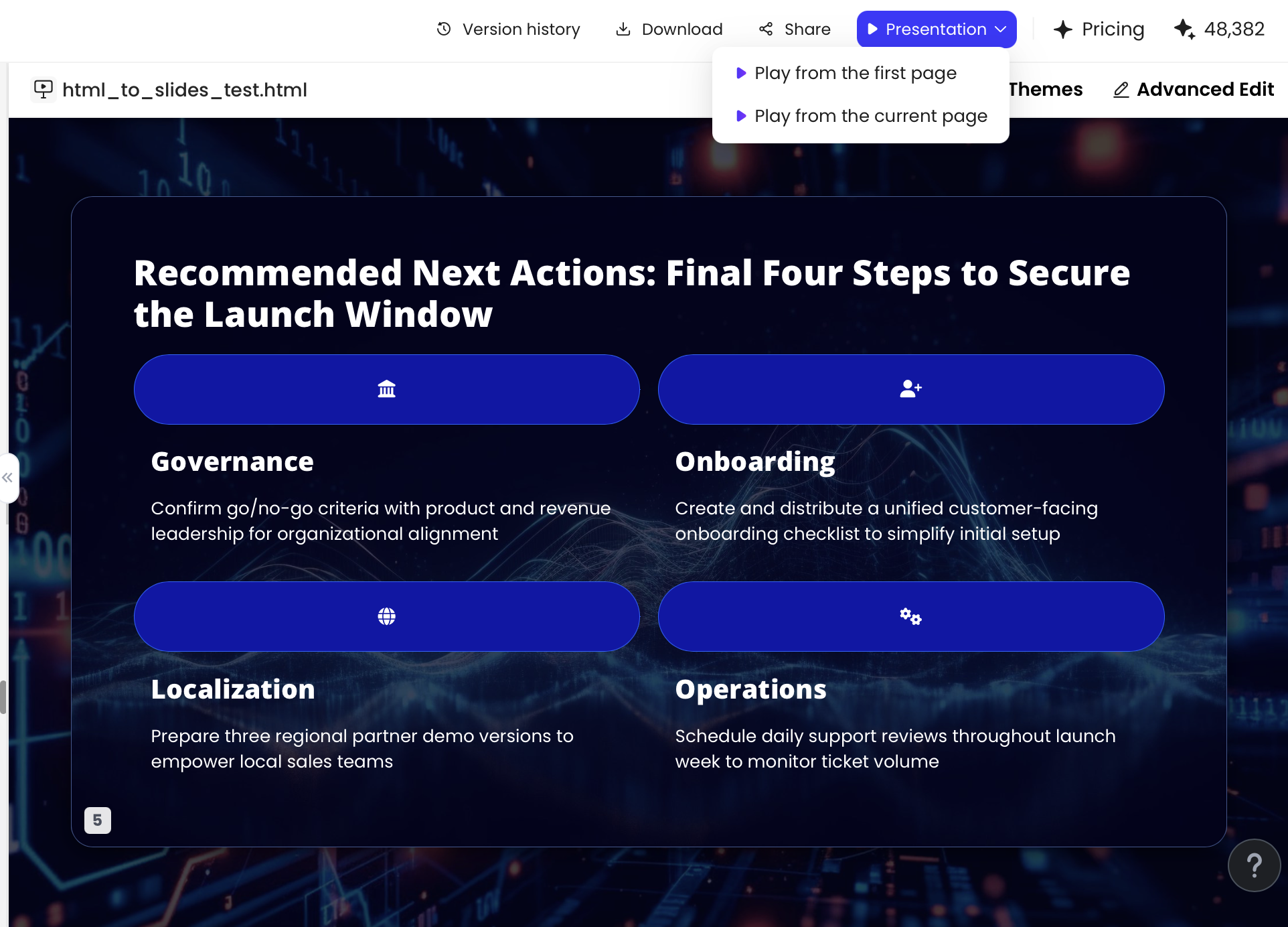
Case-style example: In an operations proposal, a weak final slide listed six contact methods and a generic “Questions?” prompt. The revised version used one evidence-backed headline, one pilot approval CTA, one owner, and one deadline. The most important human edit was removing unsupported savings language that the AI initially made sound guaranteed.
A practical AI workflow for this before-and-after is: ask the AI to summarize the deck’s strongest proof point, generate three closing headlines, choose the one supported by evidence, then request a layout with headline, CTA, QR code, and footer. The AI can produce structure quickly, but the presenter should decide whether the final slide is making a promise, proposing a target, or asking for a decision.
Speaker Notes, Q&A Timing, and AI Risk Checks
A closing slide is only half the ending. The other half is what you say while it is on screen.
What to say during the final slide
Write speaker notes for the final 20–40 seconds: restate the takeaway, pause, name the next step, and thank the audience. Keep the script shorter than feels comfortable; long endings often dilute the slide.
- Sales deck: “The main opportunity is not a bigger dashboard; it is removing the manual reporting loop. If this direction makes sense, the next step is a 20-minute workflow audit with your operations lead this week.”
- Investor pitch: “We are raising $1.5M to accelerate product and sales in a market where compliance work is moving from spreadsheets to workflow systems. I’d welcome a follow-up conversation on lead-investor fit.”
- Training session: “Do not try to use every technique tomorrow. Choose one feedback conversation, use the three-question script, and write down what changed.”
- Academic presentation: “This study contributes a clearer view of how revision behavior changes after peer feedback. I welcome your questions on method, limitations, and future research.”
Where to place Q&A
If Q&A is likely to be detailed, skeptical, or technical, consider doing it before the final slide. A simple sequence works well: “Before I close, I’ll take two questions.” After Q&A, advance to the final slide and deliver your prepared ending. This prevents a negative or overly narrow question from becoming the true conclusion.
Q&A should not accidentally become the emotional ending of the presentation.
- Investor pitch: Expect Q&A after the close, but keep the final slide visible with the ask and contact details.
- Academic defense: “Questions?” may be the correct final slide because discussion is the formal next step.
- Webinar: Put Q&A before the final resource slide so the QR code and download link remain visible at the end.
- Board meeting: End with the decision slide, not an open-ended thank-you slide.
AI risk checklist before presenting
- Quotes: Verify the speaker, wording, and source before using a quote-based close.
- Statistics: Check every number, especially ROI, market size, cost savings, time reductions, and performance claims.
- Customer logos: Confirm permission before showing client names, testimonials, or logos.
- Contact details: Make sure email addresses, short URLs, calendar links, and QR codes actually work.
- Promises: Avoid CTAs that overcommit your team, such as guaranteed timelines or unsupported results.
- Images: Inspect AI-generated visuals for distorted hands, fake interface text, unreadable charts, or accidental brand lookalikes.
- Privacy: Do not upload confidential customer data, unreleased financials, or internal strategy documents to any AI tool unless your organization allows it.
- Copyright: Review image and icon rights, especially for commercial decks.
- Export review: Inspect PPTX or PDF files in the actual presentation environment: conference laptop, boardroom screen, classroom projector, or webinar platform.
Before presenting, open the exported file, click every link, scan every QR code, check font substitution, and view the final slide in full-screen mode. If the room is large, test it from the back. If the audience is remote, test it in the webinar platform because compression can make small footer text and QR codes harder to read.
FAQ: Designing Closing Slides with AI
What should a closing slide include?
A strong closing slide usually includes one memorable takeaway, an emotional close, a clear next step, and lightweight contact details or a QR code if action is required.
Should Q&A come before or after the closing slide?
For most business and learning presentations, place Q&A before the final closing slide. That lets you answer questions while still ending on your prepared message.
Can AI make a closing slide look professional?
Yes. AI can generate polished layouts when you provide audience context, presentation goal, brand constraints, and instructions for hierarchy, white space, and CTA emphasis.
How do I stop an AI-generated closing slide from looking generic?
Replace vague “Thank you” text with a specific takeaway, ask for multiple layout options, use your brand assets, and manually verify any quote, statistic, logo, or claim.
Create your presentation with one click now
Turn your topic, notes, report, or existing deck into a polished presentation with a stronger final slide and clearer next steps.
Start with PopAi AI Presentation