
If you build business reports, client decks, lessons, or pitch presentations, choosing an AI presentation maker can feel harder than making the slides themselves. A tool may produce a fast first draft but limit editing, distort a PowerPoint export, miss details in your source material, or become expensive once free credits run out. The useful measure is not generation speed alone: it is how much work remains before the deck is accurate, editable, and ready to deliver.
This is a buying framework, not a ranked review of products: it does not claim to have tested every 2026 tool or publish comparative performance results. It is for teams and individuals choosing between formats and workflows, especially when a deck must be handed off, exported, or built from existing material. Use the same brief and source file to evaluate finalists, and consult this overview of AI presentation makers to identify candidates before testing them.
1. Define the job before you choose the best AI presentation maker
Set pass-or-fail requirements first so a polished demo cannot distract from a tool that will not fit your delivery workflow.
A training deck needs clear learning steps and readable examples; a sales presentation needs a persuasive narrative and a specific next action; a board report needs defensible numbers and a concise recommendation. A link-first presentation may work well for asynchronous sharing, while an editable PPTX may be essential for an in-person meeting or team handoff.
Write a brief, then separate essentials from preferences
- Audience and outcome: Who will see the deck, and what should they understand or do?
- Starting material: Will you use a prompt, report, existing slides, or a collection of files?
- Delivery: Specify the required format, such as editable PPTX, PDF, or a shareable web presentation.
- Essentials: Define requirements that eliminate a tool if unmet—for example, approved data handling, editable PPTX export, or team access.
- Preferences: Note desirable features such as a wide template library, animation, or extra design controls.
- Accessibility and budget: Set a minimum standard, such as readable type and strong contrast, and a maximum monthly cost for the expected users and deck volume.
Example brief: A five-person sales team creates four client decks a month from approved case studies. Editable PPTX, the company template, and no public sharing of client files are essentials; a link-first editor is acceptable only if it can also meet the handoff requirement. Remove any tool that fails an essential before scoring design features.
Decision rule: Treat a required format, security control, or accessibility standard as a gate—not a feature that can be offset by a prettier template.
2. Compare the best AI presentation maker on measurable quality
Use a shared test and defined rating anchors to distinguish a strong-looking draft from a deck your team can actually use.
Some tools produce conventional slide decks; others create web presentations, cards, or non-linear canvases. These formats are not interchangeable. Before comparing output, decide whether your audience needs printable pages, offline playback, speaker notes, accessible text, or conventional slide-by-slide navigation.
Run the same test on every finalist
- Prepare one brief, one source document, a target audience, and a target slide count. For example: turn a six-page quarterly report into an eight-slide leadership update with three findings and one recommendation.
- Use the same instructions and source material for each finalist. Save the generated deck before editing.
- Inspect the opening, one dense slide, one chart, and the conclusion; then export to the format you will deliver.
- Track the same repair tasks for each tool: correct one factual error, fix one crowded slide, restyle one chart, and repair one export issue. Record active minutes, excluding time spent waiting for generation.
- Repeat the test once if results are close or inconsistent. Note the date, plan, settings, and file versions because product features and limits change.
Score with fixed anchors and a weighted total
Rate each category from 1 to 5: 1 means unusable without major rework; 3 means acceptable after moderate corrections; 5 means ready for the intended workflow with only minor edits. Score factual accuracy, narrative flow, readability, visual consistency, editability, and export quality. Keep notes on specific defects rather than assigning a score based on overall impression.
Weight categories to match the brief. For a PPTX handoff, a team might assign accuracy 25%, export and editability 25%, narrative flow 20%, readability 15%, visual consistency 10%, and repair time 5%. Multiply each rating by its weight and add the results; use the total to compare, not to conceal a failure on an essential requirement.
Illustrative scoring example: Suppose Tool A earns 5 for visual consistency but 2 for export quality and 2 for editability. With the weights above, it could still look impressive in a preview yet score poorly against a PPTX handoff brief. If it also takes 38 minutes to complete the four standard repairs while Tool B takes 17, record that difference as a workflow result—not as a claim that one tool is universally better.
Quick decision rule: If colleagues must edit the deck in PowerPoint, judge the exported file in PowerPoint. If the deck is shared as a link, test the audience experience on the devices and networks they actually use.
3. Check source support, editing, and brand control
Test the entire path from source material to revised, on-brand slides; a supported upload format alone proves little.
Check what survives source ingestion
Confirm the exact file types the tool accepts, then use a representative source rather than a short, clean sample. Compare the generated deck against the original for:
- Table rows, footnotes, and small-print caveats.
- Chart values, units, labels, and date ranges.
- Image captions, attribution, and source references.
- Names, defined terms, and distinctions between fact and recommendation.
Test edits after generation
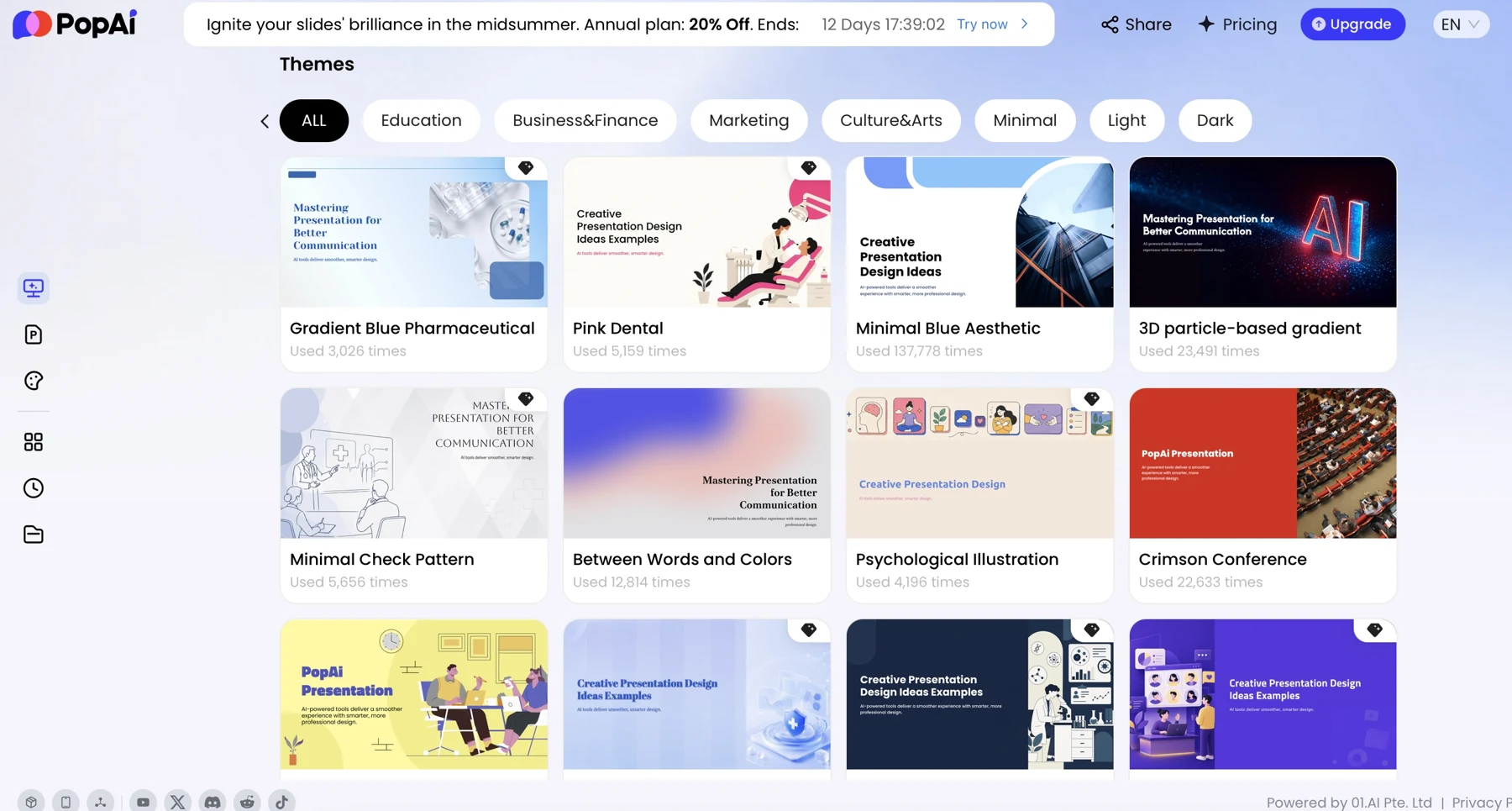
Try rewriting a slide, changing its layout, switching the theme, and adjusting a chart. Check whether the tool preserves surrounding content or forces you to regenerate the whole deck. If your workflow depends on PowerPoint, also see whether edits remain possible after export. You can evaluate a prompt-to-edit-to-export workflow in PopAi AI Presentation using your own brief; verify current formats and features in the product before relying on them.
Apply brand rules across different slide types
Load your colors, fonts, logo, and template, then inspect a cover, a chart, a text-heavy slide, and a closing slide. Look for substituted fonts, misplaced logos, inconsistent heading sizes, or colors that reduce contrast. A branded cover is not evidence that the rules hold throughout the deck.
4. Test exports and calculate the real cost
Measure what survives export and price the finished deck, including the time spent correcting it.
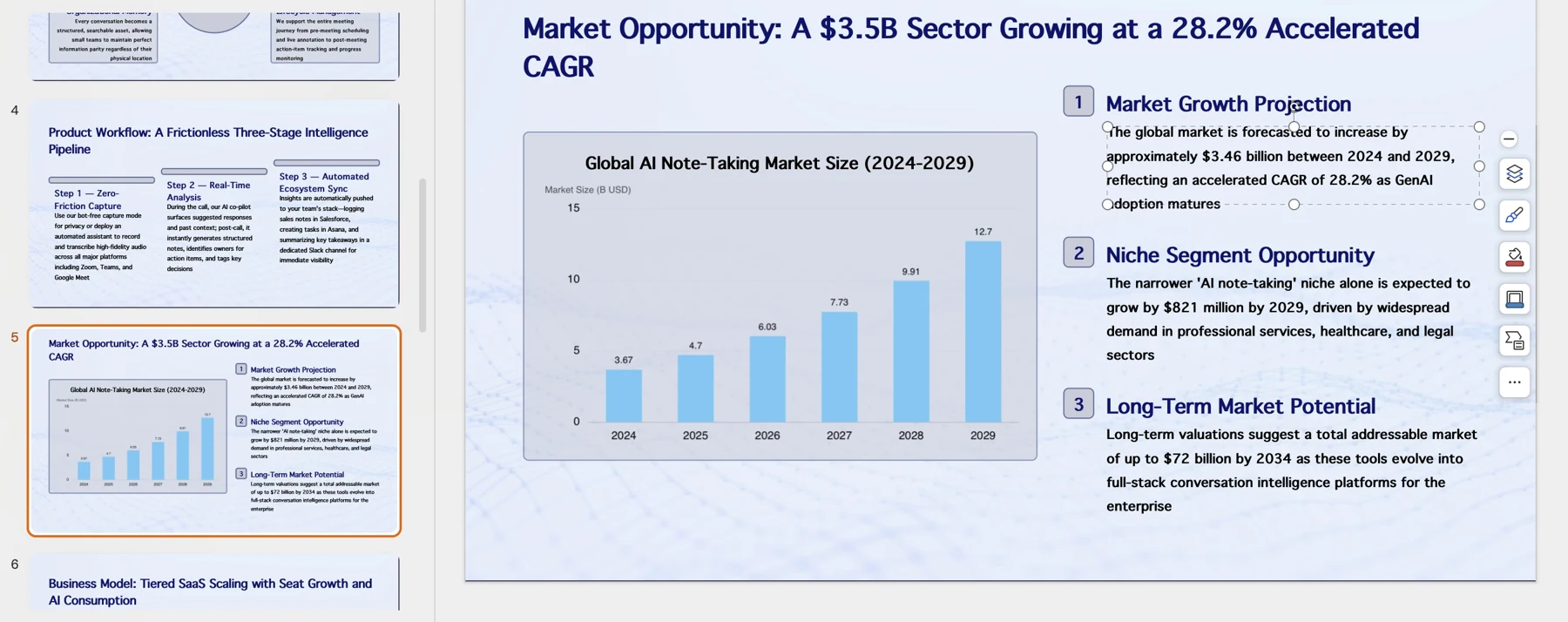
A downloadable PPTX is not automatically a fully editable or faithful deck. Open an export in the destination application and test text, a chart, an image, and the overall layout. Check whether text can be edited independently, chart labels remain legible, images stay in place, and fonts or line breaks change. Repeat for PDF or link sharing if those are part of your workflow.
Calculate cost per finished deck
Estimate monthly cost as subscription and seat fees plus expected usage charges, then add the labor cost of repair. Divide by the number of decks that pass your review. Check current plan terms, credit limits, export restrictions, and commercial-use conditions directly with each vendor; pricing and features can change.
Hypothetical cost example: A three-seat team pays $60 per month and produces six decks. If each deck takes 20 minutes of repair at a loaded labor rate of $45 per hour, repair adds $90 monthly. The total is $150, or $25 per finished deck. A plan with a lower subscription could cost more overall if export defects add another hour of repair per deck. Replace these illustrative figures with your own seat count, usage, and labor rate.
Export and pricing checks
- Can you export the required file type on the plan you can afford?
- Are there slide limits, watermarks, credit caps, or commercial-use restrictions?
- Which text, chart, image, and layout elements remain editable after export?
- What is the monthly cost for all users, expected generation, and repair time?
5. Protect accuracy, privacy, and presentation quality
Set separate checks for claims, data handling, accessibility, and delivery; passing one does not guarantee the others.
Verify claims against the source
Keep the original report alongside the draft and trace each consequential figure or claim back to it. Check chart values, units, date ranges, labels, and calculations; confirm summaries preserve caveats. For financial, legal, health, or board materials, assign a named reviewer to verify key claims before the deck is shared.
Example: A chart may show revenue rising while silently switching from quarterly to year-to-date figures. The trend can look plausible, but the inconsistent date range changes the conclusion. Compare the chart’s underlying values and labels with the source, not just its visual appearance.
Decide whether the privacy terms meet your threshold
Before uploading sensitive material, check the vendor’s current terms and ask your security or legal team when required. Confirm:
- Whether inputs and outputs are retained, for how long, and how deletion works.
- Whether customer content may be used to train or improve models, and whether that use can be disabled.
- Who can access files, what account controls are available, and whether the terms cover your required region or compliance obligations.
If the terms do not clearly answer a required question, or the needed controls are unavailable on the plan under consideration, do not upload confidential files. Use an approved tool or sanitized sample instead.
Review accessibility and presentation readiness
- Readability: Check type size at the viewing distance and screen size expected; enlarge dense text rather than relying on a zoomed editor view.
- Contrast and color: Confirm text stands out from backgrounds and that meaning does not depend on color alone; add labels or patterns where needed.
- Story and design: Make sure the audience can follow the evidence and recommendation, and remove crowded or repetitive slides.
- Delivery: Open the final export, test links, and verify it on the screen or device used for presenting.
For a consequential deck, keep a source trail: reviewers should be able to trace important claims and chart values back to the material they came from.
Use a short decision path to choose: first eliminate tools that fail essential format, privacy, or accessibility requirements; next compare weighted quality scores and repair minutes; finally calculate cost per finished deck. This framework helps identify the best fit for a specific workflow without presenting an unverified 2026 product ranking as a universal winner.
Use this framework with the 12-tool AI presentation software comparison to evaluate a concrete shortlist. The framework supplies your criteria; the roundup supplies dated product facts.