Best Mobile-Friendly AI Presentation Tools in 2026: Apps, Mobile Web & Workflow Guide
If you build presentations between meetings, during a commute, or from an iPad in the classroom, the best AI presentation tools with mobile apps can save real production time—but only when the mobile workflow includes clean export, usable touch editing, and predictable sharing.
In this guide, “mobile” includes both native iOS/Android apps and mobile browser workflows. That distinction matters: Canva, PowerPoint, and Keynote are stronger native-app experiences, while tools such as PopAi and Gamma are often better at fast AI generation from a browser. The practical question is not simply “which tool makes attractive slides?” It is: can you create, revise, export, and deliver the deck from a phone or tablet without rebuilding it later on a laptop?
Editorial note: This article is published by PopAi, so PopAi is included in the comparison. To reduce bias, the tools below are evaluated against the same mobile criteria: app availability, mobile generation, touch editing, source-file support, PPTX/PDF export, collaboration, pricing friction, and privacy risk.
Mobile-Friendly AI Presentation Tools: Native App vs. Mobile Web
Use this shortlist to match the tool to the job before you compare every feature. The strongest mobile presentation workflow usually covers three moments: generating the first draft, editing the story, and delivering or exporting the deck.
How we ranked the tools
For this 2026 update, we compared common mobile presentation workflows on a phone-sized screen, an iPad/tablet-sized screen, and a desktop follow-up check. The test deck was a 9-slide “Q1 business review” created from the same prompt, plus one document-to-deck task using a structured report. Each tool was checked for mobile creation, file upload behavior, export options, editability after PPTX export, PDF reliability, and how easily a deck could be shared through email, cloud storage, or a link.
Testing snapshot: Rankings prioritize mobile usefulness over pure design quality. Weighting used: mobile usability 20%, AI generation quality 20%, input/source-file support 15%, export fidelity 20%, collaboration and sharing 10%, pricing transparency 10%, and offline/presenter behavior 5%. Pricing, app availability, and AI limits change often, so treat plan details as a buying checklist rather than permanent guarantees.
| Tool | Best for | Mobile availability | Export and delivery | Watch-outs |
|---|---|---|---|---|
| PopAi | Prompt-to-deck and file-to-slides workflows from existing material | Mobile browser workflow; works across phone, tablet, Chromebook, and desktop browsers | PPTX, PDF, share links, and social sharing options | Not a native app-first tool; review large-file imports and PPTX formatting before client delivery |
| Canva | Design-heavy decks, education, branded assets, social-friendly visuals | Native iOS and Android apps; strong tablet experience | PDF, PPTX, image, video, share links | Complex slide object editing can feel crowded on phones; some premium assets require paid plans |
| PowerPoint + Copilot | Microsoft 365 teams and enterprise PowerPoint compatibility | Native iOS and Android apps; best with OneDrive and Microsoft 365 accounts | Native PPTX workflow, PDF, sharing through Microsoft 365 | Copilot licensing adds cost; AI features may be easier to control on desktop than on phone |
| Pitch | Sales teams, comments, shared workspaces, deck analytics | Mobile access for review, sharing, and collaboration; creation is strongest on larger screens | Links, collaboration, analytics, PDF/PPTX exports depending on plan | Team pricing, workspace permissions, and analytics access should be checked before rollout |
| Keynote | iPad-first creation, offline presenting, Apple Pencil workflows | Excellent native iPhone and iPad app; no Android equivalent | Keynote, PDF, PPTX export | Not primarily an AI deck generator; PPTX conversion may change fonts, builds, or layout spacing |
| Gamma | Fast web-first decks and visually consistent narrative pages | Mobile web workflow; convenient for quick drafting and link sharing | PPTX, PDF, PNG, Google Slides-style workflows depending on plan | Great for web-native decks; exported PowerPoint files may need cleanup for corporate templates |
| Prezi | Non-linear, zooming presentations for teaching, training, and storytelling | Web creation plus mobile viewing/presenting apps | Share links, video, PDF, presentation formats | Zooming structure does not translate cleanly to conventional PPTX handoffs |
A mobile presentation tool should not be judged only by whether an app exists. In testing, the failures usually appeared at handoff: a chart became a flat image, a custom font shifted, or a “finished” deck looked fine in the browser but needed cleanup in PowerPoint.
Field observation from the comparison: native app ecosystems and web-first AI generators solve different parts of the job. Canva, PowerPoint, and Keynote were better for hands-on touch editing, offline presenting, and device-native sharing. PopAi and Gamma were faster for first drafts because there was less setup: open a browser, paste a prompt or upload source material, generate, then export or share.
Native apps vs mobile web tools
| Tool | Native iOS | Native Android | Mobile web usable | Mobile AI generation | Offline presenting |
|---|---|---|---|---|---|
| PopAi | Browser-first | Browser-first | Yes | Yes, through browser workflow | Export first; browser generation requires connection |
| Canva | Yes | Yes | Yes | Yes, feature availability depends on plan/region | Limited; best to export PDF or present from synced app |
| PowerPoint + Copilot | Yes | Yes | Yes through Microsoft 365 | Yes, with eligible Copilot access | Yes for downloaded files |
| Pitch | Mobile access | Mobile access | Yes | Plan/workspace dependent | Best treated as online-first |
| Keynote | Yes | No | iCloud web access | Limited compared with dedicated AI generators | Yes |
| Gamma | Mobile web | Mobile web | Yes | Yes | No; export for offline use |
| Prezi | Viewing/presenting support | Viewing/presenting support | Yes | Available in web workflow | Depends on app/export mode |
How to Evaluate AI Presentation Tools with Mobile Apps
Most comparison lists stop at platform compatibility. For mobile work, that is not enough. A tool can have an iPhone app and still be painful if slide objects are too small to select, AI generation stalls on cellular data, or PPTX export breaks charts before a client call.
Run this eight-point mobile test before committing
- Creation speed: Generate a 6–10 slide draft from the same prompt in every tool. Include audience, tone, slide count, and desired sections.
- Touch editing: Try selecting a small text box, cropping an image, changing a chart label, dragging a grouped object, and editing speaker notes on a phone.
- Input flexibility: Upload the same PDF, DOCX, old PPTX, image, or web content. Note upload failures, OCR errors, and whether scanned files are handled well.
- PPTX stability: Export to PowerPoint, then open the file in PowerPoint mobile and PowerPoint desktop. Check if text, charts, tables, links, and images remain editable.
- Offline or weak-network behavior: Switch from Wi-Fi to cellular, then airplane mode. Confirm whether you can present, view, or edit downloaded files.
- Sharing path: Send the deck through email, Slack, WhatsApp, Google Drive, OneDrive, and a share link. Check permissions from a second account.
- Brand control: Apply your company fonts, colors, logo placement, page numbers, and approved layouts. Check whether the mobile app exposes the same controls as desktop.
- Cost transparency: Confirm AI credits, export limits, watermarks, commercial-use rights, and whether mobile in-app purchases differ from web subscriptions.
Case-study result: In the document-to-deck test, the fastest first draft was not always the fastest final deck. Web-first tools produced usable structures quickly, but some exported PPTX files needed font and object cleanup. Native tools took longer to generate from raw material, yet performed better when the final handoff had to remain editable inside PowerPoint, Keynote, or a school-managed iPad.
Mobile decks often fail at the transition point, not at the generation point. A prompt-to-deck tool may create a polished web presentation quickly, but if the exported PowerPoint file needs repairs on every slide, the time savings disappear. Conversely, a native app may feel slower at AI generation but outperform web tools when you need offline presenting, precise slide edits, or predictable file compatibility.
PopAi AI Presentation: Best for File-to-Slides Mobile Workflows
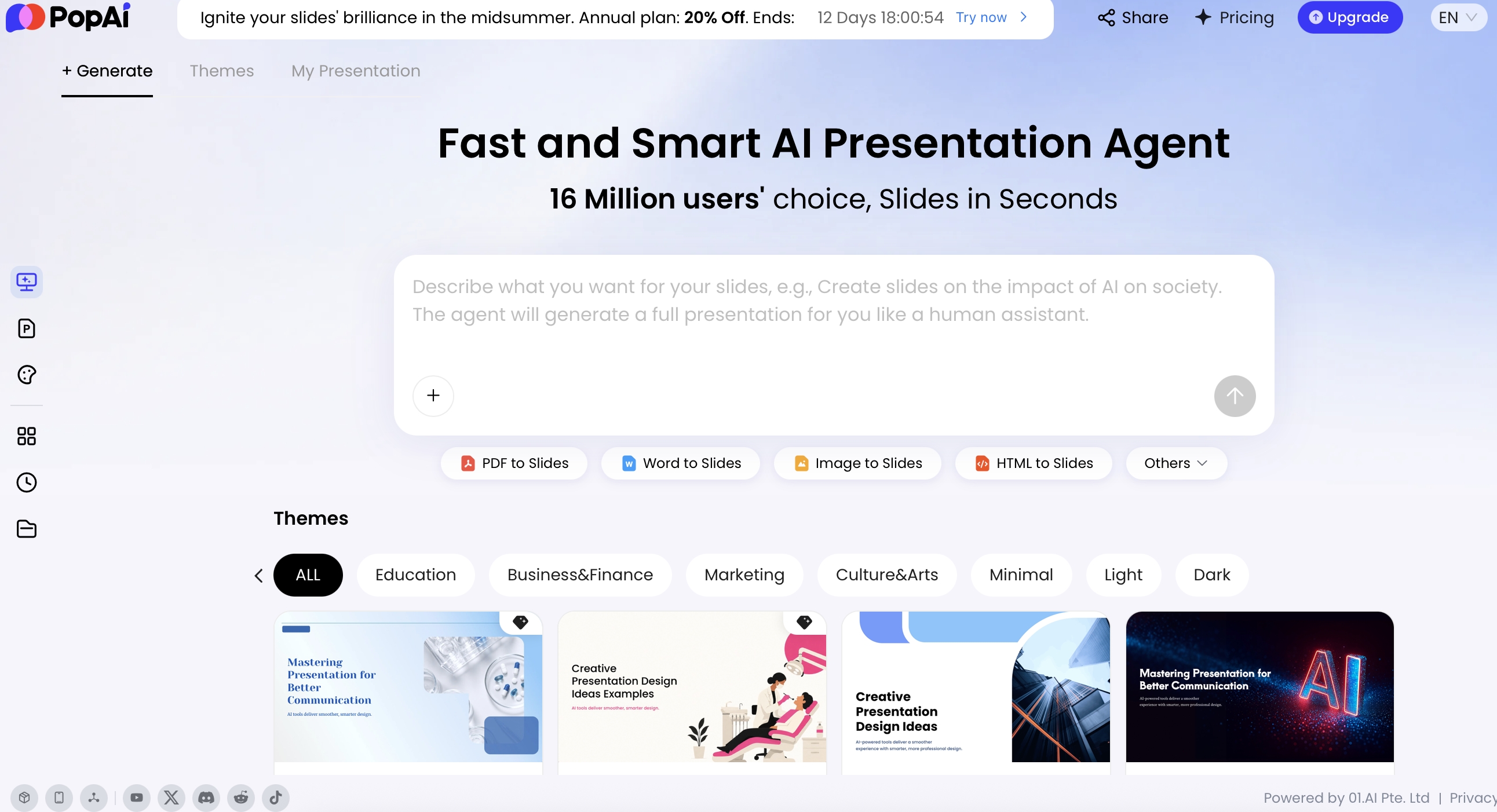
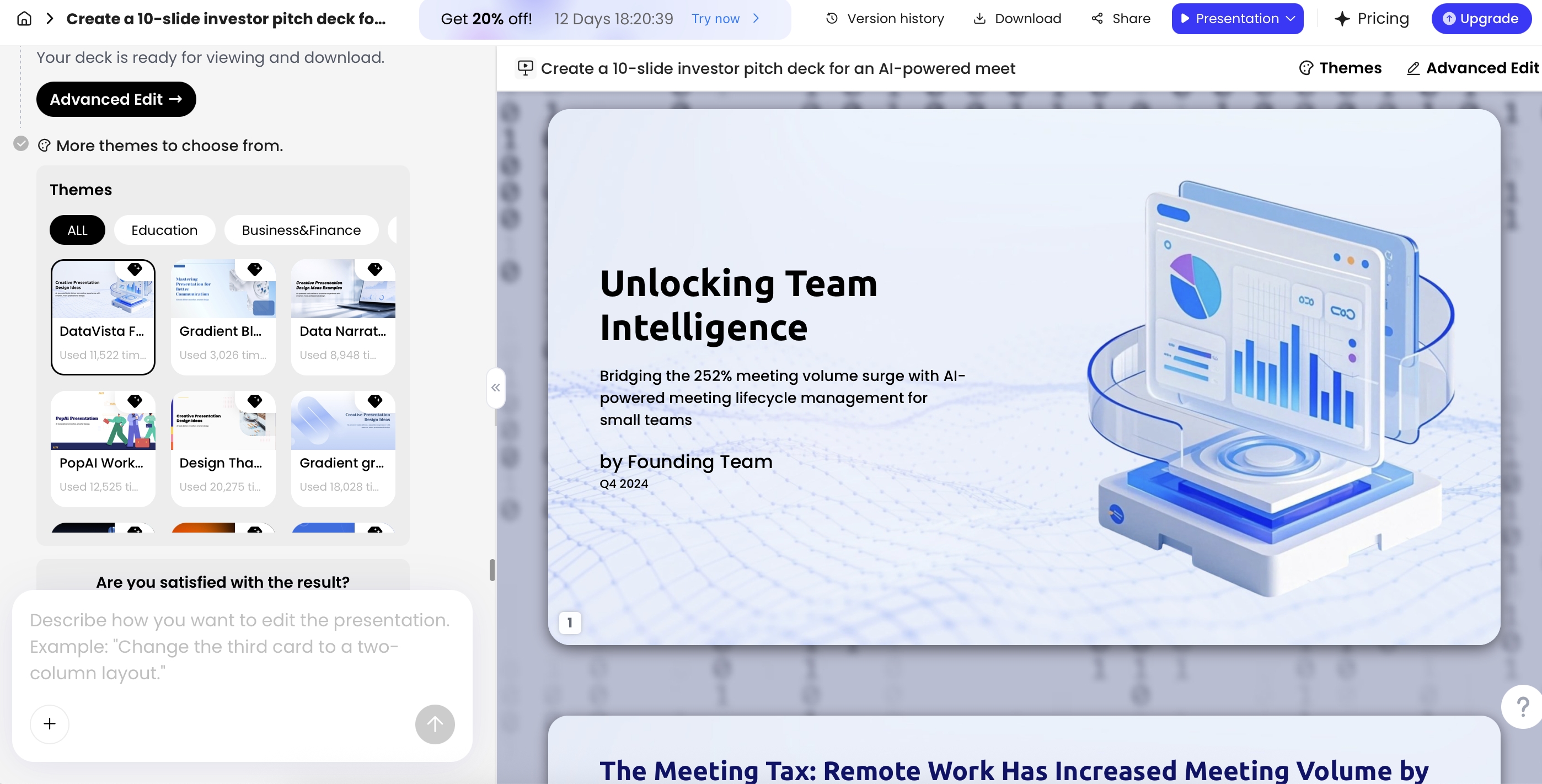
PopAi AI Presentation is most useful when your “presentation idea” is not just a sentence, but a pile of source material: a PDF report, Word brief, HTML page, text outline, old PPTX, image, or research notes. Instead of forcing you to rewrite everything on a phone keyboard, PopAi supports a browser-based workflow that starts with a topic or uploaded material, organizes the content, generates a deck, then lets you refine and export it.
PopAi’s workflow can be summarized as: input a topic or upload materials, review the organized structure, choose a theme or template path, generate the slide deck, refine text and visuals, then export as PPTX or PDF or share by link. That end-to-end flow matters for mobile users because the hardest part of phone-based presentation creation is not typing; it is converting messy information into a clear slide sequence.
Where PopAi stands out on mobile
- Multiple inputs: PopAi is suited to file-to-slides work using common source materials such as PDFs, DOCX files, TXT/Markdown outlines, HTML content, PPTX files, images, audio/video sources, and YouTube URLs. Always check current upload limits before using very large or confidential files.
- Visible planning: Depending on the entry path, PopAi can show intermediate planning steps such as thought process, draft, outline, content plan, or theme selection before the final deck is generated.
- Post-generation editing: Users can refine with natural language, change themes, adjust layouts, and add writing blocks, cards, logic frames, charts, and icons.
- Chart support: PopAi includes common business chart formats such as bar, line, area, pie, doughnut, radar, scatter, and bubble charts. For financial or board-level decks, check whether the exported chart remains editable in the destination app.
Hands-on file-to-slides test
Practical test: We used a structured HTML report with an executive summary, KPI table, risk register, and recommended actions, then asked PopAi to create a concise six-slide leadership briefing. The useful part was not that the slides appeared quickly; it was that the first draft preserved the report’s hierarchy well enough to review on a tablet: summary first, metrics second, risks third, actions last. Manual cleanup was still needed for headline length, chart emphasis, and company-specific wording.
Mobile limitations to check before using PopAi
- Native app expectations: PopAi should be evaluated as a mobile browser workflow, not as a traditional native iPhone or Android slide-editing app.
- Offline use: Generate and export before travel. Browser-based AI generation and file upload depend on connectivity.
- Export fidelity: Open exported PPTX files in PowerPoint or Google Slides before sending. Complex layouts, fonts, charts, and tables may need adjustment.
- Large or scanned files: Image-heavy reports and scanned PDFs can require more cleanup than clean text-based documents.
- Privacy: Redact sensitive client, student, financial, or medical data before upload unless your organization has approved the vendor and plan.
PopAi is strongest when the mobile task is “turn this source material into a presentable structure,” not merely “make a pretty slide from a prompt.”
If you want a broader landscape beyond mobile workflows, compare the category of AI presentation makers to understand how prompt quality, templates, export fidelity, and collaboration features differ across tools.
Best Mobile AI Presentation Tools by Scenario
The right tool changes with context. A student on an iPad, a sales rep in a taxi, and an enterprise analyst handling confidential customer data need very different mobile presentation software.
For commuting and urgent first drafts
Choose a web-first generator such as PopAi or Gamma when the immediate job is to turn a topic, outline, or document into a rough deck before you reach your desk. PopAi is better when the input is a file or report; Gamma is strong when the output will remain a polished web-native presentation. A lightweight tool such as 2Slides can be useful for quick prompt-to-slide experiments, but verify mobile export quality before relying on it for business handoff.
- Best workflow: dictate or paste the prompt, generate 6–8 slides, approve the outline, export PDF for review, then finish detailed formatting later.
- Mobile limitation: final alignment, chart correction, and brand-template enforcement are still easier on tablet or desktop.
- Avoid if: the first file you send must be a perfectly editable corporate PPTX.
For classroom and education use
Canva and Keynote remain strong choices for teachers and students. Canva offers a large template and asset library across iOS and Android, plus classroom-friendly visual formats. Keynote is excellent for iPad-first creation, Apple Pencil annotation, and offline presenting. Keynote is not a full AI presentation generator in the same sense as browser-first AI tools, but it can be the better delivery and editing environment once the lesson structure is drafted elsewhere.
- Best workflow: generate the lesson outline with an AI tool, build or polish in Canva or Keynote, export PDF for students, and keep the editable file for future classes.
- Mobile limitation: schools should check account controls, student privacy rules, storage permissions, and whether templates/assets are available under education plans.
- Accessibility check: confirm font size, contrast, alt text where supported, captions for video, and whether the deck works when projected from an iPad.
For sales calls and team collaboration
Pitch is a strong fit when the presentation is part of a team workflow rather than a one-off file. Comments, shared links, workspace permissions, and viewing analytics help sales teams understand whether a prospect opened the deck. PowerPoint plus Copilot is better when the sales organization already lives inside Microsoft 365 and needs predictable PPTX compatibility, version history, and OneDrive sharing.
- Best workflow: create a 5-slide follow-up deck from call notes, add the prospect’s business problem on slide one, share a tracked link, then export PPTX only if procurement or legal asks for an attachment.
- Mobile limitation: small-screen editing is fine for headlines and comments, but pricing tables, ROI charts, and legal disclaimers should be checked on desktop.
- Buying check: confirm analytics availability, CRM integration needs, link permissions, workspace roles, and whether viewers can download the deck.
For enterprise brand control
PowerPoint Copilot, Prezent AI, Beautiful.ai, and template-driven enterprise systems are better suited to brand governance, approved slide libraries, and executive-ready formats. These tools are not always the fastest on a phone, but they can be safer when the organization requires controlled templates, locked brand assets, legal disclaimers, and admin-managed sharing.
- Best workflow: generate the content structure, move it into an approved template, apply locked brand layouts, route through comments or approval, then export final PDF/PPTX.
- Governance checklist: SSO/SAML, SCIM provisioning, workspace permissions, admin analytics, data retention controls, audit logs, approved template libraries, and SOC 2/ISO/GDPR documentation where required.
- Mobile limitation: enterprise approval steps, locked components, and slide-library insertion can feel slow on phones; test on managed iPads and Android tablets before standardizing.
Mobile Export, Sharing, and Presentation Delivery
A deck is not finished when AI generates it. It is finished when the right audience can open, understand, and act on it. Mobile delivery adds extra friction because the deck may move from a phone to WhatsApp, email, Slack, a conference-room screen, Google Drive, OneDrive, or a desktop editor.
A reliable mobile delivery workflow
- Generate the draft: Use a prompt or upload source files while naming the audience, tone, slide count, and required sections.
- Review the outline first: Fix structure before editing design details.
- Reduce text density: Mobile-generated decks often need shorter headlines and fewer bullets.
- Replace generic visuals: Add real screenshots, charts, customer evidence, product images, or classroom examples where possible.
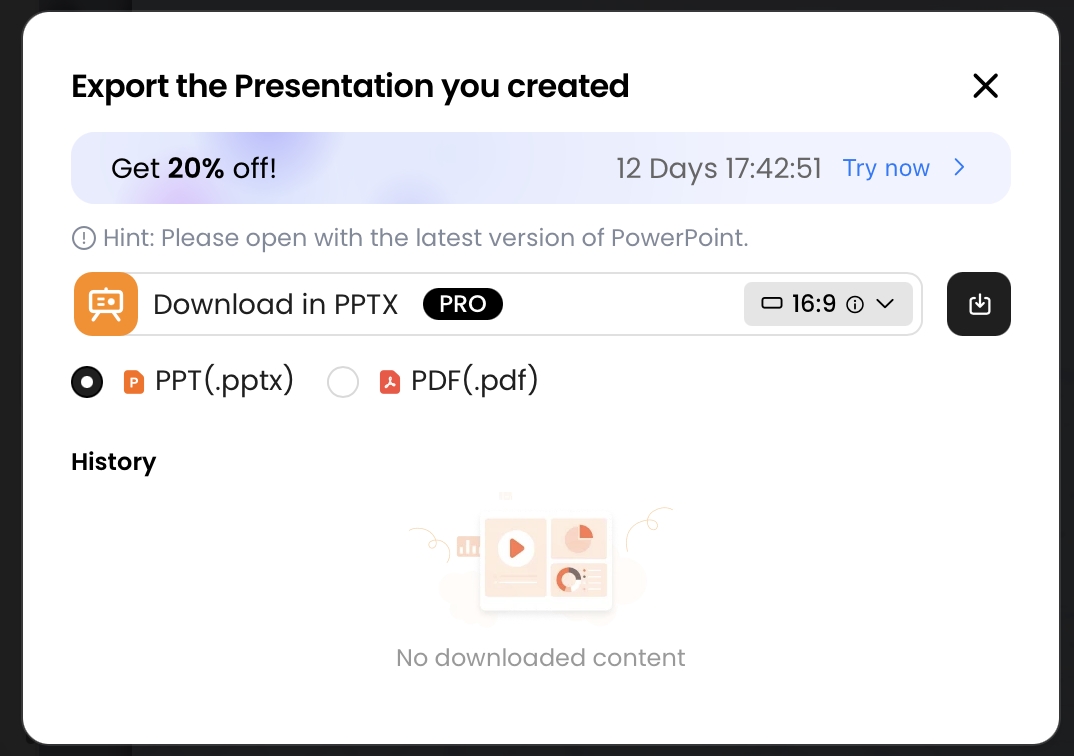
- Export two formats: Keep PPTX for editing and PDF for safe viewing.
- Open the file on the destination app: Test PowerPoint, Google Slides, Keynote, or the meeting room display before sending.
- Check share permissions: Open the link from a second account or private browser window to avoid access problems.
- Share through the audience’s channel: Use email for formal delivery, links for collaboration, and messaging apps for quick review.
Export fidelity checks that matter
| Export item | What good looks like | Common failure | How to test on mobile |
|---|---|---|---|
| Editable text | Text boxes can be selected and edited in PowerPoint/Keynote | Text becomes part of a flattened image | Open PPTX, tap a headline, change one word |
| Charts | Chart data or labels can be edited | Chart exports as a static image | Try changing one value or label after export |
| Fonts | Layout stays stable with available fonts | Font substitution shifts line breaks | Compare first and final slides on phone and desktop |
| Speaker notes | Notes survive export if the workflow needs them | Notes disappear or move into slide body | Open presenter view or notes pane |
| Links/media | Links open and embedded media has a fallback | Videos fail, links lose tracking, thumbnails break | Tap every link before sending |
Export test observation: PPTX remains the most important business handoff format, but it is also where AI tools vary most. When a tool says it exports PowerPoint, confirm three things: text objects are editable, charts are not flattened into unreadable images, and fonts do not shift enough to break layouts. PDF is safer for viewing, but less useful when the recipient needs to revise the deck.
Pricing, Credits, and Privacy on Mobile
Mobile presentation tools often look inexpensive until you hit AI credits, export limits, watermark removal, premium templates, commercial-use restrictions, or team-seat requirements. Before choosing a tool, check the current pricing page and the App Store or Google Play listing because mobile subscriptions and web subscriptions are not always identical.
Pricing and credit checks before you buy
| Tool | Free plan to inspect | Paid-plan trigger | Mobile buying watch-out |
|---|---|---|---|
| PopAi | Check current free credits, file limits, and export access | More AI generation, advanced features, or higher usage | Confirm credit renewal, upload limits, and whether PPTX/PDF export is included in your plan |
| Canva | Generous design access, but some assets/features are premium | Brand kits, premium templates, AI tools, team features | In-app subscription terms may differ by store or region |
| PowerPoint + Copilot | Basic viewing/editing depends on Microsoft account and app terms | Microsoft 365 plus eligible Copilot licensing | Enterprise users should confirm admin enablement and mobile Copilot availability |
| Pitch | Good for trialing team deck workflows | Team collaboration, analytics, workspace controls | Check seat pricing, analytics limits, and export permissions |
| Keynote | Included for Apple users | Usually no separate presentation subscription | Hardware ecosystem is the cost; Android teams need another option |
| Gamma | Useful for testing web-first deck generation | More AI credits, exports, custom branding, or team features | Confirm watermark, credit, and PPTX export limits before using for client work |
| Prezi | Useful for trying non-linear presentation style | Offline access, privacy, video, branding, or advanced presenting | Confirm whether your desired mobile presenting mode is included |
Before choosing, check whether the mobile app has separate in-app subscription rules, whether AI credits renew monthly, whether free decks carry branding, and whether PPTX export is included in the plan you actually intend to use. Also verify app update frequency, storage requirements, and permissions if your organization manages devices centrally.
Privacy questions to ask before uploading files
- Am I uploading customer data, financial projections, health records, student data, unreleased product plans, or confidential strategy?
- Does the vendor document data retention, deletion, enterprise controls, SSO, role-based permissions, or admin audit features?
- Can I remove names, account numbers, private student information, or sensitive financial details before using the AI generator?
- Does my organization allow third-party AI tools on mobile devices, especially unmanaged personal phones?
- Is a share link appropriate, or should I export and send through an approved channel such as OneDrive, Google Drive, an LMS, or a CRM?
- Does the vendor state whether uploaded files may be used for model training, product improvement, or human review?
For teams handling regulated or confidential material, mobile convenience should not override governance. A practical compromise is to redact sensitive names, generate the structure from summarized data, and then restore confidential details inside an approved environment such as Microsoft 365, Google Workspace, or a company-managed design system.
Final Recommendations for 2026
The best AI presentation tools with mobile apps are not interchangeable. Choose based on your dominant workflow, required handoff format, and tolerance for export cleanup.
- Best for file-to-slides on mobile: Choose PopAi when you need to turn prompts or existing materials into structured slides, then export PPTX/PDF or share the result.
- Best native mobile design app: Choose Canva when design assets, templates, education use, and social-friendly visuals matter most.
- Best for Microsoft-heavy organizations: Choose PowerPoint Copilot when your organization depends on Microsoft 365, OneDrive, compliance controls, and native PPTX workflows.
- Best for sales collaboration: Choose Pitch when team comments, sales collaboration, link sharing, permissions, and analytics are central to the deck’s purpose.
- Best for iPad presenting: Choose Keynote when you create and present mostly on iPad and value offline access, Apple Pencil support, and a polished native interface.
- Best for fast web-native storytelling: Choose Gamma when you want quick narrative decks and can tolerate some export cleanup if a PPTX is required.
- Best for non-linear delivery: Choose Prezi when a zoomable, spatial presentation will communicate better than a standard slide sequence.
For most mobile-first professionals, the safest 2026 workflow is hybrid: use AI to create the outline and first draft, use mobile editing for quick decisions, export both PPTX and PDF, then run a final compatibility check in the actual app or meeting setup before presenting. That approach gives you AI speed without making the meeting depend on an untested file.
Mobile App Testing Matrix Before You Commit
A mobile presentation tool is only useful if it works in the moment you actually need it: upload, draft, edit, export, present, and share.
| Mobile test | What to do | Pass condition |
|---|---|---|
| Start from a real file | Upload a PDF, DOCX, PPTX, or notes file from your phone. | The tool keeps structure and does not require desktop cleanup for basic slides. |
| Edit dense text | Shorten bullets, change a title, replace an image, and move a section. | Edits are easy enough to complete on a small screen. |
| Export and reopen | Export PPTX or PDF and open it in PowerPoint, Keynote, Google Slides, or a viewer app. | Fonts, charts, and images remain readable. |
| Present under pressure | Test full-screen mode, mirroring, Bluetooth clicker, and offline fallback. | The deck can be delivered without relying on an untested workflow. |
| Share securely | Send a link or file to another account. | Permissions, expiration, and downloads behave as expected. |
App availability, subscription rules, and export limits can change. Verify the current app-store listing and product documentation before recommending a tool to a team.
Mobile Tool Categories Checked in 2026
The title now covers mobile-friendly workflows, not only tools with native mobile apps.
| Category | What belongs here | Examples to verify | How to test |
|---|---|---|---|
| Native mobile app | Tools with an iOS and/or Android app that can open, edit, present, or manage decks. | PowerPoint, Google Slides, Keynote, Canva, and any AI tool that currently lists a native app. | Install the app, upload a source file, edit text, export/share, and test presentation mode. |
| Mobile web / browser-first AI deck tool | Tools that work in a phone browser but may not offer a native app. | PopAi, Gamma, and similar AI presentation web apps when current mobile browser behavior is acceptable. | Test Safari/Chrome on phone: login, prompt input, file upload, outline review, editing, export, and link share. |
| Traditional presentation app with AI assistance | Established presentation editors with AI features or AI-adjacent workflows. | PowerPoint with Copilot where licensed, Google Slides with AI features where available, Keynote with manual editing. | Check whether AI drafting, offline delivery, and export work on mobile or require desktop. |
Verification date: September 10, 2026. App availability, mobile editing depth, and export behavior can change by country, plan, operating system, and browser.
FAQ: AI Presentation Tools with Mobile Apps
What are the best AI presentation tools with mobile apps in 2026?
The best choice depends on your workflow: Canva for design-heavy mobile editing, Pitch for sales collaboration, PowerPoint Copilot for Microsoft environments, Keynote for iPad-first offline creation, Gamma for fast web-first decks, and PopAi for turning prompts or uploaded materials into structured slides that can be exported as PPTX or PDF.
Can I create a professional presentation entirely on my phone?
Yes, but use a focused process: generate the outline and first draft on mobile, shorten text, refine only the highest-impact slides, export or share, then check the final file before presenting. Complex brand or animation work is still easier on desktop.
Should I choose a native app or a mobile web AI presentation maker?
Choose a native app for offline editing, Apple Pencil support, device-level sharing, and frequent tablet presenting. Choose a mobile web tool for faster access, fewer installs, cross-device consistency, and easy prompt-to-deck generation.
Do AI presentation tools export editable PowerPoint files?
Many do, but quality varies. Test whether text remains editable, charts transfer correctly, fonts stay readable, and the deck opens cleanly in PowerPoint or Google Slides before sending it to a client, teacher, or executive.
Create a presentation draft faster
Turn your prompt, report, document, or idea into a structured presentation and export it for review, sharing, or delivery.
Start creating with PopAi