AI Speaker Notes Export: PowerPoint, Google Slides & Keynote
Editorially revised October 13, 2026
A speaker-note draft is not the same as speaker notes stored inside a presentation file. For a dependable handoff, write a talk track for each slide, place it in that application's notes field, save the file, and reopen it in the application the presenter will use. A paragraph under a slide image, a comment, or a separate script is not automatically a PPTX notes object.
This page focuses on storage, export, and compatibility. For general drafting and delivery advice, use the existing presenter-notes guide or outline-to-speaker-notes workflow. The supplied PopAi screenshots establish slide generation and PPTX opening, but they do not establish native speaker-note generation or note-preserving PPTX export.
Choose a route that actually stores the notes
| Route | Where the note text belongs | What must be verified |
|---|---|---|
| AI text draft, then PowerPoint | The Notes pane for the corresponding slide | Text is saved in the PPTX and visible in the intended presenter setup |
| AI text draft, then Google Slides | The slide's speaker-notes field | Notes remain attached after importing, downloading, or converting the file |
| Keynote notes or an AI text draft | The presenter-notes field in Keynote | The .key file contains the notes and any PowerPoint copy preserves what you need |
| PopAi-generated slide deck | Add notes in the destination application unless your actual account demonstrates another supported route | A successful slide export alone is not evidence of stored notes |
Step 1. Draft a slide-by-slide talk track
Ask for notes that add explanation rather than reading the slide aloud. Give each slide a stable ID or exact title, the on-slide claim, approved evidence, and the presenter's transition. Keep fact-check reminders separate from the script so they cannot accidentally be spoken as if they were validated facts.
For each approved slide, draft: slide ID and title; opening sentence; two supporting talking points; one transition; optional delivery cue. Use only the supplied evidence. Do not add new statistics, customer promises, or quotations. Keep review warnings in a separate checklist, not inside the spoken script. Return text for manual placement into the presentation notes field.

For example, a slide titled "The pilot will test one intake queue" might have this note: "We are proposing a limited test, not a full rollout. The team will review the queue selected during discovery. Before the next meeting, confirm the owner and the measurement window." That note is useful because it explains a boundary without inventing an outcome.
Step 2. Put the text in the correct field
PowerPoint
Microsoft's speaker-notes instructions place notes in the pane below the slide; the Notes control can reveal a collapsed pane. Select each slide and paste only its corresponding script. Save the file, close it, and reopen it before assuming the notes persisted. Use the supported desktop presenter setup when private notes are required; do not assume every web or sharing mode behaves the same way.
Google Slides
After opening or importing the presentation, inspect each slide's speaker-notes area and add the reviewed text there. To read notes while presenting, Google documents the arrow beside Slideshow, then Presenter view and Speaker notes. See Google: present slides with speaker notes. An imported PPTX and a native Slides file are separate checkpoints, so compare them rather than assuming conversion was lossless.
Apple Keynote
Apple documents View > Show Presenter Notes for adding and viewing the text below a slide. Keynote also documents a beta automatic-notes capability through eligible Apple Creator Studio access; availability and system requirements matter. See Apple: add and view presenter notes. Whether notes were generated or typed, review and save them in the Keynote file before making an exported copy.
Step 3. Separate PopAi slide creation from notes handoff
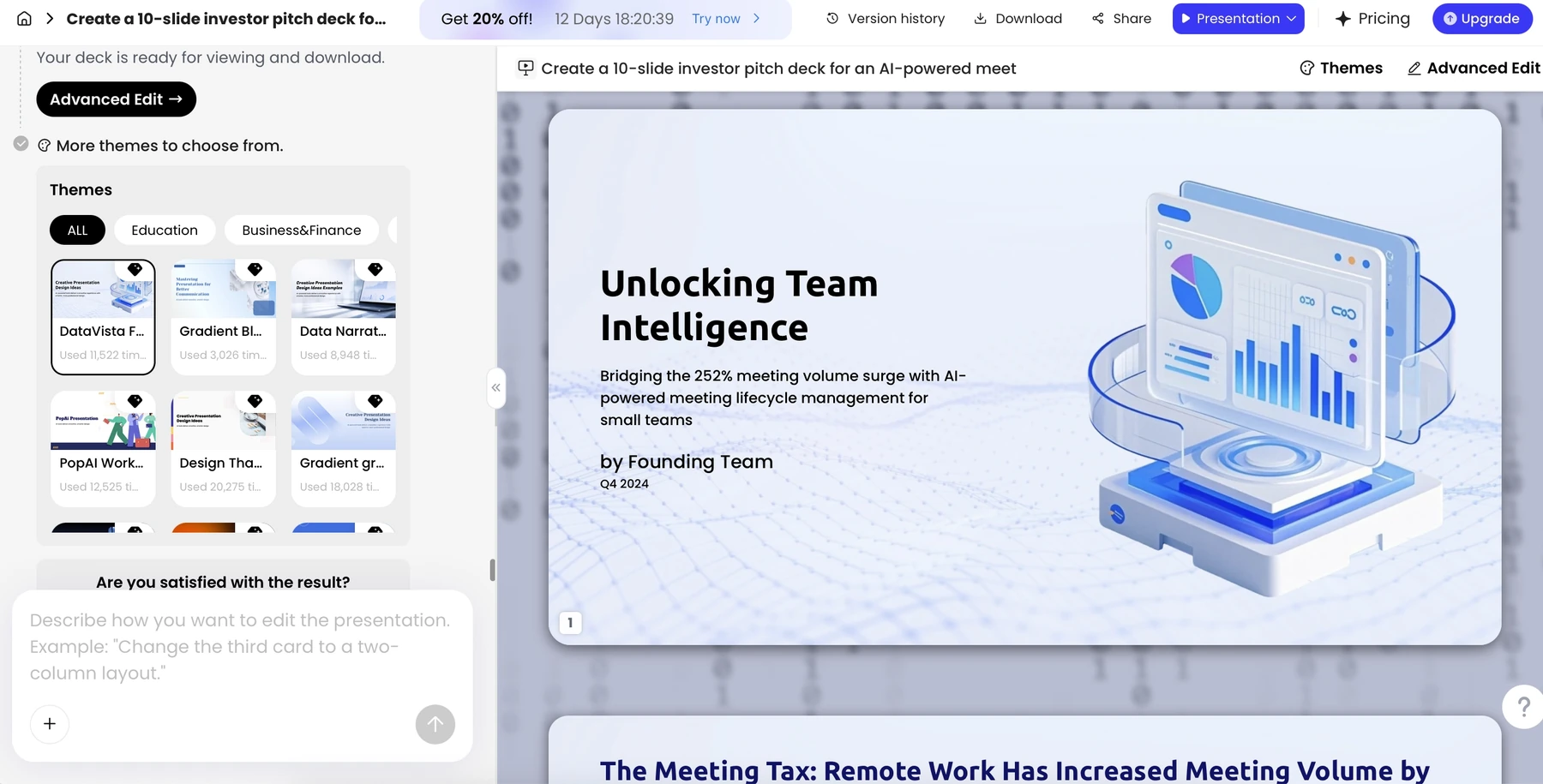
You can create the slide draft in PopAi, review its structure, and export PPTX. Then add your approved talk track in PowerPoint or another supported destination. This extra step is preferable to promising that an unverified notes feature has done the job.
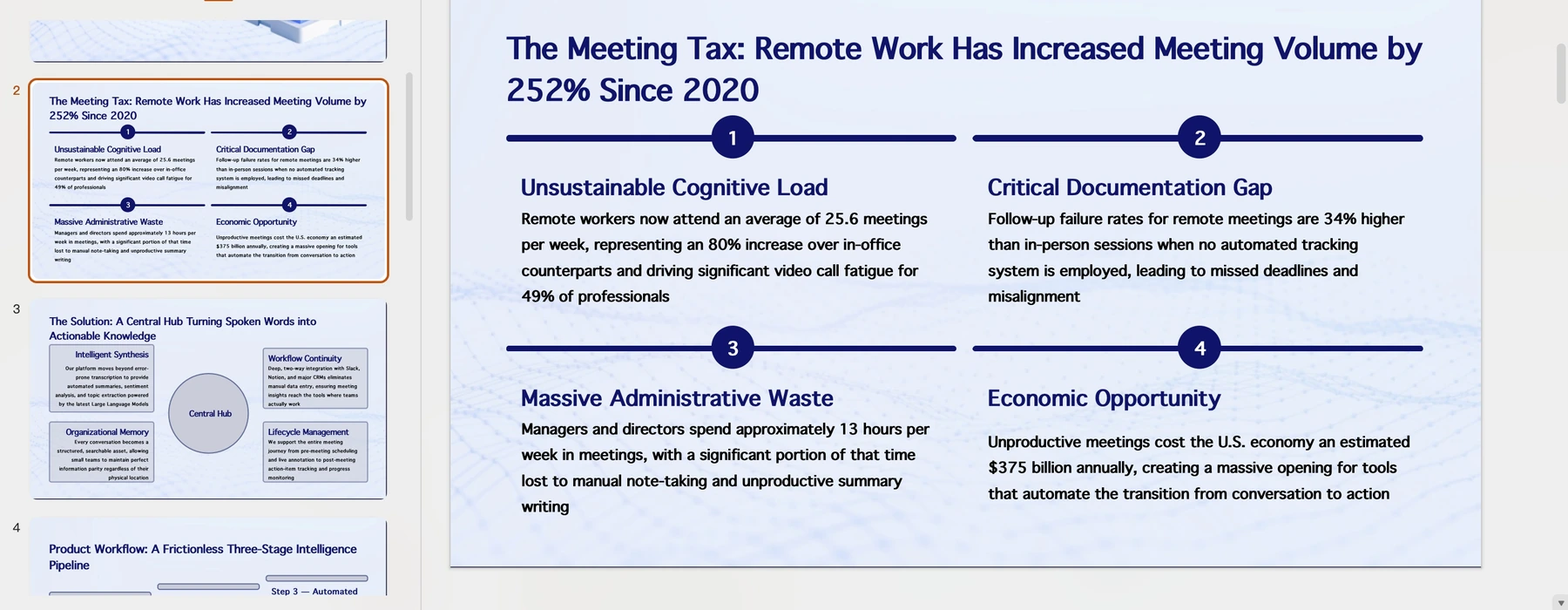
Do not use the image above as a notes-export test. A proper test would show the note text on a named slide before export, the resulting file, and the same note field after reopening that file. Those specific before/after records were not supplied, so this article does not present a pass result.
Step 4. Test a three-slide handoff before a long deck
| Test slide | Add this content | Check after reopening |
|---|---|---|
| Slide A | A short paragraph plus a unique phrase such as "A-review-01" | The phrase remains in Slide A's notes, not on the slide canvas |
| Slide B | Several paragraphs, an apostrophe, and a non-English name if relevant | No truncation, unexpected symbols, or text attached to the wrong slide |
| Slide C | A link, a delivery cue, and a final transition | The presenter can read the text; audience sharing does not reveal it |
Keep the test file and a short record of the authoring app, version, export route, and destination. If the result fails, return to the last known good file and paste the reviewed notes directly into the destination. Do not repeatedly convert the whole deck hoping a missing note will reappear.
Step 5. Keep audience files and presenter files separate
Prepare a presenter master containing the talk track and a distribution copy containing only what recipients should receive. A PDF of slides may omit notes, while some note-printing or export options intentionally include them. In Keynote, for example, Apple's export documentation describes PDF options for presenter notes. Check the selected options rather than assuming the output is private.
For a live call, verify the audience view from a second device. Share the intended slideshow or presentation window, not an entire desktop containing private notes, messages, or internal pricing. A correct notes file does not prevent screen-sharing mistakes.
Sources and evidence
Product documentation checked October 13, 2026. Features, plans, and interfaces may change. The compatibility table is a recommended test procedure, not a record of successful PopAi notes export.
- Microsoft: add speaker notes to slides
- Google: present slides with speaker notes
- Apple: add and view presenter notes
- Apple: export to PowerPoint or another format
- PopAi AI Presentation
Frequently asked questions
Does a PPTX export prove that speaker notes are included?
No. Reopen the file and inspect the Notes field on each required slide. A separate script or note-like text on the canvas is not the same thing.
Does this article confirm native PopAi speaker notes?
No. The available product evidence does not establish that feature or a note-preserving export. The documented fallback is to add notes in the destination application.
Can Google Slides or Keynote read my notes after conversion?
Check your actual file. A three-slide test with recognizable note text is more reliable than assuming all conversion paths preserve the same data.
How do I prevent notes from appearing to the audience?
Test presenter view and screen sharing from another device. Also inspect PDF or handout export options that may include notes.