How to Make a Webinar Presentation with AI: Live & Replay
Editorially revised October 13, 2026
To make a webinar presentation with AI, plan for two deliverables: the live session and the replay. Generate a source-backed draft, edit it for a shared screen, and test the actual meeting platform before going live. A deck that works in its editor may still fail when a video loses sound, notes appear to attendees, or a poll cue survives in a replay without its poll.
This six-step guide uses an illustrative 45-minute training webinar with a five-minute welcome, twenty minutes of explanation and demonstration, ten minutes of guided application, seven minutes of questions, and a three-minute recap. The schedule totals 45 minutes; it is an editorial example, not a required industry ratio.
1. Plan the webinar outcome, roles, and run of show
Write one outcome that attendees can use after the session. Identify the presenter, moderator, technical host, and owner of follow-up resources. Decide whether the session is primarily teaching, demonstrating, interviewing, or selling, because each needs a different balance of slides and live activity.
Place interaction where it helps the outcome. A poll before a demonstration can expose a misconception; a question after a worked example can reveal whether the explanation was clear. Do not add a poll solely to meet a fixed "every two minutes" rule.
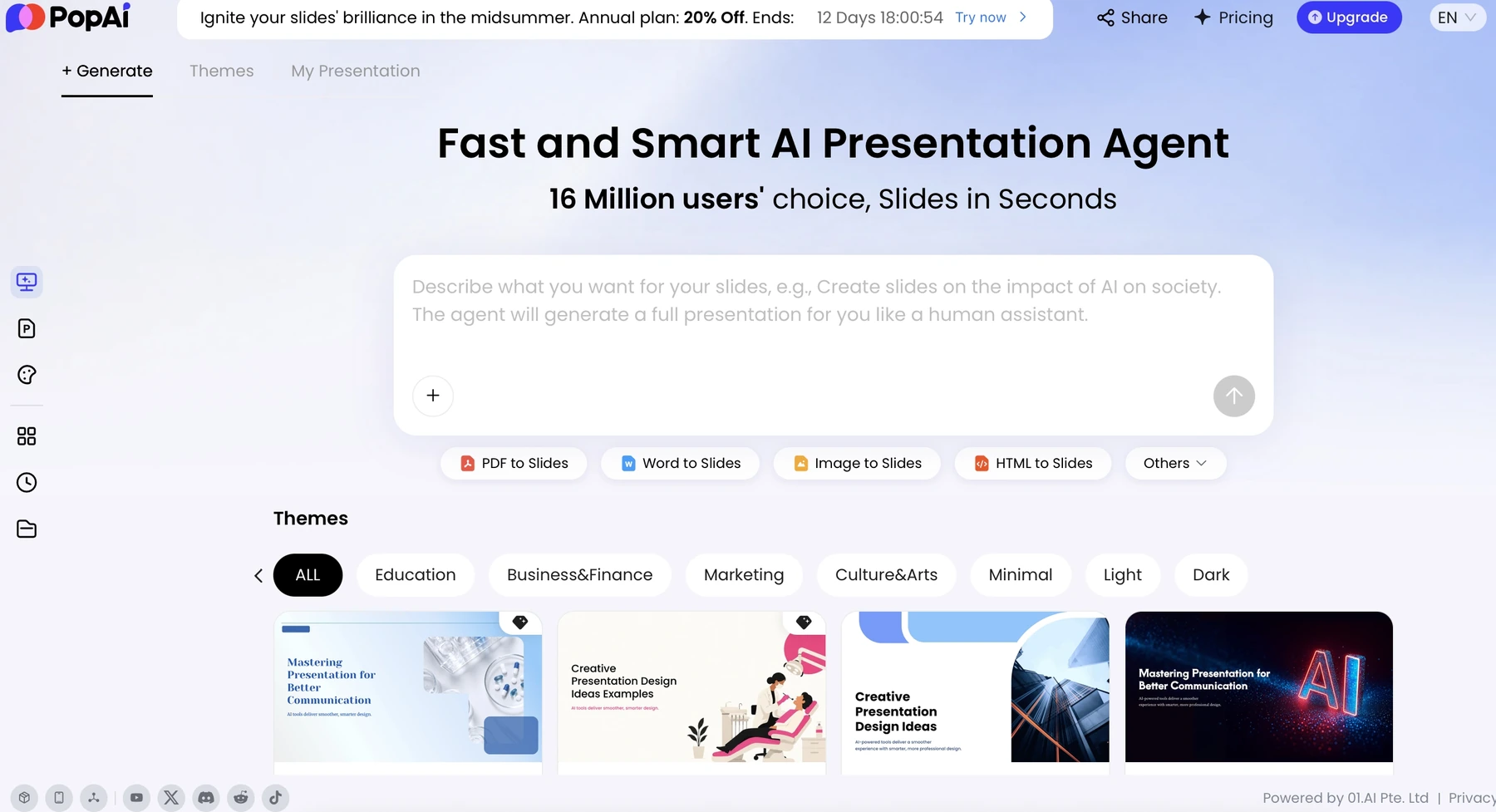
2. Write a webinar-specific prompt
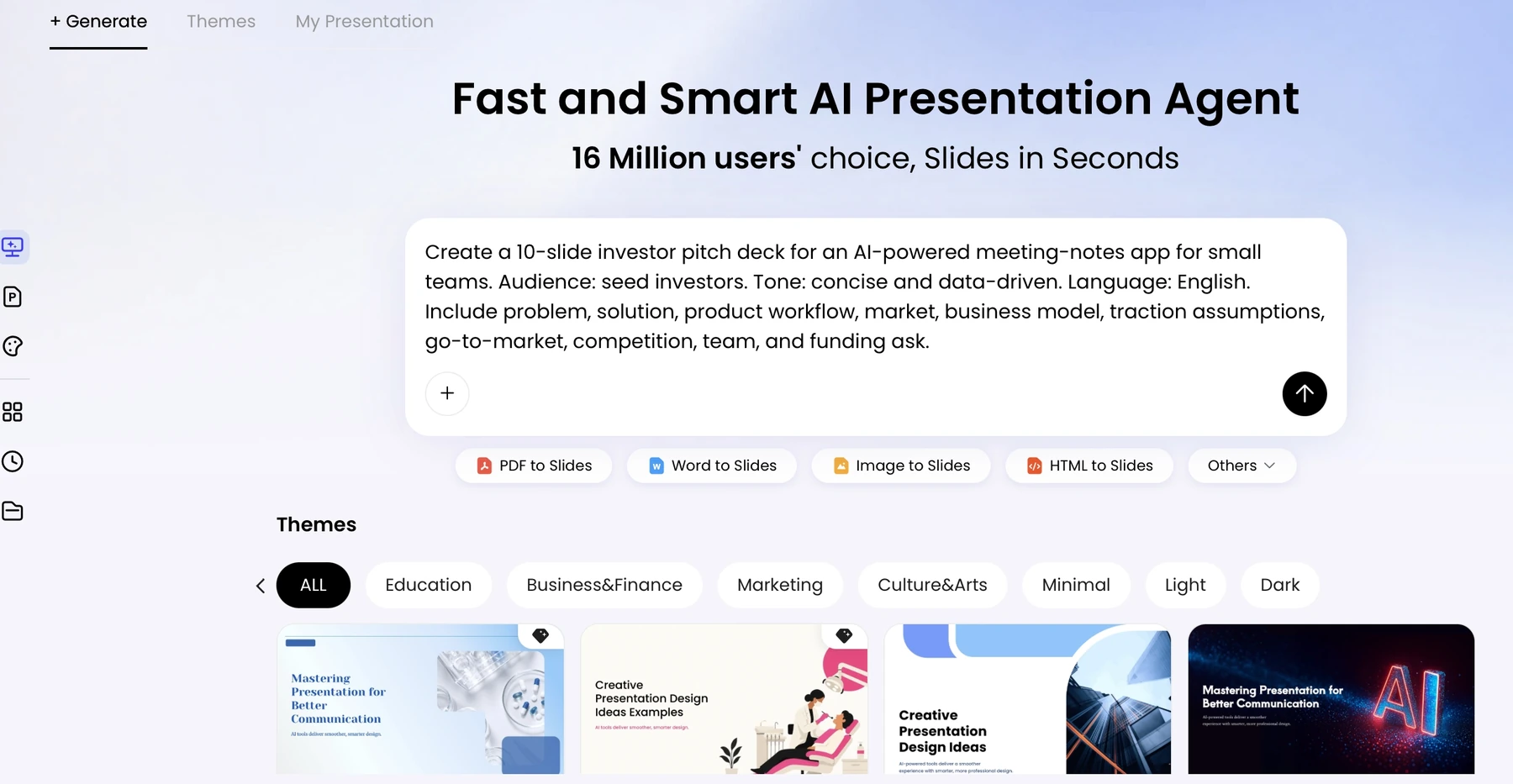
Draft a 45-minute training webinar for [audience] to achieve [outcome]. Use only the approved source notes. Plan a welcome, three core ideas, a worked demonstration, a guided application, Q&A, and a recap. Keep slide copy readable when screen-shared. Suggest poll and chat cues as presenter instructions, not as working interactive widgets. Produce a separate list of replay changes. Do not invent statistics, customer results, citations, or product capabilities.
If a demonstration depends on an account, dataset, or online service, prepare a safe demonstration environment and a static fallback. Do not put credentials or private attendee/customer information into the prompt or the visible deck.
3. Generate the draft, then review it as a live experience
Review the sequence before choosing decorative imagery. Confirm that the opening tells attendees what they will learn, the examples support the stated outcome, and the closing action follows from the lesson. Trim repeated points and keep resource links visible where replay viewers can find them.
| Live moment | Slide content | Presenter or host action |
|---|---|---|
| Welcome | Outcome, agenda, access information | Explain how to ask questions and where resources will appear |
| Poll | The question and answer options as text | Host launches the actual platform poll |
| Demonstration | Task, starting condition, and expected observation | Share the appropriate window and narrate essential actions |
| Practice | Clear instructions and a visible time allowance | Monitor responses and allow a non-audio participation route |
| Q&A | A neutral holding slide and resources | Moderator selects questions and avoids disclosing personal information |
| Close | Recap and one practical next step | Explain replay and follow-up availability accurately |
AI can draft those cues. It does not create a working Zoom, Teams, or Webex poll merely by adding a poll slide. Configure and test the actual interaction in the delivery platform.
4. Design for small screens, captions, and replay
Use the aspect ratio required by your event setup; 16:9 is a useful starting choice when it matches the host's display. Keep essential labels away from the edges and inspect the real webcam overlay and caption position. There is no single safe-area measurement that covers every webinar layout.
Use a diagram, example, question, or demonstration when the explanation calls for it. Changing the visual every one or two minutes can be an editing experiment, but it is not a universal pacing standard. Allow a complex chart enough time for viewers to understand its units and conclusion.
Make audio-dependent instructions visible in text. Review automatic captions for names, terminology, and important numbers; arrange the captioning or accessibility support the event requires. Keep a compact PDF or text summary for low-bandwidth access, and ensure the summary does not omit a warning that appears only in the spoken presentation.
5. Test the actual webinar platform and recording
Use a second device or test attendee to inspect the audience experience. The following is a test plan, not a claim that all platform/device combinations have been tested for this article.
| Platform / layer | Test | Pass condition and official reference |
|---|---|---|
| Zoom | Screen share a text slide, then play a video with sound | Attendee can read the slide and hear the clip. Zoom documents computer-sound and video-optimization choices; optimize for video only when appropriate. Zoom: share content and computer sound |
| Microsoft Teams | Test the chosen sharing route, presenter notes, and a short recording | Attendee sees only intended content; replay is checked separately. Microsoft documents PowerPoint Live with private presenter notes and attendee controls; inspect the actual replay rather than assuming it records every live behavior. Microsoft: PowerPoint Live in Teams |
| Webex | Compare sharing for text/images with motion/video and computer audio | Use the appropriate optimization and verify attendee playback. Webex: share motion and video content |
| All platforms | Launch the actual poll, collect a question, and test the moderator handoff | The configured interaction works; a slide cue alone is not counted as working functionality |
| All platforms | Inspect captions, small-screen labels, and the PDF fallback | Key information remains understandable without perfect video or audio |
| Replay | Watch the exported recording, not just the live host view | Media, captions, transitions, and follow-up instructions make sense to a later viewer |
Keep fonts and high-detail screenshots under review after screen sharing compresses the display. Video-optimized sharing can sacrifice text clarity, so a setting that helps a demo may hurt a dense table. Test the transition between those modes rather than choosing one setting for the entire event.
6. Create a replay version and a release checklist
| Live-only element | Replay treatment |
|---|---|
| "Vote in the poll now" | Replace with the question, the explanation, and any approved aggregate result |
| A long silent practice interval | Edit or clearly label the pause and provide a worksheet or task instruction |
| An attendee question containing personal details | Remove or anonymize it according to permission and event policy |
| A live demonstration with missing audio or unreadable text | Repair with a checked recording, still sequence, or written explanation |
| A time-limited link or offer | Update the link and state the relevant dates accurately |
| "Ask us in the chat" | Provide a maintained contact or resource route for later viewers |
Before release, verify source claims, speaker permissions, caption accuracy, the final resource links, and the audience copy of the deck. Keep internal notes and private Q&A material out of public downloads. Store a reviewed presentation, backup PDF, run of show, and replay checklist together so another host can recover the session if needed.
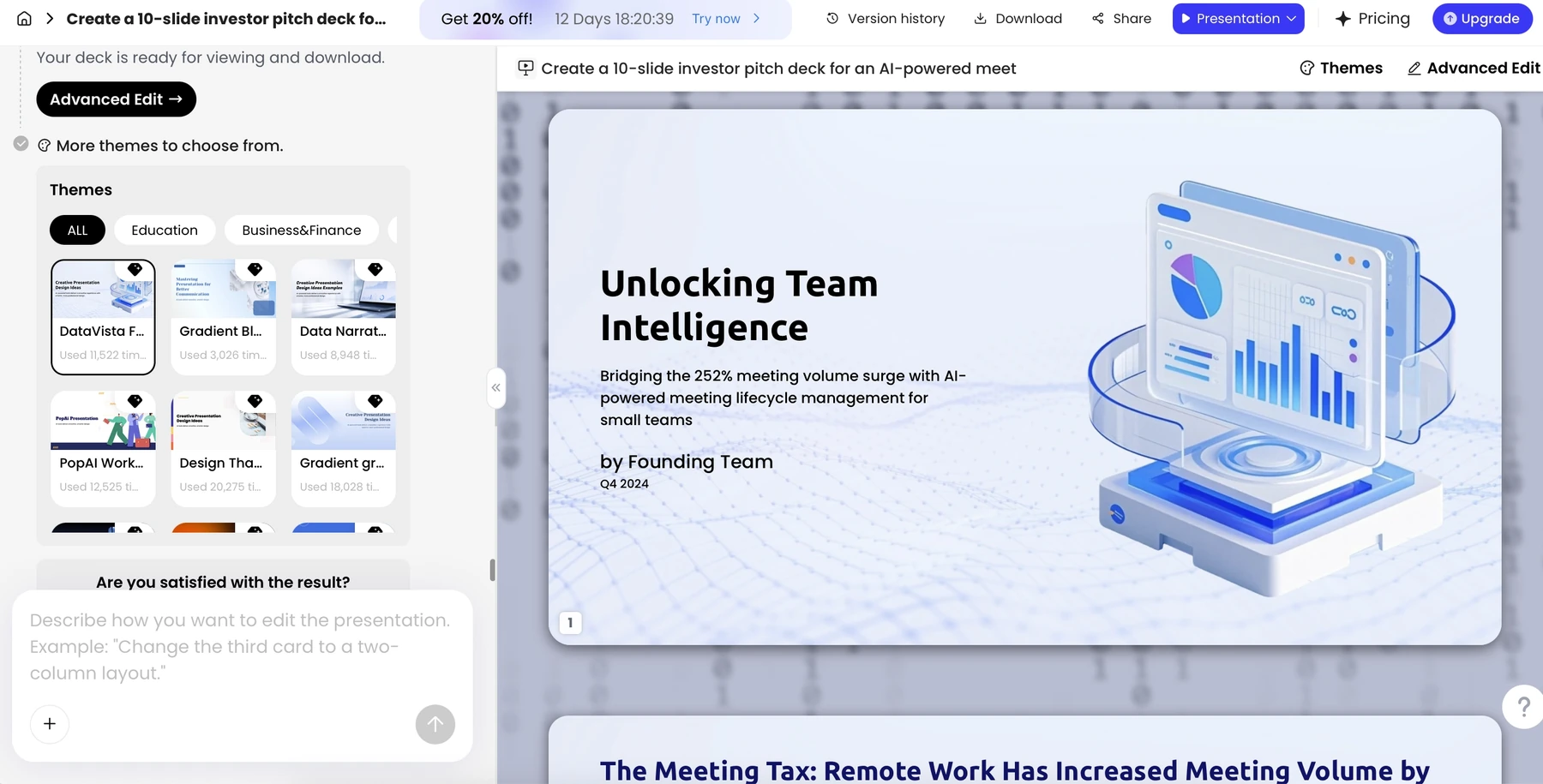
PopAi can support the draft and editing stages described on its product page. The webinar platform and the people running the event remain responsible for delivery configuration, participant controls, recording, and release decisions.
Sources and evidence
Product documentation checked October 13, 2026. Features, plans, and interfaces may change. Timings and run-of-show examples are editorial suggestions. No live Zoom/Teams/Webex device test was conducted in this revision.
- PopAi AI Presentation
- Zoom: share content and computer sound
- Webex: share motion and video content
- Microsoft: PowerPoint Live in Teams
Frequently asked questions
Does adding a poll slide create a working live poll?
No. Configure the actual poll in your webinar platform and test it with a host and attendee.
Must I change slides every one or two minutes?
No. Treat cadence suggestions as editing experiments. The material, demonstration, and audience needs determine the pace.
How do I know the replay will work?
Watch a short test recording from the chosen platform and sharing mode. Check sound, media, captions, notes exposure, and interaction cues separately from the live experience.
What should I prepare for a poor connection?
Keep a readable PDF or text summary and a fallback for live demonstrations. Confirm how attendees will receive them if the live session is interrupted.