Feature Deep Dive: Generate Outline → Slides → Speaker Notes

Published on April 23, 2026
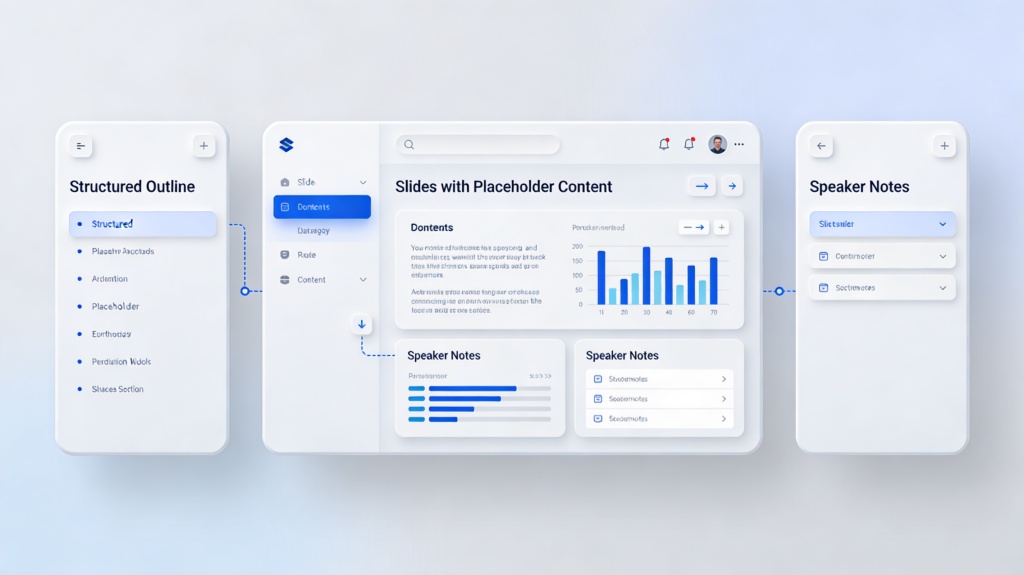
AI presentation workflow showing outline to slide transition
The seamless transition from a structured outline to high-fidelity visual slides.

We’ve all been there: staring at a blinking cursor on a blank white slide, wondering how to condense a mountain of research into a 10-minute pitch. For many professionals, the hardest part of creating a presentation isn't the design—it's the structural logic and the delivery. This is where a connected AI presentation workflow changes the game. By automating the progression from an outline to visual slides and finally to speaker notes, you ensure consistency, save hours of manual labor, and significantly reduce "blank page anxiety."

Understanding the Linear AI Presentation Workflow

A truly effective presentation isn't built slide-by-slide in a vacuum. It follows a logical narrative arc. Modern AI tools have moved beyond simple "text-to-image" generation; they now offer an integrated pipeline. The AI presentation workflow begins with a conceptual prompt, expands into a hierarchical outline, transforms that outline into a visual deck, and concludes by writing the script you'll use during the actual performance.

This linear approach ensures that your core message doesn't get lost in the design phase. When the AI understands the "Why" (the outline), it can better execute the "What" (the slides) and the "How" (the speaker notes).

Phase 1: Refining the AI-Generated Outline

The outline is the backbone of your story. When you input a topic into an AI presentation maker, the first output shouldn't be a finished deck, but a structured list of sections. This is your opportunity to play "Director."

  • Structural Logic: Ensure the flow follows a recognized pattern, such as Problem-Solution-Benefit or a chronological case study.
  • Content Density: Use the outline phase to decide which points deserve their own slide and which should be grouped together.
  • Customization: This is the best time to inject your unique expertise. If the AI misses a crucial industry nuance, add a header manually before the design phase begins.
Pro Tip: Don't rush the outline. A strong AI presentation workflow relies on a solid foundation. If your outline is messy, your slides will be too. Learn more about optimizing your prompts at PopAi Presentation Maker.

Phase 2: Converting Structure into Visual Slides

Once the outline is locked, the AI takes over the heavy lifting of graphic design. This phase of the AI presentation workflow involves mapping text to visual layouts. The AI analyzes the intent of each outline point—is it a data point? A quote? A process step?—and selects an appropriate template.

AI generating visual slides from a text outline
AI algorithms automatically selecting layouts and imagery based on outline context.

Modern AI slide generators do more than just place text on a background. They handle font pairing, color palettes, and image sourcing. By linking the slides directly to the outline, the software maintains a "thread of continuity." If your outline section was about "Market Growth," the AI will prioritize charts or upward-trending visuals, ensuring the visual language matches the verbal intent.

Phase 3: Crafting Compelling Speaker Notes Automatically

The most overlooked part of any presentation is the "hidden" content: the speaker notes. Even the most beautiful slides fail if the presenter is unprepared. The final step in a sophisticated AI presentation workflow is the automatic generation of these notes.

The AI reviews the content on each slide and generates a script or bulleted talking points. These notes serve several purposes:

  1. Contextual Expansion: The slide might show a graph, but the notes explain the "so what" behind the data.
  2. Transition Cues: AI can suggest how to bridge the gap between slide 4 and slide 5, maintaining the audience's attention.
  3. Confidence Building: Having a pre-written script allows you to focus on delivery, eye contact, and body language rather than memorizing facts.

Why a Connected Workflow Beats Fragmented Tools

Using one tool for outlining, another for design, and a third for scriptwriting is a recipe for inconsistency. A unified AI presentation workflow ensures that if you change a key fact in the outline, the slides and speaker notes can be updated to reflect that change instantly. This "single source of truth" prevents the embarrassing moment where your slide says one thing while your notes say another.

Comprehensive dashboard for AI presentation management
Managing the entire lifecycle of a presentation from a single AI-driven interface.

Best Practices for an AI-Powered Presentation Process

To get the most out of these features, follow these expert guidelines:

  • Start with a Deep Prompt: The more context you give the AI at the start (audience, goal, tone), the more accurate the outline and notes will be.
  • Iterate on the Outline: Treat the AI's first draft as a suggestion. Spend 5 minutes tweaking the hierarchy to save 50 minutes of design editing later.
  • Personalize the Notes: AI notes are great for facts, but only you can add personal anecdotes or company-specific "inside baseball" that builds trust with your audience.

Frequently Asked Questions

Can I edit the outline after the AI generates it?

Absolutely. In a professional AI presentation workflow, the outline serves as a collaborative draft. You can add, delete, or reorder sections before the AI begins the visual design phase. This ensures you maintain full creative control over the narrative structure.

Are the speaker notes unique to each slide?

Yes, the AI analyzes the specific content, data, and context of each individual slide to generate tailored talking points. This prevents generic advice and helps you deliver a cohesive narrative that directly supports the visuals on screen.

Does this workflow work for technical presentations?

Yes. By providing a detailed prompt or uploading a source document, the AI presentation workflow can handle complex technical data. It structures the information into logical steps, creates relevant diagrams, and writes notes that explain technical jargon in accessible terms.

Create your presentation with one click now

Experience the full power of the Generate Outline → Slides → Speaker Notes workflow today. Save hours of work and deliver your best presentation yet.

Get Started for Free

Alex Sterling

Presentation Strategy Lead at PopAi. Alex has over 15 years of experience helping Fortune 500 executives master the art of visual storytelling and efficient content creation.

Related Articles