How to Make an Apple Keynote Presentation with AI in 2026
Published October 12, 2026
Editorially revised October 13, 2026
This tutorial is about the Apple Keynote app on Mac, not a keynote-style conference speech. In eligible versions, Keynote can generate slides from a text outline through Apple Creator Studio. You can also use AI only for drafting and then build the presentation manually, or import an externally generated PPTX and finish it in Keynote.
The steps below follow Apple's published documentation checked October 13, 2026. They are not a hands-on test on a Mac in this session. Choose the route your device, account, and final delivery format actually support.
1. Check the route and requirements before you start
Apple's Creator Studio feature guide lists outline-to-presentation generation and automatic presenter notes as beta features. Its Mac instructions specify macOS 26 or later for the automatic outline and note workflows and an Apple Creator Studio subscription. Check your current version and availability rather than assuming that installing any version of Keynote enables them.
| Route | Use it when | What you still need to do |
|---|---|---|
| Keynote outline generation | The eligible Creator Studio controls are available on your Mac | Provide a reliable outline, check the generated slides, and rehearse |
| AI text draft, manual Keynote build | You lack the generation feature or need tighter manual control | Choose a theme, add content, and place notes in the app |
| External AI deck, then PPTX import | You already have a draft from another tool | Check the imported file and repair conversion differences |
2. Prepare an outline instead of an oversized script
Use a short overview plus a separate list of key points. The overview explains the audience, purpose, tone, and central message; the key points contain only verified material that belongs in the presentation. Keep the original sources nearby so that you can audit what the generator includes or omits.
Illustrative overview: A ten-minute internal presentation proposing a limited customer-onboarding pilot. Audience: operations and customer-success leads. Use a restrained business theme. Explain the problem, compare two approaches, describe the proposed pilot, and end with a decision request.

Key points: Use only the approved discovery notes. Distinguish observed problems from hypotheses. Keep cost and outcome estimates out until the owner confirms them. Include a slide for success measures and a slide for unanswered questions. Do not invent customers, metrics, or commitments.
This example deliberately leaves unknown financial or operational facts out. A useful generated draft should expose missing decisions, not manufacture persuasive numbers. If your outline contains sensitive information, use only an account and service approved for that data.
3. Generate the presentation in Apple Keynote
In Apple's documented Mac workflow, open the theme chooser with File > New, select a theme, and choose Generate. In the Generate Presentation dialog, put the audience and narrative brief in Overview and the supporting content in Key Points, then select Generate. The availability of controls can vary with your installed version.
Do not approve the result merely because it has a coherent theme. Compare the slide order with the decision you want the audience to make. In the pilot example, the deck should explain the observed problem before the proposed solution and show the decision request after the constraints, not bury it behind a generic company introduction.
| Generated draft problem | Editorial correction |
|---|---|
| The title promises a guaranteed result | Replace it with the decision or hypothesis the evidence supports |
| The same benefit repeats on three slides | Keep the strongest explanation and use the space for evidence or constraints |
| A diagram adds steps that were not in the source | Remove the invented steps or have the process owner confirm them |
| A slide contains an unsupported statistic | Delete it or return to the source before using it |
| A dense slide mixes several arguments | Split by the audience's question, not simply by paragraph length |
4. Add and review presenter notes
Apple documents View > Show Presenter Notes, then selecting a slide and entering text below it. Eligible users can use the Generate Presenter Notes toolbar control. See Apple: add and view presenter notes. Treat any generated note as a draft: remove invented claims and rewrite it in the presenter's voice.
For the pilot-decision example, a note should explain the trade-off rather than repeat every bullet. A useful transition might be: "We have compared the options; the next slide shows what we still need to confirm before a pilot starts." Keep that cue attached to the right slide. After reordering or deleting slides, review the notes again.
If you need a longer script, keep a separate presenter document as well as concise cues in Keynote. Before a live call, inspect the audience view on another device so that the notes and internal comments are not accidentally shared.
5. Export the file your audience actually needs
Apple's export instructions use File > Export To and the chosen format. A PowerPoint copy is a separate handoff file; editing it does not update the original Keynote master. For PDF, inspect the options for including notes or skipped slides so that you do not distribute internal material unintentionally.
Check fonts, charts, media, animations, hyperlinks, and notes in the destination application. Keep the .key file as the source master if that is where the deck is maintained. If a recipient asks for editable PowerPoint, inspect that specific exported copy rather than sending a PDF and describing it as equivalent.
Alternative: create an AI draft elsewhere, then finish in Keynote
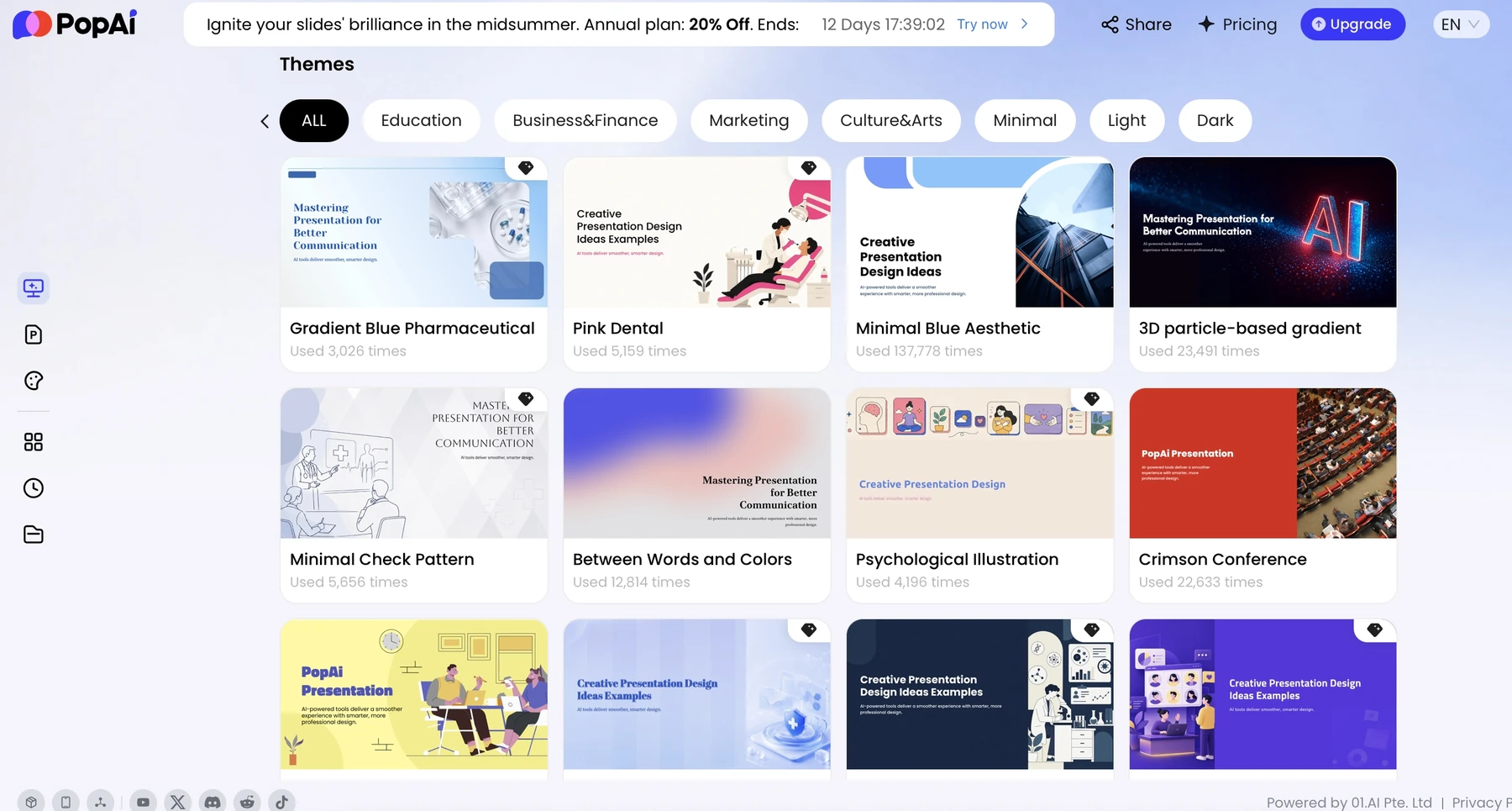
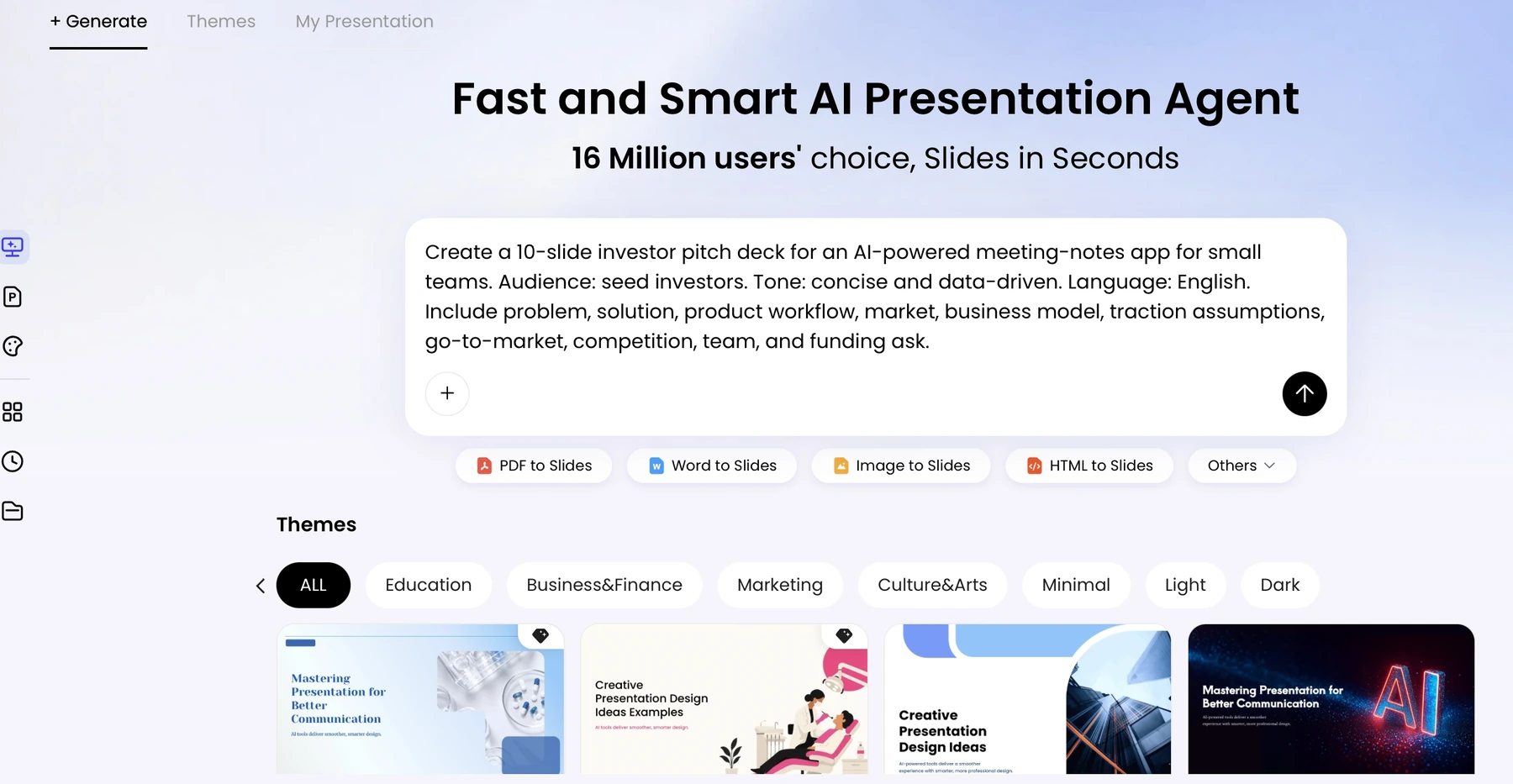
An external route is useful when approved material is already organized in another tool. For example, PopAi can create a draft and provide PPTX output. Open the resulting file in Keynote and inspect it before adopting it as your working master. This is a file-import workflow, not a native PopAi-to-Keynote integration.
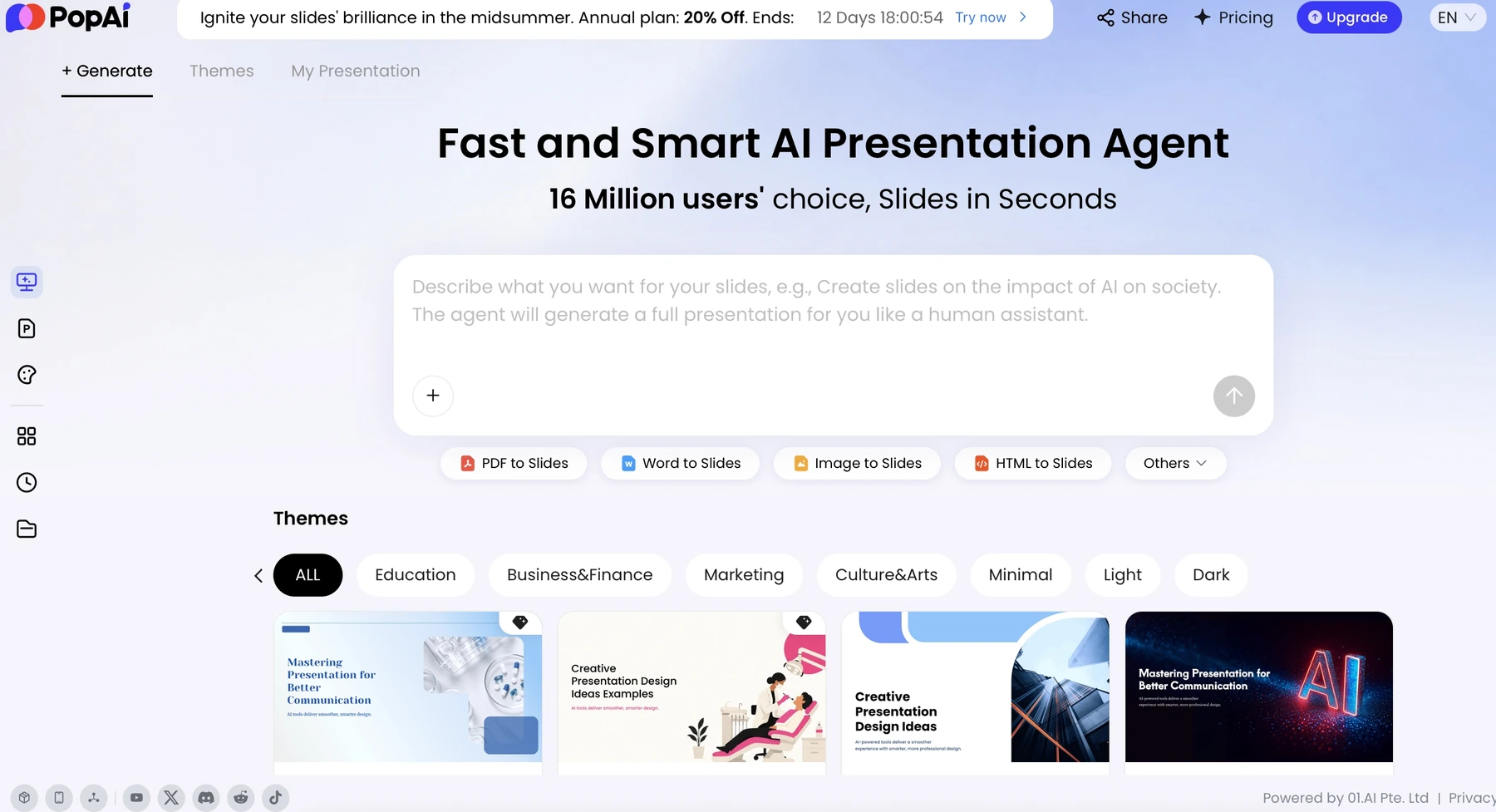
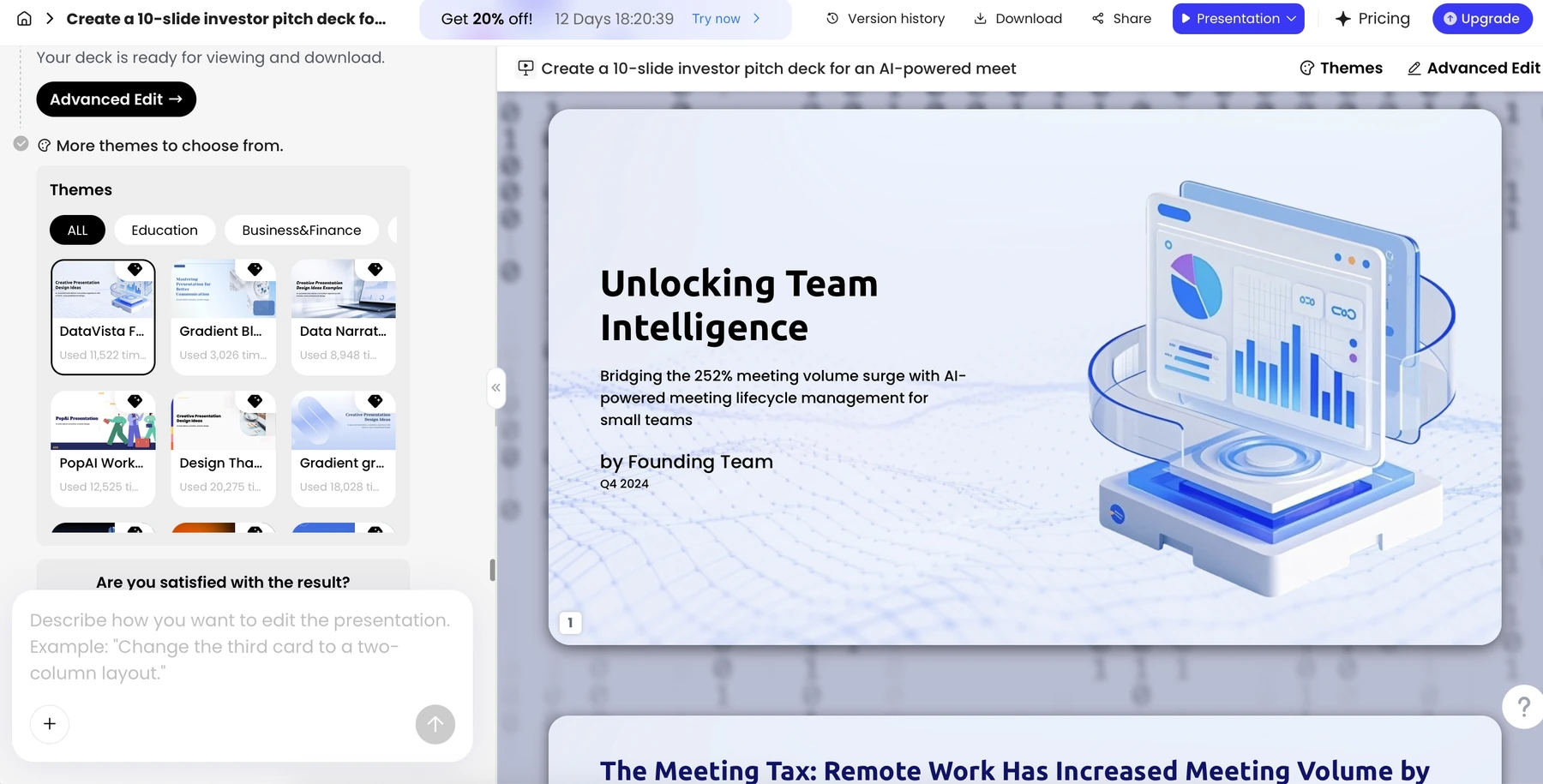
The images above show only the external creation stage. A complete import test would require opening that actual PPTX in Keynote and checking its slide objects and notes. Do not use these screenshots to claim a successful conversion or a live Apple feature test.
6. Rehearse the actual presentation setup
Rehearse with the final file and the display or conferencing setup you will use. Check the first slide, one dense slide, one media slide, and the final decision page. Test notes visibility, remote-control behavior if used, audio, and a PDF backup. Leave time to repair conversion issues rather than discovering them at the event.
Sources and evidence
Product documentation checked October 13, 2026. Features, plans, and interfaces may change. Apple controls and requirements are documentation-based. The three PopAi figures illustrate the optional external route only; this article contains no claimed new Mac or Keynote import test.
- Apple Creator Studio features in Keynote
- Apple: create a presentation in Keynote for Mac
- Apple: add and view presenter notes
- Apple: export to PowerPoint or another format
- PopAi AI Presentation
Frequently asked questions
Does this guide cover a keynote speech or Apple Keynote?
It covers the Apple Keynote app on Mac. A keynote-style speech is a different content-planning task.
Does every Keynote installation include automatic slide generation?
No. The documented outline-generation and automatic-notes workflows require eligible Apple Creator Studio access and macOS 26 or later, and Apple labels the features beta.
Can I still use AI without the native generation feature?
Yes. Draft the text with an approved AI tool and build the deck manually in Keynote, or import a PPTX draft and check its compatibility.
Do the PopAi screenshots prove a successful Keynote import?
No. They illustrate only the optional external drafting route. The imported file still requires a separate inspection in Keynote.
Create a presentation draft with PopAi
Turn an idea, document, or rough outline into a structured presentation, then refine the story and design for your audience.
Explore PopAi AI Presentation