Keep AI Presentations On-Brand: A PPTX Template Workflow
Editorially revised October 13, 2026
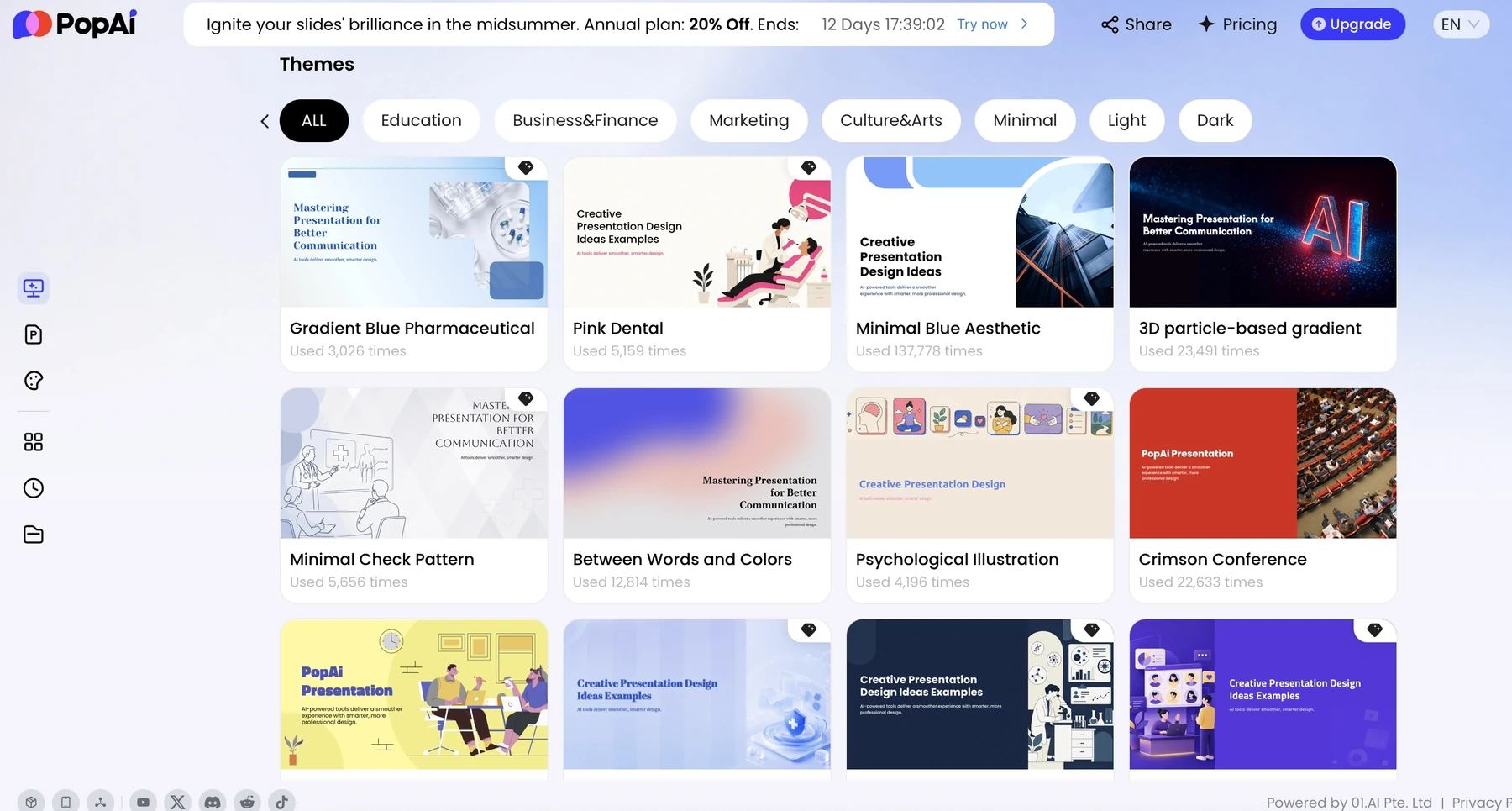
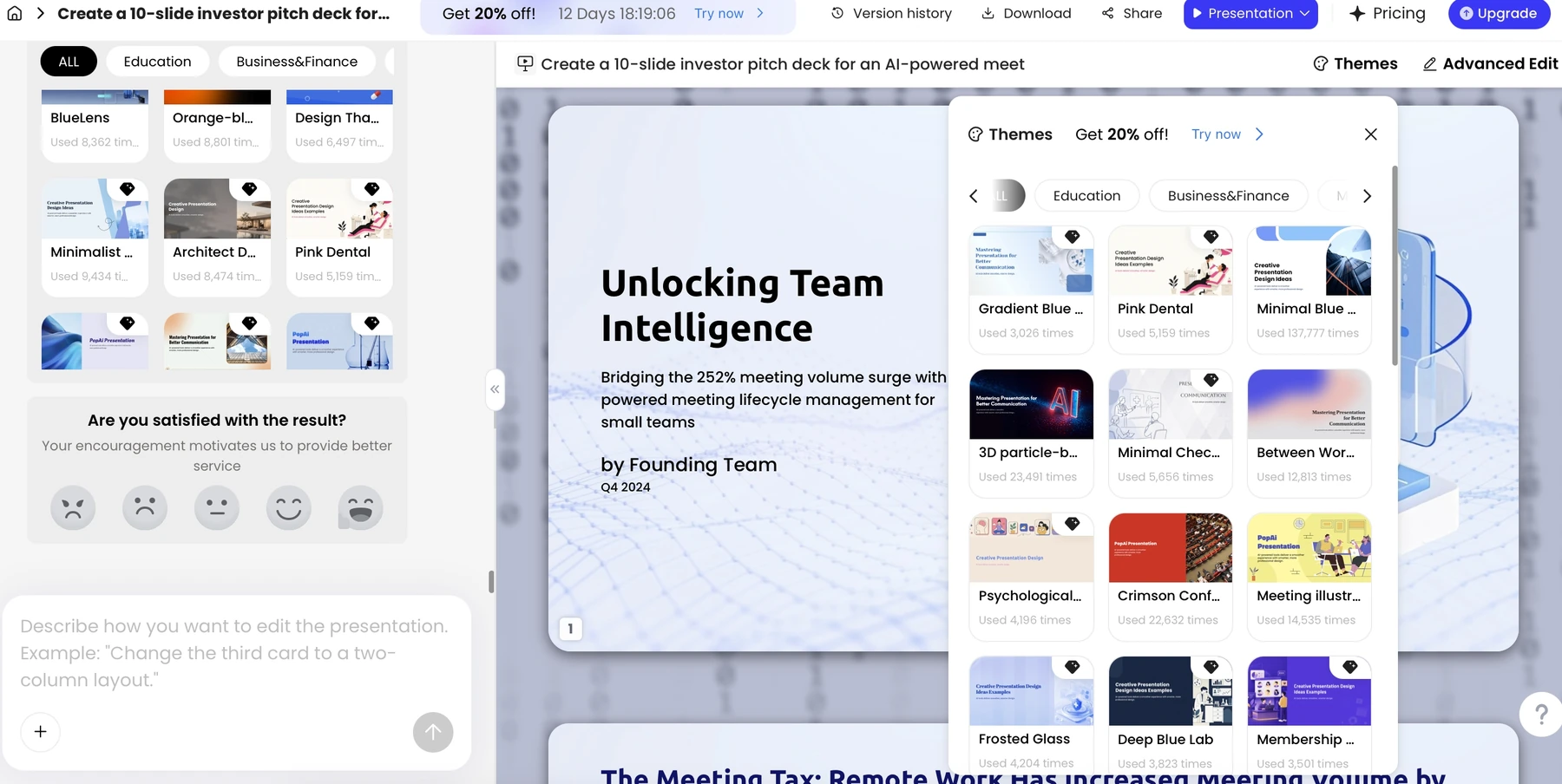
Keep AI presentations on-brand by starting from an approved template and a written brand brief, then inspecting the output. A theme gallery, a reusable PPTX template, and a native brand kit are different things. This page covers the template-and-review route; it does not claim that PopAi has a verified central brand kit that saves and automatically applies every logo, font, and color.
For an organization-wide standard, use the existing brand-kit checklist and brand consistency guide. Here the narrower task is bringing one approved presentation style into an AI-assisted draft and checking what survived.
Know which kind of brand control you have
| Mechanism | What it can mean | What it does not establish |
|---|---|---|
| Theme | A coordinated visual starting point | Your exact corporate typography, logos, or approved layout rules |
| PPTX template | A file that supplies a reusable presentation structure or style | Lossless retention of masters, animations, charts, or presenter notes |
| Native brand kit | Saved brand assets and settings applied through documented product controls | That every generator, export, or collaboration plan supports the same behavior |
| Human brand review | A person checks the finished deck against approved rules | Automatic enforcement of those rules in future presentations |
Step 1. Prepare an approved template and a compact brief
Use a clean copy of your approved deck, not a confidential client presentation. Remove customer details, obsolete claims, unused layouts, and sample financial data. Keep representative title, section, chart, comparison, and closing slides so a reviewer has concrete references for the intended style.
Attach a short brief covering the exact logo variant, font names and fallbacks, primary and secondary colors, chart-series order, prohibited treatments, and footer wording. Distinguish mandatory rules from preferences. "Use the approved legal footer unchanged" is a constraint; "prefer generous whitespace" is a design preference.
Illustrative brand brief: Use our approved corporate template as the visual reference. Keep the official logo unchanged and preserve its clear space. Use the supplied font or the approved fallback; do not substitute an unrelated display font. Keep claims and figures exactly as supplied. Use a consistent title hierarchy and chart color order. Flag any requirement you cannot reproduce rather than claiming it has been applied.
Step 2. Choose the right entry point
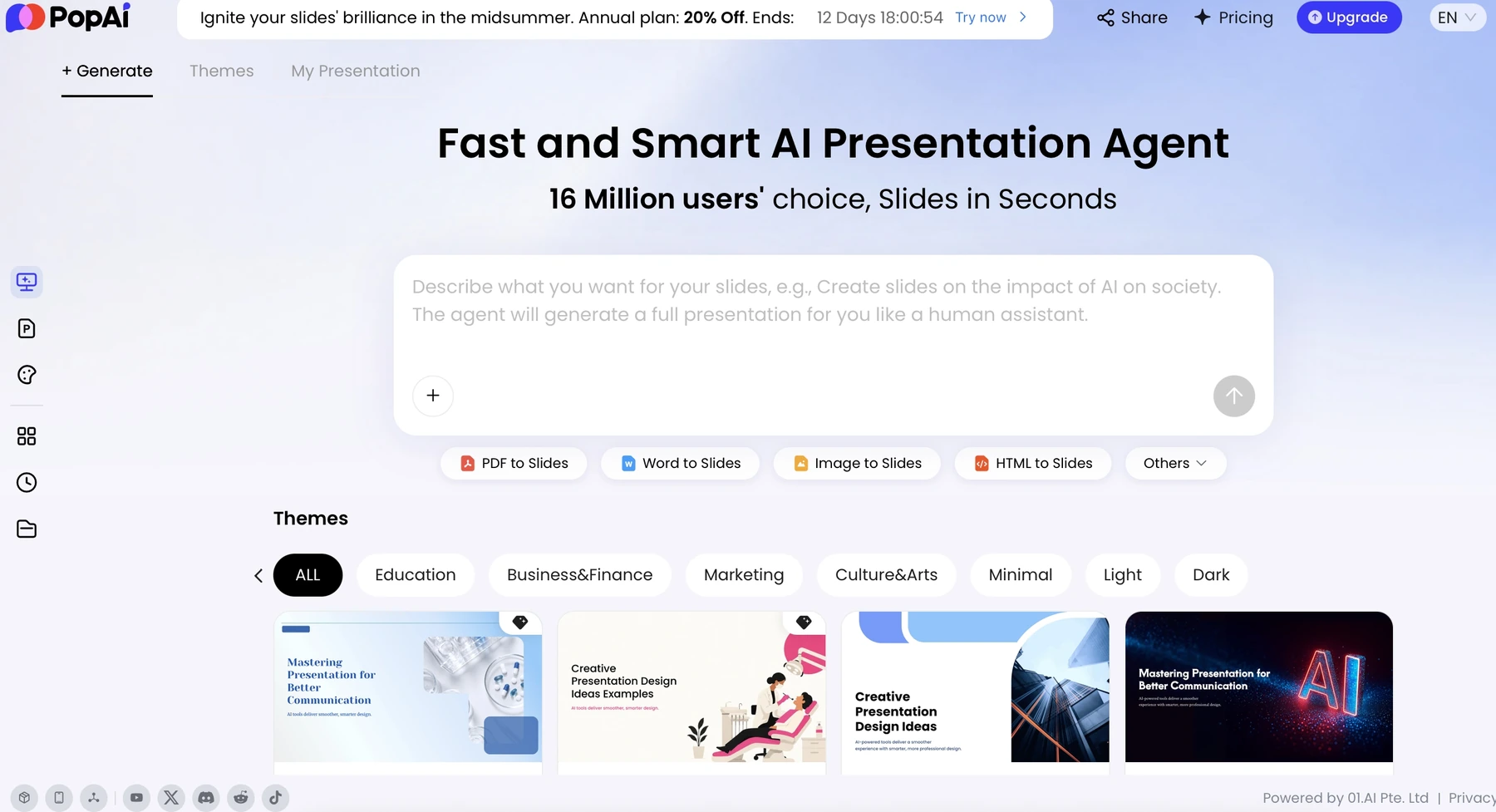
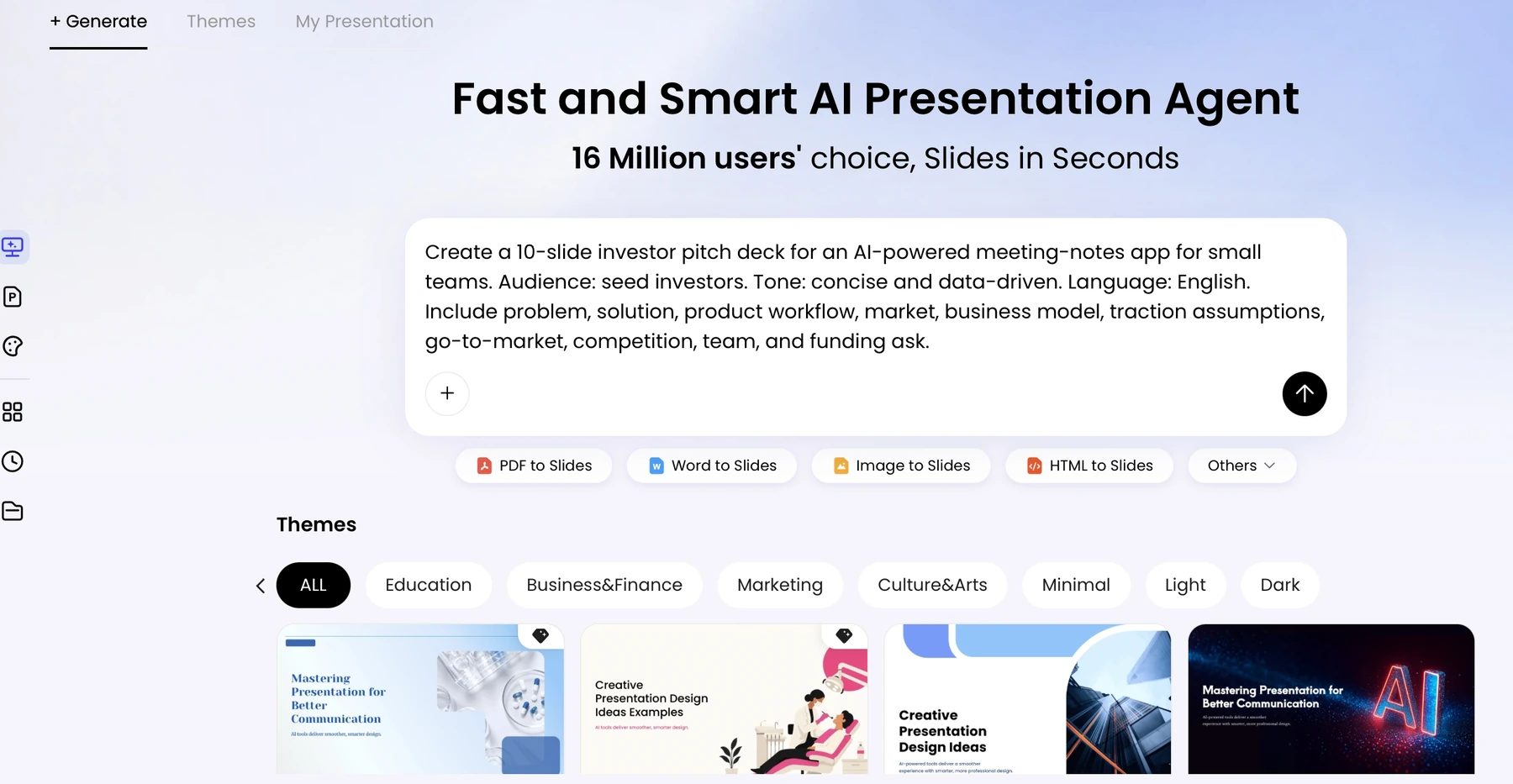
The supplied PopAi documentation distinguishes AI Presentation, AI Creative Slide, and AI PowerPoint. It records template-oriented options, including a PPTX-template upload entry in AI PowerPoint, while AI Presentation also offers Themes. Treat that as an input choice, not a promise that importing a template preserves every existing object. Check the options shown in your account before starting.
If the required template control is not available, do not emulate it by putting a logo on a generic design and calling the result compliant. Draft the story in AI, then place the reviewed content into the actual corporate template in PowerPoint. This fallback keeps the brand master under the control of the application your team already uses.
Step 3. Generate a limited draft before building the full deck
Start with a small representative set: one cover, one content slide, and one data page. Review the wording and visual hierarchy before expanding the presentation. A title slide can look correct while the chart page uses the wrong colors or an unavailable font.
Give targeted revision instructions rather than asking for a complete redesign after every edit. For example, keep the slide order and factual copy unchanged, but simplify the title hierarchy and remove decorative gradients. Recheck the changed slide alongside its neighbors, because an attractive isolated page may no longer fit the deck.
| Illustrative mismatch | Targeted correction | Final reviewer check |
|---|---|---|
| A marketing theme introduces a decorative font | Use the approved body and heading families, or the named fallback | Inspect line breaks in the exported file on another computer |
| A chart uses red for both a positive and negative status | Apply the approved series order and add direct labels | Do not depend on color alone for interpretation |
| An image contains a fabricated company logo | Remove that image; insert the approved logo as its own asset | Inspect shape, proportions, spelling, and clear space |
| Different slides use different footer language | Restore the exact approved footer where required | Verify both presentation and PDF review copies |
Step 4. Adjust charts separately from the theme
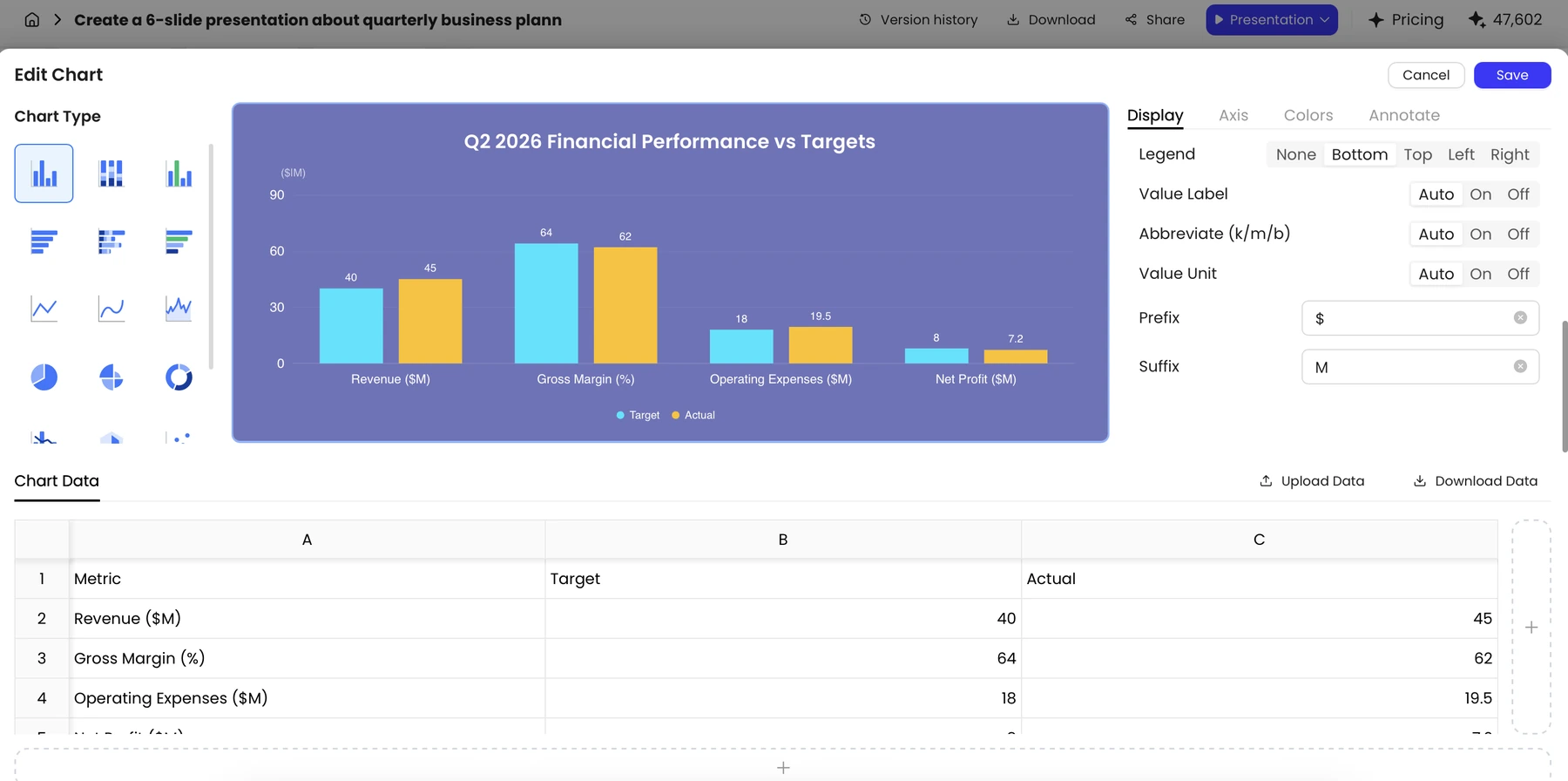
A coordinated deck can still contain inconsistent chart colors. The supplied PopAi chart screenshots show a Colors tab where series colors can be changed and the theme palette restored. This is a chart-level control, not proof that an organization-wide brand kit governs every chart automatically.
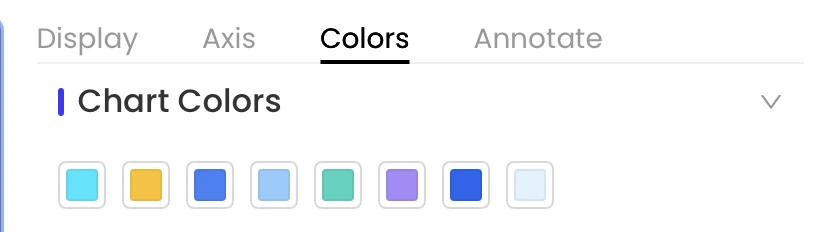
Keep chart semantics stable: the same segment should retain its color from slide to slide. If a mandated brand palette makes adjacent categories difficult to distinguish, add labels, change the chart layout, or ask the brand owner for an accessible alternative. W3C's contrast guidance is a useful reference for text readability, although it is not a certification that a presentation is accessible.
Step 5. Check the actual handoff file
PopAi offers PPTX and PDF output in the documented workflow. Review both the screen design and the file that recipients will open. A successful PPTX export does not prove that fonts, chart objects, slide masters, speaker notes, and animation retain every behavior.
- Open the exported PPTX in the destination application and inspect the cover, dense text page, data page, and closing slide.
- Select the text that reviewers need to edit; check that the approved font or fallback is present.
- Compare chart labels, logo proportions, spacing, and any required legal text with the approved reference.
- Check the PDF for clipped content, unwanted comments or notes, and low-resolution imagery.
- Send the reviewer the final file and the short brand brief; make changes in one controlled master rather than in multiple email copies.
If your team requires centralized saved brand assets and enforced template controls, compare products and plans that explicitly document those functions. For example, Canva describes Brand Kit within its design ecosystem, and Plus AI distinguishes custom branding from higher-touch template requirements. These are different product options, not capabilities that should be attributed to PopAi by association.
Sources and evidence
Product documentation checked October 13, 2026. Features, plans, and interfaces may change. PopAi interface evidence comes from supplied images IMG-07, IMG-15, and IMG-50. A native PopAi brand-kit configuration was not established.
- PopAi AI Presentation
- Canva AI presentations
- Plus AI pricing and plan features
- W3C: understanding contrast minimum
Frequently asked questions
Does this guide prove PopAi has a native brand kit?
No. It describes a template, theme, and review workflow. Saved centralized logo, font, and color enforcement has not been established by the supplied evidence.
Is choosing a theme enough to follow our brand rules?
No. Check the logo, fonts, colors, chart treatment, required wording, and exported file against your approved template.
Will a PPTX template preserve all existing content and formatting?
Do not assume lossless preservation. Test a representative deck and inspect the destination application, especially fonts, charts, animations, and notes.
When should I keep final production in PowerPoint?
Use PowerPoint for the final assembly when your team requires exact corporate masters or template behavior that the AI workflow has not demonstrated.