AI-Generated Images in Presentations: Examples, Prompts & Review
Published October 12, 2026
Editorially revised October 14, 2026
AI-generated images inside a presentation work best when they have a defined job: explain an abstract idea, establish a setting, or provide a consistent visual treatment. They are a poor substitute for real product evidence, verified data, or an approved customer photograph. This guide focuses on creating and reviewing those visuals inside a slide workflow, rather than repeating a general image-to-PPT tutorial.
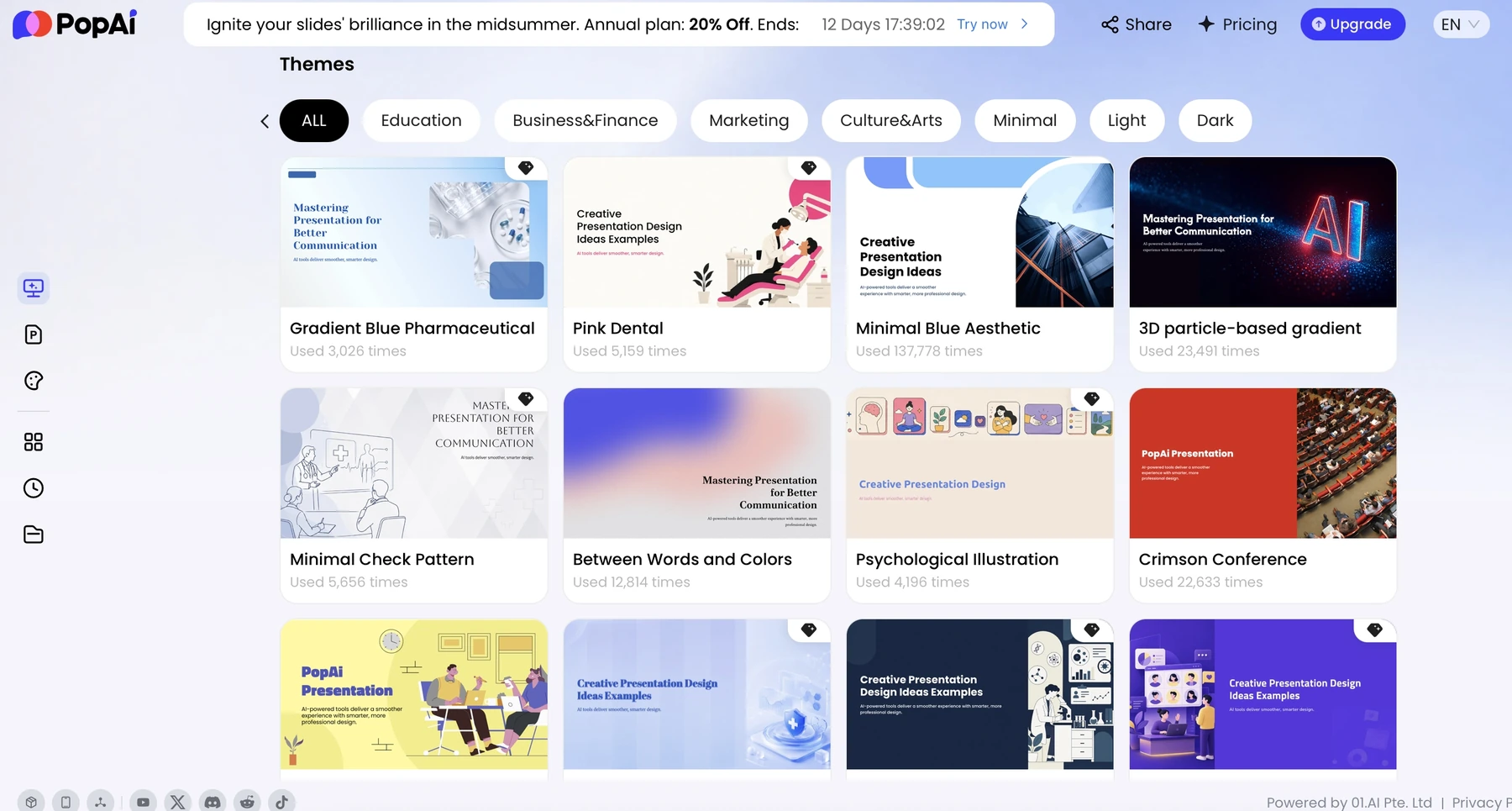
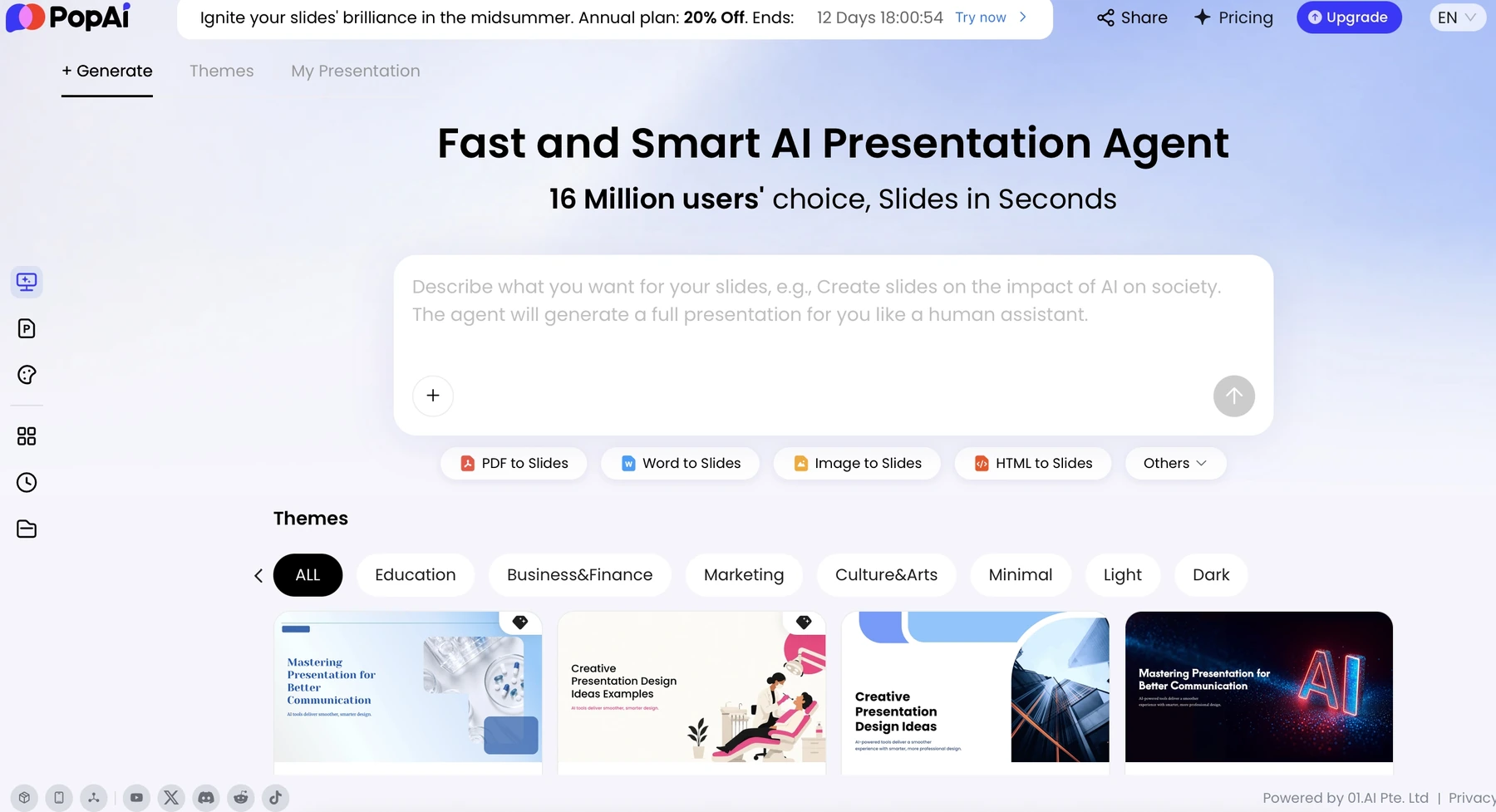
In PopAi, start with a topic or source material, generate the presentation, and review the image choices in the resulting pages. Advanced Edit includes an AI Image entry. That entry and the generated examples below do not establish that every visual was created by a standalone image-generation tool, or that the same character can be reproduced reliably across slides. For the broader input-to-deck process, see the AI PPT maker with images guide.
Two captured outputs and an original visual brief
The first two examples below are real captured outputs from the supplied PopAi knowledge-base samples, not newly conducted tests. Any sample names, dates, or statistics visible in them are not evidence for a business claim. The third example is a new editorial layout and suggested brief for a fictional project, not a PopAi result. None of the suggested briefs reconstructs the original prompts used in the captured samples.
1. A conceptual product illustration
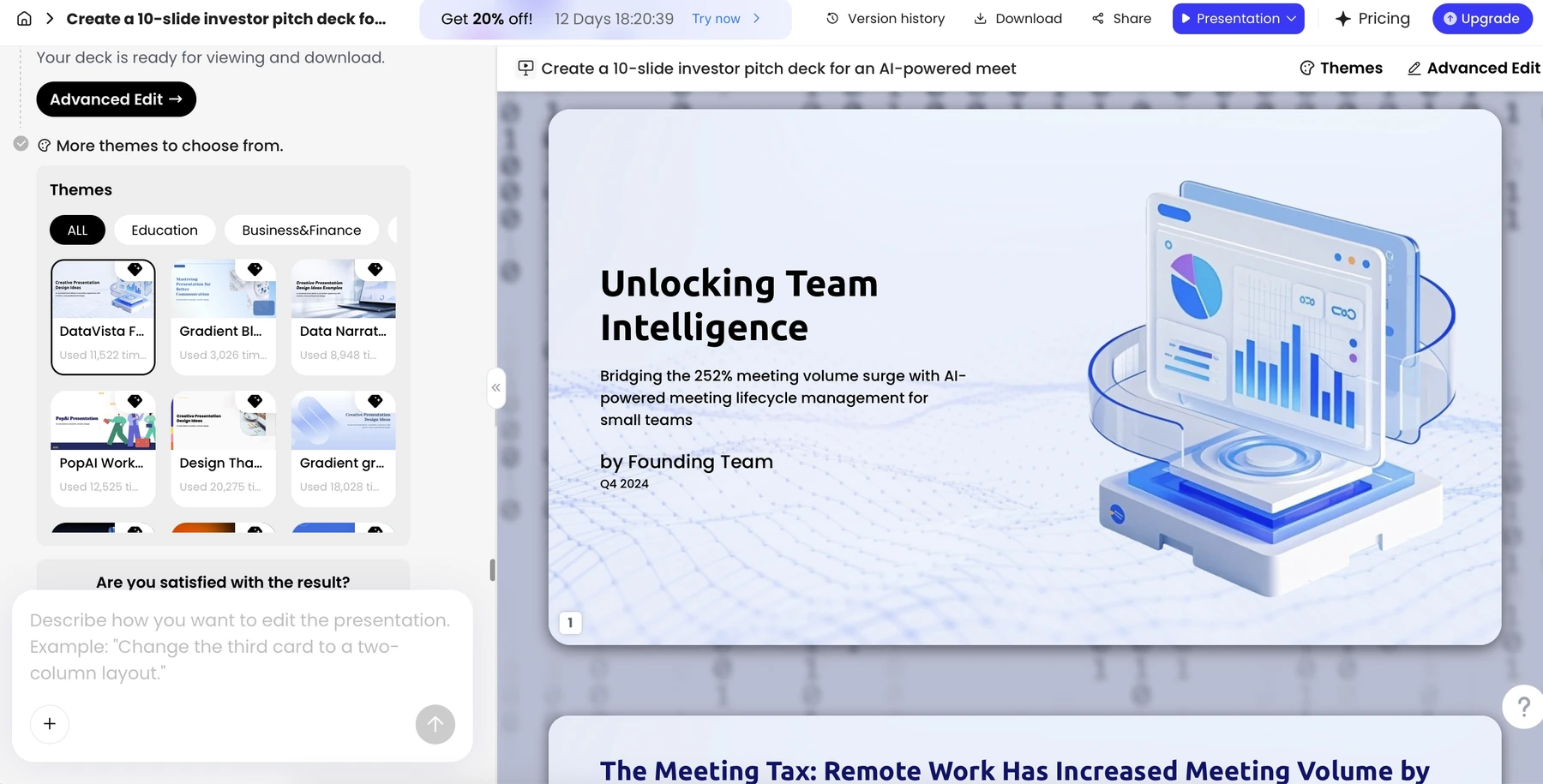
The illustration makes an abstract software idea visible without pretending to be an actual screen. It is a useful direction for a concept slide, but a live product demo should use an approved screenshot. Keep the conceptual image on one side and the slide claim on the other; do not rely on tiny labels inside generated artwork to carry essential information.
Suggested brief: Create a simple conceptual illustration of a team turning scattered notes into a structured plan. Use a pale background, blue geometric forms, and open space on the left for a headline. No invented product UI, no readable numbers, no logos. Treat the result as an illustration, not a screenshot.
2. A travel-themed page
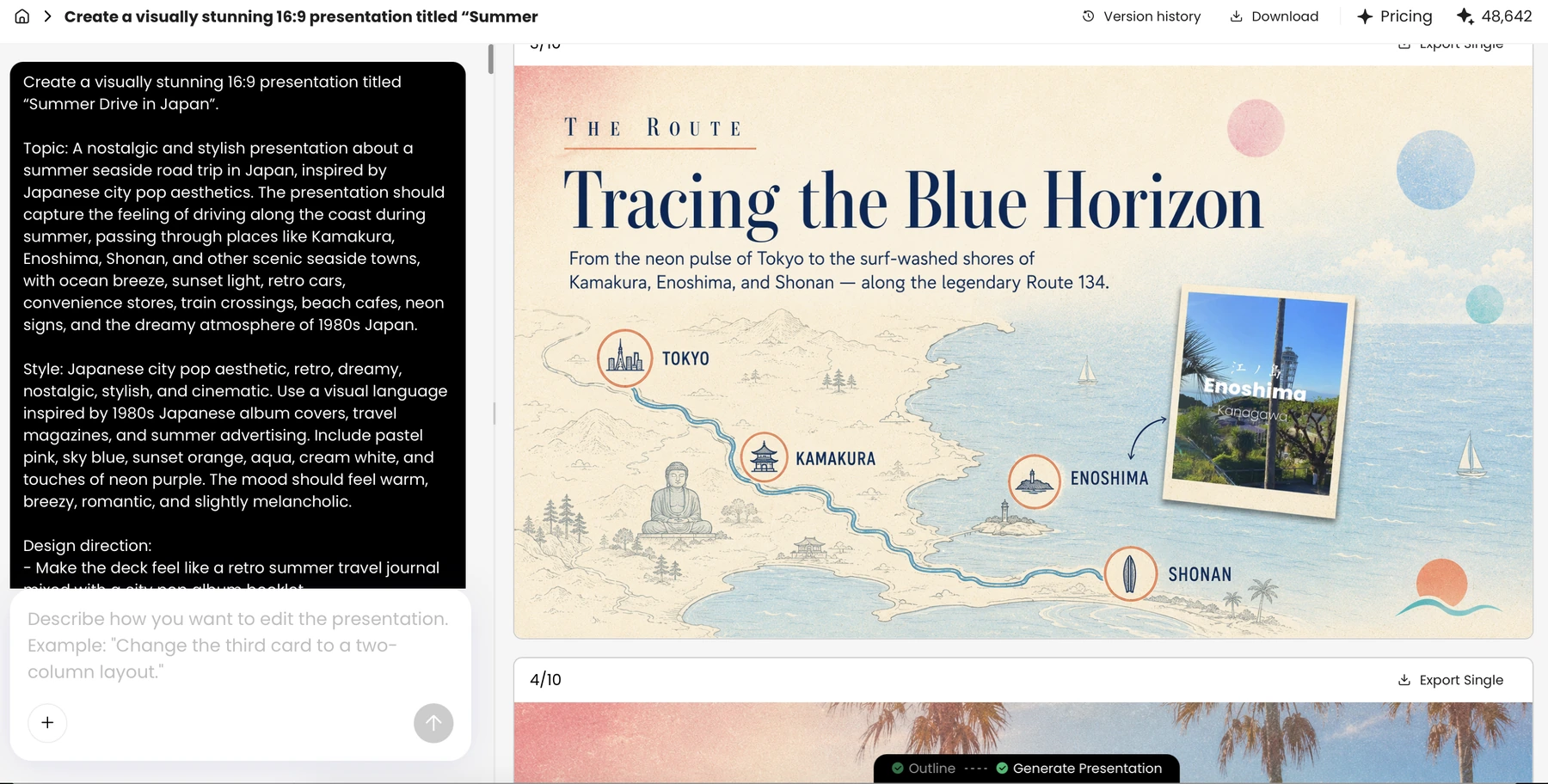
This page shows how a visual theme can connect images, typography, and a route narrative. The review question is not merely whether the scene looks attractive: are locations in the right order, is the map illustrative or geographically reliable, and do the pictures represent the stated places? For factual travel or logistics instructions, replace invented geography with a checked map.
Suggested brief: Build a calm travel-story slide with a coastal color palette, two approved location photographs, and a simplified route diagram. Keep location names as editable text. Use only the supplied route order; do not invent stops, distances, or travel times.
3. An original concept brief: a community garden cover
Shared possibilities.An original visual direction for a community project.
This fictional project uses an original title, simple plant-like geometry, and a restrained palette rather than a recognizable entertainment property. The layout is an editorial example of art direction and text placement; it is not a screenshot of a generator or evidence that PopAi produced these shapes. For your own deck, describe the visual properties you need and keep the headline as editable slide text.
Keep a product or character consistent without promising a visual lock
Create a small visual specification before requesting variations: subject silhouette, proportions, materials, palette, background, camera angle, and elements that must not change. Use an approved reference asset wherever the chosen tool supports it. Ask for one change at a time, then compare the new version with the reference rather than with your memory.
| Control | Write into the brief | Reject the output when |
|---|---|---|
| Subject | One approved product shape or original character description | Extra features, changed proportions, or an inconsistent face appear |
| Viewpoint | The same camera angle, crop, and scale for comparison pages | A new angle makes two versions look incomparable |
| Style | One lighting direction, palette, and illustration medium | Photographic and cartoon treatments alternate without a reason |
| Claims | No invented labels, numbers, certificates, or customer logos | The artwork introduces a performance or endorsement claim |
| Placement | Reserve a consistent text area and focal point | The subject collides with the title or becomes unreadable at slide size |
If repeated generations change the product, stop regenerating that asset. Reuse the approved image, crop it consistently, and vary the surrounding layout or annotation. This is usually a more controllable editorial choice than claiming a tool will lock a character across an entire deck.
Common image failures and practical repairs
| Failure | Repair | What to keep outside the generated image |
|---|---|---|
| Distorted text or numbers | Remove them from the image brief; add actual text in the slide editor | Titles, data labels, prices, and footnotes |
| Fictional product features | Replace with a real screenshot or an explicitly conceptual illustration | Approved feature names and actual UI |
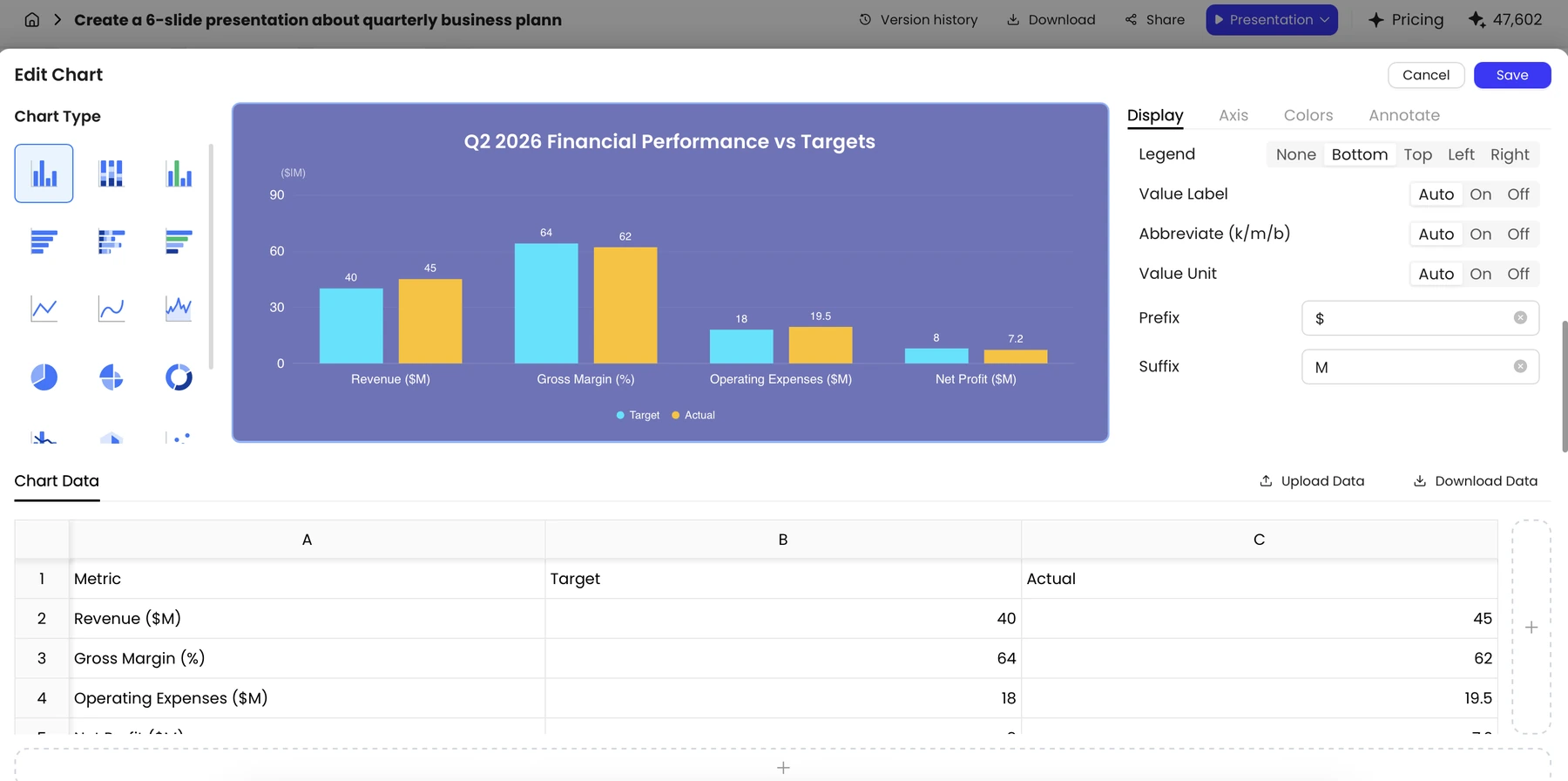
| A decorative chart that looks factual | Use the chart editor with checked source values | Units, date ranges, calculations, and source notes |
| A repeated person or object changes | Reuse a reviewed source image; reject inconsistent variations | Identity, model number, and important details |
| An attractive but irrelevant image | Rewrite the visual job, or remove the image | The slide claim and supporting evidence |
Check rights, authenticity, and the exported slide
The U.S. Copyright Office: Copyright and Artificial Intelligence explains that U.S. copyrightability of AI outputs depends on human authorship; using an AI tool is not itself proof of ownership or permission. That guidance is U.S.-specific and does not settle trademark, publicity, contractual, or other countries' rules. Check the tool terms, source-asset rights, and intended use separately.
Label a photorealistic simulation when viewers could reasonably mistake it for an actual person, property, event, or product result. Keep a record of the approved asset, its source, and the edits made. For teaching or public information, also supply meaningful alternative text or a textual explanation of the image's purpose.
Export a review copy as PPTX or PDF and inspect the image crop, resolution, legibility, and surrounding source label. Opening a PPTX in Google Slides is a compatibility step, not a claim that PopAi natively exports a Google Slides presentation. The PopAi product page describes the creation and export workflow; individual files still need inspection.
Sources and evidence
Product documentation checked October 13, 2026. Features, plans, and interfaces may change. Visual evidence: supplied PopAi knowledge-base images IMG-01, IMG-06, and IMG-26. The community-garden cover is an original editorial HTML layout, not a PopAi screenshot. No new image-generation or cross-slide consistency benchmark was performed.
Frequently asked questions
Are these newly generated test results?
No. The interface, conceptual product illustration, and travel page are captured samples from the supplied PopAi knowledge base. The community-garden example is an original editorial HTML layout, not a generated product output. The prompts are suggested briefs, not a reconstruction of the prompts used in the captured samples.
Can I keep the same character or product on every slide?
Do not assume automatic consistency. Specify the subject carefully, compare variations, and reuse an approved asset when generation changes important details.
Can AI-generated images replace charts or product screenshots?
Use generated illustrations for concepts. Use checked data in chart objects and real screenshots when a slide needs to prove a product capability or numerical claim.
Can I use any generated image commercially?
No blanket permission can be inferred from generation alone. Review the relevant tool terms, source rights, depicted brands or people, and applicable law.
Create a presentation draft with PopAi
Turn your prompt, report, or existing materials into a structured, visual deck that you can refine and share.
Explore PopAi AI Presentation