A Sunday sermon deck has a different job from an announcement loop: it should help people follow the message, not reproduce the whole sermon. For example, a pastor might provide an outline on worry, a passage reference, and one approved translation, then ask AI to draft a few teaching slides. The tool can organize and shorten material; the pastor still needs to confirm the theology, wording, and fit for the congregation.
This guide offers adaptable slide structures, sample copy, and prompts for common church settings, along with review and handoff practices. Treat AI as a drafting assistant—not as a source of Scripture, pastoral judgment, or verified event details.
Three Church Slide Template Sets You Can Adapt
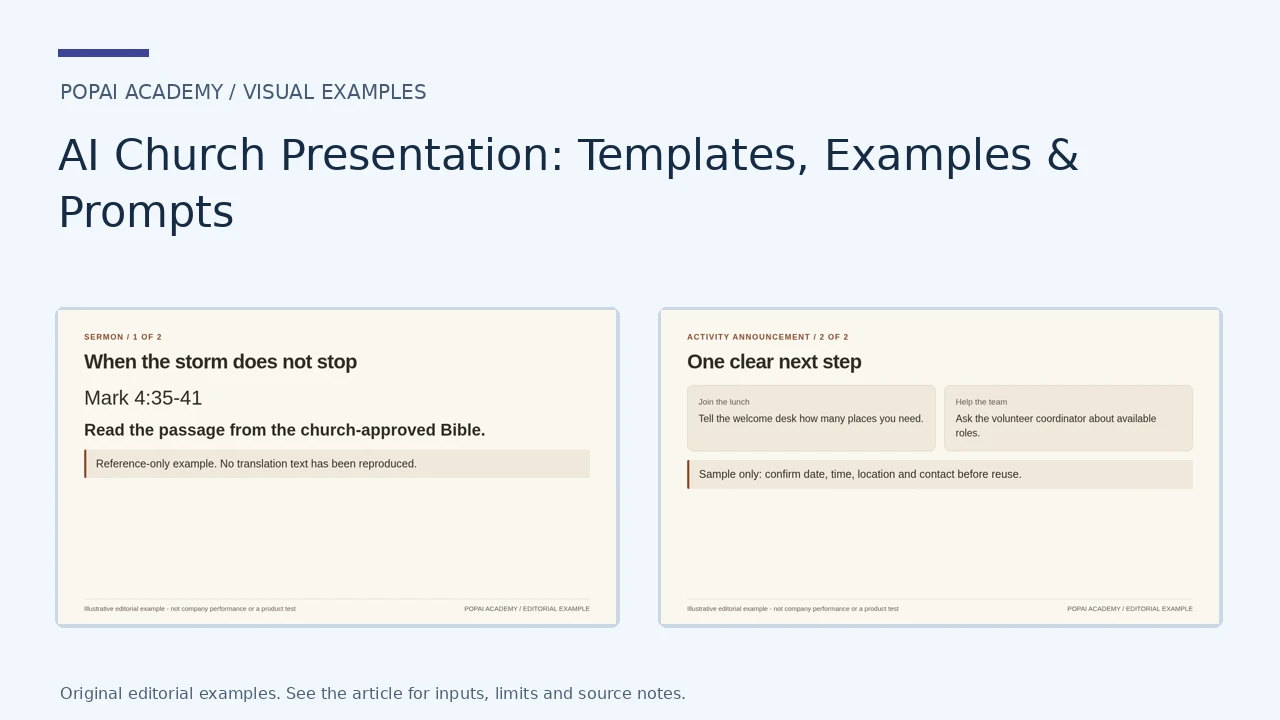
Each pair is a reusable content-and-layout example: sermon support, service order and event announcement. These are editable HTML examples and copyable slide text, not a native PPTX download. Scripture is referenced rather than quoted; event details are fictional.
Open full-size examples and editable HTML layoutsSermon support
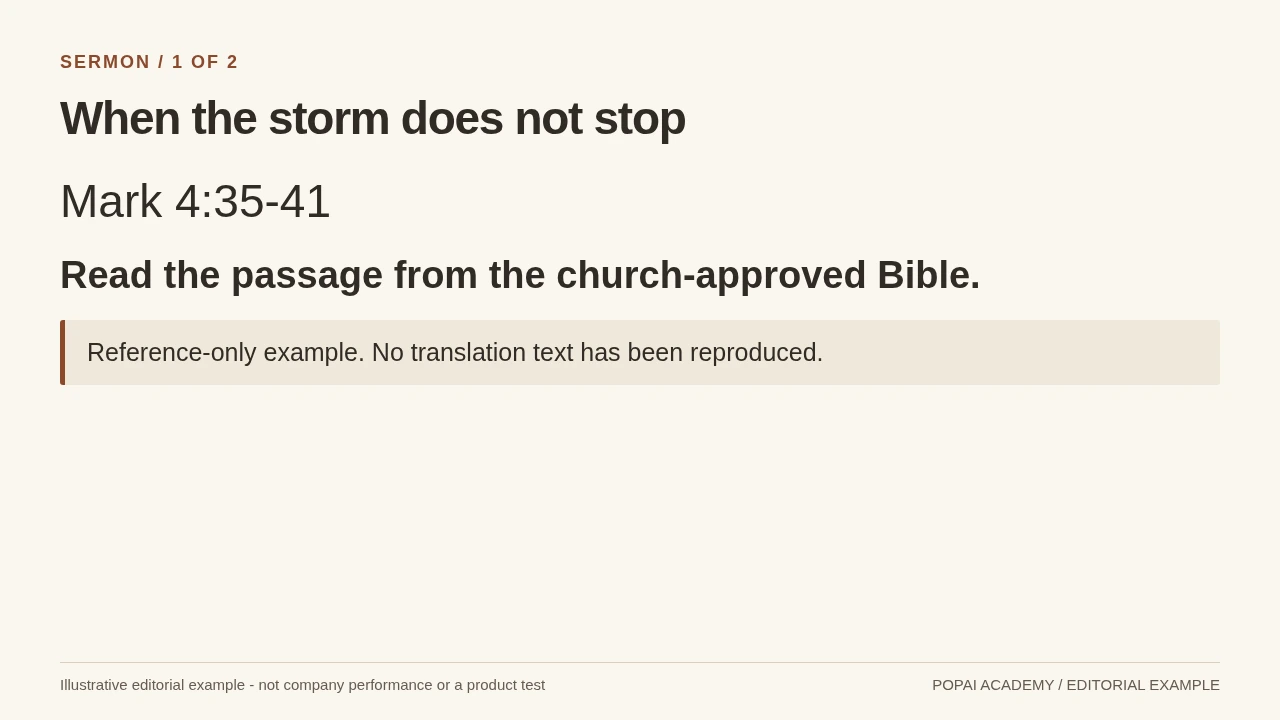
Sermon page 1: a passage reference, not AI-reconstructed Scripture.
Read or copy the slide content
Mark 4:35-41
Read the passage from the church-approved Bible.
Reference-only example. No translation text has been reproduced.
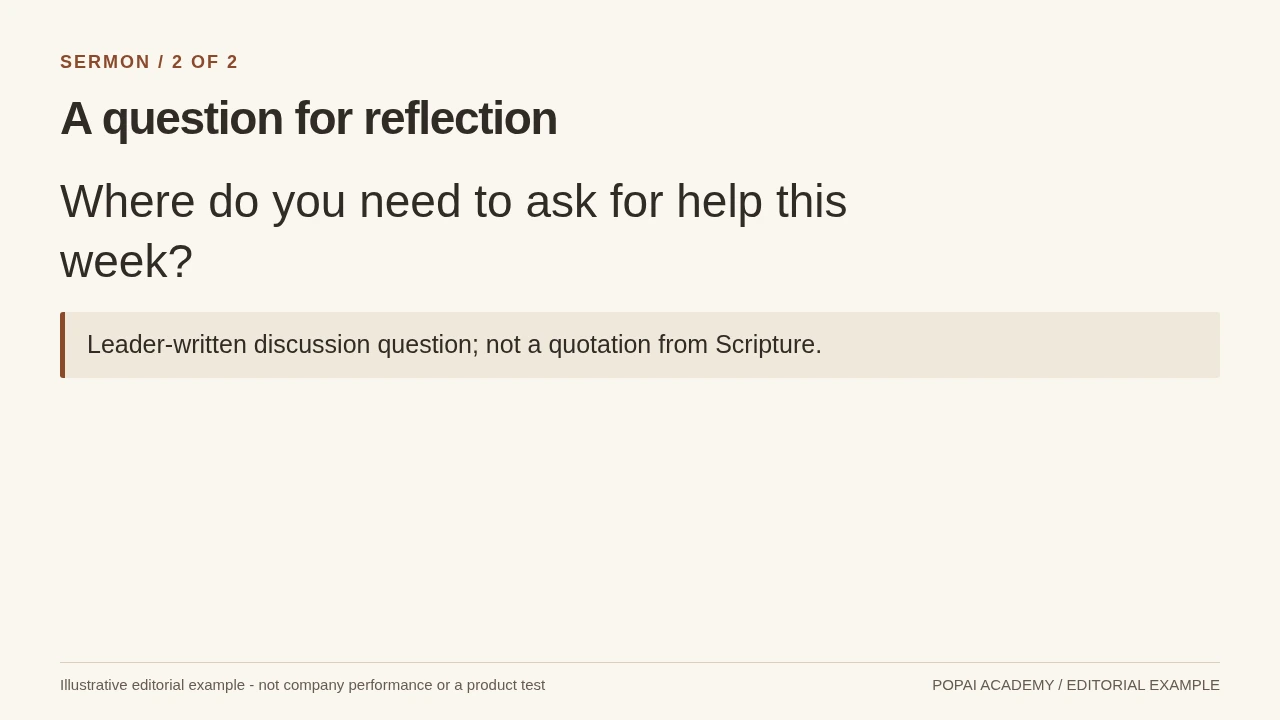
Sermon page 2: keep one reflection question on screen.
Read or copy the slide content
Where do you need to ask for help this week?
Leader-written discussion question; not a quotation from Scripture.
Prompt for Sermon support
Build two sermon-support slides from Mark 4:35-41 and the approved notes. Use the reference only unless authorized translation text is provided. Do not add theology or historical claims.
Service order
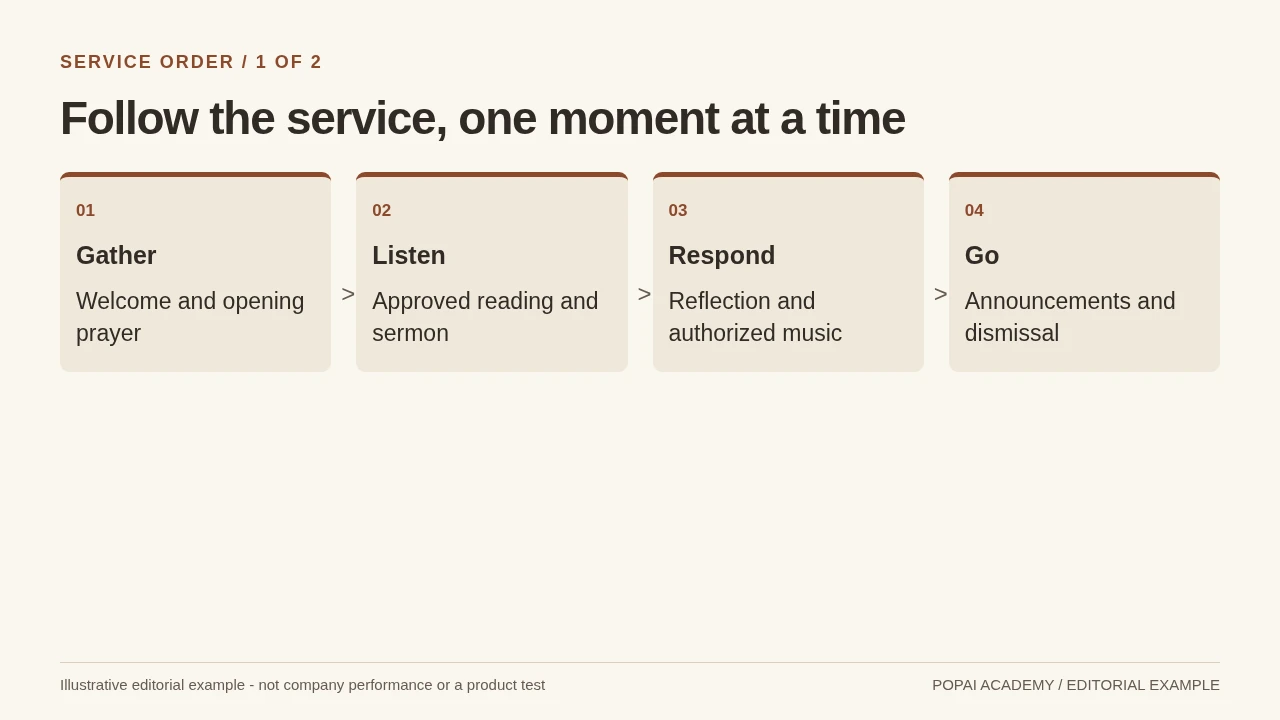
Worship order page 1: a sample sequence, adaptable to the church tradition.
Read or copy the slide content
01
Gather
Welcome and opening prayer
02
Listen
Approved reading and sermon
03
Respond
Reflection and authorized music
04
Go
Announcements and dismissal
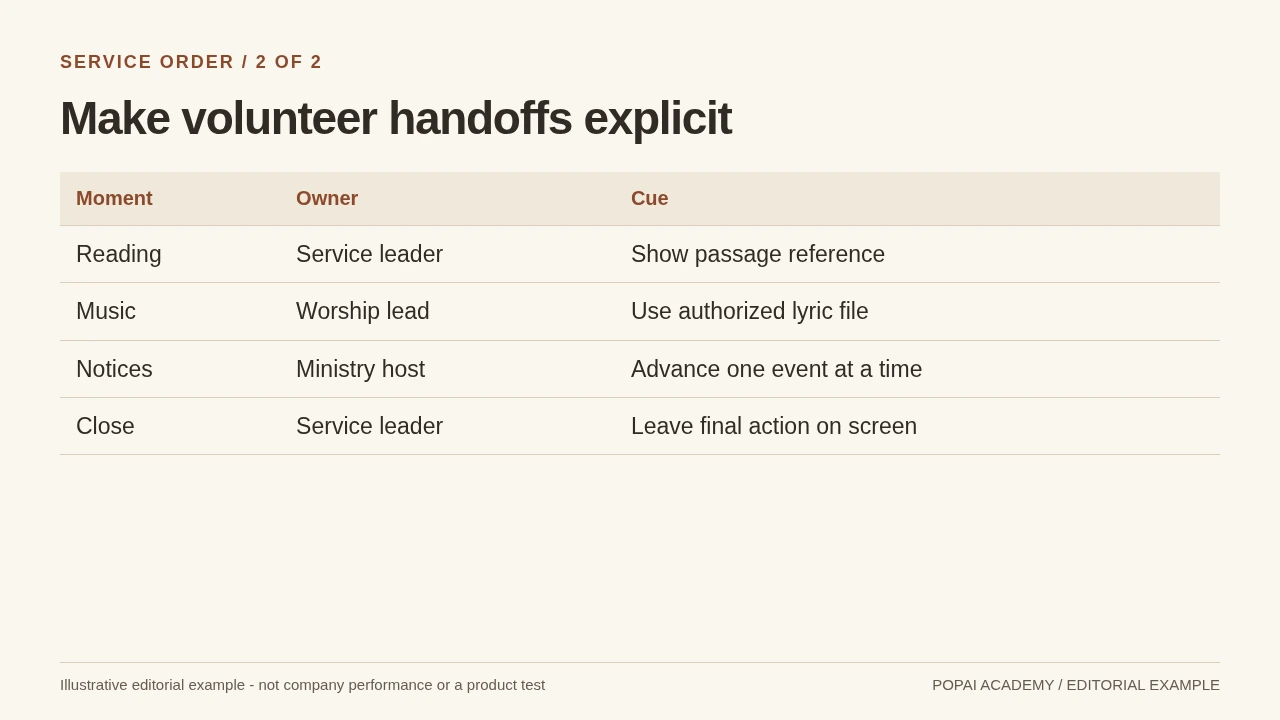
Worship order page 2: visible responsibilities without private volunteer data.
Read or copy the slide content
Moment
Owner
Cue
Reading
Service leader
Show passage reference
Music
Worship lead
Use authorized lyric file
Notices
Ministry host
Advance one event at a time
Close
Service leader
Leave final action on screen
Prompt for Service order
Create two service-order slides using only the approved run sheet. Show the sequence, then roles and handoff cues. Preserve all wording; do not insert lyrics.
Activity announcement
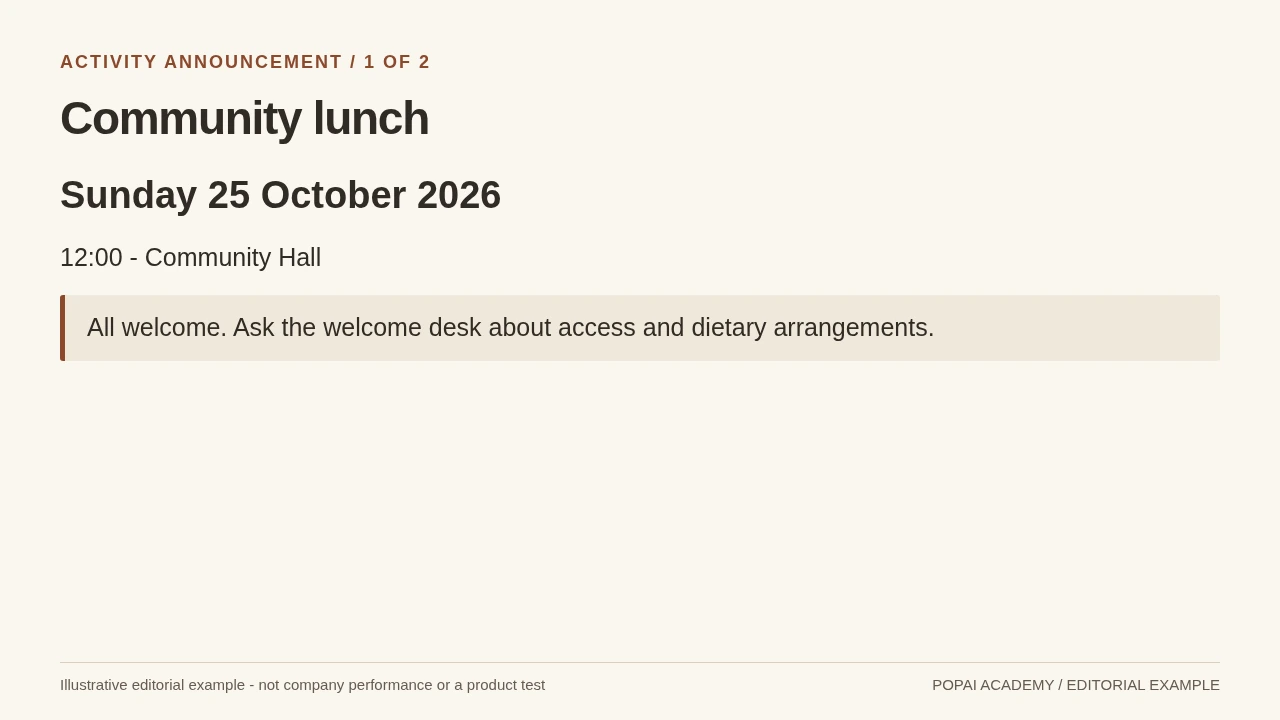
Announcement page 1: fictional event information, not a real scheduled service.
Read or copy the slide content
Sunday 25 October 2026
12:00 - Community Hall
All welcome. Ask the welcome desk about access and dietary arrangements.
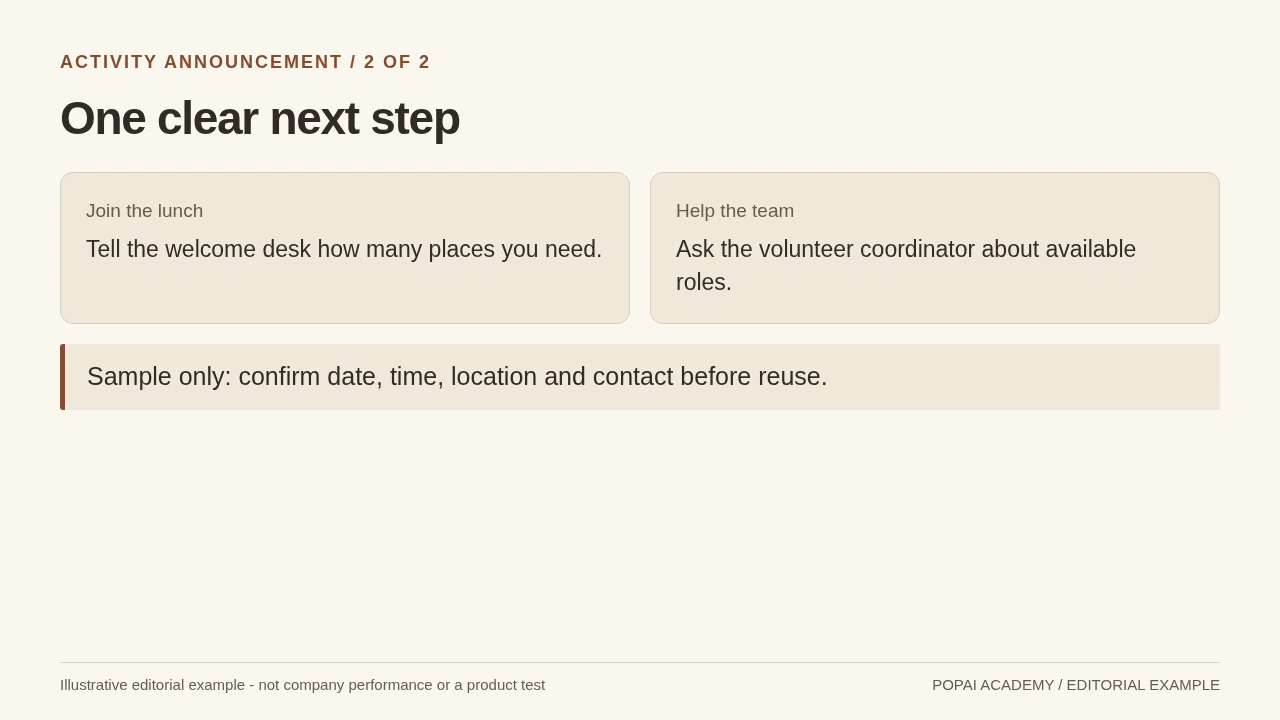
Announcement page 2: one attendee action and a separate volunteer action.
Read or copy the slide content
Join the lunch
Tell the welcome desk how many places you need.
Help the team
Ask the volunteer coordinator about available roles.
Sample only: confirm date, time, location and contact before reuse.
Prompt for Activity announcement
Create two announcement slides for the supplied fictional event: title, date, location, access contact, and one action. Label it as a sample. Do not invent a QR code or registration URL.
How an AI Church Presentation Fits Your Workflow
Begin with trusted ministry material, then use AI to shape it into a draft that a leader can review.
Choose the input to match the task. A prompt from scratch can work for a simple welcome slide or a blank template; use approved notes or an existing deck when the message, dates, or house style must stay consistent. Before uploading anything, remove private information such as pastoral-care notes, prayer requests, children’s details, or confidential staff comments. Check the tool’s data settings and your church’s policy; when in doubt, use a sanitized version or keep the material offline.
- Gather approved content: Collect the sermon outline, service order, exact Scripture text if it will appear on screen, and confirmed event details.
- Write the brief: Specify audience, purpose, tone, format, visual constraints, and any content the tool must not add or alter.
- Request an outline first: Check the sequence and emphasis before generating or styling individual slides.
- Draft and edit: Make slide text concise, preserve the speaker’s intended meaning, and replace unsuitable visuals.
- Export and check: Review the final file on the service display and prepare a fallback format.
Illustrative drafting example: A ministry lead provides the note “Jesus calms the storm; fear is real, but the disciples are not alone” and asks for a short sermon outline. If the draft turns that into “faith eliminates fear,” the reviewer should flag the stronger claim: it is not what the supplied note says. The leader can revise the slide to “In fear, the disciples turn to Jesus” and confirm that wording against the sermon and passage. This is the kind of content decision AI cannot make on the church’s behalf.
Teams comparing tools can use this overview of AI presentation makers to consider outlining, editing, and export needs. For example, PopAi AI Presentation can be used to turn a prompt or supplied material into an editable draft; check the current workspace and export options before building a church process around a particular feature.
Working principle: Let the tool organize the material; let the ministry team decide what the message means and what the congregation needs to see.
AI Church Presentation Templates and Slide Examples
Use a sample sequence to get started, then adjust it to the service and the way the message will be delivered.
A sermon deck should support the speaker rather than turn the sermon manuscript into a wall of text. A Bible study deck needs room for discussion; announcements need unmistakable dates and next steps. Slide count is a planning choice, not a rule—some messages need only a title, passage, and takeaway, while a teaching session may need several passage or discussion screens.
Worked sermon example: one idea, five slides
Illustrative source brief: “Sunday sermon for a mixed-age congregation. Passage: Mark 4:35–41. Main idea from the pastor’s notes: Jesus is present with his disciples in the storm. Use the church-approved translation pasted below. Do not add historical claims or quotations. End with a reflection question.” The sample wording below is a layout model; verify any Scripture text against the church’s chosen translation before use.
- Opening: “When the storm does not stop” — A quiet title slide establishes the theme without previewing the whole sermon.
- Passage: “Mark 4:35–41” — Add the approved passage text only if people need to read along; otherwise, show the reference and let the speaker read aloud.
- Notice: “The disciples are afraid.” — A short observation keeps the slide tied to the story rather than adding an interpretation the notes did not supply.
- Main idea: “Jesus is with his disciples in the storm.” — Give the congregation a clear sentence to carry through the message.
- Response: “Where do you need to ask for help this week?” — A reflection question invites application without prescribing a single personal answer.
For a sermon, keep supporting details in the speaker’s notes or spoken delivery unless the congregation needs them on screen. A discussion leader may instead put questions directly on slides and allow time for responses. Liturgy, Scripture use, and the amount of on-screen text vary across traditions, so adapt the sample to the church’s practice and the service format.
Adapt the structure to the ministry task
- Bible study: Show the passage reference, a brief context note verified by the leader, then one open-ended question at a time. Leave an uncluttered background so participants can focus on conversation.
- Announcements: Use one event per slide: “Community lunch — Sunday, May 18, after the 10:30 service.” Follow with who it is for and one action, such as “Register at [approved URL].” Keep dates, times, and links exactly as confirmed.
- Volunteer training: Pair each task with its owner and next step: “Before service: test the lyric file on the sanctuary screen. If it fails, contact [role/name].” A simple process diagram can be more useful than decorative imagery.
- Worship lyrics: Display the approved lyric text in short, well-paced sections. Do not ask AI to reconstruct lyrics from a song title; supply authorized text and confirm it against the source.
For recurring services, keep a church-approved template with fixed elements—logo placement, type styles, and service details—and change only what is needed. That helps volunteers maintain a recognizable look without asking AI to invent a new visual identity each week.
Copy-Ready AI Church Presentation Prompts
A prompt works best when it supplies trusted material, defines the output, and tells the tool how to handle gaps.
Essential fields are the task, audience, source material, exact text to preserve, and constraints. Optional fields include slide count, visual direction, language, and speaker notes. Ask for an outline before a full deck when the order or emphasis matters. A prompt cannot guarantee accurate theology, quotations, Scripture, or event details; the responsible leader must check the result.
Sermon draft from supplied notes
Prompt: “Create a draft slide outline for a Sunday sermon for [audience/service]. Use only the sermon notes and approved Scripture text pasted below. Do not invent quotations, historical context, applications, or Bible wording. Preserve the main idea: [sentence]. Suggest a slide title, concise on-screen copy, and optional speaker notes for each slide. If the notes do not support a detail, write ‘CHECK WITH PASTOR’ rather than filling the gap. Keep the structure faithful to the notes; do not force a three-point format. Return the outline for review before writing a full deck. Source notes: [paste sanitized notes]. Scripture translation and text: [paste approved text or give reference only].”
Bible study discussion deck
Prompt: “Draft a discussion-led Bible study for [group and session length] on [passage]. Use only the leader notes and passage text supplied below. Put one open-ended question on each discussion slide, and keep explanatory material in optional leader notes. Do not add historical or theological claims not present in the notes; flag gaps for the leader to verify. Include a closing reflection, not a prescribed personal response. Source material: [paste sanitized notes].”
Announcement or worship-slide prompt
Prompt: “Turn these approved announcements into a concise Sunday-service slide sequence. Preserve names, dates, times, URLs, and contact details exactly as supplied. Use one event per slide and include one clear next step. Do not add missing details; mark them ‘CONFIRM’ for the ministry owner. For any supplied worship lyrics, keep the text exactly as provided, split it into readable sections, and do not continue or reconstruct lyrics. Return editable text with a suggested layout and alt text for any meaningful image. Approved content: [paste text].”
When working from an existing template or source file, check that the output preserves the church’s required wording and layout; do not assume an uploaded file will transfer perfectly. Compare generated text with the original and keep the source available for review.
Design and Readability for Church Slides
Check slides from the congregation’s point of view: across the room, on a small screen, and in the actual service setup.
Make text readable at the back of the room
Start with a 16:9 layout if that matches the projector, confidence monitor, and livestream. As a practical starting point, try headings around 36–44 pt and body text around 28–32 pt in a widescreen deck, then test in the actual room: viewing distance, screen size, font shape, and projection quality all affect legibility. Use one main idea per slide, leave open space around text, and avoid placing words over busy imagery. For lyrics, show only a few short lines at a time and advance at a pace that supports singing.
Check contrast, accessibility, and stream crops
- Use strong text/background contrast and do not use color alone to indicate meaning; pair color with a label, icon, or other clear cue.
- Use simple, consistent type and avoid thin fonts or all-caps paragraphs. If a slide contains a chart or diagram, explain its key point in words as well.
- For video, provide captions where available; do not rely on audio alone for essential information. Add text alternatives or a verbal description for meaningful visual information when the presentation will be shared digitally.
- Preview the deck in the livestream layout. A camera crop, lower-third, or lyric overlay can cover text that is visible on the full sanctuary screen.
- Test a representative slide from the back row and on a phone. If it is difficult to read without zooming or leaning forward, shorten the copy or increase its size.
Choose visuals that serve the service
Choose a visual direction that fits the setting and remains consistent with the church’s identity: a restrained treatment may suit a prayer gathering, while a youth event may call for brighter imagery. Keep essential text editable rather than baked into generated images, which can contain misspellings or distorted logos. Test any theme against the actual projection and stream crop before reusing it.
Review Scripture, Accuracy, and Rights Before Presenting
Use separate checks for factual accuracy, theological judgment, permissions, and privacy.
Verify content and theological fit
Generative tools can alter a verse, misattribute a quotation, add unsupported context, or suggest an application that does not match the pastor’s intent. Compare the draft with its source rather than asking the tool to verify itself. A practical check is to mark every factual claim, quotation, date, and Scripture reference, then confirm each against the original material or an approved source.
- Check exact text: Compare any displayed Scripture with the church-approved translation and record the translation or source used.
- Check interpretation: Ask the pastor, teacher, or designated ministry lead to review the message, theological emphasis, and fit with church doctrine and practice.
- Check service facts: Confirm names, dates, times, links, locations, and contact details with the person who owns that information.
- Record approval: Save the approved version and note who reviewed it. If the content changes after approval, send the changed slides back to the relevant reviewer.
Confirm rights and protect sensitive information
Rights requirements depend on the source, license, jurisdiction, and intended use—including whether slides will be streamed or posted online. Scripture translations, song lyrics, photographs, illustrations, and fonts can have different terms. Check the rights holder’s current guidance and the church’s licensing policy rather than assuming that material suitable for an in-room service is also cleared for a livestream or public upload. If permission is unclear, use approved alternatives or ask the rights holder or church administrator.
Do not place confidential pastoral, prayer, health, or children’s information in an AI tool unless the church has reviewed the privacy terms and approved that use. Remove identifying details from material used for drafting, and keep a copy of the source and final approved deck in the church’s normal storage system.
Approval rule: A late change to a verse, main point, date, lyric, or image needs a new check from the person responsible for that content—not just a quick visual edit.
If using a presentation tool to edit or export a draft, inspect the exported file on the equipment used for service. Editable text and a PDF backup can be useful, but layouts and fonts may render differently across systems; verify the actual file rather than relying on the preview alone.
A Practical Workflow for Solo Leaders and Church Teams
Make the handoff explicit: one person owns the content, one prepares the deck, and one approves the version that reaches the service operator.
Illustrative team scenario: In a small church, the pastor supplies a sermon outline by Thursday, a volunteer prepares the slides by Friday, and the pastor approves the message and Scripture before the weekend. The volunteer names the file “2026-10-25_sermon_DRAFT” and changes it to “2026-10-25_sermon_FINAL” only after approval. If the sermon changes on Sunday morning, the pastor identifies the affected slide, the volunteer updates it, and the operator confirms receipt of the new final file. These are example deadlines and file names; set them to fit your service schedule.
- Content owner: Supplies approved sermon notes, lyrics, and event details; flags any late changes and answers content questions.
- Slide preparer: Builds the draft from the approved template, checks formatting, and sends one clearly labeled version for review.
- Approver: Checks Scripture, teaching, event details, and rights-sensitive material; confirms approval or returns specific corrections.
- Service operator: Loads the final file, checks transitions and media, confirms the version with the preparer, and keeps a fallback available.
One person may hold several roles in a small team, but the checks still matter. Keep a single source of truth for the final file, communicate changes directly to the operator, and avoid having multiple volunteers edit separate copies. A simple service-day check is: confirm the filename and date, test the first and last slides, check lyrics or media playback, and keep the approved PDF or other fallback accessible.
The aim is not to automate pastoral judgment or add process for its own sake. A clear handoff reduces duplicate work and gives the people preparing and running the service time to focus on the congregation’s experience.
Scripture and Translation Source Notes
The examples show Mark 4:35-41 as a reference and reproduce no translated Bible text. When adding a quotation, record the translation, exact source and required notice, and check permission for the intended print, projection or online use. For the ESV, consult Crossway's current permission guidance; do not assume a church-use permission covers every public or commercial reuse.