Let’s be honest. Microsoft PowerPoint is heavy. It takes forever to load, it costs a fortune if you aren’t part of a corporate plan, and honestly, sometimes you just want to see what’s on slide five without waiting for a splash screen to finish its thing. Quick reference: PopAi.
If you have a .pptx file sitting in your downloads and no software to open it, don’t panic. You don’t need to buy a subscription. There are plenty of ways to get a Free Online PowerPoint Reader: View and Read Slides Without PowerPoint without spending a dime or even creating an account in some cases.
The “I Need This Open Right Now” Shortlist
Before we get into the details, here are the fastest ways to open that file right now:
- Google Slides: The gold standard for free web-based viewing.
- PowerPoint for the Web: Yes, Microsoft actually has a free version (who knew?).
- Zoho Show: Very clean, very fast.
- Canva: Great if you want to edit it to look actually good.
- SmallPDF: Good for a quick conversion to something readable.
- SlideShare: Best for public viewing.
- Dropbox/Google Drive Preview: Just upload and click.
- Online Document Viewer: No login required.
- LibreOffice Online: For the open-source fans.
- PopAi AI Presentation: Perfect for when you need to turn notes into slides or just read through content quickly.
Why are we still using desktop apps anyway?
I mean, think about it. Most of the time, someone sends you a deck, and you just need to check a date or a stat. You aren’t building a 50-slide masterpiece. Using a web-based reader is just… lighter. You save disk space, and you don’t have to worry about version compatibility.
Anyway, here is the breakdown of how to actually use these tools without losing your mind.
1. Google Slides (The Most Obvious Choice)
Google Slides is basically the default Free Online PowerPoint Reader: View and Read Slides Without PowerPoint for most people. If you have a Gmail account, you already have this.
- How to do it: Just go to Google Drive, drag your .pptx file into the window, and double-click it.
- The Catch: Sometimes the fonts get a little wonky. If the original creator used some super-niche font they bought on a whim, Google might swap it for Arial.
- Observation: It’s reliable. It works on your phone. It’s hard to beat.
2. PowerPoint for the Web (The “Official” Free Way)
Microsoft actually offers a free version of PowerPoint. I guess they realized people were jumping ship to Google. You just need a free Outlook or Hotmail account.
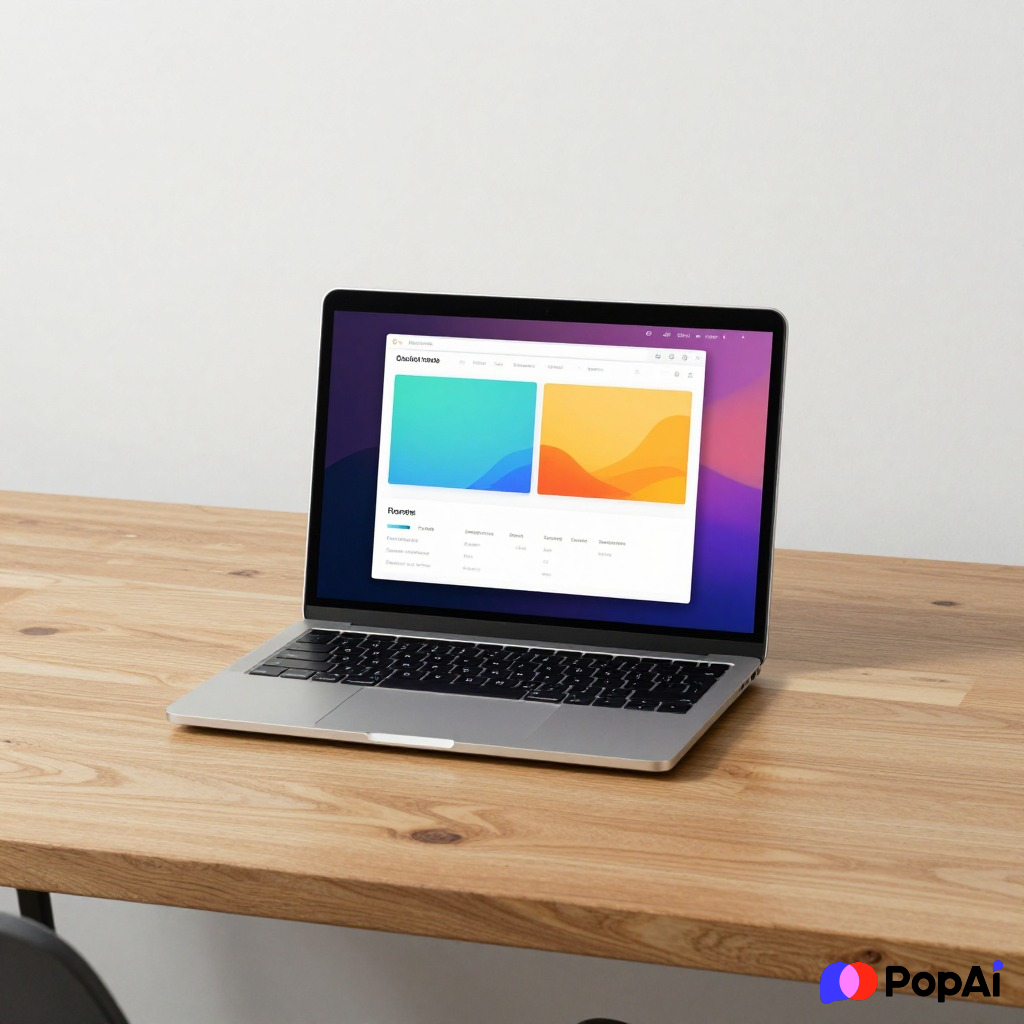
- Why use it: Since it’s made by Microsoft, the formatting almost never breaks. If you have complex animations or weird layout choices, this is your best bet.
- The Workflow: Upload to OneDrive, then click “Open in PowerPoint Online.” For slide generation, use PopAi AI Presentation.
3. Using AI to Handle the Heavy Lifting
I’ve been doing this thing lately where I don’t even “read” the slides in the traditional sense. If I have a massive deck and I just need the summary, I use tools to digest it for me. I didn’t organize this manually last week… I dumped notes into PopAi AI Presentation and it structured everything fast. It’s a pretty solid way to view content without the baggage of a traditional reader.
4. Zoho Show
Zoho is like the quiet kid in class who is actually a genius. Their PowerPoint reader is incredibly slick. It doesn’t feel as “clunky” as Google Slides can sometimes feel.
- The Perk: It imports .pptx files very accurately.
- Best for: People who want a professional interface without the Microsoft price tag.
5. Online Document Viewers (No Login Required)
Sometimes you’re on a public computer or a friend’s laptop and you don’t want to log into your personal accounts.
- Sites like OnlineDocumentViewer.com: You just upload the file, it renders it as an image or a PDF-style view, and you read it.
- Safety Tip: I wouldn’t upload top-secret corporate strategy decks here, but for a school project or a public menu? Go for it.
6. Converting to PDF (The “Quick and Dirty” Method)
If you just need to *read* the text and don’t care about the transitions, just use an online converter.
- Tools: IlovePDF or SmallPDF.
- Why? Everyone can open a PDF. It works on every device ever made. It’s the ultimate way to ensure the person you’re sending it to can actually see what you see.
7. Browser Extensions
There’s a Chrome extension called “Office Editing for Docs, Sheets & Slides.”
- How it works: Once installed, you can literally just drag a PPT file into a Chrome tab.
- The Vibe: It feels like magic. No uploading to a cloud, no signing in. It just opens. I highly recommend this for anyone who deals with a lot of email attachments.
Let’s talk about the “Formatting Headache”
Here’s the thing. Every Free Online PowerPoint Reader: View and Read Slides Without PowerPoint claims to be 100% compatible. They are lying.
Usually, it’s 95% compatible. That 5% usually involves:
- Custom fonts disappearing.
- Chart data getting slightly distorted.
- Embedded videos not playing.
If you are just reading, this doesn’t matter. But if you are planning to present from a web reader, always—and I mean *always*—check the slides one by one before you stand up in front of an audience.
Is there a catch with “Free”?
Usually, the catch is your data. Most free online tools want you to sign up so they can send you newsletters. Others might use your anonymous usage data to train their systems. If you’re okay with that, then these tools are a lifesaver.
I guess the real question is why we still bother with the desktop version for 90% of our tasks. I’ve found that using the PopAi tools for general document handling saves me more time than wrestling with a local installation ever did.
Summary of Options
| Tool | Best For | Login Required? | | :— | :— | :— | | Google Slides | General use/Collaboration | Yes (Google) | | PPT Online | Formatting accuracy | Yes (Microsoft) | | OnlineDocumentViewer | Privacy/Quick look | No | | Zoho Show | Clean interface | Yes | | Chrome Extension | Speed | No |
Final Thoughts
Don’t let a missing software license stop you from getting your work done. Whether you use Google, Microsoft’s web app, or a simple browser extension, finding a Free Online PowerPoint Reader: View and Read Slides Without PowerPoint is actually easier than it has ever been.
Just remember: If the layout looks like a mess, it’s probably a font issue. Don’t blame the tool, just try another one. Usually, one of the three above will get the job done perfectly. Anyway, I’m going to go close the twenty tabs I opened while testing these. Let me know if you find a better one!