How Teachers Use AI to Build Lesson Presentations Fast
June 23, 2026
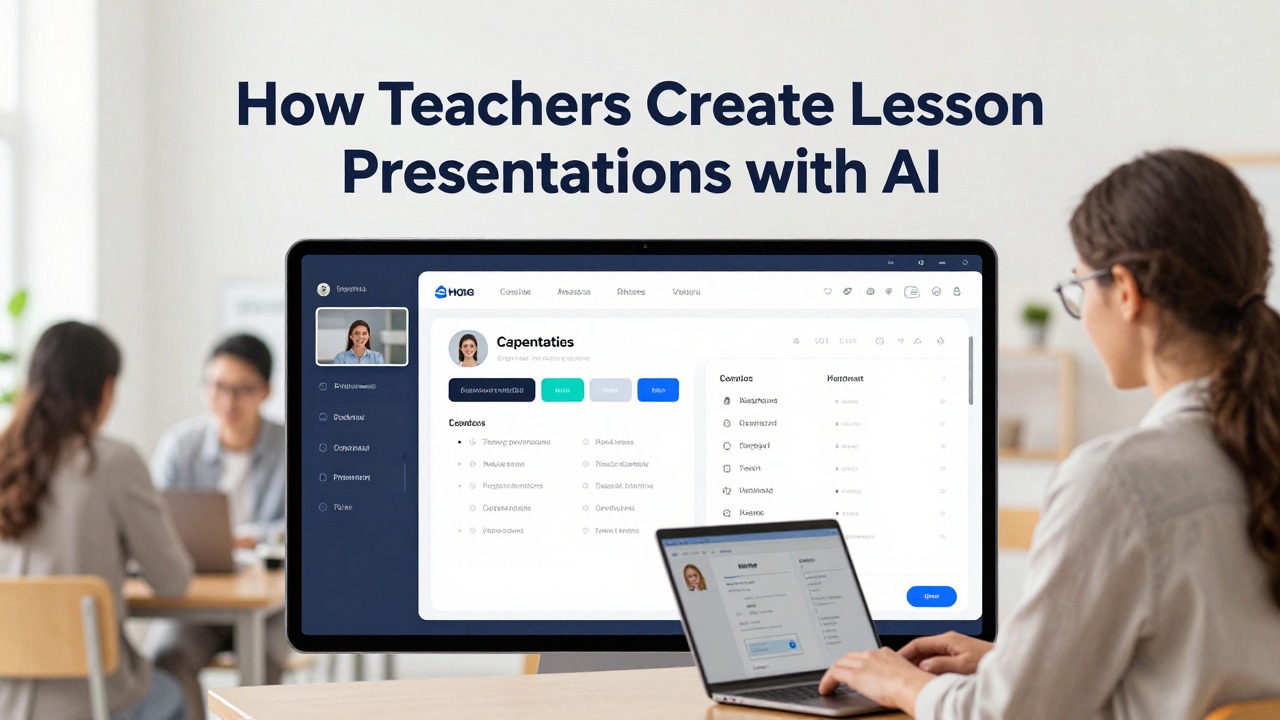
Teachers know AI can make slides, but the real question is whether those slides are useful in a classroom. The short answer is yes, if the teacher uses AI as a drafting assistant, not as the lesson designer of record. AI can organize scattered objectives, textbook notes, worksheets, and rough ideas into a structured lesson deck faster than starting from a blank presentation.
A good workflow keeps the teacher in control. You provide the grade level, lesson objective, source content, class duration, and activity needs. The AI suggests slide flow, titles, explanations, examples, and discussion prompts. Then you verify facts, adjust language, add your classroom routines, and decide what students actually need.
PopAi AI Presentation fits this process because it can turn prompts, notes, documents, and outlines into editable presentation drafts. The strongest use is the first-draft stage: moving from messy lesson materials to a clear slide sequence that a teacher can refine before class.
When you are ready to turn the workflow into slides, PopAi AI Presentation can help transform rough notes, documents, or prompts into an editable deck structure.
Quick answer: how teachers can use AI to make lesson slides
AI is most useful when it helps teachers structure a lesson deck quickly while leaving pedagogy, accuracy, and student adaptation in human hands.
An AI presentation tool can help a teacher turn a lesson idea into a usable deck structure: opening hook, learning goals, concept explanation, guided examples, practice questions, check for understanding, recap, and homework or exit ticket. It can also summarize long source material into slide-sized points and suggest age-appropriate wording.
The teacher still decides what belongs in the lesson. AI does not know your class culture, pacing, prior misconceptions, district scope and sequence, or the student who needs one more concrete example before abstract reasoning makes sense. Treat the draft as a planning shortcut, not a finished instructional product.
- Use AI to create the first slide structure when your notes are scattered across standards, textbook pages, and worksheet drafts.
- Ask the tool to convert dense subject material into student-friendly explanations and short slide titles.
- Request specific classroom elements, such as a warm-up, think-pair-share prompt, quick poll, guided practice slide, or exit ticket.
- Review every slide for factual accuracy, grade-level language, objective alignment, and practical classroom timing.
- Edit the final deck so it sounds like you, not like a generic textbook summary.
For example, a 7th-grade science teacher might upload textbook notes on photosynthesis and paste three learning objectives. PopAi AI Presentation can turn that material into a 10-slide draft with a hook, vocabulary, process explanation, diagram suggestions, practice questions, and an exit ticket. The teacher then checks the scientific definitions, replaces generic plant examples with local garden examples, adds a misconception check about plants needing only sunlight, and simplifies a few sentences for the class reading level.
The best AI lesson deck is not the one that looks finished first. It is the one that gives the teacher a clear structure to improve.
What to prepare before asking AI to create a lesson presentation
Better inputs produce more relevant slides, especially when the AI receives objectives, source material, audience details, and activity requirements.
Vague prompts create vague slides. If a teacher asks for a presentation on fractions, the result may be polished but too broad, too fast, or mismatched to the class. If the teacher provides grade level, exact objective, prior knowledge, vocabulary, source notes, and a 40-minute class length, the draft is much easier to use.
- Grade level or course level, such as Grade 4, 7th-grade life science, AP World History, or first-year college biology.
- Subject and specific lesson topic, such as multiplying fractions, photosynthesis, irony in short fiction, or supply and demand.
- Learning objectives written in teacher-friendly language, preferably one to three objectives for a single lesson.
- Class duration, including whether the deck is for a 20-minute mini-lesson, a 45-minute class, or a 75-minute college lecture.
- Prior knowledge students should already have and misconceptions they often bring to the topic.
- Key vocabulary, formulas, dates, definitions, or concepts that must appear accurately.
- Textbook excerpts, lecture notes, worksheet content, reading lists, lab procedures, or curriculum notes.
- Assessment goals, such as preparing students for an exit ticket, quiz, lab report, Socratic seminar, or constructed response.
- Preferred teaching style, such as inquiry-based, direct instruction, discussion-heavy, project-based, or exam review.
- Interaction requirements, such as two discussion questions, one partner task, one quick check, and one reflection prompt.
Source material matters because it anchors the AI to the actual curriculum. A teacher’s notes often include the sequence, emphasis, and vocabulary that students are expected to use. When those details are missing, AI may choose a reasonable but different emphasis.
Act as a teacher presentation assistant. Create a slide deck for [grade or course] on [topic]. The learning objectives are [objectives]. The class length is [duration]. Use the following source content: [paste notes or upload document]. Create [number] slides. Include [interaction requirements]. Use a [tone] tone. Keep language age-appropriate and make every slide support the objectives.
Here is a concrete sample prompt for a science lesson: Act as a middle school science presentation assistant. Create a 10-slide lesson deck for 7th-grade students on photosynthesis. Objectives: students will identify the inputs and outputs of photosynthesis, explain why plants need light, carbon dioxide, and water, and correct the misconception that plants get food from soil. Class length: 45 minutes. Use these notes from our textbook chapter and worksheet. Include one warm-up, one diagram explanation, two check-for-understanding questions, one partner discussion, and an exit ticket. Keep the tone clear, curious, and age-appropriate.
Here is a high school history version: Create a 12-slide presentation for a 10th-grade world history class on the Industrial Revolution. Use the attached reading notes and my objective: students will explain how industrialization changed labor, cities, and family life. Include a primary-source discussion slide, a cause-and-effect chart in slide form, a short writing prompt, and a final review question. Avoid oversimplifying working conditions, and flag any claims that need teacher verification.
Do not upload identifiable student information, private accommodations, confidential assessment records, behavior notes, or school documents that your institution does not allow in external tools. Use anonymized patterns instead, such as many students confuse mitosis and meiosis.
A practical workflow: from lesson notes to an editable AI slide deck
A reliable workflow moves from source collection to AI draft, then through teacher review, classroom interaction, design cleanup, and rehearsal.
When I test an AI lesson workflow, I do not begin by asking for a beautiful deck. I start by pasting the lesson objective and key notes before asking for slide structure. Structure comes first because a good-looking presentation with weak instructional flow still creates classroom problems.
- Collect lesson materials: objectives, standards language if required, textbook notes, worksheet tasks, vocabulary, examples, and any assessment prompt students will complete.
- Write a specific prompt that names the grade level, topic, class duration, slide count, source content, and interaction requirements.
- Generate the first deck in PopAi AI Presentation or a similar tool by using your prompt, notes, or uploaded document as the foundation.
- Review the lesson sequence before editing design. Check whether the opening hook leads naturally into the objective, whether the concept explanation is complete, and whether practice appears before assessment.
- Edit for accuracy by checking definitions, dates, formulas, examples, diagrams, quotations, and any claims that students may write down.
- Add interaction so students are not only watching slides. Insert quick checks, turn-and-talk prompts, polls, short practice tasks, retrieval questions, or reflection moments.
- Adjust the design for classroom readability: larger fonts, stronger contrast, less text, consistent layouts, and visuals that support the idea rather than decorate it.
- Rehearse the deck as a lesson. Say the transitions out loud, estimate timing, and decide which slides can be skipped if discussion takes longer than expected.
In PopAi AI Presentation, a teacher can move from rough notes or documents to an editable slide structure without manually building every title and bullet. That matters during planning because the blank-page stage often consumes energy that teachers would rather spend on examples, student questions, and formative assessment.
- Hook slide: a surprising question, image prompt, short scenario, or misconception statement.
- Learning goals slide: one to three objectives written in student-friendly language.
- Vocabulary slide: key words with short definitions and non-examples when useful.
- Concept explanation slides: the central idea broken into steps or parts.
- Example slides: worked examples, annotated excerpts, diagrams, model responses, or sample problems.
- Guided practice slide: a task students complete with teacher support.
- Discussion question slide: a prompt that requires reasoning, not just recall.
- Quick check slide: a multiple-choice, short answer, or error-analysis question.
- Recap slide: the most important takeaways in simple language.
- Homework or exit ticket slide: the task students complete after instruction.
A realistic PopAi workflow example: a college instructor has a 75-minute introductory psychology lecture on working memory and only has last year’s notes, a reading list, and a rough outline. The instructor uploads the notes, asks for a 15-slide lecture summary with two knowledge checks and one small-group application activity, then edits the output to add course-specific terminology and remove a definition that does not match the assigned textbook. The result is not an untouched AI deck. It is a faster first draft that lets the instructor spend more time refining examples and discussion.
Ask these questions slide by slide: Does this support the objective? Is the reading level right? Are examples familiar to students? Are instructions visible? Is there too much text? Do students have a reason to think, speak, write, or solve during the lesson?
The likely result is reduced blank-page friction and a clearer starting structure. Avoid promising yourself that AI will finish the lesson. The real gain is that you begin with something editable, sequenced, and discussable.
Classroom use cases: where AI lesson slides work especially well
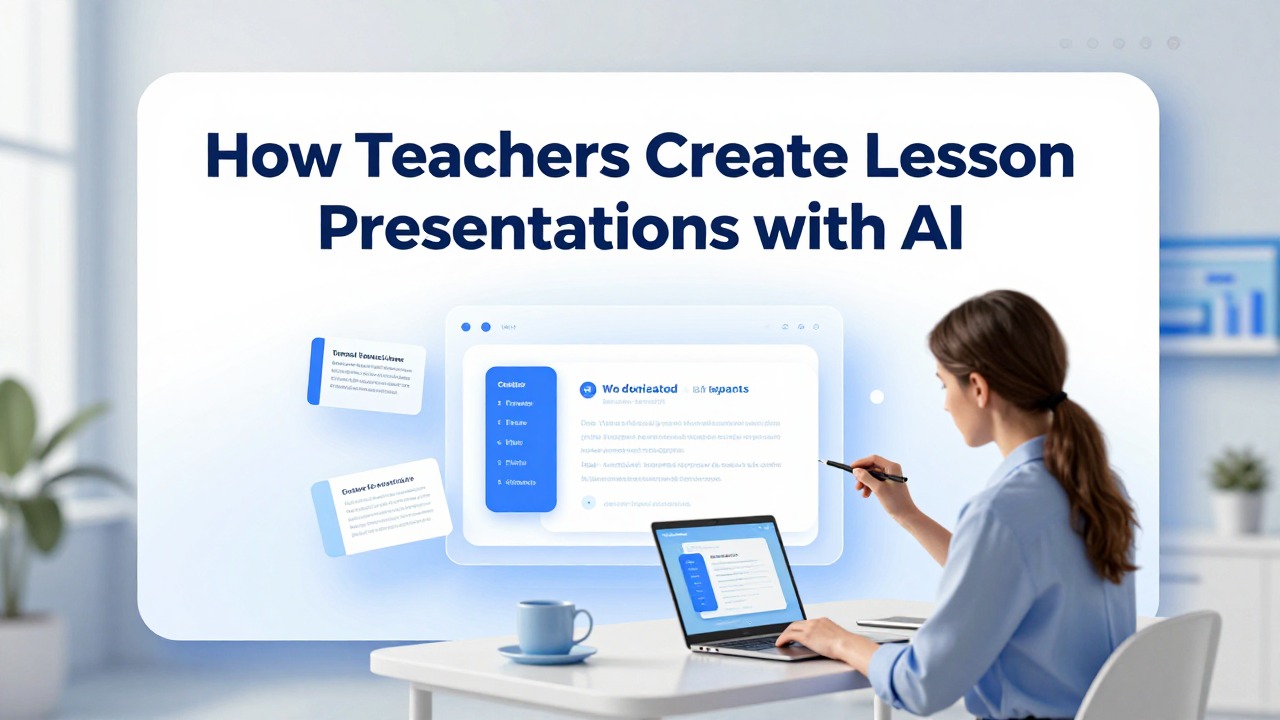
AI-assisted decks are especially useful when teachers need to convert existing material into clear instruction under real classroom constraints.
The following scenarios use a Context, Action, Result pattern. They are not claims about measured learning gains. They show practical ways teachers can use AI to create better starting drafts for different classrooms, subjects, and deadlines.
Scenario 1: elementary vocabulary lesson. Context: a 4th-grade teacher is preparing a 35-minute language arts lesson on context clues. The teacher has a worksheet, a short reading passage, and a list of eight target words, but the slide deck is still blank the night before class. The pain points are pacing, keeping explanations short, and creating examples students can understand.
Action: the teacher asks PopAi AI Presentation to create an 8-slide deck using the target words, reading passage, and objective: students will use surrounding words to infer meaning. The prompt requests a warm-up sentence, two guided examples, one partner practice slide, and an exit ticket. The teacher asks for friendly language suitable for 4th grade.
Result: the draft gives the teacher a clean sequence: activate prior knowledge, define context clues, model two examples, practice with a partner, and complete a final sentence. The teacher edits the examples to include school-relevant details, reduces text on two slides, and adds a hand signal routine for students to show confidence.
- Reusable recommendation: ask AI for non-examples as well as examples so students can see what context clues are not.
- Reusable recommendation: request one slide where students explain their reasoning, not only identify the answer.
- Reusable recommendation: replace generic names and objects with references that fit your classroom culture.
Scenario 2: middle school science concept lesson. Context: a 7th-grade science teacher needs a 45-minute lesson on photosynthesis after a lab day was postponed. The teacher has textbook notes, a diagram, vocabulary terms, and a half-finished worksheet. The pain points are turning a dense process into an understandable flow and addressing misconceptions without overwhelming students.
Action: the teacher uploads the notes and asks for a 10-slide deck with a hook question, student-friendly learning goals, a step-by-step process explanation, diagram guidance, two misconception checks, a guided practice question, and an exit ticket. The teacher specifically asks the AI to avoid saying that soil is plant food.
Result: the first draft gives a usable flow from inputs to outputs, but the teacher improves it by checking scientific wording, adding a diagram from the approved textbook, and changing one abstract example into a classroom plant observation. The final deck is clearer than a copied textbook summary because each slide has a job.
- Reusable recommendation: ask for misconception checks when teaching science, math, grammar, or history topics that students often simplify incorrectly.
- Reusable recommendation: request diagram suggestions, but use approved or teacher-vetted visuals before class.
- Reusable recommendation: build in a quick retrieval question from the previous lesson to connect concepts.
Scenario 3: high school literature discussion. Context: an 11th-grade English teacher is preparing a discussion deck for a short story. The class has read the text, and the goal is to analyze irony and character motivation. The teacher has annotations, three quotations, and a seminar question, but does not want a lecture-heavy deck.
Action: the teacher asks an AI presentation tool to create a 9-slide discussion deck, not a summary deck. The prompt says: include a warm-up quote analysis, a slide defining dramatic and situational irony, three discussion prompts, one small-group evidence task, and a final written reflection. The teacher provides the exact quotations to avoid invented textual evidence.
Result: the draft helps structure discussion without replacing the teacher’s interpretation. The teacher removes one leading question, adds classroom discussion norms, and rewrites a prompt so students must cite evidence. The final presentation guides the class from noticing irony to explaining how it shapes meaning.
- Reusable recommendation: provide exact passages or quotations when using AI for literature slides.
- Reusable recommendation: ask for open-ended questions that require evidence rather than yes-or-no responses.
- Reusable recommendation: include a discussion norms slide if the lesson depends on student talk.
Scenario 4: college lecture summary. Context: a first-year economics instructor has a 75-minute lecture on supply, demand, and market equilibrium. The instructor has lecture notes and problem sets but wants slides that avoid wall-to-wall text. The pain points are simplifying graphs, sequencing examples, and creating short comprehension checks for a large class.
Action: the instructor uses PopAi AI Presentation to turn the lecture outline and problem set topics into a 16-slide deck. The prompt requests a definition slide, graph interpretation slides, two real-world examples, three short polling questions, and a final practice problem. The instructor asks the AI to keep formulas and graph labels visible but not over-explain on the slide.
Result: the draft provides a lecture path and suggested checkpoints. The instructor verifies graph language, replaces one generic example with a local housing market example, and adds speaking notes for where to draw the curve shifts live. The value is in organizing the lecture into teachable segments.
- Reusable recommendation: ask for slide titles that state the concept, not vague labels like Introduction or Example.
- Reusable recommendation: use AI to draft polling questions, then check that each question targets a common error.
- Reusable recommendation: keep graphs simple and build complexity during instruction.
Scenario 5: test review session. Context: a high school algebra teacher has one 50-minute review period before a unit test on linear equations. The teacher has a study guide, common quiz errors, and three problem types that need attention. The pain points are prioritizing content and avoiding a review that simply re-teaches the whole unit.
Action: the teacher asks the AI to create a 12-slide review deck organized by error patterns: slope from a graph, solving for y, and interpreting word problems. The teacher requests one model problem, one student-error analysis, and one independent practice problem for each category.
Result: the deck becomes a focused review rather than a general summary. The teacher edits the problems to match the test format, adds answer reveal steps, and inserts a confidence check so students can choose which problem type to practice next.
- Reusable recommendation: give AI your common error patterns, not just the unit title.
- Reusable recommendation: ask for student-error analysis slides to make misconceptions visible.
- Reusable recommendation: create a shorter version for a 30-minute review by keeping only the highest-impact problem types.
Scenario 6: substitute teacher lesson deck. Context: a teacher is unexpectedly absent and needs a classroom-ready deck for a substitute by the morning. The lesson cannot depend on the substitute’s subject expertise. The source materials are a reading passage, a worksheet, and a simple objective.
Action: the teacher uses an AI tool to create a 7-slide substitute deck with clear student-facing instructions, timing cues, independent work directions, partner discussion rules, and an exit ticket. The teacher avoids including private student notes and keeps the language procedural.
Result: the deck gives the substitute a visible path through the period. The teacher edits it to add classroom routines, names of materials, where students should submit work, and what to do if students finish early.
- Reusable recommendation: for substitute decks, ask for instructions that students can follow even if the adult is not a content specialist.
- Reusable recommendation: include timing estimates and early-finisher tasks.
- Reusable recommendation: remove anything that reveals confidential student information.
How to adapt AI-generated slides for different students and teaching styles
The same AI-generated base deck can become several classroom-ready versions when teachers adjust reading level, pacing, interaction, and examples.
A first draft is rarely the final lesson. Teachers often need one version for a full class period, another for a short intervention block, and another for students who need simpler language or more challenge. AI can help generate those variants, but the teacher should decide which changes match actual learners.
- For lower grade levels: simplify vocabulary, shorten sentences, add concrete examples, and replace abstract explanations with visuals or everyday situations.
- For higher grade levels: add nuance, introduce discipline-specific terms, include more complex questions, and require evidence or multi-step reasoning.
- For English language learners: preview vocabulary, add sentence frames, use clear visuals, reduce idioms, and include oral rehearsal tasks.
- For advanced students: add extension questions, compare cases, request challenge problems, or include a debate prompt.
- For shorter class periods: convert a 45-minute deck into a 20-minute mini-lesson with one objective, one example, one practice task, and one exit check.
- For review sessions: remove long explanations and organize slides around retrieval practice, common errors, and quick feedback.
- For visual learners: ask for diagram suggestions, step-by-step layouts, icons, timelines, or visual comparison slides, then verify the visuals yourself.
Useful adaptation prompts include: simplify this deck for 5th-grade readers while keeping the same objective; add two real-world examples relevant to urban students; create a challenge question for students who finish early; turn these lecture slides into discussion slides; convert this 45-minute lesson into a 20-minute mini-lesson; add sentence frames for English language learners; create three quick checks that reveal misconceptions.
Teacher voice is the part AI cannot authentically supply. Add local examples, classroom routines, familiar references, humor that fits your students, known misconceptions, and discussion norms. If your class always starts with a retrieval question, add it. If students respond well to sports examples, local history, cafeteria choices, or campus issues, use those references where they clarify the concept.
- Add a think-pair-share slide after a new concept rather than waiting until the end.
- Use a quick poll to reveal prior knowledge or confidence before direct instruction.
- Insert a mini practice task after a worked example so students apply the idea immediately.
- Create an exit ticket that matches the objective instead of asking a broad reflection only.
- Include a reflection prompt after difficult discussions so students can process quietly.
- Add a misconception slide where students decide whether a statement is true, false, or partly true.
Use readable font sizes, high contrast, limited text per slide, clear headings, meaningful image descriptions when needed, and uncluttered layouts. AI may produce dense slides, so the teacher should reduce, split, or redesign them for actual classroom viewing.
A second realistic PopAi workflow example: a curriculum coordinator has a standard 6th-grade social studies lesson on ancient trade routes and needs three versions: a full 45-minute class deck, a 25-minute reteach deck, and a vocabulary-supported version for multilingual learners. The coordinator creates the base deck from objectives and textbook notes in PopAi AI Presentation, then prompts for a shorter version with only essential slides and a language-support version with sentence frames and visual vocabulary. The coordinator still checks historical accuracy, removes excess text, and aligns each version with the school’s curriculum map.
Common mistakes teachers should avoid with AI lesson presentations
AI-generated slides can look polished while still being inaccurate, misaligned, too generic, or weak as instruction.
The biggest mistake is using an AI-generated deck without review. Slides can sound confident while containing a wrong date, an oversimplified definition, a misleading example, a formula error, or a claim that does not match the curriculum. Teachers should check anything students may copy, cite, calculate, or remember.
- Fact-check definitions, formulas, dates, names, scientific processes, historical claims, quotations, and citations.
- Check curriculum alignment against your standards, scope and sequence, required texts, and assessment expectations.
- Look for generic examples that do not fit your students or lesson objective.
- Remove slide text that turns the deck into a script students must stare at.
- Add assessment checks if the AI draft explains content but never asks students to show understanding.
- Strengthen transitions between slides so the lesson feels connected rather than like a list of facts.
- Replace decorative visuals with visuals that actually support comprehension.
Prompt mistakes are common. If the prompt has no grade level, no objective, no source material, unclear slide count, and no activity requirements, the tool has to guess. The result may be a generic overview instead of a lesson. A teacher can fix this by stating the audience, objective, source content, class duration, and student tasks.
Another risk is a deck that is visually polished but instructionally weak. Smooth layouts and appealing colors do not guarantee that students will understand, practice, discuss, or retrieve the content. Before teaching, look for the learning path: What do students know at the start? What new idea do they encounter? Where do they practice? How do you know whether they understood?
Use limited AI support for sensitive topics, specialized subject matter, individualized education decisions, culturally complex lessons, legal or medical content, and any lesson where context and wording require careful professional judgment.
Privacy and ethics matter. Do not include identifiable student information, private accommodations, disciplinary notes, assessment records, or sensitive family information in prompts or uploads. If you want the AI to adapt for learning needs, describe the instructional need without naming students, such as include sentence frames for students who need language support.
A teacher should be able to explain why every slide is in the deck. If the only reason is that the AI put it there, revise or remove it.
FAQ: practical questions about AI lesson slides
These answers address the common decisions teachers face before using AI-generated slide drafts in class.
Teachers can use AI slides responsibly when they follow school rules, protect student privacy, verify content, and adapt the deck to actual instruction. The tool speeds up preparation; it does not remove the need for professional review.
- Are AI slides allowed? Check your school, district, college, or institution policy because rules vary.
- How much editing is needed? Expect to edit facts, examples, pacing, student tasks, and slide density before teaching.
- Can existing documents be used? Yes, lesson plans, notes, textbook excerpts, worksheets, and outlines usually make the draft more relevant, as long as you have permission to use them and do not upload restricted information.
- Does AI work for different subjects? It can help across subjects, but the review burden is higher for technical, sensitive, or source-dependent lessons.
- What is the best next step? Choose one upcoming lesson, gather objectives and notes, generate a draft in PopAi AI Presentation or a similar tool, then revise it before class.
FAQ
Can AI create a complete lesson presentation from my notes?
Yes, AI can create a strong first draft from notes, objectives, outlines, or documents. The teacher still needs to verify content, improve examples, adjust pacing, and align the deck with classroom needs.
What should I put into an AI PPT maker for better teaching slides?
Provide the grade level, subject, lesson goal, class length, source material, key vocabulary, desired slide count, preferred tone, and any activity or assessment requirements.
Are AI-generated lesson slides accurate enough to use in class?
Not without review. Accuracy depends on the input and the topic, so teachers should fact-check definitions, dates, formulas, examples, citations, and curriculum alignment before teaching.
Can I use AI lesson slides for different grade levels?
Yes. Start with one base deck, then adapt vocabulary, examples, pacing, visuals, practice tasks, and discussion questions for each grade level or learner group.
How does PopAi AI Presentation help teachers specifically?
PopAi AI Presentation helps teachers turn prompts, lesson notes, rough outlines, and documents into editable presentation structures, reducing blank-page work while leaving final instructional decisions to the teacher.
Create your presentation with one click now
Turn your next lesson objective, notes, or document into an editable slide draft you can refine for class.
Try PopAi AI Presentation