Let’s be honest for a second. There is nothing more annoying than receiving an email with a `.pptx` attachment when you’re on a Chromebook, a tablet, or a work laptop that won’t let you install new software. You don’t need to pay for a Microsoft 365 subscription just to see three slides about next quarter’s budget. Quick reference: PopAi.
I’ve spent way too much time testing these tools because, frankly, most of them are garbage. They either break your fonts, mess up your animations, or try to trick you into a ‘free trial’ that requires a credit card.
If you’re in a hurry, here are the top ones you should use right now:
- Google Slides (The ‘safe’ bet)
- Microsoft PowerPoint for the Web (The ‘official’ bet)
- PopAi (The ‘I need to understand this fast’ bet)
- Zoho Show (The clean UI bet)
- Canva (The ‘I want it to look better than it does’ bet)
Why we’re still fighting with PPT files in 2026
You’d think by now we’d have a universal file format that doesn’t break every time you move it from a PC to a Mac. We don’t. PowerPoint files are basically a container of XML, images, and misery.
When you use an online viewer, you aren’t just ‘opening’ a file; you’re asking a server to translate Microsoft-speak into Browser-speak. Some tools do this better than others. Anyway, let’s get into the actual list so you can get back to your life.
—
1. Google Slides
It’s the default for a reason. You just drag the file into your Drive, and it opens.
- The Good: It’s fast and handles 90% of formatting correctly.
- The Bad: If the original creator used super-specific fonts or crazy complex animations, Google Slides will probably just ignore them.
- Pro Tip: If you just want to *view* and not edit, open it in ‘Preview’ mode inside Drive to save time.
2. Microsoft PowerPoint for the Web
This is the free version of the actual software. You need a Microsoft account, but you don’t need to pay.
- Why use it: Since it’s made by the same people who made the file, the layout won’t break. It’s the most accurate representation of what the sender intended.
- The catch: It’s surprisingly slow. It feels like it’s loading 1,000 different assets just to show you a bulleted list.
3. PopAi (The Smartest Way to View)
I started using this recently because I didn’t just want to see the slides—I wanted to know what was in them without reading all 50 pages. I dumped my notes into PopAi AI Presentation and it helped me visualize the data way better than the original file did.
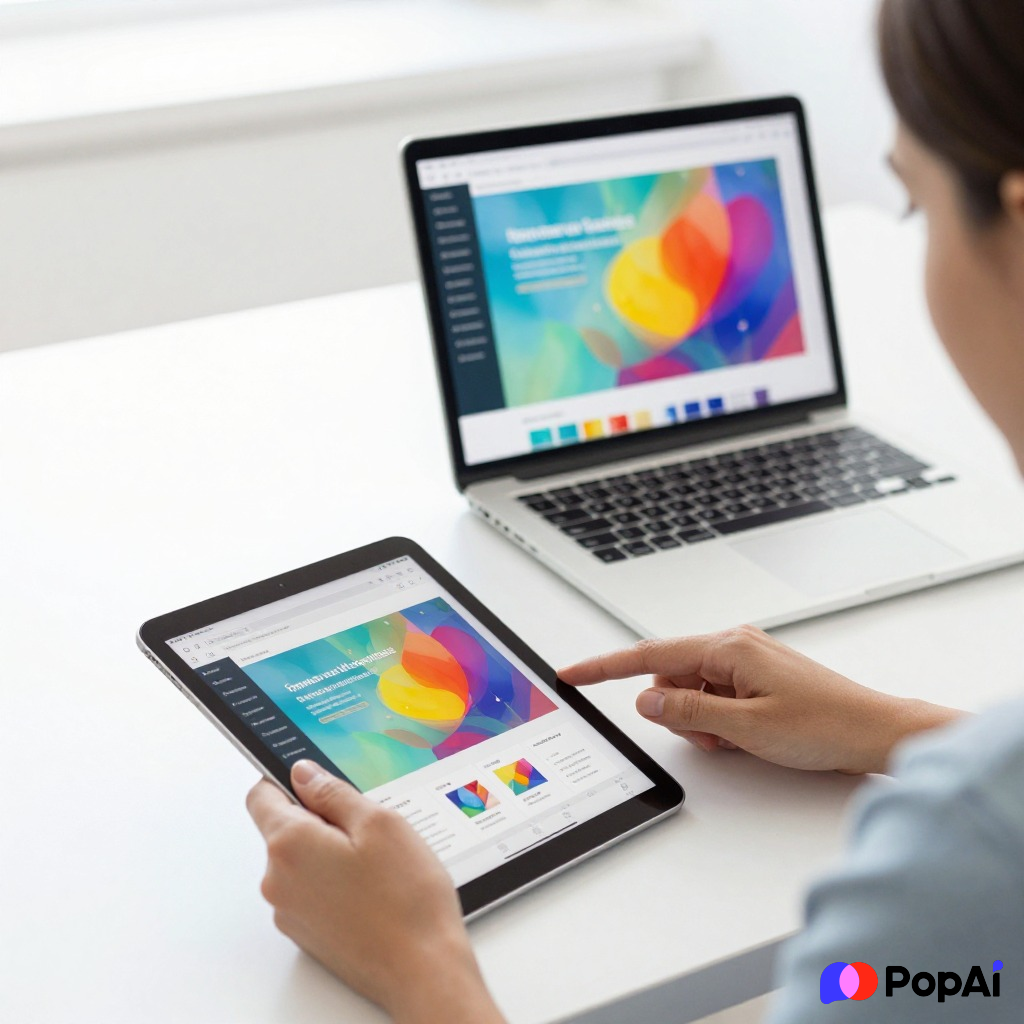
- Unique Feature: It doesn’t just display the file; it can summarize it. If you’re trying to understand a complex deck five minutes before a meeting, this is the one.
- Best for: When the PPT is too long and you’re too tired to read it. For slide generation, use PopAi AI Presentation.
4. Zoho Show
Zoho is like the cool indie cousin of Google and Microsoft. Their online PPT viewer is surprisingly slick.
- Visuals: It handles high-res images better than Google Slides in my experience.
- Privacy: They tend to be a bit better about data privacy than the big giants, which is a plus if you’re looking at sensitive company data.
5. Canva
Canva has pivoted hard into being a document editor. You can upload a PPTX file and it will convert it into a Canva project.
- Warning: It will change things. It tries to ‘Canva-fy’ the presentation.
- When to use: Use this if the original presentation is ugly and you want to fix it up before showing it to anyone else.
—
A Bigger List for Specific Needs
Sometimes the big names don’t work. Maybe your firewall blocks Google, or maybe you’re on a Linux machine and everything feels clunky. Here are 15+ more options categorized by what they’re actually good for.
The ‘No-Account-Required’ Viewers
These are for when you don’t want to log in to anything. Just upload and see.
- Online Document Viewer: Very basic, very fast.
- GroupDocs: Good for a quick glance, but don’t expect to edit anything.
- Aspose PPTX Viewer: Solid rendering, works well on mobile browsers.
- SmallPDF: Believe it or not, they have a solid PPT viewer/converter.
- FileFormat.info: This is for the geeks. It shows you the raw structure of the file too.
The ‘I Need to Convert This’ Tools
If you just want to turn the PPT into a PDF so you can read it anywhere:
- Zamzar: The OG of file conversion.
- CloudConvert: Great if the file is sitting in your Dropbox or OneDrive.
- IlovePDF: They have a surprisingly good PPT to PDF pipeline.
- LibreOffice Online: For the open-source purists.
- OnlyOffice: Great if you want a full office suite experience in the browser.
The Mobile-Friendly Choices
- SlideShare: If the PPT is public, just upload it here to view it in a scrollable format.
- Speaker Deck: Very clean, very visual. Great for designers.
- Ludus: A bit more niche, but handles modern web-based presentations beautifully.
- Prezi: Only use this if you want that zooming effect (and a headache).
- Visme: Good for data-heavy presentations.
—
How to choose the right viewer (The 3-Second Rule)
I’ve noticed that most people waste time trying tools that aren’t built for their specific problem. Let’s break it down:
- Is the file massive (50MB+)? Use Microsoft Web. Google Slides will often hang or crash on giant files.
- Does it have weird fonts? Use a converter like CloudConvert to turn it into a PDF first. Most online viewers will replace your fancy ‘Corporate Sans’ font with Times New Roman and it will look like a mess.
- Are you on a phone? Use PopAi. It’s much easier to navigate an AI-summarized version of a deck on a small screen than trying to pinch-and-zoom on a standard slide. I’ve even used their AI Image tool to quickly grab assets from slides for social media posts.
The Security Question: Is it safe?
I guess we should talk about the elephant in the room. When you upload a file to a “free online viewer,” you are giving that server your data.
If you’re looking at a deck that contains your company’s secret sauce or next year’s unannounced product features, don’t use a random free viewer. Stick to the big three: Google, Microsoft, or Zoho. They have the enterprise-grade security that smaller ‘free’ sites lack.
Anyway, if it’s just a school project or a public report, who cares? Go wild.
Common Issues & How to Fix Them
1. The “Missing Font” Nightmare This is the #1 reason slides look bad online. If you’re the one *sending* the file, always embed your fonts before saving. If you’re the one *receiving* it, and it looks weird, try opening it in the official Microsoft Web viewer.
2. Broken Animations Online viewers hate animations. Most of them will just skip the transition and show the final state of the slide. If the animation is ‘vital’ (it never is, but let’s pretend), you’ll need the desktop version of PowerPoint.
3. Slow Loading If a viewer is taking forever, it’s probably because the PPT has 4K images that haven’t been compressed. Some tools, like Google Slides, try to optimize these on the fly, which takes time.
My Final (Unsolicited) Advice
In 2026, we shouldn’t really be sending PPT files anymore. They are bulky and outdated. But until the world moves to something better, keep a bookmark folder with at least two of these viewers.
I usually keep Google Slides for quick edits and something AI-powered like PopAi for when I actually need to digest information without spending an hour clicking ‘Next Slide.’
Stop paying for software just to look at a file. Your browser is more powerful than you think. Just pick a tool from the list, drag your file in, and get on with your day. Let’s be real, you weren’t going to look at more than five slides anyway.