If you build sales decks, project updates, training slides, or executive briefings, the hardest part is rarely opening PowerPoint. It is turning messy notes into a clear story, choosing what to show, and making every slide look intentional.
AI for PowerPoint creation helps when you use it as a presentation partner, not a magic export button. With the right workflow, tools like PopAi AI Presentation can help you move from brief to draft deck faster while keeping your judgment in control.
What AI for PowerPoint Creation Actually Does
This section separates useful AI capabilities from unrealistic expectations, so you can choose the right tasks to automate.
AI is strongest at structure, synthesis, and first drafts
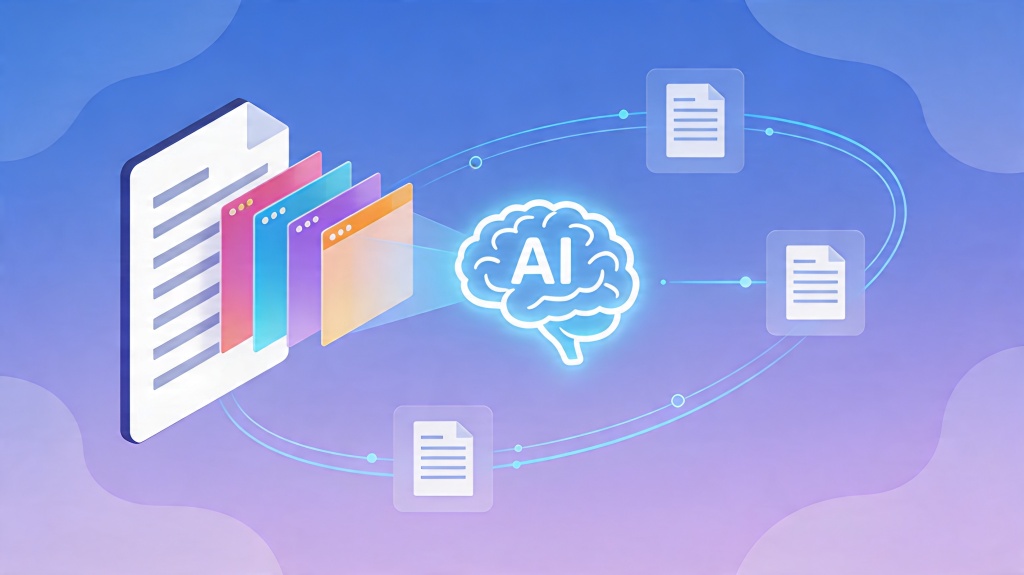
A good AI slide workflow can read your input, detect the likely presentation goal, suggest an outline, and draft slide titles that follow a logical progression. That is valuable because many decks fail before design begins: they lack a clear narrative.
For example, a product manager preparing a roadmap update can feed AI a release note, customer feedback themes, and a target audience. The tool can group the material into sections such as market context, customer pain, roadmap priorities, trade-offs, and next steps.
AI is not a substitute for business judgment
AI can suggest what to include, but it cannot know every political nuance, customer sensitivity, or internal priority. You still need to verify claims, remove irrelevant points, and decide which message the audience must remember.
Use AI to accelerate the blank-page stage. Do not outsource the point of view that makes the presentation worth attending.
- Best AI tasks: outline generation, slide title drafting, content condensation, visual suggestions, speaker note drafts.
- Human-owned tasks: strategy, evidence verification, audience sensitivity, final recommendations, delivery tone.
- Shared tasks: storyline refinement, section ordering, chart explanation, slide simplification.
A Practical Workflow for AI for PowerPoint Creation
Use this repeatable process when you need a deck quickly but cannot afford a shallow or generic result.
Step 1: Start with a presentation brief
Before asking AI to make slides, write a compact brief. Include the audience, presentation length, decision needed, tone, source material, and three must-say points. This gives the AI boundaries and reduces irrelevant output.
- Audience: executives, customers, employees, investors, students, or cross-functional teams.
- Outcome: inform, persuade, teach, align, approve, or sell.
- Length: number of slides or minutes available.
- Evidence: reports, metrics, quotes, research notes, or product screenshots.
- Style: formal, concise, consultative, visual, technical, or training-oriented.
Step 2: Generate the outline before generating slides
Do not jump straight to a full deck. Ask AI for an outline first, then inspect the flow. A strong outline usually moves from context to problem, insight, recommendation, proof, and action. If the outline is weak, the finished deck will only be a prettier weak deck.
Step 3: Convert the outline into slide-level instructions
Once the narrative is right, ask for slide titles, key bullets, visual ideas, and speaker notes. This is where AI becomes especially useful because it can maintain a consistent structure across multiple slides.

Pro Tip: If you want to test this workflow quickly, start with a short project brief in PopAi AI Presentation, review the generated outline, and revise the deck goal before polishing visuals.
Prompt Patterns That Produce Better PowerPoint Decks
The quality of AI-generated slides depends heavily on the instructions you provide before the first draft is created.
Use constraints instead of vague requests
“Make a presentation about our Q3 results” is too broad. A better prompt gives the audience, desired decision, slide count, tone, and source hierarchy. AI performs better when it knows what to prioritize and what to ignore.
A useful prompt does not ask AI to be creative in every direction. It gives the AI a narrow runway and asks for a strong takeoff.
Prompt template for business decks
Copy this structure and replace the bracketed text with your own details:
- Create a [number]-slide PowerPoint for [audience].
- The goal is to help them [decision or action].
- Use this source material: [paste notes, data, or brief].
- Prioritize [most important evidence] over [less important material].
- Use a [tone] tone and avoid [jargon, hype, or unnecessary detail].
- For each slide, provide a title, three key points, a visual suggestion, and speaker notes.
Prompt template for training decks
Training presentations need clarity and retention, not just attractive slides. Ask AI to include learning objectives, examples, exercises, and recap slides. If the deck teaches a process, request a sequence that moves from concept to demonstration to practice.
| Deck type | Best AI instruction | Human review focus |
|---|---|---|
| Sales proposal | Map customer pain to solution proof and next steps. | Accuracy of customer context and proof points. |
| Executive update | Summarize status, risks, decisions, and owner actions. | Decision clarity and metric interpretation. |
| Training deck | Build objectives, examples, activities, and recap slides. | Learner comprehension and pacing. |
Quality Control for AI-Generated PowerPoint Slides
AI can produce a usable draft fast, but quality control is what turns it into a credible presentation.
Run a message audit
Read only the slide titles from beginning to end. They should tell the story by themselves. If the titles feel like labels, rewrite them as claims. “Market overview” is a label; “Demand is shifting toward faster self-service onboarding” is a claim.
Check information density
In a hands-on 20-slide quarterly business review workflow, the biggest time saving came from using AI to create the first outline and speaker notes. The manual version required repeated restructuring after the slides were designed; the AI-assisted version surfaced storyline gaps earlier, before visual polish began. That observation is based on a practical deck-building comparison, not a universal benchmark.
Microsoft’s own PowerPoint design guidance, including PowerPoint Designer documentation, repeatedly emphasizes visual clarity and concise slide content. Treat that as a useful principle: if AI gives you six bullets, reduce them to the three points your audience must remember.
Verify facts, names, and claims
Never assume generated content is correct. Confirm dates, financial figures, customer names, product capabilities, and citations against your source files. If the slide includes a chart, make sure the chart matches the underlying data and that the title explains the takeaway.
High-Value Use Cases for AI PowerPoint Creation
AI is most valuable when the presentation format repeats often or the source material is dense.
Recurring business reviews
Monthly updates, quarterly business reviews, and project steering decks usually follow a familiar structure. AI can reuse that structure while adapting the content to new numbers, risks, decisions, and action items.
Sales and customer-facing decks
For sales teams, AI can convert discovery notes into a proposal outline that mirrors the customer’s language. The human seller should still refine the commercial message, but AI can reduce the time spent arranging pain points, proof, and next steps.
Education and training materials
Teachers, trainers, and enablement managers can use AI to convert long documents into lesson-based slides. The best results include learning objectives, checkpoints, examples, and recap questions rather than a simple summary of the source text.
Practical reminder: AI helps most when you have a repeatable presentation pattern. Save strong prompts and reuse them through PopAi AI Presentation for future decks with similar goals.
Common Mistakes That Limit AI for PowerPoint Creation
Avoid these mistakes if you want AI-generated decks that feel sharp instead of automated.
Mistake 1: Asking for slides before defining the decision
A deck should move an audience toward a decision, belief, or action. If the decision is unclear, AI will fill the space with general information. Start by naming the audience outcome, then build the deck backward from that outcome.
Mistake 2: Accepting generic visual suggestions
AI may suggest icons, timelines, funnels, or diagrams that look reasonable but do not clarify the message. Choose visuals based on function: comparisons need tables, sequences need timelines, relationships need diagrams, and performance trends need charts.
Mistake 3: Overloading slides with generated text
AI often writes complete thoughts, while slides need compressed visual communication. Move detail into speaker notes, keep slide copy short, and make the title carry the takeaway. Your audience should understand the slide in seconds.
FAQ: AI for PowerPoint Creation
These answers address the practical questions teams ask before adopting AI in their presentation workflow.
Can AI create a PowerPoint from a document or notes?
Yes. A strong AI presentation workflow can turn notes, briefs, reports, or outlines into a slide structure, then generate titles, talking points, and visual suggestions. The best results come from providing audience, goal, length, and source priorities.
Will an AI-generated deck look generic?
It can look generic if you accept the first draft without direction. Add brand rules, example slide types, tone guidance, and layout constraints, then review the deck for hierarchy, consistency, and message fit.
How much editing should I expect after AI creates the slides?
Expect to edit strategy, evidence, and final wording. AI is useful for structure and first-pass design, but presenters should verify facts, simplify crowded slides, and tailor the story to the audience.
Is AI for PowerPoint creation useful for business teams?
Yes, especially for recurring decks such as sales proposals, training materials, project updates, business reviews, and executive summaries. Teams save the most time when they reuse a prompt framework and brand-approved slide patterns.
Turn your brief, notes, or source document into a structured presentation draft, then refine the story, visuals, and speaker notes faster.
Start creating with PopAi