Presentation Creator AI: From Zero to Hero with PopAi.pro

Published on May 22, 2026

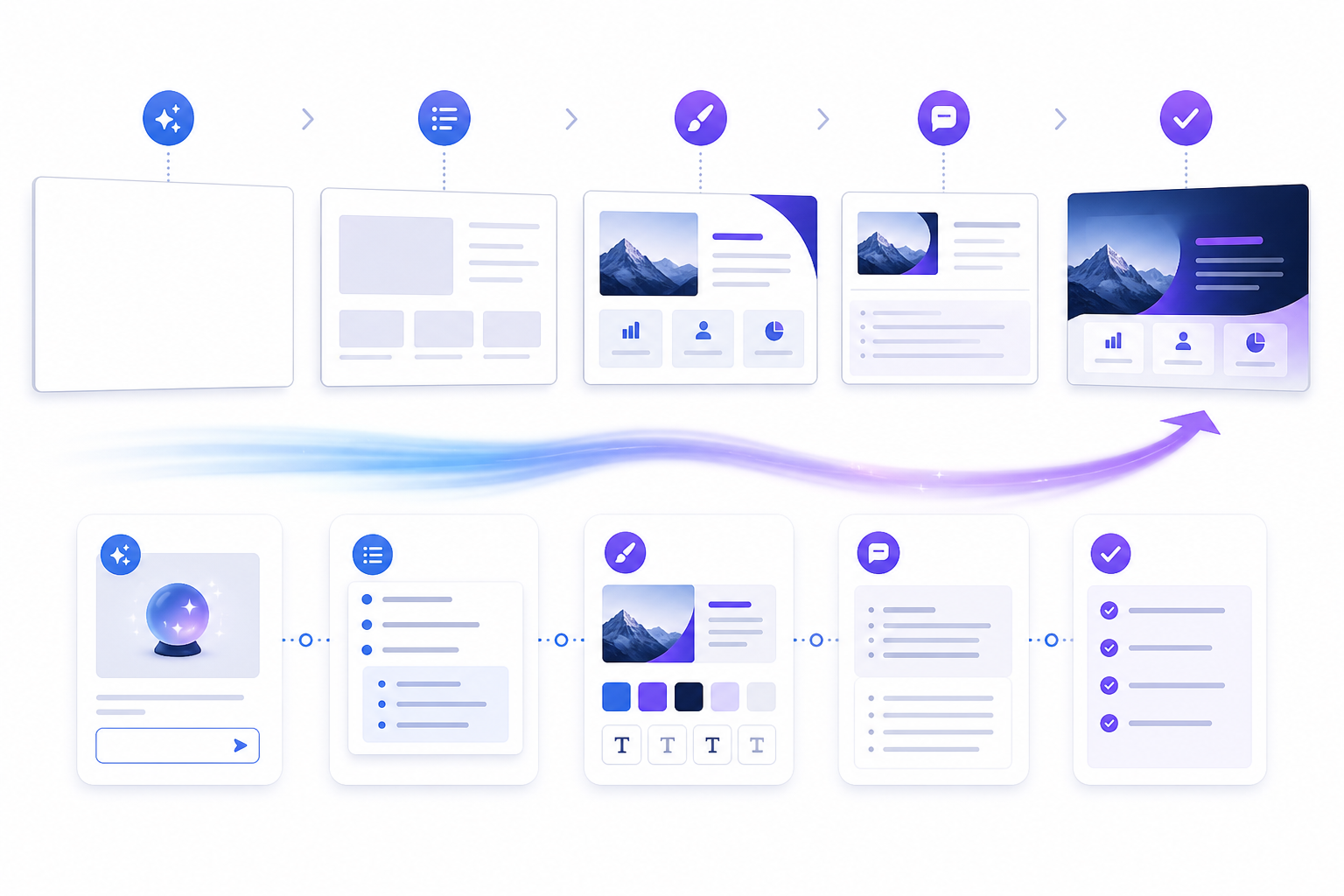
presentation creator AI transforming rough notes into a professional slide deck
A presentation creator AI helps turn scattered ideas, documents, and prompts into a structured deck faster.

If you are a founder, student, marketer, consultant, or team lead staring at a blank slide deck, the hardest part is rarely opening PowerPoint. The hard part is deciding what to say, how to structure it, and how to make it look credible without spending a full day adjusting boxes.

A presentation creator AI changes that starting point. Instead of building every slide from zero, you can generate a first draft, refine the storyline, improve the design, and prepare speaker notes in a guided workflow. This guide shows a practical zero-to-hero process using PopAi.pro, especially for people who need strong presentations but are not full-time designers.

Why Presentation Creator AI Matters Before You Design

This section explains why AI presentation work should start with communication strategy, not colors or templates.

Blank-slide friction is a structure problem

Most weak decks fail before design begins. They have too many ideas, unclear slide order, or no decision for the audience to make. A deck about a product launch, for example, often mixes market context, roadmap, budget, risks, and creative concepts without a clear hierarchy.

Presentation AI helps because it forces the first pass into sections: title, context, problem, evidence, solution, plan, and next step. That structure gives you something editable. You are no longer deciding from a blank canvas; you are improving a draft.

The best use of AI is not “make my slides pretty.” It is “help me find the clearest argument and then turn that argument into slides.”

Good prompts reduce editing time

In a hands-on PopAi Academy workflow test for this article, we started with a 430-word product update brief and asked for a 10-slide executive review deck. The useful version came only after the prompt included audience, decision goal, tone, and key constraints. The vague prompt created broad slides; the specific prompt created a usable executive narrative.

That pattern is consistent with how generative tools behave: the output quality depends heavily on input context. For presentation work, the minimum context should include audience, objective, format, deadline, and source material. If you already have meeting notes, a report, or a project outline, upload or paste it instead of asking the AI to invent the story from nothing.

Pro Tip: Start your next draft in PopAi AI Presentation with this prompt: “Create a concise deck for [audience] to decide [decision]. Use [tone], include [evidence], and end with [next step].”

Presentation Creator AI Workflow: From Prompt to Outline

A reliable workflow keeps AI useful without letting it control your message.

Step 1: Define the presentation job

Before generating slides, write one sentence that defines the job of the deck. This sentence prevents the deck from becoming a collection of loosely related slides.

  • Inform: “Help the sales team understand the new product package.”
  • Persuade: “Convince leadership to approve the Q3 campaign budget.”
  • Teach: “Explain the research method to first-year students.”
  • Report: “Summarize project progress, risks, and next actions.”

Step 2: Ask for an outline before a full deck

Generating a complete deck immediately can look productive, but it often hides structural mistakes. Ask for an outline first. Review whether each slide earns its place, whether the order is logical, and whether the deck has a clear audience action.

If you want to move faster, PopAi AI Presentation can help you generate a structured slide draft from a prompt or source material, then you can refine the outline before polishing visuals.

Step 3: Convert the outline into slide-level messages

Each slide should carry one main message. A title like “Market Overview” is a topic; a title like “Budget-conscious buyers are delaying upgrades” is a message. Message-led titles make the deck easier to scan and easier to present.

Weak slide title Stronger AI prompt direction
Results Rewrite each slide title as a takeaway, not a category.
Challenges Show the top three blockers and connect each to business impact.
Next Steps End with owner, deadline, and decision needed from the audience.
AI presentation workflow showing outline prompts slide structure and speaker notes
Reviewing the outline first helps you catch logic gaps before investing time in slide design.

Build Better Content with AI Without Losing Control

This section shows how to make AI-generated content accurate, specific, and audience-ready.

Use AI for first drafts, not final truth

AI can summarize, organize, and rephrase quickly, but it should not be treated as a source of truth. Verify financial numbers, customer quotes, market claims, legal language, and product details against your original documents or official sources.

A practical rule is to label every slide as one of three types: explanation, evidence, or decision. Explanation slides can be drafted quickly. Evidence slides require verification. Decision slides require your judgment because they affect what the audience does next.

Add examples only your team would know

Generic decks sound smooth but forgettable. Add details from your real situation: a customer objection from last week, a support ticket theme, a classroom project constraint, or a metric from your internal dashboard. These details make the deck credible.

Nielsen Norman Group’s eye-tracking research on web reading is often summarized by one practical lesson: people scan before they commit. Presentations behave the same way. Executives, clients, and classmates read slide titles first, then decide whether to listen to the details. Make those titles carry the story.

If a busy audience can understand the storyline by reading only the slide titles, your deck is already easier to follow than most.

Turn dense notes into slide-ready language

When your source material is long, ask AI to compress it into slide bullets with constraints. For example: “Use no more than five bullets per slide, each under twelve words, and keep technical terms only where necessary.” Constraints improve readability because they stop the tool from dumping paragraphs onto slides.

  • Replace paragraphs with short claims.
  • Group related ideas into three-part structures.
  • Move details into speaker notes when they support, but do not belong on, the slide.
  • Ask the AI to identify missing evidence or weak logic.

Presentation Creator AI for Design, Visuals, and Branding

Design is where AI can save time, but your brand and readability standards still matter.

Choose layouts based on content type

Different messages need different slide structures. A timeline needs sequence. A comparison needs columns. A recommendation needs rationale plus action. Ask the AI to match layout to purpose rather than applying the same template everywhere.

For a pitch deck, use problem-solution-market-model-flow. For a report, use status-risk-decision-flow. For teaching, use concept-example-practice-flow. The visual design should support that flow, not distract from it.

Apply accessibility checks before presenting

Readable slides are not just prettier; they are more inclusive. The Web Content Accessibility Guidelines, WCAG 2.2, recommend a contrast ratio of at least 4.5:1 for normal text. Use that as a baseline when choosing text and background colors, especially if you present in bright rooms or through video calls.

Also check font size, chart labels, and color-only meaning. If a red-green chart is the only way to understand performance, some audience members may miss the message. Add labels, icons, or direct annotations.

professional AI-generated presentation slides with consistent branding and clean data visuals
AI-generated layouts still need human review for brand fit, contrast, and message clarity.

Keep visual hierarchy simple

Strong slides guide the eye. Use one headline, one dominant visual area, and one clear supporting detail. If everything is bold, nothing is important. If every chart has eight colors, the audience has to decode the slide instead of understanding it.

  • One idea: Make each slide answer one question.
  • One emphasis: Highlight only the most important number or phrase.
  • One action: Make the next step visible when the slide requires a decision.

Revise and Present with Confidence

The final quality jump happens when you edit the AI draft like a presenter, not a document reviewer.

Run a narrative pass

Read only the slide titles from start to finish. If the titles do not form a clear argument, revise before adjusting visuals. This is the fastest way to detect missing transitions, duplicated points, and slides that exist only because the AI generated them.

For a 15-minute business presentation, Guy Kawasaki’s well-known 10/20/30 rule is a useful reference point: 10 slides, 20 minutes, 30-point font. You do not need to follow it rigidly, but it reminds you that fewer, clearer slides usually beat dense decks that rush the audience.

Generate speaker notes, then make them yours

Speaker notes are helpful when they explain the logic behind a slide. Ask AI to draft short notes for each slide, then rewrite them in your own speaking style. Remove robotic phrasing, add examples, and mark where you will pause for questions.

Practice with timing checkpoints

Do not rehearse only from slide one to the end. Practice checkpoints: opening, transition into evidence, recommendation, and closing ask. If you can deliver those four moments clearly, the deck will feel more controlled even if the conversation changes.

Editing checklist: Before sharing, verify claims, shorten slide text, check contrast, test the deck on a smaller screen, and create a PDF backup. If the deck was built with PopAi AI Presentation, use the AI draft as the editable base, not the final authority.

Common Mistakes When Using Presentation Creator AI

Avoid these mistakes to keep your AI-assisted deck sharp, credible, and human.

Mistake 1: Asking for “a professional deck”

That prompt is too broad. Professional for whom? A venture investor, a high school teacher, and a CFO expect different evidence, tone, and pacing. Replace vague quality words with specific outcomes.

Mistake 2: Keeping every generated slide

AI often overproduces. Delete slides that repeat a point, add background the audience already knows, or do not move the decision forward. A shorter deck with a stronger storyline is usually easier to present.

Mistake 3: Overloading slides with generated text

AI can write fluent paragraphs, but slides need sharp visual communication. If a slide looks like a document, move detail into notes or an appendix. Keep the main slide focused on the takeaway.

Mistake 4: Forgetting ownership

Your name is on the presentation, not the AI’s. That means you own the facts, tone, and implications. Use the tool to accelerate structure and design, but make final decisions as the subject-matter owner.

FAQ About Presentation Creator AI

These are the questions new users ask most often when moving from manual slides to AI-assisted creation.

Can a presentation creator AI make a deck from only a rough idea?

Yes, but the result improves when you add audience, goal, slide count, tone, and any source material. A one-line idea can create a first draft; a short brief creates a deck you can edit seriously.

Will AI-generated slides look generic?

They can if you accept the first draft without direction. Improve the output by specifying brand colors, audience level, visual style, and the kind of evidence each slide should include.

How much should I edit an AI-created presentation?

Treat the AI draft as a strong starting point, not the final speaker-ready version. Review the narrative, verify every claim, simplify crowded slides, and add examples that only you or your team know.

Is presentation creator AI useful for non-designers?

Yes. Non-designers usually benefit most because AI can handle the first structure, layout, and visual hierarchy while they focus on message accuracy and delivery.

Create your presentation with one click now

Turn your prompt, notes, or documents into a structured presentation draft, then refine the story, visuals, and speaker notes in one focused workflow.

Start with PopAi AI Presentation

Maya Chen

Maya Chen is a presentation strategist for the PopAi Presentation Academy, specializing in AI-assisted storytelling, executive decks, and practical slide workflows for non-designers.

Related Articles