For decades, the process of turning a detailed report, a project proposal, or a research paper into a presentation was a tedious manual chore. It involved hours of copying text, summarizing paragraphs into bullet points, and searching for images that matched the content. However, the advent of generative AI has fundamentally changed this workflow.
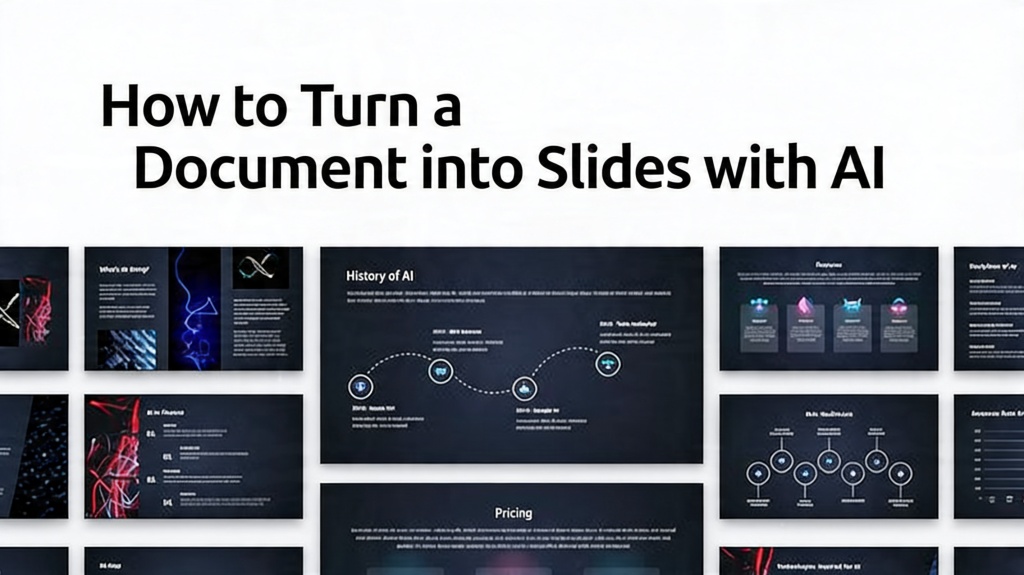
Today, you can transform a 20-page document into a polished, professional slide deck in a matter of minutes. This guide explores the mechanics of AI-driven document-to-slide conversion and how you can leverage these tools to save time and improve the quality of your presentations.
Why Use AI for Document-to-Slide Conversion?
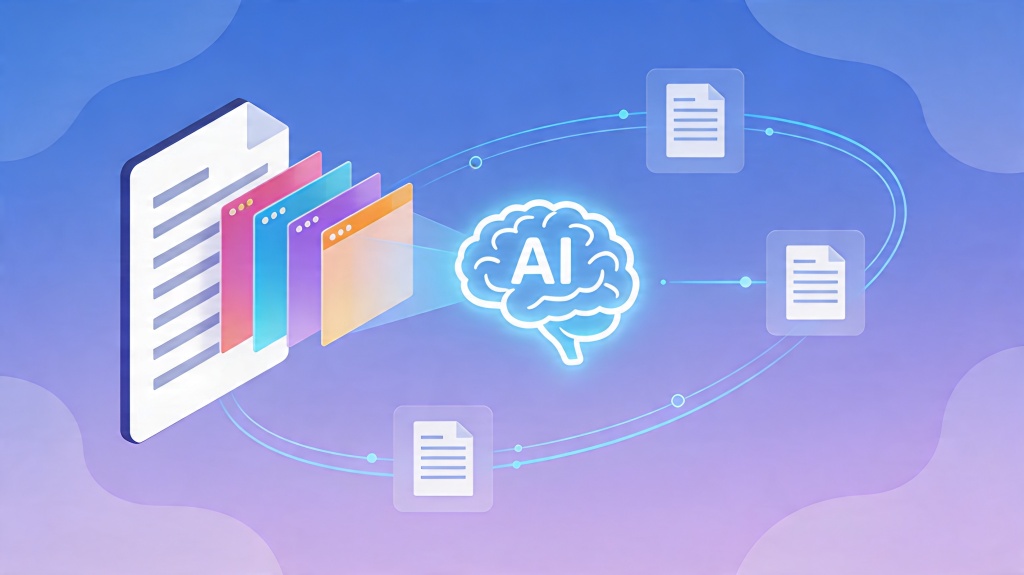
The primary benefit of using AI is efficiency, but it goes beyond just speed. AI models are trained to understand context and hierarchy. When you feed a document into an AI presentation maker, the system doesn't just "copy" text; it analyzes the structure. It identifies what is a main heading, what is a supporting detail, and what should be emphasized as a key takeaway.
- Automated Summarization: AI condenses long paragraphs into digestible bullet points suitable for slides.
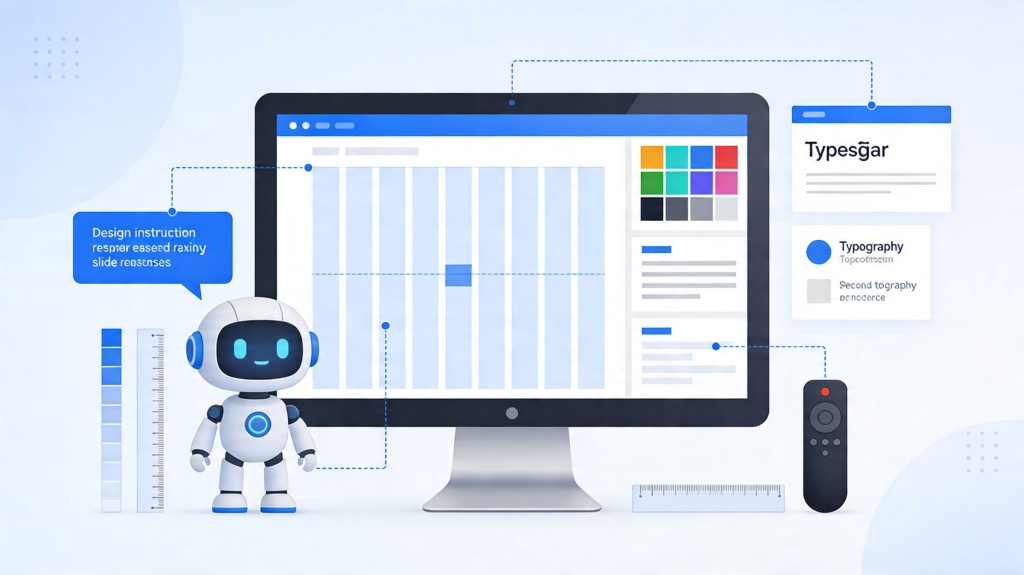
- Visual Consistency: The AI applies a uniform theme, font set, and color palette across all generated slides.
- Contextual Imagery: Many AI tools automatically suggest or generate images that correlate with the text on each slide.
Pro Tip: Before uploading your document, ensure it has clear headings. AI tools use these headers to determine where a new slide should begin. Check out our guide on presentation structure basics for more info.
Choosing the Right Document Format
Not all documents are created equal in the eyes of an AI. While most modern tools are versatile, the format of your source file can impact the accuracy of the conversion. The most commonly supported formats include PDF, Microsoft Word (.docx), and plain text files.
PDFs are excellent because they preserve formatting, but they can sometimes be "read" as flat images if not properly exported. Word documents are generally the safest bet, as their internal tagging (Heading 1, Heading 2, etc.) provides a clear roadmap for the AI to follow. If you are working with a very long document, consider creating a "summary version" first to ensure the AI focuses on the most critical data points.
Step-by-Step Guide to Converting Documents
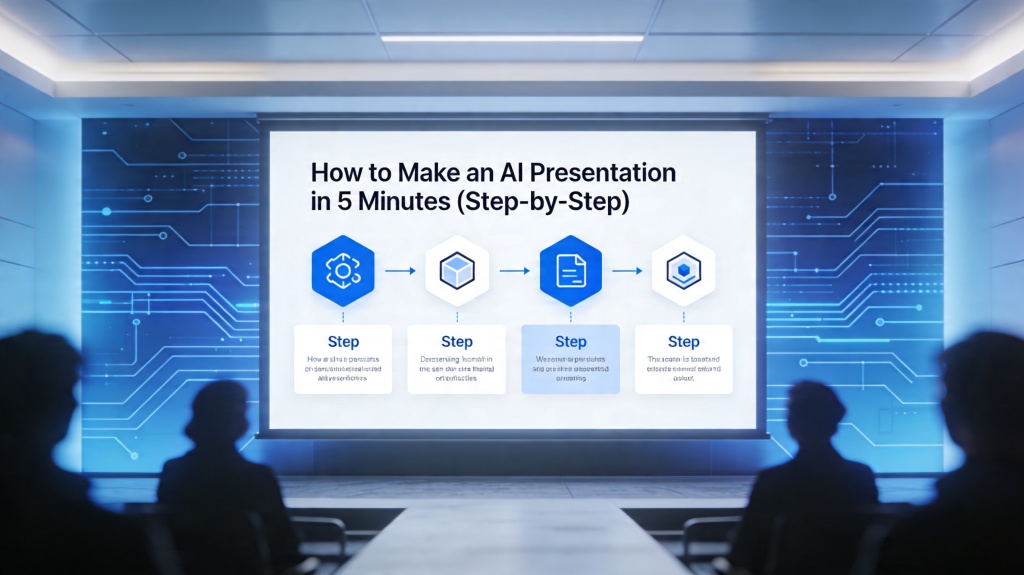
The process of turning a document into a presentation with AI is remarkably straightforward. Most platforms follow a similar four-step workflow:
- Upload the Source: Drag and drop your file into the AI tool's interface. Some tools also allow you to paste raw text or provide a URL to a web page.
- Set the Tone and Audience: Specify who the presentation is for (e.g., "Board of Directors" or "Marketing Team") and the desired tone (e.g., "Professional," "Creative," or "Educational").
- Select a Template: Choose a visual style that matches your brand or the subject matter. The AI will then map your content onto this design framework.
- Review and Refine: Once the AI generates the slides, go through them to ensure the logic holds. You can usually swap out images, adjust bullet points, or add specific data visualizations that the AI might have missed.
Optimizing Your Document for Better AI Output
To get the best results, you should "prep" your document before the AI touches it. Think of this as giving the AI a better set of instructions. If your document is a wall of text without breaks, the AI might struggle to know when to start a new slide.
Use bold text for key terms you want the AI to emphasize. If you have specific statistics or data, place them in a simple list rather than burying them in a long paragraph. This makes it much easier for the AI to extract that data into a "stat slide" or a chart. Remember, the clearer your document's hierarchy, the more professional your final presentation will look.

Refining the AI-Generated Presentation
Even the most advanced AI isn't a mind reader. After the initial generation, you should perform a "human pass." Check for any hallucinations—instances where the AI might have slightly misinterpreted a technical term or summarized a point too aggressively. Use this time to add your personal touch, such as specific anecdotes or company-specific jargon that the AI wouldn't know.
Most AI presentation tools allow for "conversational editing." Instead of manually dragging elements, you can often type a command like "Make this slide more visual" or "Add a chart comparing the Q1 and Q2 data from the document." This hybrid approach of automated generation and manual refinement is the current gold standard for presentation design.
Frequently Asked Questions
Can AI convert a PDF directly into PowerPoint slides?
Yes, modern AI presentation tools can parse PDF content, extract key themes, and automatically generate slide layouts, text, and relevant imagery. The tool reads the text layers within the PDF to understand the narrative flow.
Does the AI keep the original formatting of my document?
While the AI extracts the text and meaning, it typically creates a new visual layout optimized for presentations rather than mirroring the document's exact look. This is actually a benefit, as documents and slides require different visual hierarchies.
How long does it take to convert a 10-page document into slides?
With an AI presentation maker, the conversion process usually takes less than 60 seconds. However, we recommend spending an additional 5-10 minutes refining the design and ensuring the AI's summary matches your intended message perfectly.
Is my data secure when I upload documents to an AI?
Most reputable AI platforms use encryption and do not store your documents longer than necessary to generate the presentation. However, always check the privacy policy of the specific tool you are using, especially for sensitive corporate data.
Create your presentation with one click now
Stop wasting hours on manual formatting. Turn your documents into stunning slides instantly with PopAi's advanced presentation engine.
Try PopAi for Free