Real-Time Collaboration in AI Presentation Tools: Workflow & QA
Published on September 10, 2026
A product launch deck rarely belongs to one person. The product manager owns the positioning, the analyst owns the numbers, sales wants objection handling, design protects the brand, and an executive appears late with one decisive comment. Real-time collaboration in AI presentation tools is meant to prevent that work from turning into attachment chains, copied screenshots, stale charts, and conflicting “final” files.
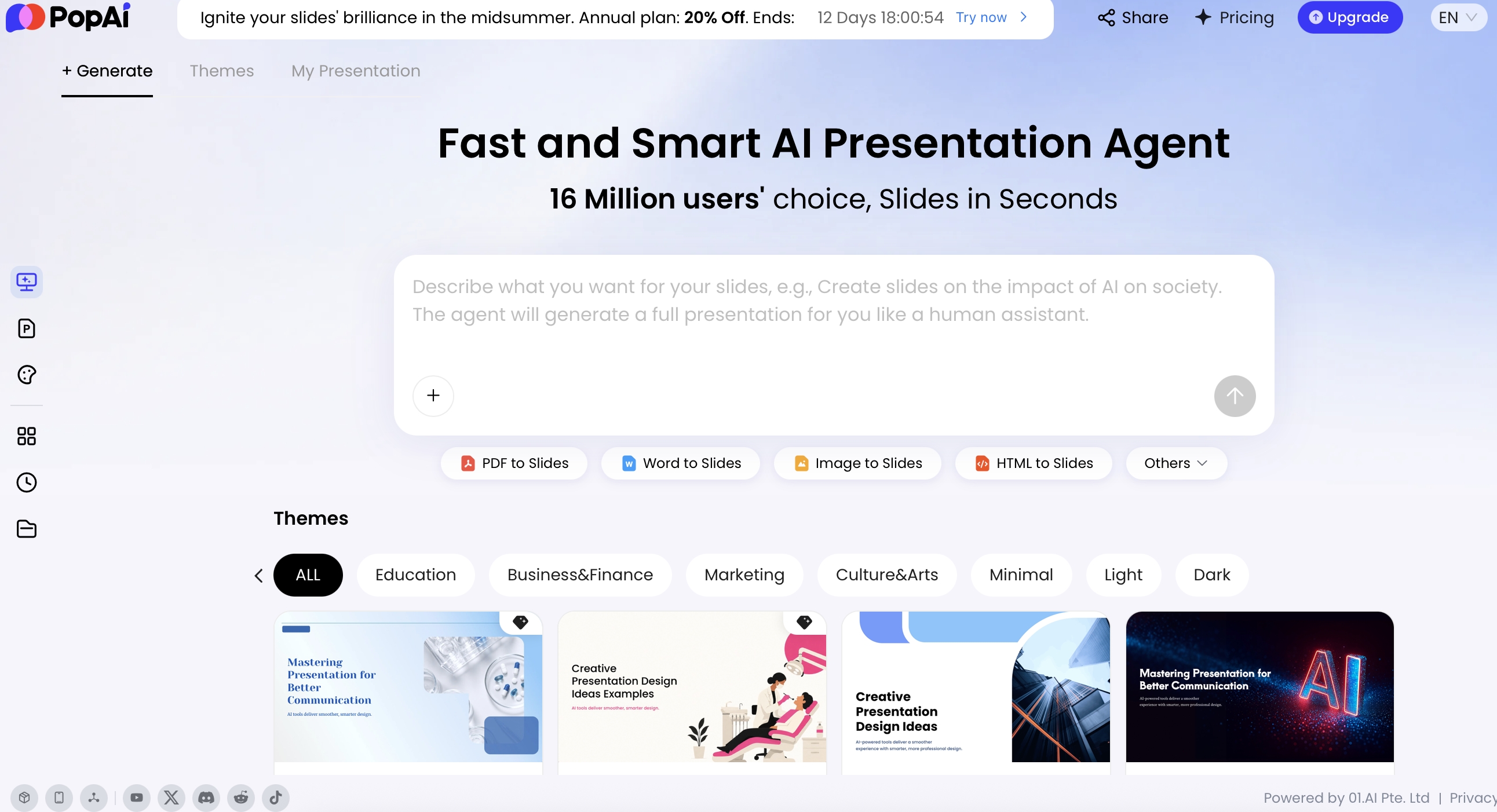
The practical shift is not simply that “everyone edits at once.” It is that the deck becomes a shared cloud workspace where AI can create a first draft, organize source material, rewrite sections, suggest visuals, and help with formatting while humans retain responsibility for evidence, judgment, approvals, and delivery. Tools such as PopAi AI Presentation support this kind of AI-assisted deck workflow by turning prompts or source files into structured slides that teams can refine, share, and export instead of circulating local PPT copies.
How Real-Time Collaboration in AI Presentation Tools Works
Real-time collaboration works by turning slide edits into synchronized cloud operations rather than separate local files.
What actually syncs when people edit together
In a mature collaborative presentation editor, the system does not wait for a user to press “save.” It records small changes—typing in a title, moving an icon, changing a chart label, adding a comment, replacing an image, applying a theme—and sends those operations to the cloud document. Other users then receive the updated state in seconds, depending on connection quality and the tool’s collaboration model.
- Text-level edits: two people can usually edit different text boxes without conflict. If both edit the same title, the tool may merge character-level changes, preserve the latest change, or flag a conflict depending on its editor engine.
- Object-level edits: charts, diagrams, grouped shapes, and images are harder to merge than plain text. Many tools sequence the operations or temporarily lock the object while one person is editing it.
- Slide-level edits: if one person deletes a slide while another is commenting on it, a good tool keeps the comment recoverable through history or at least makes the deletion visible.
- Theme and layout edits: global style changes can override another person’s local formatting, so design changes should be done by a named brand owner, not by every contributor.
- AI-generated edits: if someone asks AI to rewrite a slide, the team should treat that as a proposed change that needs review, especially when it affects claims, numbers, customer examples, or legal language.
Core collaboration layers to evaluate
| Layer | What users see | Failure mode to test |
|---|---|---|
| Single source of truth | One online deck instead of emailed PPTX attachments | People still export and edit local copies before approval |
| Presence | Visible collaborators, current slide, and sometimes live cursor or object focus | Two editors unknowingly rewrite the same slide |
| Autosave and sync | Changes appear without manual saving | Weak internet causes delayed updates or duplicate edits |
| Conflict handling | Text merge, object locking, change sequencing, or recovery through history | A chart, layout, or AI rewrite overwrites someone else’s work |
| Comments and decisions | Slide-specific feedback that can be resolved or revisited | Comments become a second inbox unless one person owns decisions |
| Version recovery | Earlier deck states can be inspected or restored | The team cannot identify which edit introduced a wrong claim |
Data lens: the collaboration problem is not theoretical. Microsoft’s Work Trend Index has repeatedly reported that knowledge workers spend heavy portions of the week in meetings, chat, and email. For deck teams, the cost is usually coordination drag: finding the latest file, reconciling comments, confirming approved wording, and rebuilding slides after feedback arrives in different channels.
Real-time collaboration is not only simultaneous editing. It is shared context, visible ownership, recoverable changes, and fewer places for feedback to disappear.
Where AI Fits Into Real-Time Collaboration in AI Presentation Tools
AI improves collaboration most when it gives the team a common starting point and a controlled way to revise it.
Instead of opening a blank slide, the narrative owner can generate an initial deck from a prompt, a source report, or existing materials. In PopAi, for example, teams can start from a prompt and specify audience, tone, language, page count, and required sections. They can also create slides from common inputs such as PDF, Word, text, PPTX, HTML, images, audio, video, YouTube URLs, Google Drive files, or drag-and-drop uploads. That input flexibility is useful, but it is not the same as governance: the team still needs to decide which source is authoritative.
The strongest AI collaboration pattern is draft, divide, verify, refine. AI creates the first structure; the team approves or rewrites the outline; owners take responsibility for specific sections; then AI helps shorten, translate, reframe, visualize, or polish content. If you are comparing broader tool categories, review current AI presentation makers against live editing, comment handling, permissions, version history, export quality, and AI prompt controls—not just slide-generation speed.
AI features that support team work in practice
- Prompt-to-deck drafting: best for kickoff decks, training modules, sales proposals, and quarterly updates. Use one shared kickoff prompt instead of letting every contributor generate a different storyline.
- Document-to-slides conversion: useful when the source of truth is a research report, policy document, customer call summary, previous PPTX, or meeting transcript. Before upload, remove duplicate drafts and label the approved source file.
- Natural language rewriting: helpful for converting a detailed slide into an executive summary, simplifying technical language, or translating for a regional team. Assign an owner to approve rewritten meaning, not just grammar.
- Visual assistance: charts, cards, icons, themes, and layout suggestions help contributors keep slides visually consistent. A brand reviewer should still check logo use, color contrast, font substitution, and template compliance.
- Comment resolution support: teams can use AI to summarize unresolved feedback, but decisions should remain attributed to a human reviewer or final approver.
Practical rule: let AI generate options, not final authority. Always human-check numbers, market claims, customer quotes, legal language, medical or financial statements, competitor comparisons, and executive recommendations before the deck is shared externally.
A Practical SOP for Collaborative AI Deck Creation
The best teams decide the collaboration rules before the deck becomes busy.
Use this seven-step workflow
- Kickoff: define the audience, decision to be made, deadline, must-have sections, approved source materials, and final format. A good brief fits on one page.
- Generate the first draft: use AI to create an outline and initial slide set from the approved prompt, report, meeting note, or existing PPTX. Treat this as a working draft, not the final storyline.
- Assign ownership: name one narrative lead, one data owner, one design or brand reviewer, and one final approver. For regulated or client-facing decks, add legal or compliance review.
- Edit in parallel: let slide owners work on their sections while the narrative lead checks flow, duplicate points, missing transitions, and unsupported recommendations.
- Comment, do not overwrite: reviewers should comment on uncertain claims, missing evidence, or strategic disagreement instead of silently replacing approved content.
- Resolve feedback: mark comments as resolved only after the slide owner confirms the fix. Use labels such as “fact check,” “tone,” “design,” “data,” and “decision needed.”
- Export or share: share a link for review while the deck is still changing; export PPTX/PDF only after the final approver confirms content freeze.
Role and checkpoint map
| Role | Owns | Approval checkpoint |
|---|---|---|
| Narrative lead | Storyline, section order, executive takeaway | Outline approval before design polish |
| Data owner | Metrics, charts, source references, definitions | All numbers verified before external sharing |
| Slide owners | Assigned sections and comments | Comments resolved with evidence or decision note |
| Brand reviewer | Template, typography, colors, logo use, accessibility | Visual pass after content freeze |
| Final approver | Business recommendation and release decision | Export permission and distribution list |
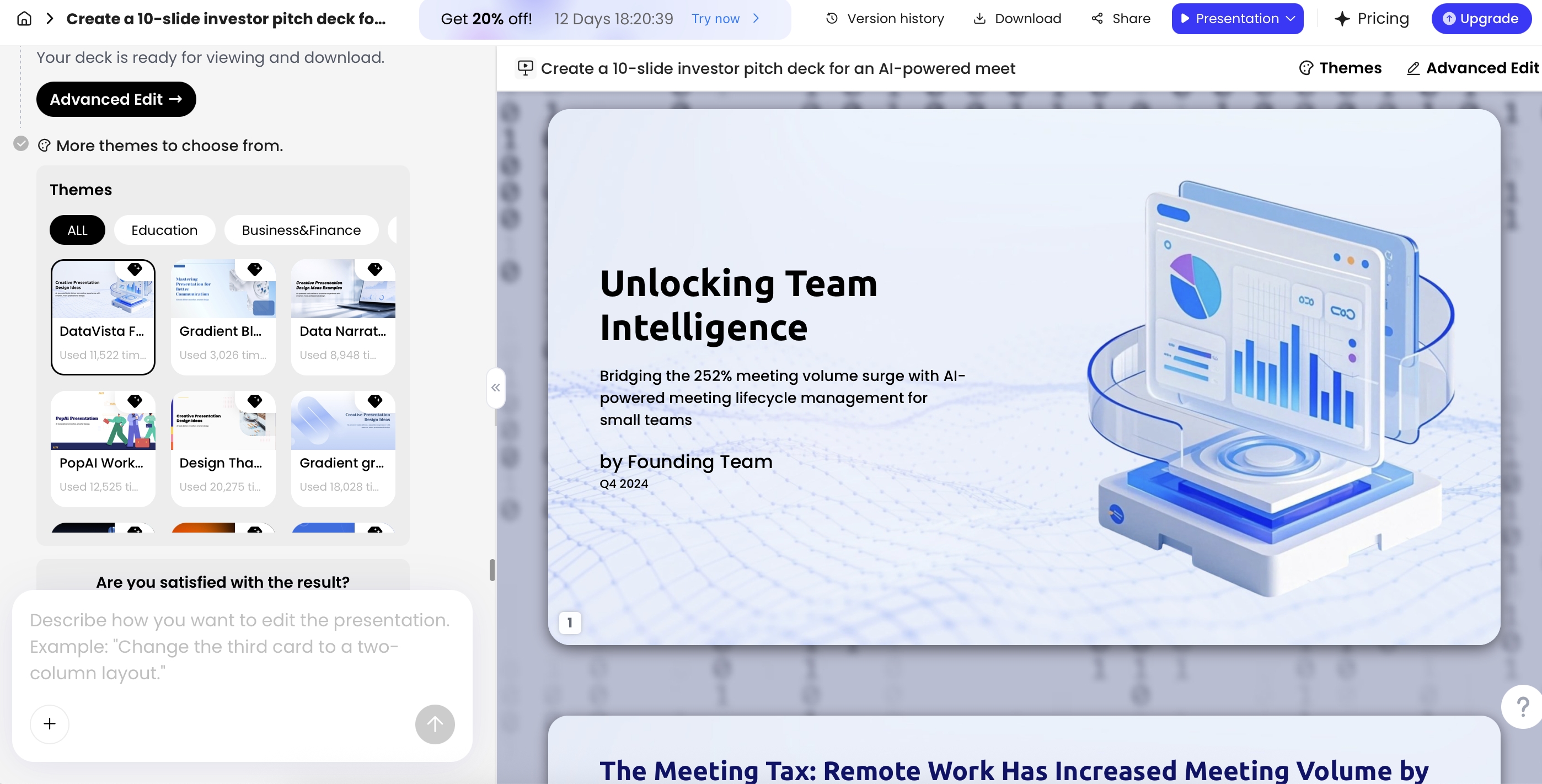
Hands-on test note: in an editorial PopAi multi-reviewer deck QA walkthrough, we used a business update containing an executive summary, three KPI blocks, a customer-risk section, and a comment triage log. The generated six-slide draft correctly separated the storyline into context, performance, risks, and next steps, and converted the comment triage log into a slide table with risk, severity, owner, and mitigation. The manual fixes were typical of AI deck work: shortening crowded bullets, checking whether KPI labels matched the source, replacing generic wording in the recommendation slide, and testing whether the exported PPTX preserved editable text.
Permissions, Version History, and Brand Control
Collaboration only works commercially when access, recovery, brand rules, and data handling are explicit.
Permissions and access levels
A client proposal, investor deck, HR training module, or product roadmap can contain sensitive information. Access should match the person’s job in the workflow: view-only for broad stakeholders, comment access for reviewers, edit access for contributors, and restricted access for confidential material. External clients and contractors should not receive the same permissions as internal slide owners by default.
- Internal contributors: edit only the sections they own when possible.
- Executives: comment or approve unless they are actively rewriting the narrative.
- Clients: use view or comment access for review rounds; avoid giving edit rights to the master deck unless contractually needed.
- Agencies and contractors: limit access duration and remove permissions after delivery.
- Confidential decks: check whether the tool supports admin controls, link restrictions, workspace permissions, and enterprise security settings.
Version history and recovery
Version history is the recovery plan for fast review cycles. Someone may delete a chart, simplify the wrong slide, paste unapproved messaging, or ask AI to rewrite a section that had already been approved. A reliable workflow lets the team identify the milestone to return to: “AI draft,” “internal review,” “client review,” “content freeze,” or “approved final.” Even if a tool does not expose a full audit log, named milestones reduce confusion.
Brand control
- Start from a shared template or official theme when the deck represents the company externally.
- Lock down fonts, colors, logo placement, and core layouts where the tool allows it.
- Let AI propose layouts, but require the brand reviewer to approve the final visual system.
- Use approved language for product names, metrics, customer proof, disclaimers, and calls to action.
- Run an accessibility check for contrast, font size, chart labeling, and slide density before executive review.
Data security questions to ask vendors
- Can admins disable public link sharing or require authenticated access?
- Can external links expire or be revoked centrally?
- Are uploaded files, prompts, and generated slides retained, and for how long?
- Can enterprise customers opt out of model training or content reuse?
- Is version history user-attributed, and is there a separate audit log?
- Does the tool support SSO, role-based permissions, workspace controls, or enterprise data policies?
- Are comments, speaker notes, charts, and media preserved when exporting?
AI can make a deck look finished before it is strategically approved. Governance keeps speed from becoming accidental risk.
PopAi supports export to PPTX and PDF, and exported PPTX files can be opened in Microsoft PowerPoint with editable text objects. That is useful for teams that want AI-assisted creation but still need to hand off a deck into a standard enterprise presentation workflow. Export quality should still be tested because presentation files are complex: fonts may substitute, objects can shift, charts may export differently from native PowerPoint charts, comments may not transfer as expected, and master-slide behavior can vary by tool.
Export QA checklist before delivery
- Open the PPTX in PowerPoint and check whether titles, body text, and tables remain editable.
- Confirm fonts, spacing, slide size, and logo placement did not change.
- Check whether charts are editable data objects or static images.
- Verify that speaker notes, comments, animations, transitions, and embedded media behave as expected.
- Export a PDF and compare it with the online deck for visual fidelity.
- Test the file on the presenter’s actual laptop before a high-stakes meeting.
Example: Multi-Reviewer Deck QA Without Overstating Real-Time Editing
A realistic collaboration example is a launch-readiness deck with four contributors: a product manager, sales lead, analyst, and designer.
The team starts with messy but common inputs: a feature brief, a customer-objection document, a usage-metrics spreadsheet, a previous launch deck, and an HTML business update. The narrative owner uses one approved prompt: “Create a 10-slide launch-readiness deck for a VP audience. Include market context, buyer pain points, product value, competitive positioning, adoption metrics, sales objections, launch risks, mitigation owners, timeline, and executive decisions needed. Keep the tone direct and evidence-based.”
How this looks in PopAi
- The narrative owner enters the launch topic and required sections: market context, audience pain points, product value, competitive positioning, metrics, risks, and next steps.
- The team uploads source files such as DOCX briefs, PDF research, a previous PPTX, images, spreadsheet-derived data, or an HTML report.
- PopAi organizes the content plan before slide generation, giving the team an outline to challenge before slides are polished.
- The analyst checks generated metrics against the source file and flags one unsupported adoption claim as “fact check.”
- The sales lead rewrites the objections slide for field language but leaves a comment where legal approval is needed.
- The designer switches themes, corrects density on two slides, and standardizes icons, chart colors, and section dividers.
- The final reviewer exports PPTX/PDF, opens the PPTX in PowerPoint, checks editability and formatting, then shares the deck link for stakeholder review.
Example review thread
- Comment: “Slide 4 says customers reduce onboarding time by 40%. Source?”
- Data owner response: “Metric came from Q2 pilot spreadsheet; sample size is 12 accounts. Recommend changing to ‘pilot customers reported faster onboarding’ unless we add the sample size.”
- Narrative decision: “Use qualified wording on the slide and move the 40% figure to speaker notes with source context.”
- Final action: slide owner revises the claim, data owner verifies, narrative lead resolves the comment.
For chart-heavy decks, the key issue is not how many chart types a tool offers; it is whether the chart remains traceable to the data owner. PopAi supports common chart workflows, including table-based editing and Excel upload/download for chart data. In practice, the analyst should own the data table, reviewers should comment on interpretation, the designer should adjust visual clarity, and the final approver should confirm the source before export.
Collaborative decks often break when a non-data owner screenshots a chart that later becomes outdated. Keep charts editable, name the data owner, and verify the source before the final export.
| Team need | Traditional deck workflow | AI collaborative workflow | Risk to control |
|---|---|---|---|
| First draft | Manual outline, blank slides, copied notes | Prompt or source-file generation creates a structured draft | AI may choose the wrong storyline or overstate weak evidence |
| Feedback | Email threads, chat screenshots, vague page references | Slide-level comments, shared links, review milestones | Comments still need a decision owner and deadline |
| Version control | Multiple attachments and local copies | Cloud deck, autosave, version recovery, export when approved | Local PPTX edits can reintroduce version drift |
| Brand consistency | Manual fixes after everyone edits | Templates, themes, layout suggestions, brand reviewer checkpoint | AI layouts may look polished but ignore brand rules |
| Security | Files often circulate through email and unmanaged drives | Workspace permissions and share links can centralize access | Sensitive files should not be uploaded without data-policy approval |
Pitfalls and Metrics for Better Collaboration
Real-time collaboration fails when teams optimize for speed but ignore ownership, evidence, and release discipline.
Prevention checklist
- Use slide ownership: assign one decision-maker per section to avoid overlapping rewrites.
- Review AI facts: require source verification for numbers, customer quotes, competitive claims, legal statements, and market-size estimates.
- Separate comments from decisions: comments can raise issues; the narrative lead decides what changes.
- Test exports early: if the final format is PPTX, export a sample after the first design pass, not in the last hour.
- Define data rules: clarify what customer, financial, confidential, or regulated material is allowed in AI tools.
- Limit AI rewrites after content freeze: late AI edits can accidentally change approved claims or tone.
Troubleshooting common collaboration problems
- If comments pile up: appoint one decision owner and sort comments into fact, design, tone, and approval categories.
- If brand rework stays high: reduce layout freedom, use stricter templates, and move the brand reviewer earlier.
- If AI errors are frequent: require every quantitative claim to include a source note or owner before review.
- If export issues appear late: add a midpoint export test to the workflow and keep a fallback PDF ready.
- If contributors overwrite each other: divide the deck by slide ranges and use comments for cross-section suggestions.
Measurement lens: track collaboration outcomes, not just whether people used the tool. Start with a baseline from the last three comparable decks: number of file versions, time to first draft, number of review rounds, unresolved comments at approval, slides requiring brand rework, factual corrections after executive review, and time from approval to export. A meaningful improvement might be reducing 10–12 attachment versions to one shared deck, moving from three review days to one, or cutting late brand fixes by half.
| Metric | How to measure | Useful target | Owner |
|---|---|---|---|
| Time to first draft | Kickoff timestamp to shareable AI draft | Same day for standard internal decks | Narrative lead |
| Comment resolution time | Average time from comment creation to resolution | Under 24 hours during active review | Slide owners |
| Factual correction count | Number of unsupported or revised claims found in review | Trending down after source rules are introduced | Data owner |
| Brand rework percentage | Slides changed by brand reviewer after content freeze | Below 20% for template-based decks | Brand reviewer |
| Export defects | Formatting, editability, chart, notes, or media issues found after export | Zero critical defects before external delivery | Final approver |
The practical model is simple: use AI for the blank-page problem, structure, summaries, rewriting, chart setup, and slide hygiene. Use people for truth, tradeoffs, audience judgment, risk review, and final approval. If the deck affects revenue, customers, investors, employees, or compliance, the collaboration workflow matters as much as the generation feature.
Collaborative AI Deck Review Matrix
Real-time collaboration needs role clarity. Otherwise AI edits, human comments, and design changes can create version chaos.
| Role | Main responsibility | Final checkpoint |
|---|---|---|
| Content owner | Defines the story, audience, claim hierarchy, and required evidence. | Approves final slide message and removes unsupported AI-generated claims. |
| Data owner | Supplies metrics, definitions, date ranges, and source files. | Confirms numbers, charts, labels, and interpretation. |
| Designer / brand reviewer | Applies template, visual hierarchy, accessibility, and image treatment. | Checks consistency before export and sharing. |
| Legal / compliance reviewer | Reviews confidential, regulated, or external-facing material. | Approves distribution rules, disclaimers, and required disclosures. |
| Presenter | Tests flow, timing, notes, and audience questions. | Confirms the final version is the one used in the meeting. |
Use AI to reduce blank-slide work, not to bypass collaboration discipline. The final deck should have one owner, one approved file, and one documented export path.
Real-Time Collaboration Capability Matrix
The article should compare named collaboration capabilities instead of using generic collaboration language to imply every AI presentation tool supports them.
| Capability | What to verify in each named tool | Why it matters | PopAi editorial boundary |
|---|---|---|---|
| Simultaneous editing | Can two users edit the same deck at the same time, and are cursors/conflicts visible? | Prevents version sprawl and duplicated edits. | Do not claim real-time co-editing unless current PopAi documentation or product testing proves it. |
| Comments and mentions | Can reviewers comment on slides, mention teammates, resolve threads, and export comments? | Turns review into an auditable process. | If only link sharing is verified, write “share for review,” not “collaborate in real time.” |
| Version history | Can teams restore previous versions and see who changed what? | Essential for client, legal, brand, or executive review. | Do not infer version history from export or sharing features. |
| Permissions and guest access | Can owners set view/edit/comment permissions, expiration, passwords, or domain restrictions? | Controls confidential decks and external review. | Describe only verified share/export controls. |
| AI-assisted review | Can the tool rewrite, summarize comments, apply brand rules, or flag inconsistency? | Helpful, but secondary to the collaboration model. | Keep AI generation separate from collaboration claims. |
Verification date: September 10, 2026. For true collaboration examples, compare tools such as Google Slides, PowerPoint/OneDrive, Pitch, Canva, and enterprise review platforms against current official documentation.
Collaboration Sources to Verify
These source links support the factual and standards-based parts of the article. Product features and legal requirements can change, so review the latest official pages before publishing or relying on the deck.
FAQ: Real-Time Collaboration in AI Presentation Tools
How do AI presentation tools prevent editing conflicts?
Most tools use a cloud-based single source of truth, presence indicators, autosave, operation merging, and sometimes object-level locking or suggestion mode. Teams should still assign slide owners for high-stakes sections.
Can AI-generated slides go straight into an executive meeting?
They can accelerate the first draft, structure, layout, and rewriting, but human review is still required for facts, narrative, brand fit, and sensitive claims before a formal presentation.
Does real-time collaboration require the cloud?
For true simultaneous editing across people and devices, yes. Cloud storage keeps one current document, synchronizes changes, and enables AI processing, sharing, comments, and version history.
How should teams manage feedback without creating chaos?
Use slide-specific comments, assign reviewers, resolve comments when addressed, keep strategic discussions outside the deck, and hold one final approval milestone before export or sharing.
Create a presentation draft faster
Turn prompts, documents, reports, and existing slides into a collaborative AI-generated presentation your team can refine, share, and export.
Start with PopAi AI Presentation