Convert Notion Pages to Presentations with AI

A Notion page can be a strong starting point for an AI presentation because it already contains headings, bullets, databases, callouts, images, and embedded references. The risk is that Notion blocks do not all convert the same way. Before using AI, decide what should become a slide, what should become notes, and what should be removed.
Correct Export Expectations Before You Start
Do not tell users that Notion pages export directly to Word as a normal first-party presentation workflow.
| Need | Practical route | Important limitation |
|---|---|---|
| Use the page in AI | Copy cleaned content, export as Markdown/HTML/PDF, or use a supported file route. | Formatting may change, especially nested blocks and embeds. |
| Create a Word document | Export from Notion to an available format, then convert separately if DOCX is needed. | Treat this as a second conversion step, not native Word export. |
| Use database content | Export or copy a filtered view with only needed columns. | Hidden properties, filters, and relations may not be obvious to AI. |
| Use images or embeds | Download allowed images and replace embeds with summaries or screenshots where permitted. | External embeds may not survive export or may require permissions. |
For publication workflows, link to Notion's current export help page and verify the available export formats in the user's workspace before writing final instructions.
Database, Toggle, Callout, and Embed Conversion Table
| Notion block | Before export | After AI conversion | Manual check |
|---|---|---|---|
| Database table | Filter to the exact view needed for the deck. | Comparison slide, roadmap, task status, or KPI table. | Hidden columns, relations, formulas, and permissions. |
| Toggle | Open important toggles and remove irrelevant nested notes. | Main bullets plus speaker notes. | Collapsed details may be missed if not included. |
| Callout | Label whether it is warning, insight, quote, or action. | Highlight box or decision slide. | Do not over-emphasize decorative callouts. |
| Embed | Replace with a short description, approved screenshot, or link. | Reference slide or appendix note. | Access rights and visual context. |
Permissions and Privacy Checks
Notion workspaces often contain internal comments, project history, client material, product roadmaps, or student information. Before sending a Notion export into an AI presentation workflow, create a clean copy. Remove private comments, unrelated database rows, hidden properties, internal URLs, and access tokens. If the deck is public, replace internal names with generic labels unless approval exists.
Example: Project Brief to Presentation
| Notion section | Slide output | What to remove |
|---|---|---|
| Project goal and audience | Title and context slide. | Internal brainstorming comments. |
| Roadmap database | Milestone timeline. | Low-priority tasks and private assignees. |
| Research notes | 3 insight slides. | Unverified quotes and messy source snippets. |
| Launch checklist | Action slide with owners and due dates. | Completed or irrelevant checklist items. |
If your team plans projects, writes course notes, or keeps a wiki in Notion, the content is already there—but it is usually shaped for scrolling, not presenting. The hard part is not only copying blocks into PowerPoint. It is deciding what becomes a slide title, what becomes speaker notes, what should be cut, and what needs to be shown visually.
For this workflow, we tested a realistic Notion project page: roughly 1,900 words, three screenshots, one milestone table, two toggles, a risk callout, and a small database-style task list. The AI-generated draft worked best when the page was cleaned first and exported as structured content; it needed manual fixes for overlong bullets, database simplification, and slide order.
This guide shows how to turn a Notion page into a presentation with AI using a practical workflow you can reuse for project updates, lessons, research notes, sales briefs, and internal reports. You will prepare the page, export the right format, generate an outline, compare tool options, handle messy Notion blocks, and finish with an editable PPTX or PDF.
AI can usually save time on extraction, outline building, first-draft slide titles, and layout suggestions. It is less reliable with Notion databases, hidden toggles, synced blocks, embedded files, and company-specific nuance. Plan on reviewing the outline before design and testing the final export before presenting.
Why convert Notion pages to presentations with AI?
Notion captures the work; a presentation explains what the audience should understand, decide, or do next.
A Notion page tends to accumulate background, meeting notes, links, comments, database views, toggles, and long paragraphs. A deck needs sequencing: context first, claim second, evidence third, decision last. The AI step is useful because it can compress a page into a presentation narrative instead of forcing you to rebuild every slide manually.
Think of the Notion page as the source of truth and the deck as the audience-facing argument. The AI conversion step is most useful when it translates, not merely copies.
For example, a Notion section like “Q3 launch notes” might include engineering blockers, marketing dates, support-readiness comments, and customer quotes. A good AI outline would not make one slide for each note. It would turn that section into three audience-ready slides: “Launch is on track, but approval risk remains,” “Three dependencies determine the release date,” and “Decision needed: freeze scope by Friday.”
Case example: In a sample project brief, a broad AI outline can easily become too long. After tightening the prompt to “10-slide leadership update, decision-oriented, no more than 35 words per slide,” the outline becomes more usable: context, status, timeline, blockers, options, recommendation, risks, resourcing, decision request, and next steps. The useful saving is not a finished deck in one click; it is avoiding unnecessary blank-slide structuring while preserving a review step.
AI conversion is strongest for:
- Executive updates: Roadmaps, OKRs, status reports, budget requests, risk reviews.
- Academic and training decks: Lecture notes, lesson plans, research summaries, onboarding modules.
- Sales and customer briefings: Discovery notes, proposal drafts, implementation plans, QBRs.
- Internal operations: SOPs, retrospectives, process documentation, team wiki summaries.
It is less useful for highly designed brand campaigns, legal or board materials requiring strict review, pages full of live databases, and decks where the visual concept matters more than the written content.
Prepare your Notion page for AI slide conversion
For a broader view of available tools, compare the latest AI presentation makers before choosing the workflow that best fits your team.
Better input produces better slides, so make the Notion page read like a brief before exporting it.
The most common failure is sending a messy page directly to an AI tool and expecting it to find the story. AI can infer structure, but it performs much better when the page clearly marks priorities, evidence, decisions, and optional material.
Build a clean Notion source page
- Use the page title as the deck title: “Q3 Product Roadmap Update” is better than “Roadmap notes.”
- Use
/heading 1for major sections: Treat each H1 as a possible section divider or slide group. - Use
/heading 2for supporting points: These often become slide subtitles, evidence blocks, or agenda items. - Shorten long paragraphs: Convert anything longer than five lines into a claim plus supporting bullets.
- Use
/calloutblocks deliberately: Label them “Decision,” “Risk,” “Key takeaway,” or “Action required.” - Use
/dividerto separate sections: This helps both humans and AI tools detect boundaries. - Expand important toggles: Hidden content may not export or may be treated as secondary detail.
- Replace internal-only links: Instead of “see vendor page,” write the context the audience needs.
- Move brainstorming notes: Put raw ideas, comments, and parking-lot items into an appendix section.
- Add presenter notes separately: Create a section labeled “Presenter notes” if you want talking points kept out of visible slide text.
Use a slide-ready page template
For a business update, organize the Notion page like this before export:
- Cover title and audience
- Purpose of the meeting
- Current situation
- Key insight or problem
- Evidence: data, customer quotes, project status, screenshots
- Recommendation or options
- Implementation plan
- Risks and dependencies
- Decision needed
- Next steps and owners
For a lecture or course deck, replace “recommendation” with learning objectives, concept explanation, worked example, activity, recap, and discussion questions.
Paste this at the top of the Notion page or into the AI tool: “Convert this content into a [number]-slide presentation for [audience]. Goal: [inform / persuade / teach / request approval]. Tone: [executive / practical / academic / sales]. Must keep: [facts, dates, metrics, names]. Exclude: [brainstorming notes, private links, low-priority details]. Output should include slide titles, 3–5 bullets per content slide, suggested visuals, and optional speaker notes.”
Export Notion content without losing meaning
Your export method determines how much structure, privacy, and editability you preserve.
Export a Notion page as PDF, HTML, or Markdown
For most Notion workspaces, the basic export path is:
- Open the Notion page you want to convert.
- Click the three-dot menu in the top-right corner.
- Select Export.
- Choose PDF, HTML, or Markdown & CSV, depending on your plan and workspace settings.
- Choose whether to include subpages if that option appears. Include them only if the nested content is relevant to the deck.
- Export the file. If Notion creates a ZIP file, unzip it and check that images, CSV files, and linked assets are present.
- Open the exported file once before uploading it to an AI tool. Look for missing images, collapsed toggles, broken tables, or private information.
Choose the right export format
| Export method | Best use | What usually works | Common problem |
|---|---|---|---|
| Public Notion URL | Non-sensitive pages you can temporarily publish | Fast import; headings and page order may be preserved | Privacy risk; embeds and databases may import unpredictably |
| Private pages where you want a fixed snapshot | Stable layout; screenshots usually preserved | Text hierarchy, links, tables, and toggles may be flattened | |
| HTML | Pages with headings, images, and nested structure | Often preserves headings and image references better than PDF | Requires uploading the correct HTML file and asset folder when applicable |
| Markdown & CSV | Structured notes, documentation, and database summaries | Clean headings and lists; databases may export as CSV | Images, embeds, and visual layout often need manual handling |
| Copied curated text | Short or sensitive pages | Maximum control over what the AI sees | Images, tables, and page hierarchy must be recreated manually |
Use a public Notion URL only when appropriate
If your AI slide tool imports public URLs, publish only a sanitized page. In Notion, use the page’s sharing controls to publish the page, copy the public link, and disable search indexing if that option is available. After importing the content, return to Notion and unpublish the page. Do not publish client data, student records, employee information, unreleased financials, private roadmap details, or anything covered by company policy.
Clarify the Word document option
Notion does not normally provide a simple native “Export to Word” option in the same way it offers PDF, HTML, and Markdown/CSV. If an AI tool accepts Word files, you can create a DOCX by copying the cleaned Notion content into Google Docs or Microsoft Word, or by converting an exported HTML, Markdown, or CSV file. This is useful when you want editable text and cleaner paragraph structure before generating slides.
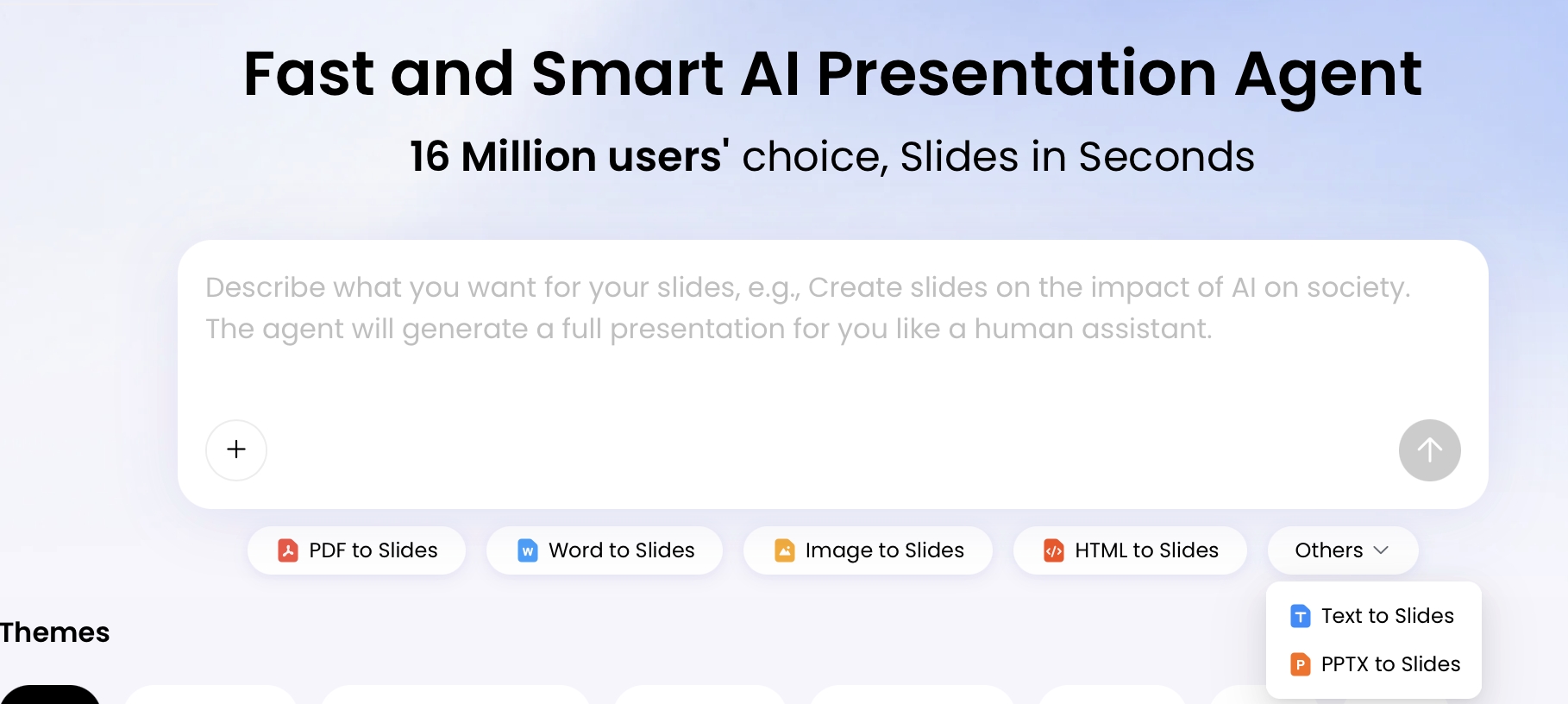
When using PopAi AI Presentation, you can start from a topic prompt or upload existing materials through file-to-slides options such as PDF, Word, Image, HTML, Text, and PPTX. In practice, PDF was easiest for a visual snapshot, while HTML/Markdown-style content gave the AI clearer section hierarchy when the Notion page was mostly text and headings.
Test note: In our sample project-page conversion, PDF preserved the screenshots but produced more slide text that needed trimming. The structured text export produced cleaner slide titles but required separate attention to images. The best result came from uploading the cleaned source and giving the AI explicit instructions about audience, slide count, must-keep metrics, and decision request.
Security rule of thumb: if you would not email the exported Notion page to an outside collaborator, do not upload it to a slide generator without redaction and approval.
- Remove customer names unless approved for external processing.
- Replace employee names with roles when names are unnecessary.
- Delete private Notion links, comments, and unresolved brainstorming notes.
- Check hidden toggles and synced blocks for sensitive content.
- Remove unreleased revenue, hiring, legal, or product information.
- Confirm your organization allows the selected AI tool and upload method.
Turn a Notion page into a presentation with AI: step by step
The core workflow is simple, but the quality depends on the prompt and the outline checkpoint.
Step 1: Define the audience and decision
Before uploading anything, write one sentence that defines the deck’s job. For example: “Create a 10-slide leadership update that explains Q3 roadmap status and asks for approval to delay Feature B by two weeks.” This prevents the AI from producing a neutral summary when you need a decision-oriented presentation.
Step 2: Prepare and export the Notion page
- Promote major ideas to headings.
- Expand important toggles.
- Summarize databases before export.
- Add captions under screenshots and diagrams.
- Move background notes to an appendix.
- Export as PDF, HTML, Markdown & CSV, or copy curated text.
Step 3: Upload the source and prompt the AI
Use a prompt that gives the AI constraints instead of asking for a generic deck:
“Create a 10-slide executive presentation from this Notion export. Audience: VP Product, Engineering, Customer Success. Goal: request approval for the revised Q3 roadmap. Tone: concise and decision-oriented. Must include launch status, milestone timeline, three risks, customer impact, recommended option, and next steps. Do not invent metrics. If a number is missing, mark it as ‘verify.’ Keep visible text under 40 words per slide and include speaker-note suggestions.”
Step 4: Review the outline before generating slides
A good outline should not simply follow the Notion page order. Check these questions before letting the tool design the deck:
- Does slide 1 state the purpose of the presentation?
- Is the audience problem or decision clear by slide 2?
- Are claims supported by evidence from the Notion page?
- Are risks separate from next steps?
- Is there a recommendation, or only a summary?
- Are appendix details kept out of the main flow?
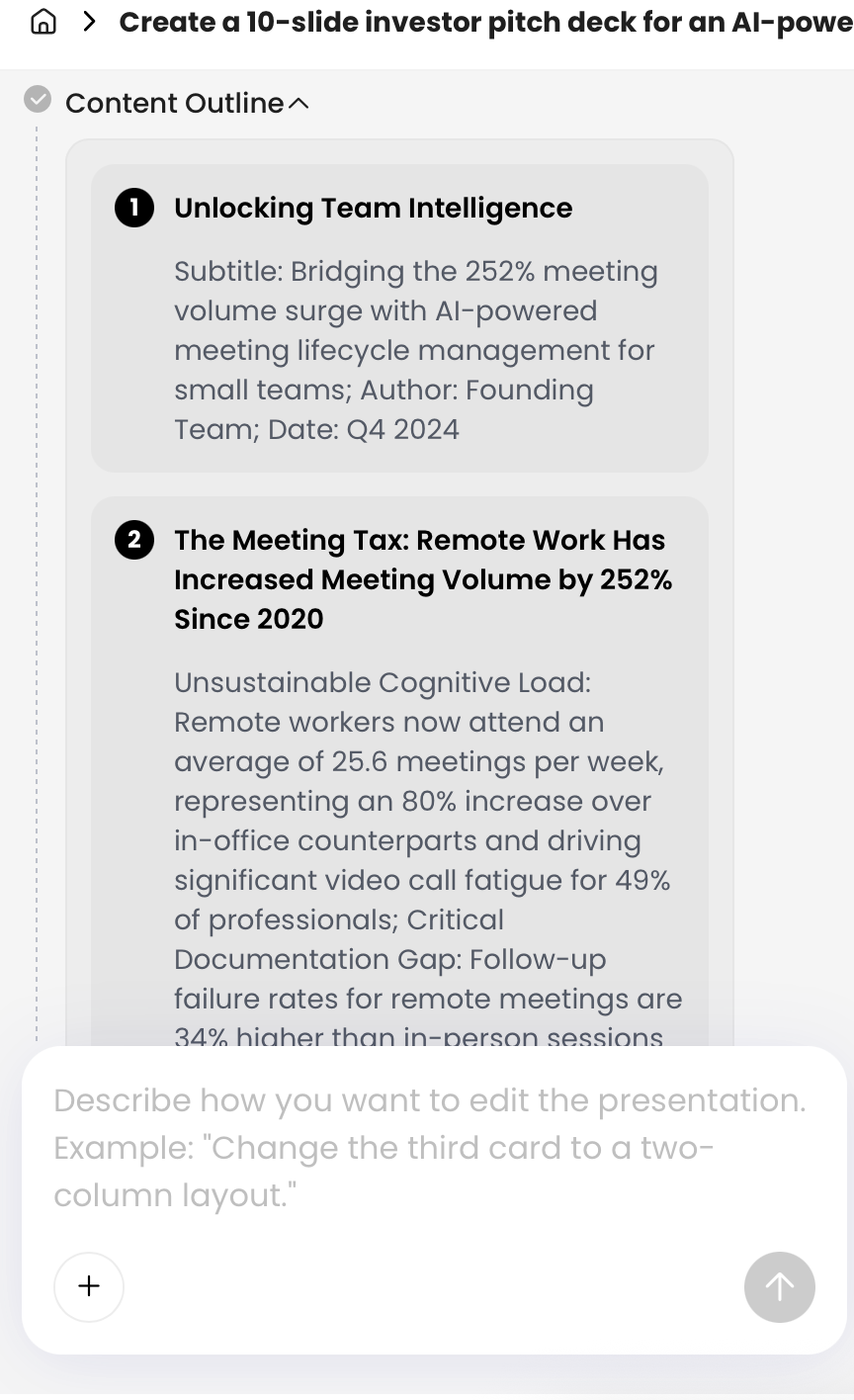
In the sample workflow, the first outline placed “Risks” after “Next steps,” which made the story feel backwards. Moving risks earlier helped the recommendation make sense. This is the moment to merge duplicate slides, rename vague titles, and push low-priority material into backup.
Step 5: Generate, edit, and export
After the outline is right, choose the theme, slide ratio, and layout style. Then edit for slide logic: reduce text, vary layouts, add transitions between ideas, and make each slide answer “so what?” Finally, export to PPTX or PDF and open the file in the exact environment where you will present it.
For example, a Notion project plan might become: project goal, stakeholder problem, current status, milestone timeline, resource plan, risks, recommendation, decision needed, and next steps. A research note might become: research question, method, key finding, evidence, implication, limitation, discussion prompts, and references.
Compare Notion-to-presentation AI tools and workflows
Choose the tool based on import method, privacy needs, export quality, and how much design control you need.
The market includes direct Notion URL importers, AI slide platforms, PowerPoint or Google Slides add-ins, and design-first tools. If you are evaluating options beyond one product, this overview of AI presentation makers can help you compare broader categories and trade-offs.
| Tool or workflow type | Best for | Strength | Watch out for |
|---|---|---|---|
| PopAi or file-to-slides platforms | Turning exported Notion files into editable presentation drafts | Supports document upload workflows and outline-first generation | Still requires review for database summaries, slide density, and brand precision |
| Gamma or Tome-style narrative tools | Fast web-style decks and visually polished drafts | Good for storytelling and lightweight sharing | PPTX editability, corporate templates, and strict formatting may vary |
| Canva or design-first tools | Marketing, classroom, and social-facing decks | Strong templates and visual editing | Notion structure may need to be pasted or summarized manually first |
| Beautiful.ai-style slide builders | Teams that want consistent layouts with less manual design | Smart layout guardrails | Less flexible when a Notion page has unusual tables, diagrams, or narrative flow |
| PowerPoint or Google Slides add-ins | Teams that must stay inside existing presentation software | Final editing happens in a familiar environment | Often requires PDF, DOCX, copied text, or another intermediate source |
| Manual prompt plus curated text | Sensitive or short Notion pages | Maximum control over what is shared and emphasized | Requires stronger prompting and more manual visual editing |
Editable output matters more than a flashy first draft. A beautiful screenshot-based deck becomes expensive to fix when you need to change a number, translate a slide, resize a chart, or reuse one slide in a company template.
The biggest time gains usually come in the first 70% of the job: extracting the story, drafting slide titles, and creating a visual baseline. The final 30%—brand precision, evidence checking, speaker flow, and accessibility—still needs human judgment.
Handle databases, images, toggles, and complex Notion blocks
Complex Notion pages need curation because not every block type converts cleanly into slides.
Databases and tables
A full Notion database is rarely slide-ready; it is a workspace, not a visual argument. Before export, create a filtered view with only the rows and columns the audience needs. Then add a plain-language takeaway above it, such as: “Three projects are delayed because vendor approval is pending.” The AI can use that sentence as the slide headline and treat the table as supporting evidence.
Case example: A 22-row roadmap database with owner, status, priority, due date, and dependency columns produced cluttered slides when exported directly. A filtered view with six milestone rows plus a one-sentence summary produced a cleaner timeline slide and one separate risk slide. The manual preparation took about five minutes and prevented the AI from spreading database rows across several weak bullet slides.
Images, charts, and screenshots
Images convert better when they have captions. Add one sentence below each screenshot or diagram explaining why it matters. For charts, include the key takeaway in text because an AI tool may not reliably infer the story from the visual alone. For code blocks, decide whether the audience needs actual code, pseudocode, or a conceptual diagram.
Notion block conversion behavior
| Notion block | PDF export | HTML / Markdown export | Recommended slide prep |
|---|---|---|---|
| Database view | May appear as a visual table snapshot | May export related rows or CSV files depending on settings | Create a filtered view and add a one-sentence takeaway |
| Wide table | Often squeezed or split awkwardly | Structure may remain but can be hard to read | Convert to 3–5 insight bullets or a simplified table |
| Toggle | Hidden content may be missed if collapsed | May appear inconsistently depending on export | Expand important toggles or move content into normal text |
| Screenshot or diagram | Usually preserved visually | May export as a linked image asset | Add captions and upload missing assets separately if needed |
| Embed: Figma, Miro, Google Doc, video | Often becomes a link or preview only | May not include full embedded content | Add a screenshot, source link, and written summary |
| Synced block | Visible content may export, but source relationship is lost | May not preserve sync behavior | Copy the final text into the page as normal content before export |
| Comments and mentions | Usually not reliable as presentation content | May be omitted or lose context | Resolve comments and rewrite important points into the page |
Toggles, nested pages, and embeds
- Toggles: Expand important toggles before export; if content is presentation-critical, move it into normal text.
- Callouts: Use them for slide-level takeaways, warnings, decisions, or unanswered questions.
- Nested pages: Pull essential nested content into the main page or export nested pages separately and upload them as supporting files.
- Tables: Convert wide tables into a short insight list, milestone view, or chart-ready summary.
- Embedded files: Add a screenshot plus a written summary; do not assume the AI can read the embedded source.
- Accessibility: Avoid relying on screenshots of dense tables. If a visual must remain, add a readable takeaway and alt-text-style description in the source.
After conversion, scan the deck in slide sorter view. If every slide has the same bullet-heavy layout, the AI copied your Notion page instead of transforming it. Ask for fewer words per slide, stronger section breaks, more visual variety, and separate speaker notes for detail.
Edit, export, and share the AI-generated presentation
The last step is where you turn an AI draft into a deck you can safely present.
Review the narrative
- Does the deck introduce the problem before proposing the solution?
- Does each slide advance the argument instead of repeating the source page?
- Do slide titles make claims, not just label topics?
- Is the requested decision, recommendation, or next step unmistakable?
Verify facts and evidence
- Check every number, date, quote, owner, deadline, and customer name against the Notion source.
- Mark missing metrics as “to verify” instead of letting AI fill the gap.
- Confirm charts and tables still support the intended point after simplification.
- Keep a copy of the exported Notion source so reviewers can trace claims back to the original page.
Apply brand and accessibility checks
PopAi supports post-generation editing through natural-language modification requests and more detailed controls for themes, layout blocks, writing, charts, icons, and images. For template-driven teams, using an official PPTX template can reduce cleanup time, but you should still check fonts, title placement, logo usage, contrast, and footer conventions slide by slide.
- Use readable font sizes, especially for tables and screenshots.
- Check contrast for projected rooms and video calls.
- Add speaker notes for detail that does not belong on the slide.
- Replace dense screenshots with simplified visuals when possible.
- Make sure slide order still works without the Notion page open.
Export and test before presenting
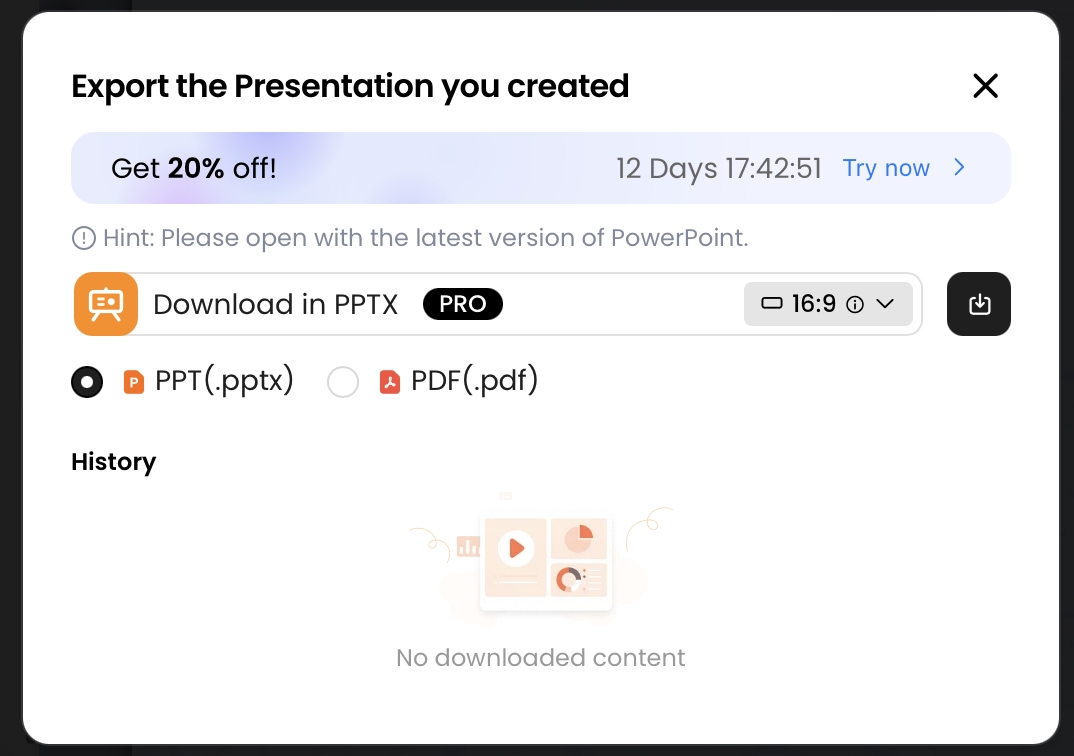
Use PPTX when another person will edit or present the slides in Microsoft PowerPoint. Use PDF when you need a stable version for email, LMS upload, compliance records, or read-only review. If the deck will be used in Google Slides, upload the PPTX and check for font changes, shifted objects, and broken charts.
Test note: In our sample PopAi export, the PPTX opened in Microsoft PowerPoint and normal text boxes remained editable. Images retained acceptable quality for screen presentation, but dense table content still needed manual resizing. As with any AI slide workflow, test your own deck before a high-stakes meeting because editability can vary by layout, chart type, source file, and template.
Avoid common Notion to presentation AI mistakes
Most bad AI decks come from unclear source pages, weak prompts, or skipping the review stage.
Mistake 1: Asking for too many slides
More slides do not automatically create clarity. A 2,500-word Notion strategy page may become a sharp 8-slide executive deck or a detailed 20-slide workshop deck depending on audience and purpose. If the first draft is bloated, ask for one claim per slide, no more than 25–40 visible words per slide, and an appendix for supporting detail.
Mistake 2: Treating sync as automatic
Many tools support re-importing or regenerating from an updated source, but that is not the same as two-way synchronization. If you edit slide 7 after generation and then regenerate from Notion, you may lose the edit. Keep versioned exports: source page date, AI outline date, draft deck date, and final deck date.
Mistake 3: Publishing sensitive Notion pages
If a tool requires a public URL, publish only sanitized content and unpublish it immediately after import. For enterprise pages, prefer file export or approved integrations. Document what was uploaded, especially when the page contains client, student, employee, legal, product, or financial information.
Mistake 4: Letting AI decide the message
AI can organize content, but you own the point of view. Add instructions such as “recommend option B,” “use a cautious tone,” “include three risks,” or “end with a budget approval request.” Without that guidance, the deck may summarize the page but fail to persuade.
Mistake 5: Assuming facts are correct
If the source page is missing a number, AI may generalize or invent a plausible-sounding statement. Use prompt language such as “use source-only claims” and “mark unknown facts as verify.” Then check every metric against the Notion page or original source.
Mistake 6: Ignoring missing images and broken embeds
If screenshots, Figma embeds, videos, or Google Docs do not appear in the draft, upload the image separately or add a screenshot and caption to the Notion page before export. For external embeds, include a plain-language summary so the slide still makes sense if the embed is not readable.
Mistake 7: Exporting without checking editability
A deck can look finished but be difficult to edit if charts, tables, or text are flattened into images. Open the exported PPTX, click the text and visuals, and confirm you can edit the objects you expect to reuse. If not, regenerate with a simpler source format or rebuild key slides manually.
Mistake 8: Regenerating over manual edits
Once you have manually improved slide wording, layout, or brand formatting, do not regenerate the entire deck unless necessary. Regenerate only the affected section when possible, or copy improved slides into a separate final deck file before experimenting again.
FAQ: Convert Notion Pages to Presentations with AI
How do I turn a Notion page into a presentation with AI?
Clean the Notion page, export it as PDF, HTML, Markdown, CSV, or copied text; create DOCX separately if needed, upload it to an AI presentation tool, review the outline, choose a theme, edit the slides, and export the final deck as PPTX or PDF.
Do I need to publish my Notion page publicly first?
Not always. Public URL import is convenient, but file export is safer for confidential pages. If your workspace blocks public sharing, export a sanitized PDF, HTML, Markdown, CSV, or copied text version instead.
Can Notion databases, images, callouts, and toggles become slides?
Yes, but results vary. Filter database views, caption images, expand important toggles, and use callouts as takeaways so the AI can interpret the page more accurately.
Can I export the AI-generated deck as editable PowerPoint?
Many AI slide tools support PPTX export. Open the exported PPTX in Microsoft PowerPoint or the team's preferred editor before publishing, because perfect preservation of every object is not guaranteed.
Will the slides stay synced with the original Notion page?
Usually not automatically. Treat most workflows as re-import or manual sync. Keep versioned exports and regenerate only when source changes are substantial.
Create your presentation with one click now
Turn notes, documents, and exported Notion content into a polished deck with AI-assisted outlining, design, editing, sharing, and export.
Start with PopAi AI Presentation