Document to Slides AI: Create Presentations from PDF or Docs
Updated August 17, 2026 · Marcus Thorne
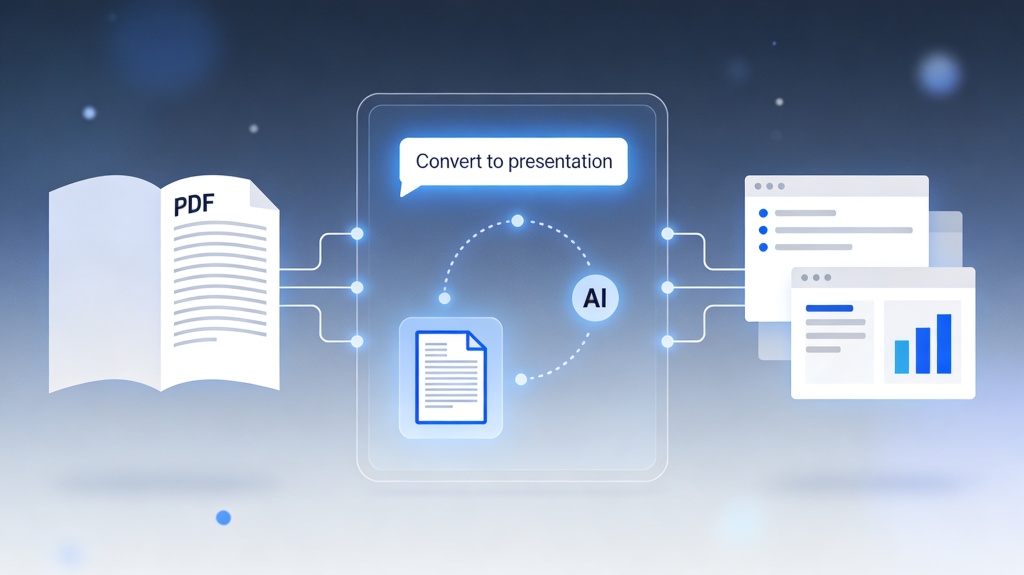
A document to slides AI workflow turns PDFs, Word documents, reports, and long notes into a structured presentation draft. The best result does not come from copying paragraphs into slides; it comes from extracting the thesis, evidence, risks, and recommendations.
This guide explains when to use document-to-slide conversion, how to prepare source files, the step-by-step workflow, a copyable prompt, common failure points, export checks, FAQ, and the PopAi presentation pillar.
Document to Slides AI: What the Workflow Should Produce
The goal is a reviewable slide narrative, not a compressed PDF. AI should identify sections, group related ideas, remove noise, and turn source evidence into concise slide titles and body copy.
Best Use Cases and Input Materials
Start with a source file that has a visible hierarchy. Keep the title, section headings, essential tables, supporting evidence, and any required citations; remove duplicate appendices and pages that do not serve the presentation goal.
- Consulting reports that need a short executive summary deck.
- Research papers that need a class or stakeholder presentation.
- Policy documents that need training slides.
- Product briefs that need roadmap or launch updates.
- Meeting notes or transcripts that need decision and action slides.
Step-by-Step Document to Slides Workflow
| Step | Action | Output |
|---|---|---|
| 1 | Clean the source document | Remove irrelevant pages, legal boilerplate, and duplicated appendices |
| 2 | Define audience and objective | A clear reason for the presentation |
| 3 | Upload PDF, DOCX, or notes | Source material ready for AI parsing |
| 4 | Review the generated outline | Slide order, missing sections, and title logic |
| 5 | Generate and edit slides | A presentation draft with verified facts and readable layouts |
Examples, Editing, and Export Checks
Example: 40-page market report to 10 slides
Use AI to create an executive deck with market context, top findings, customer implications, risk signals, recommended actions, and decision needed. Then manually verify every number and cite the original source in notes.
Example: policy document to training deck
Convert a new workplace policy into slides for managers: explain what changed, who is affected, the required process, two realistic employee scenarios, and where to ask questions. Keep legal wording in the source notes instead of crowding every slide.
Export checks
- Open the PPTX and confirm text remains editable.
- Check whether charts and tables are readable after conversion.
- Replace low-resolution extracted images where needed.
- Move long explanations into speaker notes.
- Delete source sections that do not support the audience objective.
Common Failures and Workarounds
- Scanned PDF errors: run OCR or upload a cleaner source file.
- Too much text per slide: ask AI to split each major idea into separate slides.
- Missing hierarchy: add clear headings before uploading the document.
- Invented claims: instruct AI to flag anything not found in the source.
- Weak visuals: ask for visual suggestions after the outline is approved.
For meeting-source workflows, use meeting notes to presentation AI. For investor documents, use AI investor pitch deck generator.
Frequently Asked Questions
What is document to slides AI?
It converts PDFs, Word documents, reports, or notes into a structured presentation draft by extracting hierarchy, evidence, themes, and a recommended slide order.
How should I prepare a PDF before turning it into slides?
Remove irrelevant pages, make headings clear, simplify complex tables, and define the audience and objective before uploading the file.
Can AI preserve images and charts from documents?
AI can often extract or suggest visuals, but you should manually review image quality, chart readability, and whether each visual supports the slide message.
What should I check after AI creates slides from a document?
Verify facts, review slide titles, reduce text density, test export editability, and confirm that the final deck answers the audience's decision or learning goal.
Turn Policy Documents into Training Slides
After extracting the approved policy content, use the AI training deck generator template to add learning outcomes, role scenarios, knowledge checks, and onboarding next steps.