How to Convert Handwritten Notes into a Presentation with AI
Published on August 03, 2026

Handwritten notes are messy in exactly the ways AI can misread: arrows, margins, abbreviations, formulas, bilingual terms, crossed-out words, and tables that were never designed for a machine. The best workflow is three-part: capture clearly, correct the OCR text, then generate slides from the corrected version.
Sample: Handwritten Page, OCR Text, Final Slide
| Stage | Example | What changed |
|---|---|---|
| Handwritten note | "Q2 churn up? onboarding confusing -> add checklist; ask CS team. Formula: churn = lost / start customers." | Arrows and question marks show uncertainty, not final conclusion. |
| OCR draft | "Q2 churn up onboarding confusing add checklist ask C5 team. churn = last/start customers." | CS became C5 and lost became last. |
| Final slide | Slide title: Onboarding confusion may be contributing to Q2 churn. Bullets: Verify churn formula; review customer-success notes; test onboarding checklist. | Uncertain claims are labeled and checked before presenting. |
Manual Checks for Formulas, Tables, Arrows, and Proper Nouns
| Handwritten element | Typical AI/OCR mistake | How to verify |
|---|---|---|
| Formula | Confuses lost with last, l with 1, or denominator meaning. | Rewrite formulas in typed text and check units. |
| Table | Reads rows out of order or merges columns. | Rebuild the table manually before slide generation. |
| Arrow or bracket | Treats a causal hint as a confirmed conclusion. | Translate arrows into words such as "possible driver" or "follow-up question." |
| Proper noun | Misspells names, products, authors, classes, or client terms. | Compare with syllabus, CRM, glossary, or source document. |
| Bilingual notes | Mixes languages or translates terms inconsistently. | Create a term glossary before generating slides. |
Do Not Claim Fixed OCR Accuracy
Handwriting recognition depends on paper quality, lighting, handwriting style, language, symbols, and camera angle. Avoid promising a fixed recognition rate. A safer statement is that AI can speed up transcription and organization, but the user should review formulas, names, arrows, and sensitive notes before using the deck.
Sensitive Note Handling
Handwritten notes often contain information people did not expect to publish: student names, patient details, customer feedback, private meeting notes, salary comments, or personal reflections. Before upload, crop out unrelated margins, cover names that do not belong in the deck, and create a typed summary when the original page contains sensitive material.
Converting handwritten notes into a presentation with AI can save hours, but the real work is preserving the decisions, arrows, priorities, diagrams, and unfinished ideas that make handwritten notes useful in the first place.
For example, a two-page client meeting note might have “pricing concern” circled in the margin, three action items marked with arrows, and a rough timeline at the bottom. A basic transcription may capture the words, but it can miss that the pricing concern is the main risk and the timeline belongs near the recommendation slide. In a practical test workflow using two scanned notebook pages and one whiteboard photo, the first AI outline took under 10 minutes to create, but the useful deck came from spending another 15 minutes correcting OCR errors, merging duplicate points, and moving action items into a final “Next steps” slide.
This guide walks through the full workflow: capture the notes, digitize them, clean the OCR text, organize an outline, generate slides, and check the final deck. It also explains where tools such as PowerPoint ink conversion, OCR apps, note transcribers, and AI presentation makers fit into the process.
Why handwritten notes to slides works better with AI
The benefit of AI is not just transcription; it is turning scattered notes into a presentation sequence.
Handwritten notes are usually nonlinear. A meeting page may include agenda items in the center, action items in the margin, a rough table at the bottom, and a star next to the only point that really matters. Traditional OCR can extract words, but it often does not understand presentation logic. AI can group related points, infer headings, convert fragments into slide titles, and suggest a sequence—but only if the source is legible and the prompt explains the context.
There are two separate tasks to understand. First, OCR or image understanding converts handwriting, whiteboard photos, or scanned PDFs into searchable text. Second, a presentation generator converts that text into sections, slide titles, bullet hierarchy, visuals, and speaker flow. When these steps are rushed into one “make a deck” request, the result is often fluent but wrong.
Think of AI as a slide producer, not a photocopier. Your goal is not to reproduce the notebook page; your goal is to turn the thinking behind the notebook page into a presentation.
OCR-only output versus slide-ready structure
A typical handwritten fragment might read: “Q3 onboarding — delays in EU, training docs outdated → CS team workaround, NPS? 38? check, main fix = standard kickoff checklist.” OCR may return: “Q3 onboarding delays in EU training docs outdated CS team work around NPS 38 check main fix standard kickoff checklist.” That is readable, but it is not yet a slide.
A better AI-organized outline would separate it into: Slide title: “Onboarding delays are concentrated in EU accounts”; Evidence: “Outdated training documents and inconsistent kickoff steps”; Risk: “[Confirm NPS figure before presenting]”; Recommendation: “Create a standard kickoff checklist for Customer Success.” This is the moment where AI becomes useful: it converts fragments into a decision-ready structure while keeping uncertainty visible.
Common failure point: Most weak decks come from skipping the outline review. Users upload unclear photos, ask for a finished deck immediately, and only discover problems after the slides are designed. A better process inserts a content-plan step before generation. In PopAi AI Presentation, for example, you can upload materials, review the content outline, choose a layout direction, generate slides, then continue editing and exporting. That middle review matters most when the source material is messy.
Capture handwritten notes clearly before using AI
Scan quality determines how much correction you will need later.
Use a scan setup that reduces OCR mistakes
- Use 300 DPI or higher when scanning. For most pen-on-paper notes, 300 DPI is enough; use 400–600 DPI for faint pencil, small handwriting, equations, or dense tables.
- Light the page evenly. Use daylight or two soft light sources. Avoid a phone shadow, glare from glossy paper, and yellow desk-lamp hotspots.
- Keep the camera parallel. Skewed images distort lines, tables, arrows, and page hierarchy. If your phone scan app offers auto-crop and perspective correction, use it.
- Use one page per image. Multi-page desk photos are harder to segment and review. For bound notebooks, press the page flat or scan one side at a time to avoid page curvature.
- Choose PDF for batches. Combine a notebook section into one ordered PDF when creating a single deck.
- Keep color when color has meaning. Use color scans for highlighter, red-pen edits, sticky notes, or color-coded diagrams. Use grayscale only when it improves contrast for plain ink notes.
- Do not crop out context. Margin stars, underlines, circles, and arrows often explain what matters.
Phone capture workflow for notebooks and whiteboards
For phone scanning, Microsoft Lens, Adobe Scan, Google Drive Scan, Apple Notes Scan, and many native camera apps can produce usable PDFs. The tool matters less than the capture discipline: one page per scan, readable at 100% zoom, clear page order, and no cropped margin notes.
For classroom or workshop notes, photograph the whiteboard before anyone erases it, then photograph your notebook pages separately. If the board contains the main structure and the notebook contains details, upload both as source material or paste a prompt that explains the relationship: “Whiteboard photo = main workshop themes; notebook pages = supporting examples and follow-up tasks.”
Bad scan symptoms to fix before upload
- Bullet points disappear when zoomed to 100%.
- Numbers such as 3, 8, 0, and 6 look interchangeable.
- Arrows cross over text and cannot be followed.
- Tables curve near the notebook spine.
- Highlighter makes pencil text harder to read.
- Whiteboard glare removes part of a diagram.
Use filenames that preserve order, such as strategy-workshop-p01-whiteboard.jpg, strategy-workshop-p02-notes.jpg, and strategy-workshop-p03-actions.jpg. Do not assume the AI will know that “IMG_2841” should appear before “IMG_2839.”
- File names include page order, such as meeting-notes-p01.jpg.
- Each page is readable at 100% zoom.
- Tables, arrows, formulas, and diagrams are not cropped.
- Important abbreviations are expanded in a separate text note.
- Private or sensitive details are removed before upload.
Clean OCR text without losing the meaning of handwritten notes
Use OCR first when accuracy matters more than speed.
Choose direct upload, OCR-first, or manual cleanup
- Digital ink: If notes were written in PowerPoint, OneNote, or a tablet app, try built-in ink-to-text or ink-to-shape tools first.
- Neat scanned notes: If the handwriting is consistent and mostly text, direct Image or PDF to Slides can be efficient.
- Messy handwritten notes: Run OCR first, then manually clean the transcript before generating slides.
- Formulas, tables, legal terms, citations, or financials: Manually type the critical content and treat OCR as a draft only.
- Confidential notes: Redact or anonymize before using any cloud-based tool, or use an approved enterprise/local OCR workflow.
Cleaning does not mean rewriting everything. It means correcting recognition errors that could damage the presentation: client names, dates, financial figures, research terms, citations, equations, and action verbs. The fastest method is to compare the OCR output side by side with the scan and mark uncertain items with brackets.
Example: messy OCR before and after cleanup
Raw OCR: “Acme renewel risk Q4 — Marla? says pilot blocked by sec review. ARR 1.2? or 12m. Fix: legal template + onboarding owner. *CEO slide.”
Cleaned version for AI: “Topic: Acme renewal risk for Q4. Contact: [confirm name: Marla/Maria]. Issue: pilot is blocked by security review. Revenue impact: [confirm ARR: $1.2M or $12M before presenting]. Recommended fixes: create legal review template; assign one onboarding owner. Priority: this should appear in the executive summary slide.”
This kind of cleanup prevents two common failures: the AI confidently using the wrong number, and the starred margin note becoming an ordinary bullet instead of an executive-level priority.
A simple cleanup format
- Topic: Quarterly customer onboarding review
- Audience: Sales leadership and customer success managers
- Must include: churn risk signals, onboarding delays, top three process fixes
- Uncertain OCR: “[check exact NPS figure]” and “[confirm regional sample size]”
- Visual instructions: “Starred margin notes are priorities; arrows indicate dependencies.”
- Desired output: 8-slide executive update with concise bullets and recommendations
Never let OCR uncertainty become slide certainty. If a number, quote, formula, or citation looks questionable, label it before the deck is generated.
PowerPoint can help in specific cases. With Microsoft 365 ink tools, handwritten ink created inside PowerPoint can be selected with Lasso Select and converted into text or shapes. That is useful when the notes already live as digital ink. It is less useful for photographed paper notebooks because the writing is usually embedded in an image, not stored as editable ink strokes.
Turn handwritten notes into a presentation with AI step by step
The best deck comes from prompting for an outline first, then generating slides after the content plan is right.
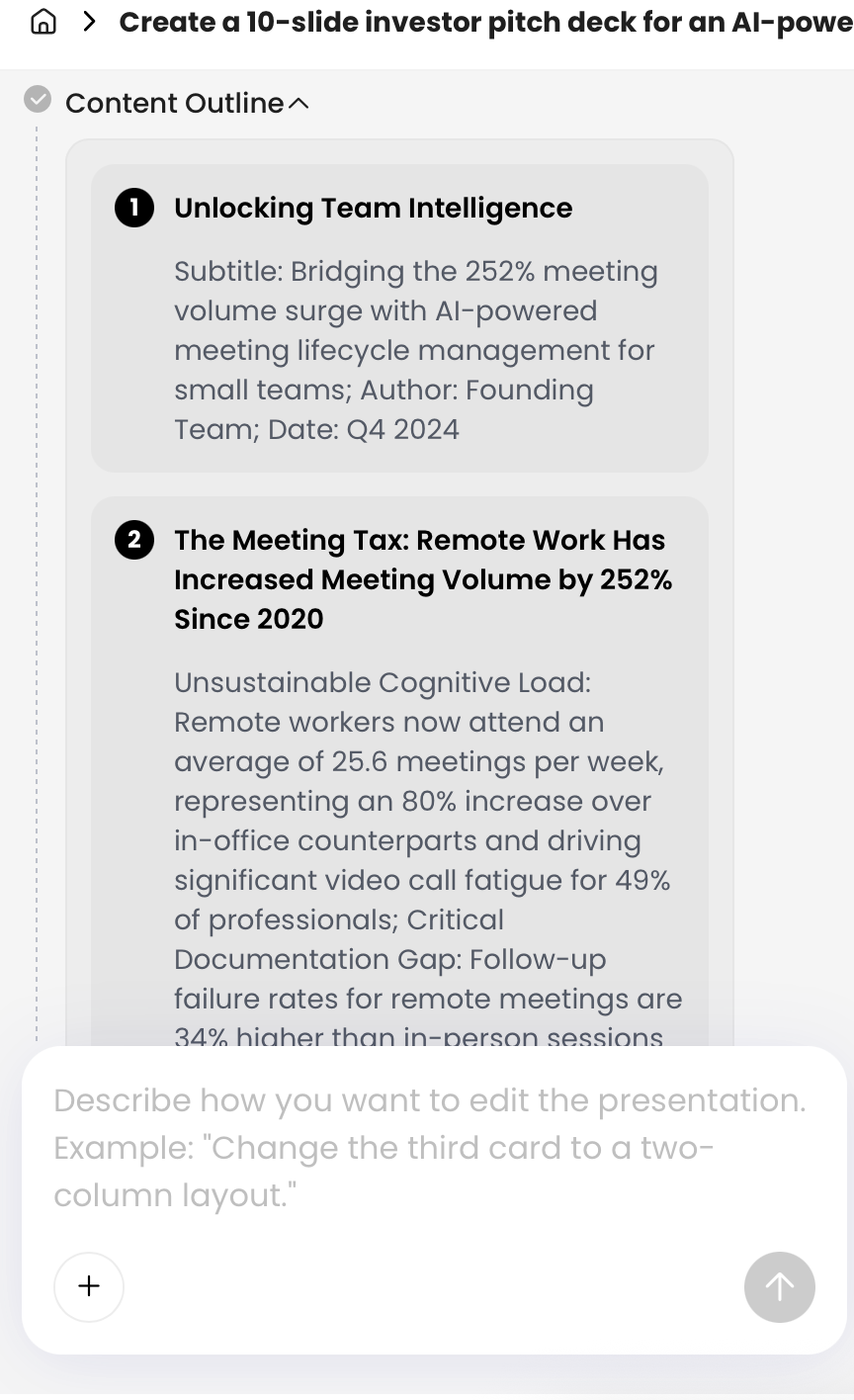
End-to-end workflow
- Upload the source. Start with Image or PDF if your handwritten notes are scanned. Use Text if you have already cleaned OCR output. Mixed research materials may include PDF, Word, Image, HTML, Text, or PPTX sources.
- Add audience context. Specify whether the deck is for executives, students, clients, faculty, investors, or internal teammates.
- State the presentation job. Say whether the goal is to teach, persuade, summarize, report progress, win approval, or document decisions.
- Request an outline first. Ask for sections, slide titles, key points, uncertainties, and transitions before the final design is created.
- Review the content plan. Merge duplicates, remove weak points, confirm key handwritten marks are represented, and move low-priority details to an appendix.
- Choose format and style. Select a theme, template, aspect ratio, or layout style that matches the setting.
- Generate and edit. Use revision requests such as “make slide 3 more executive-friendly,” “turn this process into a diagram,” or “reduce each slide to three bullets.”
- Export or share. Export as PPTX or PDF when needed, or share a review link when collaborators should preview without receiving an attachment.
Prompt the AI with audience, purpose, and constraints
For a student lecture deck, add: “Explain concepts step by step, define abbreviations, and include one recap slide.” For an executive update, add: “Lead with the recommendation, limit background detail, and include risks, trade-offs, and next actions.” For a client presentation, add: “Do not expose internal notes; convert rough comments into client-safe language.”
Review the outline before design
A good outline should pass four checks before you generate slides:
- Coverage: Every circled, starred, or underlined point is included or intentionally excluded.
- Sequence: The slides move from context to insight to recommendation, not just page order.
- Uncertainty: Questionable names, numbers, formulas, and citations remain flagged.
- Slide count: The deck matches the speaking time. As a rule of thumb, a 10-minute update usually needs 6–10 focused slides, not 25 dense ones.
Sample outline from handwritten meeting notes
- Executive summary: Onboarding delays are creating Q4 renewal risk.
- What changed: EU accounts are waiting longer for kickoff and security review.
- Evidence from notes: Delays, outdated training content, and inconsistent handoffs.
- Customer impact: NPS and renewal risk, with uncertain figures flagged for confirmation.
- Root causes: No standard checklist, unclear owner, repeated legal review steps.
- Recommended fix: Standard kickoff checklist plus one accountable onboarding owner.
- Implementation plan: Two-week checklist draft, pilot with EU accounts, review after first cohort.
- Decisions needed: Owner, timeline, and approval for legal template.
In practice, the first outline is where you should be most critical. If the outline misses the handwritten priority, the final deck will look polished but tell the wrong story.
Handle diagrams, formulas, arrows, and multilingual handwritten notes
Non-text content must be described, verified, or rebuilt instead of blindly transcribed.
Handwritten notes often contain information that is not plain text. A product strategy page might have a funnel sketch. A lecture notebook might include equations. A workshop board may show sticky-note clusters and arrows. These elements need special handling because OCR can flatten them into nonsense or ignore them entirely.
Use the right conversion strategy for non-text material
- Diagrams: Upload the original image if useful, but also describe it in text. Example: “Three-stage funnel: acquisition → activation → retention; bottleneck is activation.” Then ask AI to recreate it as a flow or hierarchy slide.
- Flowcharts: Label nodes and arrows manually. Example: “Arrow from Legal Review to Pilot Launch means dependency, not sequence option.”
- Tables: Rebuild the table manually in a spreadsheet if numbers matter. Ask AI to summarize patterns, not invent missing cells.
- Formulas: Type formulas separately using LaTeX or your preferred equation format. Verify notation in PowerPoint’s equation editor, MathType, or your final slide tool before presenting.
- Chemical, finance, or engineering notation: Do not ask AI to “clean up” notation unless a subject-matter expert reviews it. Small symbol changes can alter the meaning.
- Arrows and stars: Translate visual marks into instructions such as “this is the main recommendation,” “these three items are dependencies,” or “move this to the appendix.”
- Multilingual notes: Tell the AI the source language, target presentation language, and terms that should not be translated.
- Sticky-note boards: Cluster by theme before slide generation, such as “customer pain points,” “ideas,” “risks,” and “owners.”
For mixed Chinese-English notes, non-Latin scripts, or specialized terminology, create a glossary at the top of your prompt. This helps prevent the AI from “normalizing” a term into a more common but incorrect word. If your lecture notes include symbols, define them before requesting slides: “CAC = customer acquisition cost,” “Δ = change from baseline,” “R2 refers to the second research question,” or “不要翻译产品名 X.”
Privacy checks before uploading handwritten notes
Handwritten notes are often more sensitive than people realize because they contain informal names, draft decisions, revenue figures, student details, patient references, unpublished research, or internal strategy. Before uploading, redact names, replace clients with placeholders, remove student or patient identifiers, and check whether your organization allows the tool for that content type.
Edit, export, and check the AI-generated presentation deck
Treat the AI-generated deck as a production draft, not the final presentation.
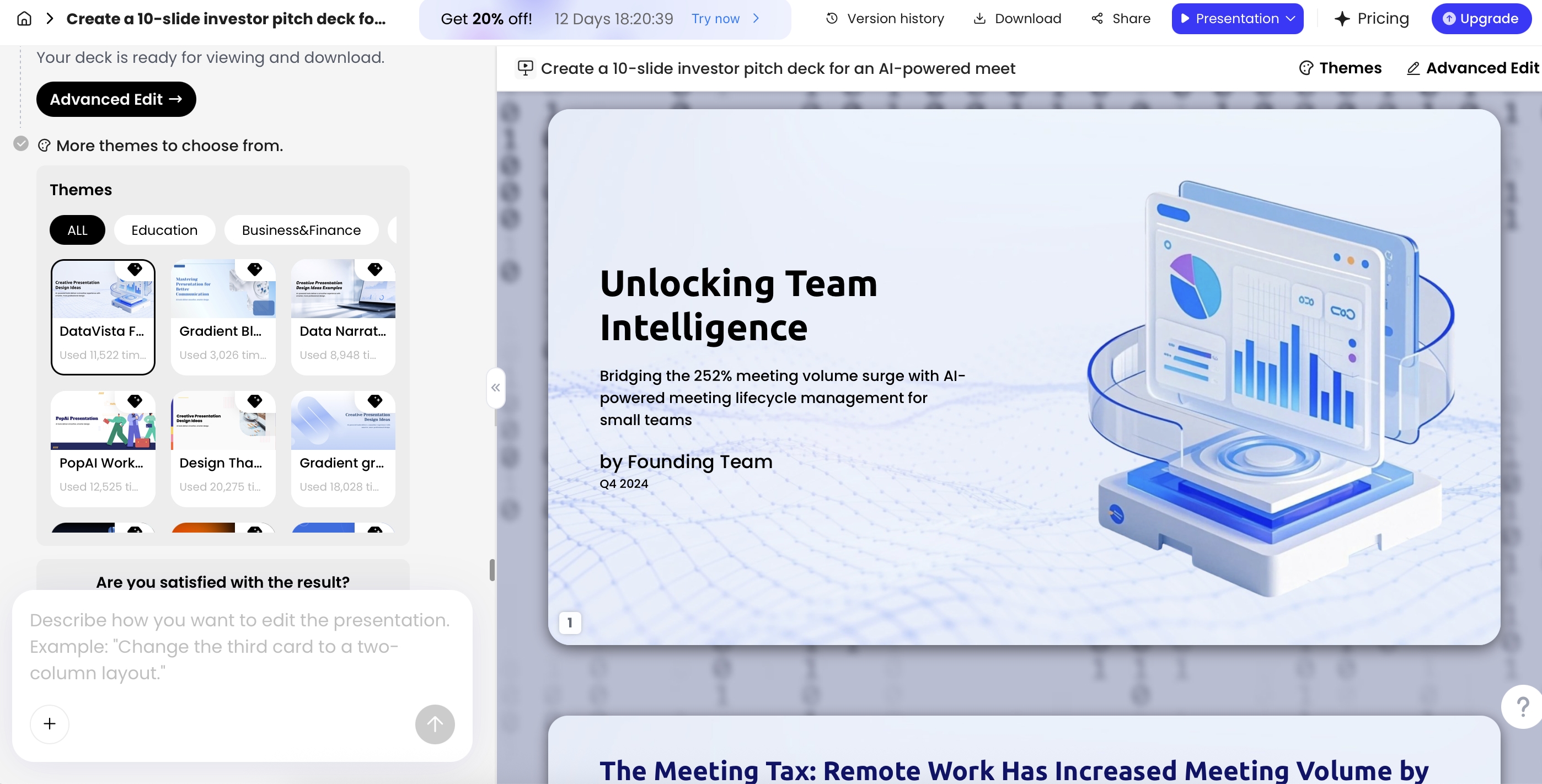
Testing note: what to check after export
In a hands-on workflow check for this guide, two scanned handwritten meeting-note pages were converted into a 10-slide deck and exported as PPTX. The file opened in Microsoft PowerPoint, and sample text boxes were editable. Basic slide layouts and embedded images transferred as expected. Items that still needed manual review included line breaks, font substitution, object grouping, and whether any chart-like visuals were editable or only embedded as graphics.
That kind of test is more useful than assuming every export will behave perfectly. If you will present in PowerPoint, Google Slides, Keynote, or a conference-room computer, open the file in that environment before the presentation day. Check whether speaker notes, fonts, charts, images, and layout spacing survived the export.
Check accuracy
- Facts: Verify names, dates, statistics, citations, formulas, and quoted phrases against the original notes.
- Numbers: Recheck decimals, percentages, currencies, sample sizes, and chart labels.
- Uncertainty: Resolve every bracketed item such as “[confirm ARR]” or remove it from the presenting version.
- Coverage: Confirm every starred or underlined handwritten point appears in the outline, final slides, speaker notes, or appendix.
Check design and readability
- Structure: Make sure the deck has a beginning, logical sections, transitions, and a clear ending.
- Slide density: Reduce crowded slides to one idea per slide where possible.
- Visual hierarchy: Check that titles, subtitles, bullets, icons, and charts guide the eye.
- Accessibility: Check contrast, font size, alt text for important images, and reading order for complex slides.
Check delivery and compatibility
- Timing: Match slide count to speaking time; an 8-minute update rarely needs 25 slides.
- Speaker notes: Add reminders for uncertain context, transitions, and verbal explanations that should not appear on slides.
- Export: Open the exported PPTX or PDF on the device and software you will actually use.
- Backup: Save a PDF version in case fonts, animations, or object layouts shift.
The handwritten source is still your authority. AI can organize and design quickly, but it should not get the final vote on facts, emphasis, or meaning.
A practical review benchmark is to reserve at least 10 to 15 minutes of checking for every 20 slides, and more for technical, data-heavy, multilingual, or client-facing decks. The time saved usually comes from avoiding blank-slide design work; the time you still need is editorial judgment.
FAQ: handwritten notes into a presentation with AI
Can AI convert messy handwritten notes directly into slides?
Sometimes, but the best workflow is to scan the notes clearly, run OCR or upload the image/PDF to a file-to-slides tool, then review the extracted outline before generating the deck. Messy handwriting still needs human verification.
What file format should I use for handwritten notes?
Use high-resolution JPG or PNG for single pages and PDF for multi-page notes. If your notes include diagrams or formulas, keep the original images so you can compare the AI output with the source.
Will the generated PowerPoint deck be editable?
Many AI presentation tools export editable PPTX files. Exported PPTX files should be opened in Microsoft PowerPoint or the team's preferred editor before publishing, because no tool should be assumed to preserve every object perfectly.
How do I prevent AI from leaving out important points?
Label priority items in your notes, add a prompt that says which sections are mandatory, review the generated outline before slides are made, and run a final checklist against the original scans.
Create your presentation with one click now
Upload notes, organize your ideas, generate a polished deck, and keep editing until the story is ready to present.
Create with PopAi