How to Edit AI-Generated Slides: Style, Tone, and Length Tips
If you use AI to draft decks, the hardest part is rarely getting slides on the page. The real work is learning how to edit AI-generated slides so they sound like you, fit your audience, and stay concise enough to present with confidence.
AI presentation tools can give you structure, layouts, and draft copy fast. But unedited AI slides often feel slightly too generic: the headings are safe, the tone is broad, and the text runs longer than a speaker can comfortably deliver. This guide gives founders, marketers, consultants, students, and team leads a practical editing workflow for turning a first draft into a presentation-ready deck.
For a faster starting point, you can generate a draft with PopAi AI Presentation, then use the checklist below to refine voice, visuals, and slide density before the meeting.
Why You Must Edit AI-Generated Slides Before Presenting
This section explains what AI drafts usually get right, where they fall short, and why editing is the difference between a deck that exists and a deck that persuades.
AI is good at structure, not final judgment
AI-generated slide decks are useful because they reduce blank-page work. They can suggest an agenda, group related points, create visual hierarchy, and turn rough notes into a logical flow. That makes them especially valuable when you need a client update, project proposal, training deck, or class presentation quickly.
The risk is that the draft often optimizes for completeness rather than decision-making. A slide may include five accurate points when your audience only needs the one point that changes what they do next.
Use AI-generated slides as the first 60% of the job: structure, draft copy, and design direction. The last 40% is human editing: judgment, emphasis, evidence, and delivery fit.
The most common AI slide problems
When reviewing AI-assisted decks for business and education use cases, the same issues appear repeatedly. They are fixable, but only if you edit with a specific lens instead of reading the deck passively.
- Generic tone: The copy sounds polished but not specific to your role, company, audience, or moment.
- Overloaded slides: AI often explains instead of presenting, creating paragraphs where a speaker needs cues.
- Visual inconsistency: Icons, image styles, spacing, and chart treatments may vary across slides.
- Weak hierarchy: The important idea is present, but it is not visually or verbally emphasized.
- Unsupported claims: AI may produce confident statements that still need verification, sourcing, or softer wording.
Edit AI-Generated Slides for Style and Visual Consistency
Style editing makes the deck feel intentional, branded, and easy to follow even when the first draft came from an automated tool.
Start with a visual system, not slide-by-slide decoration
The fastest way to polish AI slides is to define a simple system before changing individual layouts. Pick a color palette, font pairing, title position, section divider style, chart style, and image treatment. Then apply those choices consistently.
Presentation design guidance from Microsoft PowerPoint’s official Designer documentation emphasizes layouts, visual hierarchy, and consistent design suggestions. The same principle applies to AI-generated decks: consistency helps the audience process content without relearning the design on every slide.
| Style element | Quick editing rule | What to avoid |
|---|---|---|
| Colors | Use one primary color, one accent color, and neutral backgrounds. | Random gradients, too many accent colors, low-contrast text. |
| Typography | Limit the deck to one or two typefaces and repeat title sizes. | Changing fonts because each slide template looks different. |
| Images | Choose one treatment: full-bleed photos, framed screenshots, or consistent illustrations. | Mixing stock photos, flat icons, 3D renders, and screenshots without a reason. |
| Spacing | Align titles, body blocks, and charts to a clear grid. | Letting AI-generated elements float unevenly across slides. |
Use the “three-slide scan” test
Open three non-adjacent slides: one near the beginning, one in the middle, and one near the end. If they look like they belong to three different decks, the style system needs tightening. Standardize the background, heading placement, icon weight, and chart colors before editing details.
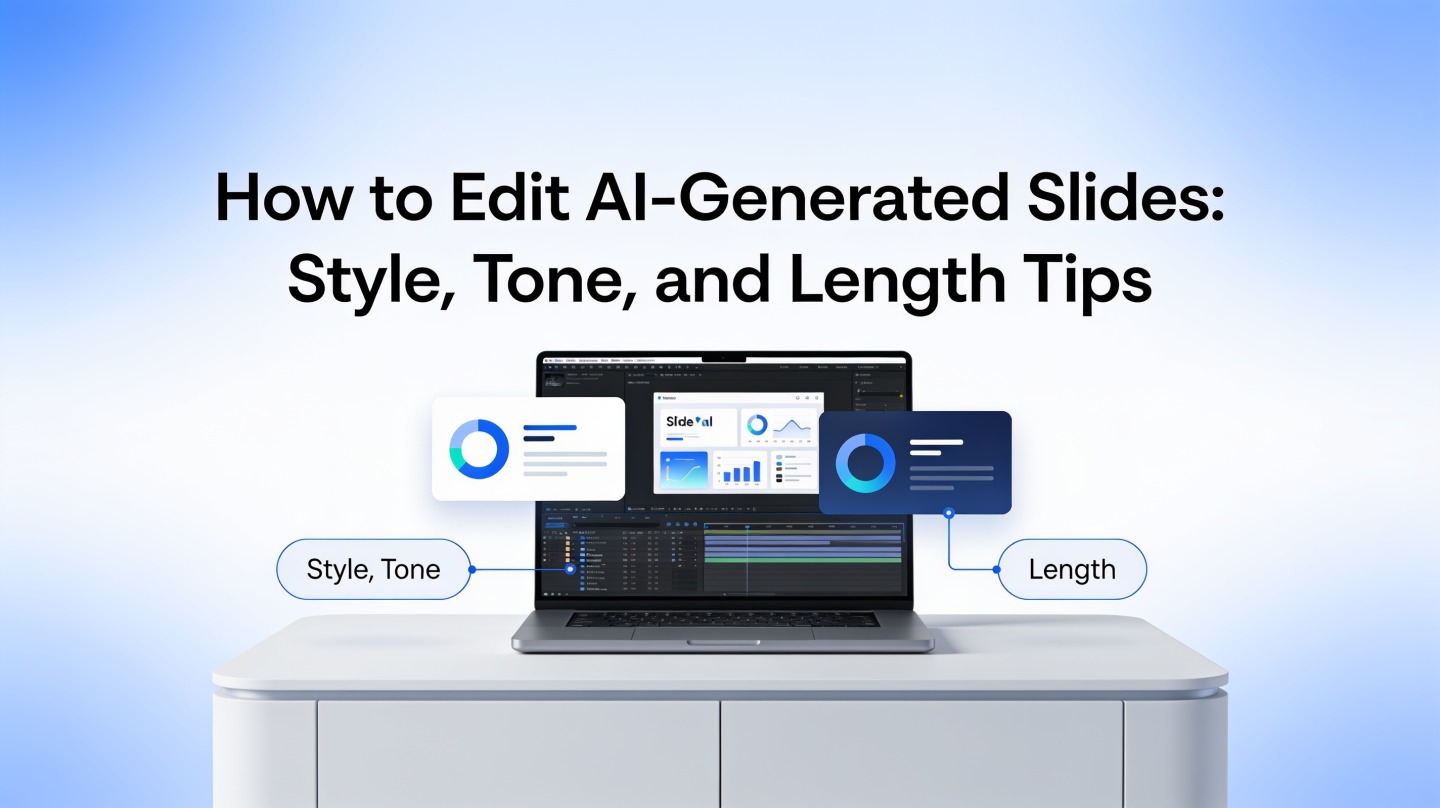
Pro tip: After generating a deck, open PopAi AI Presentation and refine the prompt with your brand mood, audience, and preferred layout style before manually adjusting every slide.
Fix Tone in AI Presentation Editing
Tone editing makes the deck sound like it was written for a specific room, not for a generic internet audience.
Translate AI language into audience language
AI tends to produce balanced, neutral, and formal copy. That can be helpful, but it often misses the way your audience actually talks about problems. A board update needs clear recommendations. A sales deck needs outcome language. A training deck needs definitions, examples, and confidence-building transitions.
Before editing wording, write one sentence that defines the room: “This deck is for operations leaders deciding whether to approve a new workflow.” That sentence gives you a tone filter for every slide.
Use tone edits that change behavior
Do not edit tone just to make sentences prettier. Edit tone so the audience understands what matters, why it matters, and what to do next.
- For executives: Replace “Here are several benefits” with “The highest-impact benefit is reduced approval delay.”
- For clients: Replace “Our solution offers advanced capabilities” with “Your team can launch the campaign without adding another tool.”
- For students: Replace “This method improves learning outcomes” with “This method helps learners practice the skill before they are graded on it.”
- For internal teams: Replace “Collaboration will be enhanced” with “Marketing and product will review the same launch checklist every Friday.”
If a slide could be used unchanged by any company in any industry, it is not finished. Specificity is the easiest tone upgrade.
Evidence from a practical rewrite
In a hands-on editing pass on a 14-slide AI-generated product update deck, the biggest improvement came from replacing broad headings with decision-led headings. “Market Context” became “Customers Are Delaying Purchases Because Integration Work Feels Risky.” “Next Steps” became “Approve a Two-Week Pilot With the Existing CRM Team.” The slide count did not change, but the deck became easier to present because each title carried a clear point.
This mirrors a common presentation principle taught by firms such as Duarte and McKinsey-style communication training: slide titles should often state the takeaway, not merely label the topic. AI may give you labels; your edit should create meaning.
Trim Length and Polish AI Slides for Live Delivery
Length editing turns AI’s detailed draft into a deck that works in a real meeting, class, webinar, or pitch.
Separate slide text from speaker text
A slide is not a script. If the AI draft includes full paragraphs, move supporting explanation into speaker notes and keep only the visual cues your audience needs. The audience should be able to understand the main point in a few seconds while still listening to you.
A practical benchmark: read each slide out loud. If you need more than 20 to 30 seconds just to read the visible text, the slide is probably too dense for a live presentation. That range is not a universal rule, but it is a useful editing signal for business reviews, pitch decks, and classroom talks.
Apply the one-message rule
Every slide should answer one question. If a slide answers three questions, split it, simplify it, or turn it into a process diagram. AI-generated slides often combine background, evidence, and recommendation on one screen because the model is trying to be helpful. Your job is to decide what the slide is actually for.
- Underline the main sentence: Find the single point the audience must remember.
- Delete duplicates: Remove bullets that repeat the title in different words.
- Convert lists: Turn long bullet groups into a table, timeline, funnel, or before-after layout.
- Move detail: Put definitions, caveats, and backup proof into notes or appendix slides.
Before-and-after length edit
Before: “Our marketing team should consider implementing a more structured content planning process because it will help improve alignment, increase campaign consistency, support better collaboration across departments, and create a more predictable publishing schedule.”
After: “Adopt one shared content calendar to improve campaign consistency and publishing predictability.”
The edited version is shorter, but more importantly, it has a clear action. That is the goal of length editing: reduce words while increasing force.
Fact-Check Claims, Data, and Examples
Accuracy editing protects your credibility, especially when AI creates confident wording around facts, trends, or market claims.
Verify before you beautify
It is tempting to fix design first because visual polish feels satisfying. But if a chart, number, or claim is wrong, a beautiful slide only makes the mistake more visible. Check factual content before final design export.
Google’s Search Quality guidance and broader AI content discussions consistently emphasize helpful, accurate, people-first information. For presentations, the same standard applies: cite where important claims come from, avoid overclaiming, and make uncertainty clear when the evidence is directional rather than conclusive.
Use a slide-level verification checklist
- Numbers: Can you trace every metric to a source, report, CRM export, survey, or internal dashboard?
- Charts: Does the chart type match the data, and are axes labeled clearly?
- Quotes: Are customer quotes exact, approved, and attributed correctly?
- Competitor claims: Are comparisons current and fair?
- Recommendations: Does the evidence actually support the action you are asking for?
Use careful wording when proof is limited
If you cannot verify a claim, do not force certainty. Replace “This will reduce onboarding time by 40%” with “We expect onboarding time to decrease after removing duplicate approval steps; pilot data is needed to quantify the impact.” The second version is less flashy but more trustworthy.
Final Checklist to Edit AI-Generated Slides Like a Pro
Use this final pass when the deck is almost ready and you need to catch issues that affect delivery.
Run the deck as your audience will experience it
Do not review only in edit mode. Present the deck full-screen, speak through the slides, and notice where you stumble. If you cannot explain a slide naturally, the wording may not match your voice. If you skip a bullet while rehearsing, the bullet probably does not belong on the slide.
The 10-minute polish checklist
- Every slide title states either a topic or a takeaway; important slides use takeaway titles.
- No slide has more than one primary message.
- Repeated elements align across slides: titles, logos, page numbers, labels, and chart legends.
- Text contrast is readable on projectors and video calls.
- All AI-generated facts, examples, and names have been checked.
- The opening slide explains the audience problem quickly.
- The final slide makes the next action obvious.
Save a clean version and a speaker version
Create two files if the stakes are high. The clean version is what you send afterward: concise, polished, and readable without narration. The speaker version includes notes, reminders, and backup slides. This prevents the common mistake of overloading visible slides just because you want the file to stand alone later.
Editing shortcut: Ask yourself, “Would I say this sentence out loud in the meeting?” If the answer is no, rewrite the slide in your real speaking voice.
FAQ: Editing AI-Generated Slides
These are the most common questions presenters ask when refining an AI-created deck for real delivery.
How much should I rewrite AI-generated slide text?
Rewrite enough to make the deck accurate, audience-specific, and presentation-friendly. Keep the structure if it works, but replace generic claims, long sentences, weak verbs, and any wording that does not sound like your brand or your speaker voice.
What is the fastest way to make AI slides look consistent?
Start with one visual system: a limited color palette, two fonts or fewer, consistent title placement, repeated spacing, and one icon or image style. Then apply that system slide by slide before you fine-tune individual layouts.
Should I shorten every AI-generated slide?
Not every slide needs to be shorter, but most AI drafts benefit from trimming. Keep one core message per slide, move detail into speaker notes, and convert explanations into diagrams, bullets, or comparison tables when the audience needs to scan quickly.
How do I know if the tone is right for my audience?
Read the deck from the audience's point of view. Executives usually need concise recommendations and risk context, clients need outcomes and proof, and students or workshop participants need definitions and examples. If a slide sounds like it was written for everyone, edit it for one audience.
Create your presentation with one click now
Turn your topic, notes, or document into a structured AI-generated presentation, then refine the style, tone, and length for your audience.
Start creating with PopAi