The workflow in this guide is export Confluence content, prepare a file, then use file-to-slides AI. It is not a demonstrated native PopAi-Confluence connection. The exported document is a snapshot: later wiki edits do not automatically update the deck.
Start with a decision, not an entire space. A roadmap review, onboarding session, incident recap, and release briefing need different slices of the wiki. Identify the approved pages and the audience permitted to see their contents before exporting anything.
Export from Confluence Cloud
The following routes follow Atlassian's export documentation (checked September 17, 2026).
| Route | Official navigation | Result / boundary |
|---|---|---|
| Single page: Word | Open the page; choose More actions (...) > Export > Export to Word. | Atlassian warns its Word export format requires Microsoft Word. Inspect it there before resaving to a format your slide tool accepts. |
| Single page: PDF | Open the content; choose More actions (...) > Export > Export to PDF. | Only the published page version is exported; unpublished edits are excluded. |
| Selected pages / space: HTML | Space name > More actions (...) > Space settings > General > Export space > HTML > Next; select content; export. | A space-admin route producing a ZIP. Keep the HTML and attachment folders together. |
Administrators can restrict exports. HTML space exports omit blog posts and page comments; PDF space exports omit comments. HTML attachments are stored under page-ID folders. Inspect wide tables and any unsupported embedded elements before using the output.
Check macros, embeds, attachments, and permissions
A page that looks complete in the browser can depend on another system. Treat each dynamic element as an item to inspect in the exported file rather than assuming a successful export captures it.
| Source item | What can go wrong for a slide deck | Preparation action |
|---|---|---|
| Jira issue list, roadmap, or reporting macro | The deck can lose fields, context, or freshness even when a picture remains. | Record an as-of date; export approved underlying data separately when numbers matter. |
| Embedded dashboard, video, or external document | A link or empty box may replace the live content. | Choose an authorized static image, a short textual summary, or a live demo link with a tested fallback. |
| Child pages and linked references | A single-page snapshot may not contain the background needed to interpret the claim. | Select relevant pages explicitly; add source IDs and a short approved brief. |
| Attachments | Relative links can break when HTML is separated from the ZIP's assets. | Keep originals intact; copy authorized assets into a separate slide-input package. |
| Private comments or restricted content | A broadly shared deck can expose material whose wiki access was limited. | Review distribution independently; redact and obtain permission before uploading or sharing. |
Do not bypass an export restriction by publishing a private page. Ask the content owner for an approved extract. A readable file is not automatically authorized input to a third-party AI service.
Turn the export into a presentation brief
Remove navigation, duplicate headings, outdated notes, and implementation detail the audience does not need. Keep source IDs, dates, assumptions, open questions, and limitations. For Word exports, inspect in Word and save a compatible document if needed; for HTML, do not upload the entire ZIP unless the destination explicitly accepts that package.
| Wiki material | Briefing role | Illustrative slide |
|---|---|---|
| Project overview and decision log | Explain what requires a decision now. | Approve the next release scope. |
| Completed work and dated issue summary | Separate finished work from plans. | What is complete, with evidence and an as-of date. |
| Risk register and dependency notes | Show conditions that may change the plan. | Unresolved dependencies and accountable owners. |
| Approved next steps | Close with a request, not a wiki navigation map. | Decision, owner, due date, and follow-up. |
Create a six-slide release review from this approved Confluence export. Audience: the release steering group. Include decision requested, completed scope, evidence, open risks, dependencies, and next actions. Preserve dates and source page IDs. Do not infer that open work is complete. Put implementation detail in notes. Mark missing evidence as a question, not an invented fact.
Generate the outline, then review against the wiki snapshot
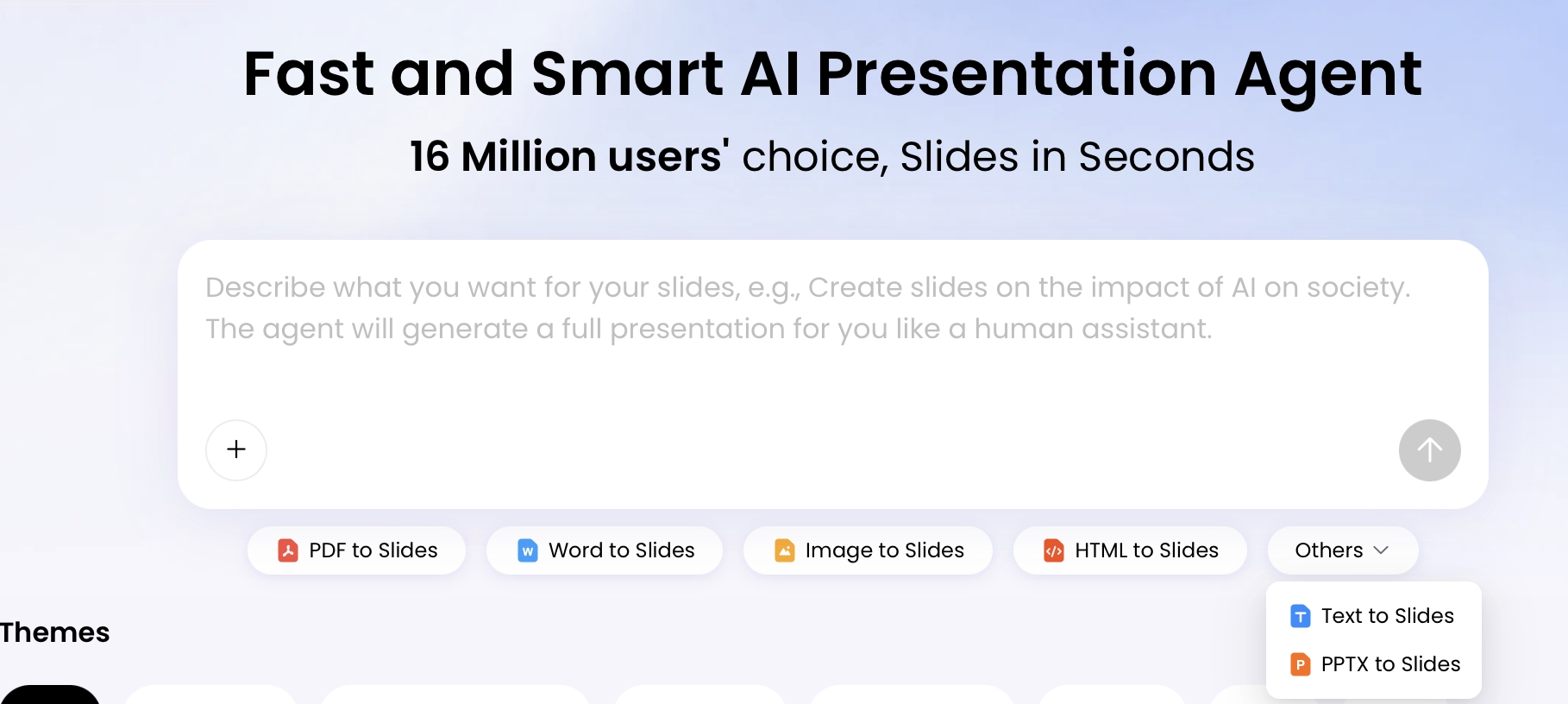
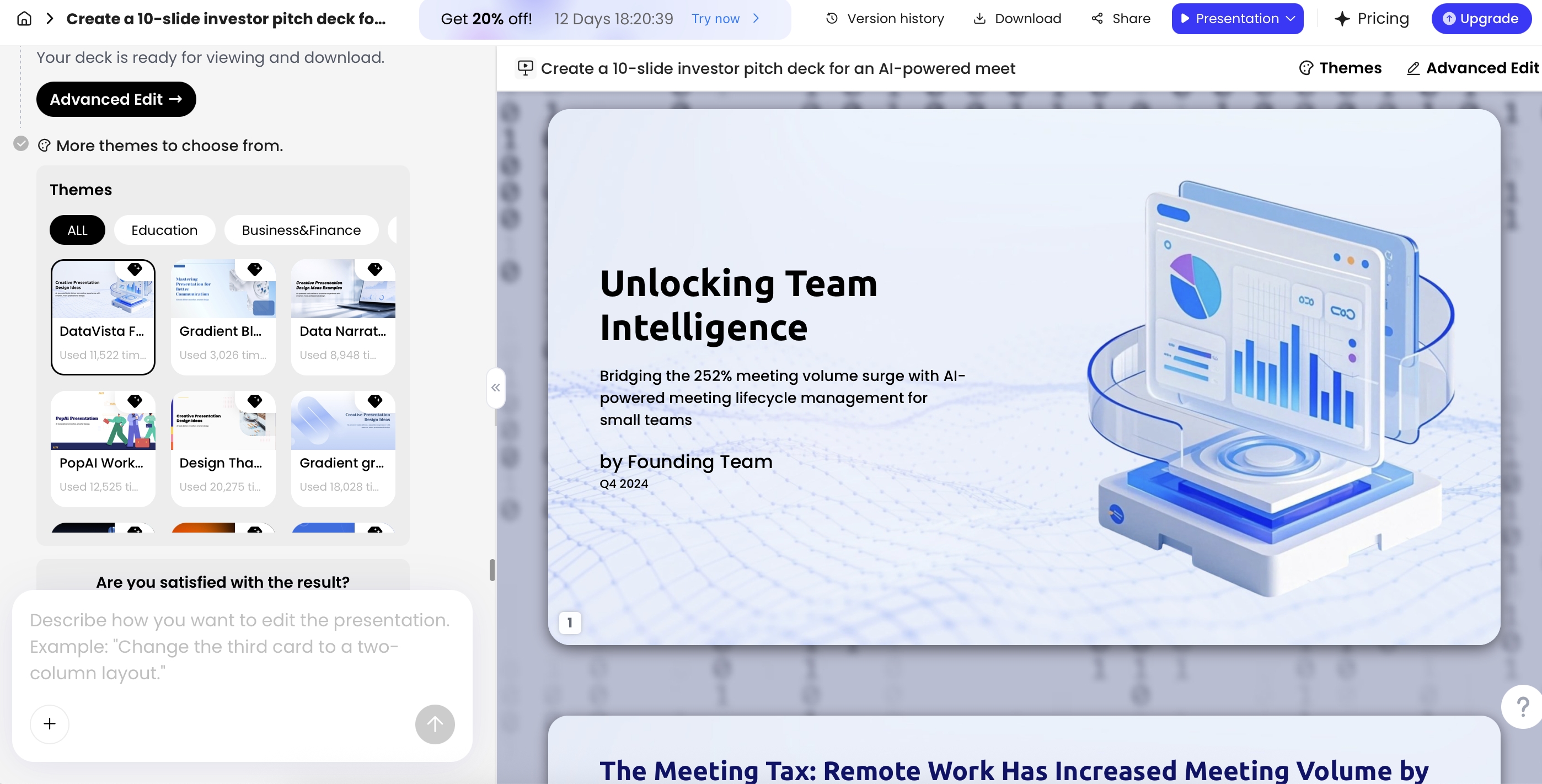
PopAi's documented document-to-presentation workflow can provide a draft from supported files or prepared text. Use the cleaned PDF/Word document or an explicitly supported input route; this does not establish automatic access to your private wiki.
- Upload the approved snapshot or paste its cleaned briefing text. Keep the original export for comparison.
- Check the outline before selecting a visual style: each heading should answer the meeting's question.
- Compare extracted figures, owners, dates, and status words against the source, especially phrases such as proposed, blocked, or approved.
- Restore any missing source notes, authorized diagrams, and necessary caveats.
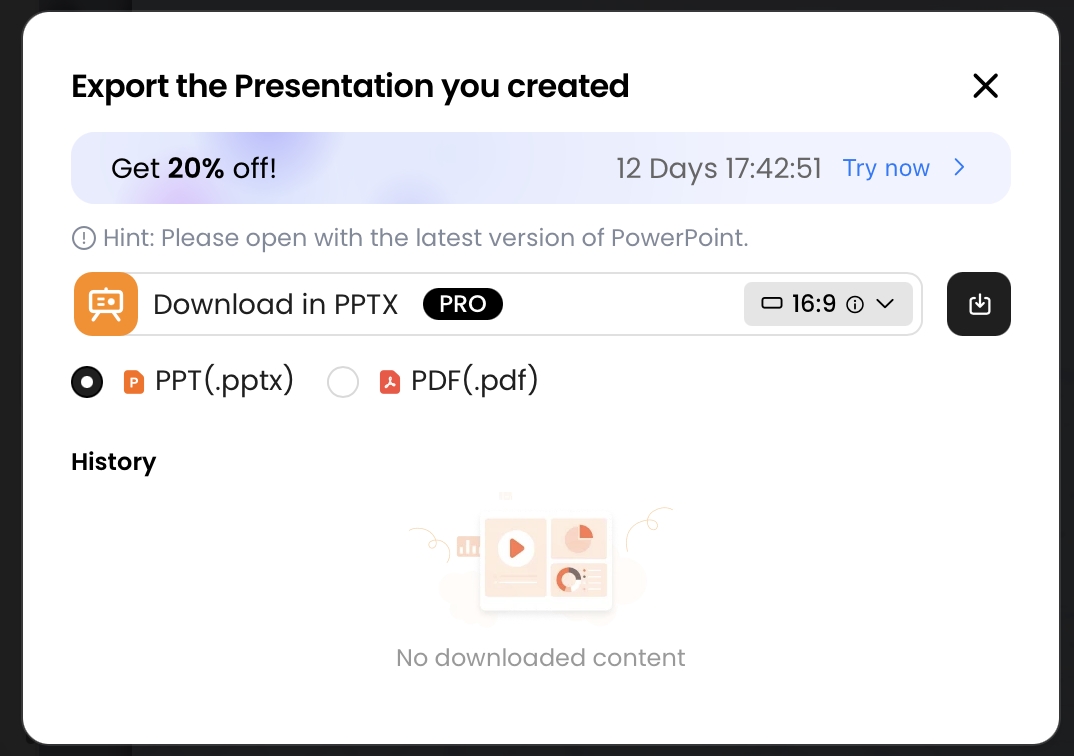
- Export the finished deck and test its fonts, images, links, and permissions.
After a material Confluence change, create a new dated snapshot and review the affected slides. Do not silently call an old export current. An API or connector architecture would require a separately documented authentication, permission, refresh, and error-handling design. It is outside this file-handoff tutorial.
Example: a release briefing, not a page-by-page copy
Illustrative example: a project has an overview page, release notes, and a dependency register. A wiki-order deck repeats background and buries the unresolved dependency. The revised six-slide outline starts with the release decision, then shows completed scope, acceptance evidence, the dependency, the fallback, and the approval requested.
The editor can help compress those materials, but the project owner must confirm completion and release readiness. Keep the Confluence snapshot date in the source note so a reviewer can tell which version informed the presentation.