How to Convert an Email Newsletter into a Presentation with AI

An email newsletter is not just another long document. It has a subject line, preview text, content blocks, links, CTAs, audience segments, opens, clicks, unsubscribes, and follow-up actions. A good AI deck turns those elements into a report or briefing, not a copy of the email.
Newsletter-Specific Slide Structure
| Slide | Newsletter input | Question answered |
|---|---|---|
| Campaign context | Audience, send date, goal, segment. | Who received the newsletter and why? |
| Subject and preview | Subject line, preview text, variant if any. | What promise did the email make? |
| Content map | Header, main story, secondary blocks, footer. | What topics were emphasized? |
| CTA performance | Primary CTA, secondary links, click data. | What action did readers take? |
| Audience signals | Replies, comments, unsubscribes, spam complaints. | What response or friction appeared? |
| Next action | Follow-up plan, test idea, sales enablement, content reuse. | What should the team do next? |
Example: Email Copy to Reporting Slide
| Email element | Deck interpretation | Slide wording |
|---|---|---|
| Subject: "Cut weekly reporting time with AI" | Main promise is efficiency, not design. | Efficiency promise drove the campaign positioning. |
| Primary CTA: "Try the report deck workflow" | The desired action is workflow adoption. | Primary CTA should be evaluated by qualified clicks, not only opens. |
| Three content blocks | Problem, process, customer example. | The email used a problem-to-solution narrative. |
| Click data by link | Which section created intent. | Template link outperformed generic product link. |
Links, Unsubscribe Data, and Customer Privacy
Newsletter decks can accidentally expose personal or regulated data. Do not paste full subscriber lists, individual email addresses, private replies, unsubscribe reasons, or customer identifiers into an AI tool unless your organization allows it and the data is necessary. For most decks, aggregated metrics and anonymized examples are enough.
- Keep original links in a source table so the reviewer can trace the CTA.
- Separate opens, clicks, conversions, replies, and unsubscribes.
- Do not include unsubscribe links or user-specific tracking URLs in public slides.
- Blur email addresses and customer names in screenshots.
- Label whether performance data comes from an ESP, CRM, analytics tool, or manual export.
Prompt for Newsletter Report Slides
This prompt makes the AI focus on newsletter-specific structure rather than generic document summarization.
If you manage email newsletters, marketing updates, internal communications, or client education, you already have presentation material—but it is usually buried in a reading format. A typical monthly product newsletter might contain a subject line, a launch note, three feature blurbs, two metrics, one customer quote, four links, an event reminder, and a footer. That is useful source content, but it is not a slide narrative.
This guide uses a practical newsletter-to-deck workflow: clean the source, define the audience, map newsletter sections to slide jobs, generate an outline, edit the outline, create slides, verify facts, and export. Tools such as PopAi AI Presentation are helpful because they can take newsletter material through outline creation, visual slide generation, editing, export, and shareable delivery—but the best results still come from human editorial control.
- Best fit: marketing newsletters, product updates, internal briefings, nonprofit impact emails, customer education, school newsletters, and event recaps.
- Typical output: a 6–12 slide briefing deck, sales enablement deck, webinar deck, or PDF leave-behind.
- Time expectation: a clean newsletter can produce a usable first draft in minutes, but budget 20–45 minutes for outline review, fact-checking, brand cleanup, and export checks.
Why convert newsletters into presentations with AI?
A newsletter is built for scrolling; a presentation is built for sequencing. The same message has to be compressed, reordered, and visually anchored before it works in a meeting, webinar, sales call, or leadership update.
Direct copy-and-paste conversion usually fails because email sections often mix long introductions, multiple links, side notes, quotes, event reminders, and metrics in one continuous scroll. Slides need fewer ideas per page, sharper titles, and a clearer order of importance. AI is useful for summarizing and grouping the source, but it can also flatten nuance, invent connections, or keep too much promotional copy if you do not give it rules.
Good candidates include a founder update that becomes a board-style KPI deck, a product newsletter that becomes a sales briefing, a customer success newsletter that becomes a quarterly business review appendix, or a campaign recap email that becomes a webinar recap deck. Poor candidates include link-only roundups with no central theme, highly confidential internal updates that cannot be sanitized, or newsletters where most value depends on interactive links rather than explainable content.
A good newsletter deck does not preserve every sentence. It preserves the decision, story, evidence, and next action that the audience needs.
Turn one approved message into several usable assets
From a content operations perspective, the value is not just speed; it is reuse with control. A realistic workflow looks like this: marketing or comms approves the newsletter, AI extracts the main stories and metrics, a comms manager reviews the outline, sales enablement adapts the deck for customer conversations, and the final PPTX/PDF is stored in a shared folder with the newsletter issue date in the file name.
Editorial rule of thumb: Newsletter-to-slide conversion is mostly an information compression task. In a recent test workflow using a 1,180-word product update email with three announcements, two adoption metrics, one customer quote, and a training CTA, the first AI outline produced 12 slides. After removing minor links and merging two related feature blurbs, the final deck worked better as 9 slides. The strongest conversion was not one paragraph per slide; it was one audience decision, proof point, or action per slide.
Case example: For an internal monthly operations newsletter, the “wins” section became a 3-metric scorecard, the “risks” paragraph became a leadership discussion slide, and the employee shoutouts moved to an appendix. That edit mattered because the live meeting needed decisions, not a complete archive of the email.
Tip: Before using AI, decide whether the deck is meant to inform, persuade, train, or sell. The same newsletter can become four different presentations depending on that choice.
Map an email newsletter to a slide deck
For a broader view of available tools, compare the latest AI presentation makers before choosing the workflow that best fits your team.
Start by assigning every newsletter section a slide job: context, evidence, explanation, proof, decision, or action.
The most overlooked step is structural mapping. Most weak AI-generated decks happen because the tool is asked to “turn this email into slides” before anyone decides which parts matter. Identify the role of each email component first, then decide whether it deserves a slide, a bullet, a speaker note, an appendix item, or removal.
Newsletter component → slide function → common mistake
| Newsletter component | Best slide use | Common mistake to avoid |
|---|---|---|
| Subject line | Title slide or hook | Using a catchy email subject as a vague deck title |
| Preview text | Subtitle, promise, or audience relevance statement | Dropping it even when it contains the clearest value proposition |
| Opening paragraph | Agenda or “why this matters” slide | Keeping the friendly email greeting word-for-word |
| Main story sections | Chapter slides or explanation slides | Making one slide for every paragraph instead of grouping by theme |
| Metrics | KPI card, chart, benchmark, or trend slide | Showing numbers without source, time period, or interpretation |
| Customer or community quote | Proof slide or mini case study | Using a long quote in tiny text with no takeaway |
| Event list | Timeline, calendar, or next-steps slide | Listing every event even when only one matters to the audience |
| Multiple CTAs | One primary closing action; secondary links in appendix | Ending with a link dump |
| Footer, legal copy, social links | Usually remove | Letting AI treat footer text as meaningful content |
Worked example: product newsletter to 9-slide deck
Original newsletter summary: Subject line: “New analytics dashboard, Q3 adoption results, and upcoming training.” Body: a dashboard launch note, a paragraph about customer reporting pain, two Q3 adoption metrics, a customer quote, three training dates, links to docs and registration, and a CTA to book enablement sessions.
AI-generated outline: Title, agenda, launch announcement, dashboard features, customer quote, Q3 metrics, training dates, resources, final CTA. This was usable, but it still mirrored the email order and treated “resources” as its own slide even though the audience needed a sales talk track.
Human-edited final outline: 1) “Analytics dashboard gives teams faster adoption visibility,” 2) agenda, 3) customer reporting pain, 4) dashboard feature overview, 5) before/after workflow, 6) Q3 adoption rose 28% among pilot accounts, 7) customer proof quote, 8) training timeline and sales talk track, 9) book an enablement session. Removed: footer links, repeated registration links, generic launch enthusiasm, and one low-priority documentation link.
- Paragraph-to-slide transformation: “We’re excited to launch our new dashboard...” became “Teams can now see adoption trends without manual reporting.”
- Metric transformation: “Pilot accounts increased weekly active users from 42% to 54%” became a two-bar comparison chart with the label “+12 percentage points.”
- CTA transformation: Three email CTAs became one final slide: “Book a 30-minute enablement session before the rollout window closes.”
Slide-density rule of thumb: For speaker-led business decks, aim for 20–40 words on a normal content slide, one headline insight, and one visual anchor. PDF leave-behinds can carry more explanatory text, but live slides should push details into speaker notes or appendix slides. Technical, academic, and training decks may need more text, but only when the audience is expected to read the deck independently.
Do not convert every newsletter section into a slide. Convert the parts that help the audience understand, decide, remember, or act.
Turn newsletters into presentations with AI: step-by-step workflow
The reliable workflow is not “generate slides now.” It is clean source → define purpose → create outline → revise outline → generate slides → edit visuals and titles → verify → export.
Step 1: Define the deck audience and job
Before uploading anything, write one sentence: “This deck is for [audience] and should help them [decision/action/outcome].” A customer newsletter for users may become a training deck; the same newsletter for executives may become a KPI and risk briefing. This one sentence prevents the AI from producing a generic recap.
Step 2: Prepare and sanitize the newsletter source
Collect the cleanest version of the newsletter. If you have an HTML email, PDF, Word draft, text file, image capture, or existing PPTX summary, choose the format that preserves the content most clearly. Plain text is often best for clean summarization; HTML can help preserve section order and embedded image context; PDF is useful when the newsletter is already approved as a fixed asset.
- Keep: subject line, preview text, issue date, main headings, key paragraphs, metrics, dates, quotes with attribution, and must-keep links.
- Remove: unsubscribe text, legal footer, tracking URLs, repeated headers, social icons, navigation menus, and promotions unrelated to the deck purpose.
- Mark: the primary CTA, required source links, confidential sections, and any claims that must not be reworded.
- Anonymize if needed: replace customer names, revenue, pipeline data, employee details, or account health notes before uploading.
Step 3: Choose the right input format
If the newsletter came from Mailchimp, HubSpot, Beehiiv, Substack, or a similar platform, export or copy the clean content rather than pasting the full HTML with tracking code. If images are important, include captions or short descriptions because AI may not infer the meaning of an embedded image correctly. For screenshots, confirm that text is readable before upload.
Step 4: Ask for an outline before slides
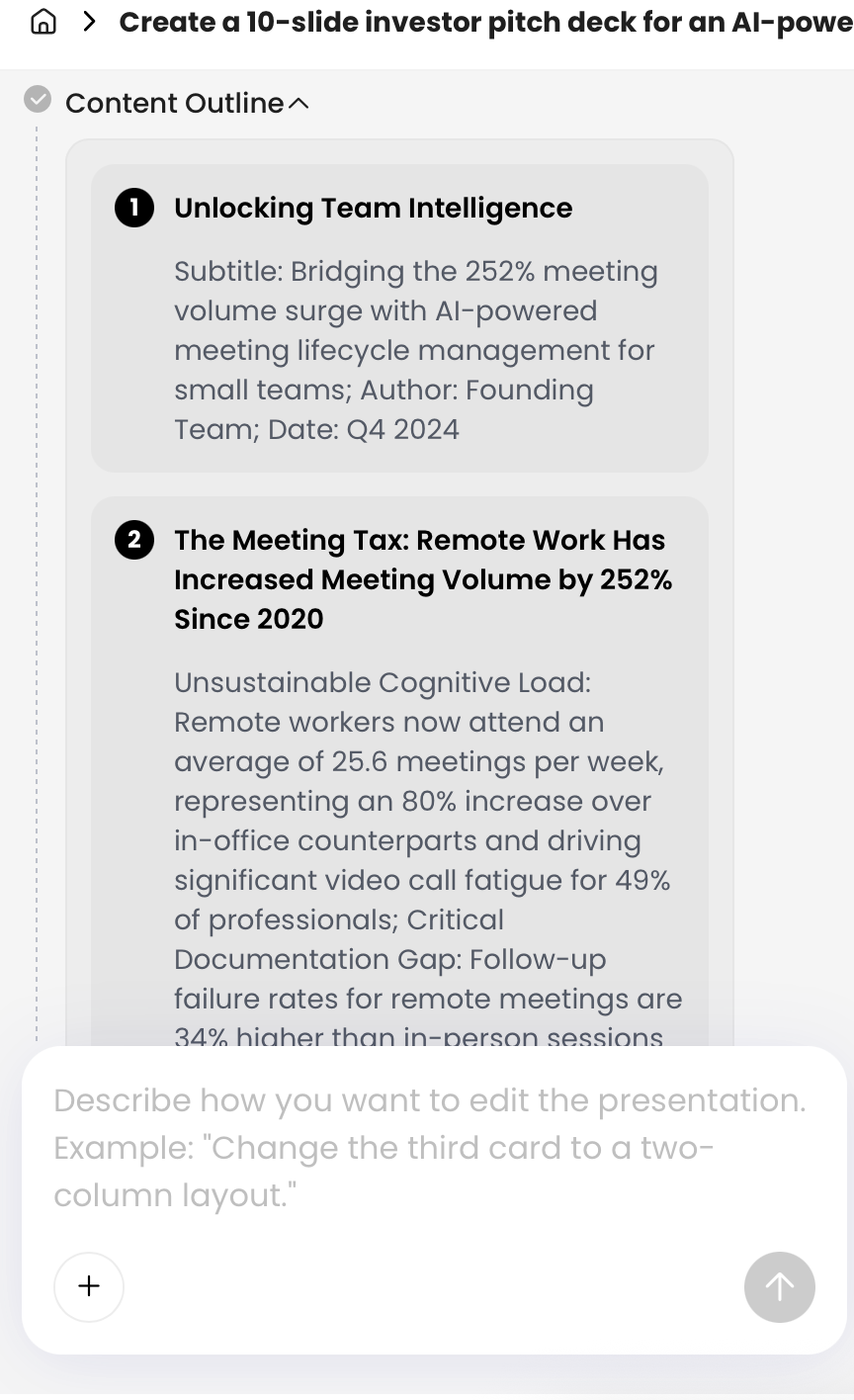
AI-generated presentations are better when you inspect the structure first. In PopAi, the AI Presentation flow can show a content plan or outline before generation, helping you see how the newsletter is being reorganized into a slide narrative. Review the outline before design begins and ask these questions:
- Does the first slide tell the audience why this update matters?
- Are related newsletter items grouped, or did the AI create one slide per email block?
- Does each slide have a job: context, proof, explanation, decision, or action?
- Were minor links, footer content, and repeated CTAs removed?
- Are metrics assigned to visual slides instead of buried in bullets?
- Does the deck end with one clear next action?
Step 5: Generate slides, then edit like a presentation editor
Once the outline looks right, generate the presentation. Then make the edits that AI rarely gets perfect on the first pass: replace topic labels with insight titles, turn metrics into charts, move dense explanations into speaker notes, and remove decorative visuals that do not clarify the message. Use charts for numbers, cards for grouped announcements, timelines for dated items, and quote layouts for customer proof.
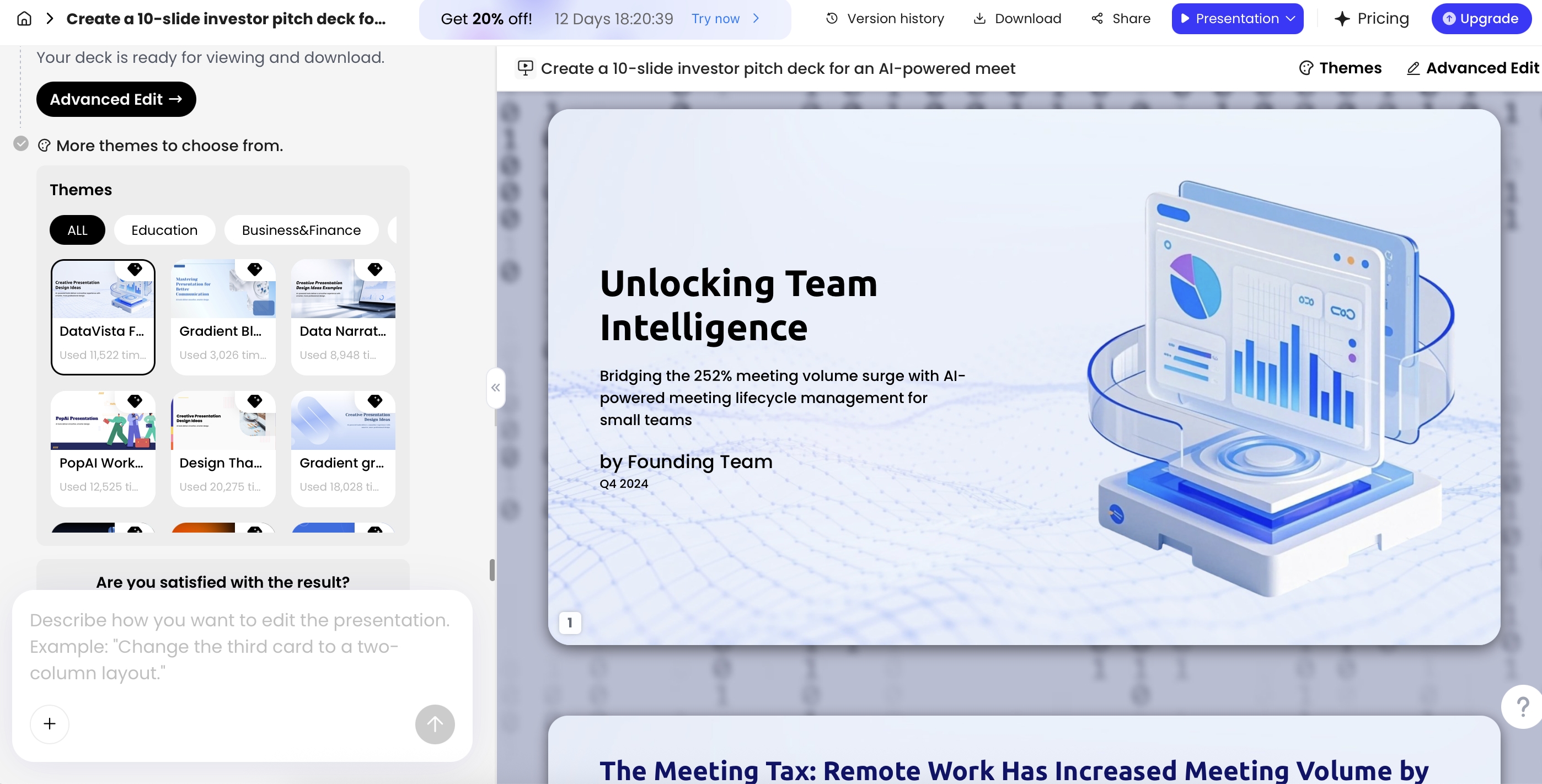
In PopAi, the result page includes controls for themes, advanced editing, version history, download, share, and natural language modification. Advanced Edit tools such as Theme, Cards, Logic Frames, AI Image, AI Writing, Charts, and Icons are most useful when tied to a clear decision: shorten copy, create a KPI card, build a timeline, or make a comparison layout. Avoid AI images for serious executive updates unless the image directly supports the point.
Step 6: Troubleshoot weak AI output
- If the deck is too long: ask AI to merge related slides and keep only the top 5–7 audience-relevant points.
- If slides copy paragraphs: ask for one insight title, three short bullets, and speaker notes from the original paragraph.
- If AI invents metrics: instruct it to use only numbers present in the newsletter and mark missing data as “not provided.”
- If the CTA is unclear: specify one primary CTA and move secondary links to an appendix or notes.
- If visuals feel generic: request specific formats such as KPI scorecard, before/after layout, roadmap, table, or quote proof slide.
- If the deck is off-brand: apply a template, limit the palette, remove mixed icon styles, and standardize title language.
Copy-ready prompts for newsletter slides
A strong prompt tells the AI what to keep, what to remove, and what the final presentation must accomplish. Include newsletter-specific variables: issue date, audience segment, primary CTA, must-keep links, sections to ignore, speaker notes, and whether the deck is live, recorded, or a PDF leave-behind.
Prompt 1: General newsletter to 10-slide deck
Use this when you have a reasonably structured marketing, customer, or internal newsletter and need a balanced first draft.
Copy prompt: Convert the following email newsletter into a 10-slide presentation for [audience]. Newsletter type: [product/customer/internal/nonprofit/school]. Issue date: [date]. The goal is to [inform/persuade/train/sell]. Use the subject line as inspiration, not necessarily as the final title. Preserve key metrics, dates, quotes, and must-keep links. Ignore footer/legal/social links, tracking URLs, repeated greetings, and secondary CTAs. End with one primary call to action: [CTA]. Do not invent data or claims. First create an outline with slide titles and slide purpose, then generate concise slides with optional speaker notes.
Prompt 2: Executive briefing
Use this when the audience cares less about the newsletter narrative and more about business impact, risk, and decisions.
Copy prompt: Turn this newsletter into an executive briefing deck of 6 to 8 slides. Use this sequence: executive summary, key updates, KPI slide, risks or blockers, decisions needed, and next steps. Prioritize business impact, tradeoffs, uncertainty, risks, KPIs, and owner/action items. Remove promotional language unless it supports a decision. Suggest appendix slides for supporting details. Use only data present in the newsletter and flag any missing context.
Prompt 3: Webinar or training deck
Use this when the newsletter explains a process, launch, program, or change that people need to learn or apply.
Copy prompt: Repurpose this newsletter into a webinar presentation for [audience] lasting [15/30/45] minutes. Create 12 to 15 slides with a strong opening, learning objectives, section breaks, examples, audience takeaways, one poll or discussion question, speaker notes, estimated timing per section, recap slide, and closing CTA. Turn long explanations into speaker-friendly bullets and suggest visuals such as timelines, process diagrams, comparison tables, quote slides, or before/after examples.
Prompt 4: Messy link roundup newsletter
Use this when the newsletter contains many links and no obvious story.
Copy prompt: This newsletter is a link roundup. Do not create one slide per link. Group links by theme, identify the top 3 audience-relevant takeaways, remove duplicate or low-priority links, and create a short briefing deck with one summary slide, one slide per theme, and a final resources slide. Preserve only the must-keep links: [links].
Prompting is not just instruction writing. It is editorial direction: audience, hierarchy, evidence, pacing, and the action you want after the final slide.
Make newsletter slides clear, visual, and on-brand
After AI creates the draft, edit the deck as a communication product—not as a formatted email.
Newsletter copy often includes friendly transitions that do not work on slides. Replace “in this month’s issue, we’re excited to share...” with an insight title such as “Q3 adoption rose after the dashboard launch.” Every title should say what the audience should understand, not merely label the topic.
Convert common newsletter content into stronger slides
| Newsletter content | Better slide format | Editing tip |
|---|---|---|
| “Open rates increased from 31% to 38% after segmentation.” | KPI card or two-bar chart | Add time period and explain why the change matters. |
| Three feature announcements | Feature cards | Group by customer problem, not internal product team order. |
| Long customer quote | Quote proof slide | Use one bold sentence and put attribution/source in smaller text. |
| Upcoming event list | Timeline or calendar slide | Show only dates relevant to the audience; move the rest to notes. |
| Process update | Flowchart or numbered workflow | Use verbs for each step so the process is actionable. |
Visualize newsletter content types
- Performance metrics: Turn open rate, click-through rate, conversion rate, churn, adoption, or attendance into charts or scorecards. Avoid charts without source, date range, or baseline.
- Announcements: Use feature cards or before-and-after layouts. Avoid treating every announcement as equally important.
- Event reminders: Convert dates into a timeline or agenda slide. Avoid timelines when dates are unrelated or not sequential.
- Customer stories: Use quote slides, mini case studies, or problem-solution-result layouts. Avoid full-paragraph quotes in small text.
- Process updates: Use flowcharts, roadmap visuals, or numbered steps. Avoid decorative icons that do not clarify categories.
Brand consistency matters, but email branding does not automatically translate to slide branding. Email headers may be too wide, newsletter body fonts may be too small, and embedded images may be low resolution. Use the newsletter’s voice and approved messaging, but apply a presentation-ready template with readable font sizes, strong contrast, consistent spacing, and a limited visual system.
For client-facing or executive decks, check every number and claim against the original newsletter or reporting source. AI can summarize accurately, but it can also over-compress, merge details, or imply causality that the newsletter did not state. For example, “adoption increased after launch” is not the same as “the launch caused adoption to increase” unless the source supports that claim.
- Verify metrics, percentages, dates, names, and customer quotes.
- Check that campaign links and CTAs are still current.
- Confirm that confidential details did not move from notes into visible slides.
- Compare the final deck against the source newsletter before exporting.
Quality checklist before exporting newsletter slides
Before exporting, run a newsletter-specific check: accuracy first, audience fit second, design third, and export behavior last.
Must-fix before sharing
- Does the title slide clearly match the audience and presentation purpose?
- Is there one main idea per slide?
- Did the deck remove email-only elements such as unsubscribe copy, tracking links, repeated greetings, social links, and legal footer text?
- Are metrics labeled with time period, source, and context?
- Are quotes attributed correctly and preserved without changing meaning?
- Did one primary CTA survive, instead of several competing newsletter links?
- Did the AI accidentally change the meaning of a campaign, offer, product timeline, or announcement?
Improve if time allows
- Does the slide order build a story rather than mirror the email scroll?
- Can dense slides move supporting detail into speaker notes or appendix slides?
- Are newsletter images high enough resolution for slides?
- Do charts communicate an insight, not just a number?
- Are brand colors, fonts, icons, and imagery consistent?
Format, delivery, and export checks
- Live presentation: Keep text low, add speaker notes, and test pacing in presentation mode.
- PDF leave-behind: Add enough context, preserve useful links, and include appendix details if needed.
- Webinar: Add section breaks, recap slides, timing, and interaction prompts.
- Executive update: Put decisions, risks, and KPIs near the front.
- PPTX export: Open the file in PowerPoint and confirm that text, charts, and layouts are editable enough for your team.
- PDF export: Check link behavior, image quality, file size, and whether confidential notes are excluded.
- Shared link: Confirm access permissions before sending it outside your team.
Security deserves special attention. Internal newsletters can include employee names, customer references, revenue figures, pipeline updates, product timelines, or confidential operating details. Before uploading content to any AI platform, review your organization’s policy, remove sensitive information where possible, and use approved workflows for regulated data.
- Remove or anonymize customer names unless approved for use.
- Replace exact revenue, pipeline, or account health figures with ranges when appropriate.
- Redact employee details, internal escalations, unreleased product dates, and legal-sensitive notes.
- Check vendor data retention, training-use policies, workspace permissions, and enterprise controls.
- Do not upload regulated health, financial, legal, or personal data unless your organization has approved that workflow.
FAQ: email newsletter to presentation with AI
Can I convert an existing email newsletter into a PowerPoint deck?
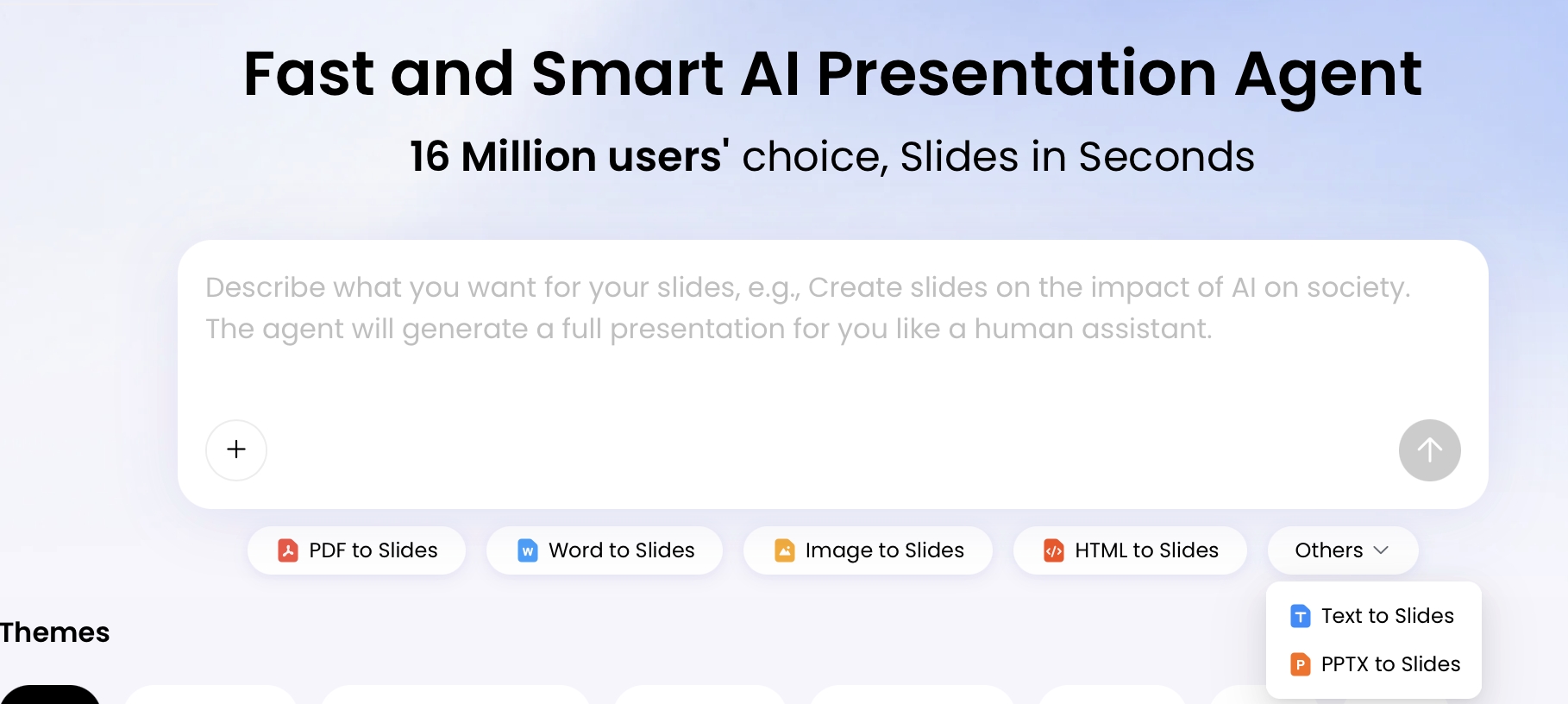
Yes. Copy the newsletter text or upload the source material to an AI presentation tool, then ask it to summarize the content into slide-friendly sections. In PopAi, you can start from several source options including PDF, Word, HTML, text, images, and PPTX, then export the result as PPTX or PDF.
What should I include in the AI prompt?
Include the audience, purpose, preferred tone, slide count, must-keep sections, data points, call to action, and brand or design direction. For best results, ask the AI to create an outline first before generating the full presentation.
How many slides should one newsletter become?
Most newsletters work well as an 8 to 12 slide deck. Use fewer slides for an executive update, more slides for a webinar or classroom session, and one slide per major story, metric, or action item.
How do I keep newsletter slides on-brand?
Give the AI explicit brand instructions such as colors, tone, logo usage, typography, and layout style. Then review the deck manually for consistency, especially on title slides, section dividers, charts, and closing CTA slides.
Should I upload confidential newsletters to AI tools?
Review your organization's data policy before uploading internal newsletters, customer details, revenue numbers, or employee information. Remove sensitive data when possible and use approved tools for regulated or confidential content.
Create your presentation with one click now
Transform newsletter drafts, documents, and campaign updates into structured, editable slides for meetings, webinars, sales calls, and client communication.
Start creating with PopAi