Create K-12 Lesson Presentations with AI
July 14, 2026
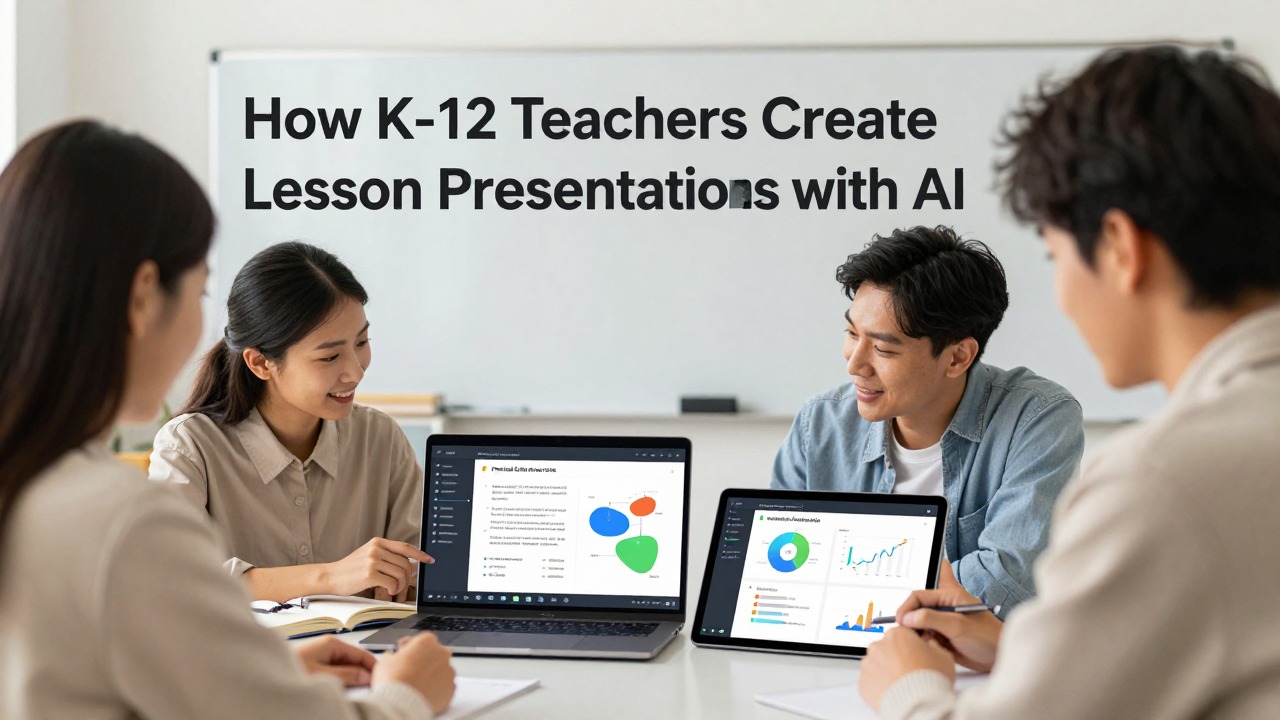
An AI presentation for teachers can help K-12 educators turn lesson objectives, textbook notes, worksheets, PDFs, vocabulary lists, class notes, and assessment questions into a first draft of classroom slides. Used well, AI can draft the slide sequence, simplify explanations, summarize source material, suggest student activities, and format a professional presentation faster than starting from a blank deck.
The teacher still owns the instructional decisions. Before using an AI-generated deck, you should check facts, curriculum alignment, grade-level language, accessibility, pacing, student privacy, and school policy. AI is most useful as a planning assistant that reduces drafting and formatting work, not as a substitute for teacher judgment.
This guide walks through realistic K-12 workflows: how to start with a teaching goal, how to prompt AI from lesson materials, how to revise slides for different ages and learners, and where PopAi AI Presentation can fit when you need an editable lesson deck quickly.
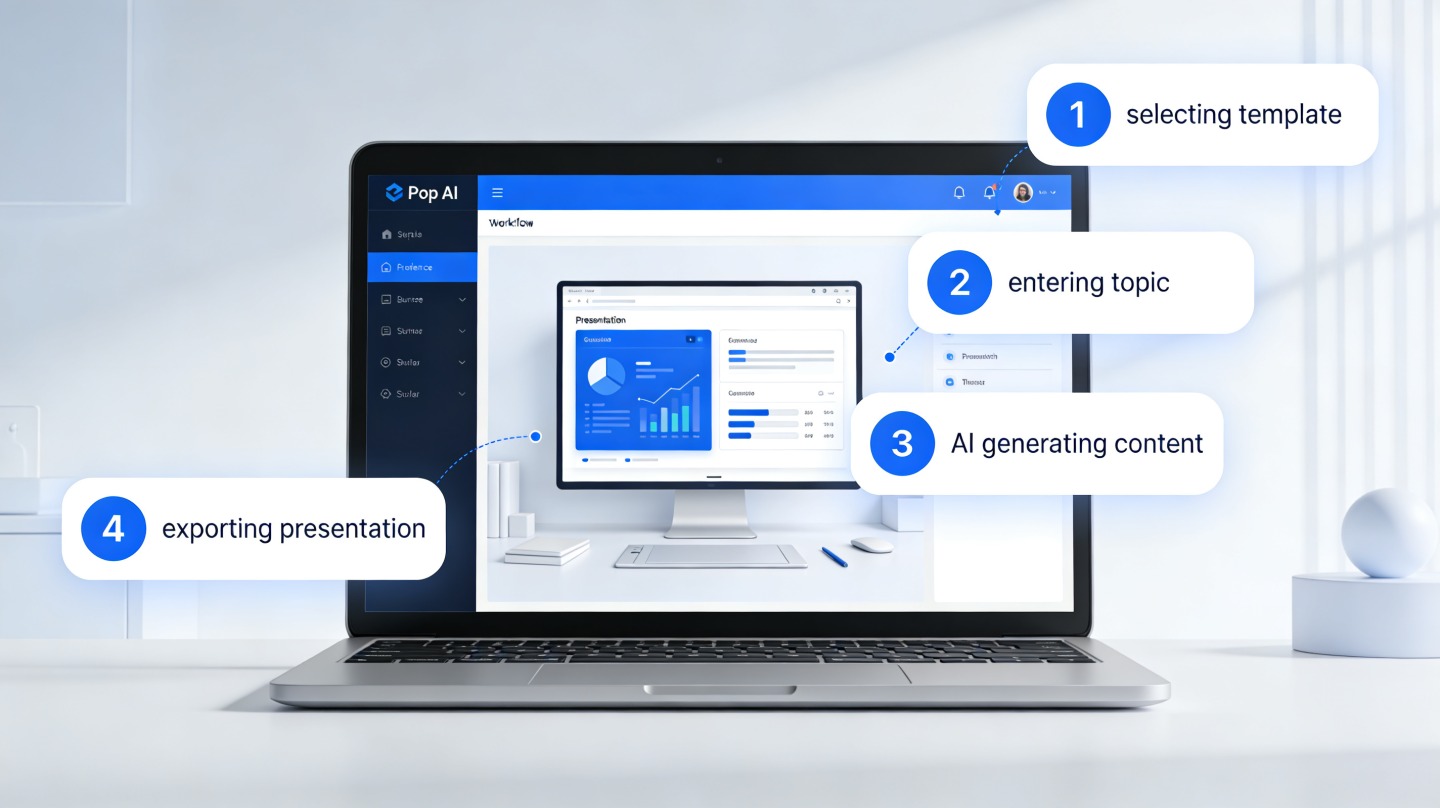
When you are ready to turn the workflow into slides, PopAi AI Presentation can help transform rough notes, documents, or prompts into an editable deck structure.
Quick Answer: How K-12 Teachers Can Use AI to Create Lesson Presentations
This section sets realistic expectations for what AI can and cannot do in classroom slide creation.
K-12 teachers can realistically use AI to create first-draft lesson decks, not final instruction with no review. The strongest use cases are turning existing materials into a coherent slide sequence, condensing long readings into student-friendly explanations, creating vocabulary review slides, drafting checks for understanding, and adding activity prompts that match the lesson objective.
A good AI presentation for teachers begins with teacher-provided context: grade level, subject, standard or learning objective, class period length, source materials, student needs, and the kind of interaction you want. Without that context, AI often produces attractive but generic slides that may not match your pacing, curriculum sequence, or classroom routines.
- Use AI to create a mini-lesson structure with an opener, objective, explanation, modeled example, guided practice, independent practice, and exit ticket.
- Use AI to summarize textbook excerpts, PDFs, worksheets, reading passages, unit notes, or vocabulary lists into short, readable slide content.
- Use AI to generate teacher presentation speaker notes that remind you what to say, what to ask, and where to pause for student responses.
- Use AI to adapt one deck for different audiences, such as a simplified elementary version, a more rigorous high school version, or a parent-night overview.
- Use AI to suggest discussion questions, turn-and-talk prompts, formative checks, and extension questions.
The boundary is important. AI does not automatically know your district pacing guide, adopted curriculum, local assessment language, IEP requirements, school-approved terminology, or classroom culture unless you provide and verify that information. Even then, the teacher should review carefully.
Let AI draft structure and language; let the teacher decide accuracy, standards alignment, readiness for students, and classroom fit.
K-12 Lesson Slide Templates by Grade Level
AI-generated lesson slides must be age-appropriate, privacy-safe, and aligned with the teacher’s learning objectives. Do not input student personal information, grades, behavior notes, IEP details, or identifiable classroom records unless your school policy explicitly allows it.
| Grade band | Slide sequence | Activity style | Teacher review focus |
|---|---|---|---|
| Elementary | Warm-up question, visual vocabulary, story/example, guided practice, quick check, exit ticket. | Short prompts, images, simple choices, movement or drawing activity. | Reading level, image appropriateness, concept simplicity, classroom safety. |
| Middle school | Hook, prior knowledge, concept explanation, example, group activity, misconception check, reflection. | Pair discussion, sorting activity, mini quiz, short scenario. | Tone, attention span, step-by-step logic, sensitivity of examples. |
| High school | Essential question, context, model/lecture, evidence, application task, discussion, assessment. | Debate, source analysis, problem solving, lab/data interpretation. | Academic accuracy, source quality, cognitive challenge, standards alignment. |
Teacher Review Checklist
- Does every slide connect to a clear learning objective?
- Is the difficulty appropriate for the grade level and class context?
- Are examples inclusive, respectful, and culturally appropriate?
- Are student names, grades, behavior notes, or private details removed?
- Are images, videos, and quotes allowed for classroom use?
- Does the teacher, not AI, decide final pacing, assessment, and adaptation?
Start with the Teaching Goal, Not the Slide Design
This section explains how to define the instructional purpose before asking AI to build slides.
The biggest mistake teachers make with AI slides is starting with a topic instead of a teaching goal. A prompt such as “make a presentation about volcanoes” may produce a polished overview, but it rarely knows whether students are identifying volcano parts, comparing eruption types, analyzing plate boundaries, preparing for a lab, or reviewing for a test.
Before opening an AI presentation tool, define the lesson frame. You do not need a long plan, but you should know the grade level, subject, topic, class period length, prior knowledge, learning objective, materials, and the kind of student thinking you want to see by the end.
- Grade 4 math: introduce equivalent fractions using visual models and a short guided practice sequence.
- Grade 7 science: review photosynthesis vocabulary and connect the process to a diagram students already used in class.
- Grade 10 English: prepare a discussion deck on theme and character motivation in a teacher-approved short story.
- Grade 2 reading: model how to find key details in an informational text using picture clues and sentence stems.
- High school history: launch a document-based argument activity on causes of a historical event.
Different goals should produce different decks. A mini-lesson needs explanation and modeling. A review deck needs retrieval practice and quick feedback. A project launch needs expectations, examples, timeline, and success criteria. A parent presentation needs clear language and fewer classroom-only details. A substitute teacher deck needs routines, timings, materials, and student directions.
- State the grade level and subject.
- Name the exact learning objective or standard-aligned skill.
- Describe what students already know and what may confuse them.
- Provide source material or a summary of the required content.
- Set the slide count and class period length.
- Specify tone, reading level, and interaction type.
A strong AI prompt is not a design request; it is a short instructional brief.
A reusable prompt framework is: “Create a [slide count]-slide lesson presentation for [grade level] [subject] on [topic]. The objective is [objective]. Use the following source material: [paste or upload notes]. Students already know [prior knowledge]. Keep the tone [age-appropriate tone]. Include [activity type], [checks for understanding], and [exit ticket].”
Instead of “make a presentation about fractions,” try “Create a 10-slide Grade 4 math mini-lesson on equivalent fractions using area models. Students know numerator and denominator but confuse equal parts with equal-looking shapes. Include a warm-up, two modeled examples, guided practice, partner talk, and a three-question exit ticket.”
A Practical Workflow for Turning Lesson Materials into Slides with AI
This section shows the exact workflow from curriculum material to a classroom-ready slide draft.
Teachers usually do not begin with nothing. You may have a lesson plan, a standards document, a worksheet, a reading passage, textbook notes, a quiz, a vocabulary list, or a set of rough bullet points from last year. The practical value of AI is that it can turn those scattered materials into an editable deck structure.
PopAi AI Presentation fits this workflow when you want to move from prompts, documents, notes, or rough ideas into a structured presentation deck. A teacher can use it to summarize lesson material into slides, organize explanations, add activity prompts, and reduce the manual formatting work that often makes lesson slides take longer than expected.
- Gather source material: lesson objective, standard language if allowed by your school, textbook excerpt, worksheet, reading passage, class notes, vocabulary list, assessment questions, and any required examples.
- Remove sensitive student information: do not include student names, individual accommodations, grades, behavior notes, or private records in an AI prompt.
- Write a clear instructional prompt: include grade, subject, topic, lesson purpose, class length, source material, desired slide count, and activity style.
- Generate an outline first: ask AI for the slide sequence before building the full deck so you can correct the instructional flow early.
- Create the slide draft: use the approved outline to generate slides with objectives, explanation slides, examples, checks for understanding, guided practice, independent practice, and exit ticket prompts.
- Review content: check terminology, examples, accuracy, sequence, pacing, and alignment with the lesson objective.
- Adapt for learners: simplify or enrich language, add vocabulary support, include sentence frames, add challenge questions, and adjust activities for your class.
- Finalize visuals and speaker notes: make slides readable, request or insert appropriate visuals, and add notes that guide your questioning and transitions.
A realistic PopAi workflow might look like this: a Grade 6 science teacher has a one-page worksheet on food webs, a vocabulary list, and a 45-minute lesson objective. The teacher prepares a prompt asking PopAi AI Presentation to create a 12-slide guided lesson with a warm-up, vocabulary review, a simple food web explanation, two teacher-led examples, three discussion questions, and a short exit ticket. The output is not the final lesson; it is the editable deck the teacher reviews, trims, and adjusts before class.
Another practical PopAi workflow is a substitute-plan deck. A teacher has rough notes for a social studies review day: warm-up question, textbook pages, video link approved by the school, worksheet directions, early-finisher task, and behavior expectations. The teacher can ask PopAi to turn those notes into a substitute-ready presentation with time estimates and clear student instructions, then review the slides for accuracy, policy, and classroom routines.
- Review terminology: make sure the deck uses the vocabulary your curriculum expects.
- Review examples: replace generic examples with teacher-approved examples from your unit, local context, or classroom materials.
- Review sequence: check whether the slides move from prior knowledge to new learning to practice in a logical order.
- Review pacing: remove slides that are too dense for the class period.
- Review visuals: ensure diagrams, images, and icons support learning rather than decorate the slide.
- Review student instructions: make task directions specific enough that students know what to do without repeated clarification.
Sample prompt: “Create a 10-slide Grade 5 reading comprehension lesson presentation for a 40-minute class. Objective: students will identify main idea and two supporting details in an informational passage. Source material: [paste passage summary or worksheet directions]. Students can identify topics but often confuse topic with main idea. Include a warm-up, objective slide, short explanation, modeled example, guided practice with two questions, partner discussion, independent practice directions, and a three-question exit ticket. Use student-friendly language and keep each slide concise.”
Ask for an outline before a full deck when the lesson is high-stakes, such as an observation lesson, parent presentation, assessment review, or new unit launch.
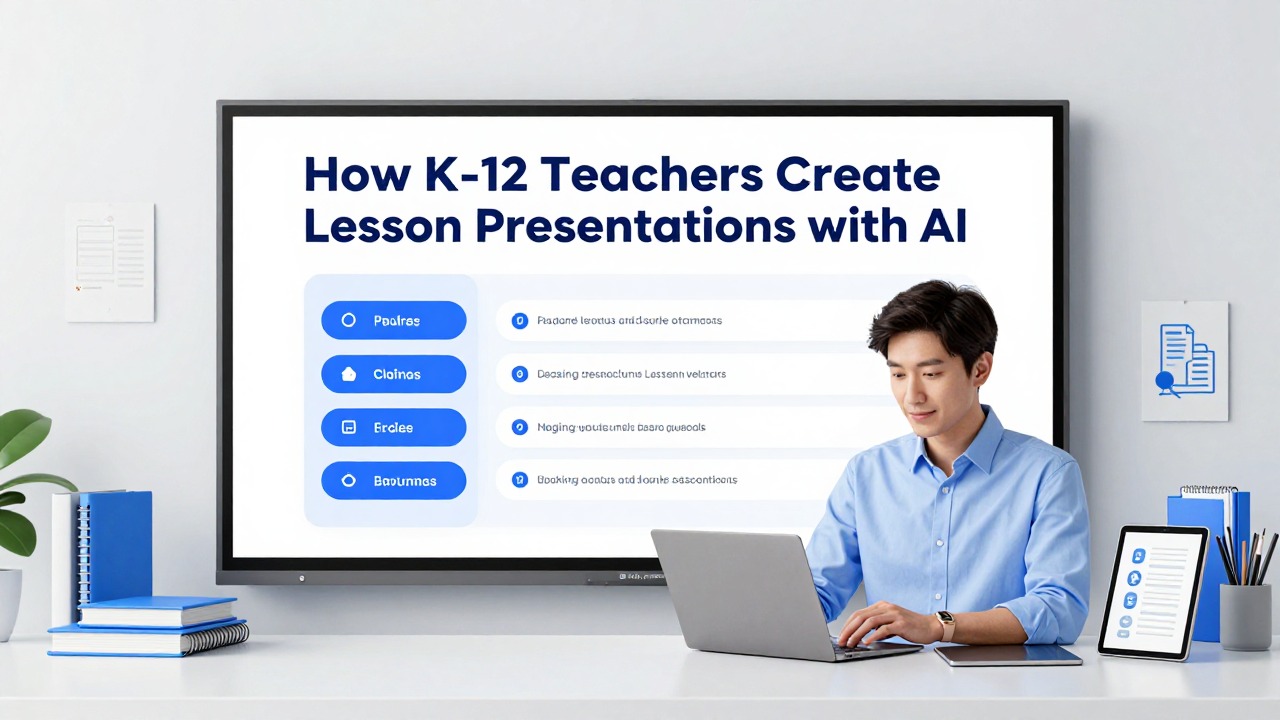
Example Workflows by K-12 Scenario
This section demonstrates realistic sample use cases that teachers can adapt across grade levels and subjects.
The following are example workflows, not verified case studies. They show how a teacher might combine lesson goals, source materials, AI generation, and teacher review to produce a stronger presentation draft.
Elementary example workflow: Grade 3 reading comprehension. Context: a teacher needs a simple visual deck for a 35-minute lesson on making inferences from a short story. Students can identify literal details but need support explaining what the text suggests. The source material includes a short passage, three comprehension questions, and a teacher note that students need sentence frames.
- Action: prompt the AI to create an 8-slide deck with a warm-up picture prompt, objective, definition of inference, teacher-modeled example, guided practice, partner talk, independent question, and exit ticket.
- Expected output: a student-friendly deck with short text, clear directions, and sentence frames such as “I infer ___ because the text says ___.”
- Teacher revision: replace any generic passage references with the actual class text, add a familiar classroom example, and check that vocabulary is appropriate for Grade 3.
- Reusable idea: keep the slide sequence and sentence frames, then swap the passage for a new reading selection next week.
Elementary math example workflow: Grade 4 equivalent fractions. Context: students understand numerator and denominator but struggle to see why two fractions can have the same value. The teacher has a worksheet with fraction bars and wants a visual, interactive mini-lesson.
- Action: use PopAi AI Presentation to turn the worksheet summary and lesson objective into a 10-slide deck with fraction bar explanations, two modeled examples, guided practice, and an exit ticket.
- Expected output: an editable deck that organizes the lesson from visual comparison to symbolic notation.
- Teacher revision: add approved fraction images or draw simple models, reduce text on explanation slides, and add a quick “thumbs up, sideways, down” check after the first example.
- Reusable idea: the prompt structure can be adapted for comparing decimals, identifying fractions on a number line, or reviewing mixed numbers.
Middle school example workflow: Grade 7 science photosynthesis review. Context: students have already completed a reading and diagram activity. The teacher wants a guided review deck before a short quiz, with vocabulary, a diagram prompt, discussion questions, and a formative check.
- Action: ask AI to generate a 12-slide review deck using the vocabulary list: chloroplast, carbon dioxide, water, glucose, oxygen, sunlight, producer, and chemical energy.
- Expected output: a deck with an opener, vocabulary matching, diagram-labeling prompt, process explanation, misconception check, discussion questions, and a quick formative assessment.
- Teacher revision: verify the science explanation, replace oversimplified wording that could create misconceptions, and ensure the diagram matches the one used in class.
- Reusable idea: the same structure works for cellular respiration, the water cycle, plate tectonics, or body systems review.
Middle school social studies example workflow: analyzing causes of a historical event. Context: a Grade 8 teacher wants students to distinguish long-term causes from immediate triggers. The teacher has textbook notes and a primary source excerpt approved for class use.
- Action: prompt AI to create a guided lesson deck with a timeline warm-up, vocabulary, short background slides, source analysis questions, and a cause-category sorting activity.
- Expected output: a presentation that supports discussion rather than only delivering facts.
- Teacher revision: check historical accuracy, remove any unsupported claims, confirm that source excerpts are used appropriately, and add the teacher’s preferred analysis framework.
- Reusable idea: the cause-category structure can be reused for revolutions, conflicts, policy changes, or civic issues.
High school example workflow: literature analysis discussion. Context: an English teacher is preparing a 50-minute class discussion on theme, character motivation, and textual evidence. Students have read the assigned chapter, but discussions sometimes become plot summary instead of analysis.
- Action: ask AI for a professional presentation with an opening question, objective, quick recap, three analytical discussion prompts, evidence collection directions, small-group task, and exit reflection.
- Expected output: a deck that keeps discussion focused on claims, evidence, and reasoning.
- Teacher revision: add exact passages approved for class use, remove any interpretation that conflicts with the teacher’s planned focus, and increase academic rigor in the discussion stems.
- Reusable idea: reuse the discussion structure for poetry analysis, rhetorical analysis, drama, or independent reading seminars.
High school exam review example workflow: biology unit review. Context: a teacher has a unit study guide, old quiz questions, and a list of common misconceptions. The class needs a structured review that is more active than a lecture.
- Action: ask PopAi AI Presentation to create a review deck organized by concept clusters, with retrieval questions, misconception slides, diagram prompts, and short practice items.
- Expected output: a slide deck that alternates between recall, explanation, and application rather than presenting a long list of definitions.
- Teacher revision: verify answer keys, align practice questions with the actual assessment format, and add notes on where students should show work or justify answers.
- Reusable idea: the same deck pattern can support algebra, chemistry, world history, economics, or language exam review.
The reusable asset is not just the slide deck; it is the prompt pattern, activity sequence, and review checklist that you can adapt for the next lesson.
How to Make AI-Generated Lesson Slides Classroom-Ready
This section explains how teachers can revise AI output so it works with real students in a real room.
AI-generated slides often look complete before they are instructionally ready. Classroom-ready means students can read the slide, understand the task, connect it to the lesson objective, and participate without being overloaded. It also means the teacher can teach from the deck naturally rather than fighting the slide sequence.
Start with language. For younger students, shorten sentences, define academic words, use familiar examples, and reduce the number of ideas per slide. For older students, do the opposite when needed: increase precision, add discipline-specific vocabulary, require evidence, and include more rigorous thinking prompts.
- For elementary students: use one main idea per slide, large text, simple directions, visuals tied to the concept, and frequent interaction.
- For middle school students: include vocabulary support, examples and non-examples, discussion prompts, and checks for common misconceptions.
- For high school students: use academic language deliberately, ask for justification, include source-based or data-based tasks, and connect slides to assessment expectations.
- For multilingual learners: add picture support, sentence frames, word banks, and opportunities to rehearse answers with a partner.
- For advanced learners: add challenge questions, alternative solution paths, extension tasks, or “prove it” prompts.
Next, add interaction. A deck that only explains is usually weaker than a deck that alternates between teacher input and student thinking. Ask where students will respond, write, discuss, solve, draw, predict, or revise. AI can suggest these moments, but you should choose the ones that fit your management style and class energy.
- Add a warm-up that activates prior knowledge and can be answered quickly.
- Insert a check for understanding after each major explanation.
- Use a turn-and-talk prompt when students need low-risk rehearsal before sharing.
- Add guided practice before independent practice.
- End with an exit ticket aligned to the lesson objective, not just the topic.
Readability matters more than decoration. A slide with six paragraphs and tiny icons may look complete but fail in the classroom. Use large text, strong contrast, consistent headings, descriptive visuals, and enough white space. Avoid dense slides that require students to copy long notes while also listening.
- Limit most slides to one teaching move: explain, ask, model, practice, discuss, or reflect.
- Use visuals to clarify content, such as diagrams, number lines, maps, anchor images, or labeled examples.
- Avoid decorative images that distract from the academic task.
- Make directions visible and specific: “Write one claim and underline your evidence” is stronger than “Discuss.”
- Include speaker notes for yourself if the slide needs teacher explanation that should not appear as student-facing text.
Finally, personalize the examples. AI may produce generic names, generic word problems, or generic scenarios. Replace them with familiar classroom contexts, local curriculum references, approved texts, unit vocabulary, lab materials, or examples students have already seen. This is where teacher knowledge makes the deck feel connected to the actual learning sequence.
Before class, open each slide and ask: What will students do here? What will I say? How will I know whether they understood? If you cannot answer all three, revise the slide.
Mistakes to Avoid When Using AI for Teacher Presentations
This section helps educators avoid accuracy, privacy, and classroom-fit problems.
The main risk of AI teacher presentations is not that the slides look bad. The bigger risk is that they look polished while being inaccurate, misaligned, too difficult, too simple, or disconnected from the lesson goal. A professional presentation is only useful if it supports learning.
Never use AI-generated slides without fact-checking. This is especially important in science, history, health, mathematics procedures, literature interpretation, and any topic where a small wording error can create a misconception. Check definitions, dates, formulas, diagrams, examples, answer choices, and explanations.
- Do not assume AI understands district standards unless you provide the relevant standard and verify the result.
- Do not assume AI knows your curriculum pacing, adopted textbook sequence, or assessment language.
- Do not enter sensitive student information, including names, grades, disability details, behavior notes, or private family information.
- Do not rely only on AI presentation templates; layout polish cannot replace clear lesson sequencing.
- Do not overload slides with AI-generated text because it feels comprehensive.
- Do not use generated visuals or examples without checking whether they are accurate, appropriate, and allowed by your school policies.
AI may also flatten nuance. A history deck might oversimplify causes. A literature deck might present one interpretation as if it is the only correct reading. A science deck might simplify a process in a way that is acceptable for one grade but misleading for another. A math deck might skip a conceptual step students need. The teacher’s content knowledge is the safeguard.
- Accuracy: Are facts, formulas, dates, vocabulary, diagrams, and answer keys correct?
- Grade level: Is the language accessible without being childish or too advanced?
- Objective alignment: Does every activity support the actual lesson objective?
- Timing: Can the deck realistically fit the class period with transitions, questions, and student work time?
- Accessibility: Are text size, contrast, visuals, and directions readable for students?
- Student privacy: Have all sensitive student details been removed from prompts and slides?
- Policy compliance: Does the deck follow school, district, copyright, AI, and curriculum expectations?
- Backup plan: Can you teach the key lesson if technology fails or the deck needs to be shortened?
A visually polished AI deck can still be instructionally weak if it does not ask students to think, practice, or show understanding.
Use qualitative expectations for AI benefits. It may reduce drafting friction, help you organize materials, and give you a useful starting point. It should not be treated as a guarantee of faster teaching, better learning, or perfect alignment. The quality depends on your prompt, your source materials, the tool’s capabilities, and your review process.
If you would not put a detail in a shared staff document or public prompt, do not put it into an AI tool. Keep student-specific information out of AI presentation requests.
Decide When PopAi AI Presentation Fits Your Lesson Planning Workflow
This section helps teachers decide when PopAi is a practical choice and when additional review or resources are needed.
PopAi AI Presentation is a practical fit when you want to move quickly from rough notes, documents, lesson ideas, or curriculum materials into an editable slide deck. It is especially useful when the hardest part is getting from scattered content to a structured teacher presentation that you can revise.
For daily lesson slides, PopAi can help build the first version of a mini-lesson: objective, warm-up, explanation, modeled example, guided practice, check for understanding, independent work directions, and exit ticket. For unit introductions, it can summarize major concepts and create a clear sequence. For review decks, it can organize vocabulary, retrieval questions, and misconception checks.
- Use PopAi for daily lesson decks when you already have objectives and source material but need a structured slide draft.
- Use PopAi for unit introductions when you need to turn several pages of notes into a concise overview.
- Use PopAi for review decks when you want practice questions, vocabulary prompts, and concept summaries arranged logically.
- Use PopAi for professional development when you need to explain a teaching strategy, curriculum update, or school process to colleagues.
- Use PopAi for parent information nights when you need a clear, professional presentation that avoids jargon.
- Use PopAi for substitute plans when you need routines, directions, timings, and task slides in one place.
The tool’s value comes from structure, summarization, AI writing support, and reduced manual formatting work. It can help you get past the blank-page stage and produce a deck you can edit. That matters for teachers who create presentations repeatedly for lessons, observations, meetings, and student support.
PopAi should not replace specialized resources when the lesson requires them. You may still need district-approved templates, curriculum-specific slides, accessibility checkers, science simulations, math manipulatives, reading program materials, assessment platforms, or approved multimedia. You may also need a separate review process for lessons connected to IEP accommodations, sensitive topics, safety procedures, or high-stakes assessments.
- Choose one upcoming lesson that already has a clear objective.
- Collect the source material: notes, worksheet, reading passage, vocabulary, and questions.
- Write a prompt using grade level, subject, objective, class length, slide count, tone, and activity requirements.
- Generate a draft deck in PopAi AI Presentation.
- Revise with the classroom-readiness checklist: accuracy, grade level, objective alignment, timing, accessibility, privacy, and backup plan.
- Teach from the revised deck, then save the prompt pattern for future lessons.
Do not begin with your most complex unit. Start with one everyday lesson, generate a draft, revise it carefully, and build your own repeatable AI presentation workflow from there.
The best next step is simple: choose one lesson you will teach soon, prepare the objectives and source material, create a first draft with AI, then revise it as a teacher. That balance lets you benefit from AI presentation support while protecting instructional quality, age appropriateness, and classroom trust.
FAQ
Can AI create a full K-12 lesson presentation from a worksheet or lesson plan?
Yes, AI can draft a structured deck from a worksheet, lesson plan, reading passage, notes, or objectives. The teacher should still review accuracy, pacing, grade level, activity directions, and alignment with the intended lesson before using it in class.
What should I include in a prompt for an AI teacher presentation?
Include the grade, subject, topic, learning objective, class length, source material, student level, desired slide count, slide structure, activities, tone, and any required checks for understanding or exit ticket prompts.
Are AI presentation templates enough for classroom teaching?
No. Templates can improve layout and polish, but classroom teaching also needs strong lesson sequencing, accurate explanations, age-appropriate examples, checks for understanding, guided practice, and student-friendly directions.
How do I make an AI-generated presentation suitable for younger students?
Use shorter slides, simpler vocabulary, large readable text, clear visuals, familiar examples, frequent interaction, and concrete directions. Check that every example matches students’ age, prior knowledge, and reading level.
Can teachers use PopAi AI Presentation for substitute lesson slides?
Yes, PopAi can help turn notes and instructions into a substitute-ready deck. Teachers should add classroom routines, timing, materials, behavior expectations, approved links, and clear directions, then review the deck before sharing it.
Create your presentation with one click now
Turn your next lesson objective, notes, or worksheet into an editable classroom presentation draft with PopAi.
Try PopAi AI Presentation