How to Create an AI Generated PowerPoint: A Step-by-Step Guide with Pop AI

If you need a presentation this week but only have scattered notes, a PDF report, or a half-written outline, an AI generated PowerPoint can get you to a usable first draft much faster. The key is not asking AI to “make slides” blindly; it is giving it the right source material, audience, structure, and review process.
This guide is written for students, consultants, marketers, educators, and business teams who need a clean deck without spending hours on slide formatting. You will learn how to create a deck with Pop AI, improve the generated output, and avoid the common mistakes that make AI presentations feel generic.
What an AI generated PowerPoint can and cannot do
This section sets realistic expectations so you use AI for speed without giving up control over the final message.
Use AI for structure, not final judgment
An AI PowerPoint generator is strongest at converting messy input into a sequence: title slide, agenda, context, key points, evidence, recommendation, and closing. That is useful when your blocker is the blank-slide problem or when you know the topic but cannot decide how to organize it.
In a hands-on test for this guide, a 1,200-word project brief was turned into a 12-slide draft in a few minutes. The AI version was not ready to send unchanged, but it produced a logical outline, draft speaker points, and visual slide hierarchy that would normally take much longer to assemble manually.
Think of AI as a presentation co-pilot: it accelerates outline, copy, and layout decisions, but the presenter still owns accuracy, emphasis, and audience fit.
Know what still needs human review
Before you present, check every claim, number, name, and recommendation. AI can summarize source material, but it may over-compress nuance or make a weak transition sound confident. This matters especially for investor updates, client strategy decks, academic presentations, and internal business reviews.
- Verify facts: compare generated claims with your original PDF, notes, or data source.
- Sharpen the takeaway: each slide should make one point, not list everything the AI found.
- Match the audience: executives need decisions; classmates may need definitions; clients need implications.
- Adjust brand style: fonts, colors, screenshots, and product terms should match your organization.
Prepare your source material before using Pop AI
Better input creates better slides, so spend five minutes clarifying what the deck must accomplish.
Write a short presentation brief
Before opening the generator, write a compact brief with five details: audience, goal, topic, slide count, and tone. This gives the AI constraints. For example, “Create a 10-slide sales training deck for new account executives. The goal is to explain objection handling using a practical, confident tone.”
If you already have source documents, add them to the workflow instead of pasting disconnected fragments. A PDF report, meeting notes, course outline, or product one-pager gives the AI more reliable context than a vague prompt.
Pro Tip: If you want a faster first draft, start from PopAi AI Presentation with a clear audience and slide count instead of a one-line topic.
Choose the right input type
Different inputs work best for different presentation goals. Use the table below to decide what to upload or paste before generating slides.
| Input type | Best for | What to check after generation |
|---|---|---|
| Prompt or topic | Quick educational decks, brainstorming, first outlines | Definitions, examples, and whether the content is too generic |
| PDF or report | Research summaries, business reviews, training material | Whether key findings are preserved and numbers are copied correctly |
| Existing notes | Meetings, workshops, project updates, class presentations | Slide order, missing context, and duplicated points |
| Long article or document | Thought leadership, webinars, executive summaries | Over-summarization and whether each slide has a clear takeaway |
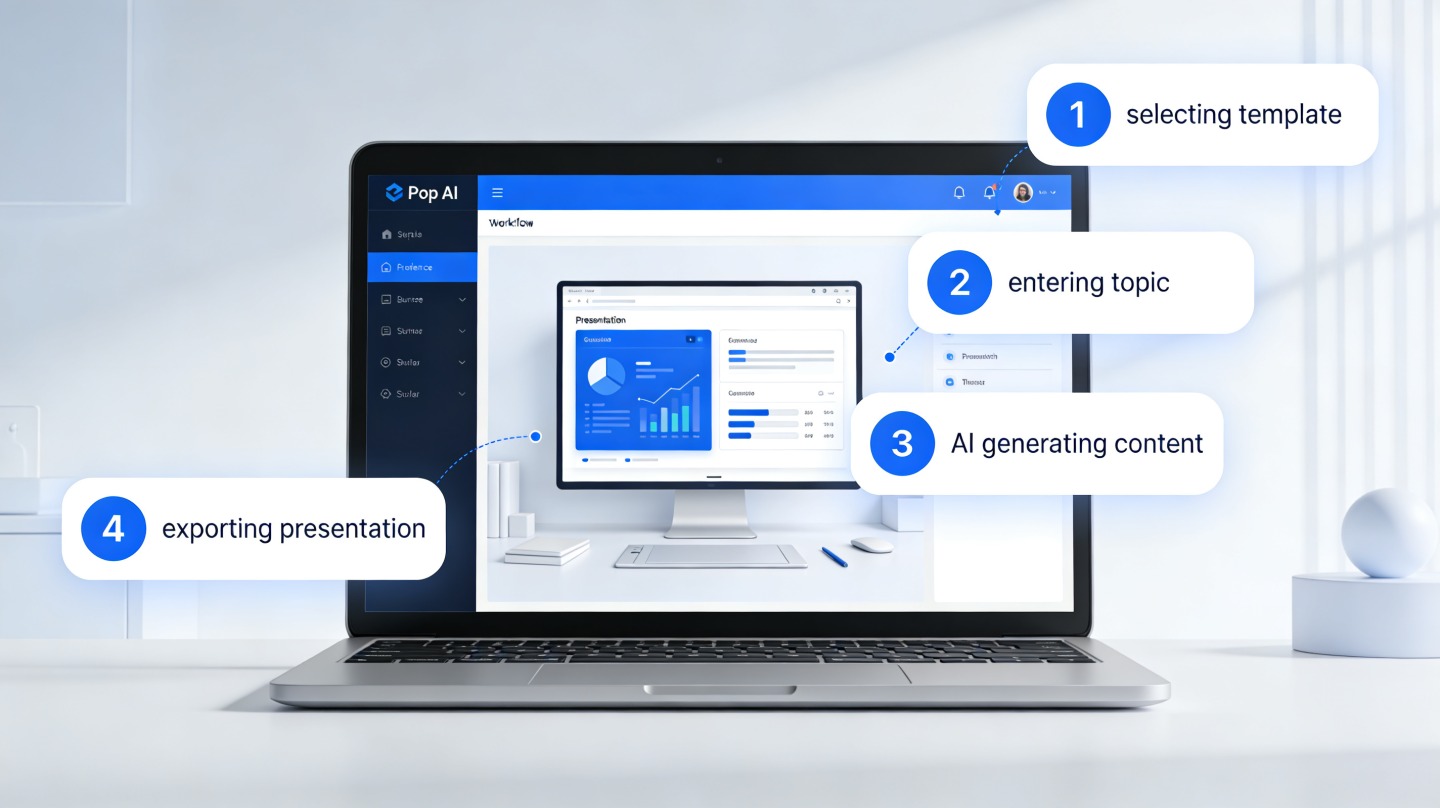
Step-by-step: create an AI generated PowerPoint with Pop AI
Follow this workflow when you need a complete draft quickly but still want a polished, presentation-ready result.
1. Start with the presentation goal
Open the presentation tool and begin with the outcome you want. A useful prompt names the audience, the desired decision, and the format. Instead of “make a marketing deck,” write: “Create an 8-slide product launch presentation for a SaaS leadership team. Focus on positioning, launch timeline, channel plan, risks, and next steps.”
You can create your deck directly with PopAi AI Presentation when you want to move from prompt or document to structured slides without building every slide manually.
2. Upload or paste your source content
If you have a PDF, outline, notes, or a draft script, provide it as source material. This is especially useful for “convert PDF to PowerPoint AI” workflows because the generated deck can follow your real document instead of relying on broad topic knowledge.

3. Review the outline before polishing design
Do not spend time changing colors until the sequence is right. First, check whether the generated outline has a clear beginning, middle, and end. A strong deck usually moves from context to insight, then from insight to action.
- Remove slides that repeat the same point.
- Move background slides earlier if the audience is unfamiliar with the topic.
- Move recommendation slides earlier if the audience is senior and time-poor.
- Add one evidence slide for any claim that may be challenged.
4. Edit slide copy for spoken delivery
AI often produces text that is grammatically correct but too dense for a live presentation. Turn paragraphs into slide headlines, concise bullets, or speaker notes. A good slide headline should communicate the message even if the audience reads nothing else.
A slide is not a document page. If it requires the presenter to apologize for “a lot of text,” it needs editing before the meeting.
How to improve the AI PowerPoint generator output
Small edits after generation can make the difference between an obvious AI draft and a professional deck.
Replace generic examples with your own evidence
In the same 12-slide test mentioned earlier, the generated deck gave a useful structure but used broad phrases such as “improve efficiency” and “enhance collaboration.” Replacing those with project-specific outcomes, named workflows, and screenshots made the deck more credible within one editing pass.
For business decks, add real internal context: customer quotes, pipeline screenshots, product usage snapshots, roadmap dates, or support themes. For academic decks, cite the assigned source, dataset, or course reading. For training decks, include a scenario learners actually face.
Use a quick slide quality checklist
Before exporting, scan each slide with this checklist. It catches most issues that make AI presentations look unfinished.
- One message: Can the slide be summarized in one sentence?
- Visible hierarchy: Is the most important text easiest to see?
- Specific detail: Does the slide include a concrete example, data point, or decision?
- Consistent terms: Are product names, department names, and acronyms used correctly?
- Clear next step: Does the final section tell the audience what to do next?
Workflow shortcut: Generate the first draft in PopAi AI Presentation, then spend your editing time on examples, evidence, and speaker flow rather than blank-slide design.
Best use cases for Pop AI presentation creation
Pop AI is most useful when the presentation has a clear goal and enough source material to guide the draft.
Business and team presentations
For weekly updates, quarterly reviews, product planning, and sales enablement, the biggest time sink is usually turning notes into a coherent storyline. AI helps by drafting sections such as project status, risks, milestones, customer feedback, and recommended actions.
According to Microsoft Support documentation, PPTX is the standard PowerPoint presentation file format used by modern PowerPoint versions. That matters because many teams still need a deck that can be reviewed, shared, and edited in familiar presentation workflows after AI generation.
Education and training decks
Students and educators can use AI to transform readings, lecture notes, or research summaries into teaching slides. The best results come when the prompt states the learning objective, level of the audience, and the type of examples needed.

Common mistakes when creating an AI generated PowerPoint
Avoid these mistakes if you want the AI-created deck to feel intentional rather than automated.
Using a prompt that is too broad
“Make a deck about climate change” will produce a general deck. “Create a 7-slide presentation for high school students explaining three local climate adaptation strategies with one example per slide” gives the AI a specific job.
Accepting the first draft without compression
AI may include all reasonable points, but presenting all reasonable points is rarely persuasive. Cut anything that does not support the decision, lesson, or recommendation. Strong decks usually feel selective.
Skipping the final fact check
Fact checking is not optional. Confirm numbers, dates, citations, and named entities before sharing the file. If the deck includes business-sensitive or academic claims, compare the final slides with the original source document line by line.
FAQ: AI generated PowerPoint with Pop AI
These are the questions most users ask before trusting AI with a real presentation deadline.
Can Pop AI create a PowerPoint from a PDF?
Yes. You can use a PDF, report, brief, or notes as source material, then review the generated outline, slide structure, and visual hierarchy before exporting or presenting.
Do I still need to edit an AI-generated deck?
Yes. AI can speed up structure, copy, and layout, but you should verify facts, adjust tone for the audience, remove unnecessary slides, and add company-specific details.
What is the best prompt for an AI PowerPoint generator?
The best prompt includes audience, goal, slide count, source material, tone, and the decision you want the presentation to drive. Specific constraints produce cleaner first drafts.
Can I use an AI generated PowerPoint for client or investor meetings?
Yes, if you treat the AI version as a strong draft and complete a human review for accuracy, brand fit, financial claims, confidential information, and final storytelling.
Create your presentation with one click now
Turn prompts, PDFs, notes, and rough ideas into a structured presentation draft, then refine the story for your audience.
Start creating with PopAi