AI PowerPoint Executive Summary Slide: 3 Proven Layouts for Faster Decisions
Published on April 21, 2026 · By Marcus Thorne
Build the one slide executives read first. Use AI to turn messy notes, KPIs, project updates, and recommendations into a concise executive summary slide with a clear decision, supporting proof, and next step.
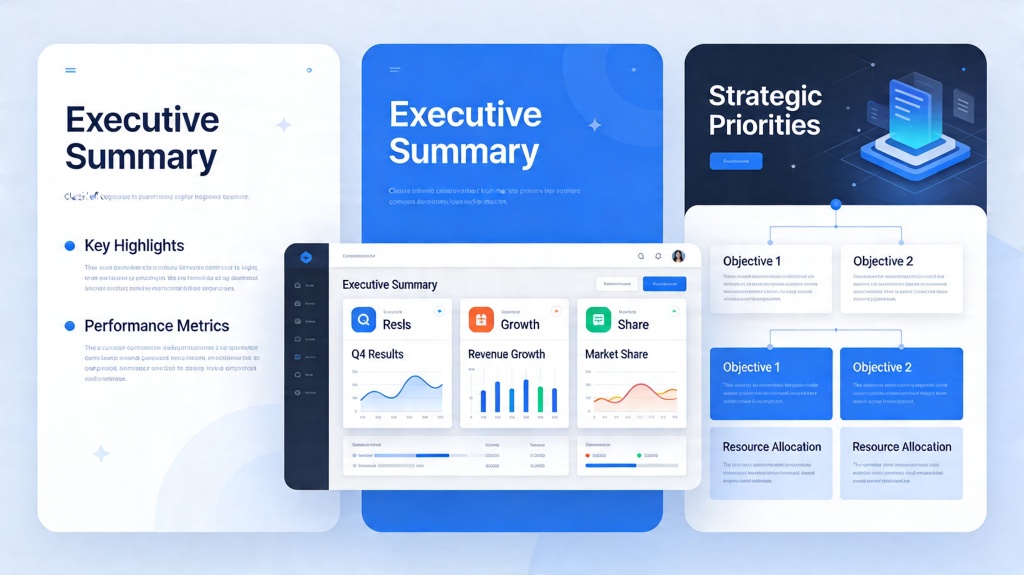
An executive summary slide has one job: help a busy stakeholder understand the conclusion, evidence, and decision request in under a minute. A strong AI PowerPoint workflow can speed up that work by turning raw inputs into a structured slide, but it still needs the right layout and a sharp message.
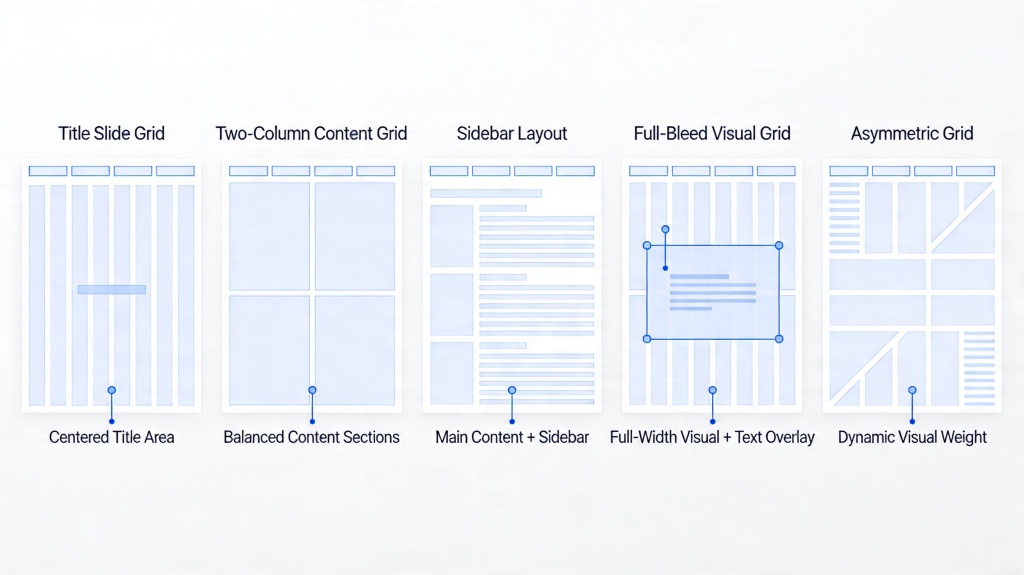
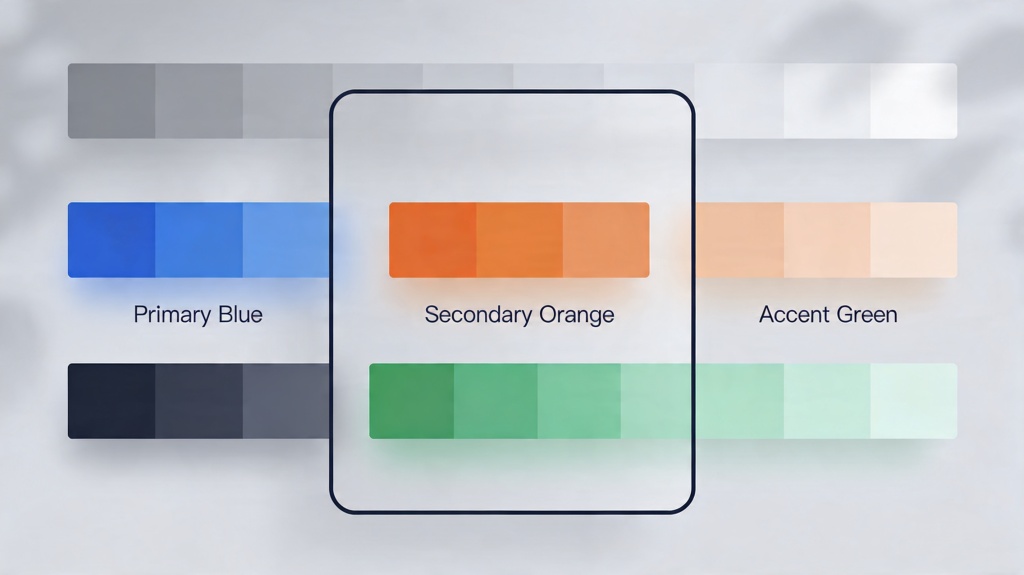
Use this guide as your starting point when you need one executive summary slide that anchors the whole deck. Related design choices such as slide grids, color palettes, and icon style should support the same takeaway instead of pulling attention away from it.
How to Make an Executive Summary Slide with AI
Start with the decision you want the audience to make, then give AI the supporting data, constraints, and preferred layout. Ask for a concise slide first, not a full deck, so the summary does not become a table of contents.
| Step | What to Give AI | What to Check | Example |
|---|---|---|---|
| 1. State the decision | The recommendation, approval request, or key takeaway. | Can the audience tell what you need from them? | "Approve a Q3 budget increase for the retention campaign." |
| 2. Add evidence | 3 to 5 metrics, insights, risks, or business drivers. | Are the numbers specific and sourced? | "Churn rose 18%, expansion revenue fell 7%, pilot improved retention by 11%." |
| 3. Pick a layout | Problem-Solution-Impact, Three-Pillar, or Dashboard. | Does the layout match the story? | Use Dashboard for QBR metrics, not a strategic recommendation. |
| 4. Generate the slide | Slide title, section labels, bullets, and suggested visuals. | Is the slide readable in 30 to 60 seconds? | One headline, three evidence blocks, one next step. |
| 5. Finalize manually | Brand colors, exact data, speaker notes, and final wording. | Does the slide sound like your team, not generic AI copy? | Replace broad claims with specific company proof. |
Start Here: Turn Raw Notes into an Executive Summary
The best AI input is not "make a summary slide." Give the tool the context of the meeting, the decision maker, the business question, and the strongest evidence. This gives AI enough information to choose a structure rather than creating a generic slide.
Tool entry: Paste your notes into the PopAi AI presentation maker, ask for one executive summary slide first, then expand the rest of the deck only after the summary is clear.
Prompt example: Create one executive summary slide for a 15-minute QBR. Audience: VP of Sales and CFO. Decision needed: approve two new customer success hires. Use a Dashboard layout with 4 KPI cards, one risk note, and one recommendation. Keep the slide under 70 words.
3 Proven Executive Summary Layouts Compared
Weak pages on this topic often discuss layout rules, color palettes, and design tips separately. The important point is that layout choice should follow the decision type. Use the table below to pick the right format before generating the slide.
| Layout | Best For | Slide Structure | Use Case | Avoid When |
|---|---|---|---|---|
| Problem-Solution-Impact | Recommendations, proposals, change requests. | Problem statement, proposed action, measurable impact. | Budget approval, project proposal, strategic shift. | The slide is mainly metric reporting. |
| Three-Pillar | Strategies with three balanced themes. | Three equal columns with one headline and proof point each. | Annual plan, transformation strategy, operating model. | One pillar is clearly more important than the others. |
| Dashboard | QBRs, KPI reviews, operational updates. | 4 to 6 metric cards plus a short conclusion. | Revenue update, product health review, support performance. | You need persuasion more than measurement. |
The Problem-Solution-Impact Layout
This is the safest executive summary structure for proposals and decision decks. It gives the audience a natural sequence: what is wrong, what should be done, and why the action is worth taking.
Divide the slide into three horizontal or vertical sections. The first section names the business problem in plain language. The second names the recommended action. The third states the expected impact with a number, timeline, or concrete outcome.
- Problem: "Enterprise churn increased 18% in two quarters."
- Solution: "Add two customer success roles focused on at-risk accounts."
- Impact: "Expected to protect $1.2M in annual recurring revenue."
The Three-Pillar Visual Layout
The Three-Pillar layout is strongest when the summary needs to explain a strategy, framework, or transformation plan. Each pillar should feel equally important and visually balanced.
For example, a company operating plan might use "Revenue Growth," "Operational Efficiency," and "Customer Retention" as the three pillars. Each section should include one short headline, one proof point, and one implication for leadership.
The Dashboard Layout for Data-Driven Reviews
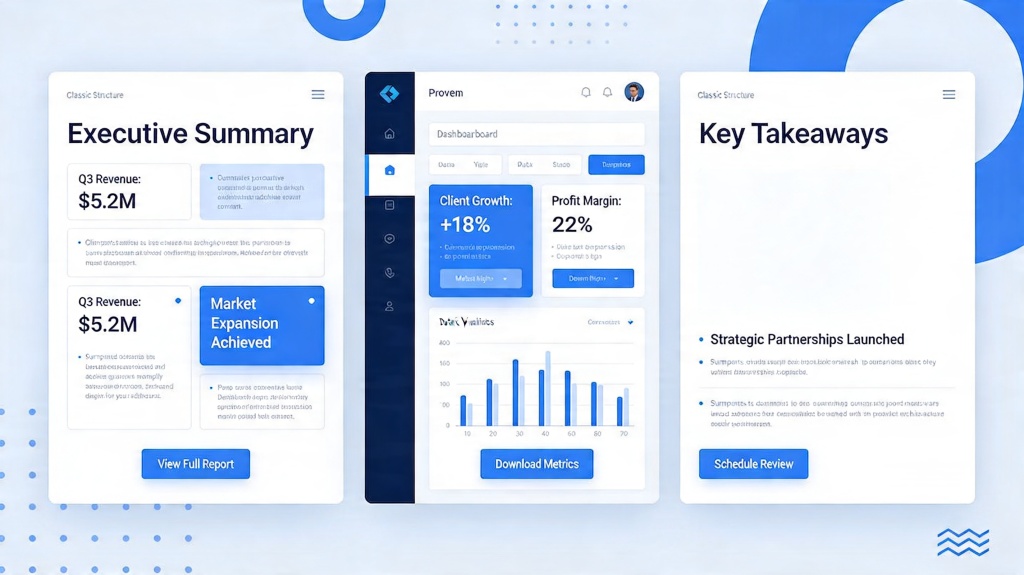
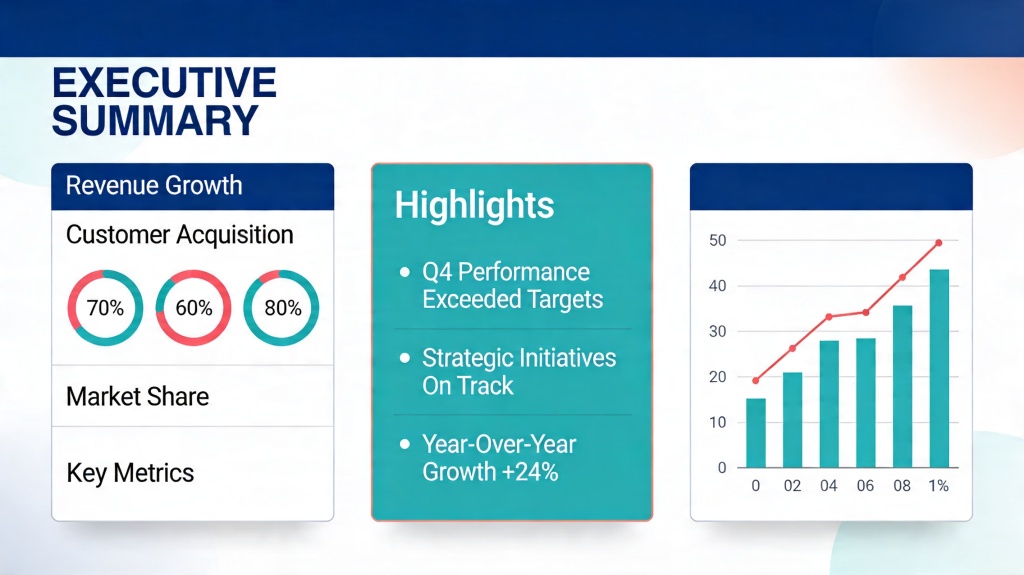
Use the Dashboard layout when the executive summary is built around metrics. It is common in QBRs, finance reviews, product health updates, sales pipeline meetings, and operational check-ins.
Each data card should contain one primary number, one trend indicator, and one short interpretation. Avoid showing every metric you have. A dashboard summary should highlight the metrics that change the discussion.
Best, Free, How-To, and Use-Case Questions
Searchers often approach this topic from different angles: best tools, free options, how-to steps, or specific use cases. The core answer is the same: use AI to draft faster, then apply executive judgment to the final message.
| Question Type | Best Answer | What to Link or Show |
|---|---|---|
| Best | The best AI workflow is one that creates a concise summary slide first, then expands the supporting deck. | Show the 3-layout comparison and prompt example. |
| Free | Free tools can generate a first draft, but may limit exports, templates, slide count, or brand control. | Link to free-plan guidance only as a supporting page. |
| How to | Define the decision, add evidence, select a layout, generate, and refine. | Use the step table near the top of this page. |
| Use cases | QBRs, board updates, investor decks, project proposals, and strategy reviews. | Show layout choice by meeting type. |
Design Rules That Make the Slide Executive-Ready
AI can create a fast draft, but the final slide needs discipline. Most weak executive summary slides fail because they include too much text, hide the recommendation, or use visuals that do not help the decision.
- Make the takeaway the title: use a conclusion such as "Retention investment protects $1.2M ARR," not a label like "Executive Summary."
- Keep text under control: aim for 50 to 75 words unless the slide is meant to be read as a memo.
- Use one visual logic: choose columns, cards, or a flow, not all three at once.
- Show the ask: if approval is needed, make the decision request visible.
- Match the rest of the deck: use the same colors, type scale, icon style, and chart formatting.
How Supporting Slides Should Strengthen the Executive Summary
An executive summary slide works best when the rest of the deck proves the same message. After drafting the summary, check each supporting slide and make sure it answers one of three questions: what changed, why it matters, and what decision is needed.
- Problem slides: show the pain, risk, or missed opportunity behind the summary.
- Evidence slides: provide the data, customer examples, or financial model that supports the main takeaway.
- Decision slides: make the recommended action, owner, timeline, and expected impact easy to approve.
If a supporting slide does not reinforce the summary, move it to the appendix or remove it before the executive review.
Frequently Asked Questions
How can AI PowerPoint help create an executive summary slide?
AI can turn raw notes, metrics, or project updates into a structured executive summary slide by selecting a layout, grouping the key message, and suggesting concise slide copy. You should still verify the numbers and make the final recommendation specific.
What is the best executive summary slide layout?
The best layout depends on the message. Use Problem-Solution-Impact for recommendations, Three-Pillar for strategy, and Dashboard for metrics or QBR updates.
Can I create an executive summary slide for free?
Yes. Free AI presentation tools can help generate a first draft, but free plans may limit exports, templates, slide count, or advanced editing. Use the free version to test structure, then polish important decks manually.
Where should an executive summary slide go in a PowerPoint deck?
Place it immediately after the title slide or agenda. It should give busy stakeholders the conclusion, evidence, and ask before the detailed slides begin.
How much text should be on an executive summary slide?
Keep the slide tight enough to read in under a minute. As a practical rule, use one conclusion-style title, three to five evidence points, and one clear next step.
Create an Executive-Ready AI PowerPoint
Start with your decision, data, and notes, then use PopAi to generate a clear executive summary slide and supporting presentation.
Create Slides with PopAi