Presentation Design Tips for Non-Designers Using AI
Updated August 7, 2026 · Sarah Jenkins
Good presentation design tips help non-designers make slides clearer without pretending to be professional designers. The goal is visual clarity: one idea per slide, readable hierarchy, consistent colors, and layouts that support the message instead of distracting from it.
This guide focuses on practical principles, common design mistakes, before/after fixes, a reusable checklist, AI-assisted design tasks, realistic examples, FAQ, and a route back to the PopAi presentation pillar.
Presentation Design Tips: Start with Clarity, Not Decoration
The first rule is simple: every slide should have one job. Before choosing colors or images, decide what the audience must understand, feel, or do after seeing the slide.
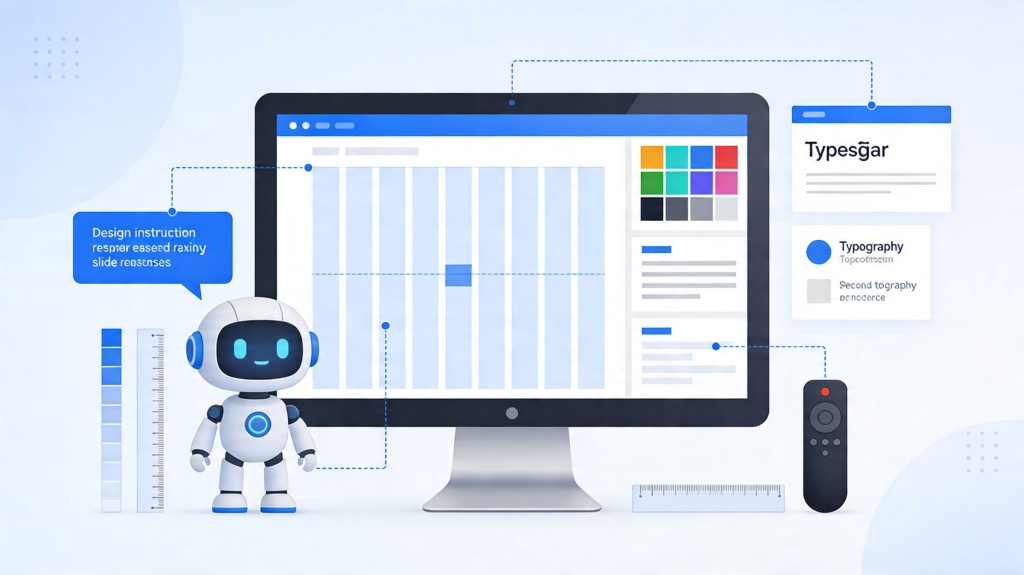
Five Design Principles Non-Designers Can Reuse
- One idea per slide: split complex arguments into a short sequence.
- Strong hierarchy: make the takeaway title the largest visible element.
- Whitespace: leave breathing room around text, charts, and visuals.
- Contrast: use color or weight to show what matters first.
- Consistency: keep title placement, colors, fonts, and icon style stable.
Before and After Fixes for Common Slide Mistakes
Most weak slides fail in predictable ways. Use this table as a quick repair guide before spending time on decorative polish.
| Common mistake | Before | After |
|---|---|---|
| Too much text | Six dense bullets and a paragraph | One takeaway title, three short proof points, speaker notes for detail |
| Weak hierarchy | Same font size for everything | Large title, medium key point, small supporting labels |
| Random colors | Five unrelated accent colors | One primary color, one neutral, one accent for key data |
| No visual focus | Chart, paragraph, icon, and logo competing | One visual anchor with supporting caption and whitespace |
Real Scenarios for Non-Designers
Scenario 1: internal KPI update
A manager has three metrics, two risks, and one recommendation. Instead of placing everything on one slide, create one summary slide and three evidence slides. AI can suggest chart placement and reduce text density.
Scenario 2: student research presentation
A student can turn a long paper into sections, then use AI to suggest visual hierarchy, title phrasing, icons, and image ideas while keeping citations and claims human-verified.
Where AI Can Help with Presentation Design
- Layout: ask AI to distribute text across slides instead of overcrowding one page.
- Color: ask for a three-color palette based on brand, audience, or mood.
- Typography: ask for title/body hierarchy and readable font sizing.
- Visuals: ask for image, icon, or chart suggestions that match the slide message.
- Consistency: ask AI to review whether slide titles, spacing, and style are uniform.
Reusable Design Checklist and Related Guides
- Can the slide be understood in five seconds?
- Does the title state the point instead of naming the topic?
- Is there one visual focus and enough whitespace?
- Are colors and fonts consistent across the deck?
- Did you move extra explanation into speaker notes?
For campaign-specific slide structure, use the AI marketing deck template. For a decision-first deck template, use create winning slide decks with AI slide deck. If the main issue is deck-wide brand consistency, use AI presentation builder keep consistent style or the create consistent slide style brand kit checklist. For final executive polish, use make slides look professional AI manual polish. If the weakest part is title copy, use slide headline prompts.
Frequently Asked Questions
What are the most useful presentation design tips for non-designers?
Use one idea per slide, strong title hierarchy, enough whitespace, a limited color palette, consistent fonts, and visuals that support the message rather than decorate the slide.
How can AI help with slide design?
AI can suggest layouts, split dense text, create visual ideas, recommend color palettes, check consistency, and help rewrite slide titles as clear takeaways.
What is the biggest design mistake non-designers make?
The biggest mistake is overcrowding slides. Split ideas across multiple slides and move details into speaker notes or supporting appendix pages.
Should non-designers use templates or start from scratch?
Templates and AI-generated starting points are safer for non-designers because they provide structure, spacing, and consistency while leaving the content editable.