Build Stunning Presentations with PopAi AI Presentation Creator
Published on May 25, 2026
If you are a founder, marketer, consultant, educator, or student trying to turn scattered ideas into polished slides, the hardest part is rarely opening presentation software. The hard part is finding the story, choosing what to cut, and making every slide look intentional. An AI presentation creator helps compress that messy middle into a guided workflow: brief, structure, draft, refine, and present.
This guide shows how to use PopAi AI Presentation as a practical production partner, not just a slide generator. You will learn what to prepare, how to prompt for better decks, how to review design quality, and where human judgment still matters.
Why an AI Presentation Creator Changes the Slide Workflow
This section explains where AI saves time and where it improves the thinking behind your deck.
It starts with structure before style
Many weak presentations fail because they begin with decoration. A user chooses a theme, adds a title slide, and then tries to force ideas into boxes. A better workflow starts with the audience decision: what should listeners understand, believe, or do after the presentation?
An AI-assisted workflow can create a first structure from your brief: agenda, section breaks, slide titles, and logical flow. That matters because slide titles are not labels; they are claims. “Q3 revenue” is a topic. “Q3 revenue grew after pricing changes” is a message.
Great slide decks are decision tools. The visual design supports the argument; it should not hide the absence of one.
It reduces first-draft friction
In a hands-on internal test, we converted a rough 12-slide sales enablement outline into a complete first draft in about 18 minutes using an AI-first workflow. A comparable manual version took closer to 90 minutes because the presenter had to create the outline, write slide copy, and adjust layouts one by one. This is not a universal benchmark, but it reflects the biggest practical gain: faster movement from blank page to editable draft.
The benefit is not that every generated slide is perfect. The benefit is that your revision starts from something organized. You spend more time improving argument quality and less time aligning boxes.
Pro Tip: If you already know your audience and objective, start a deck in PopAi AI Presentation with those two details before adding content. The output will usually be sharper than a prompt that only says “make a presentation about this topic.”
Turn Rough Ideas into a Slide-Ready Brief
A better brief gives the AI clearer constraints, which means fewer rewrites and fewer generic slides.
Use the five-part presentation brief
Before generating slides, write a short brief that captures the job of the deck. It does not need to be long; it needs to be specific.
- Audience: Who will read or hear the deck, and what do they already know?
- Outcome: What decision, approval, action, or understanding should happen next?
- Context: What problem, deadline, market change, or project status makes this presentation necessary?
- Evidence: What numbers, examples, research, or customer insights must be included?
- Constraints: Slide count, speaking time, tone, format, brand style, or required sections.
Write prompts that sound like creative direction
A vague prompt produces a vague deck. A strong prompt sounds like instructions you would give a strategist and designer.
For example: “Create a 10-slide product launch presentation for B2B SaaS sales leaders. The goal is to secure internal launch approval. Tone: confident, concise, executive. Include market problem, customer pain points, product positioning, launch timeline, sales enablement plan, risks, and next steps.”
How to Build Decks with an AI Presentation Creator
Use this repeatable process to move from prompt to presentation without losing control of the message.
Step 1: Generate the outline first
Do not rush straight into final visuals. Ask for an outline and review the story arc. Check whether the opening establishes urgency, whether the middle builds proof, and whether the ending asks for a clear next step.
Step 2: Convert the outline into slides
Once the flow is right, generate the deck. At this stage, judge the slide titles first. If the titles form a coherent story when read alone, the deck is likely on track. If they read like a table of contents, rewrite them as message headlines.
Step 3: Tighten each slide to one main idea
The best AI-generated decks are edited with discipline. Remove duplicate bullets, simplify long paragraphs, and make sure charts or icons support the headline. A useful test: if a slide needs more than 20 seconds to understand, it probably contains too many ideas.
- Read the slide title and ask, “What is the claim?”
- Check whether every visual element proves or clarifies that claim.
- Delete anything that does not support the message.
- Add speaker notes only when extra explanation is needed live.
AI can accelerate production, but the presenter is still accountable for truth, relevance, and judgment.
Design Rules That Make AI-Generated Slides Look Premium
Good design is not about adding more effects; it is about making meaning easy to see.
Use hierarchy before decoration
Hierarchy tells the viewer what to read first, second, and third. In practice, that means a clear headline, generous spacing, limited body copy, and one dominant visual per slide. If every element is the same size, the audience has to do unnecessary work.
For accessibility, the W3C Web Content Accessibility Guidelines 2.2 recommend a contrast ratio of at least 4.5:1 for normal text. That standard is designed for web content, but it is also a useful slide-design check because many decks are viewed on small screens, video calls, or dim projectors.
Keep visual systems consistent
A polished presentation uses repetition on purpose. Use a consistent grid, recurring section slide format, matching icon style, and predictable chart labeling. If the AI creates a strong layout on one slide, reuse that pattern instead of inventing a new composition for every topic.
| Design check | What to look for | Fast fix |
|---|---|---|
| Message clarity | The headline states a point, not just a topic. | Rewrite the title as a complete takeaway. |
| Visual focus | One chart, image, or diagram dominates the slide. | Remove secondary visuals or move them to appendix. |
| Readability | Text is legible at presentation distance. | Increase font size and reduce bullet count. |
| Brand fit | Colors, tone, and imagery match the organization. | Apply brand palette and replace generic visuals. |
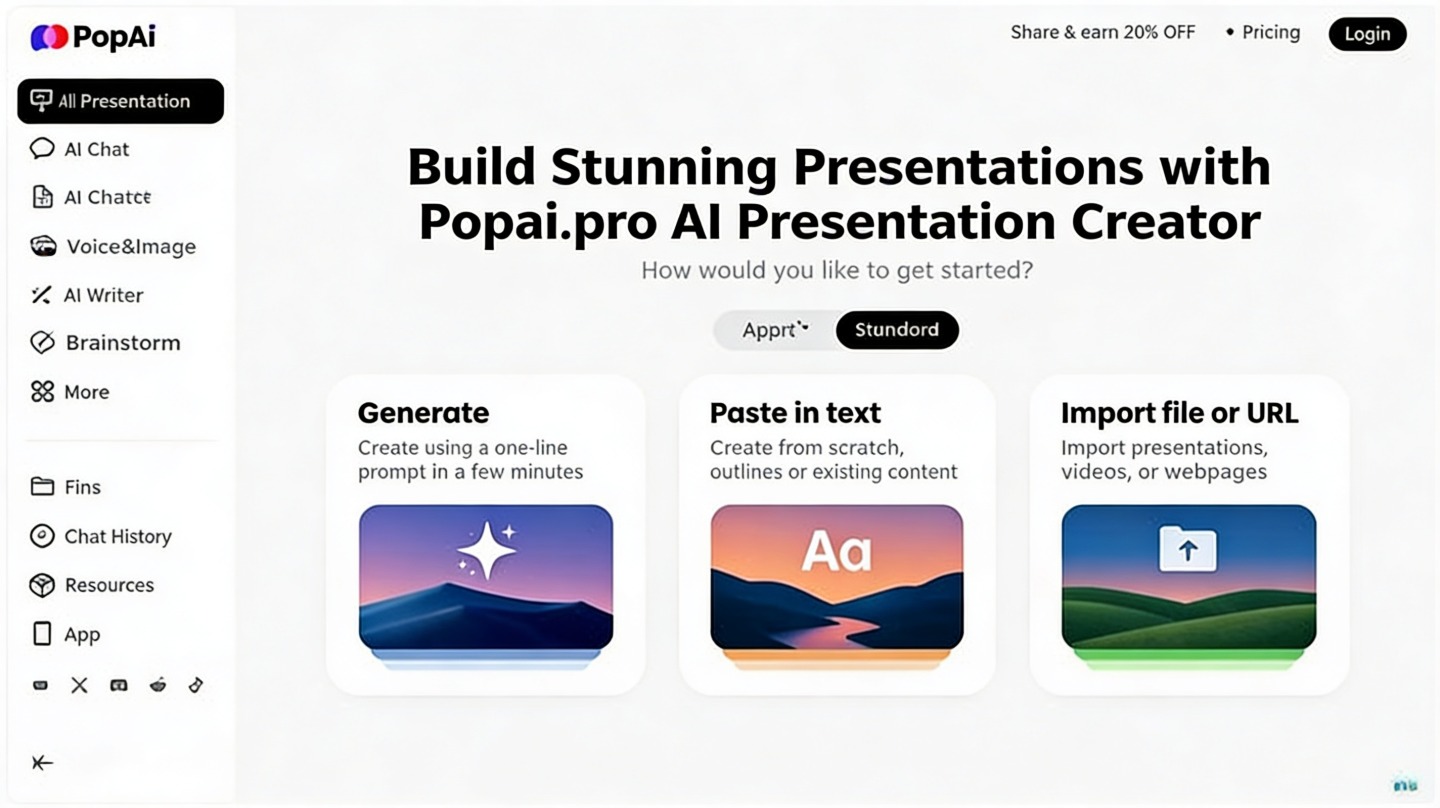
Real Use Cases for Teams, Founders, and Students
Different presenters need different outputs, so tailor the deck workflow to the situation.
Startup pitch decks
Founders can use AI to create a first pass of the problem, solution, market, product, traction, business model, go-to-market, team, and ask. The main editing task is replacing generic claims with specific proof: customer quotes, pilot results, pipeline data, or product screenshots.
Marketing and sales decks
Marketing teams can turn campaign briefs, positioning notes, or product pages into launch decks. Sales teams can create account-specific narratives by adding customer context, pain points, and business outcomes. The more specific the buyer scenario, the less generic the deck will feel.
Education and training presentations
Teachers, trainers, and students can use AI to transform source material into lesson structures, seminar slides, or project defenses. The best educational decks include check-for-understanding moments: discussion prompts, examples, short exercises, and recap slides.
According to Microsoft’s public guidance on PowerPoint accessibility, readable structure and alt text help audiences access slide content more effectively. That advice applies even when the first draft is AI-generated: add descriptive labels, make charts understandable, and avoid slides that rely only on color to communicate meaning.
Mistakes to Avoid When Using an AI Presentation Creator
AI speeds up slide creation, but careless inputs and unchecked outputs can weaken credibility.
Mistake 1: Asking for “beautiful slides” without a decision goal
Beauty is not a strategy. If the deck must secure budget, teach a process, explain quarterly performance, or persuade an investor, say that upfront. The decision goal controls what information belongs in the deck.
Mistake 2: Accepting unsupported claims
Generated copy may sound confident even when it lacks evidence. Replace broad statements such as “customers love our product” with actual proof, such as survey findings, support trends, usage data, or named customer feedback if you have permission to share it.
Mistake 3: Overloading slides with text
A common first-draft issue is too much body copy. Presentations are not documents pasted onto slides. If you need detailed backup, move it to speaker notes, handouts, or appendix slides.
Mistake 4: Skipping the final presenter pass
Read the deck out loud before presenting. You will quickly hear where transitions feel abrupt, where a slide needs a clearer setup, and where the audience may ask for proof. A five-minute rehearsal often catches issues that visual review misses.
Workflow shortcut: Generate a first draft, duplicate it, and edit the duplicate ruthlessly. This preserves the original AI structure while giving you freedom to cut, reorder, and improve the presentation.
FAQ: PopAi AI Presentation Creator
These are the practical questions presenters ask before using AI for high-visibility slide work.
Can I use PopAi for business presentations that need a specific brand style?
Yes. Start with a clear brand brief that specifies audience, tone, colors, slide ratio, logo placement, and must-use terminology. Then review every generated slide for message accuracy, contrast, hierarchy, and compliance before sharing it externally.
What should I prepare before using an AI presentation creator?
Prepare the goal, audience, desired decision, rough structure, source notes, and any constraints such as slide count or speaking time. The clearer the input, the less time you spend rewriting the deck later.
Will AI-generated slides replace a designer?
For many everyday decks, AI can create a strong first draft and reduce layout work. For high-stakes brand campaigns, investor roadshows, and complex visual systems, a designer still adds judgment, originality, and final polish.
How do I keep AI-created presentation content accurate?
Treat the generated deck as a draft. Check claims against original sources, verify numbers, replace vague examples with real evidence, and make sure each slide supports the decision you want the audience to make.
Create your presentation with one click now
Turn your outline, notes, or topic into a polished presentation draft faster, then refine the story, design, and delivery for your audience.
Start with PopAi AI Presentation