Best Animated Presentation Templates for AI Slides in 2026
July 09, 2026
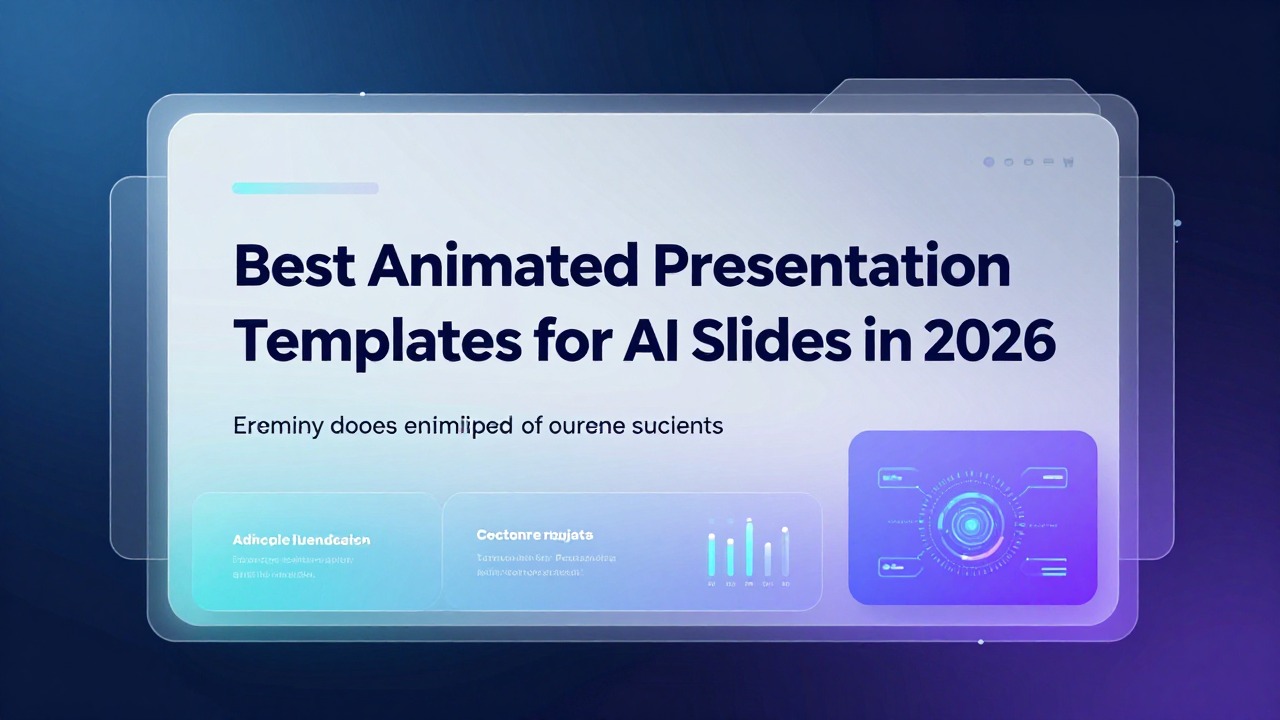
Animated presentation templates can make AI slides feel more polished, but animation is not automatically better. The best animated template is the one that supports the message without distracting from it.
This rewrite fixes the original mismatch by turning the page into a real template-selection guide. Instead of only explaining animation principles, it lists 10 template types, the use case for each, and the animation style that usually works best.
Quick Answer: Use Animation to Reveal Logic, Not Decorate Every Slide
Animation should guide attention and sequence information.
For AI-generated slides, animation is most useful when it controls pacing: revealing a timeline step by step, comparing options one at a time, showing before/after changes, or walking through a process. It becomes harmful when every bullet flies in, every chart spins, or motion delays the speaker.
If the animation does not make the slide easier to understand, remove it.
10 Animated Template Types for AI Slides
These are practical template categories you can search for or build from.
| Template type | Best for | Recommended motion | Avoid |
|---|---|---|---|
| Executive summary reveal | Leadership updates and strategy decks. | One-by-one reveal of three key takeaways. | Complex entrance effects. |
| Problem-solution sequence | Pitch decks, proposals, product narratives. | Problem appears first, solution enters after contrast. | Animating every sentence. |
| Timeline / roadmap | Launch plans, product roadmaps, project updates. | Step-by-step horizontal reveal. | Too many milestones on one slide. |
| Before / after comparison | Case studies, design changes, report improvements. | Fade between before and after states. | Fast transitions that hide the difference. |
| Data highlight template | Reports, QBRs, KPI reviews. | Reveal chart first, then highlight the key data point. | Animated chart gimmicks. |
| Process flow | Operations, onboarding, training. | Sequential node reveal. | Loops and arrows that move without meaning. |
| Product feature tour | SaaS demos and internal product education. | Feature cards enter by user journey. | Overly long feature lists. |
| Training quiz slide | Workshops and classes. | Question first, answer reveal after discussion. | Showing answer too early. |
| Portfolio / showcase | Design, creator, agency, student work. | Gentle image fades or carousel-style movement. | Distracting zooms. |
| Closing CTA slide | Sales, webinar, or stakeholder decision decks. | Final call-to-action reveal. | Multiple competing animated buttons. |
How to Combine AI Slides with Animated Templates
Generate the content structure first, then apply motion selectively.
- Use AI to create the deck outline, slide titles, and core bullets.
- Identify slides where sequence matters: roadmap, process, before/after, data insight, or CTA.
- Choose an animated template that matches the slide job.
- Keep the animation speed consistent across the deck.
- Rehearse with animation turned on to catch timing problems before presenting.
PopAi can help create the first slide draft from notes or documents. After the story is clear, move the deck into your preferred design or editing environment and apply animation only to slides where motion improves comprehension.
Template Selection Matrix
Choose templates by presentation type, not by visual excitement alone.
| Presentation type | Template direction | Why it works |
|---|---|---|
| Investor pitch | Minimal problem-solution, traction, and roadmap animation. | Keeps attention on business logic rather than effects. |
| Sales proposal | Product tour, comparison, and CTA animations. | Helps the prospect follow the offer step by step. |
| Training deck | Process flow, quiz, and reveal templates. | Supports learning and pacing. |
| Data report | Data highlight and before/after templates. | Makes the key change easier to see. |
| Student presentation | Simple timeline, concept reveal, and summary templates. | Adds polish without making the deck hard to edit. |
Common Animation Mistakes in AI-Generated Decks
Most animation problems come from using motion as decoration.
- Too many entrance effects on one slide.
- Animations that make the presenter wait before speaking.
- Chart motion that makes the data harder to read.
- Inconsistent transition styles from slide to slide.
- Templates that look impressive but do not match the audience or brand.
The best animated template should make the presenter look clearer, not make the software look busier.
FAQ
What are animated presentation templates?
They are slide templates with built-in motion, transitions, or reveal effects that help control pacing and visual attention.
Should every AI slide use animation?
No. Use animation only when it helps explain sequence, comparison, process, data emphasis, or a final call to action.
Can I use PopAi with animated templates?
Yes. A practical workflow is to create the slide structure with PopAi first, then apply animated templates in your chosen editor.
What is the safest animation style for business decks?
Subtle fades, simple reveals, and step-by-step timeline animations are usually safer than dramatic zooms, spins, or complex transitions.
Draft your AI slides before choosing animation
Use PopAi to create the slide structure first, then apply animated templates only where motion improves understanding.
Try PopAi AI Presentation