Canva is our first recommendation for teachers who need a coordinated set of classroom visuals. Choose PopAi when the lesson starts in notes or a source document, Plus AI when the school works in Google Slides or PowerPoint, and Microsoft Copilot when the teacher already has an eligible, school-approved PowerPoint setup.
The best AI presentation maker for teachers should fit the work around the lesson, not merely create an attractive first draft. Some teachers need slides and related classroom resources. Others need to adapt an approved reading or maintain a departmental template. The recommendations below are organized around those teaching tasks.
Best AI presentation makers for teachers: quick picks
The selections are editorial recommendations based on official capabilities and classroom workflow needs. They are not results from a classroom trial or evidence of improved learning outcomes.
| Tool | Best teaching task | Why we recommend it | What to confirm first |
|---|---|---|---|
| Canva | Classroom visuals and related resources | Its education design environment covers more than presentation slides. | Eligibility, access to needed features, and school approval. |
| PopAi | Lesson notes or reading material to slides | A document-led draft fits content that already exists. | Reading level, source accuracy, and the learning objective. |
| Plus AI | Departmental Google Slides or PowerPoint work | Its teacher workflow fits native slide authoring. | Institutional add-in access and the required template. |
| Microsoft Copilot | An established Microsoft teaching environment | Copilot in PowerPoint provides AI creation within that application. | Eligible licensing, available mode, and administrator settings. |
Which AI presentation maker should a teacher choose?
Canva: best for a coordinated classroom resource set
Choose Canva when the presentation is part of a wider lesson package: classroom visuals, practice material, or a related handout. Canva's education resources support this broader design use, which is why it is our first recommendation for that task.
For a vocabulary lesson, use consistent image treatment and labels across the slides and follow-up material. The design should reduce unnecessary variation, not add decoration that competes with the concept. Plan where students will think, discuss, or practise instead of building a continuous sequence of explanatory slides.
Choose another tool when: the main job is turning a substantial source document into a concise lesson narrative. PopAi is our recommendation there. Canva Education availability is subject to eligibility rules; do not assume all teachers, institutions, or higher-education users receive identical access or unlimited AI usage.
PopAi: best for lesson notes and reading material to slides
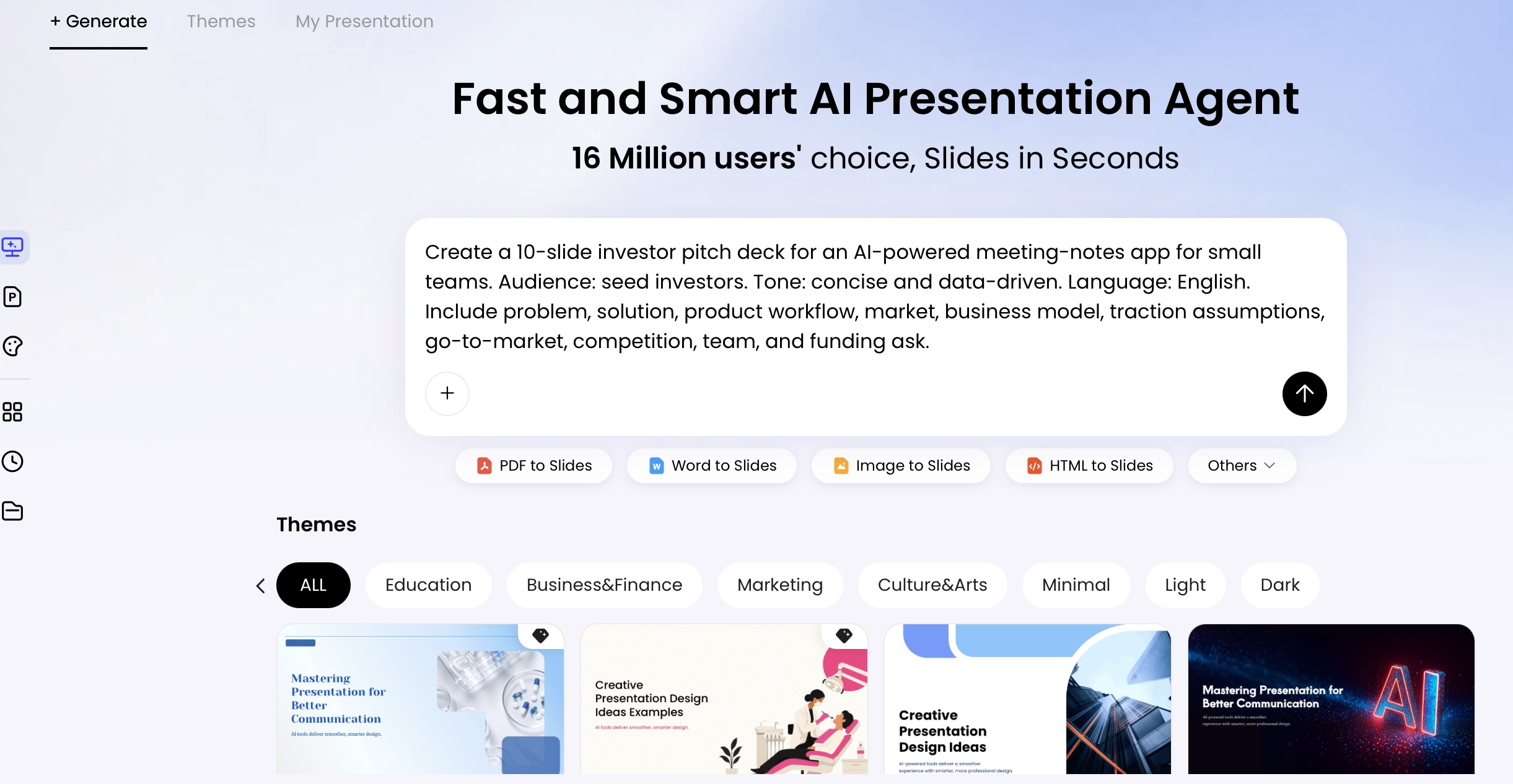
Choose PopAi when the learning material is in lesson notes, an approved reading, or a training document. Its Word-to-slides workflow is relevant to that source-led task.
Supply the learning objective, age or knowledge level, important vocabulary, and the misconception you need to address. Ask for a draft that distinguishes explanation, a worked example, and a check for understanding. Review the outline before accepting a visual treatment. That is our reason to recommend this route for lesson adaptation rather than for simply producing more slides.
Choose another tool when: the school requires the working deck to remain in a departmental Google Slides or PowerPoint environment. Choose Plus AI for that native workflow, or Copilot where an eligible Microsoft setup is already approved. A source-derived draft still requires the teacher to verify meaning and appropriateness.
Plus AI: best for schools working in Google Slides and PowerPoint
Choose Plus AI when the presentation should be authored in the slide application already used by the department. Its teacher-focused workflow supports generation and revision within that setting.
For a shared unit, keep the agreed learning sequence and adapt the explanation or activity for the current class. A native workflow is a sensible recommendation when colleagues need to keep editing the same type of file. It also avoids making a new design platform the center of an otherwise established planning process.
Choose another tool when: your institutional account blocks the add-in or you need a broader classroom design toolkit. Canva is our recommendation for the latter. Check access before planning a lesson around a feature, and keep student-specific information out of tools that the school has not approved for that use.
Microsoft Copilot: best within an approved Microsoft teaching setup
Choose Copilot when the school already uses PowerPoint and the teacher has the appropriate access. Microsoft's official creation guidance describes generating a presentation within PowerPoint; availability and file-based options depend on the mode and account.
This is an environment-fit recommendation. It is relevant when departmental templates, staff review, and delivery already happen in PowerPoint. Start with the objective and approved content, then revise the draft for the class. Do not assume a general-purpose presentation draft has checked the curriculum or the accuracy of a scientific explanation.
Choose another tool when: there is no eligible school-approved access, or the main need is a coordinated set of visual classroom resources. Canva is the broader design recommendation; PopAi is the source-material-to-deck recommendation. Being part of a school account is not, by itself, proof that every AI feature is enabled.
Classroom example: a water-cycle lesson
This is an illustrative lesson-planning scenario, not a completed teaching trial. Use an approved reading and diagram from the USGS Water Science School as the content basis. Its explanation distinguishes where water is stored and how it moves; the teacher should preserve those relationships in the lesson.
| Lesson section | Suggested slide job | Teacher review |
|---|---|---|
| Opening question | Ask where water goes after a puddle dries. | Do not reveal the whole explanation before students respond. |
| Learning objective | State what students should be able to explain. | Match the level and scope of the lesson. |
| Water stores | Introduce the relevant places water is held. | Keep labels consistent with the approved source. |
| Movement and change | Explain the processes using the source diagram. | Check arrows, labels, and cause-and-effect wording. |
| Application | Ask students to explain a familiar example. | Make sure the example uses the taught concepts. |
| Check for understanding | Use a question that exposes a likely misconception. | Review the answer and explanation yourself. |
| References and recap | Credit the source and restate the key idea. | Keep the original source accessible. |
Choose Canva when the goal is this deck plus matching classroom resources. Choose PopAi to shape the approved reading and teacher notes into a first sequence. Choose Plus AI for a departmental Google Slides or PowerPoint workflow, or Copilot for an eligible Microsoft-only setting. The lesson task, not a general product ranking, determines the recommendation.
A slide generator is not an automatic classroom system
A question printed on a slide is not the same as collecting live student responses. Do not assume that generating a quiz question includes live polling, grading, or a connection to the school's learning platform. Keep those requirements separate when choosing tools.
Review source accuracy, image permissions, reading level, and accessibility in the format you will actually present. Do not upload identifiable student work or sensitive records merely because a product has educational use cases. Follow the school's approved process for that material.
Our recommendation for teachers
Choose Canva for classroom resource design, PopAi for lesson-source drafting, Plus AI for native departmental slides, and Copilot for an eligible Microsoft environment. Keep the teacher's objective and source material in charge of the lesson. A useful tool supports planning and revision; the teacher still decides what students need to understand and how to check it.
Basis and disclosure. Product documentation reviewed September 20, 2026. The "Best for" selections are editorial judgments about the stated workflows, not timed, scored, or hands-on head-to-head results. Examples are illustrative. PopAi publishes this comparison and is one of the products discussed. Confirm account, plan, and institutional requirements before adopting a tool.