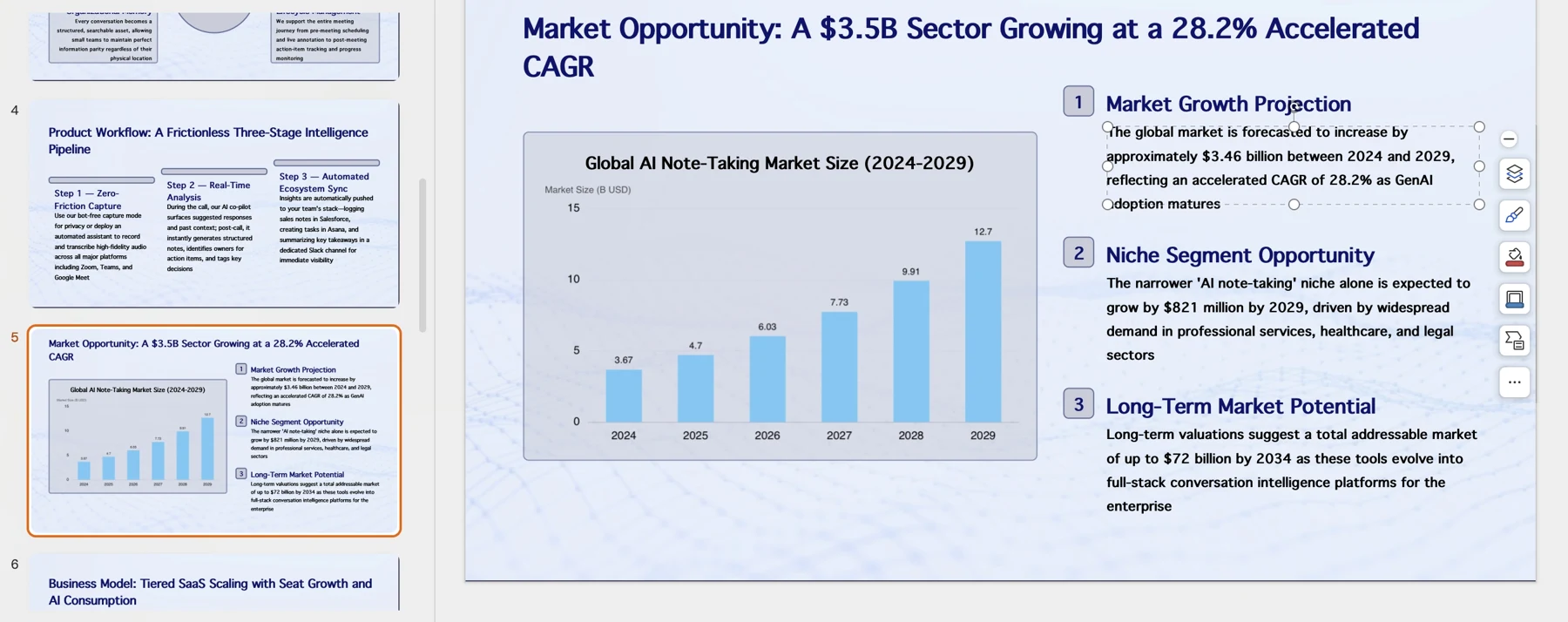
The documented PopAi route is two steps: create and download a PPTX in PopAi, then upload/open that PPTX in Google Slides. It is not a verified native Google Slides export button. Choose this route when you need a PopAi draft and a Google-based review workflow; choose native Slides generation when avoiding a conversion is the priority.
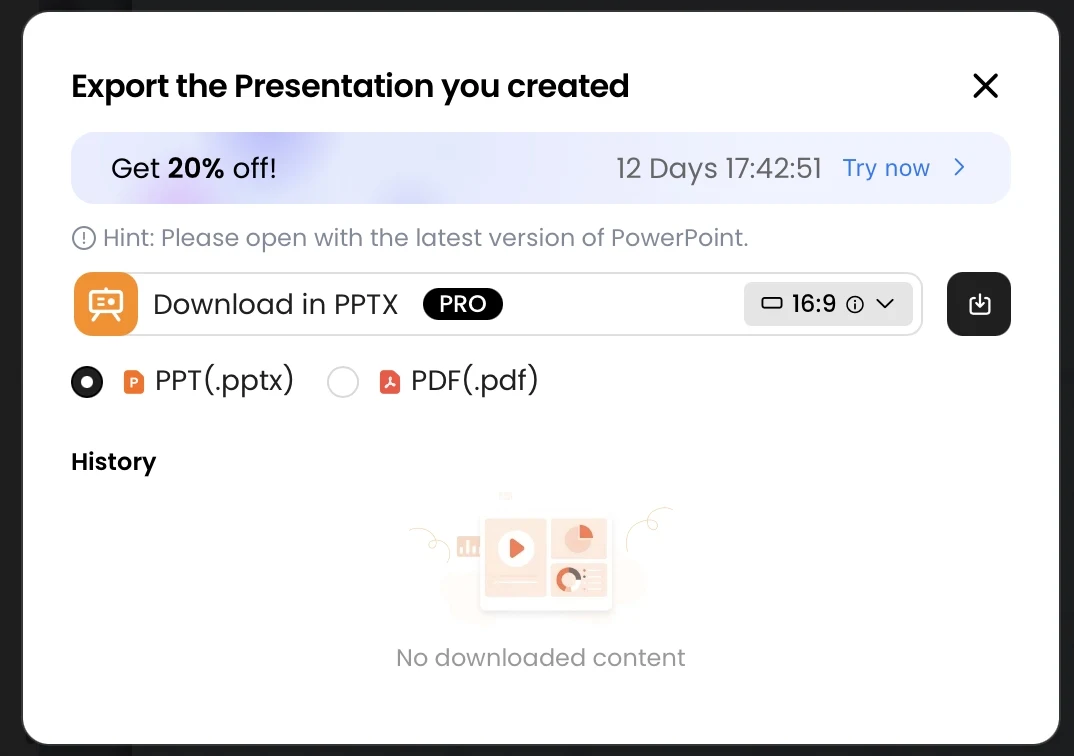
1. Create and download a PPTX
Review the generated deck in PopAi, then use the PowerPoint download option when your account has export access.
2. Open or convert in Google Slides
Upload the PPTX to Drive, open it in Google Slides, and save a Google Slides copy when you need the native format.
Three different meanings of Google Slides support
| Route | What it means | What not to assume |
|---|---|---|
| Native authoring | Create and edit directly inside Google Slides, including eligible Gemini workflows | That a basic Google account includes every Gemini generation feature |
| PPTX handoff | Download a PowerPoint file elsewhere and open or convert it in Slides | That all objects, fonts, media and speaker notes survive unchanged |
| A web sharing link | View a presentation in its original browser player | That a view link is an editable Google Slides document |
Google now documents full, editable presentation generation with Gemini inside Slides for eligible plans. That is a native alternative, not the conversion route covered here. Google: generate presentations with Gemini. Our PopAi vs Google Slides comparison separates standard Slides, Gemini-enabled Slides and PopAi.
Prepare the PopAi file before uploading
- Start with a clear prompt or supported document and review the outline. Remove material you are not authorized to upload.
- Finish the slide sequence, facts and core wording before moving between editors. Save an approved source version.
- Download PPTX, not PDF, when you need an editable slide handoff. Export availability depends on your account.
- Open the downloaded file in a compatible presentation application when available. Record any problems before introducing a second conversion.
The source reference shows an export menu and a PowerPoint editing example. It is evidence of those particular steps, not proof that the same deck was successfully converted in Google Slides. No logged-in Google conversion was performed for this article. PopAi's format and access FAQ.
Upload, open and create a native Slides copy
- In Google Drive, upload the downloaded .pptx file.
- Open the uploaded file with Google Slides. Depending on the file and interface, it may initially remain an Office-format file opened for editing.
- To create a separate native Google Slides version, use File > Save as Google Slides when available. Keep the original PPTX for comparison.
- Rename the new copy and verify sharing permissions on that copy; do not assume permissions or review history transferred from the source platform.
These steps follow Google's PowerPoint-to-Slides guidance and Office-file editing documentation. Opening a .pptx and converting it into a native Slides file are distinct states. Check the file type before telling collaborators which one they are reviewing.
Inspect the result slide by slide
| Check | A useful acceptance test | When to stop and repair |
|---|---|---|
| Text | Select and edit a title; check wrapping and symbols | Text is flattened, clipped, missing or substituted |
| Charts and tables | Change a value only if the intended data object is editable | A chart is an image when the reviewer needs underlying data |
| Fonts and layout | Compare the source and imported slide at presentation size | Font substitution changes hierarchy or pushes content off-slide |
| Images and diagrams | Inspect crop, labels, lines and layering | Important content is hidden or relationships change |
| Notes and media | Open presenter notes and test media on the presentation device | Notes or media are absent; playback depends on blocked services |
| Sharing | Open the link using the recipient's intended access level | The reviewer cannot open the file, or access is too broad |
Use a representative slide with a table, a diagram, a source note and a long title rather than checking only a cover. Keep a small change log so you know which editor owns the approved version. Repeated export/import cycles can make that ownership ambiguous even when each file opens.
Choose native Slides instead when conversion is the wrong trade-off
A team already reviewing in Google Slides may prefer to start there. A native workflow removes the file-conversion step, although it does not remove factual review or design work. A source-to-deck workflow can still be useful when the input preparation and narrative structure matter more than the cost of the handoff.
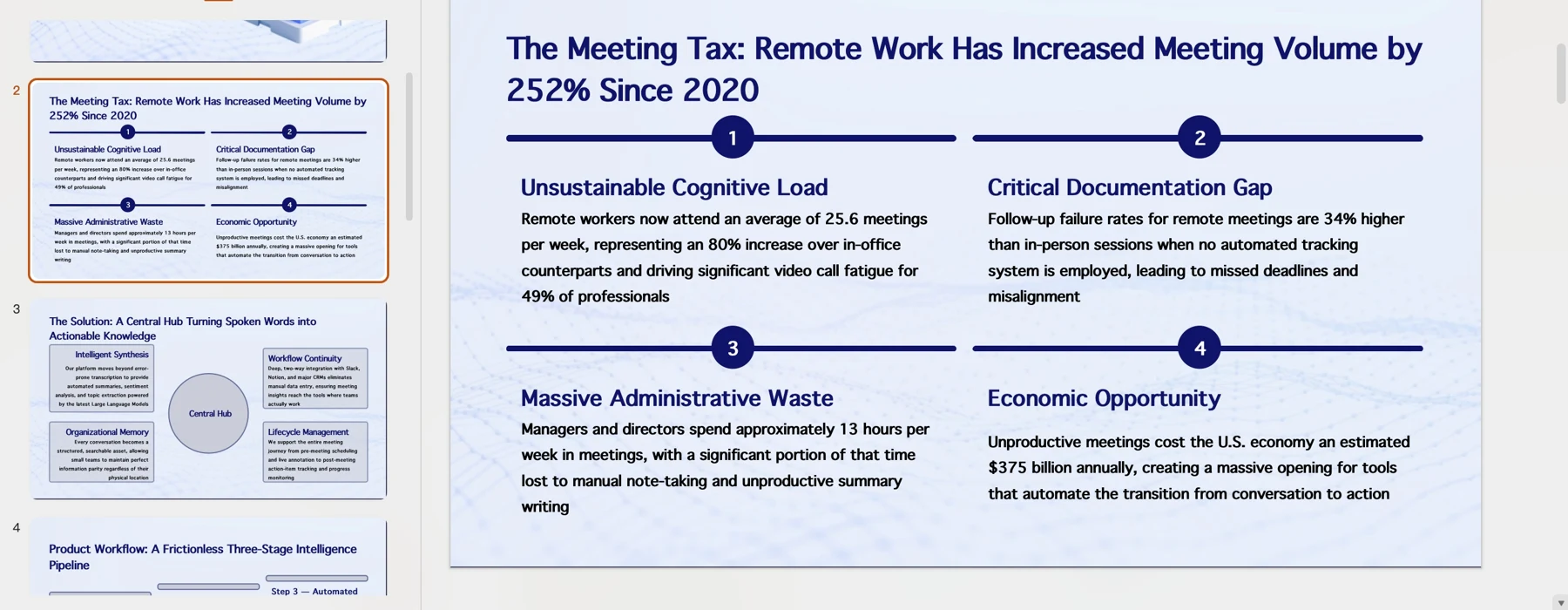
Verification boundary: the screenshots above come from the supplied PopAi knowledge base. They are not new live-account tests. An actual Google Slides conversion screenshot and a source-versus-import object check remain required before making a fidelity claim.
Official sources and verification scope
Public product information checked on . Plan pages can vary by country and billing term. This article does not report a controlled hands-on comparison or guarantee conversion fidelity.
- PopAi tools and access FAQ
- Google: work with PowerPoint in Google Slides
- Google: work with Microsoft Office files
- Google: generate presentations with Gemini
Additional supplied PopAi interface references
These historical screenshots illustrate the corresponding PopAi steps only. They are not competitor screenshots or proof of a live conversion, current plan entitlement or measured result.