How to Turn a Blog Post into a Presentation with AI

A blog post is written for reading; a presentation is built for attention. That means the AI workflow should not simply split the article by headings. First decide the audience, purpose, and time limit. Then cut, merge, and rewrite the article into slide-level ideas.
Before and After: Blog Paragraph to Slide
This example shows how to avoid copying long web prose into slides.
| Original blog paragraph | Extracted point | Slide-ready version |
|---|---|---|
| "Many teams publish useful long-form guides, but the insights often stay buried because readers do not have time to scan the full article. When the same content is repurposed into a short deck, stakeholders can review the main argument faster." | Long articles need compression for stakeholder review. | Slide title: Long-form content needs a faster internal format. Bullets: Readers skip dense articles; decks surface the argument; keep links to the original for details. |
Decide What to Delete, Merge, or Keep
| Article element | Presentation decision | Why |
|---|---|---|
| SEO intro, repeated definitions, keyword-heavy paragraphs | Delete or reduce to one context slide. | They help search readers, but slow down a live deck. |
| Multiple examples making the same point | Merge into one stronger example slide. | Slides need contrast and evidence, not repetition. |
| Key framework, numbered process, comparison table | Keep and convert into visual slides. | These elements already have slide structure. |
| Long caveats, citations, and background references | Move to speaker notes or appendix. | The audience may need them, but not on the main slide. |
| Original images, charts, or screenshots | Keep only if rights and relevance are clear. | Visuals must support the slide message and source rules. |
Source, Copyright, and Citation Rules
When the blog post is your own, you can usually repurpose the structure and wording. When the article belongs to another author or publisher, use it as a source for summary and learning, not as material to copy. Keep short cited excerpts only when necessary, link back to the original, and avoid reproducing images or proprietary charts without permission.
- Use a source slide or footer note when the presentation depends on a specific article.
- Do not imply that AI-generated wording is the original author's quote.
- Recreate charts only from data you are allowed to use.
- Keep screenshots out of public decks unless rights and context are clear.
- For internal training, preserve the URL and publication date in the notes.
Prompt That Forces Better Content Selection
This prompt makes the AI act like an editor rather than a paragraph splitter. The final deck should feel like a new presentation based on the article, not a broken-up copy of the article.
If you write blog posts, manage content marketing, teach from written materials, or run webinars, the hard part is rarely “having content.” The hard part is turning a reading experience into a speaking experience without pasting 1,500 words onto 12 crowded slides.
For this workflow, I tested a 1,650-word how-to article with six H2 sections, two short examples, and one checklist. The first AI draft produced an 11-slide deck in a few minutes. The useful parts were the outline, section grouping, and draft slide titles; the weak parts were predictable: too many bullets, two generic section titles, and one statistic that needed checking against the source. The final deck took about 25 minutes of human editing before it was ready to present.
The practical solution is to treat blog-to-deck conversion as a controlled workflow: prepare the source, review the outline, generate an editable deck, then run a human quality pass. With PopAi AI Presentation, you can start from existing materials, organize content into an outline, generate slides, and refine the result before exporting or sharing it.
A first draft can be created in minutes. A presentation you can send to a client, teach from, or present live still needs outline review, fact-checking, and slide-level editing.
Fast workflow: from article to editable deck
- Copy or export the clean source. Remove cookie banners, related-post blocks, author bios, newsletter CTAs, and comments.
- Choose the right input format. Use pasted text for clean copy, HTML/URL for a public post, Word/PDF for structured drafts, and PPTX when updating an old deck.
- Ask for an outline first. Do not generate the full deck until you approve the slide sequence.
- Set the deck purpose. Specify whether it is for a live webinar, sales conversation, internal training, executive briefing, or self-read PDF.
- Generate the deck. Give the AI a target slide count, audience, tone, and rules about citations and unsupported claims.
- Edit in three passes. First message, then design, then delivery notes.
- Export and inspect. Open the PPTX or PDF, check formatting, verify links and citations, and confirm text remains editable where needed.
Blog Post to Presentation AI: Start With the Right Source
The first decision is not the template. It is the source format. Most blog-to-slide failures happen because the AI receives either too little context or too much messy webpage content.
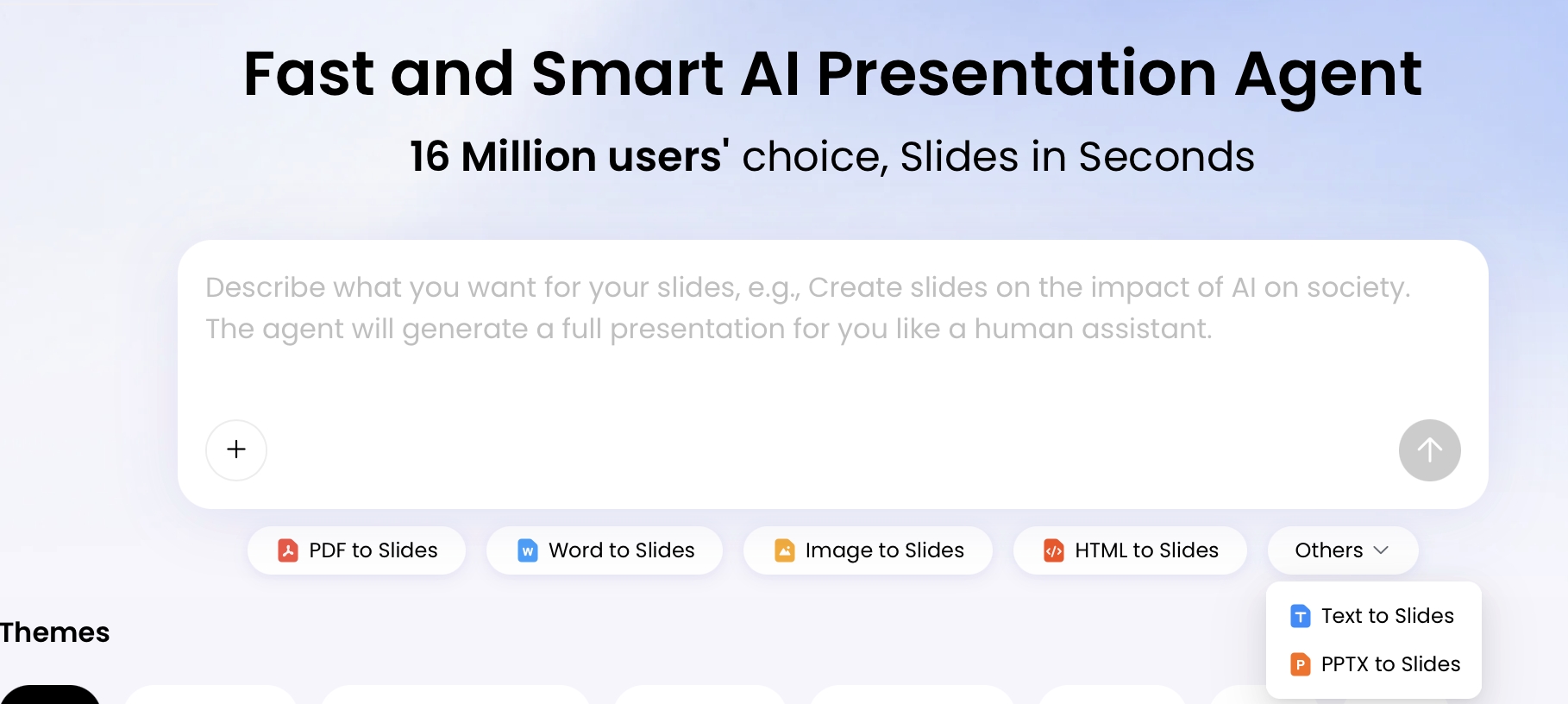
PopAi’s presentation workflow supports multiple ways to turn existing materials into slides, including PDF, Word, image, HTML, text, and PPTX inputs. In practice, each format behaves differently. A published webpage may bring in navigation or footer text. Pasted text is cleaner but loses embedded visuals. A PDF can preserve the relationship between charts and captions, but multi-column layouts or scanned pages may need correction. A Word document usually works best when the original writer used real heading styles instead of bold text that only looks like headings.
Choose the input based on what you need to preserve
| Source format | Best for | Common issue | Prep step before upload |
|---|---|---|---|
| URL or HTML | Published blog posts with clean structure | May include navigation, footer links, author boxes, or related articles | Review imported text and remove page furniture before generating |
| Pasted text | Cleanest control over the article copy | Images, captions, tables, and links may be lost | Paste headings, captions, citations, and image notes manually |
| Word document | Drafts with headings, lists, citations, and reviewer comments removed | Poor heading formatting can flatten the structure | Use H1/H2/H3 styles and delete unresolved comments |
| Reports, research posts, chart-heavy articles, and approved assets | Tables or multi-column text may be misread | Check table values and chart labels after generation | |
| Image | Screenshots, diagrams, scanned notes, or visual examples | OCR may misread small text or UI labels | Use high-resolution images and verify extracted wording |
| PPTX | Refreshing an older deck with newer blog material | Old layouts may not match the new story | Decide whether to preserve layout or rebuild from the article outline |
Tip: If the article includes screenshots, add a short note beside each one before upload, such as “Screenshot: dashboard showing three audience segments.” AI tools can summarize text, but they cannot always infer why a visual matters to your argument.
Map the Blog Structure Before You Generate Slides
A blog post already has a rough deck inside it, but you need to decide which sections deserve slides and which belong in narration.
The H1 usually becomes the title slide. The introduction becomes the problem, promise, or agenda. H2 sections become major chapters. H3 sections become supporting slides, examples, objections, or action steps. Lists become bullets only after you reduce them to one clear purpose per slide.
The most useful blog post to presentation AI workflow includes an outline review stage. PopAi can show a content plan or outline before generating the full deck, which gives you a chance to catch missing sections, merge repetitive points, remove SEO-only copy, and change the speaking order. This is where you prevent the common AI mistake of treating every paragraph as equally important.
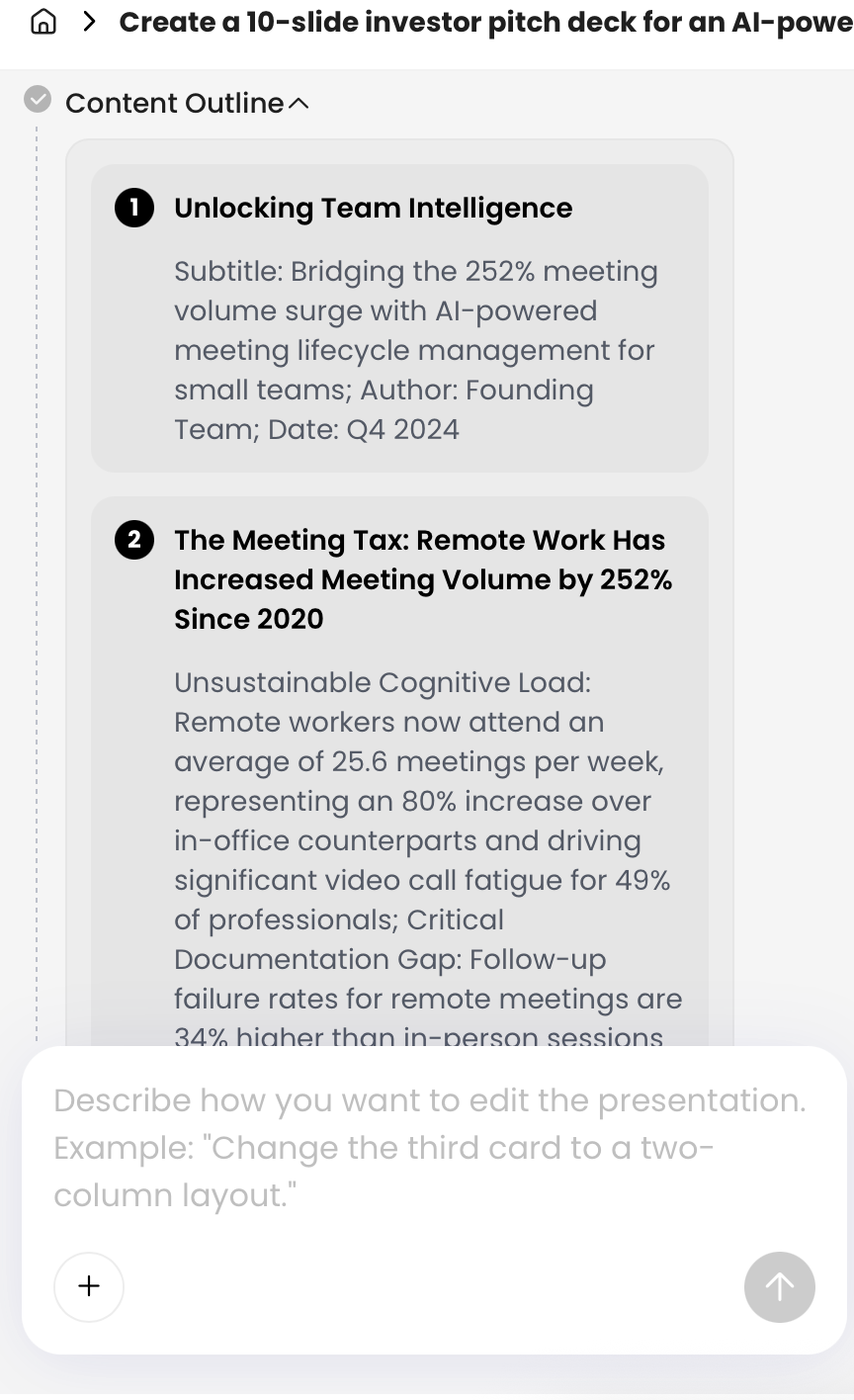
Mini-example: editing the outline before generation
Suppose the original blog post is titled “How to Build a Customer Onboarding Email Sequence.” The article structure might look useful on the page, but not every section should become a slide.
| Original blog structure | Likely AI outline | Human-edited presentation outline |
|---|---|---|
| Intro: why onboarding emails matter | Slide 2: Importance of onboarding | Slide 2: “Most churn starts before the first product habit forms” |
| H2: Welcome email | Slide 3: Welcome email basics | Slide 3: Show a three-part welcome email framework |
| H2: Product education email | Slide 4: Product education | Slide 4: Turn into a screenshot/example slide |
| H2: Social proof email | Slide 5: Social proof | Merge with Slide 6 as “Build confidence before asking for expansion” |
| H2: Best subject lines for onboarding emails | Slide 7: Subject line examples | Move to appendix or handout; too tactical for a 10-minute presentation |
| Conclusion | Slide 9: Summary | Slide 9: “Audit your first 7 days, not your whole lifecycle” |
A simple conversion framework
| Blog element | Slide treatment | Editing rule |
|---|---|---|
| H1 title | Title slide with audience-specific promise | Rewrite for the people in the room, not for search ranking. |
| Introduction | Problem, stakes, or agenda slide | Keep the pain point; remove the long SEO setup. |
| H2 sections | Chapter divider, key idea slide, or recommendation | Use one claim per slide, not one label per section. |
| H3 subsections | Support, example, checklist, objection, or process slide | Promote only subpoints that help the audience decide or act. |
| Lists | Checklist, matrix, timeline, or “do/don’t” slide | Group related bullets; do not simply copy the full list. |
| Data and examples | Chart, quote, visual proof, or case slide | Verify numbers and cite the source if presented externally. |
| Conclusion or CTA | Recommendation, next step, or discussion prompt | Make the action concrete and audience-relevant. |
In a deck, slide count should follow decision points, not paragraph count. A 2,000-word article with five strong ideas may become a 10-slide executive deck, while a 1,200-word tutorial with many screenshots may need 14 slides because each action deserves its own visual step.
Use Slide Count Rules for Webinars, Sales Decks, and Training
AI tools can generate a deck quickly, but you should tell the model how many slides you want and what kind of presentation you are making.
Think of the ranges below as planning defaults, not universal rules. A visual-heavy demo may need more slides with fewer words. A self-read PDF may need fewer slides with more explanation. A live webinar needs room for pauses, examples, and questions.
Start with the article length, then adjust for delivery format
| Blog length | Best deck length | Use case | Information density |
|---|---|---|---|
| 600–900 words | 5–7 slides | Team update, short lesson, social carousel | One insight, three takeaways, one CTA |
| 1,000–1,800 words | 8–12 slides | Webinar intro, sales enablement, classroom mini-lecture | One main idea per slide plus examples |
| 2,000–3,500 words | 15–25 slides | Training, workshop, conference talk | Section dividers, exercises, data slides, recap slides |
| 3,500+ words | Split into multiple decks | Course module, report series, long-form research | Convert by chapter instead of all at once |
Adjust the count by presentation type
- Live webinar: Plan roughly one content slide every 1.5–3 minutes, depending on how much story, demo, or Q&A you include.
- Sales deck: Keep the core deck short, usually 8–12 slides, and move product details, pricing, and technical proof into an appendix.
- Training deck: Use more slides than a sales deck because definitions, examples, practice questions, and recaps help retention.
- Executive briefing: Use fewer slides with stronger headlines: situation, insight, options, risk, recommendation, decision.
- Self-read PDF: Add more explanatory captions and source notes because no presenter is there to fill the gaps.
- LinkedIn carousel: Convert one article into 6–10 standalone visual panels, each with one message and one short caption.
Case-study note: In the 1,650-word test article, an unconstrained prompt created 11 slides. After setting the output as a 20-minute training segment, the better version used 13 slides: title, agenda, three section dividers, six teaching slides, one knowledge-check slide, and one recap. The added slides did not add more text; they created breathing room.
If the deck must be presented aloud, optimize for pacing. If it must be sent as a PDF, optimize for self-explanation. Those are different decks, even when they come from the same blog post.
Blog Post to Presentation AI Prompt Templates
A useful prompt gives AI constraints: audience, format, slide count, tone, source hierarchy, citation rules, and what to avoid.
Use the templates below as starting points. Replace the bracketed variables, then add the article text, URL, or uploaded file. For external-facing decks, include the instruction: “Use only information from the provided source. Do not invent statistics, customer examples, citations, or product claims.”
1. Webinar deck prompt
Prompt: Convert the following blog post into a [12]-slide webinar deck for [mid-level marketing managers]. Preserve the original argument, but restructure it for live teaching. Include a title slide, agenda, three teaching sections, one example slide, one checklist slide, and a final action slide. Use claim-based slide titles, maximum five bullets per slide, and speaker notes for anything that should be said but not shown. Do not copy long sentences from the article.
Follow-up prompt: “Reduce the text density. Keep each slide under 35 words, move explanations into speaker notes, and turn any list longer than five items into a checklist or process slide.”
2. Sales enablement prompt
Prompt: Turn this article into a [9]-slide sales deck for [prospects who understand the problem but have not chosen a solution]. Emphasize business pain, cost of inaction, decision criteria, proof points, objections, and next steps. Keep the tone consultative, not promotional. If the article lacks proof for a claim, flag it as “needs evidence” instead of inventing support.
Common issue to check: AI may make the deck sound more promotional than the article. Replace vague claims such as “boost productivity” with specific, sourced claims from the blog or your approved sales messaging.
3. Internal training prompt
Prompt: Convert this blog post into a [15]-slide training presentation for [new employees]. Create learning objectives, section dividers, simple definitions, scenario examples, knowledge-check questions, and a final recap. Use plain language. Add speaker notes for the facilitator and mark any slide that would benefit from a screenshot, worksheet, or live demonstration.
Best input format: Use the original Word document or cleaned text if the training content has internal terminology, because public blog pages often include extra marketing blocks that distract from the learning sequence.
4. Executive summary prompt
Prompt: Summarize this article as a [6]-slide executive briefing for [senior leaders deciding whether to approve the project]. Keep only the strategic insight, supporting data, risks, recommendation, and decision needed. Use concise titles, minimal bullets, and a direct professional tone. Add an appendix list of omitted details that may be useful for follow-up questions.
Output to expect: A good executive deck should read like a decision memo, not a condensed article. The slide titles should be claims such as “Manual reporting is now the bottleneck,” not labels such as “Reporting challenges.”
5. Self-read PDF or carousel prompt
Prompt: Convert this blog post into a [10]-slide self-read PDF deck. Each slide must be understandable without a presenter. Use short explanatory captions, source notes for data, and visual layout suggestions. Avoid speaker-only references such as “as I mentioned earlier.” End with a practical checklist the reader can use immediately.
When comparing workflows across AI presentation makers, prioritize blog-to-deck controls over novelty features: clean source import, outline editing before generation, slide count control, audience/tone instructions, citation handling, PPTX/PDF export, and the ability to revise the deck with natural-language instructions.
Before and After: From Blog Paragraph to Better Slide
The editing principle is simple: keep the idea on the slide and move the explanation into narration, notes, or an appendix.
AI can produce a usable first draft, but the strongest results come from one extra editing pass. A blog paragraph can include context, qualification, example, and conclusion in the same block. A slide should usually isolate the claim, group supporting points visually, and leave room for the presenter to explain.
Many teams repurpose blog content because the research, positioning, and examples have already been approved. However, simply copying the blog into a slide deck creates text-heavy slides that are difficult to present and even harder for audiences to remember.
Why repurpose blog content?
- Research is already complete
- Messaging is approved
- Examples are available
- But copying text creates dense slides
Repurpose the thinking, not the paragraphs
- Keep: approved message, research, examples
- Change: pacing, hierarchy, visual emphasis
- Remove: long explanations that belong in narration
The article has already done the hard intellectual work. Our job is to redesign that thinking for a live or skimmable format.
Example 2: turn a blog list into a checklist slide
- Review the audience
- Choose a format
- Write an outline
- Select a template
- Check data
- Export and share
Use a six-point conversion checklist
- Audience: who is the deck for?
- Format: live, sales, training, or PDF?
- Outline: what is the story order?
- Design: what visual pattern fits?
- Evidence: what must be verified?
- Delivery: what gets exported or shared?
Example 3: turn a statistic into a proof slide
According to the article’s internal survey, 64% of respondents said they reuse blog content for webinars, but only 21% have a documented repurposing process.
Most teams repurpose content without a process
- Left side: large “64%” statistic
- Right side: smaller “21% have a documented process” comparison
- Footer: source note with survey date and sample size
Data-handling note: Do not let AI create the chart label, sample size, or source note from memory. Pull those details from the original article or source document. If the source lacks methodology, use a softer title such as “In our sample, many teams repurpose without a process” instead of presenting the number as a universal benchmark.
This small difference is what separates a document-on-slides from a presentation. The optimized version has a memorable headline, grouped ideas, and a presenter-friendly explanation. Use AI to get the structure quickly, then edit slide titles until they sound like claims rather than labels.
Edit, Export, and Share the AI-Generated Deck
After generation, review the deck in separate passes instead of trying to fix everything at once.
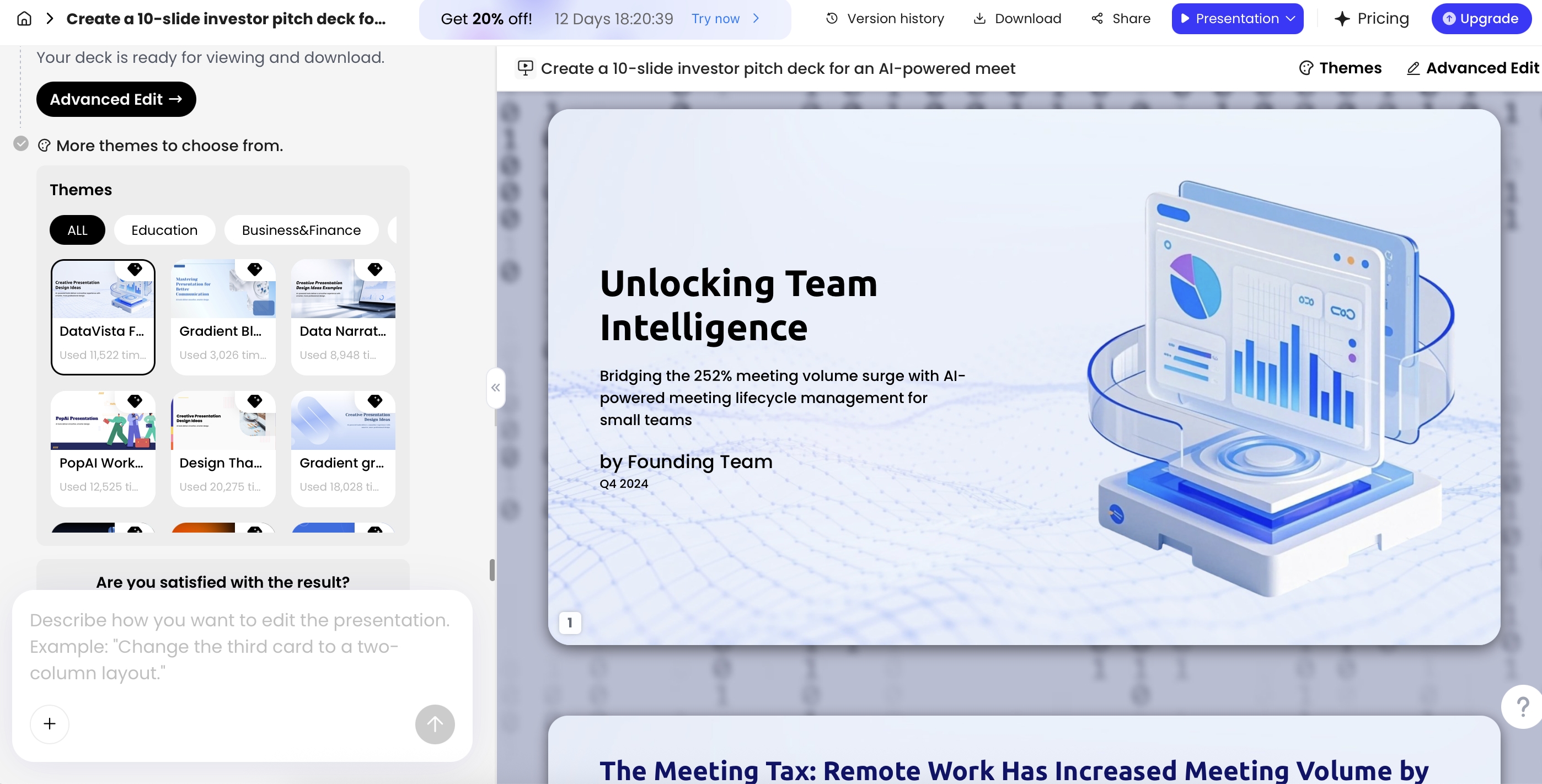
In PopAi, the generated result page includes editing options, themes, advanced editing, version history, download, share, and natural-language modification controls. Useful revision commands include “make this deck more executive,” “reduce each slide to three bullets,” “add a clearer comparison slide after section two,” and “move detailed examples into speaker notes.”
Pass 1: message and structure
- Confirm the deck still answers the same question as the original blog post.
- Delete slides that exist only because the article had an SEO subsection.
- Rewrite label titles into claim titles, such as “Outline review prevents generic decks” instead of “Outline review.”
- Move detailed explanations into speaker notes or appendix slides.
Pass 2: design and accessibility
- Keep most body slides under 30–40 words for live delivery.
- Use 3–5 bullets maximum unless the slide is intentionally a checklist.
- Use large, readable type; as a practical minimum, avoid body text below 18–20 pt in PowerPoint for presented decks.
- Do not rely on color alone to show meaning; add labels, icons, or text cues.
- Check chart labels, screenshot captions, and reading order before exporting.
Pass 3: export and stakeholder review
PopAi supports PPTX and PDF export. In a practical export check using the test deck, the PPTX opened in Microsoft PowerPoint and sample text boxes remained editable. As with most AI-generated decks, final inspection still matters: some spacing may shift, brand fonts may need replacement, and charts or screenshots may export as images rather than fully editable objects depending on the source.
If stakeholders need to review before final polishing, share a preview link first, collect comments on message and accuracy, then export the final PPTX for design cleanup. For regulated, academic, or client-facing decks, keep a copy of the source article, prompt, generated outline, exported file, and approval notes in the same project folder.
Quality checklist before you present
- Core argument: Does the deck preserve the original thesis of the blog post?
- Slide focus: Does each slide communicate one primary idea?
- Headline quality: Do slide titles make claims rather than simply naming topics?
- Audience fit: Are examples and language tailored to the people in the room?
- Data accuracy: Are dates, statistics, screenshots, and claims checked against the original source?
- Citations: Are third-party data, quotes, and research references visible enough for external use?
- Visual hierarchy: Can someone understand the slide in five seconds?
- Accessibility: Are font sizes, contrast, chart labels, and screenshot captions readable?
- Delivery: Is there a logical speaking flow, not just a sequence of article sections?
- Export fidelity: Does the exported PPTX/PDF preserve formatting, links, and editable text where needed?
Avoid Common Risks and Build a Repeatable SOP
AI speeds up content repurposing, but every blog-to-slide workflow needs guardrails for accuracy, privacy, licensing, and approval.
Accuracy risks: verify every claim that matters
AI may hallucinate a statistic, flatten a nuanced argument, misread a table, or invent a transition that sounds plausible but was not in the original article. For public webinars, client presentations, academic lectures, and compliance training, every generated claim needs review.
- Compare statistics against the original blog and its cited sources.
- Mark unsupported claims as “needs evidence” or remove them.
- Check dates, product names, feature names, and screenshots for freshness.
- Keep a small source log for external decks: slide number, claim, source URL or document, verification status.
Privacy and licensing risks: do not upload blindly
Do not upload confidential drafts, customer data, unpublished research, legal material, financial data, or internal strategy documents unless your organization has approved the tool and workflow. If the blog post is based on licensed research, stock imagery, customer screenshots, or third-party charts, check whether those assets can be reused in a slide deck, especially if it will be distributed externally.
- Anonymize customer examples unless usage rights are clear.
- Replace licensed blog images with approved presentation assets when needed.
- Remove private notes, comments, hidden text, and reviewer names from documents before upload.
- Ask legal or compliance to review decks used for regulated topics, investor communication, healthcare, finance, or education records.
One long article can become several assets: a webinar deck, a sales PDF, a training module, a LinkedIn carousel, and an executive summary. The mistake is using the same generated deck for all five.
Troubleshooting common AI deck problems
| Problem | Likely cause | Fix |
|---|---|---|
| Too many slides | The AI treated every H2/H3 as equally important | Ask for a shorter outline based on decision points, not article sections. |
| Too few slides | The prompt asked for summarization instead of teaching or presenting | Specify slide types: agenda, examples, process, checklist, recap, Q&A. |
| Slides are text-heavy | Paragraphs were copied into bullets | Limit slides to 3–5 bullets and move details into speaker notes. |
| Important section is missing | The source structure was unclear or the section was buried | Add a manual outline instruction: “Include a slide on [specific section].” |
| AI invents facts | The prompt did not restrict evidence | Use: “Only use the provided source. Flag missing evidence instead of inventing it.” |
| Deck sounds generic | The model summarized instead of adapting to audience and use case | Add audience, industry, tone, objections, and approved terminology. |
| PPTX formatting shifts | Exported layouts, fonts, or image objects render differently | Open the file in PowerPoint before sharing and fix spacing, fonts, and image crops. |
A repeatable SOP for teams
- Select the article. Choose a blog post with evergreen value, proven traffic, sales relevance, or training demand.
- Assign an owner. The content owner approves the message; a designer or marketer checks visual quality; a subject-matter expert verifies facts.
- Clean the source. Remove unrelated webpage elements, comments, old CTAs, and unsupported claims.
- Choose the output type. Decide whether the deliverable is a webinar, sales deck, training deck, executive briefing, self-read PDF, or carousel.
- Generate and approve the outline. Treat outline approval as the first quality gate before creating the full deck.
- Create the deck with constraints. Include audience, tone, slide count, brand notes, citation rules, and design preferences.
- Run the review workflow. Check accuracy first, design second, delivery third.
- Export and test. Open PPTX/PDF files, check formatting, links, citations, and speaker notes if used.
- Name and store the files. Use a consistent format such as ArticleTopic_DeckType_Version_Date, and save the source, prompt, outline, deck, and approvals together.
- Reuse what worked. Save successful prompts, slide structures, and design patterns as templates for the next article.
The best first action is not to generate a finished presentation in one click. Start by converting one clean blog post into an outline, approve the story, then generate the deck. Use AI for extraction, structure, and first-draft slides; use human review for accuracy, audience fit, visual clarity, and final delivery quality.
FAQ: Turning Blog Posts into Presentations with AI
How do I turn a blog post into a presentation with AI?
Import the blog URL, paste the article text, or upload the source document. Then ask the AI to extract the main argument, build an outline, generate slides, and revise the deck for audience, tone, length, and delivery format.
How many slides should one blog post become?
An 800-word post usually becomes 5 to 7 slides, a 1,500-word article often becomes 8 to 12 slides, and a 3,000-word guide may become 15 to 25 slides or multiple smaller decks.
Can AI convert a blog URL directly into PowerPoint?
Some tools support direct URL conversion, while others work better from pasted text or uploaded files. PopAi supports several source entrances such as PDF, Word, HTML, Text, Image, and PPTX to slides, with PPTX and PDF export options.
Will AI keep my original wording and structure?
It can preserve the main structure if you ask for that explicitly, but you should still review the outline and final slides. Presentations need shorter wording, clearer hierarchy, and more visual pacing than blog posts.
Do I still need to edit AI-generated slides manually?
Yes. AI is excellent for extraction, outlining, and first-draft slide creation. Human editing is still necessary for factual accuracy, brand voice, accessibility, visual priority, and speaker flow.
Create your presentation with one click now
Turn your blog post, document, or content draft into an editable presentation workflow with AI-assisted outlining, design, editing, export, and sharing.
Start creating with PopAi