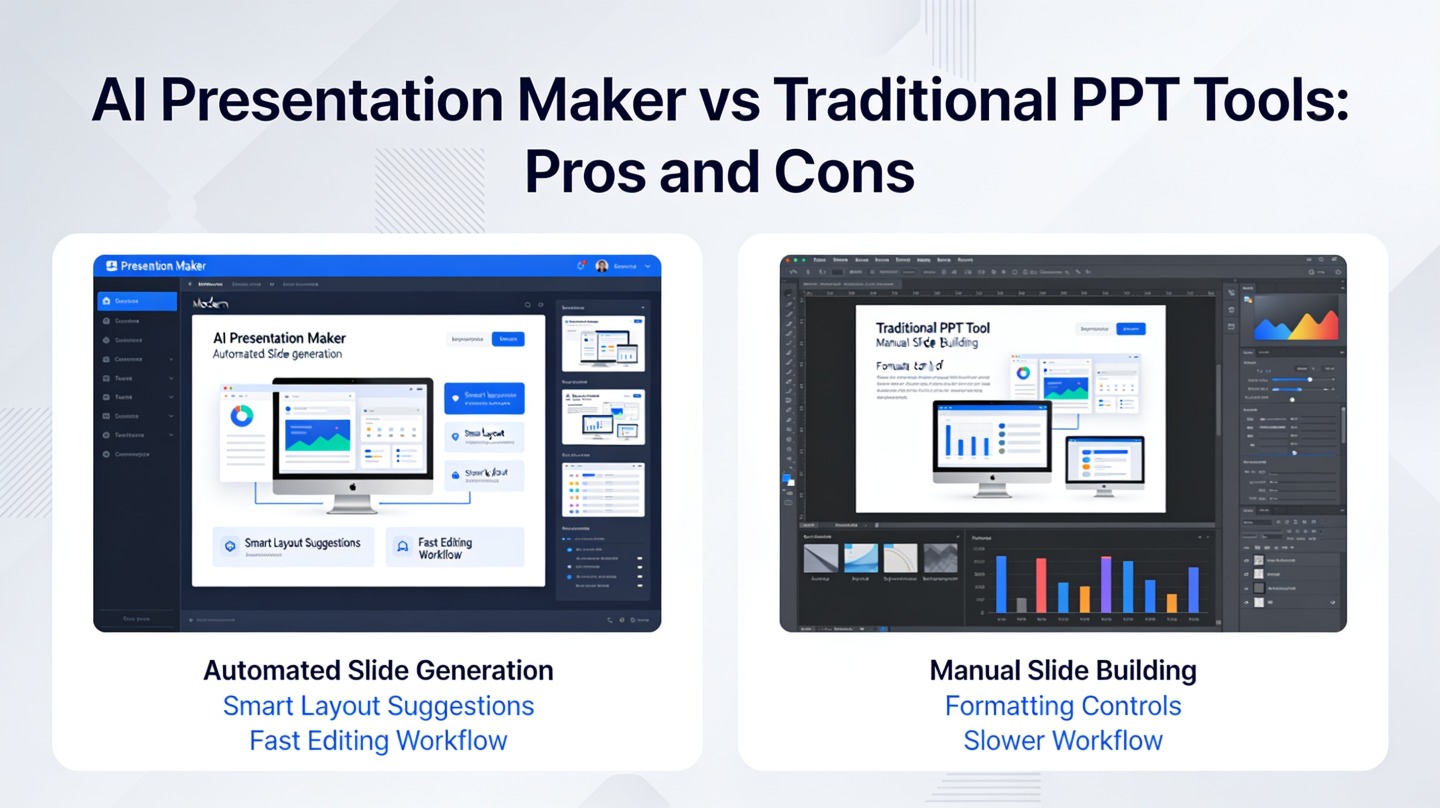
All timing and slide-count ranges in this guide are illustrative planning ranges / editorial starting points. They are not findings from a speaking-training dataset or universal rules. Adjust them for the audience, accessibility needs, complexity, and your measured rehearsal times.
Why AI Presentation Pacing Matters
AI can turn a prompt into a full deck quickly, but the first draft is often built for completeness rather than live comprehension. Common warning signs are repeated “overview” slides, topic-only titles, unsupported claims, charts with no clear takeaway, speaker notes that restate the slide, and no safe place to skip when discussion runs long.
Illustrative scenario: a 15-minute executive update has 22 slides. Two minutes of introductions and three minutes of questions leave 10 minutes for the decision narrative. If the spoken content alone takes 11 minutes, the draft already exceeds that budget, before a chart explanation or interruption. The fix is a shorter core path, not faster speech.
AI cannot know which stakeholder will challenge a forecast, which chart needs context, or whether a senior leader wants the recommendation before the background. Treat generation as the planning stage. Then check facts and source attribution, set a timing budget, edit the story sequence, and rehearse the exact version you will present. You can start that process in PopAi AI Presentation, but the pacing method works in any presentation editor.
Practical coaching principle: Fast creation is not fast comprehension. Give the audience a repeatable rhythm: claim, evidence, pause, and a reason to continue.
Build an AI Presentation Timing Budget Before Generating
For a broader view of available tools, compare the latest AI presentation makers before choosing the workflow that best fits your team.
Do not prompt for “a 15-slide deck” until you know what those slides must accomplish. Start with the meeting length, subtract time you do not control, and assign the remainder to narrative beats. This prevents the familiar mistake of speaking faster when the real problem is an overbuilt outline.
Calculate usable speaking time first
Usable presentation time = total slot − planned Q&A − planned interaction − contingency buffer. Keep Q&A and discussion separate only when they are genuinely separate parts of the agenda. If room setup happens before the meeting begins, do not subtract it; if you are sharing a screen remotely, include a small buffer for switching, lag, and participant interruptions.
As an editorial planning example, a 30-minute client review with six minutes for questions, four minutes for a decision discussion, and three minutes of contingency leaves 17 minutes for the core story. A starting range might be 13 to 14 simple slides, or eight or nine when there is a demo or detailed chart. These are not observed audience-comprehension benchmarks; replace them with your own timed rehearsal.
Use slide count as a check, not a promise. A 15-second title or a two-minute decision slide is an illustrative planning assumption, not a standard duration. Estimate the cognitive work required by new concepts, comparisons, and audience choices, then rehearse.
| Total slot | Illustrative core talk time | Starting slide range | Best use |
|---|---|---|---|
| 5 minutes | About 4 minutes | 4–6 | One problem, one answer, one action |
| 10 minutes | About 8 minutes | 7–10 | Pitch, recommendation, short update |
| 15 minutes | About 12 minutes | 10–14 | Proposal with evidence and examples |
| 30 minutes | About 17–22 minutes | 13–18 | Training, review, or strategic briefing |
| 45 minutes | About 30–35 minutes | 20–28 | Workshop or detailed stakeholder session |
These are planning ranges, not universal benchmarks. Reduce slide count for demos, technical explanations, interpretation, accessibility needs, or facilitated discussion; a lecture with simple visual slides may accommodate more.
Prompt upgrade - illustrative 12-minute budget: "Create an executive presentation with a one-minute opening, one minute of context, three two-minute evidence sections, a two-minute recommendation, a one-minute close, and one minute for transitions. Put optional detail and sources after the close." This adds up to 12 minutes. It is a starting budget for rehearsal, not a prediction of speaking speed.
Shape AI Presentation Flow Around Decisions, Not Slide Count
Choose the sequence that helps this audience make sense of the decision—not the sequence in which the AI happened to generate topics.
Pick a narrative structure that matches the meeting
A recommendation to an executive team often works best as decision first, then evidence. A sales pitch may need problem, consequence, solution, proof, and next step. A training session usually needs concept, demonstration, practice, and recap. For a project update, use a chronological structure only when the timeline itself explains the decision.
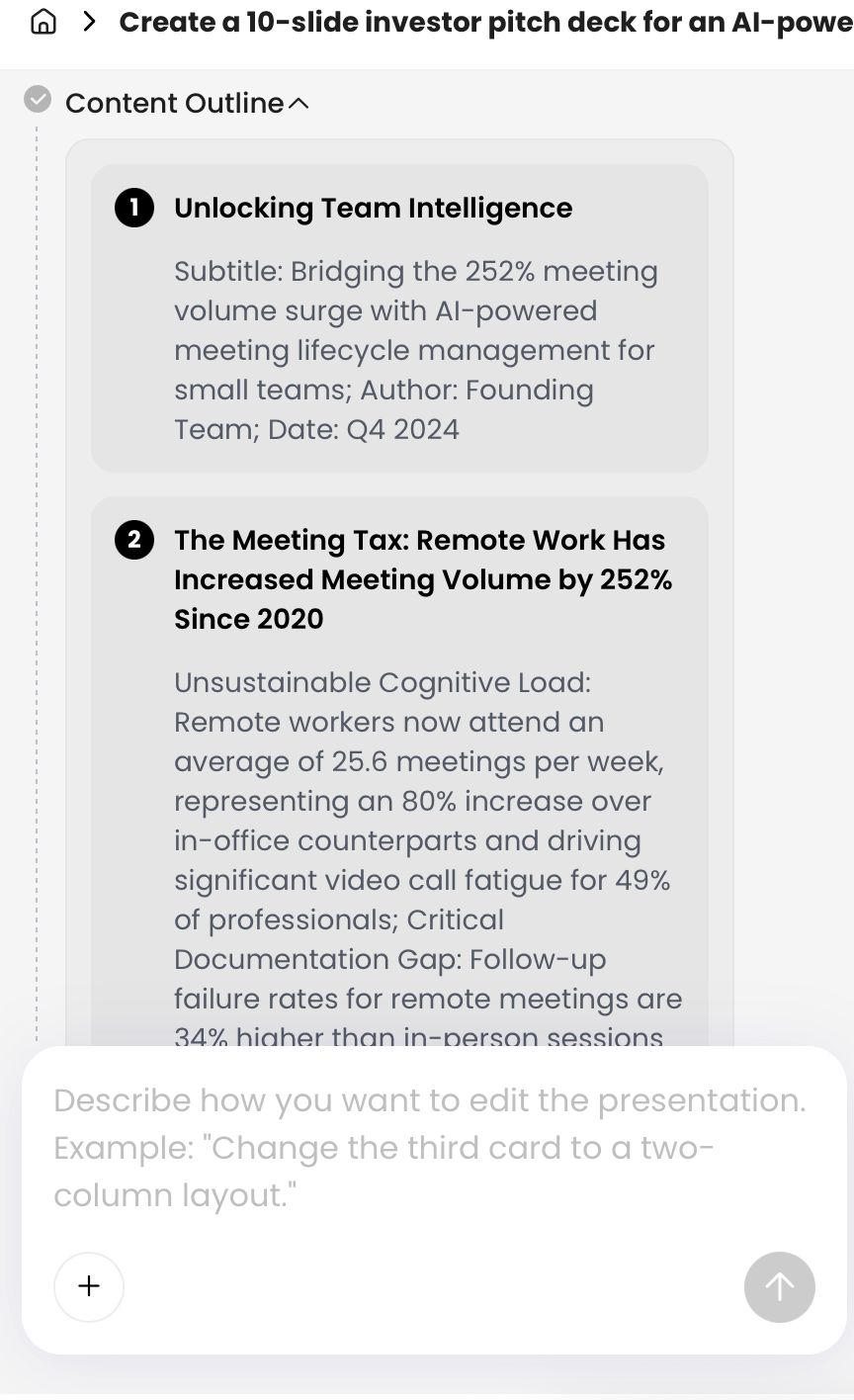
Before design, inspect the AI outline for repeated sections, conclusions that arrive before proof, generic examples, and claims without a source. A weak generated sequence might read: “Market overview → market trends → market challenges → solution overview → solution benefits.” A stronger client-review sequence is: “Approve the pilot → cost of delay → evidence from the first cohort → implementation requirements → decision and owner.” The second sequence removes duplicate context and makes the purpose of each slide clear.
For a broader comparison of tool options and editing control, review these AI presentation makers.
Build core, expandable, and backup paths
- Core slides: the non-negotiable path—opening, central insight, recommendation, strongest proof, and action.
- Expandable slides: examples, customer stories, alternatives, or deeper evidence that you use only when time and audience interest allow.
- Backup slides: methodology, source notes, full data tables, assumptions, and answers to anticipated objections.
Place expandable and backup slides after the close or in a clearly labeled appendix; do not leave them between core slides. Add “OPTIONAL” or “BACKUP” in the slide sorter view and write the return slide in your notes. If a stakeholder asks for methodology, open the backup slide, answer the question, then say, “The takeaway remains that the pilot reduces the largest implementation risk,” and return to the decision slide.
Write transitions and skip lines before rehearsal
Each core slide should answer a question raised by the prior slide. Write a one-sentence bridge in the speaker notes, especially where AI-generated decks tend to jump from a broad trend to a recommendation without explaining the connection.
Example transition: “We have established where cost is increasing; the next question is which intervention changes that cost within this quarter.”
Audit Dense Slides That Slow AI Presentation Pacing
AI often produces polished prose, which is why generated slides can become slow to present. The problem is not simply word count: it is a slide that asks the audience to read, interpret, and listen to a different explanation at the same time.
Use a six-second scan as a diagnostic, not a hard rule. Can a viewer identify the main takeaway, the evidence supporting it, and what matters next within a quick glance? If not, decide whether the detail should be deleted, moved to notes, split into a second slide, converted into an annotated visual, or retained in the appendix for a technical audience.
Use takeaway titles and a slide audit
A topic title names a subject: “Customer retention.” A takeaway title states the point the audience should retain: “Retention risk is concentrated in the first 30 days.” The supporting chart or evidence should prove that statement.
- Name one conclusion: replace a topic title with the slide’s decision-relevant takeaway.
- Keep evidence visible: retain one chart, visual, or short set of facts that supports the conclusion; make the source readable.
- Separate competing messages: split the slide when it asks the audience to absorb two decisions or two unrelated comparisons.
- Move reference detail: put definitions, full tables, methodology, and secondary examples in notes or backup slides.
- Check the AI output: confirm numbers, dates, quotations, citations, chart labels, and placeholders before shortening the wording.
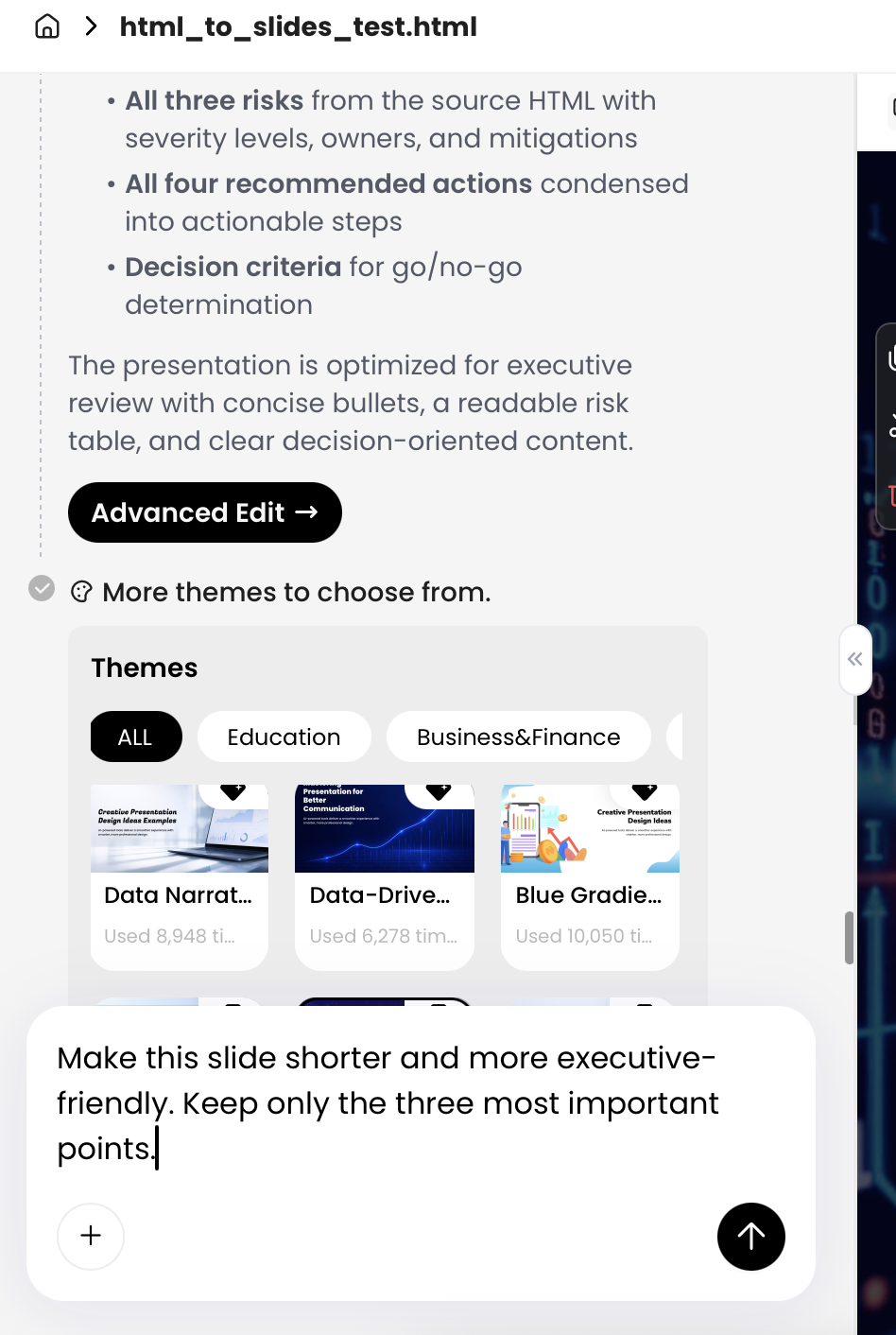
For example, an AI-generated market-analysis slide may contain seven bullets, a three-line quote, and a chart. In a client briefing, split it into “Demand shifted toward annual plans” and “The implication: change the renewal offer.” Keep the full segmentation table in backup. In a legal, academic, or financial presentation, preserve required qualifications on the visible slide or provide a readable handout rather than hiding essential context in notes.
Keep speaker notes aligned with the revised deck
When you cut or reorder slides, edit AI-generated speaker notes immediately. Remove wording that refers to deleted slides, replace generic transitions, and turn paragraphs into delivery prompts: the claim, the evidence to point to, the question to ask, and the slide to skip if needed. A shorter slide with a two-minute script is still a pacing problem.
Rehearse AI Presentation Timing With Real Delivery Data
Estimated duration is a hypothesis; a timed run is evidence. Rehearse the core path in the delivery environment when possible, then use the results to correct the few slides that create most of the overrun.
Use four rehearsal checks, scaled to the stakes
- Solo timed run: deliver the core path aloud and record section times.
- Recorded run: watch for filler language, long chart explanations, rushed transitions, and notes that sound written rather than spoken.
- Observer run: ask a colleague to identify the point they believe you want them to remember after each section.
- Environment test: test screen sharing, clickers, embedded media, links, audio, presenter handoffs, and the actual display setup.
The number of rehearsals depends on stakes and familiarity. A routine internal update may need one careful timed run; a keynote, funding pitch, co-presented demo, or board recommendation needs repeated runs until the core story, timing, and handoffs are stable.
Use a practical rehearsal scorecard
Comparison table: scroll horizontally to see all columns.
| Section | Target | Actual | Variance | Correction |
|---|---|---|---|---|
| Opening and decision | 1:30 | 1:50 | +0:20 | Move background detail to the next slide |
| Evidence section | 4:00 | 5:10 | +1:10 | Annotate the chart; cut the secondary example |
| Recommendation and action | 2:00 | 1:45 | −0:15 | Keep; use time for one clarifying question |
In this example, the deck is 75 seconds over time, but the solution is not to rush every slide. The presenter fixes the chart explanation and removes one lower-priority example. This is more reliable than trimming random words across the deck.
Pause briefly after a meaningful slide change so viewers can orient themselves, then begin with the takeaway rather than reading the title. In remote sessions, add time for screen sharing, chat questions, late arrivals, captions, and connection delays. For a fixed conference slot, rehearse to the exact end time; for an interactive meeting, protect a buffer instead of assuming every minute will remain available.
Manage Live Timing, Questions, and Pace Changes
Live pacing is a series of planned choices. Check the clock at milestones—after the opening, at the midpoint, and before the recommendation—then use a prepared response rather than improvising a rushed ending.
Use milestone checks to decide what changes
| Milestone | If ahead | If on track | If behind |
|---|---|---|---|
| After opening | Clarify the audience’s decision criteria | Continue to evidence | Compress background; keep the decision visible |
| Midpoint | Use one expandable example | Continue on the core path | Skip an expandable slide and summarize its point |
| Before recommendation | Invite a targeted question | Deliver the close as planned | Move directly to recommendation, owner, and next step |
For a 20-minute decision meeting, a practical check might be at minute 4, minute 10, and minute 15. For a 45-minute workshop, build the schedule around activities first, then fit slides into the remaining time. Discussion may take a substantial share of an interactive session, while a recorded presentation may allow none; plan from the meeting format rather than applying one percentage to every deck.
Handle questions without losing the room
Answer clarifying questions when they unblock understanding. Park broad, off-topic, or implementation-heavy questions with a specific promise: “That affects the rollout plan; I have it in backup and will return to it after we decide on the pilot.” Repeat the question briefly for remote or hybrid audiences, then state whether you are answering now, deferring, or using a backup slide. If a question changes the presentation order, signpost the detour and the return point.
Live-control rule: protect the problem, recommendation, strongest evidence, and next action. Cut explanation depth, secondary examples, and backup context first. Never skip a qualification or risk statement that the audience needs to make a responsible decision.
Test the file and the room before the meeting
Export early and test the exact file you will use in presentation mode. Check fonts, animations, links, audio, display scaling, speaker notes, internet access, and any co-presenter handoff. A demo that needs a fallback recording, a virtual session with captions, or a hybrid room with a remote presenter all need additional contingency time. The pacing plan is only real when it survives the delivery environment.