This guide is for employee town halls: quarterly company updates, strategy briefings, and change announcements where people need to understand what is happening and what comes next.
You’ll finish with an approved meeting objective, a timed agenda and slide outline, a reviewed deck, and a follow-up plan for unanswered questions. AI can help organize the work; leaders and subject-matter owners remain responsible for the facts, decisions, and commitments employees hear.
1. Define the town hall goal before using AI
Start with the employee questions the meeting must answer, then decide which information earns a place on the agenda.
Write a one-sentence objective and list the questions employees are likely to bring. For a change announcement, for example, employees may need to know what is changing, when it takes effect, what is not changing, and where to get individual support. That points to different slides than a recognition event, where team stories and specific contributions matter more than a broad metrics review.
Hypothetical planning example: A 45-minute town hall is intended to explain a reorganization and reduce uncertainty—not to announce every future staffing decision. The likely questions are “Who will I report to?”, “When does the new structure begin?” and “What is still undecided?” The agenda should reserve time for the approved structure and effective date, state what remains open, and provide a route for personal questions instead of filling the deck with speculation.
- Purpose: What should employees understand or do afterward?
- Audience: Which teams, locations, languages, and levels need to hear the message?
- Constraints: Meeting length, required topics, speakers, and available Q&A time.
- Evidence: The source and accountable owner for every metric, date, and commitment.
- Status: Mark information as approved, provisional, or not for distribution.
When stakeholders request more content than the meeting can support, ask each owner to identify the employee decision or question their topic serves. Prioritize items that affect employees now; move useful background to a follow-up document. If a metric is incomplete, either omit it or label its status and the date it will be confirmed. Do not let an AI draft turn an estimate into a result.
“An open question is a legitimate meeting outcome—provided employees know who owns the answer and when they can expect it.”
There is no universal town hall cadence. A quarterly schedule may suit a company that reports business results quarterly, while a fast-moving change may call for a separate briefing. Choose the frequency based on the pace of decisions and employees’ need for updates; communicate when the next update will arrive.
2. Build a town hall presentation outline with AI
Plan the live meeting first; then select the slides that help deliver it.
A meeting agenda accounts for speakers, transitions, questions, and breaks. A slide outline is narrower: it assigns a purpose and evidence to each visual. For a 45-minute update, for example, plan 5 minutes to open, 12 for business results, 8 for priorities, 15 for moderated questions, and 5 to close. Treat these as allocations, not a reason to fill every minute; keep a little flexibility for a consequential question.
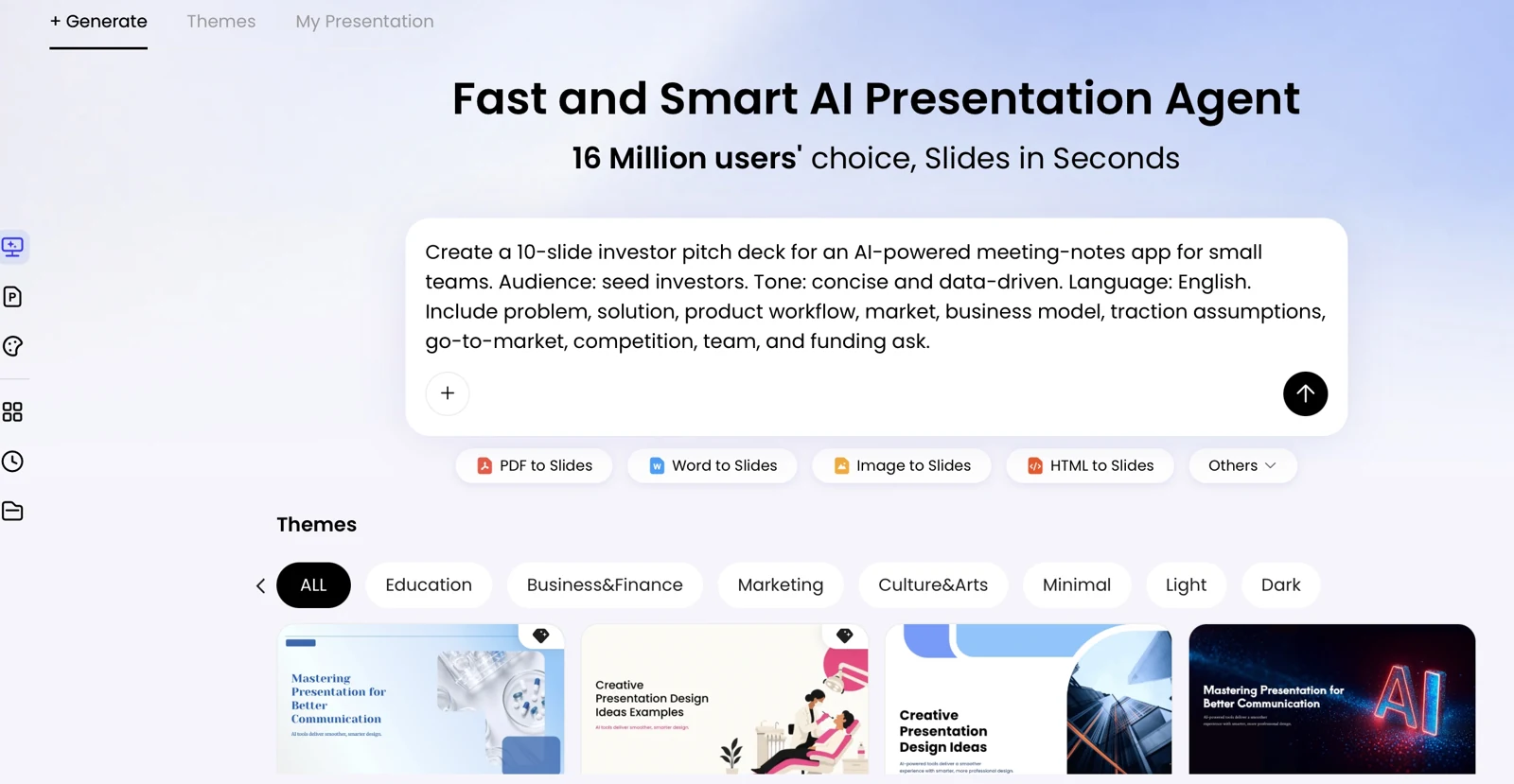
Give the AI approved notes and ask it to return an outline before generating slides. You can use PopAi AI Presentation or another tool that fits your organization’s data and review requirements. The AI presentation makers comparison may help you assess workflows, but verify current features and your company’s security requirements before choosing a tool.
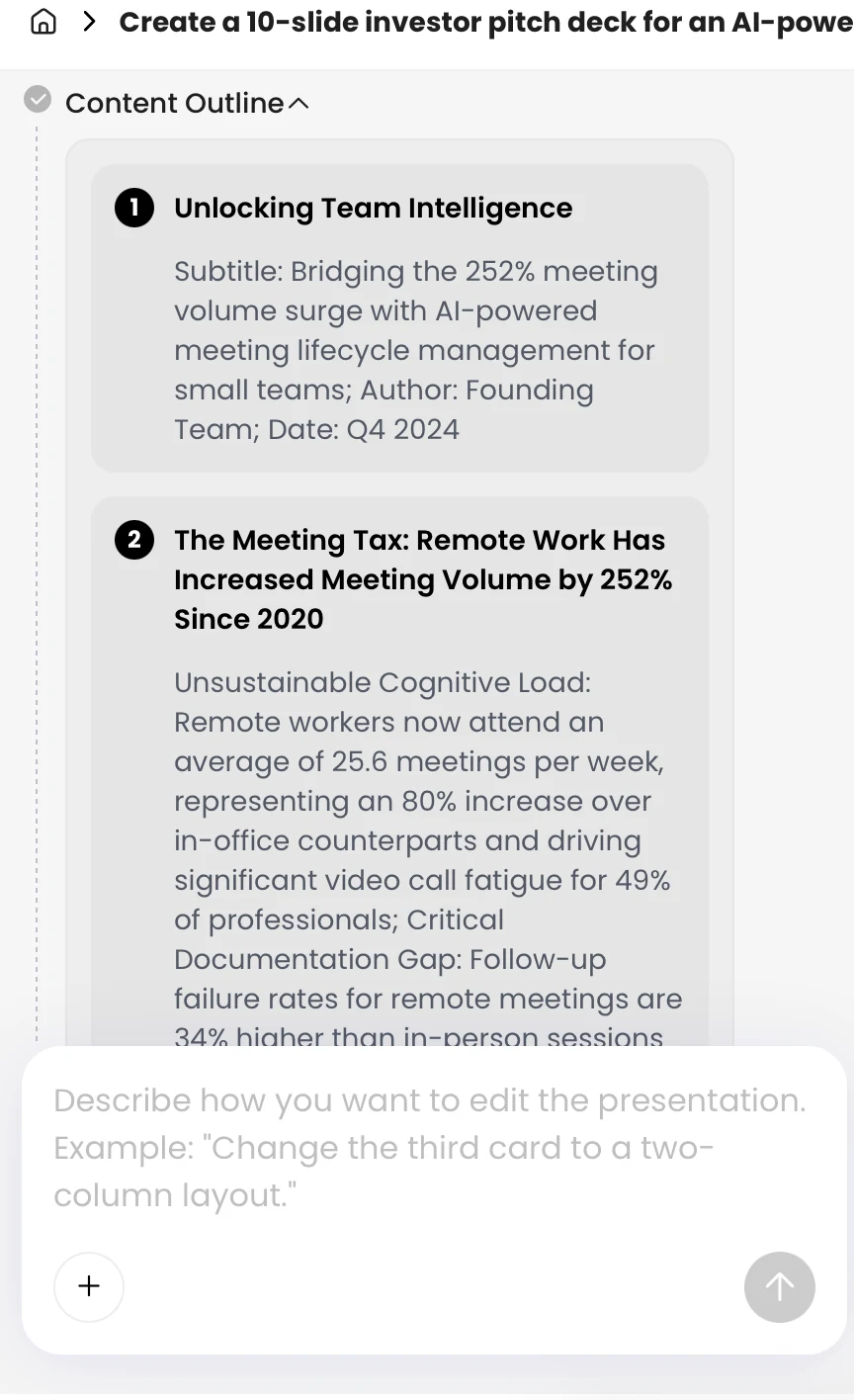
Create a [number]-slide outline for a [meeting length]-minute employee town hall for [audience]. The meeting objective is [one-sentence objective]. Required topics are [topics]. Use only the source notes below; do not invent facts, decisions, quotes, or commitments. Separate confirmed information from provisional information and flag gaps rather than filling them in. First return (1) a timed live agenda, (2) a slide-by-slide outline with a takeaway title and one purpose per slide, and (3) questions leaders need to answer before the meeting. Allow [number] minutes for moderated Q&A and include a closing section for confirmed actions and unresolved questions. Source notes: [paste approved material and label its status].
Review the outline before generating slides
Check the output in this order: Does it serve the stated objective? Are the most important employee implications early? Is there enough time for questions? Can each proposed claim be traced to the source notes? Then revise the prompt specifically:
- Too generic: Add the audience’s actual questions and ask the tool to connect each update to an employee implication.
- Too long: Set a slide limit and ask which topics can move to a written follow-up. Do not solve overload by shrinking text.
- Unsupported: Remove or flag the claim and request a list of missing source material; never ask the tool to infer a likely answer.
- Wrong meeting flow: Reallocate time to the live Q&A or speaker transitions before changing the slide count.
Group sensitive or repetitive questions by theme for the moderator, but retain the original wording in a restricted working file if your process requires it. Remove names and personal details before submitting questions to an AI tool.
3. Generate town hall slides and make them specific
Build the deck from the approved outline, and give each slide one clear job.
For each slide, check that the title states the takeaway, the supporting points show why it is true, and the visual makes the information easier to understand. Use a small chart or a few labeled figures instead of a dense table when that improves comprehension. A tool may offer source import, chart editing, or export options, but available features can change; check the product’s current interface and your organization’s approved workflow.
Turn source material into reviewable slides
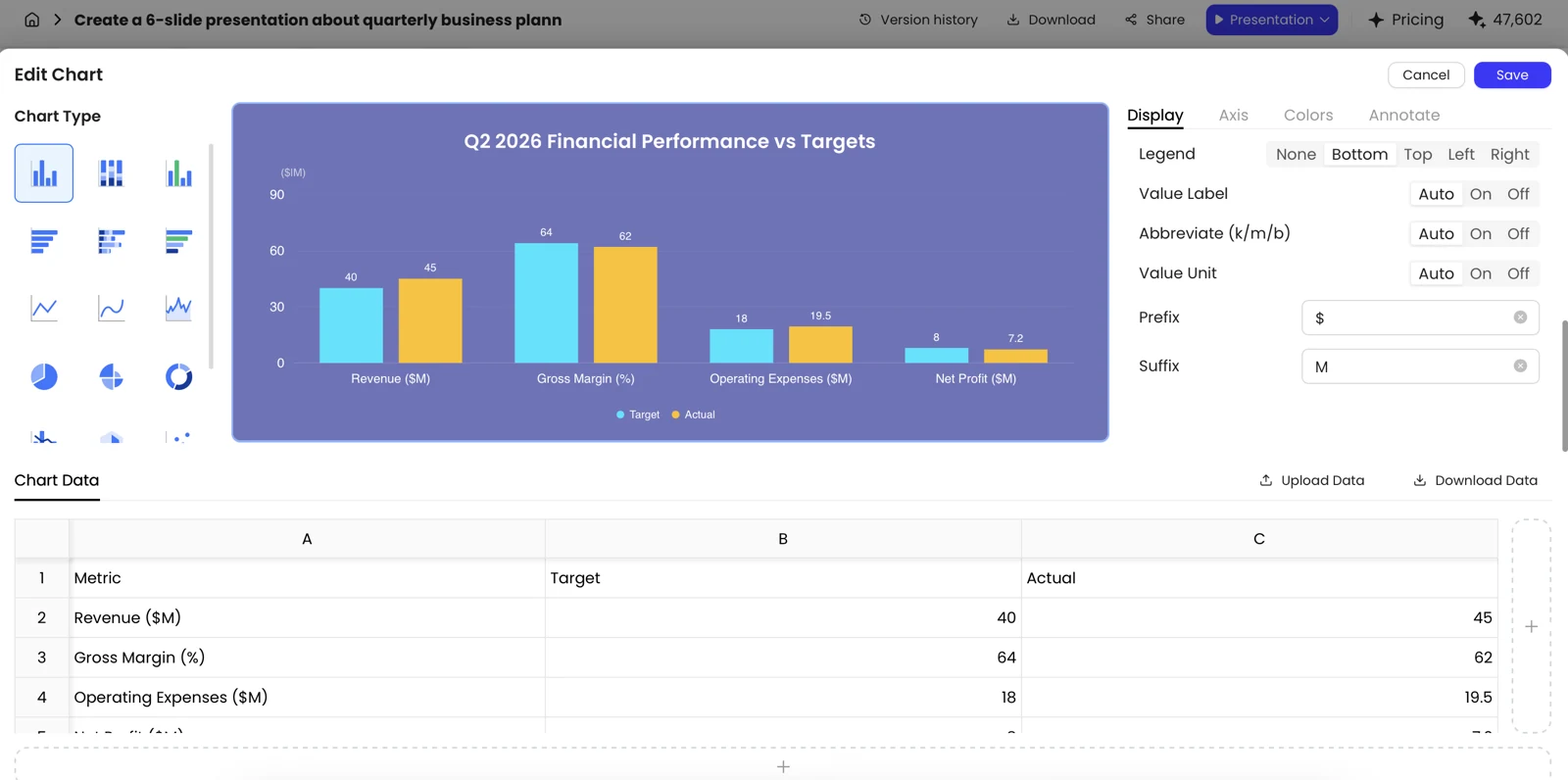
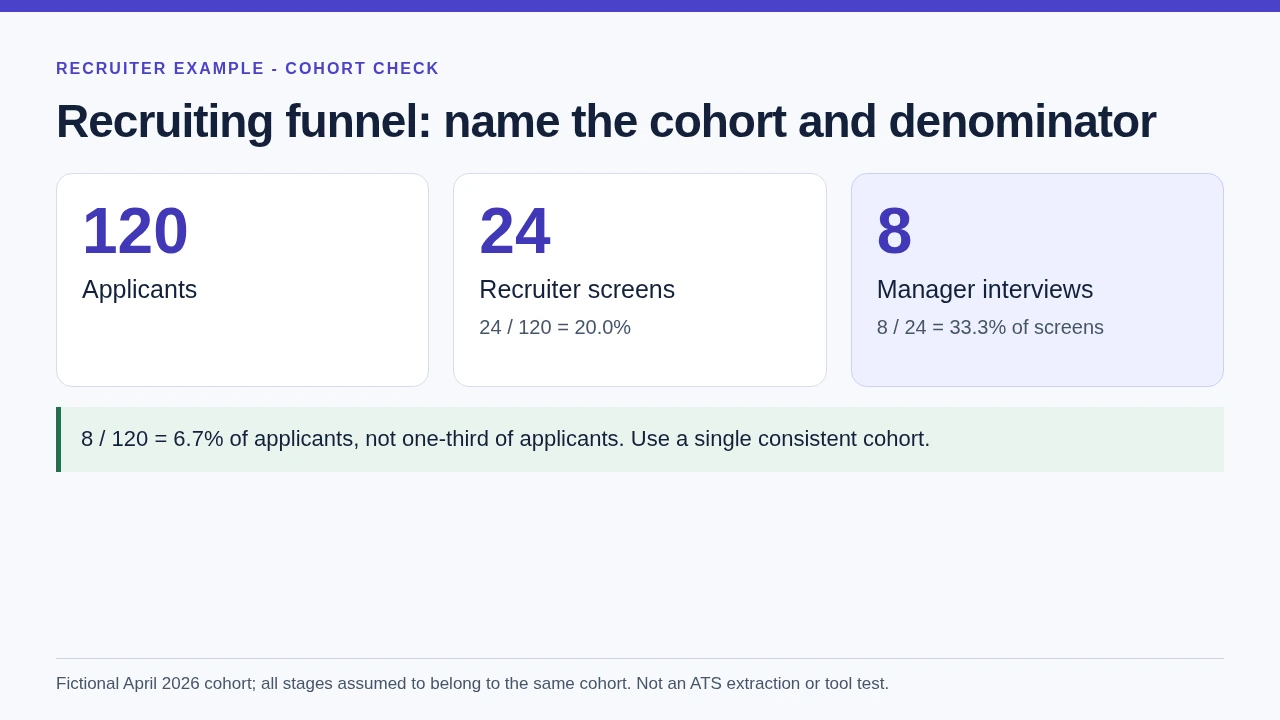
Work one section at a time when the source packet is large. Compare every generated summary with the original document, including footnotes, date ranges, and caveats. For charts, verify the unit, denominator, period, and comparison group. A chart that is visually tidy can still make an unfair comparison.
Hypothetical slide review: The source packet reports 91% retention for this quarter and 88% for the prior quarter, but the calculation excludes a different group of employees in each period. An AI-generated title—“Retention improved three points”—overstates what the figures establish. The reviewer replaces it with “Reported retention was 91% this quarter” and adds a note that the populations differ, or removes the comparison until the People Analytics owner provides a like-for-like calculation.
Adapt the slide sequence to the meeting purpose
- Opening: why the meeting is happening and what employees should leave knowing.
- Context: the few verified indicators or decisions needed to understand the topic.
- Employee implications: what changes, what stays the same, and when it happens.
- Evidence or examples: a chart, customer story, project update, or recognition tied to the objective.
- Questions: moderated Q&A, including a clear route for issues that cannot be answered live.
- Close: confirmed next steps, owners, dates, and where updates will appear.
For a recognition-focused town hall, expand the story and recognition sections and reduce the business snapshot. For a change announcement, put the practical implications and support routes near the beginning; do not make employees wait through a long company overview to learn what affects them.
4. Check facts, tone, and sensitive information
Use a traceable review process so a fluent draft cannot quietly change the meaning of its sources.
Verify claims and assign approvals
Create a claim-to-source log before the deck is approved. A spreadsheet is sufficient: record the slide or claim, source and date, status, reviewer, and resolution. Separate factual approval from leadership approval: the subject-matter owner verifies the numbers or policy, while the accountable leader approves the decision and commitment.
- List each metric, date, quote, decision, and promise in the deck.
- Link it to the approved source and name the person who owns that source.
- Mark it verified, revised, or unresolved; record any caveat needed on the slide.
- Remove unresolved claims from the presentation or label them clearly with an owner and update date.
- Have the accountable leader approve high-stakes messages, commitments, and sensitive announcements.
A plausible rewrite can still distort a source. For instance, “the pilot reduced processing time by 20%” is not equivalent to “one pilot team reported processing time 20% lower during a four-week trial.” Preserve scope, timeframe, and uncertainty rather than compressing them out of the slide.
Protect employee and confidential information
Before uploading source material or questions, check your organization’s AI policy and the tool’s approved data-handling terms. Use an organization-approved environment when required. Do not submit personal employee details, health information, individual performance material, unreleased financial results, or confidential restructuring plans to an unapproved service. If the tool’s access, retention, or training settings are unclear, do not upload the material; ask the security or privacy owner.
For employee questions, redact names and identifying details before theme analysis. Keep any restricted source file in the approved system, limit access to the people preparing the event, and follow your retention policy for deleting working copies.
Prepare answers without inventing certainty
Have leaders prepare from confirmed information. If they do not know an answer, use a consistent response: state what is known, what remains undecided, who owns the follow-up, and the date or channel for the next update. For confidential questions, explain why the topic cannot be discussed publicly and offer an appropriate private route; do not expose an employee’s personal situation in a group meeting.
“If the source is uncertain, the slide should show that uncertainty—not smooth it away.”
Before a virtual or hybrid event, check the current platform settings for attendee capacity, permissions, captions, recording, anonymous questions, and language support. These can vary by license and configuration, so confirm them with your event administrator rather than relying on an old limit or help article.
5. Rehearse, present, and close the loop
Assign owners for the live event and for every question that remains open afterward.
Rehearse and deliver
Prioritize the checks that can derail the meeting:
- Must do: Time the speakers, confirm handoffs, test slides and audio, check captions and screen sharing, and verify recording permissions.
- Must do: Brief the moderator on sensitive questions, the escalation route, and how to label unanswered items.
- Must do: Assign someone to monitor online questions so remote attendees are included.
- Useful when relevant: Share the agenda and question-submission method in advance; offer anonymous submission if your process supports it.
Keep a live unanswered-question log with the question or theme, owner, and promised response date. If a question cannot be addressed publicly, explain the next step without identifying the employee who submitted it.
Publish the recap and track commitments
Name a recap owner before the event. Within the deadline you communicate to employees, publish the recording or written summary, key decisions, confirmed answers, and unresolved questions with owners and dates. Preserve context: distinguish a decision from a proposal, and label any answer that is still being checked.
A short survey can reveal whether the meeting worked—for example, ask whether employees understood the top priorities and knew where to ask follow-up questions. Treat results as signals, not proof of understanding. If several employees say the effective date was unclear, the recap should clarify it and the next agenda should address any remaining impact. Track open actions to completion rather than merely carrying them forward.
Before distributing the deck, review it in presentation mode and inspect the exported file in the format employees will receive. Check for shifted layouts, unreadable text, and missing notes or captions. Confirm current export and editing options in your presentation tool rather than assuming an export will preserve the original formatting.
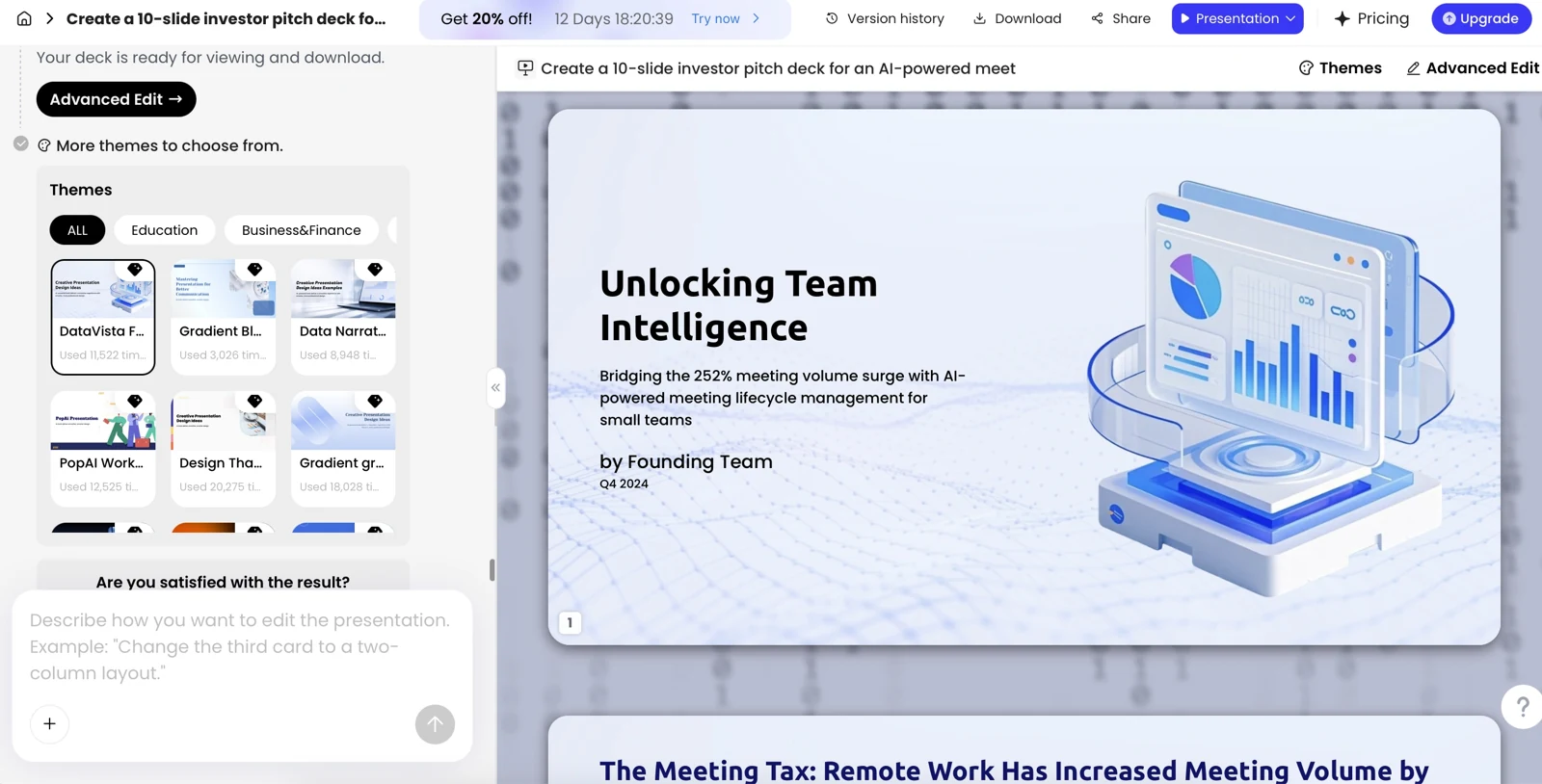
A practical town hall example you can adapt
This hypothetical quarterly update shows how source notes, an AI outline, and human review fit together.
Source packet: An approved scorecard with three quarterly indicators, a strategy memo, two team updates, one customer story cleared for internal use, and anonymized employee questions. The objective is to explain progress and the next quarter’s priorities. One scorecard comparison uses different employee populations across periods, and one submitted question asks about an individual’s role.
Draft agenda for 45 minutes: 3 minutes for the objective and context; 10 for verified results; 8 for next-quarter priorities and employee implications; 5 for the customer story; 15 for moderated Q&A; and 4 for decisions, open questions, and next steps.
Review decision: The first outline says, “Retention rose from 88% to 91%.” The communications lead checks the scorecard, finds the populations differ, and removes the trend claim. The revised slide reports the current-quarter figure with a caveat, pending a comparable calculation from the People Analytics owner. The personal role question is redacted and routed to the appropriate private channel rather than shown on a public slide.
Follow-up: The recap owner publishes the recording and approved slides, lists the comparable retention figure as unresolved, and names the People Analytics owner with a response date of the following Wednesday. If employees still lack clarity after that update, the communications lead adds the issue to the next briefing agenda. The example uses illustrative details; replace them with approved figures, owners, and dates for your organization.